
FaceTime Like a Pro
Get our exclusive Ultimate FaceTime Guide 📚 — absolutely FREE when you sign up for our newsletter below.

FaceTime Like a Pro
Get our exclusive Ultimate FaceTime Guide 📚 — absolutely FREE when you sign up for our newsletter below.


macOS Golden Gate 27.2 developer beta 4 previews Apple's expanded Siri AI language support ahead of the wider public rollout, giving developers a first look at the next major macOS update.
 ByVikhyat
Apple has now seeded macOS Golden Gate 27.2 developer beta 4, likely the last build before the Release Candidate. With the stable version of macOS Golden Gate (27.0.1) already available to everyone through Software Update, the developer beta program is now the way to test upcoming features before they roll out publicly. macOS Golden Gate 27.2 brings expanded Siri AI language support (French, Japanese, Korean, Portuguese, and Spanish), compatibility with Apple’s new HomeView experience that works with the new Apple TV 4K and HomePod mini 2, and refinements across core apps on top of the full macOS 27 feature set.
Beta 4 (build 26B5112a) arrived about a week after beta 4, with Apple shifting into the final-stretch cadence ahead of the public rollout expected later this month. Don’t expect major new user-facing changes in this drop, this stage is about bug fixes and polish. The broader Golden Gate feature set carries forward, including the new Siri app, AI-powered Shortcuts with natural-language prompts, a prompt-based Safari extension builder, redesigned traffic light window controls, and Golden Gate-themed wallpapers and screensavers.
Worth noting: macOS Golden Gate is the first macOS release built exclusively for Apple silicon. If your Mac runs an Intel processor, you’ll have stopped receiving upgrades at macOS Tahoe. Intel apps still run via Rosetta 2 for now, but the transition is complete.
If you want to be among the first to experience what’s coming next, here’s how to download and install macOS Golden Gate 27.2 developer beta on your Mac.
Before you download the beta, keep the following points in mind:
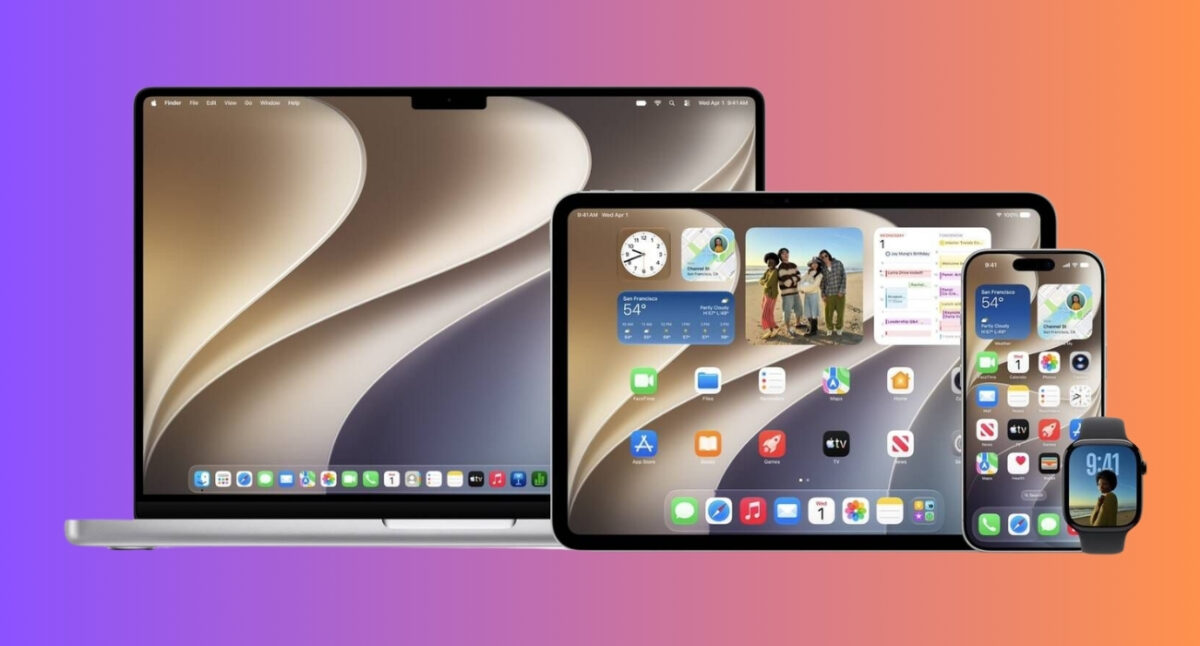
Apple has confirmed that macOS 27 supports the following Mac models:
To receive beta updates on your Mac, you first need to enroll in the Apple Developer Program. Rest assured, there’s no fee involved. Here’s how:
Once enrolled, your Mac will become eligible for developer beta updates.
Signing up for the Apple Developer Program doesn’t automatically push the macOS 27.2 developer beta to your Mac. Once you’re enrolled, you still need to turn on developer beta updates in System Settings. After that, macOS 27 developer beta should appear in Software Update, ready to download and install.
If you’ve successfully enrolled in the Apple Developer program but the beta update isn’t showing up, try the following:
Now that macOS Golden Gate 27 is publicly available through Software Update, the developer beta is really just a way to preview upcoming point updates like 27.2 before they ship to everyone. It gives you early access to new features and language additions Apple is rolling out through the fall, but it comes with the usual beta software trade-offs. You may run into bugs, app compatibility issues, unexpected battery drain, or performance hiccups that can affect day-to-day use.
I usually recommend installing developer betas on a secondary Mac if you have one; otherwise, stick with the stable macOS Golden Gate 27 release or wait for the 27.2 public beta. That way, you can try the new features without risking your primary workflow.
If you no longer wish to receive beta updates on your Mac, follow these steps:
After turning off Beta Updates, your Mac will stop receiving future macOS Golden Gate 27.2 beta builds. You’ll remain on your current beta version until Apple releases a newer public version of macOS. Once a stable release newer than your installed beta becomes available, you can update to it through Software Update without re-enabling beta updates.
If you’d rather leave the beta program immediately and return to a stable version of macOS, you’ll need to erase your Mac and reinstall the latest public release. You can then restore your data using a backup created before installing the macOS 27.2 developer beta. This is why backing up your Mac before installing beta software is always recommended.
macOS Golden Gate 27.2 developer beta 4 gives Mac users a near-final look at the next update before public release. This build focuses on bug fixes and stability on top of the stable 27.0.1 release, with the headline addition being Siri AI support for French, Japanese, Korean, Portuguese, and Spanish, plus compatibility with the new HomeView experience arriving with Apple’s new Apple TV 4K and HomePod mini 2. The public rollout of 27.2 is expected before HomePod mini 2 lands on October 30.
If you prefer a smoother ride, the public beta is a safer option for most users, and the stable macOS Golden Gate 27.0.1 release is already available if you’d rather skip testing unfinished software altogether.
Have you installed macOS Golden Gate 27.2 developer beta 4 yet? Let us know what feature you are most excited to try in the comments!
Read More:











