FaceTime Like a Pro
Get our exclusive Ultimate FaceTime Guide 📚 — absolutely FREE when you sign up for our newsletter below.

FaceTime Like a Pro
Get our exclusive Ultimate FaceTime Guide 📚 — absolutely FREE when you sign up for our newsletter below.


Want to appear offline in Fortnite? This guide shows the best ways to hide your online status, avoid invites, and enjoy the game without interruptions from friends or other players.
Online competitive gaming can be tiresome, and Fortnite’s case is no different. At times, you may just want to quickly play a match or two before getting off. On other days, you may only want to explore the Item Shop and not actually play a match. In such instances, it’s reasonable to want to hide your active status in the game and avoid getting any match invites.
While Fortnite may not let you appear offline in the traditional sense, there are certain settings you can change to get the closest possible scenario. Making such tweaks can give the impression that you are away from your console or PC, even though Fortnite is running on the system. The following guide tells you how to go about doing just that.
Fortnite doesn’t have an offline status marker, but it does have something close called the “Away” status option. Selecting it changes the green dot next to your profile icon to a crescent moon icon, signaling that you are not actively playing Fortnite. To change your in-game status, follow these steps:
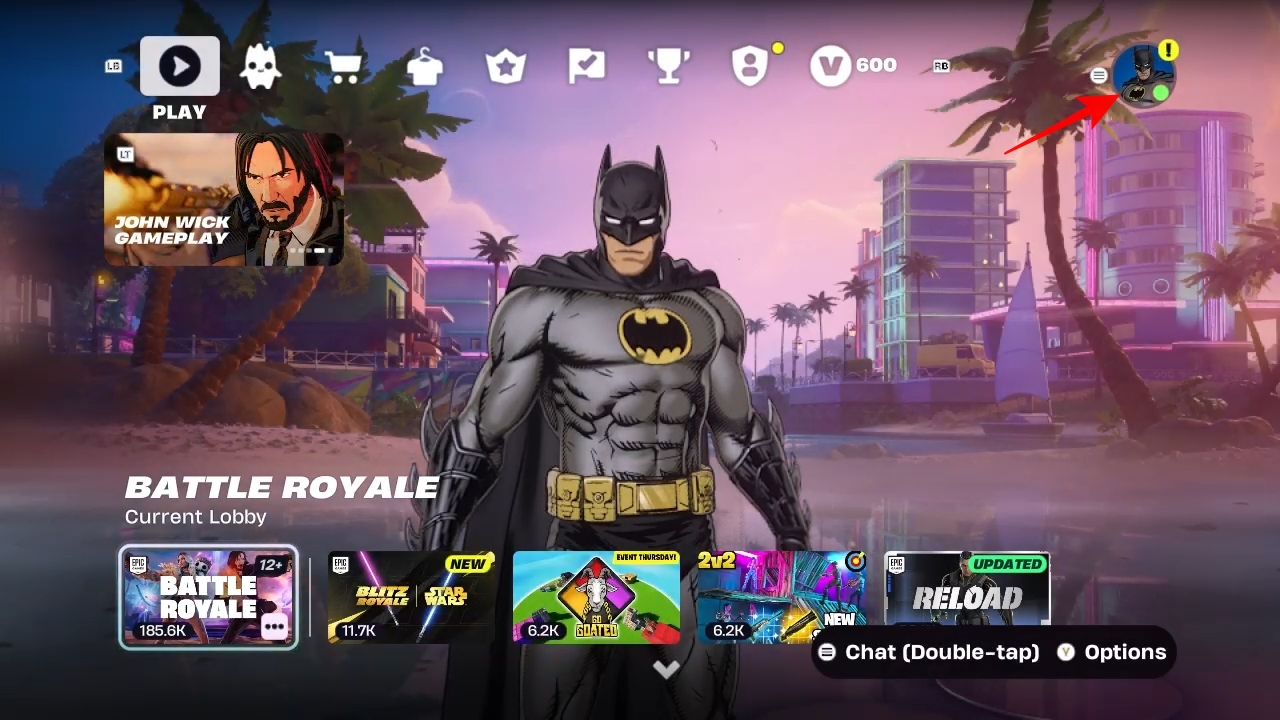
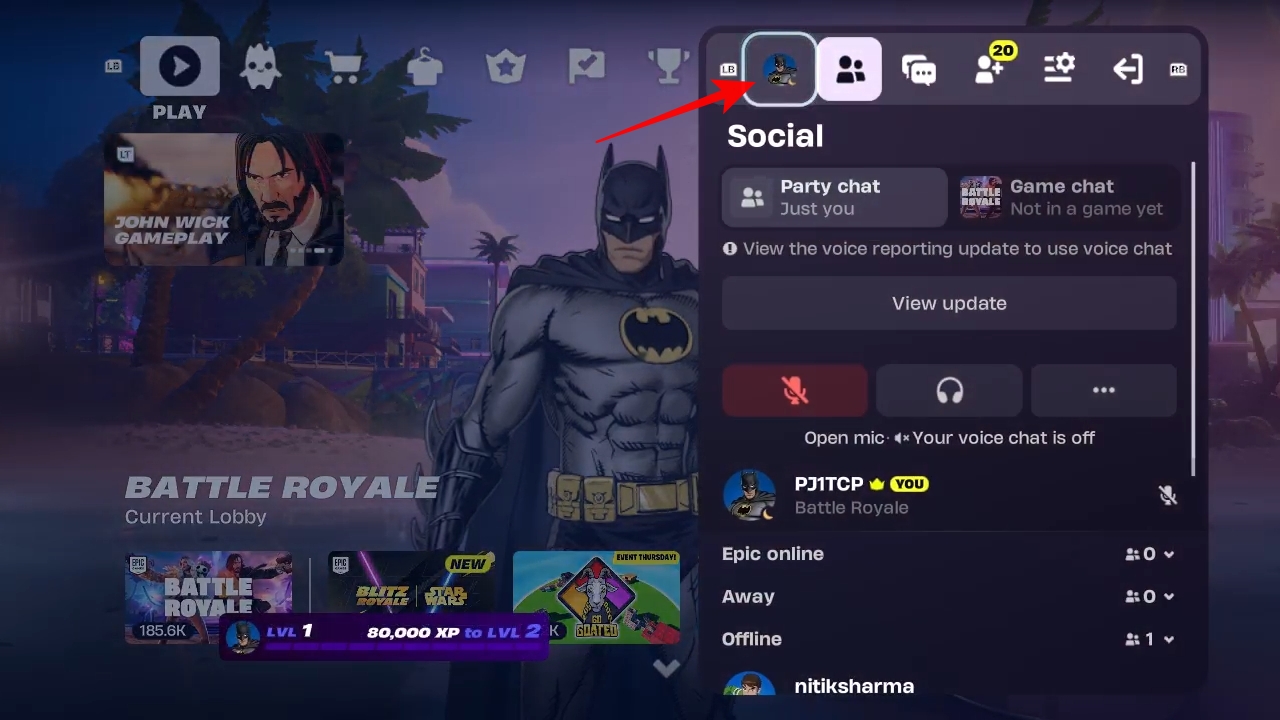
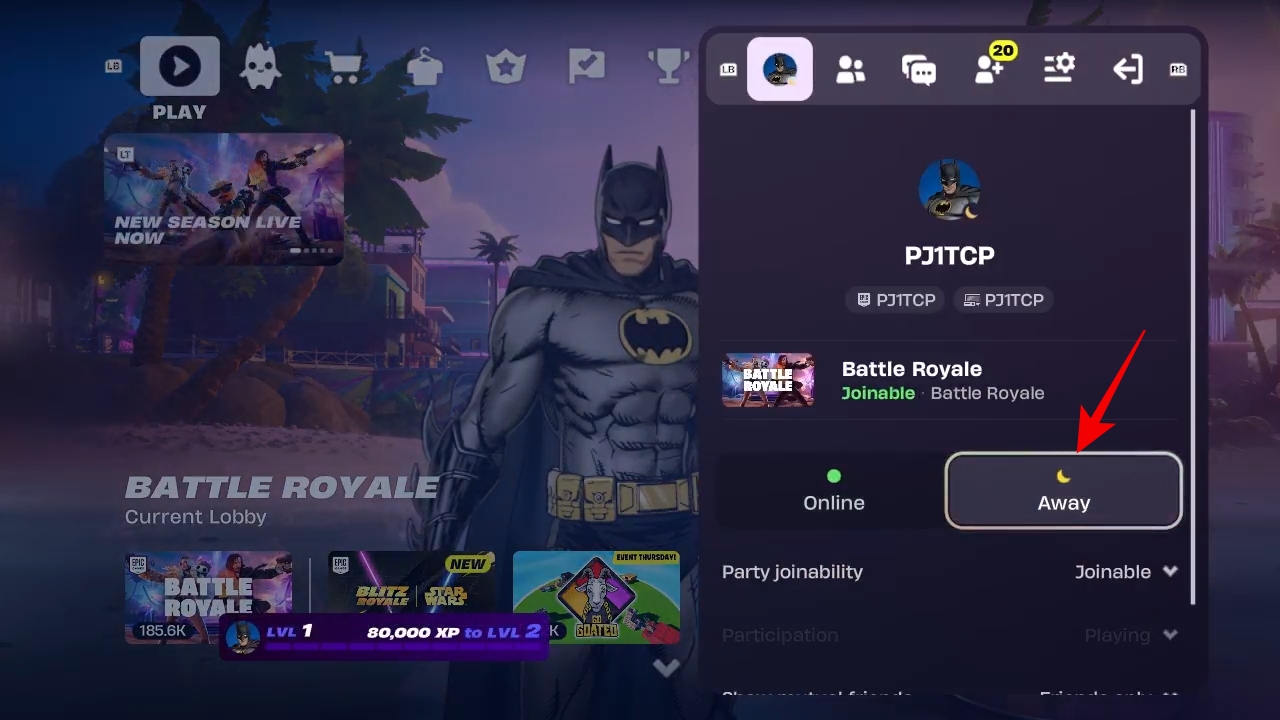
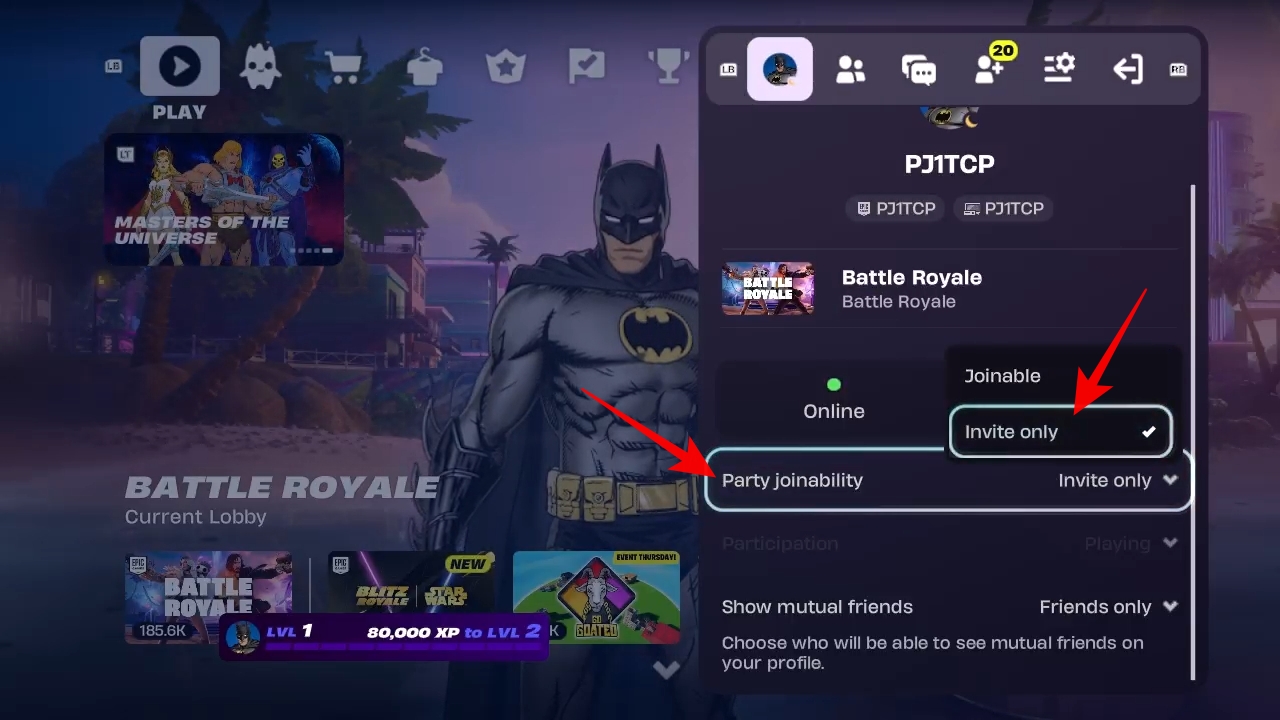
There can be times when you want to play exclusively with a certain group of Fortnite friends. On those days, it can be annoying and awkward if someone else on your friends list joins the private lobby, aka party. To avoid such a situation, you can change the party settings in a way that no one else can join it without your permission. By following the steps below, you can easily apply this setting:
Must read: Fortnite’s best controller settings
Similar to Fortnite, Epic Games Store also doesn’t offer a traditional offline status marker for the game’s players on PC. However, if you are on PlayStation, Xbox or Switch, there is indeed a way to set yourself as offline.
On PS5:
On Xbox Series X|S:
On Switch 2 or Switch:
All these setting tweaks together should be a good workaround for mimicking an offline status in Fortnite. Even though it doesn’t guarantee you’re invisible from other friends online in the game, it does ensure you can still have a private gaming session to an extent.

Although a proper offline option has been requested by many Fortnite players for a long time, Epic Games hasn’t shown enough interest to implement one yet. So, my advice would be to not hold your breath for such an option anytime soon. For now, it’s best to go with the aforementioned setting changes as they mostly fulfill the purpose of the offline status marker.
Missed This? Check It Out: