FaceTime Like a Pro
Get our exclusive Ultimate FaceTime Guide 📚 — absolutely FREE when you sign up for our newsletter below.

FaceTime Like a Pro
Get our exclusive Ultimate FaceTime Guide 📚 — absolutely FREE when you sign up for our newsletter below.


Apple Pay launches in India with Axis Bank Visa and Mastercard credit cards. See supported devices, setup, merchant acceptance, fees, and payment security.
Apple Pay is officially available in India, starting with Axis Bank-issued Visa and Mastercard credit cards. Customers can add an eligible card to Wallet and use their iPhone or Apple Watch for contactless payments, with in-app and web checkout also available on iPhone and iPad.
Apple announced the launch on September 30, following earlier reports of a September or October rollout. Mac support is coming soon.
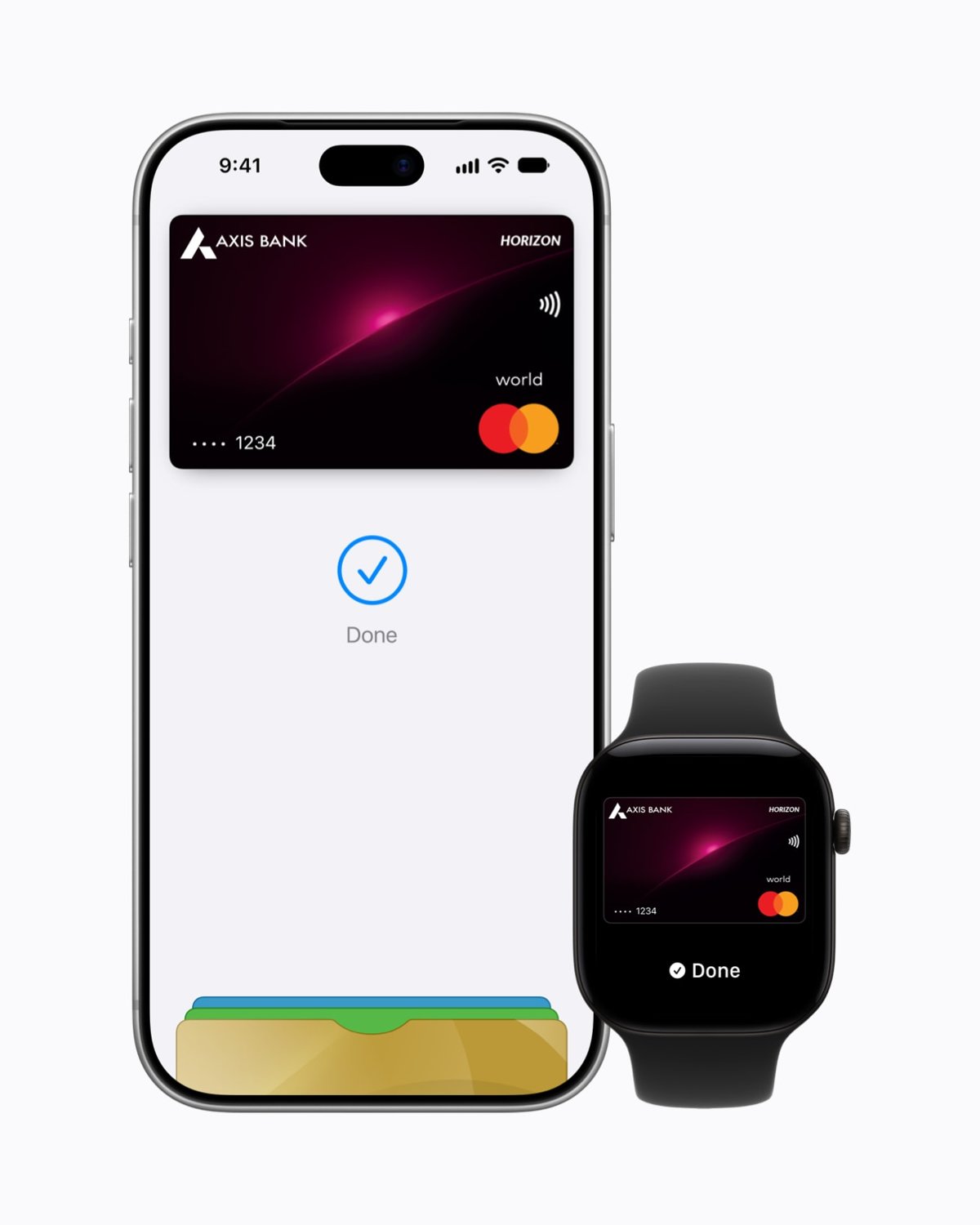
The initial rollout covers Axis Bank Visa and Mastercard credit cards. Apple has not announced support for Axis debit cards, RuPay cards, other Indian banks, or UPI in this release. Having an Axis account alone is not enough; your credit card must be eligible.
Apple lists these requirements for India:
You need an Apple Account signed in on the device and a passcode set up. Keep your software updated and enable two-factor authentication for your Apple Account.
You can add a supported card through the latest Axis Bank app or directly in Wallet:
For Apple Watch, use Watch app → My Watch → Wallet & Apple Pay → Add Card on your paired iPhone. On iPad, use Settings → Wallet & Apple Pay → Add Card.
At a contactless terminal, double-click your iPhone’s side button, authenticate with Face ID or your passcode, and hold the top of the phone near the reader until Done appears. Supported Touch ID devices use the Home button. On Apple Watch, double-click the side button and hold the display near the reader.
Online or in apps, select Apple Pay, review the payment and shipping details, and authenticate. Our Apple Pay setup guide explains the general process.
Launch merchants include Apple Stores, Blinkit, Chaayos, Comet, Croma, Interflora, Ixigo, Le15 Patisserie, Reliance brands, Tata 1mg, and Zomato. Apple has worked with payment providers including Cashfree, Juspay, Mswipe, Paytm, PayU, Pine Labs, Razorpay, and Worldline.
Look for contactless acceptance in stores or an Apple Pay button at checkout. The merchant must also accept your card and its payment network.
Apple charges no fee for using the service. Your issuer’s usual card charges still apply, and existing rewards and benefits continue. Overseas purchases remain subject to your bank’s international usage rules and fees.
In-store payments on iPhone and Apple Watch work without Wi-Fi or mobile data. Transaction history may refresh after you reconnect.
The launch does not include UPI integration, so ordinary UPI QR payments and bank transfers still need your UPI app. Participating websites may offer an Apple Pay QR checkout, but that is a separate payment flow. Apple Cash remains US-only.
Apple Pay uses a device-specific payment number and a unique transaction security code instead of sharing your actual card number with merchants. If your device goes missing, Find My’s Lost Mode suspends Apple Pay.
Refunds follow the merchant’s policy and return to your payment card. Some merchants need the last four digits of the Apple Pay card number, which differs from your physical card number. Find it under Wallet → your card → More → Card Number.
If Wallet shows Could Not Add Card, Invalid Card, or Card Device Limit, check your card eligibility, device software, and account security, then contact Axis Bank. The bank approves cards for Apple Pay; Apple does not.
Apple has not announced when more Indian banks or card types will join the service.