
FaceTime Like a Pro
Get our exclusive Ultimate FaceTime Guide 📚 — absolutely FREE when you sign up for our newsletter below.

FaceTime Like a Pro
Get our exclusive Ultimate FaceTime Guide 📚 — absolutely FREE when you sign up for our newsletter below.


AssistiveTouch on iPhone and iPad gives you instant access to powerful shortcuts. Learn how to turn it on, customize it, and make everyday tasks effortless.
When you enable AssistiveTouch on your iPhone or iPad, you unlock a world of smart shortcuts and time-saving hacks. With just a tap, you can take screenshots, adjust volume, restart your device, and perform several powerful actions effortlessly.
If you want to master this accessibility gem, you’re in the right place. Let’s dive into how to turn on, customize, and make the most of AssistiveTouch on iPhone and iPad.
AssistiveTouch is one of Apple’s most useful accessibility features, designed to make iOS navigation easier and faster. While it’s primarily created to help people with physical or motor challenges, it’s equally handy for everyday users who want quicker access to essential functions.
When enabled, a small floating button appears on your screen. Tap it once, and a menu full of actions pops up. From taking screenshots and locking your screen to invoking Siri or launching the App Switcher, AssistiveTouch acts like a powerful control hub sitting right on your Home Screen.
And the best part? You can fully customize this button to match your preferences.
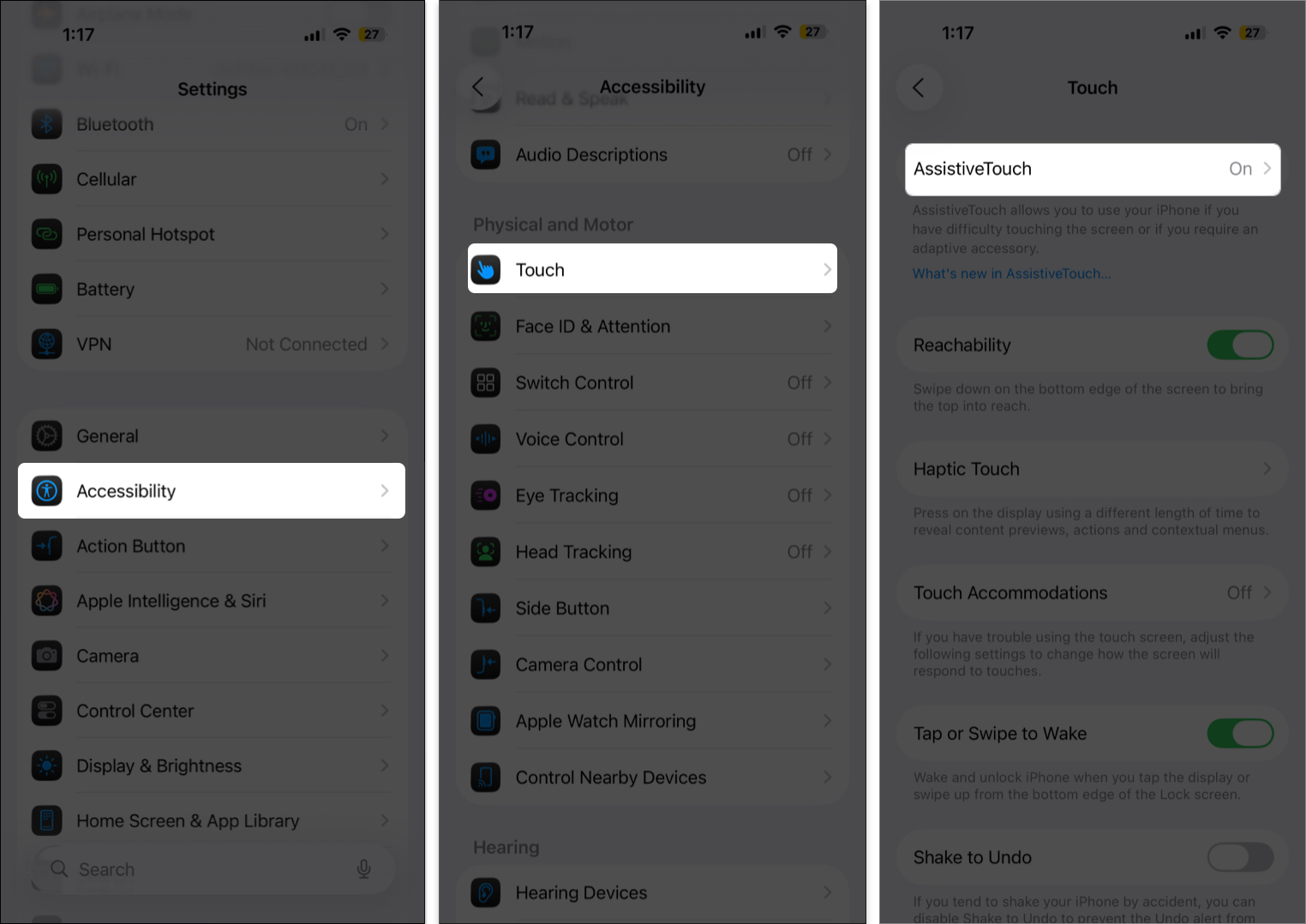
There are three easy ways to enable AssistiveTouch:
Just say, “Hey Siri, turn on AssistiveTouch.” Siri will instantly activate it for you.
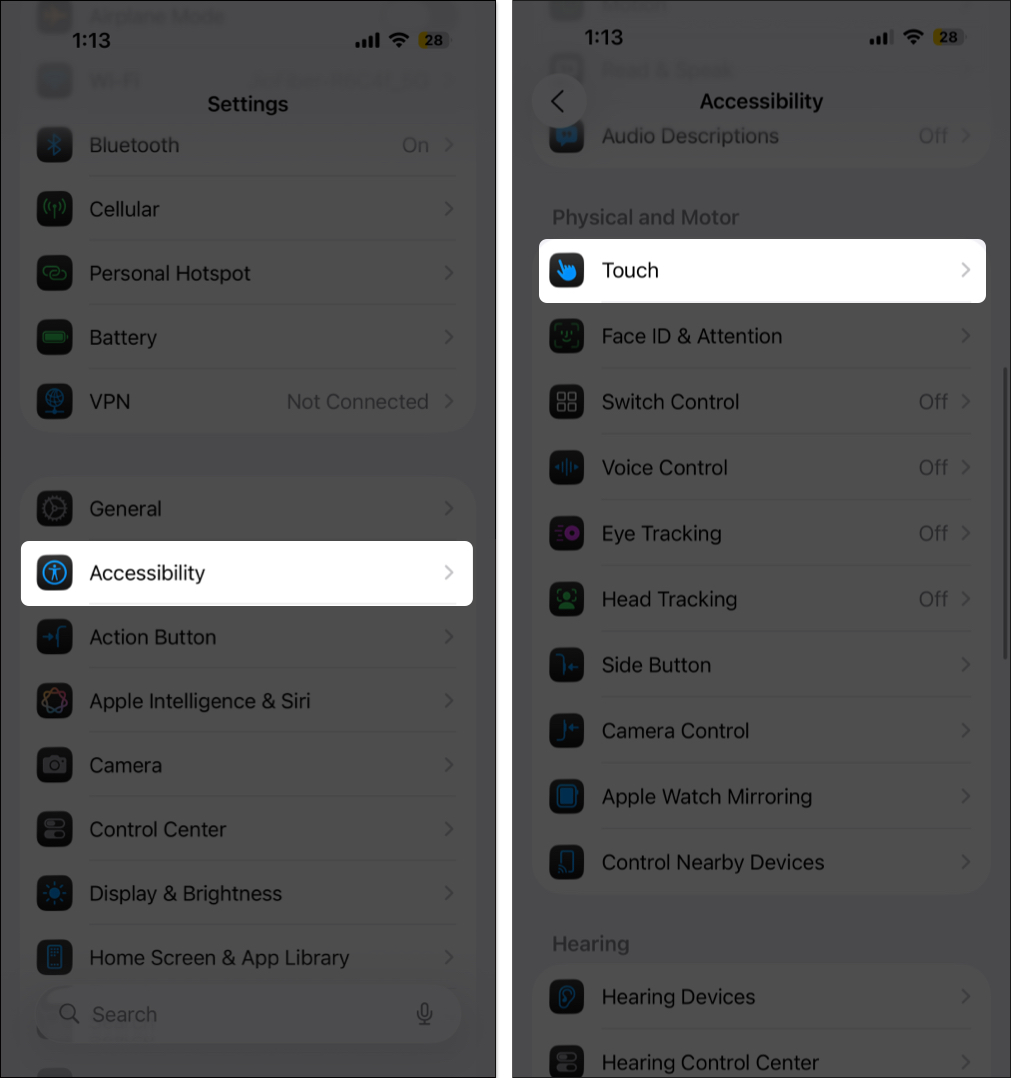
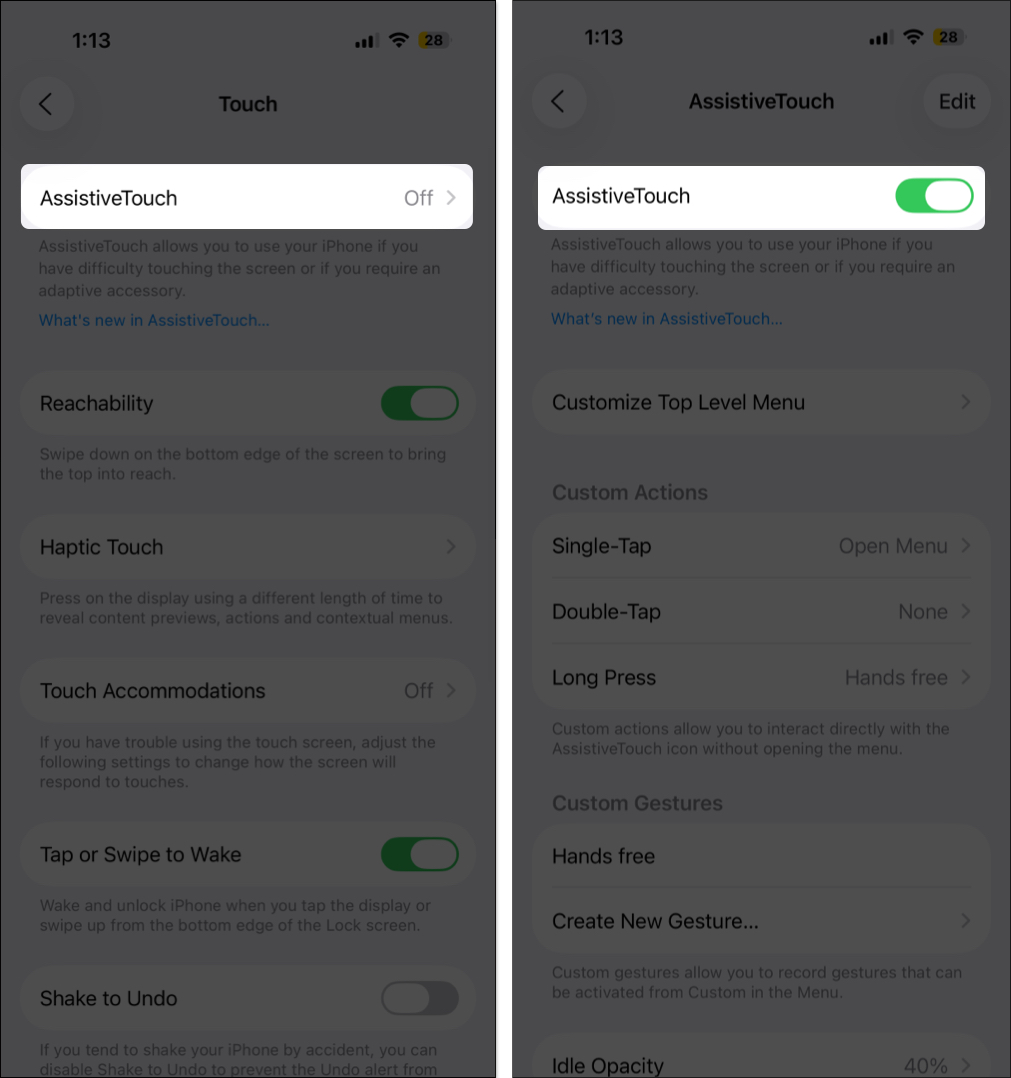
A circular button will appear on your screen. You can drag it anywhere along the edge, and it will stay there until you move it again.
Go to Settings → Accessibility → Accessibility Shortcut, and select AssistiveTouch.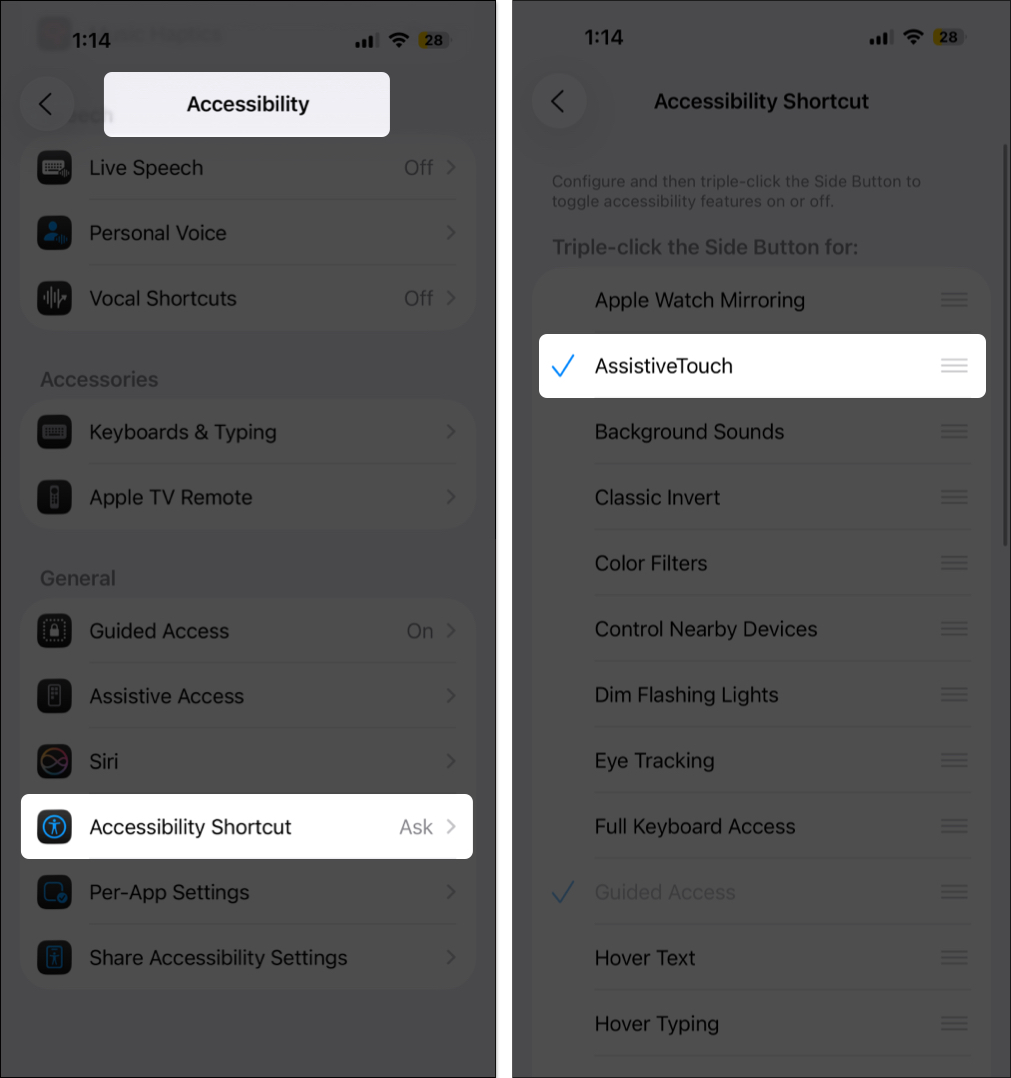
Now, you can quickly enable or disable AssistiveTouch by pressing the side or Home button three times.
Using AssistiveTouch is simple. Tap the floating button to open the menu, and tap anywhere outside the menu to close it.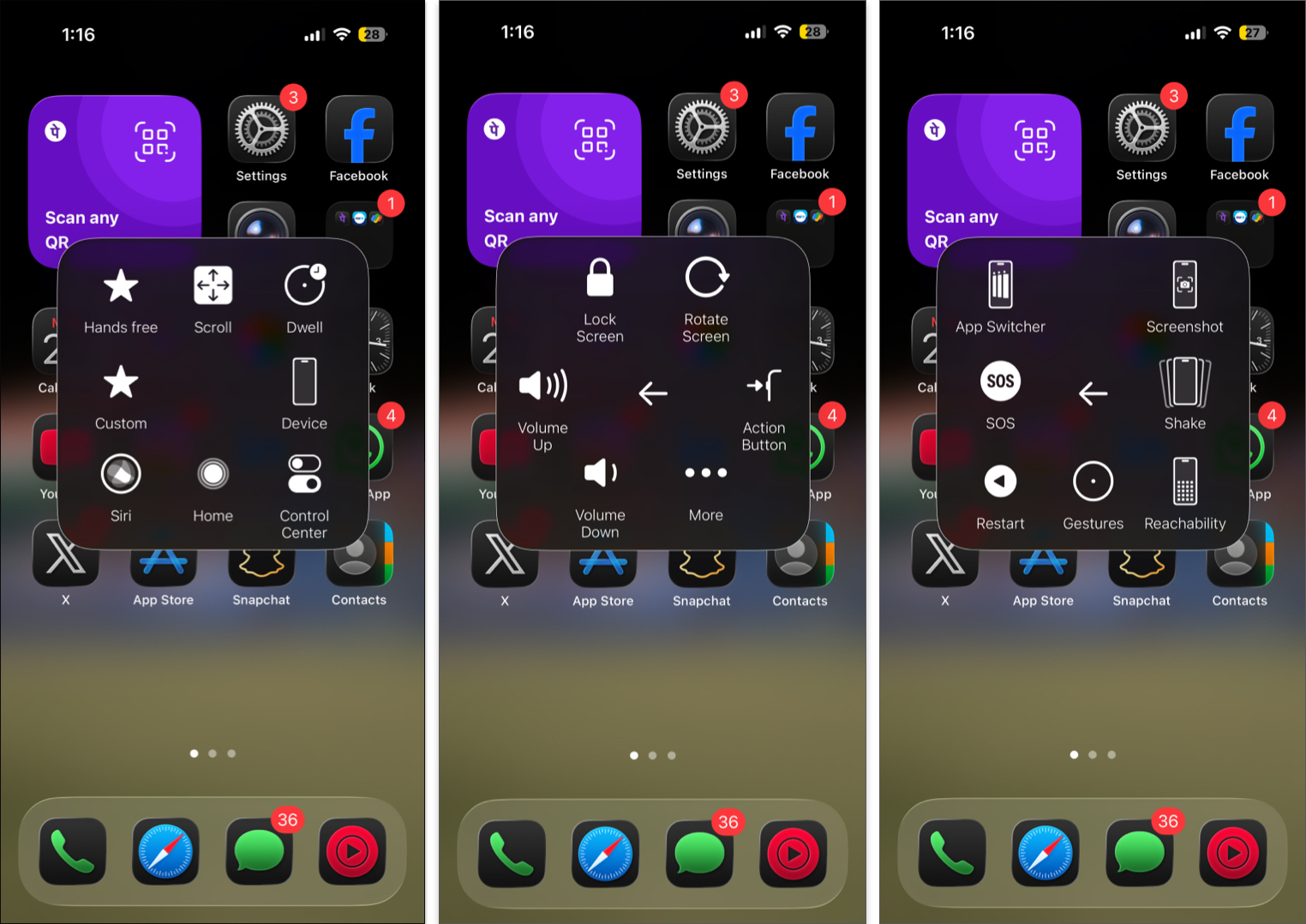
Here’s what you’ll find in the default AssistiveTouch menu:
You can tweak this menu to include the tools you use most.
Also known as the Top Level Menu, this is where you can personalize the AssistiveTouch layout.
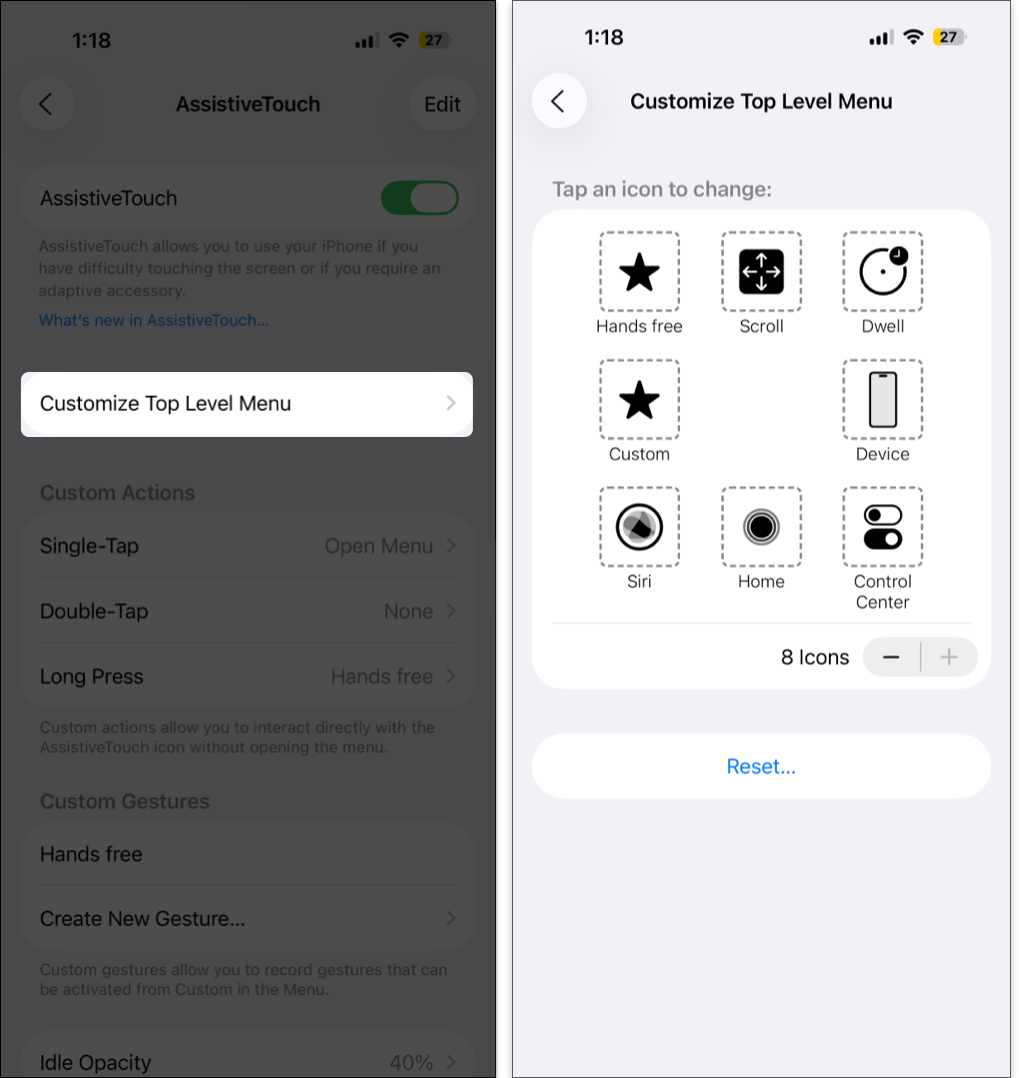
You can add up to 8 shortcuts or keep it minimal with just one. If you ever want to revert to the original layout, simply tap Reset.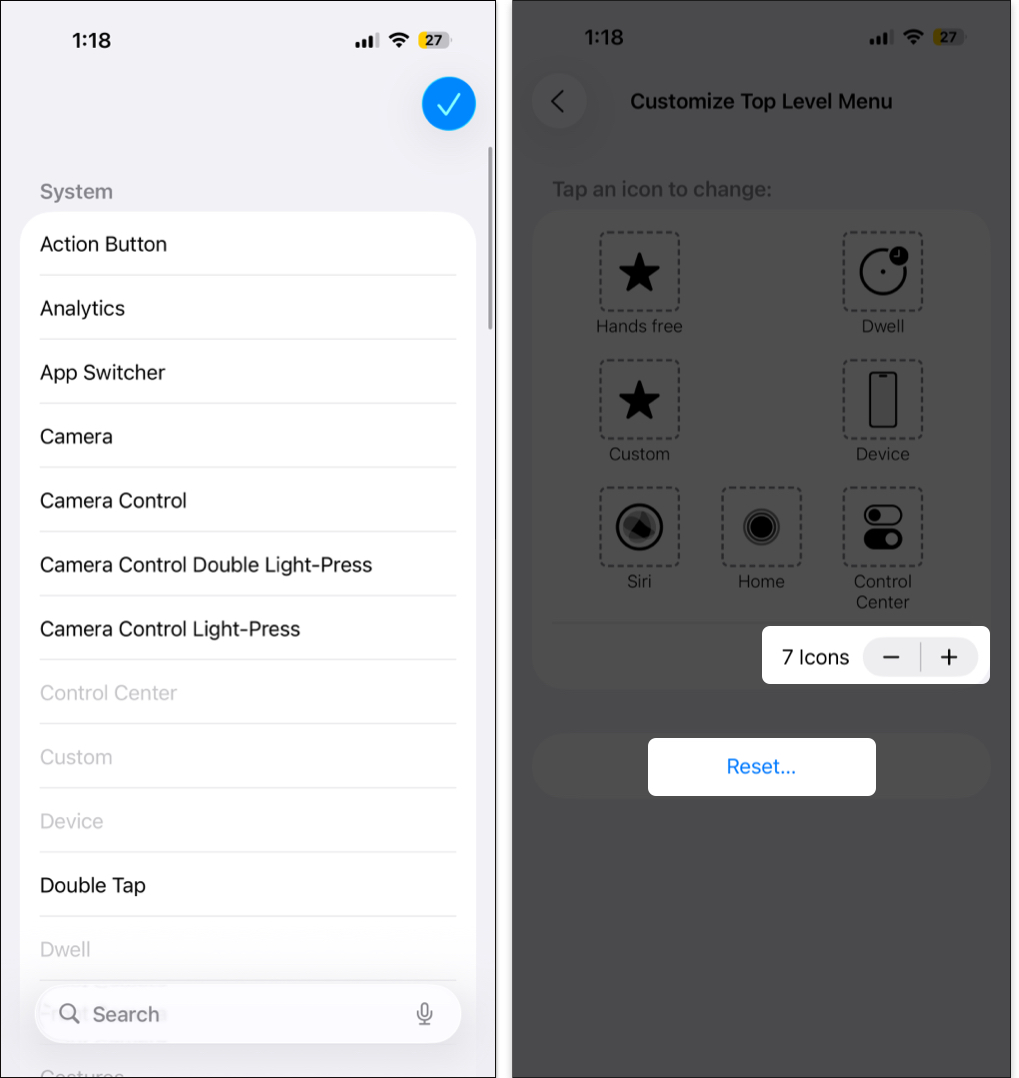
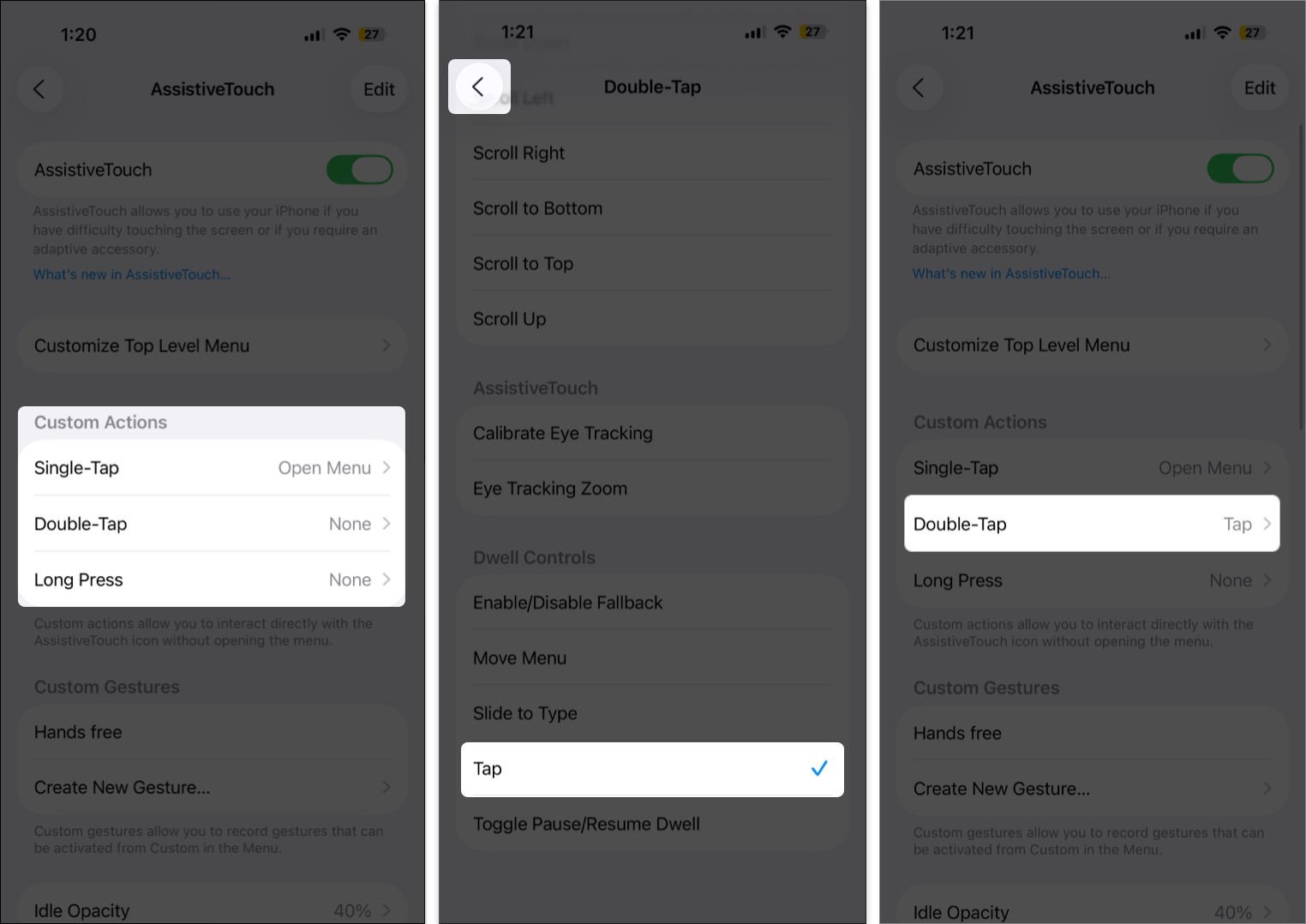
AssistiveTouch also supports Custom Actions, allowing you to perform quick commands without even opening the menu.
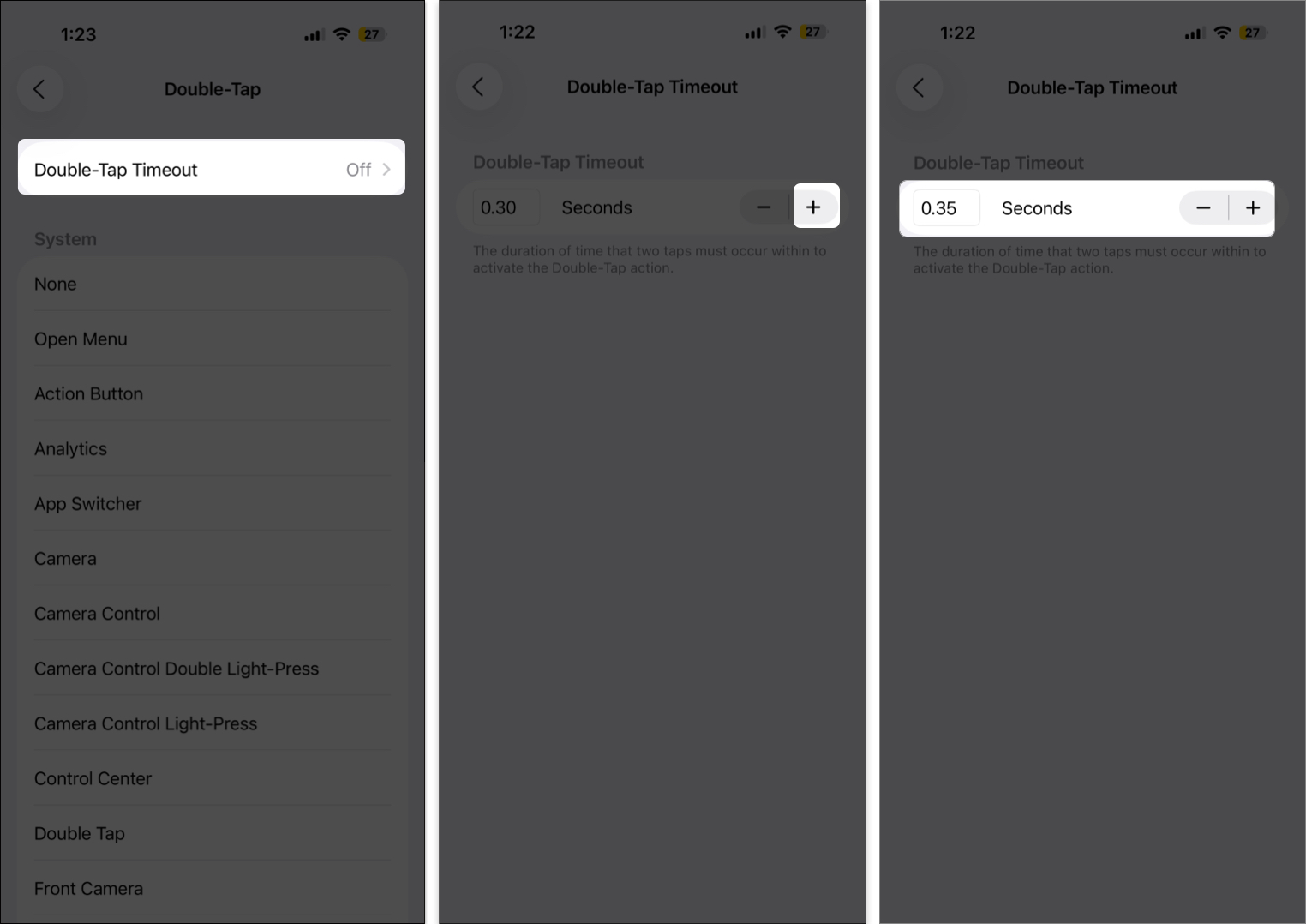
Want to make your own gestures? You can record taps and swipes that execute specific movements on-screen.
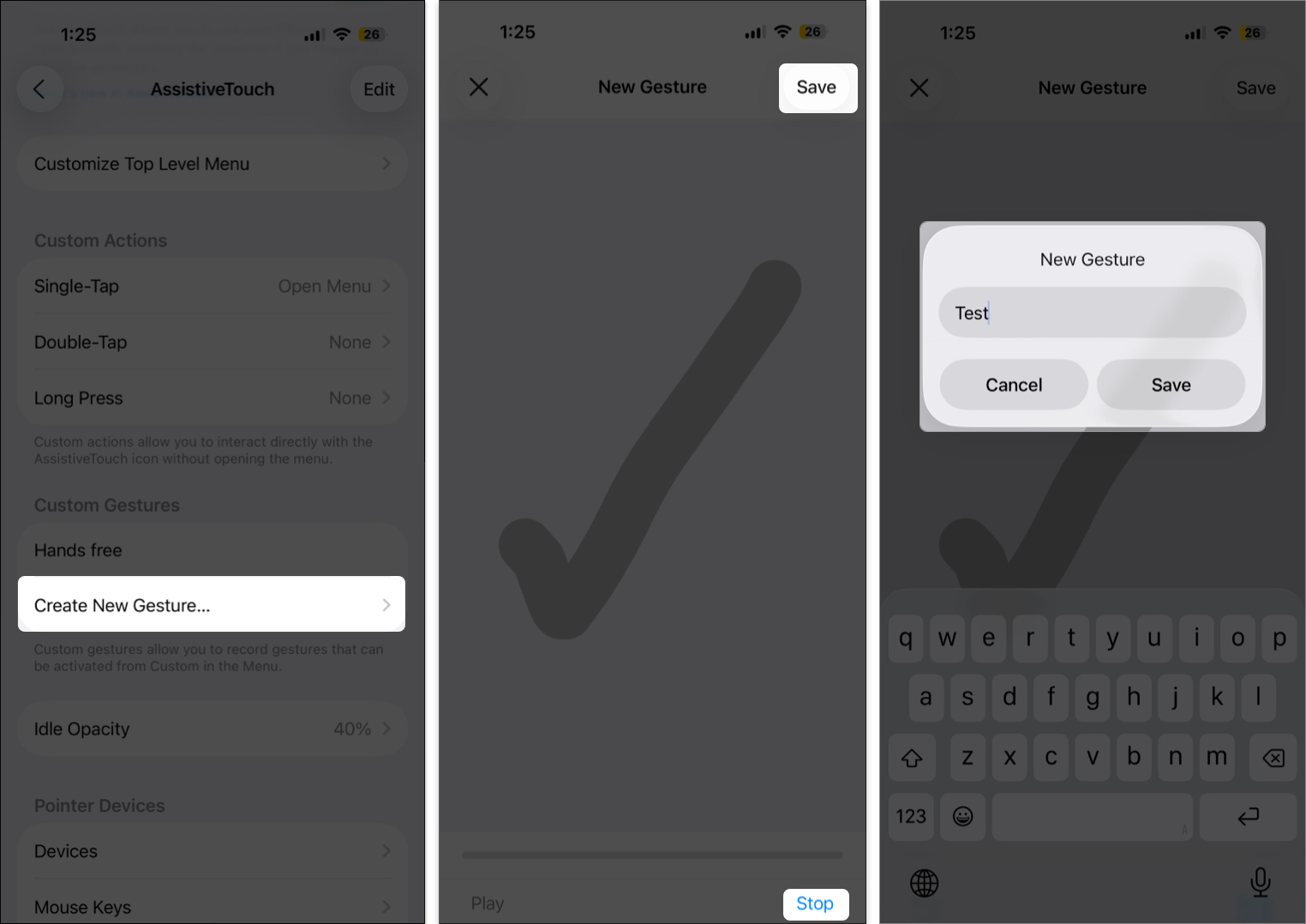
To use it, tap the AssistiveTouch button → Custom → your gesture name. A translucent dot will appear—tap it to perform the action.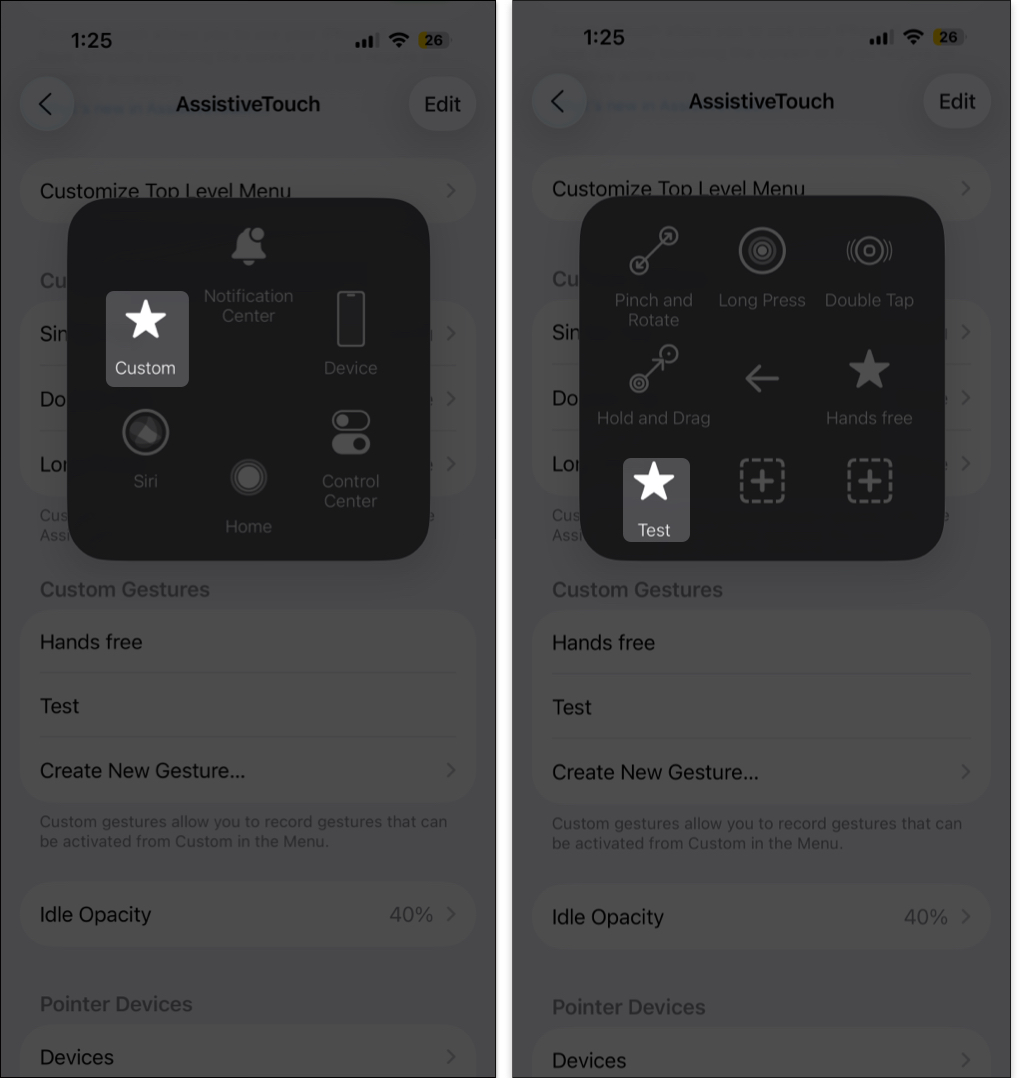
To delete a gesture, tap Edit at the top right, select the minus icon, and confirm.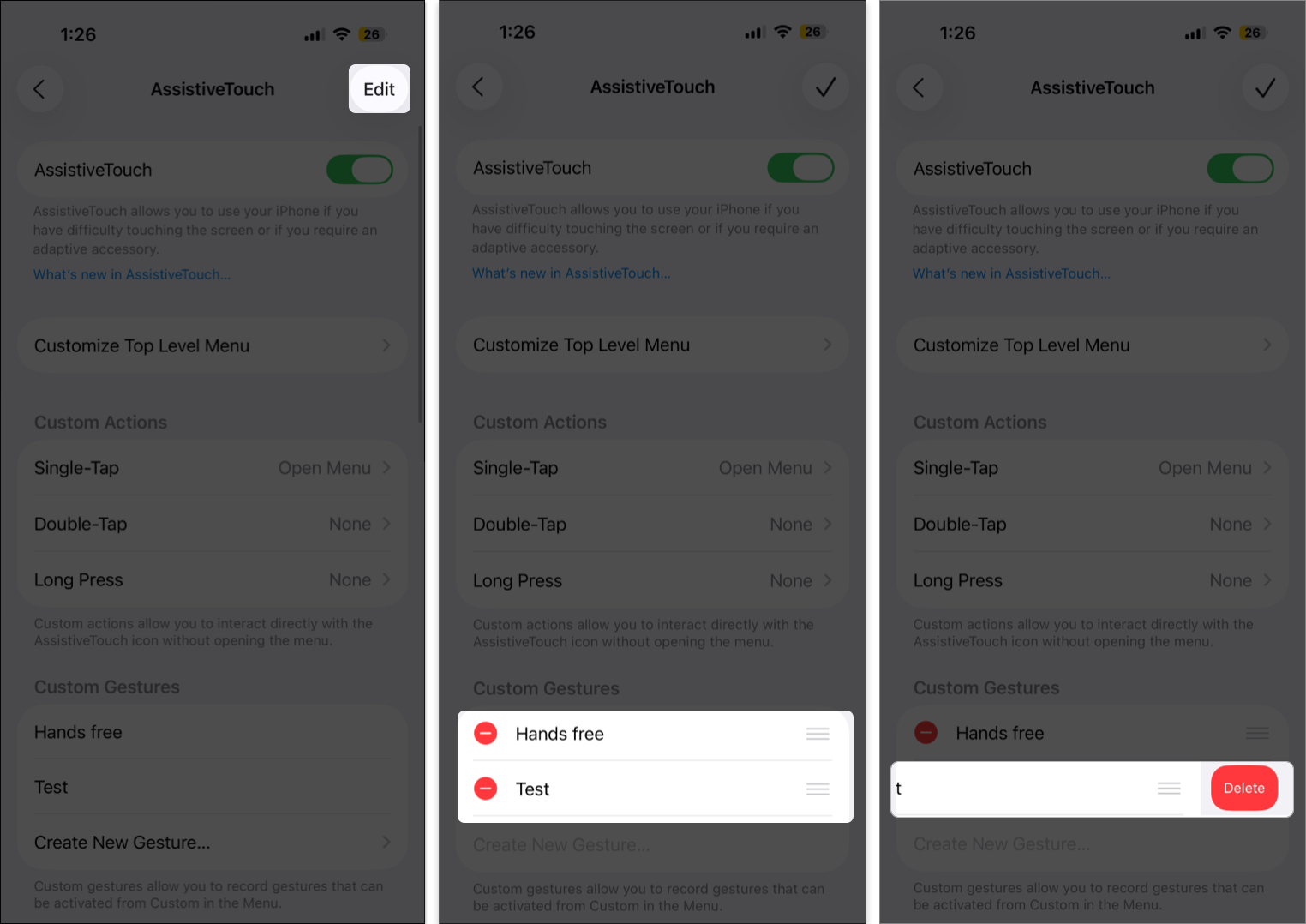
AssistiveTouch only recognizes gestures, not tasks like making calls. For instance, you can create a “scroll down” gesture for reading apps to move the screen automatically.
With iOS 13 and iPadOS 13 or later, Apple added support for external pointing devices like Bluetooth mice and trackpads.
AssistiveTouch helps you connect and control these devices easily, especially on iPad, where mouse compatibility feels smoother and more natural.
To disable AssistiveTouch, either:
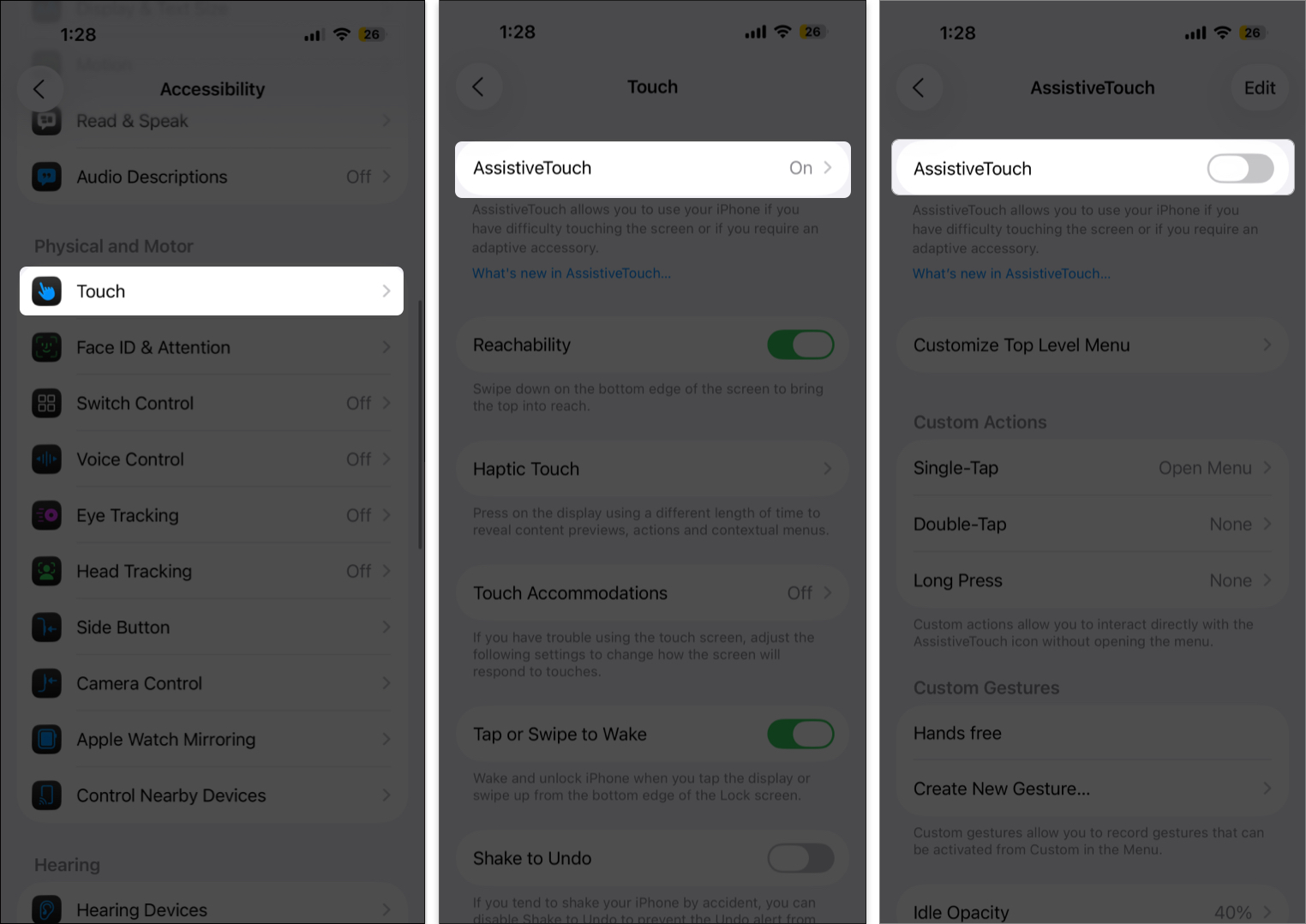
If you’ve added it to the Accessibility Shortcut, triple-press the side or Home button to turn it off instantly.
Once you get the hang of AssistiveTouch, it can truly transform the way you use your iPhone or iPad. Whether you need it for accessibility or convenience, it’s one of those underrated iOS features you’ll wonder how you lived without.
iOS is packed with other amazing accessibility tools too, explore them and see how they can make your experience even smoother.
Don’t miss these related reads:












