FaceTime Like a Pro
Get our exclusive Ultimate FaceTime Guide 📚 — absolutely FREE when you sign up for our newsletter below.

FaceTime Like a Pro
Get our exclusive Ultimate FaceTime Guide 📚 — absolutely FREE when you sign up for our newsletter below.


Can’t join Roblox games? Error Code 279 is a connection issue. Here’s what’s causing it and the exact steps to fix it quickly.
You launch Roblox, join a game, and suddenly hit Error Code 279. Everything else on your internet works fine, which makes it even more confusing.
Here’s what’s actually happening: your device is unable to maintain a stable connection with Roblox’s game servers.
The good news is this isn’t an account issue or ban. It’s a connection problem, and in most cases, it’s fixable within minutes once you know where to look.
Error Code 279 appears when your device cannot connect to a Roblox game server. You may also see “ID=17 failure” or a message saying the game failed to connect.
In plain terms, your device tries to request game data, but that request never completes. The connection is either blocked, too slow, or unstable.
This is not an account problem. You are not banned. It is purely a connection issue.
This error usually comes down to something interrupting your connection between your device and Roblox servers. Common reasons include:
Even if your internet “works,” Roblox needs a stable and consistent connection. Small drops or delays can trigger this error.
Before you change settings or reinstall apps, make sure the problem is actually on your side.
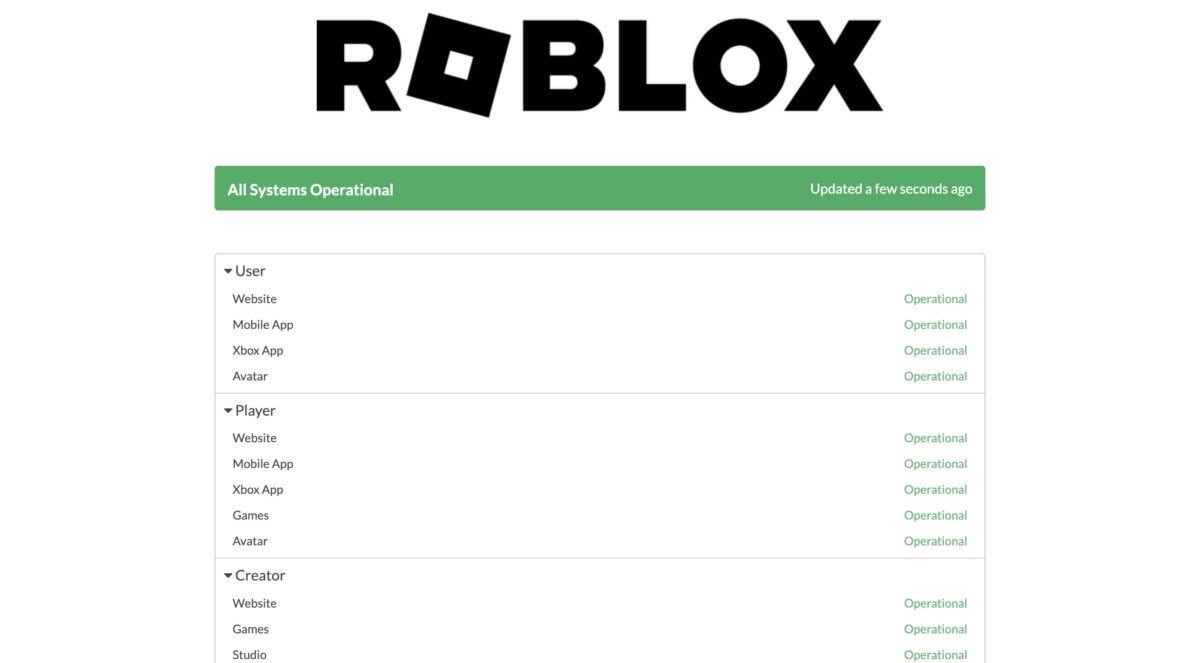
If servers are down, there is nothing to fix. Just wait until the servers are back up, and you should be able to play without any fixes from your end.
Start with a clean reset of both your device and your network. This refreshes temporary glitches that can interrupt the connection.
Related: How to restart an iPhone or iPad (All models)
Roblox needs a stable connection, not just a working one. If your network is weak, overloaded, or inconsistent, Error Code 279 can keep showing up even when other apps seem fine.
Start by making sure your internet is not dropping. Pause any downloads, streaming, or updates running in the background, and if several people or devices are heavily using the same network, reduce that load for a while.
It also helps to check your connection quality. Roblox generally needs at least 4–8 Mbps download speed, but speed alone is not everything. Low ping and no packet loss matter just as much. If your connection keeps fluctuating, Roblox may fail to stay connected.
Use another connection to quickly isolate whether your current network is the issue.
If it works on another network, your original connection is the issue.
Remove any extra routing between your device and Roblox to see if it restores a direct, stable path.
Turn off your VPN completely, disconnect any proxy settings you may be using, then restart Roblox and try again. If Roblox starts working normally after that, the VPN or proxy was the problem.
Make sure your system is not blocking Roblox’s network requests.
On Windows:
On macOS:
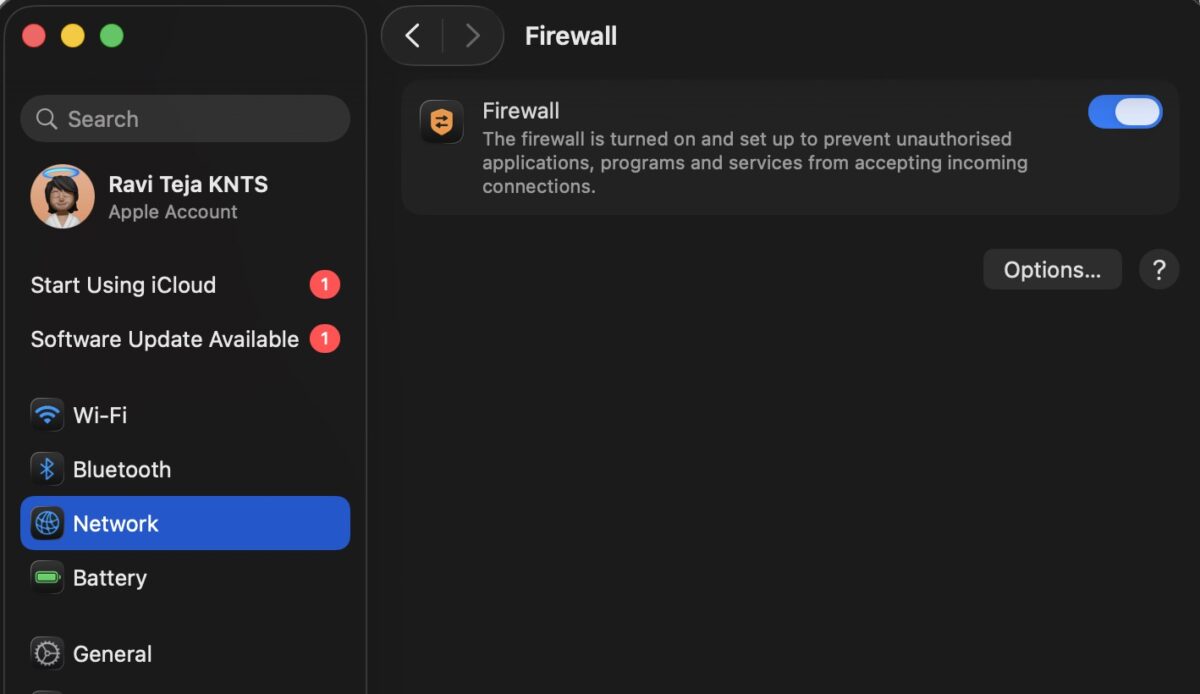
If you use antivirus software, allow Roblox in its exceptions or whitelist so it can access the internet without restrictions.
If you launch Roblox through a browser, remove browser-level conflicts that can stop the client from opening.
Try switching to a different browser first, such as Chrome, Edge, or Firefox. If that helps, your main browser is likely the issue. You should also disable extensions, especially ad blockers, because they can interfere with Roblox. If needed, create a fresh browser profile and test Roblox there. If it works in that clean setup, one of your extensions or browser settings is causing the error.
Refresh the Roblox client to rule out broken or outdated files.
If the issue continues, do a clean reinstall.
If basic fixes do not work, adjust deeper network settings to improve reliability.
Switching DNS can help your device resolve and reach Roblox servers more reliably.
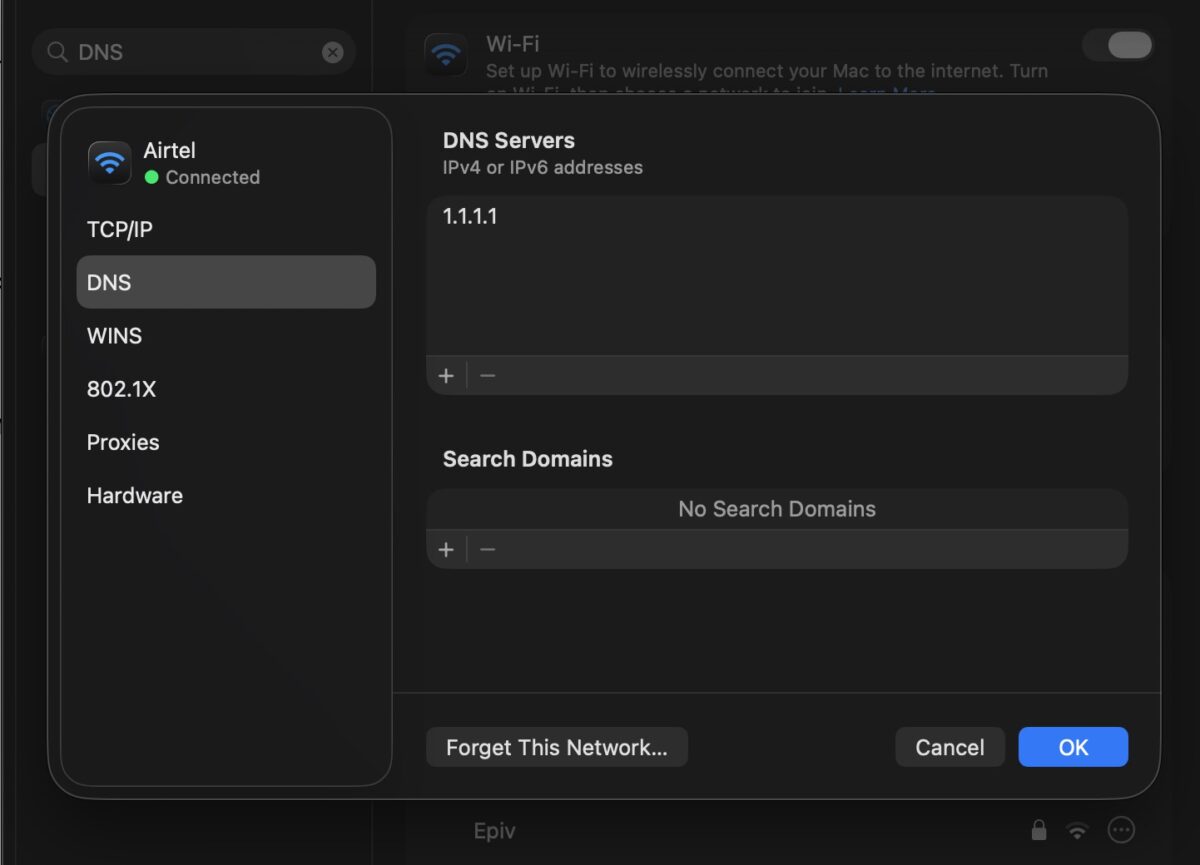
Ensure your network is not blocking the ports Roblox uses to communicate.
Make sure ports 80 and 443 are available for web traffic, and that the dynamic range 49152–65535 is not being blocked for game connections.
Check whether the issue is limited to a single experience.
In this case, you just need to wait for the developer to fix it.
You cannot avoid this error completely, but you can reduce how often it happens by keeping Roblox updated, using a stable internet connection, avoiding VPNs while playing, restarting your router once in a while, and not overloading your network with downloads or streaming during gameplay.
Roblox Error Code 279 is frustrating because it blocks you before you even enter the game.
But once you understand that it’s a connection issue, the fixes become straightforward. Start simple with a restart, then move to network checks, firewall settings, and reinstalling if needed.
In most cases, one of these steps resolves the issue quickly. If not, the problem is likely on Roblox’s end, and waiting is your best option.
More Like This: