FaceTime Like a Pro
Get our exclusive Ultimate FaceTime Guide 📚 — absolutely FREE when you sign up for our newsletter below.

FaceTime Like a Pro
Get our exclusive Ultimate FaceTime Guide 📚 — absolutely FREE when you sign up for our newsletter below.


Run Bitwarden on your own server with Vaultwarden. Same apps, simpler setup, and full control without the heavy deployment.
Bitwarden is already one of the best password managers out there. It’s open source, secure, and works reliably across platforms. But if you’re using the default setup, your vault is still stored on Bitwarden’s cloud. For most people, that’s perfectly fine, but it’s worth understanding what that actually means.
Your encrypted vault still lives on Bitwarden’s servers, and some features, like built-in TOTP (two-factor authentication codes) and file attachments, are locked behind the paid plan. Bitwarden does offer an official way to self-host everything, but in practice, the setup isn’t as simple or beginner-friendly as it sounds.
The official Bitwarden server is built like a business service, not a personal tool. It requires multiple Docker containers, a longer setup process and database and service choices are more explicit (MSSQL by default on the standard stack).
Even with the newer Lite setup, you are still dealing with a more structured deployment and paid Bitwarden features like TOTP and file attachments are not available either.
If your goal is just a personal password manager on your own machine or a small VPS, Vaultwarden becomes an obvious choice.
Also, you are just replacing the backend, so you can still use Bitwarden mobile apps, Bitwarden browser extensions and Bitwarden desktop app just like before. Same UI, same workflow. The only thing you change is the server URL in settings.
| Area | Bitwarden (official) | Vaultwarden |
|---|---|---|
| Setup complexity | Higher (server deployment) | Lower (single container) |
| Resource usage | ~200 MB+ (Bitwarden Lite) Full Bitwarden (2 GB minimum) | ~100–200 MB typical |
| Deployment | Multi-service / Lite image | Single container |
| Database | MSSQL default / multi DB | SQLite by default |
| Apps/UI | Bitwarden apps | Same Bitwarden apps |
| Passwords, notes, cards | Yes | Yes |
| Passkeys, SSH keys | Yes | Yes |
| Secrets Manager | Yes | No |
| SSO / enterprise features | Yes | No |
| Official support | Yes | No |
For most personal setups, everything you actually use works the same, unless you need secrets manager or some enterprise features.
You need two pieces: the Vaultwarden server itself, and a URL you can open in a browser and use inside Bitwarden apps.
First, install Docker. If you don’t have it, install Docker Desktop (macOS/Windows) or Docker Engine (Linux) and make sure docker it runs in your terminal. Then run:
docker run -d \
  --name vaultwarden \
  -p 8080:80 \
  -v ~/vw-data:/data \
  -e SIGNUPS_ALLOWED=true \
  vaultwarden/server:latest
This starts the server on http://localhost:8080 and stores all data in ~/vw-data. At this point, the backend is up, but you’ll still want a proper URL for day‑to‑day use.
Bitwarden clients require HTTPS to connect to a self-hosted server. For local testing, the easiest option is Caddy with its built-in local certificate authority.
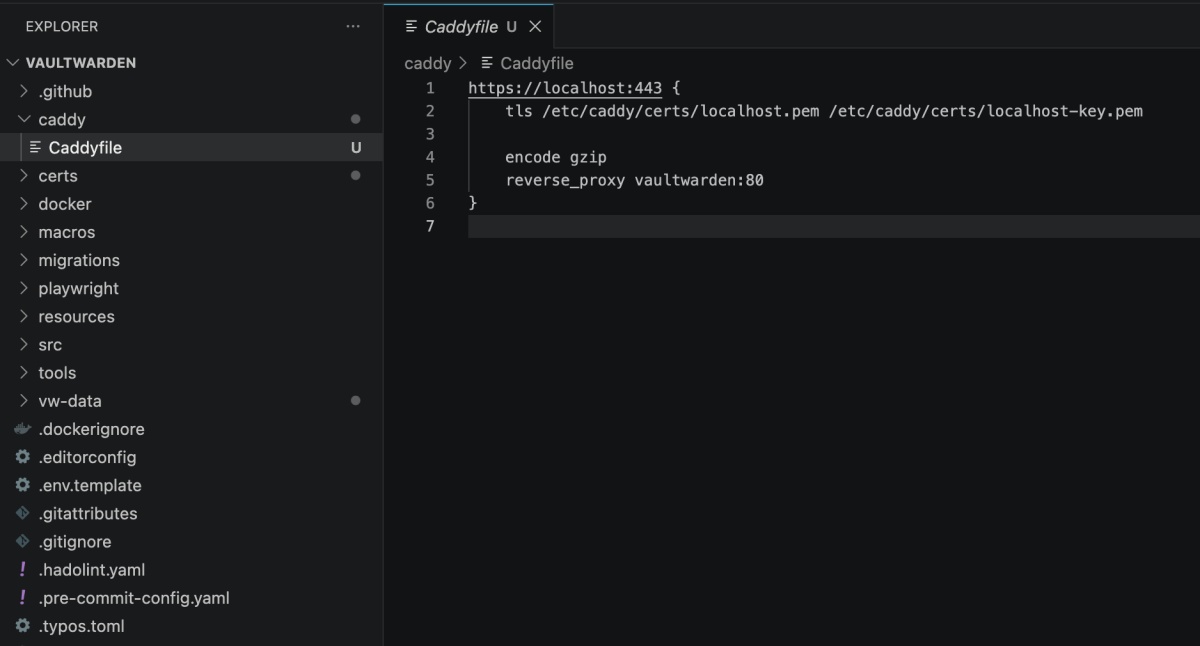
Create a file named Caddyfile:
vault.local {
  tls internal
  reverse_proxy 127.0.0.1:8080
}
The tls internal directive tells Caddy to generate a local certificate itself, since .local domains can’t use public certificate authorities like Let’s Encrypt.In the screenshot below, I am using localhost:443 instead.
Run Caddy:
docker run -d \
  --name caddy \
  --network host \
  -v $(pwd)/Caddyfile:/etc/caddy/Caddyfile \
  -v caddy_data:/data \
  -v caddy_config:/config \
  caddy
Map the hostname locally by editing your /etc/hosts file (or C:\Windows\System32\drivers\etc\hosts on Windows):
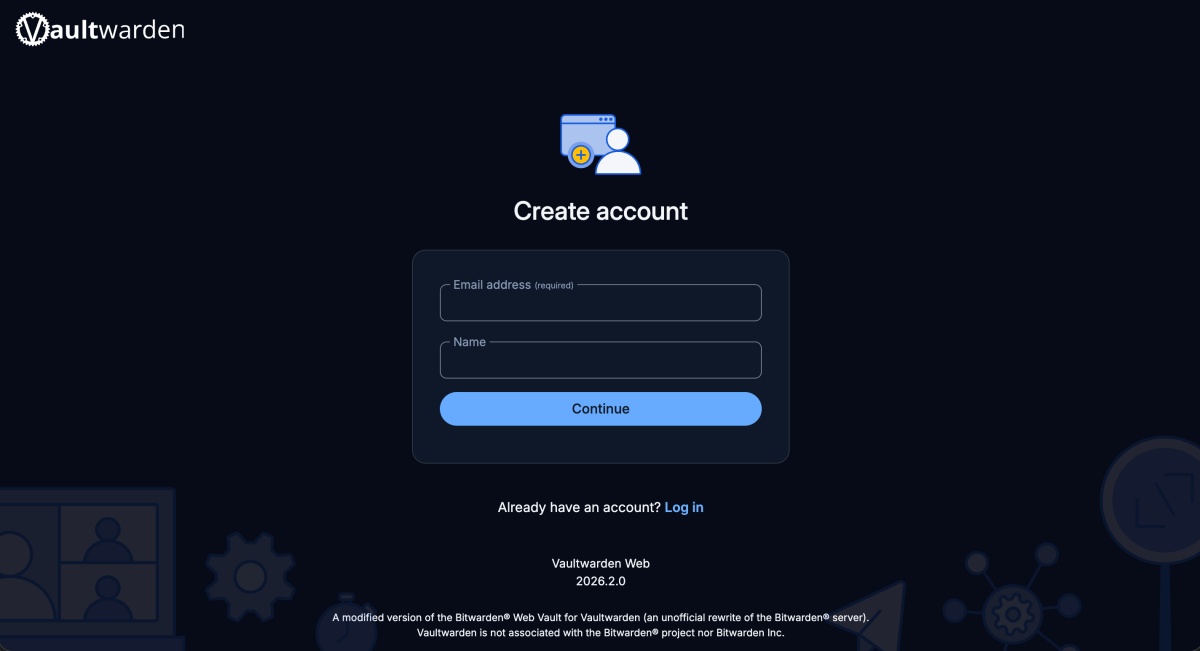
127.0.0.1 vault.localNow open https://vault.local in your browser. You will need to trust Caddy’s local root certificate the first time. Caddy places it in the caddy_data volume, and you can install it in your system trust store to avoid browser warnings.
For a proper deployment on a VPS with a real domain, you can remove tls internal and Caddy will automatically fetch a real Let’s Encrypt certificate.
Open https://vault.local and create your first account (this is your main vault). Once done:
https://vault.local as the Server URL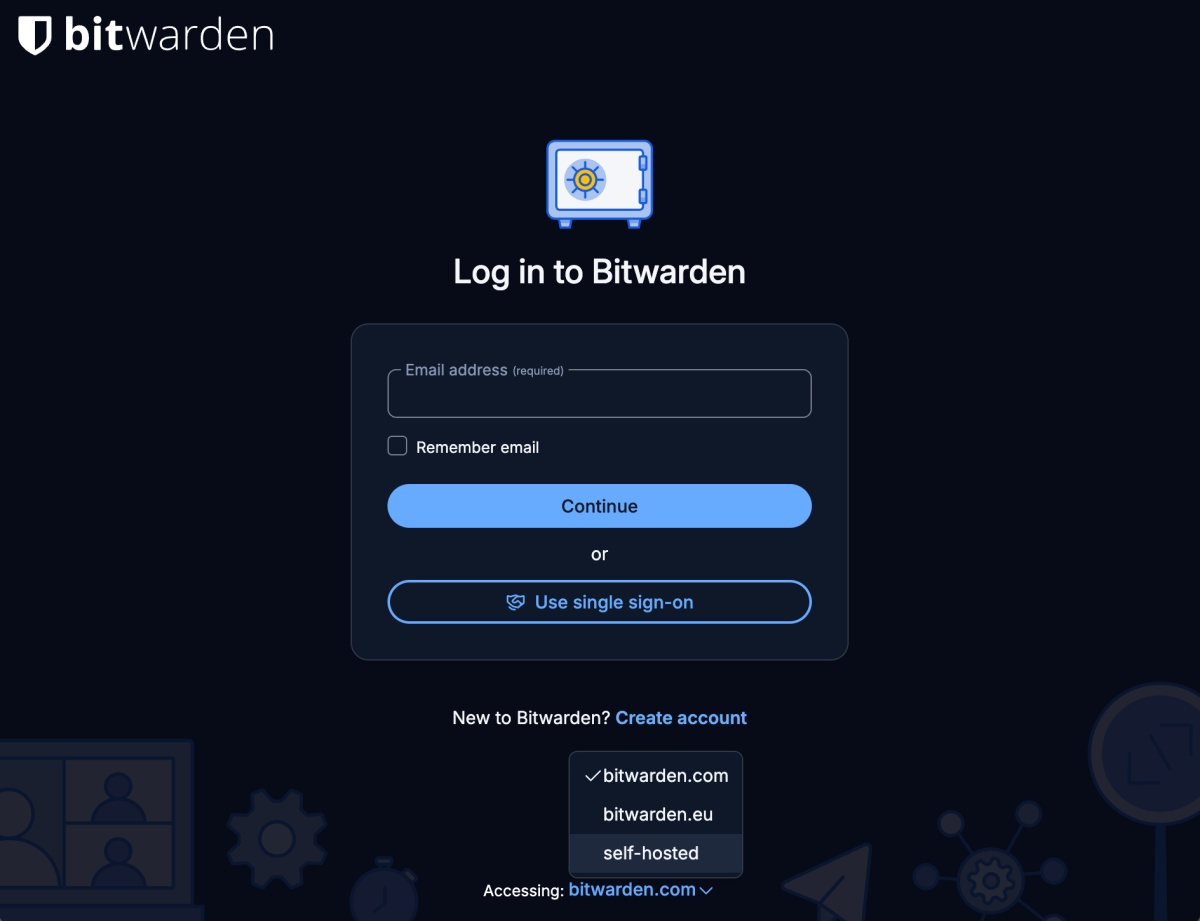
From here on, the experience is identical to Bitwarden Cloud; your apps just talk to your server instead.
Once you are comfortable locally, you can move the Docker container to a VPS, NAS or even a Raspberry Pi.
vw-data folderIf you are already using Bitwarden Cloud or another password manager, export your data as JSON (or ZIP if you need attachments) and import it into Vaultwarden. This carries over passwords, notes, cards, identities, SSH keys, TOTP seeds, and passkeys.
Self-hosting means trading convenience for control. A few things to keep in mind:
~/vw-data. If you delete it without a backup, your vault is gone. Set up regular backups — a nightly tar or rsync to another disk is usually enough.ADMIN_TOKEN with a strong value if you plan to use the admin interface.For me, it came down to control without extra overhead.
The official Bitwarden server felt like overkill. Vaultwarden gives the same user experience with far less setup and maintenance. Everything I actually use works the same, including passkeys and SSH keys through the Bitwarden clients.
And I get to keep the backend under my control.