
FaceTime Like a Pro
Get our exclusive Ultimate FaceTime Guide 📚 — absolutely FREE when you sign up for our newsletter below.

FaceTime Like a Pro
Get our exclusive Ultimate FaceTime Guide 📚 — absolutely FREE when you sign up for our newsletter below.


Seeing “Indexing in Progress” on your iPhone after updating to iOS 27? I ran into the same issue and found the fastest fixes that actually worked to restore Spotlight and app search.
I updated my iPhone 17 to the iOS 27 beta expecting to try Apple’s latest features. Instead, the first thing I noticed was an “Indexing in Progress” message in Settings that refused to disappear. Search inside Messages, Phone, and other built-in apps felt noticeably slower, and Spotlight kept missing results.
If you’ve run into the same issue, don’t panic. In most cases, your iPhone is simply rebuilding its search index in the background, and the fastest fix is surprisingly simple: let it finish under the right conditions.
After spending a few days testing different approaches, here’s what I learned about why the message appears, how long it usually lasts, and the fixes that actually worked.
After every major iOS update or an iCloud restore, your iPhone rebuilds the search indexes used by Spotlight, Siri, Messages, Photos, Mail, and other system features. Normally, this happens quietly in the background, and most people never notice it.
This year is a little different. iOS 27 introduces a much smarter Siri powered by Apple Intelligence, with deeper personal context and improved system-wide search. To support those features, your iPhone now builds a much richer on-device index of your emails, messages, photos, notes, files, contacts, and other personal content.
That’s why indexing can take noticeably longer than previous iOS updates.
Unlike downloading software updates, indexing is handled entirely in the background. Apple also prioritizes battery life and device temperature, meaning the process often slows down or pauses while you’re actively using your iPhone or when it’s running on battery power.
That’s why the message can remain visible for several days even though your phone appears to be working normally.
There’s no universal timer because every iPhone contains a different amount of data.
From my experience with recent beta updates:
The biggest mistake I see people make is assuming the process has frozen after only an hour or two.
If your iPhone is still downloading photos, messages, or Mail in the background, indexing can’t finish until all that content becomes available. My advice is simple: leave your iPhone plugged into a charger overnight before assuming something is wrong.
One improvement in iOS 27 is that Apple makes it easier to know whether indexing is still running instead of leaving users guessing.
Open Settings, and if indexing hasn’t finished yet, you’ll see the Indexing in Progress banner. Unfortunately, Apple still doesn’t display an actual percentage.
I wanted something more precise, so I used Apple’s Console app on my Mac.
Here’s how:
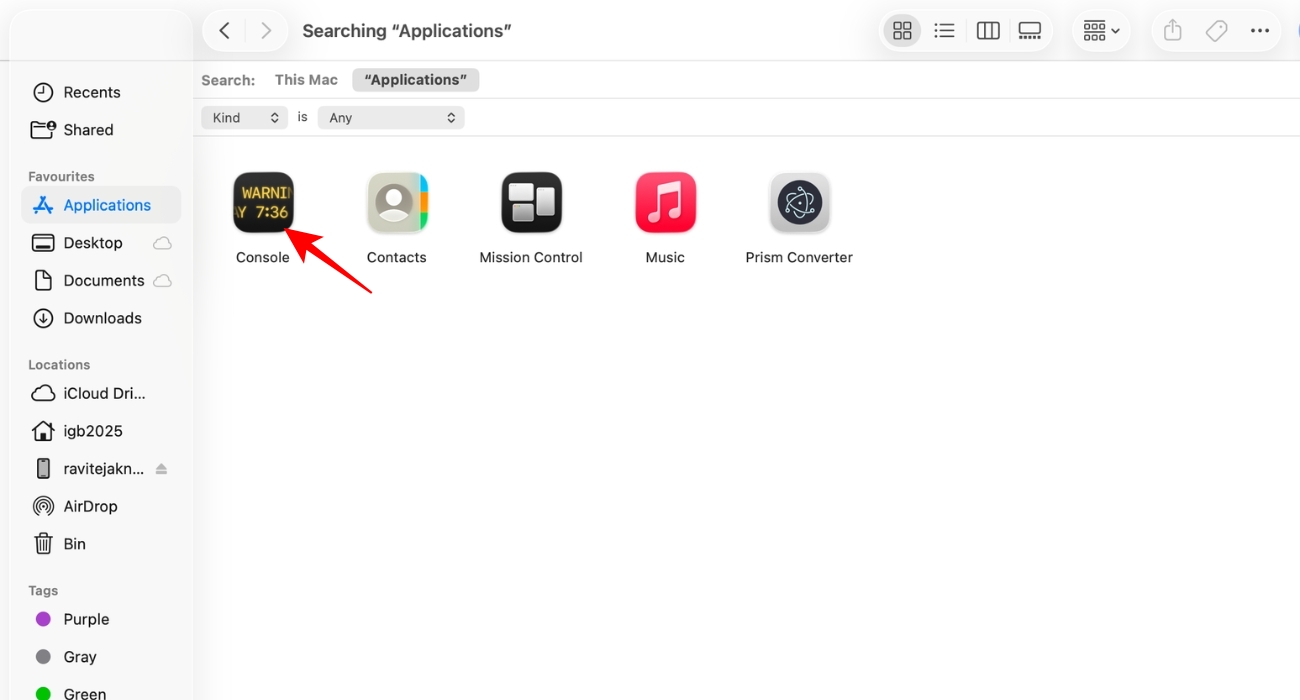
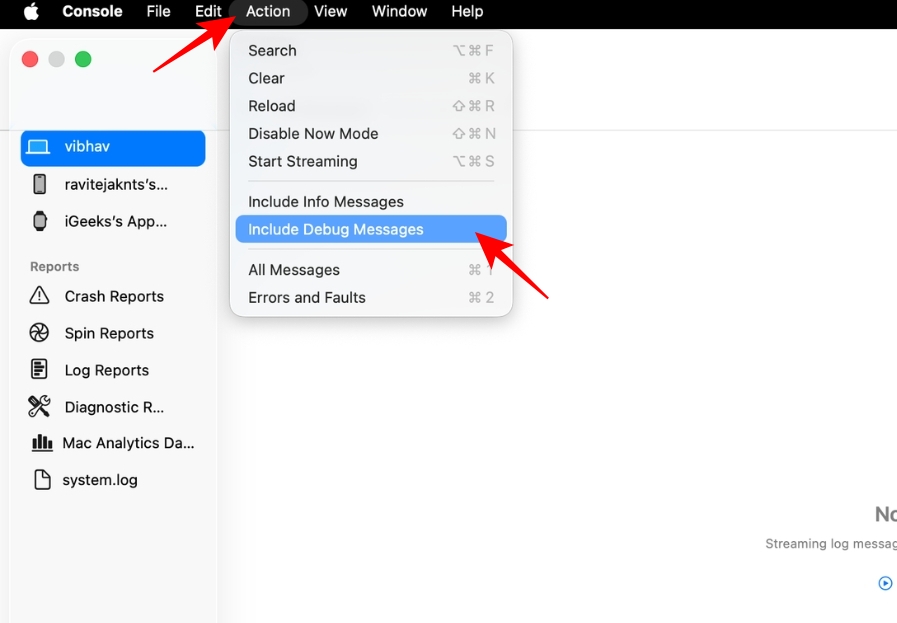
spotlight indexing progress and press the return key.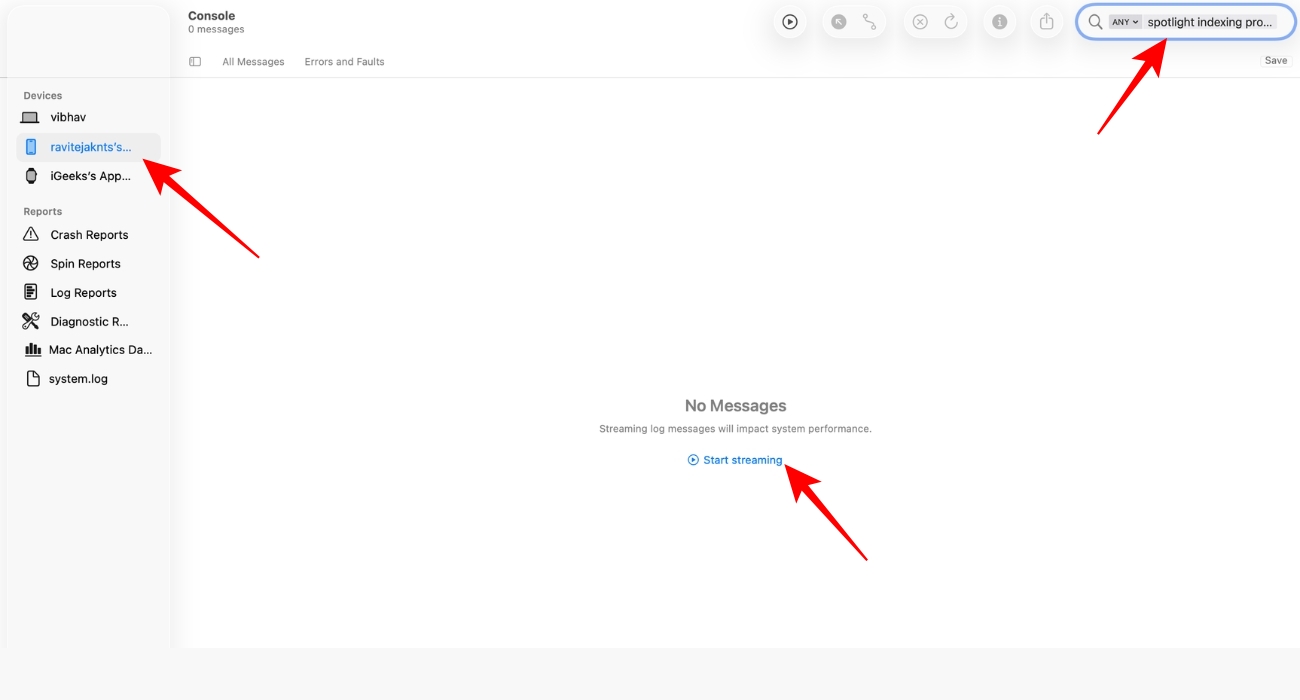
PipelineCompleteness: XX%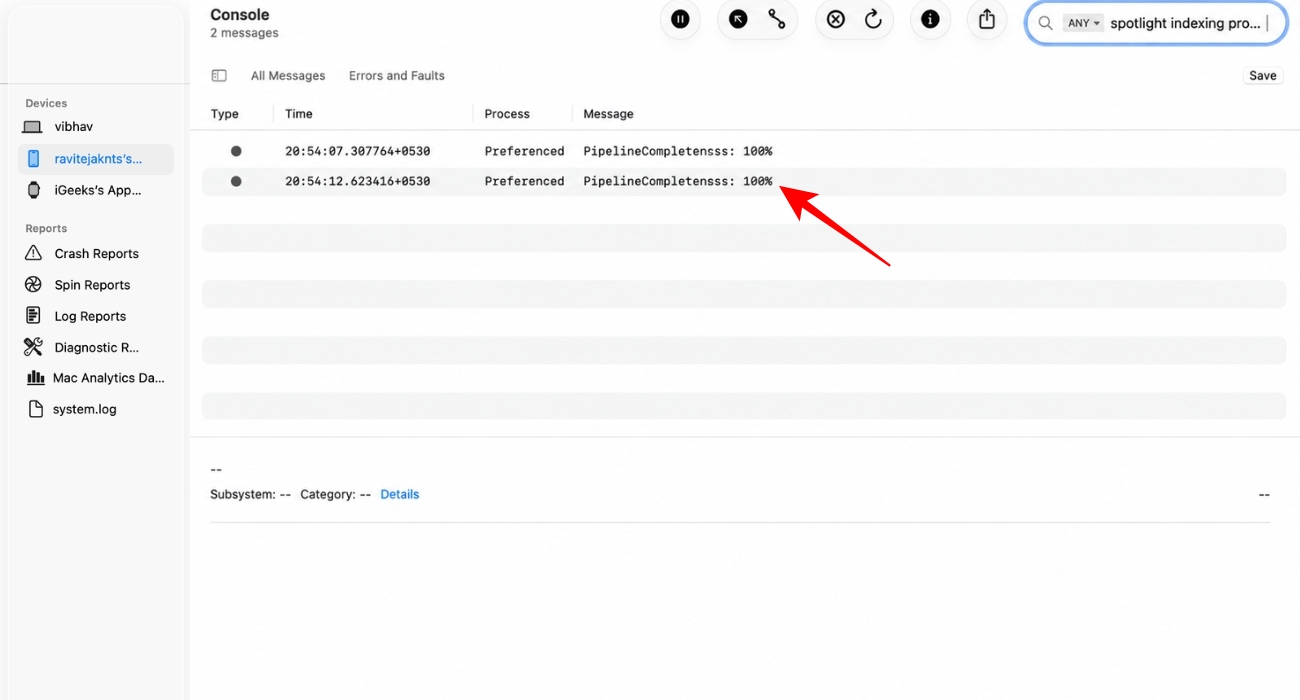
When indexing is completed, you’ll see PipelineCompleteness: 100%. However, if the indexing is stuck on a percentage for several days and never finishes, I have
If you’re still using the original iOS 27 developer beta, updating to the latest beta should be your first step.
Beta 1 prominently displayed the Indexing in Progress banner inside Settings, making it feel as though something was wrong. Beta 2 reduces the prominence of the message, although indexing still happens behind the scenes.
While the newer beta doesn’t necessarily make indexing dramatically faster, it includes numerous bug fixes affecting background services.
To update: Settings > General > Software Update. After updating, connect your iPhone to Wi-Fi, plug it into power, and leave it alone for several hours.
After installing iOS 27 beta 2 on my own device, indexing completed within a few hours.
This is the fix that works for most people. Instead of repeatedly restarting your iPhone or toggling random settings, simply:
Apple schedules many indexing tasks for periods when the device is idle, charging, and connected to Wi-Fi. Interrupting the process with repeated restarts only forces the phone to resume background work again.
One piece of advice I strongly agree with is not to force-restart your iPhone unless it’s completely frozen. Force restarting doesn’t speed up indexing, and in some cases, it may delay background processing by interrupting it.
Likewise, avoid using Low Power Mode while waiting. Since it limits background activity, it can slow down indexing instead of helping it finish.
This isn’t a magic fix, but it can make a noticeable difference if your iPhone is indexing an enormous amount of data.
Indexing works by scanning content across apps like Mail, Messages, Photos, Notes, and Files so that Spotlight and Siri can find it instantly later. The more data your iPhone has to process, the longer that job takes.
If you’re sitting on years of old emails, duplicate photos, and message threads with thousands of attachments, you’re giving iOS a much bigger workload. So, I recommend cleaning up your iPhone.
Before you start deleting everything, focus on the obvious clutter:
You may also use a cleaner app to speed up the process. A lighter photo library and fewer messages mean less content for iOS to organize.
Most people don’t have a bug. They’re simply waiting for indexing to finish. However, there are situations where something genuinely isn’t working.
I’d start troubleshooting if:
If you notice several of these symptoms together, the indexing service may have stalled instead of simply taking a long time. At that point, check for the new iOS 27 beta update first. Apple frequently fixes beta-specific issues between releases, and installing the latest build is usually a better solution than trying random troubleshooting steps.
If you’re already on the newest beta, you can also submit feedback through Apple’s Feedback app. Beta software exists so Apple can identify and fix issues like this before the public release.
The “Indexing in Progress” message looks alarming, but usually this message is quite the opposite. It’s an indicator that your iPhone is doing exactly what it should after a major update. The biggest takeaway is this: don’t fight the indexing process.
I’ve seen countless suggestions telling people to force restart, reset settings, or toggle random features. But this won’t speed up the process in most cases. Apple only recommends longer charging sessions.
Before you go, I’m curious: How long has your iPhone been stuck on “Indexing in Progress”? Let me know in the comments below!
FAQs
Not manually. Indexing is a background system process managed by iOS. You can interrupt it by force restarting your iPhone or turning it off, but it’ll simply resume the next time the device starts. The best approach is to let it complete on its own.
Yes, but usually only temporarily. Since your iPhone is analyzing the whole system data, you’ll likely notice higher battery usage and a warmer feel. Once the process finishes, battery life should return to normal.
The easiest sign is that the Indexing in Progress message disappears from Settings. However, for confirmation, use the Console method on your Mac.












