FaceTime Like a Pro
Get our exclusive Ultimate FaceTime Guide 📚 — absolutely FREE when you sign up for our newsletter below.

FaceTime Like a Pro
Get our exclusive Ultimate FaceTime Guide 📚 — absolutely FREE when you sign up for our newsletter below.


Gemini now offers one-tap Extended thinking, granular Android notification controls, and a cleaner Spark task view, though parts are still rolling out.
Google is cleaning up several Gemini controls as the app adds more features. 9to5Google reports that the changes are appearing across Android and the web, although the new notification menu is still in a limited rollout.
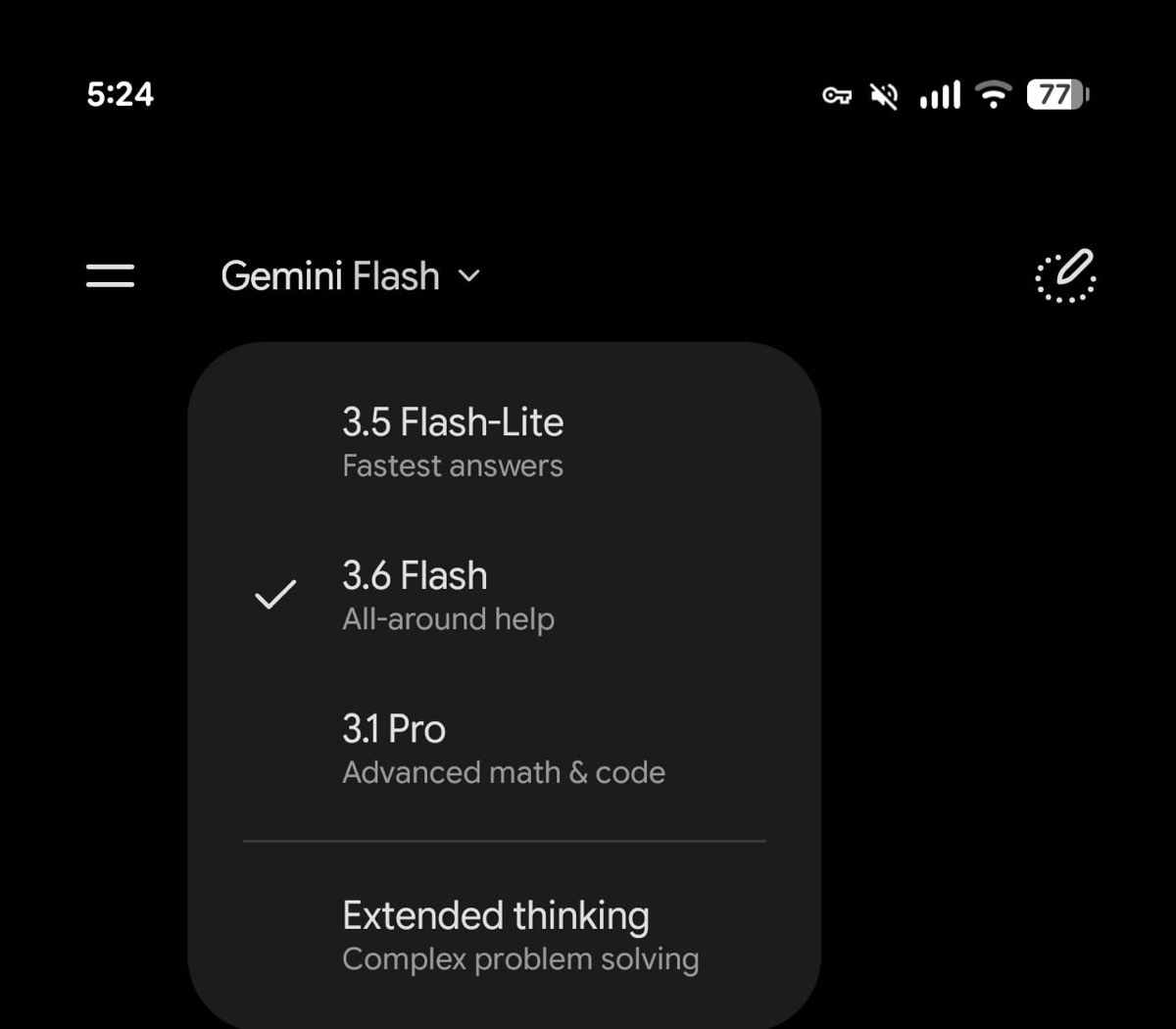
Gemini previously placed its Thinking level options inside a second dropdown. Users had to open it and choose between Standard, the default for most questions, and Extended thinking for more complex prompts.
The new design removes Standard from that extra menu and shows only Extended thinking as a direct option. Standard is still the default; Google has simply removed an unnecessary step. The change is already appearing widely on Android and the web.
Gemini’s Android app is also gaining four notification categories in the account menu. These let users choose which parts of the app can send alerts:
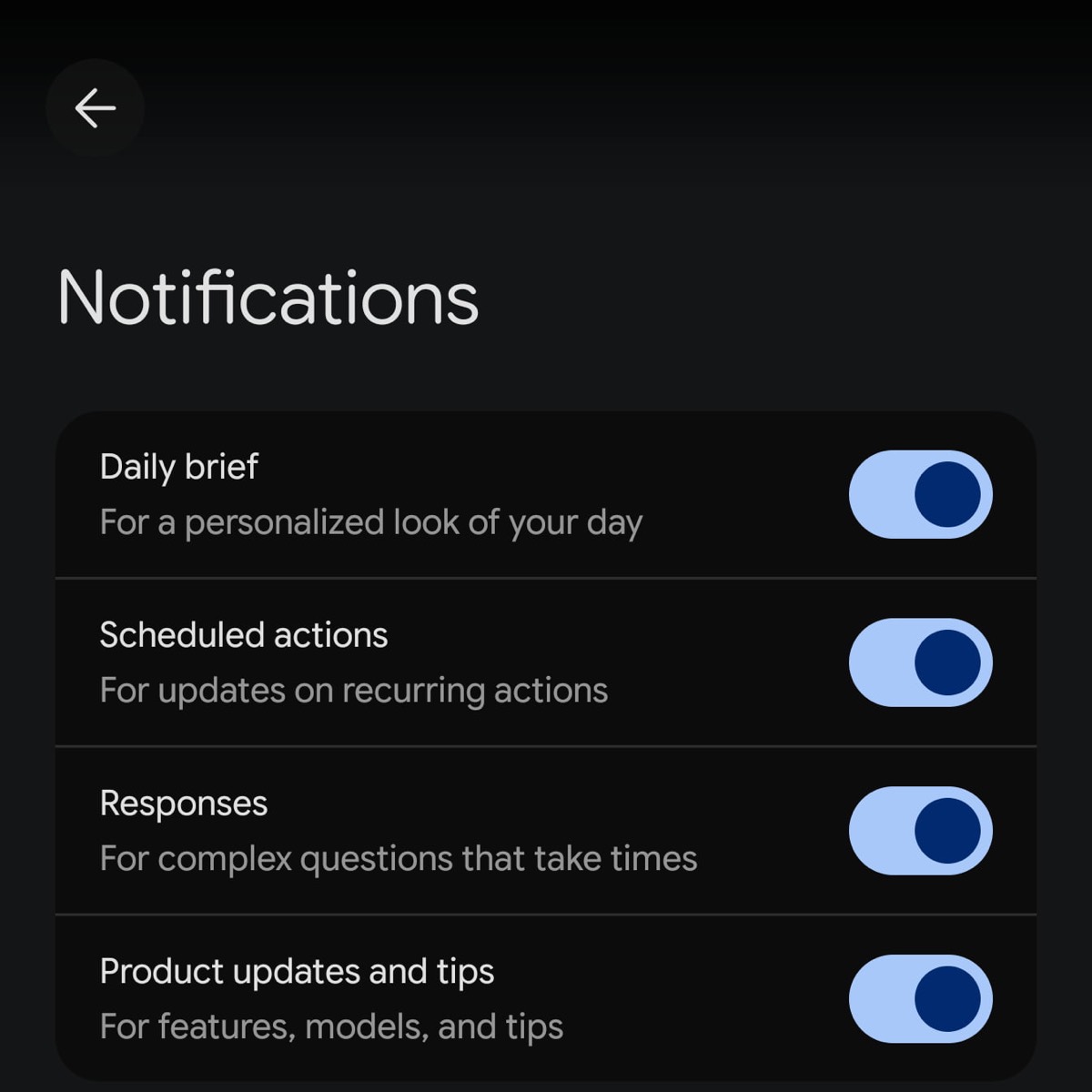
That means someone can keep alerts for finished responses or recurring tasks while muting product tips. Google introduced Daily Brief alongside Gemini Spark at I/O 2026, so the new switches should make those proactive features less intrusive.
These controls are not widely available yet. The report only identifies the new menu on Android, so iPhone users may not see the same switches.
The Gemini Spark screen on Android now sorts tasks into tabs for All, Scheduled, Needs input, In progress, and Completed. Google has also replaced the old menu button with a search icon for finding a task directly.
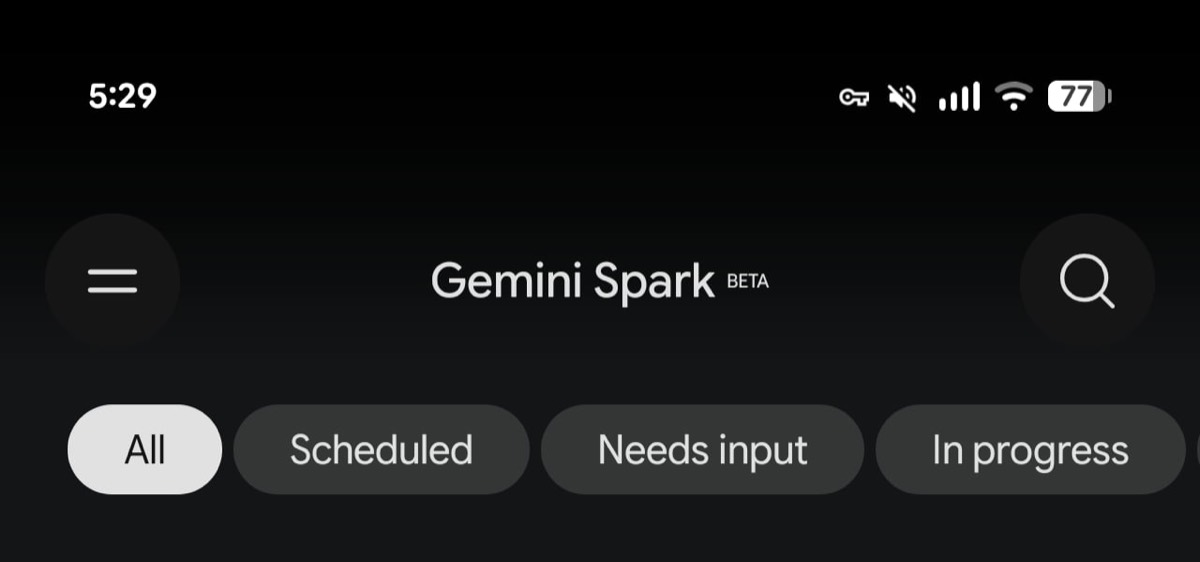
The redesign arrives shortly after Google began rolling Spark out to AI Pro subscribers in the US. None of these interface changes add a new AI capability, but the notification controls should make Gemini easier to live with as scheduled, and background tasks become more common.