FaceTime Like a Pro
Get our exclusive Ultimate FaceTime Guide 📚 — absolutely FREE when you sign up for our newsletter below.

FaceTime Like a Pro
Get our exclusive Ultimate FaceTime Guide 📚 — absolutely FREE when you sign up for our newsletter below.


Here are the best Gmail extensions to improve productivity, automate repetitive tasks, organize emails better. They completely transformed how I manage my inbox every day.
Most people are using Gmail in the least efficient way possible. Even I was constantly reopening the same emails, forgetting follow-ups, and wasting time on small repetitive tasks that quietly drained my focus every day. So instead of trying another email app, I decided to try optimizing my use of Gmail.
Over the past few months, I tested dozens of Gmail extensions to see which ones actually improve daily workflow. Most weren’t worth keeping. But a few genuinely changed how I handle email.
In this article, I’m sharing the best Gmail extensions I still use regularly for productivity, what they actually do well, and who they’re best for.
I started looking for tools that remove repetitive decisions.
A Gmail extension should:
I also realized that most people get confused between Gmail extensions and Gmail add-ons.
Gmail add-ons are built directly into Google Workspace and usually appear inside Gmail’s sidebar. They’re safer and more integrated, but often limited. On the other hand, Gmail Extensions are browser-based tools, usually Chrome extensions.
Extensions can redesign Gmail, automate workflows, add AI tools, create reminders, encrypt emails, and turn emails into tasks. At the same time, however, extensions get extensive permissions within the email account. That’s why I became extremely selective about what stayed installed.
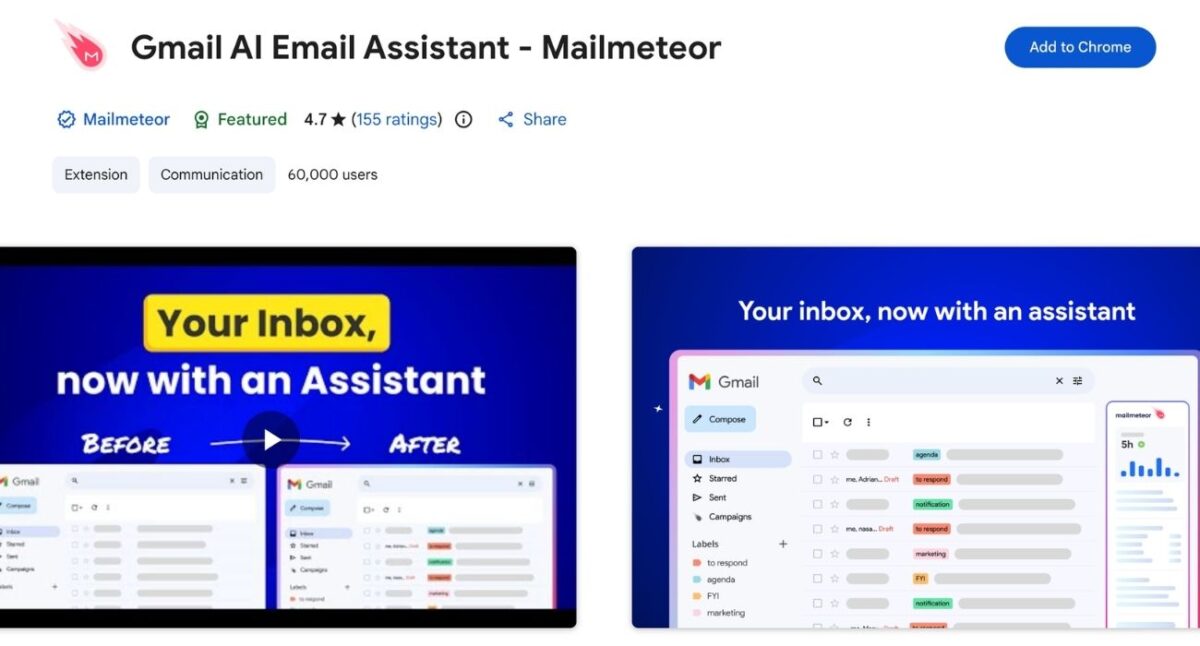
Most AI email assistants sound impressive until you actually use them. Mailmeteor surprised me because it focused on practical assistance instead of robotic AI magic.
This Gmail AI assistant helps draft, rewrite, summarize, and improve emails directly inside Gmail. I have set my specific writing tone and style in its Settings to make the drafts sound more personalized. You can also view how much time you have spent on Gmail to stay productive.
Unlike many AI extensions, it stays relatively lightweight and doesn’t overwhelm the interface.
What I actually used it for:
Pricing: Free plan available. Paid plans start from $9.99/mo to unlock automated follow-ups, Zapier integration, email campaigns, etc.
Who it’s best for: Freelancers, busy professionals, sales teams, and anyone handling high email volume daily.
Install: Gmail AI Email Assistant – Mailmeteor
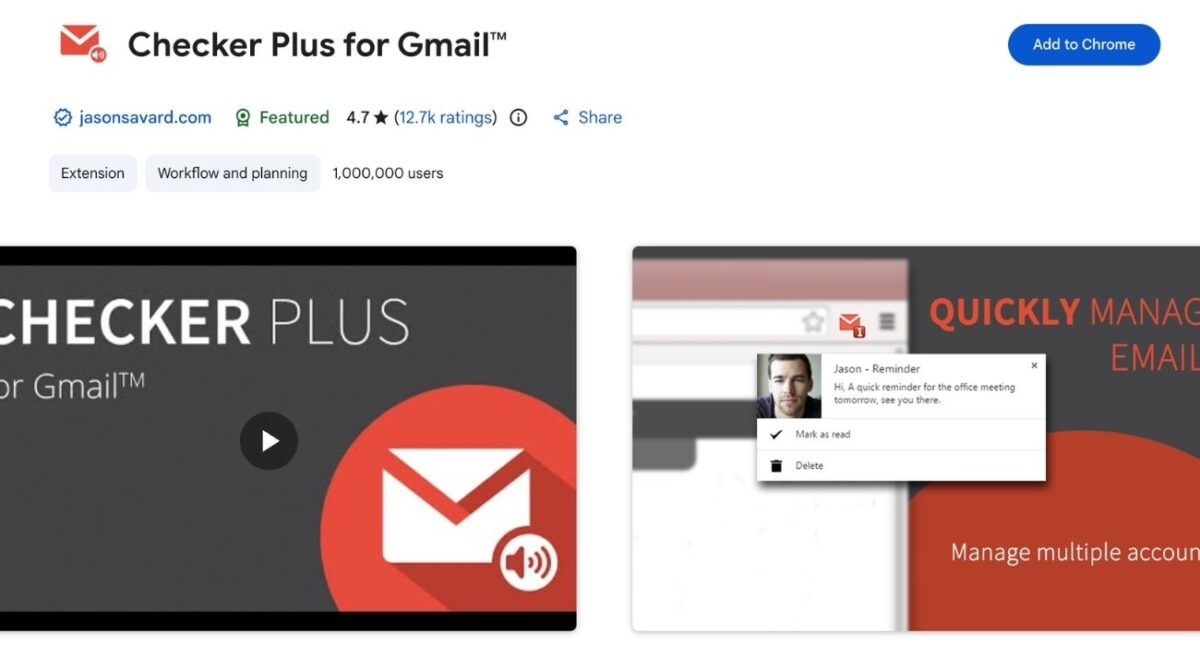
This Gmail Chrome extension genuinely changed my workflow. Before using it, I kept Gmail pinned all day and constantly refreshed the inbox, which broke my focus. Checker Plus eliminated that habit.
It lets you access emails across your inboxes without constantly opening Gmail. I appreciate its auto-syncing of multiple Gmail accounts detected on the device. After installing, click the Checker Plus icon on the browser bar, and you can do everything from reading, writing a new email, marking as read, to deleting/archiving emails from the extension pop-up.
Moreover, I have customized its notifications and appearance settings for a more distraction-free browsing. For that, open the extension window, click the three-dot icon, and select Options.
I liked the extension because:
Pricing: Free. Optional donation-supported premium features.
Who it’s best for: Remote workers, multitaskers, and people distracted by inbox checking.
Install: Checker Plus for Gmail
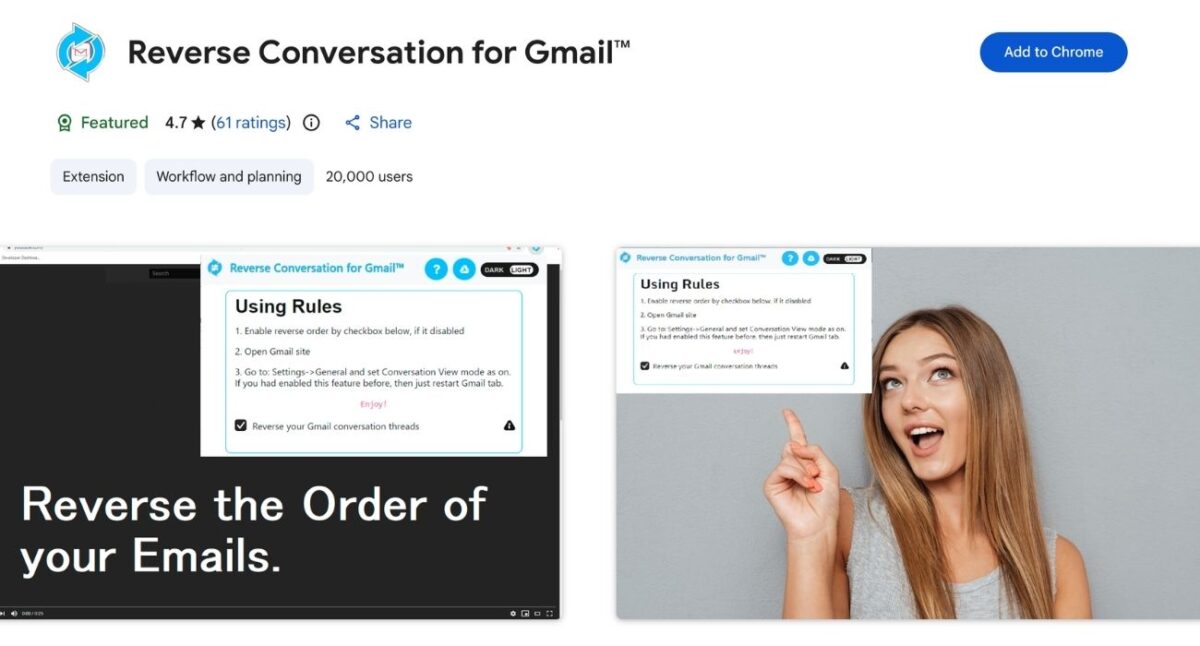
I never understood why Gmail places the newest replies at the bottom of long threads. It works for shorter threads, but becomes extremely annoying when there are several hundred messages in the conversation.
This Reverse Conversation extension fixes that by flipping the Gmail threads’ order so the newest responses appear first. This sounds like a minor change, but it becomes incredibly convenient. Then, normal Gmail starts feeling backward.
Key features
Pricing: Free.
Who it’s best for: Support teams, client-facing professionals, and people buried in long conversations.
Install: Reverse Conversation for Gmail
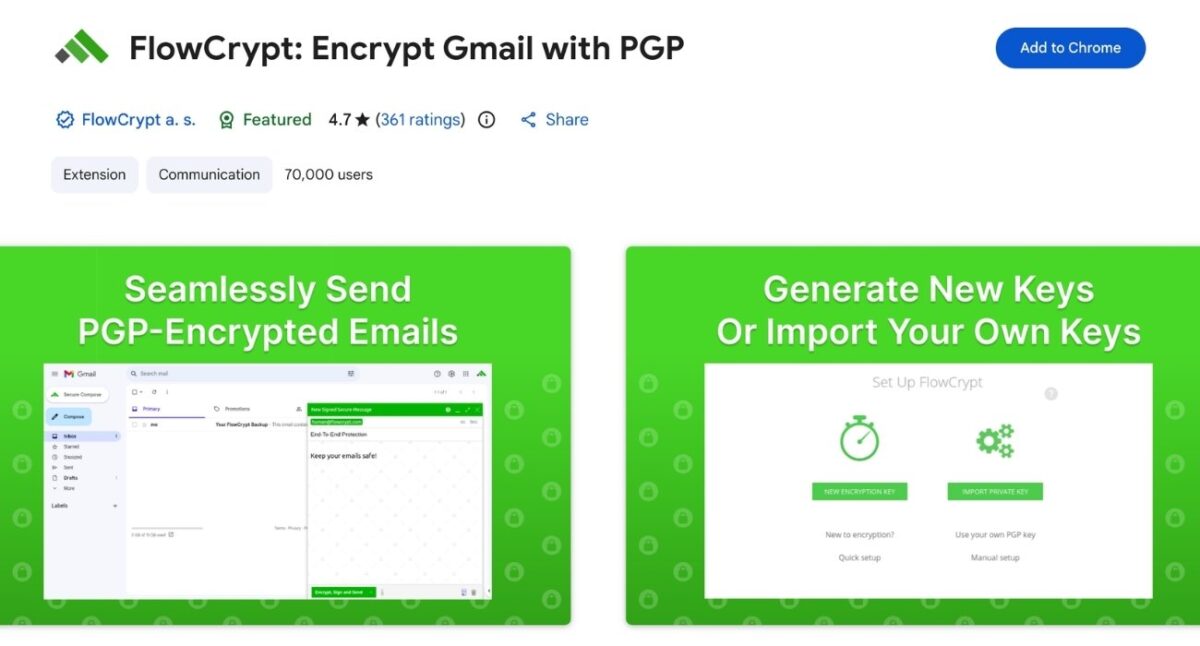
Most people treat email like private communication. It isn’t. Gmail supports end-to-end encryption only for Google Workspace Enterprise users. So, regular email is surprisingly exposed.
FlowCrypt adds PGP encryption to Gmail, allowing secure, encrypted emails directly from your inbox. Most encryption tools either feel overly technical or force you into a separate email ecosystem. But I found FlowCrypt easy to set up. You only need to log in with your Google account and create an encryption passphrase.
What stood out immediately is how deeply it integrates into Gmail itself. You can write new encrypted emails using the Secure Compose button and add attachments up to 25MB. If the contact doesn’t have any OpenPGP software, you can send password-protected emails.
Key features
Pricing: Free personal version. Premium business features available.
Who it’s best for: Journalists, developers, privacy-conscious users, and businesses handling sensitive data.
Install: FlowCrypt for Gmail
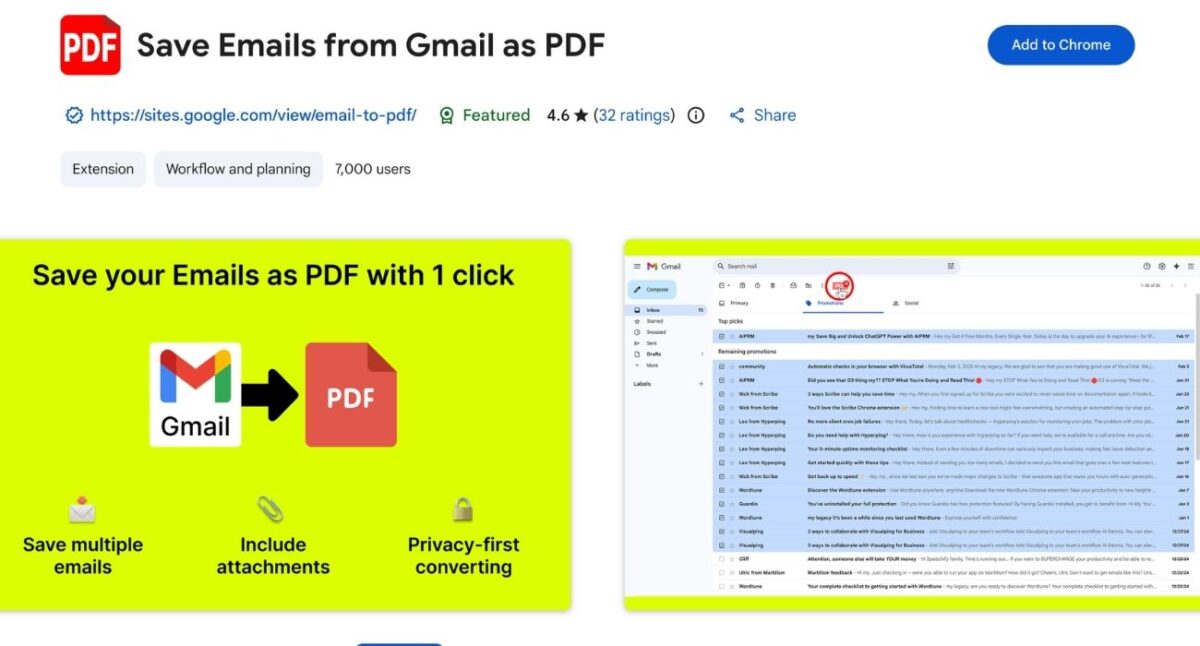
I tested Save Emails from Gmail as PDF after getting tired of manually copying and pasting emails to a doc one by one. What surprised me is how much smoother it makes email archiving, especially for invoices, client conversations, receipts, legal records, and more.
Instead of using Gmail’s basic print and export option repeatedly, it lets you quickly save Gmail emails and attachments as PDFs with formatting preserved. If you constantly need offline copies of important emails, go for this Chrome extension.
Key features
Pricing: Free version available. Paid upgrade ($15/mo) for advanced exporting and encryption.
Who it’s best for: Freelancers, accountants, legal documentation, and invoice archiving.
Install: Save Emails from Gmail as PDF
I used to manually resend the same reminder emails every month, which is ridiculous when you think about it. Recurring Emails for Gmail automates repeat email sending directly from Gmail. After using it for a while, it honestly feels like a missing feature Google should have built years ago.
Key features
Pricing: Free plan available. Premium automation options from $3/month.
Who is best for: Managers, recruiters, agencies, and people sending repetitive reminders.
Install: Recurring Emails for Gmail
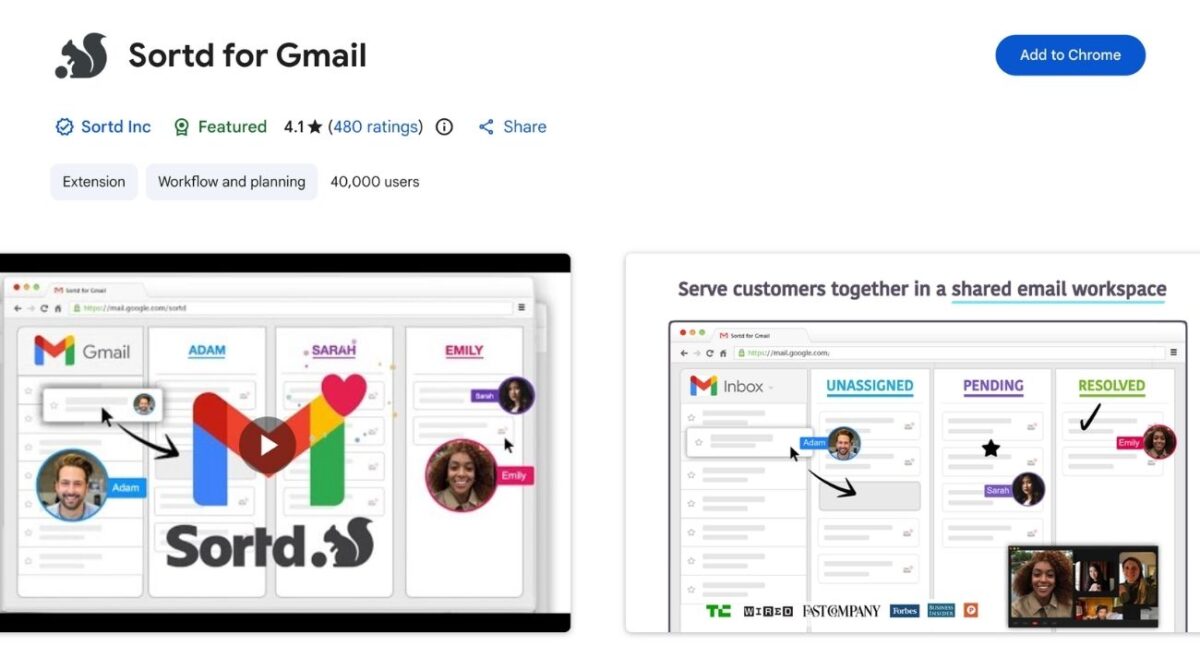
If you mostly handle your business workflow through emails, you must know how hard it is. Important emails were buried, follow-ups got forgotten, and managing projects through labels alone became frustrating.
What makes Sortd different is that it completely changes how Gmail works. Instead of treating email like a traditional inbox, it turns Gmail into a visual workspace with drag-and-drop boards, task pipelines, reminders, and team collaboration features. It’s like a mix of Gmail + Trello + lightweight CRM built directly into your inbox.
Key features
Pricing: Free tier available. Premium collaboration and task management features start at $10/month.
Who it’s best for: Consultants, sales teams, founders, and inbox-heavy professionals.
Install: Sortd for Gmail
This part matters more than the Gmail productivity hacks. Because many extensions request terrifying levels of access.
Before installing anything, I always check:
If an extension asks for full inbox access without a clear reason, I skip it immediately.
I also review my extensions once a week and remove the ones I barely use to make my browser fast and lightweight. That’s risky as well, especially when those tools can read your emails.
Here is the simple process to add a Gmail extension:
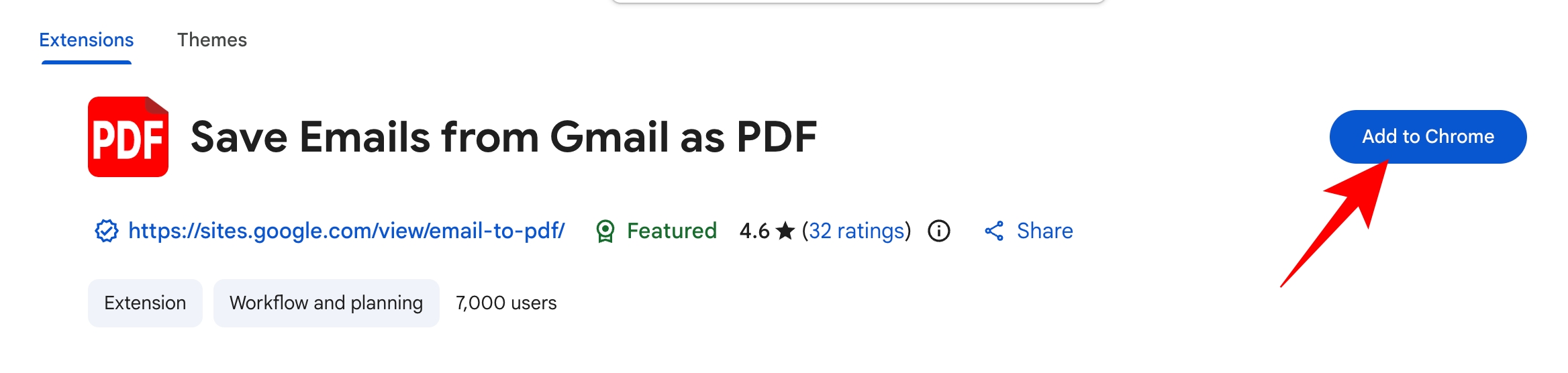
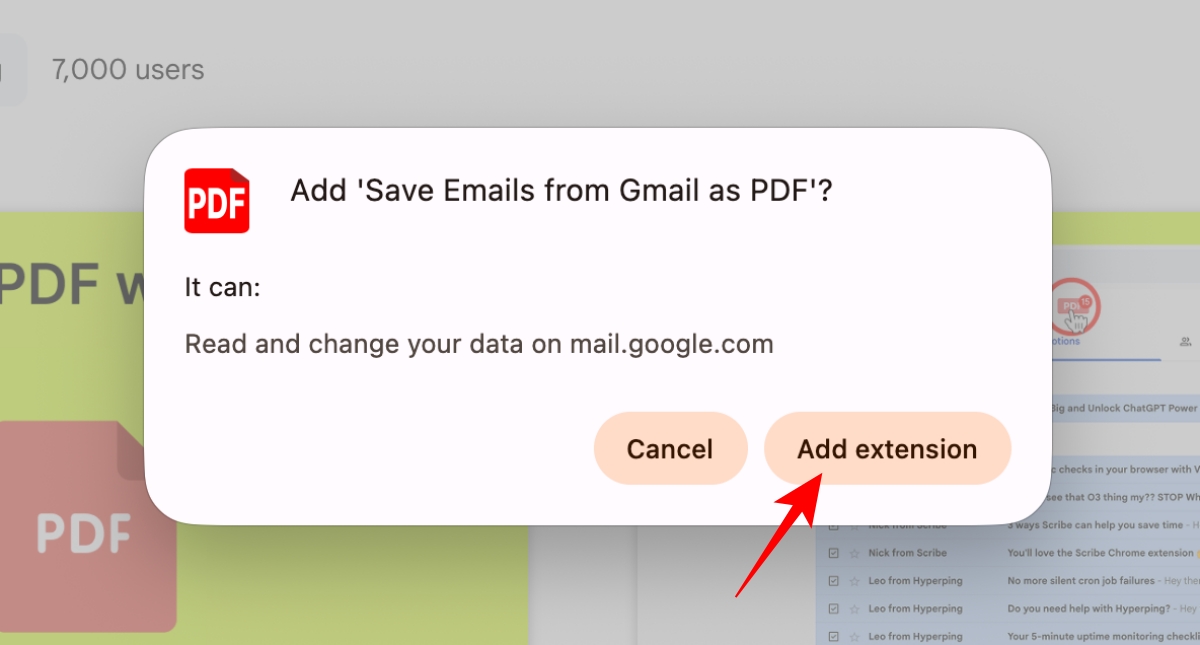
If you want to delete or disable any extension, follow these steps:
chrome://extensions.After testing all of these Gmail extensions, I realized most of them solve very specific problems that Gmail still doesn’t handle well on its own. Some helped me organize chaotic inboxes, others automated repetitive tasks, improved privacy, or simply made email faster to manage every day.
The biggest difference was productivity. Small features like recurring emails, drag-and-drop organization, quick notifications, or saving emails as PDFs ended up saving far more time than I expected. If you spend hours inside Gmail daily, even one good extension can completely change your workflow.
Which one are you installing first? Let me know in the comments below!
You may like to read