
FaceTime Like a Pro
Get our exclusive Ultimate FaceTime Guide 📚 — absolutely FREE when you sign up for our newsletter below.

FaceTime Like a Pro
Get our exclusive Ultimate FaceTime Guide 📚 — absolutely FREE when you sign up for our newsletter below.


I use several non-App Store apps on my Mac, and keeping them updated used to be messy. These simple steps made the process much easier.
 ByVikhyat
Many Mac users install apps outside the Mac App Store because some of the platform’s best software simply isn’t available there. Tools like Raycast, Google Chrome, and Discord usually rely on their own update systems instead of Apple’s App Store infrastructure.
The problem is that non-App Store apps can quietly become outdated if you are not paying attention. Over time, that can lead to missing features, compatibility issues, security vulnerabilities, and performance problems.
After years of using macOS, I’ve settled on a few simple habits that keep all my third-party Mac apps updated without turning it into a chore.
Earlier, I used to dismiss update notifications instantly because I was usually busy working. But after dealing with random app crashes and compatibility issues on my Mac, I stopped ignoring them.
Now, whenever apps like ChatGPT or Discord show an update prompt, I install the update immediately. If you regularly use the ChatGPT App on a Mac, keeping it updated is especially important because newer versions often improve performance, reliability, and AI features.
Most updates only take a minute or two and often include important bug fixes, security patches, and performance improvements.
Delaying updates for months can sometimes cause apps to behave strangely after a major macOS update, so keeping everything current helps my Mac run much more smoothly.
Most non-App Store Mac apps show an update prompt whenever a new version becomes available, which makes updates easy to manage. However, some apps do not always notify you automatically, particularly if you have not opened them in a while.
In those cases, I manually check for updates using the app’s built-in update system. Most Mac apps include a Check for Updates option in the menu bar, allowing you to quickly download and install the latest version without visiting the developer’s website manually.
I’ve noticed this especially with some of the Best Mac Apps, where developers often roll out new features and bug fixes outside the App Store update system.
Here’s how:
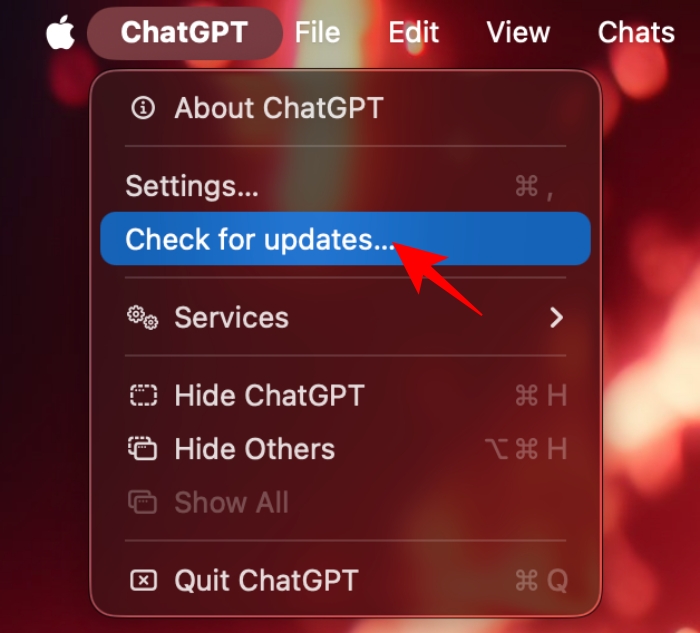
Once done, the app will search for the latest available version and install the latest version directly inside the app.
Many non-App Store Mac apps support automatic update checks, which means they can periodically search for newer versions and notify you when an update is available.
Whenever I install a new app, I open its settings and look for update-related options. Apps that use the popular Sparkle updater framework often include settings like automatic update checks directly inside their preferences menu.
It is a simple step, but it helps keep apps secure, stable, and compatible with the latest version of macOS without requiring much effort.
While many non-App Store Mac apps include built-in update tools, some smaller or older apps still require manual updates. In those cases, I usually have to visit the developer’s website and download the latest version myself.
Thankfully, the process is pretty straightforward.
Most apps keep your existing data and settings intact after replacing the older version, so you usually do not need to set everything up again.
I also make sure to avoid third-party download websites because fake Mac installers and malware disguised as updates are still fairly common.
Homebrew lets me update multiple apps and utilities directly from Terminal without opening each app individually. It is particularly useful for apps and developer tools installed through Homebrew Cask.
Whenever I want to update everything, I simply open Terminal and run:
brew update
brew upgrade
And for graphical apps installed using Homebrew Cask, I use:
brew upgrade –cask
It is one of the fastest ways to keep non-App Store Mac apps updated, particularly if you use a lot of third-party software regularly.
Whenever Apple releases a major new version of macOS, I make it a point to check for app updates soon afterward.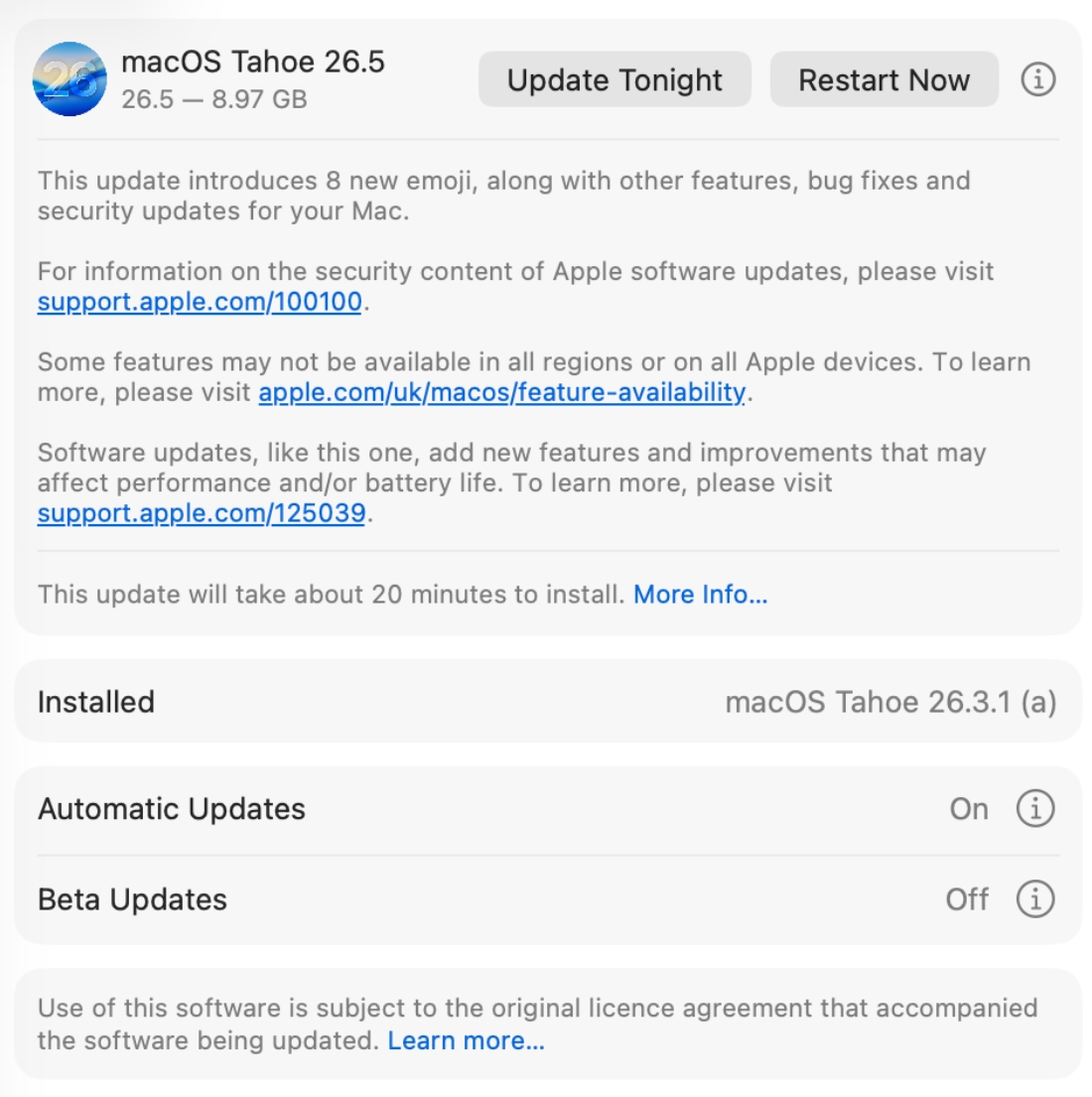
I have noticed that some non-App Store apps can become unstable or buggy after a big macOS upgrade, particularly if they have not been updated recently. Developers usually release compatibility fixes shortly after new macOS versions roll out, so updating apps early helps avoid random crashes, broken features, and performance issues.
Because of that, I usually spend a few minutes updating my most important apps after every major macOS release instead of waiting for problems to appear later.
Many of the best Mac apps are not available on the Mac App Store, which means keeping them updated requires a bit more manual attention. Thankfully, most apps make the process simple through built-in update tools, automatic update checks, or utilities like Homebrew.
Once updating apps becomes part of your routine, managing software outside the Mac App Store feels far less messy than most people expect.
Do you manually update your non-App Store Mac apps, or do you rely on tools like Homebrew? Let us know in the comments.
Read more:











