FaceTime Like a Pro
Get our exclusive Ultimate FaceTime Guide 📚 — absolutely FREE when you sign up for our newsletter below.

FaceTime Like a Pro
Get our exclusive Ultimate FaceTime Guide 📚 — absolutely FREE when you sign up for our newsletter below.


Installing custom fonts on Windows is easier than you think. Here’s the fastest method that changed how I use fonts daily.
I didn’t realize how boring my documents had started to look until one day everything felt the same. Same fonts, same layout, same predictable feel every time I opened Word or PowerPoint. And the truth is, Windows wasn’t forcing that on me. I just never bothered to change it because installing fonts always felt like one of those tedious, slightly technical tasks.
Turns out, it isn’t. Once I figured out how simple it actually is, it completely changed how I approach writing, designing, and even basic presentations. If you’ve been stuck using default fonts, this is one of the easiest upgrades you can make.
Here’s exactly how I install custom fonts on Windows now, based on what actually works in real use.
After trying multiple approaches, I realized Windows gives you several ways to install fonts, but not all of them are equally practical.
Before anything, you need to download the font file. Always use a trusted source. I usually go with sites like 1001 Free Fonts, browse styles, and download what fits. Most files come as ZIP folders.
From there, here are the methods I actually use.
This is the simplest way, especially when you’re trying out a font for the first time.
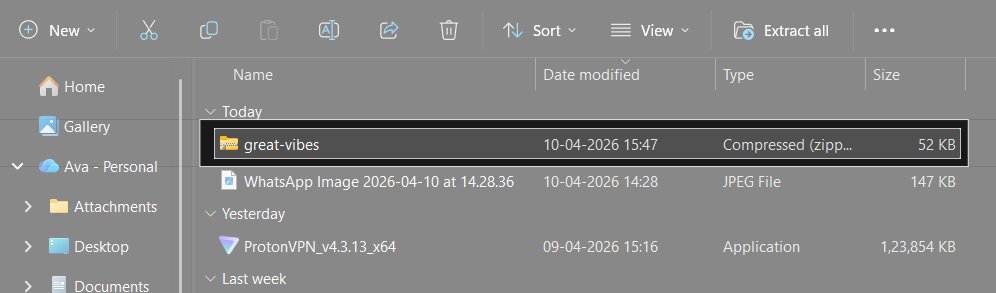
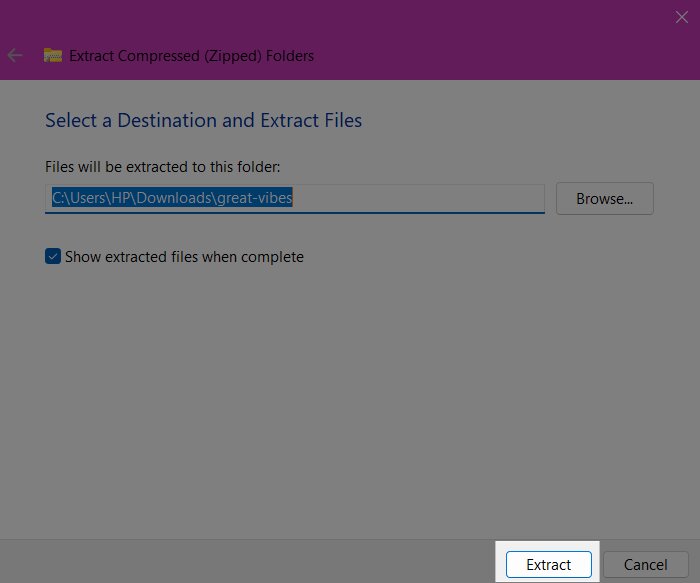
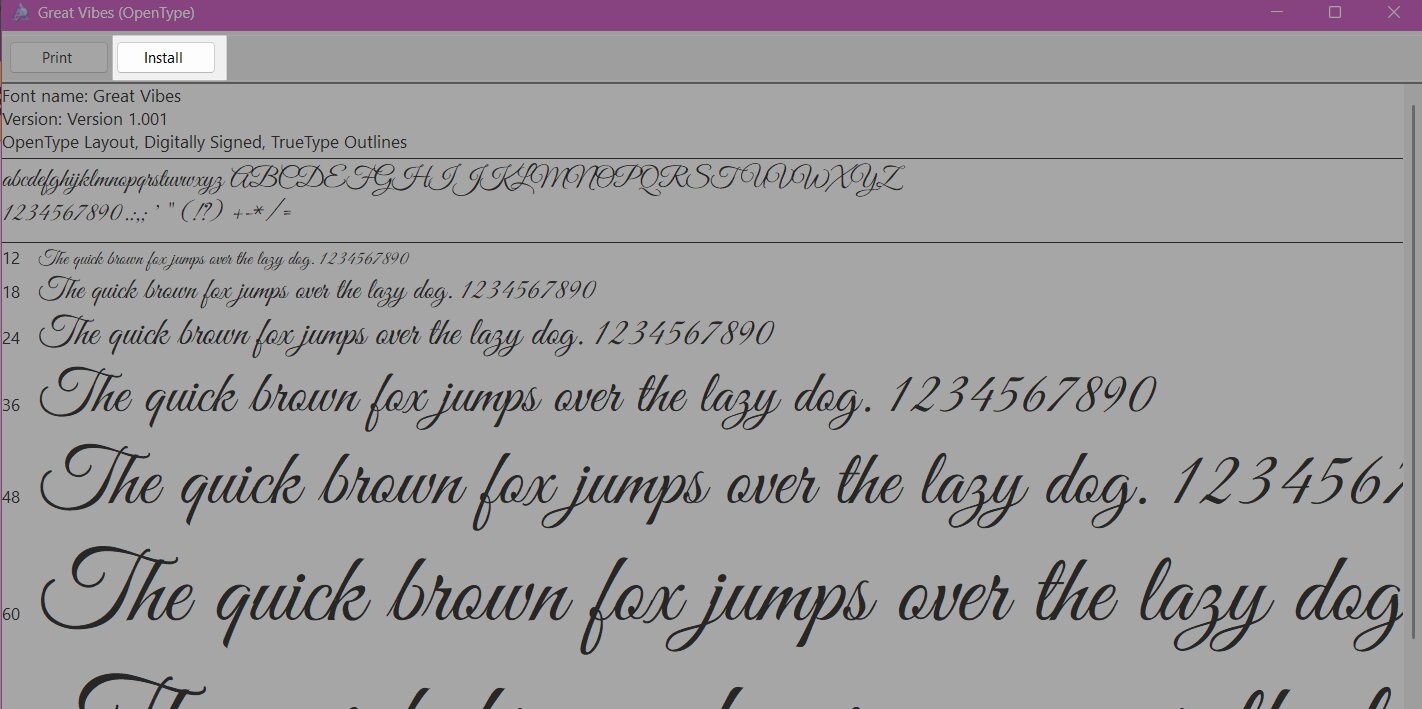
I usually use this when I want to preview a font before committing to it.
When I’m installing multiple fonts at once, this method feels cleaner.
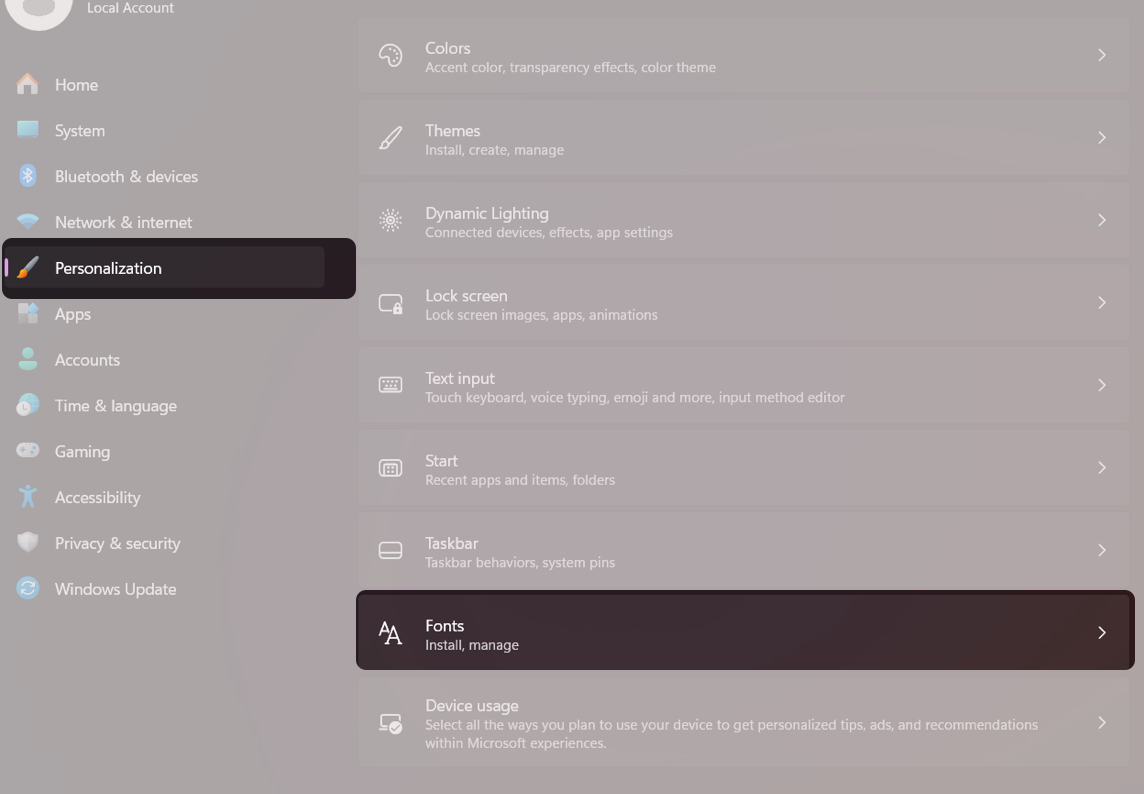
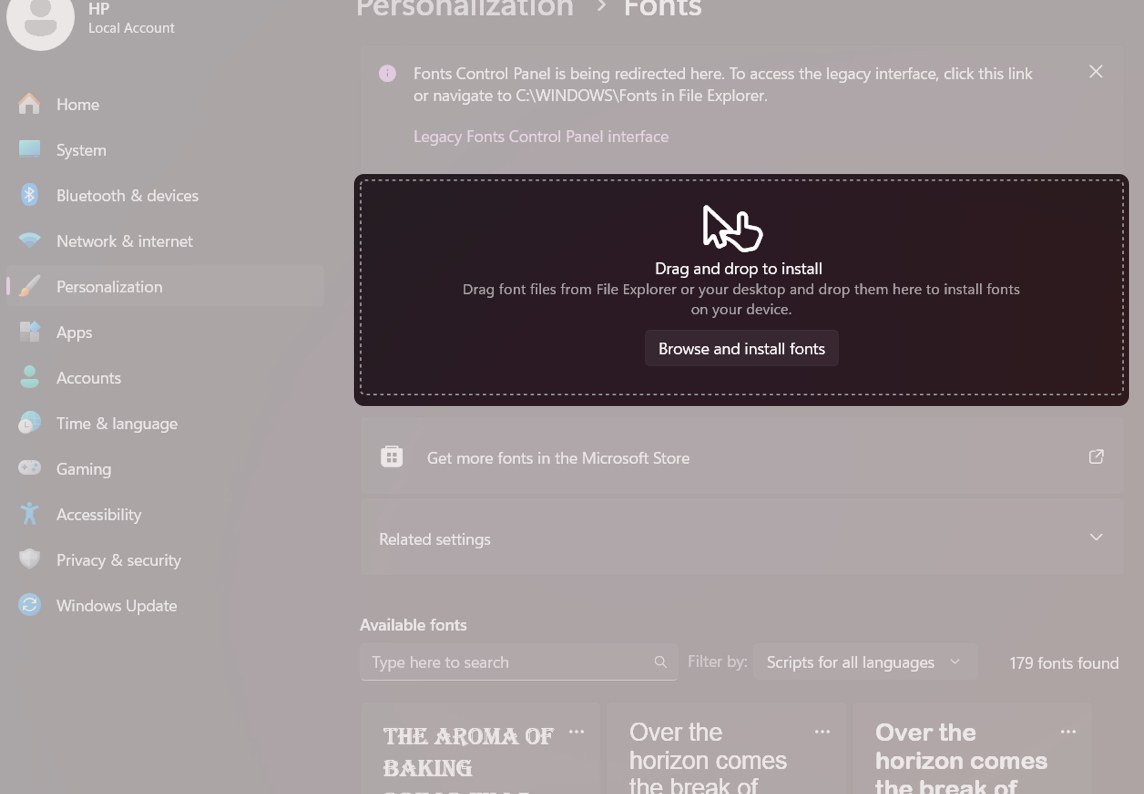
That’s it. Windows installs it instantly.
Bonus: I also found regional language fonts in the Microsoft Store for free. You just need to click the Get more fonts in the Microsoft Store banner in the same settings page. In this approach, there is no need to download fonts from a third-party website. However, due to a very limited selection, it’s not ideal for designers or creators.
This is the one that genuinely changed things for me. No settings. No extra steps.
What I actually do:
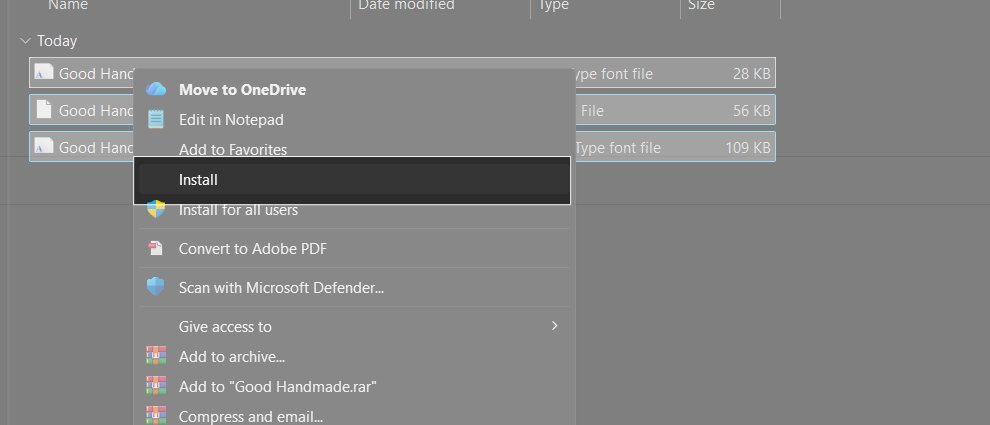
That’s it. It installs everything in seconds. Once you start using this method, the others feel slow.
This is where I used to get confused. I’d install a font and then panic when I didn’t see it immediately.
Here’s what actually works:
After installing dozens of fonts, a few patterns became obvious.
Now I test every font before actually using it in projects.
At some point, I got curious about where fonts actually live.
You’ll usually find them here:
You can drag fonts here manually to install or delete them to remove.
That said, I don’t recommend messing with this unless necessary. The regular methods are safer.
I ran into this issue when I was trying to install a bunch of custom fonts, and Windows 11 just refused to cooperate. Here’s what actually worked for me, step by step.
First, I stopped double-clicking the font file and instead right-clicked it and chose Install for all users. This made a surprising difference. Windows sometimes blocks standard installs due to permission quirks, and this option bypasses that.
When that didn’t fully solve it, I checked the file itself. A few of my fonts were downloaded as ZIP files, and I hadn’t extracted them properly. Once I extracted them and installed the .ttf or .otf files directly, things started working.
At one point, I realized Windows Security was quietly interfering. I temporarily disabled Controlled Folder Access. For this:
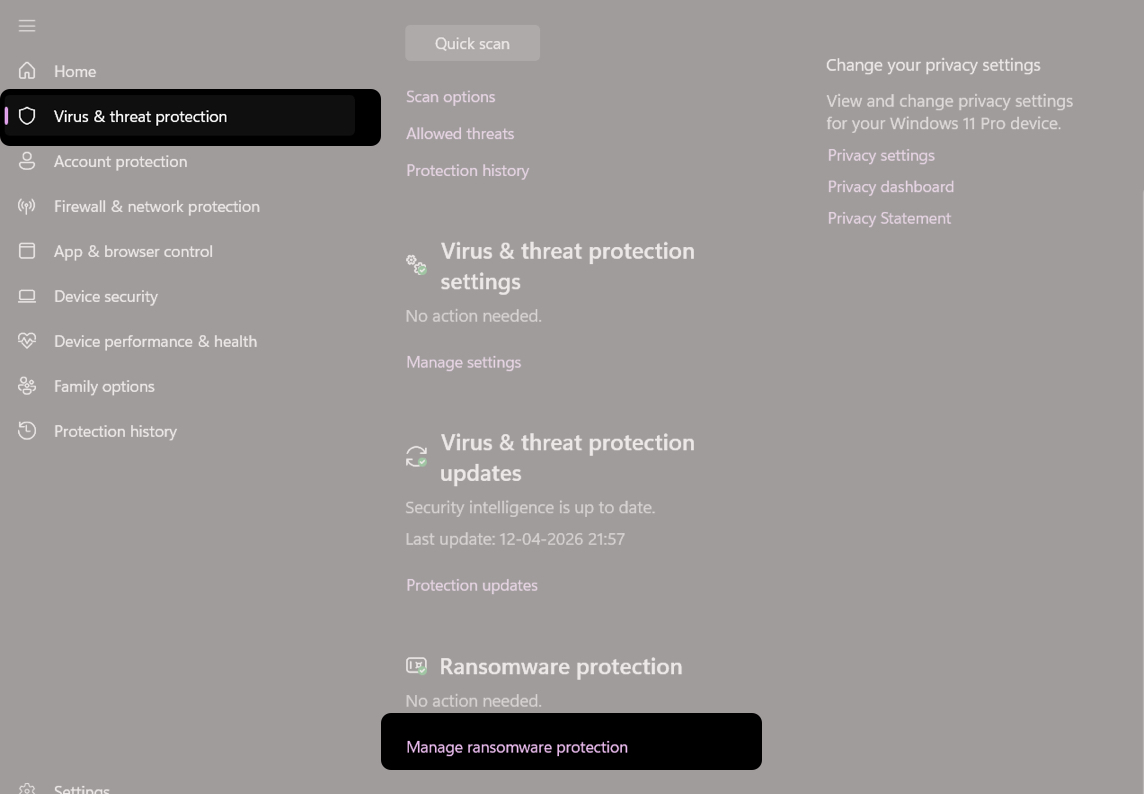
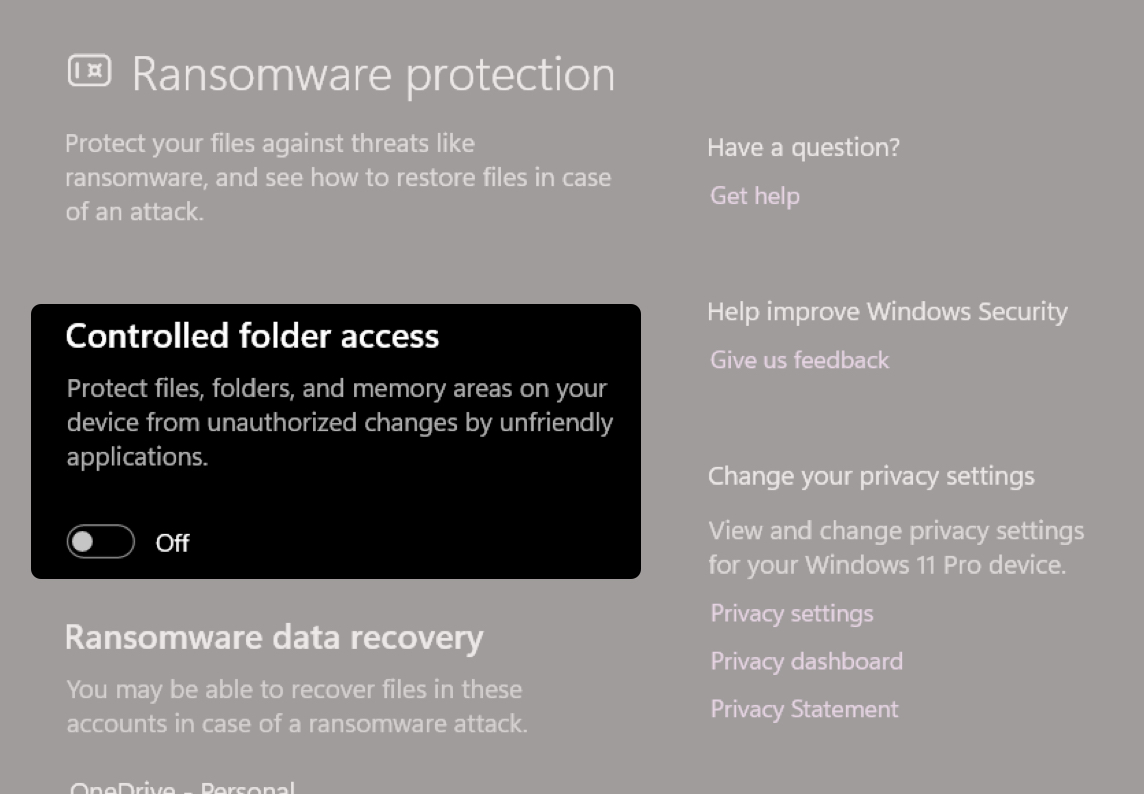
After installing the font, I turned it back on.
You can also restart the Windows Font Cache Service, which fixes fonts not showing up after installation:
Win + R, type services.msc.Finally, when nothing else worked for one stubborn font, I checked if it was actually compatible. Some older or corrupted fonts just won’t install on Windows 11, no matter what. So, you’re better off downloading a fresh version.
There are limits.
At this point, I don’t waste time. If a font doesn’t work quickly, I move on.
Cleaning up is just as important as installing. Here, I have shared two methods to quickly uninstall fonts that you added earlier.
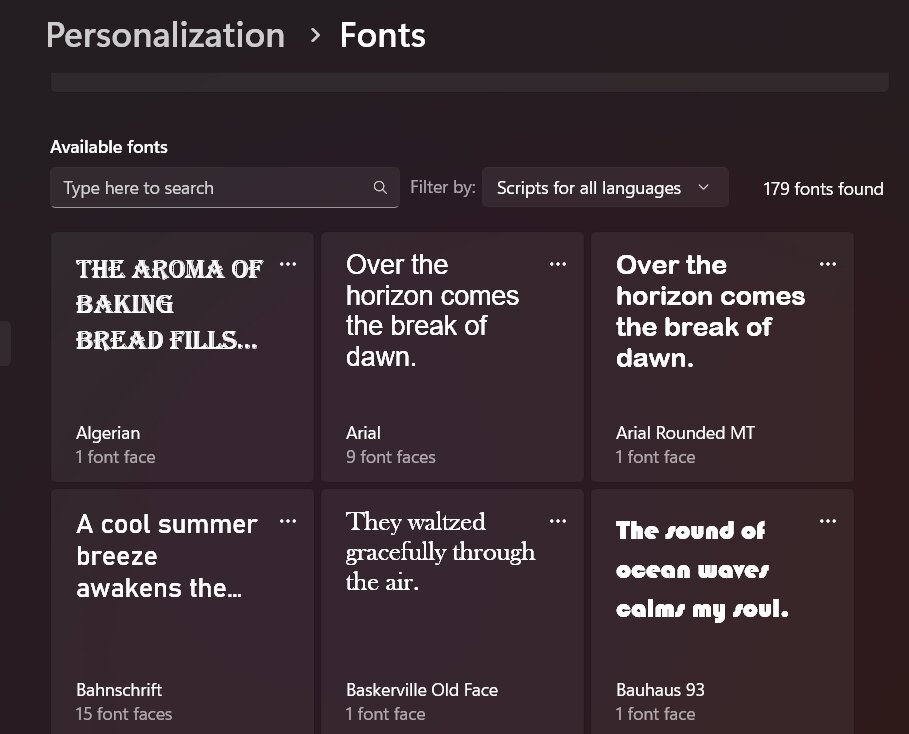
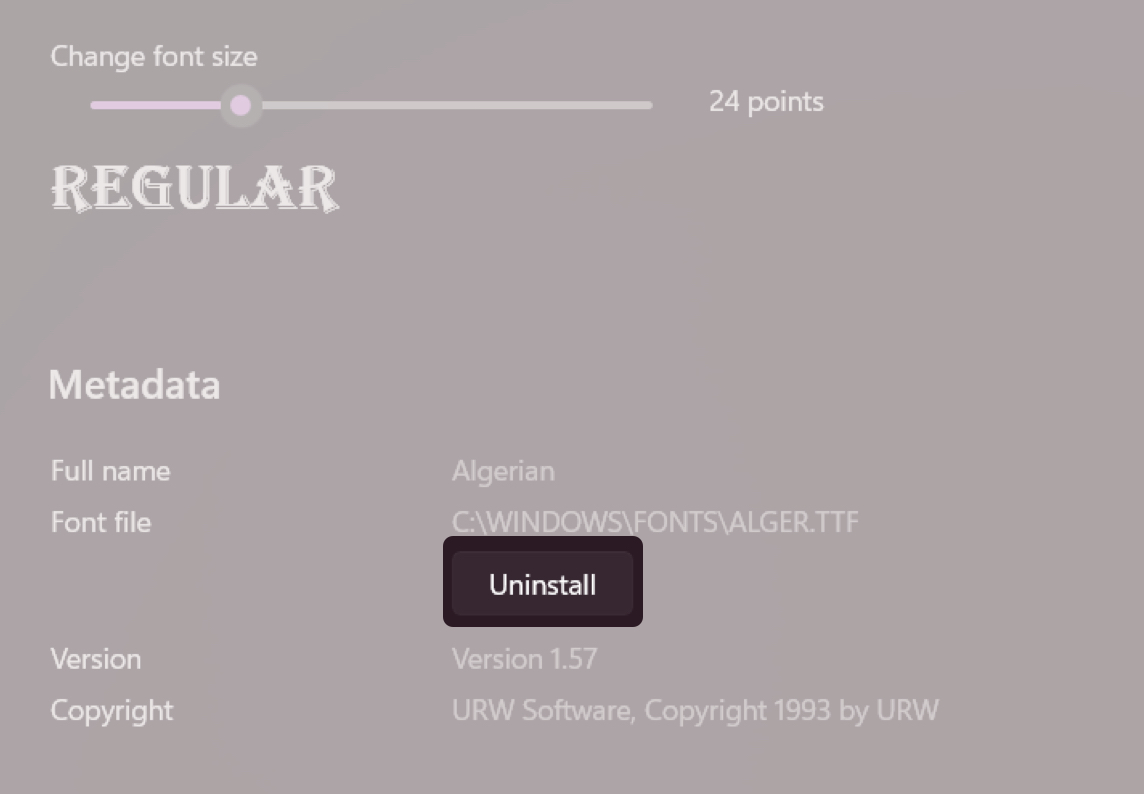
C:\Windows\Fonts. I used to think installing fonts was one of those annoying tasks you just tolerate. Turns out, it’s one of the easiest ways to upgrade how your work looks.
Once fonts become easy to install, you stop settling for defaults. You experiment more. Your work starts to feel intentional instead of repetitive. And honestly, that small shift makes a bigger difference than most people expect.
If you’re trying this today, which font are you installing first?
Related articles worth reading: