
FaceTime Like a Pro
Get our exclusive Ultimate FaceTime Guide 📚 — absolutely FREE when you sign up for our newsletter below.

FaceTime Like a Pro
Get our exclusive Ultimate FaceTime Guide 📚 — absolutely FREE when you sign up for our newsletter below.


Apple Wallet gains two useful upgrades in iOS 27: the ability to create digital passes from physical cards and a simpler way to split Apple Pay purchases through Apple Cash.
 ByVikhyat
Apple Wallet has quietly evolved from a place to store payment cards into an app that can hold boarding passes, event tickets, hotel keys, car keys, and even government IDs in supported regions.
With iOS 27, Apple is introducing a pair of practical upgrades that make Wallet even more useful for everyday tasks. Rather than overhauling the app, the update focuses on improving how users manage passes, travel, and split payments.
Here’s everything new coming to Apple Wallet in iOS 27.
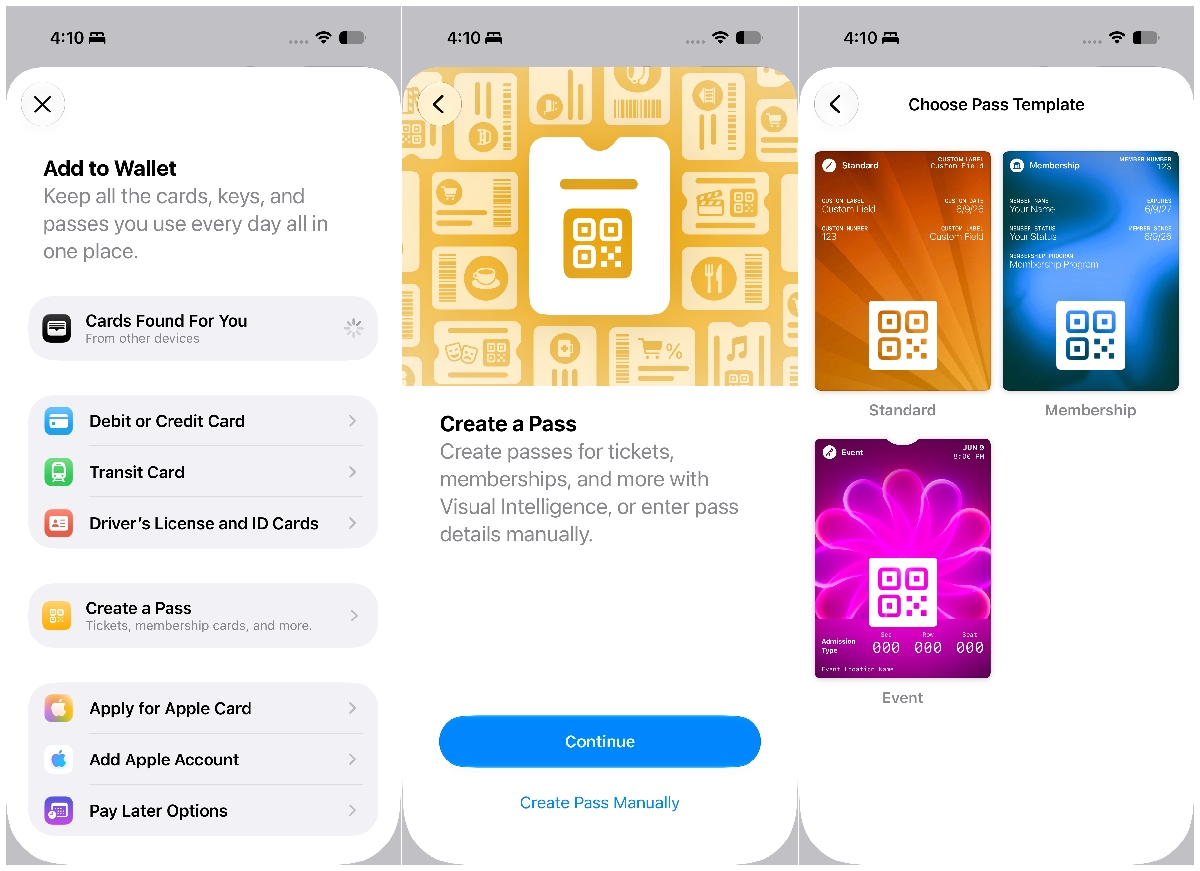
iOS 27 introduces Create a Pass, a new option available from the + button in Apple Wallet.
The feature lets users digitize physical passes by scanning them with their iPhone’s camera using Visual Intelligence. You can also create passes manually if needed.
Manual creation currently supports three pass categories:
This gives users more flexibility to keep physical and digital passes organized in one place instead of juggling multiple apps or paper cards.
Apple has not yet provided a complete list of supported pass types, so functionality may vary depending on participating organizations and services.
Splitting expenses after a dinner, concert, or group trip is getting much easier in iOS 27.
Instead of manually calculating each person’s share or switching to another payment app, users can split eligible Apple Pay purchases directly and settle them through Apple Cash after the transaction.
The feature streamlines one of the most common payment-related tasks and reduces the friction involved in reimbursing friends and family.
As with Apple Cash itself, availability will depend on supported regions.
Apple Wallet may not have received much attention during WWDC 2026, but these additions address two common everyday challenges.
Both features feel like natural extensions of what Wallet has gradually become over the years. The app continues to replace items that traditionally lived in a physical wallet while simplifying tasks that previously required additional apps or manual work.
Both features are included in iOS 27. However, bill splitting relies on Apple Cash, which means the feature will only be available in countries and regions where Apple Cash is supported.
Rather than introducing a long list of flashy additions, Apple focused on refining Wallet’s core experience in iOS 27.
The ability to digitize physical passes makes Wallet more useful as a central hub for everyday essentials, while built-in bill splitting removes some of the hassle from shared payments.
They may seem like small upgrades, but for an app many people use every day, these practical improvements could end up being some of the most valuable changes in iOS 27.
Which Apple Wallet feature are you most excited to try in iOS 27? Let us know in the comments below.











