FaceTime Like a Pro
Get our exclusive Ultimate FaceTime Guide 📚 — absolutely FREE when you sign up for our newsletter below.

FaceTime Like a Pro
Get our exclusive Ultimate FaceTime Guide 📚 — absolutely FREE when you sign up for our newsletter below.


Learn how to enhance your iPhone experience with Accessibility features.

 ByIdowu Omisola and Ava Biswas
Apple has always been a pioneer when it comes to making tech everyone, and iOS 26 accessibility features takes inclusivity to the next level. From Braille Access and Head Tracking to Accessibility Reader and improved VoiceOver, iPhones continue to evolve as devices that anyone can use comfortably.
Whether you have visual, auditory, or motor challenges or simply want to make your device easier to navigate, this guide covers every major iPhone accessibility feature in iOS 26, with step-by-step instructions so you can start using them today.
These features help users with visual impairments or reading difficulties interact with their iPhones more comfortably.
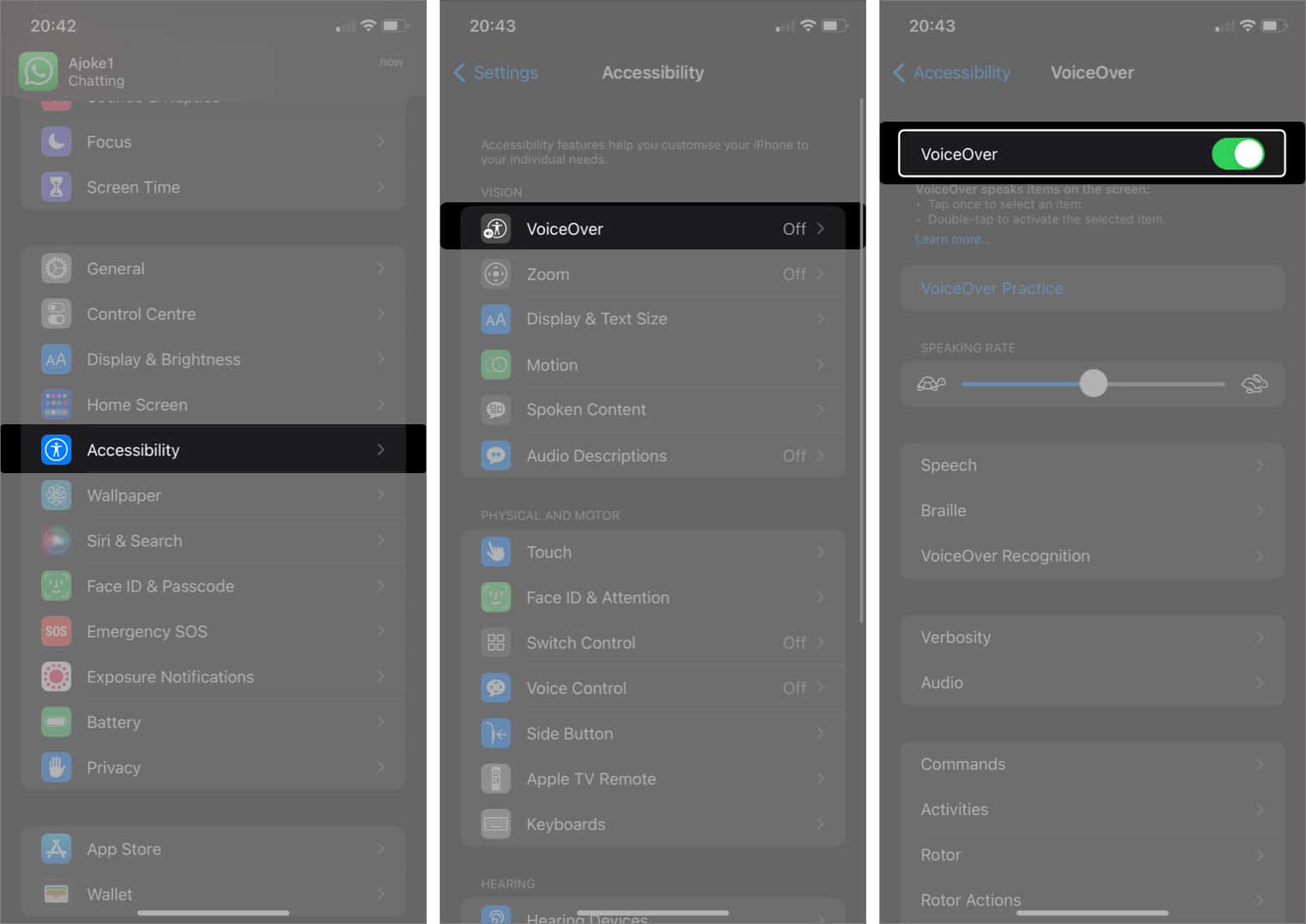
VoiceOver reads aloud every item on the screen, including text, buttons, and icons. So, when you tap a button or an app, a voice tells you what it is. In iOS 26, typing feedback and Braille Screen Input have been improved.
iOS 26 introduces Accessibility Reader, a system-wide feature that simplifies and highlights text for easier reading. You can also listen to the text thanks to its Spoken Content support. Apple has designed it for people with dyslexia, low vision, or other reading challenges.
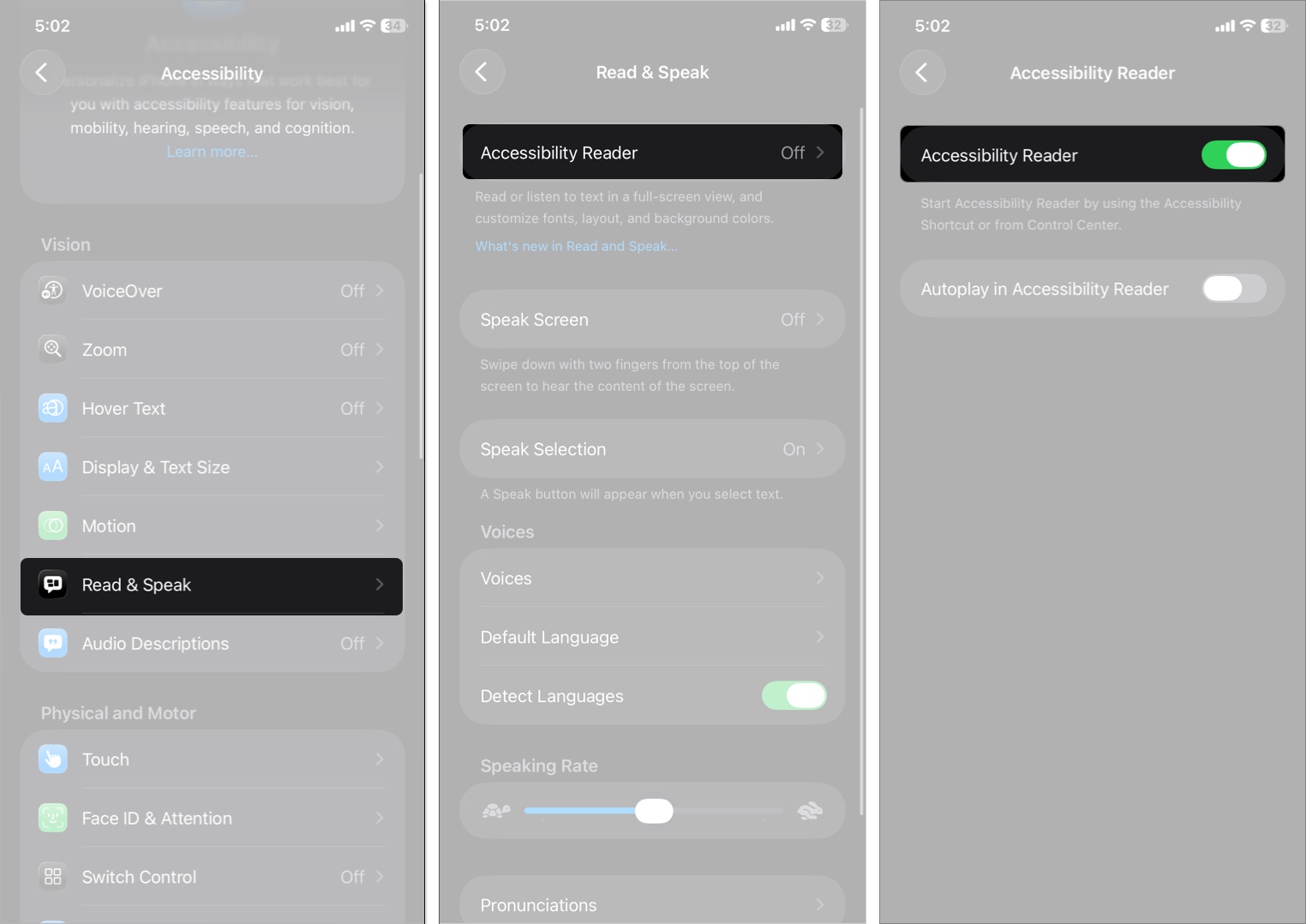
It’s also integrated into the Magnifier app to read real-world text like restaurant menus or books by pointing your device’s camera.
You can use Zoom to magnify the entire screen while using apps or typing on your iPhone or iPad. I recommend this option if you have difficulty seeing small texts. Or if you need a more precise focus on icons.
To activate:
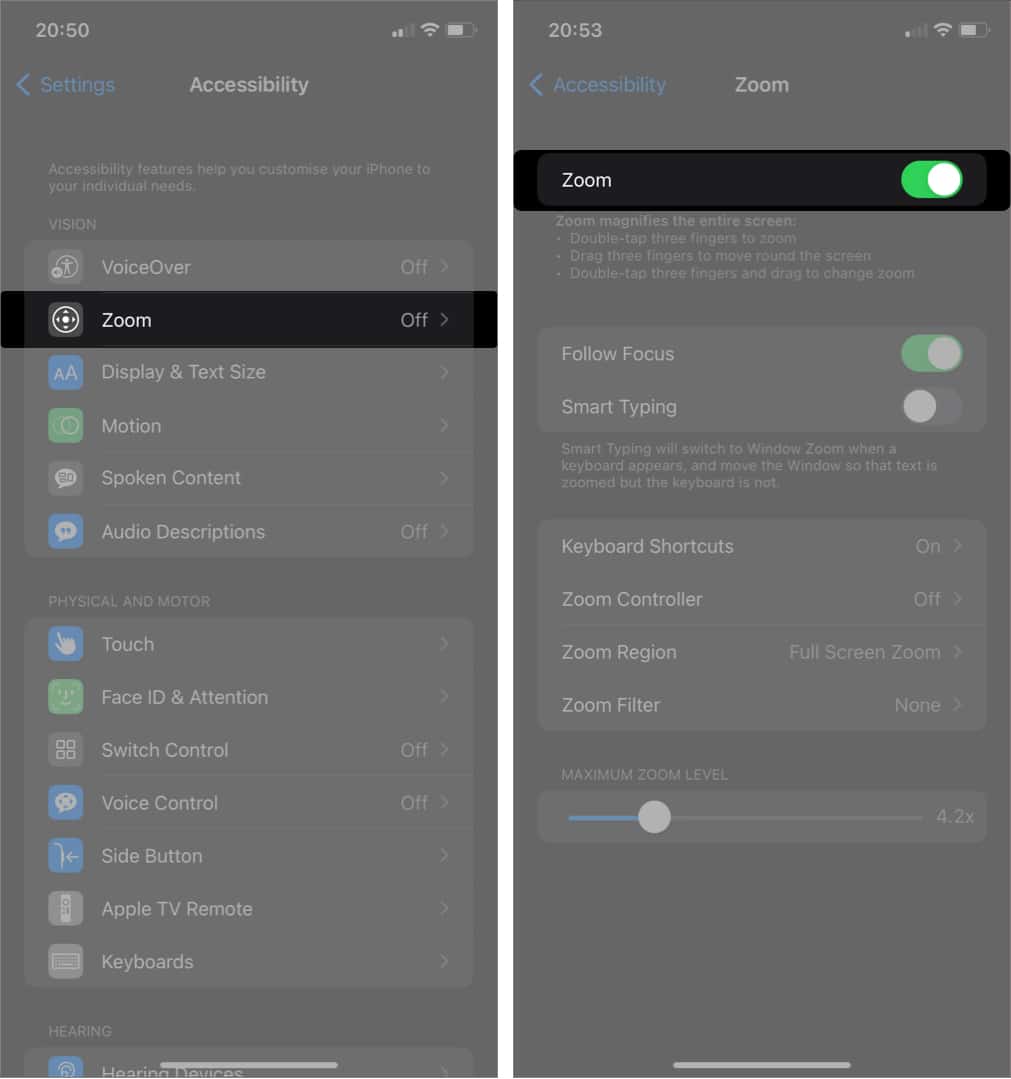
Once active, double-tap with three fingers to switch between zooming in and out. Swipe across the screen with three fingers to move around your device when you zoom icons.
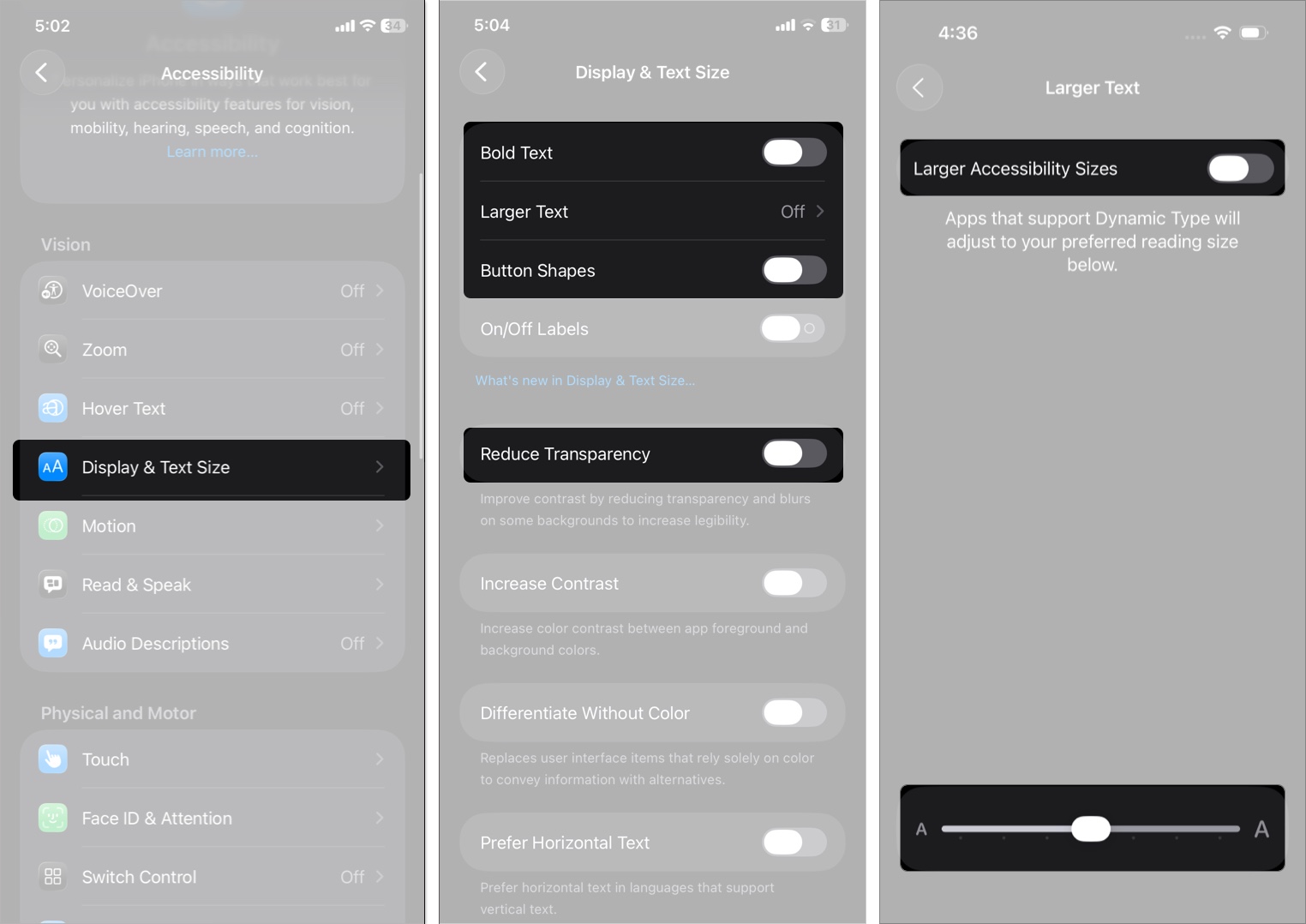
Control text size, boldness, contrast, and button shapes. New in iOS 26, you can reduce transparency in the Liquid Glass UI for better visibility.
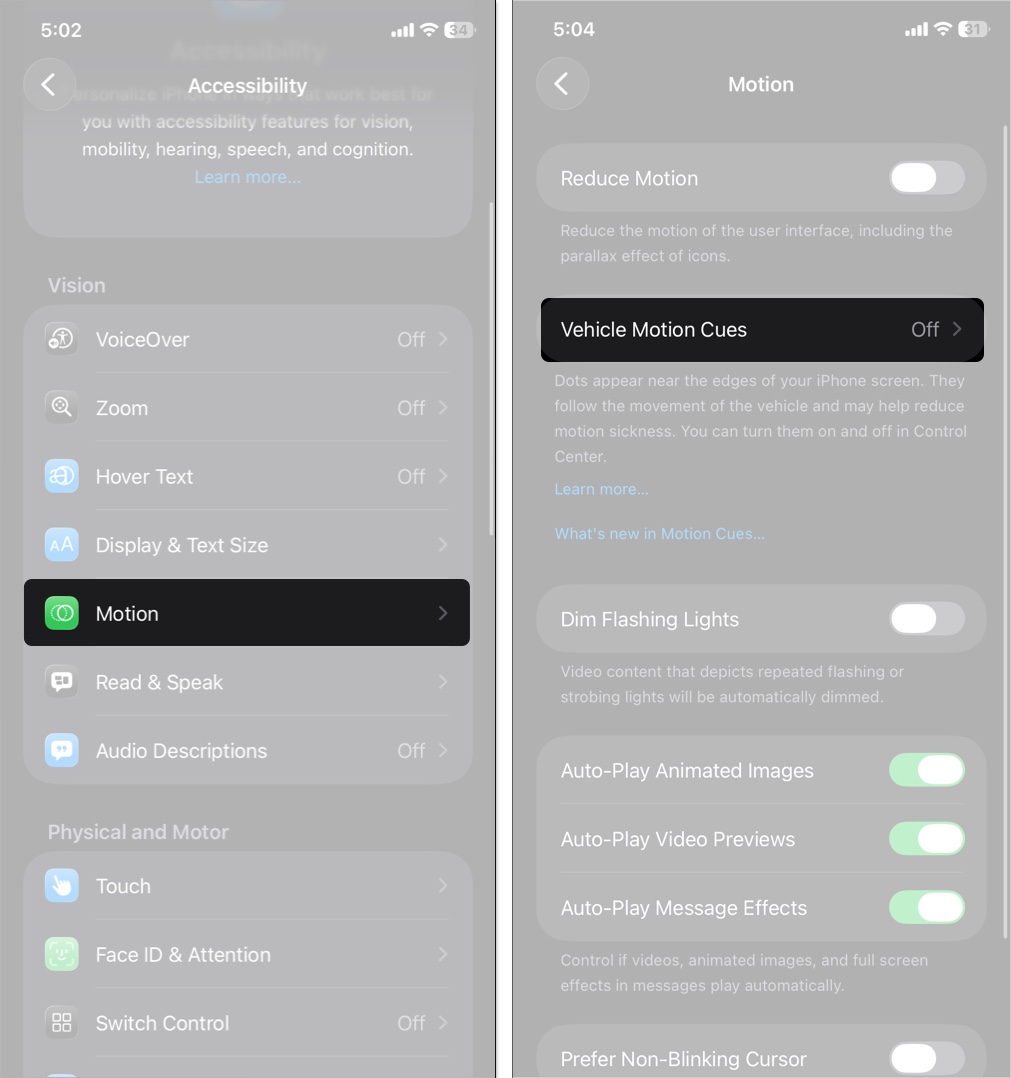
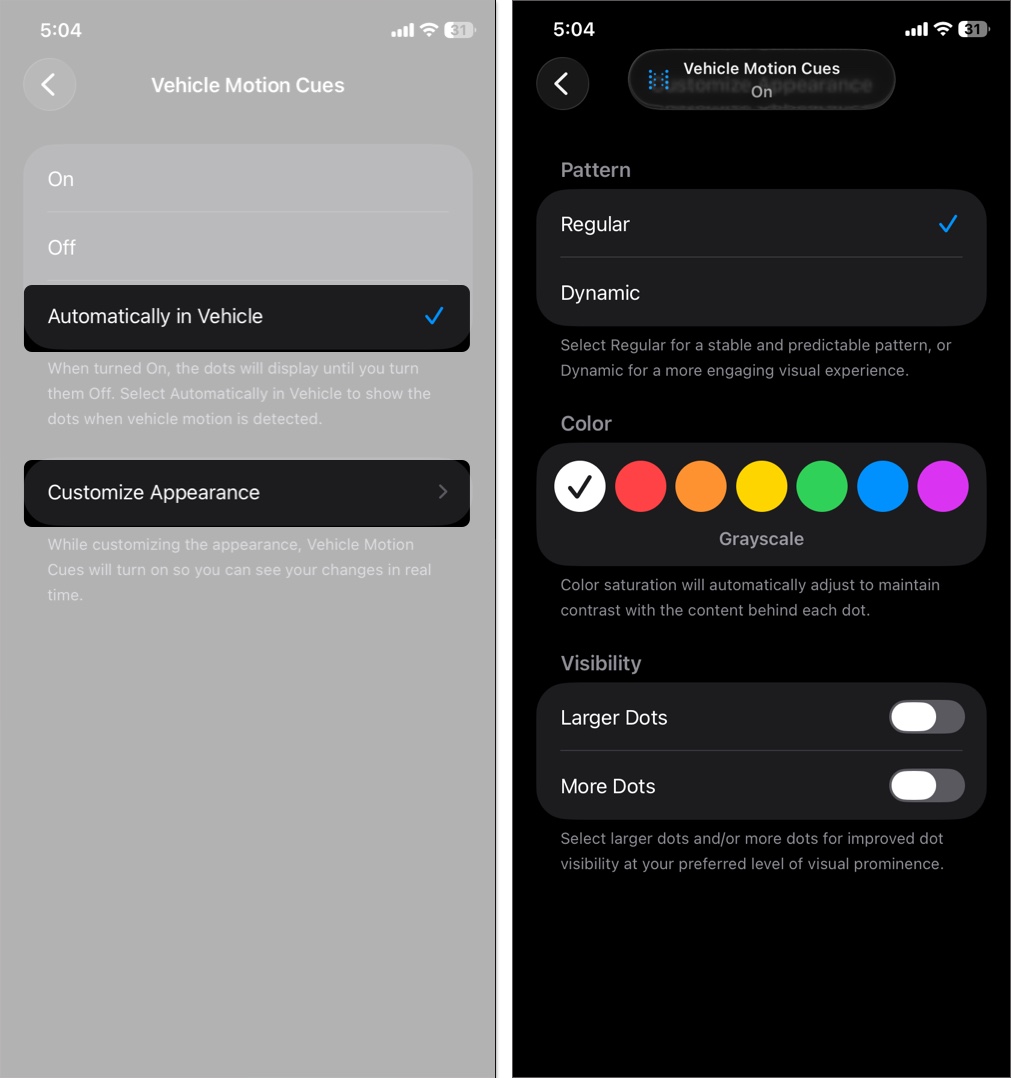
If you experience motion sickness while using your iPhone while traveling by road or plane, the Vehicle Motion Cues feature can help. It provides visual cues when the iPhone detects movement during travel. iOS 26 allows more customization.
To set it up:
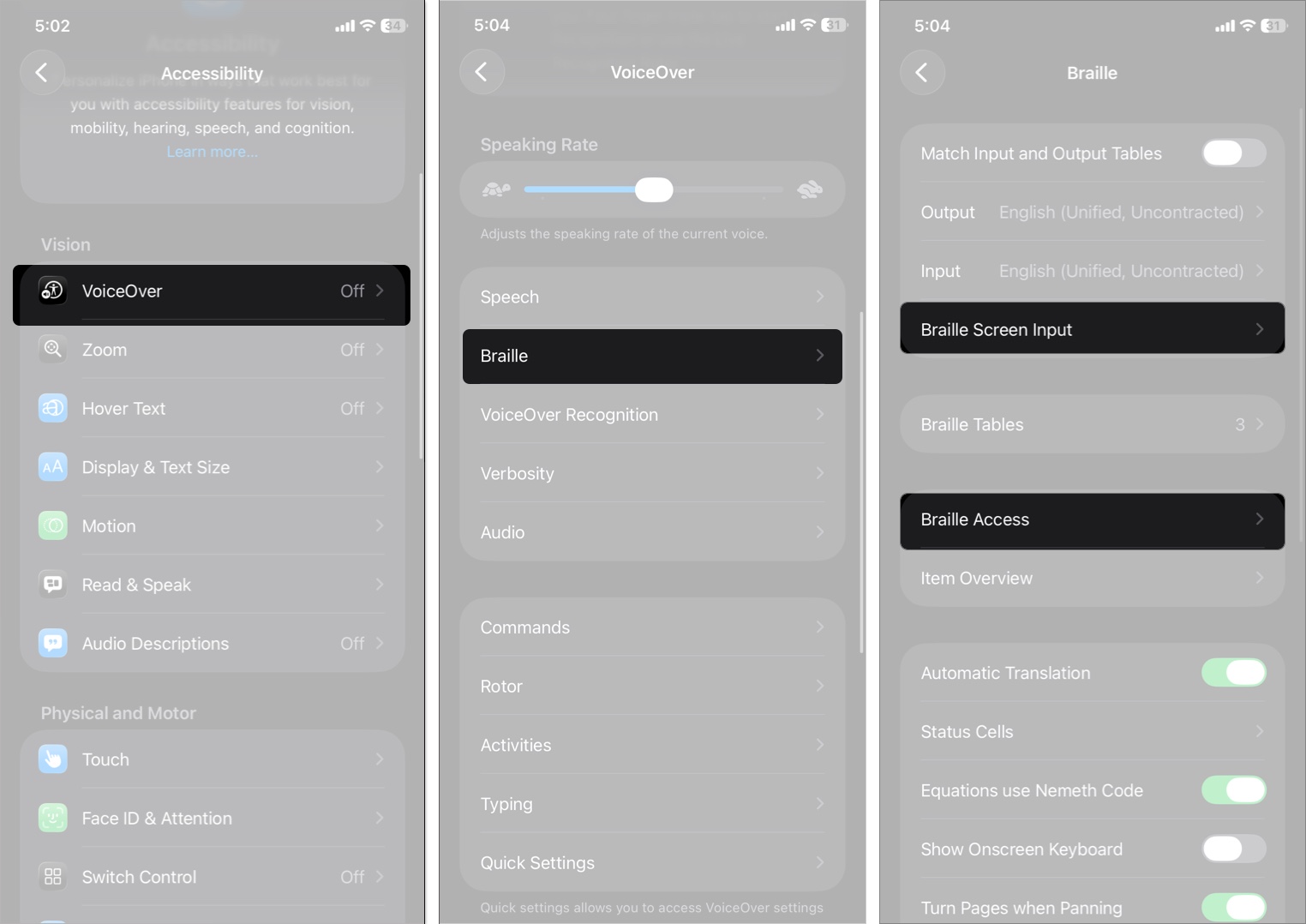
iOS 26 enables the iPhone to act as a full-featured braille notetaker that can easily open any app by typing with a connected braille display. It supports Nemeth math code, live conversation transcription, Braille Screen Input, external braille displays, and BRF (braille) files.
To use Braille Access:
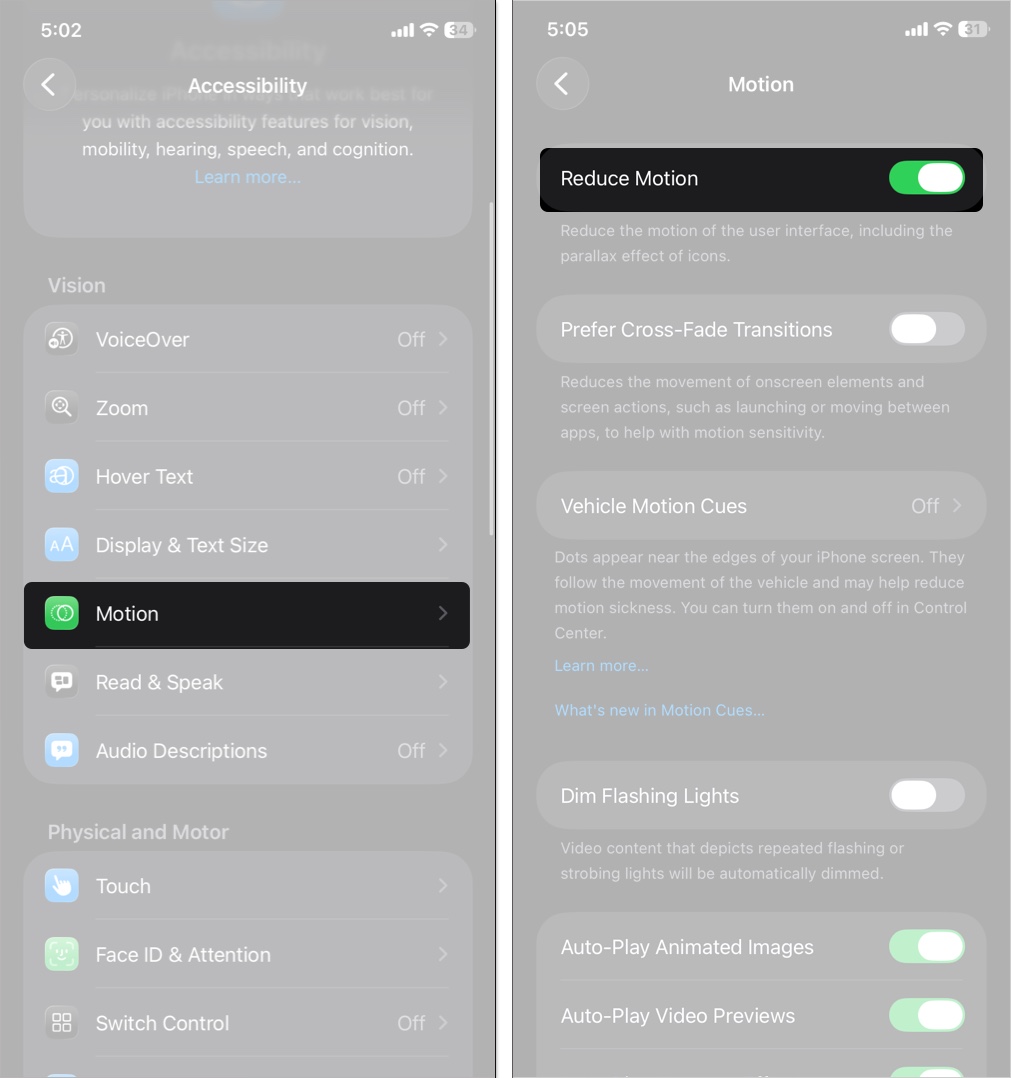
It can be hard to visually catch up when actions and movements are too quick on your iPhone. You can slow them down for better comprehension and follow-up. So at least, you’ll know what’s happening next on your device.
To do this:
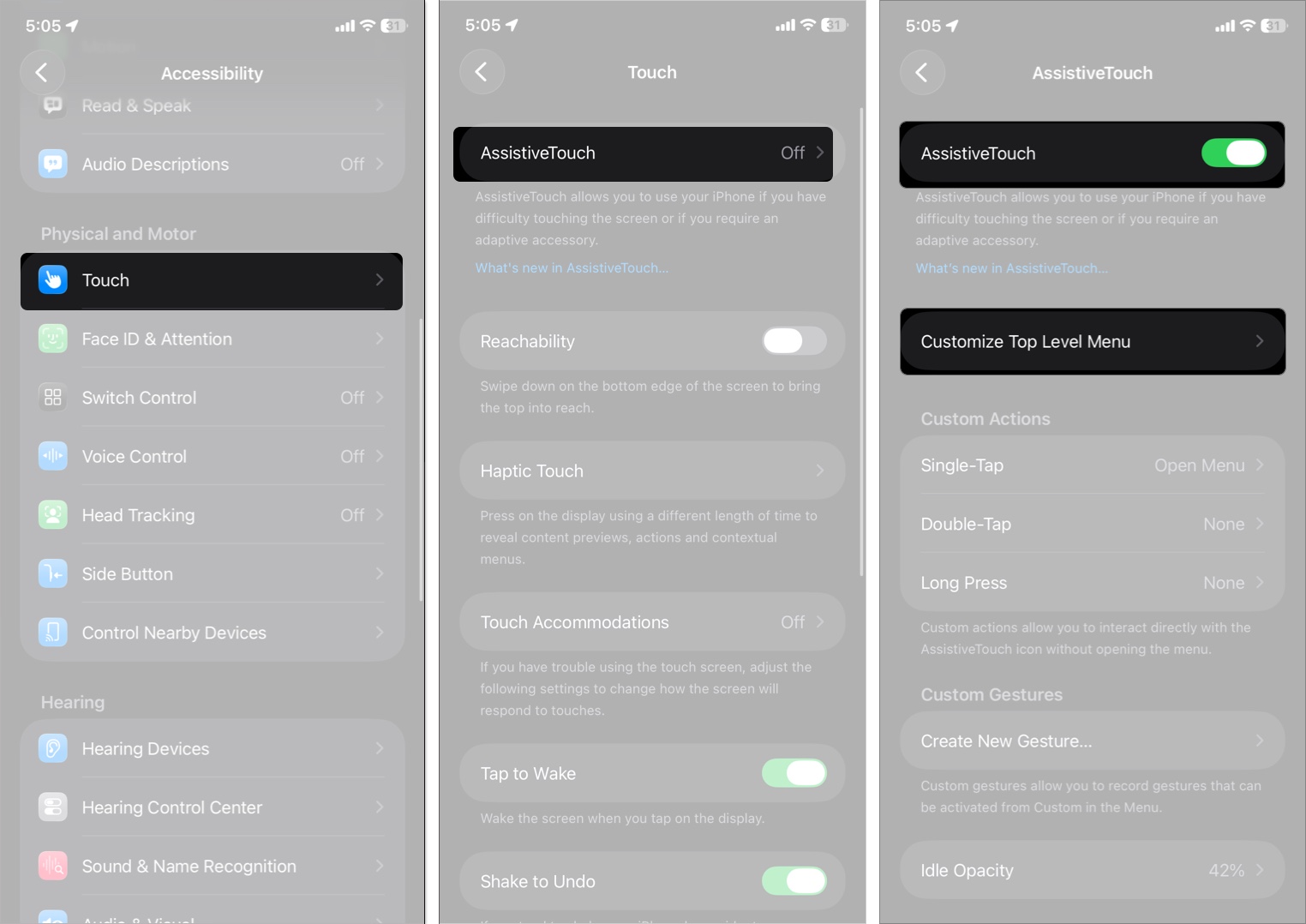
These features support users with motor impairments, limited dexterity, or those seeking hands-free control.
Provides a floating menu for gestures like taking screenshots, switching apps, or activating the torch without complex motions.
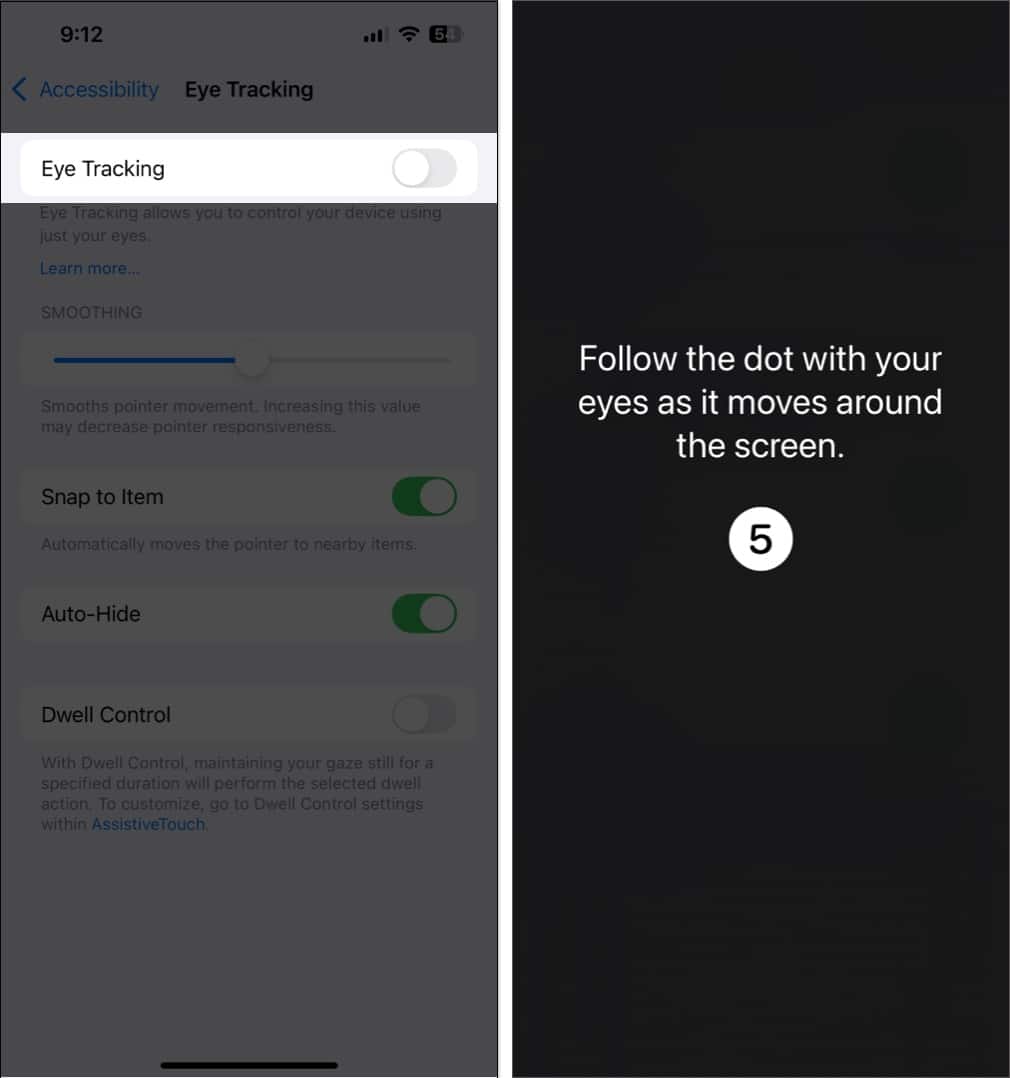
Use your gaze to control the iPhone pointer or select items. Ideal for hands-free operation. In iOS 26, Eye Tracking provides switch and dwell gestures for typing.
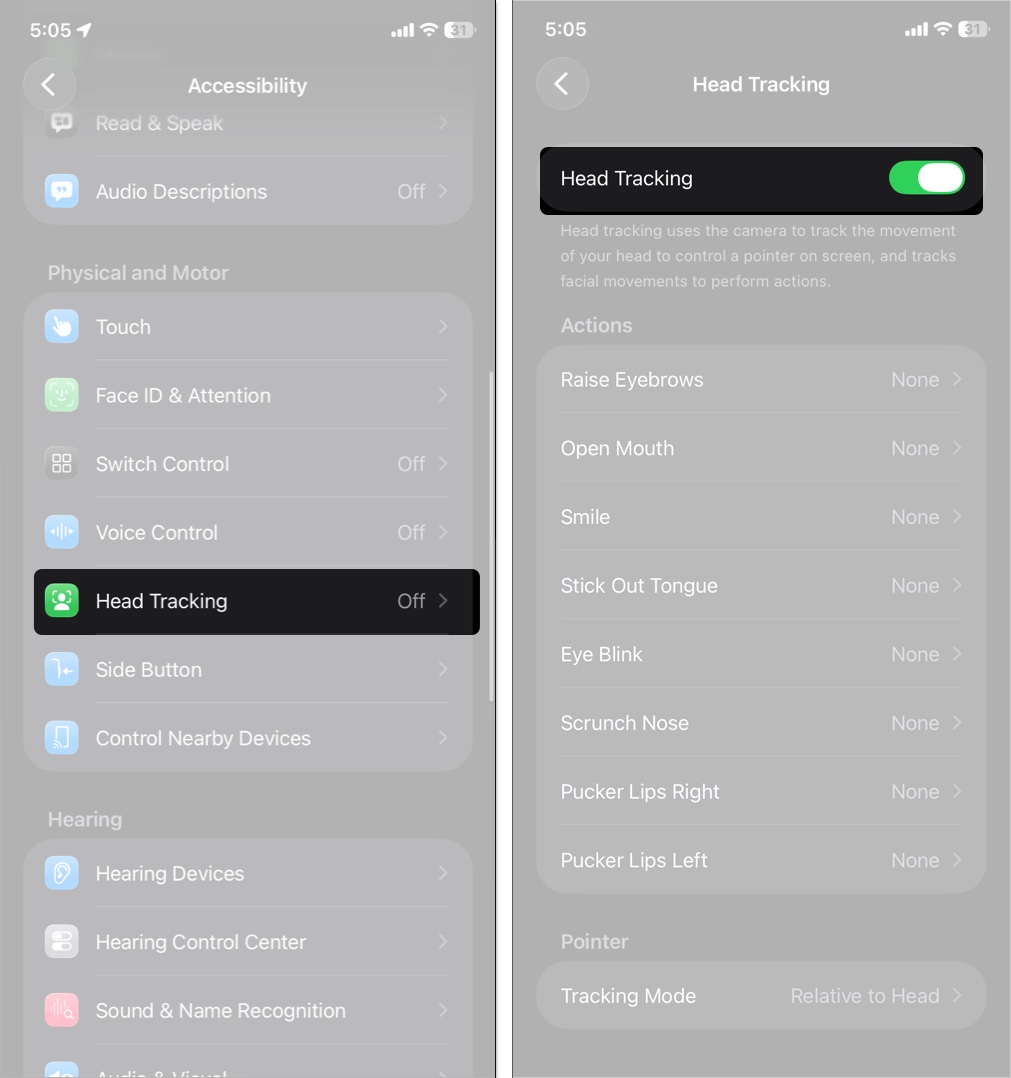
In iOS 26, Head Tracking is a remarkable feature that helps individuals with limited mobility. Control the pointer or trigger actions like tapping on something or taking screenshots using head or facial movements like blinking, smiling, or raising eyebrows.
To enable Head Tracking:
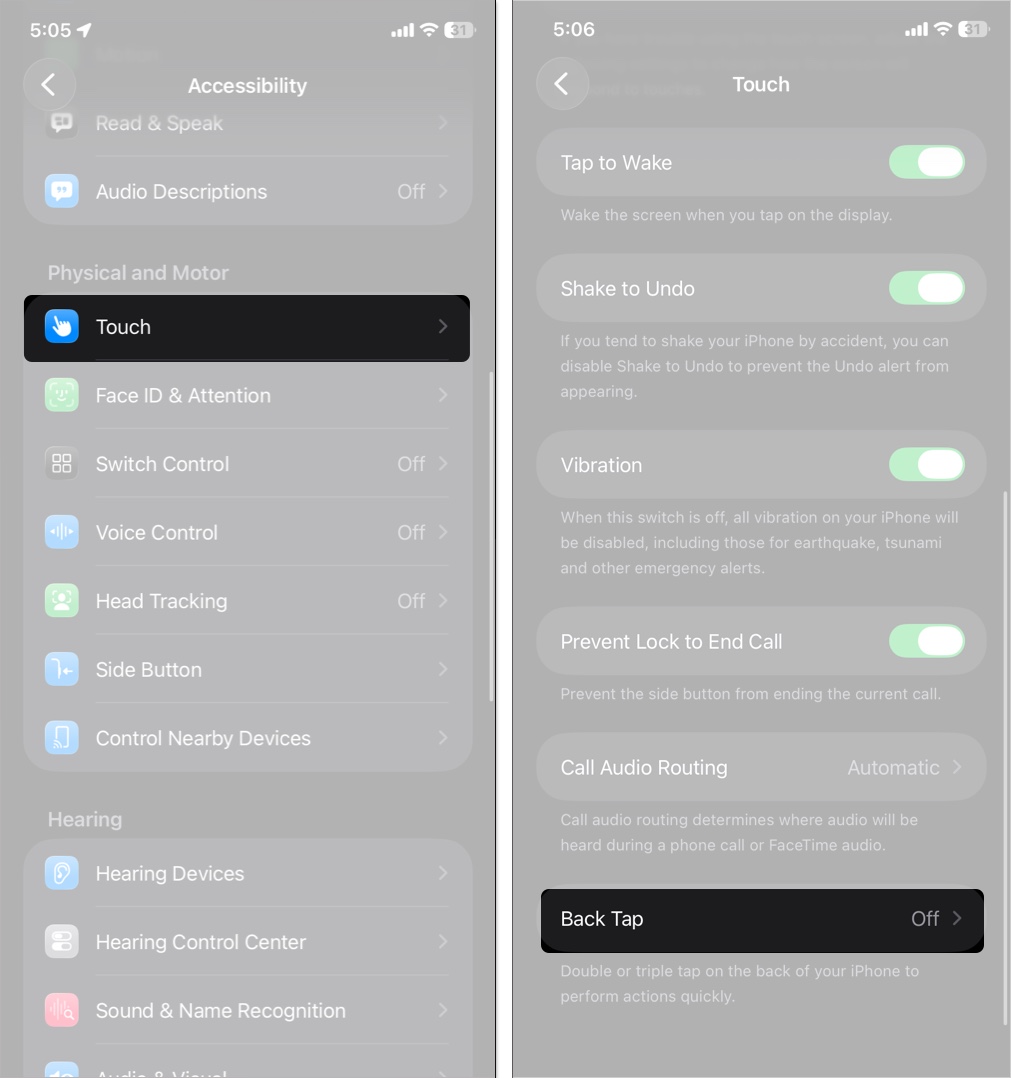
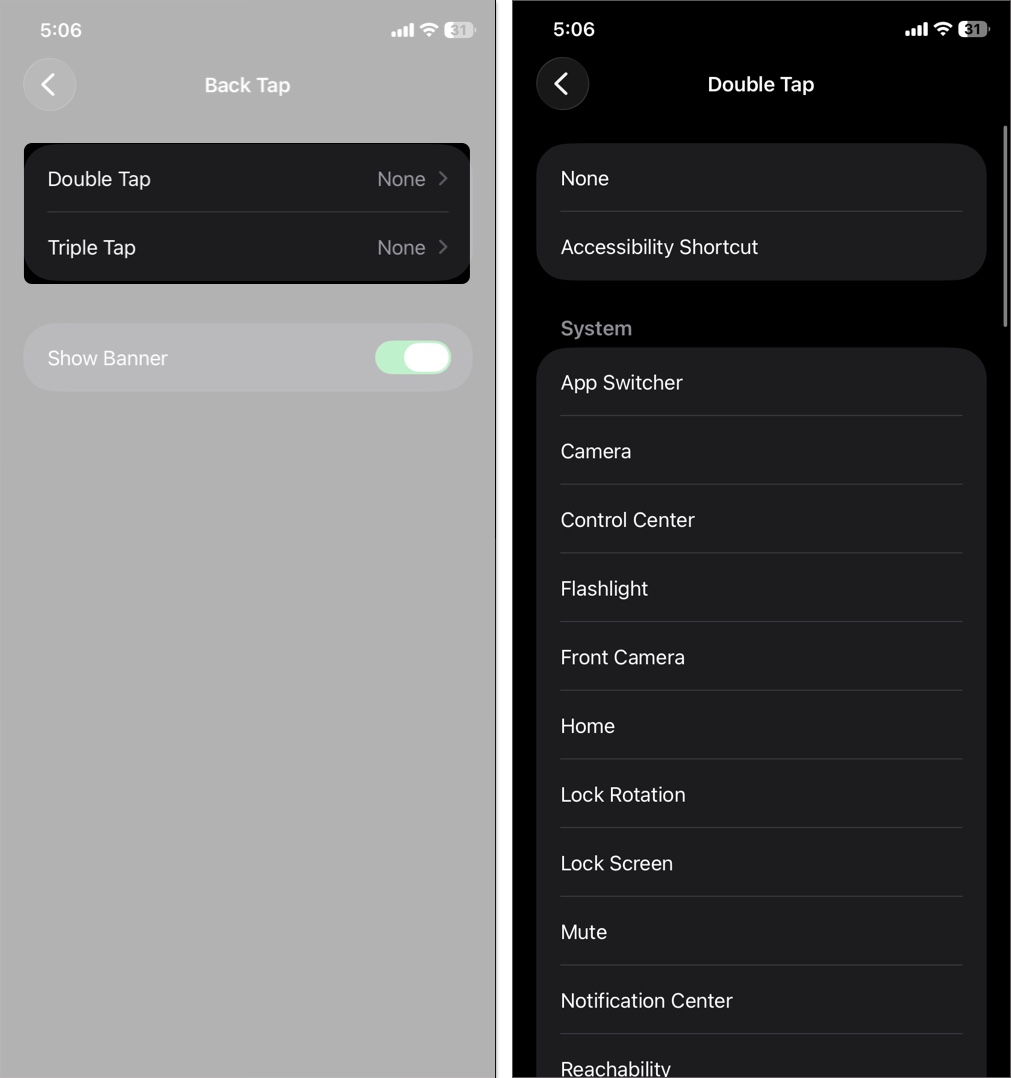
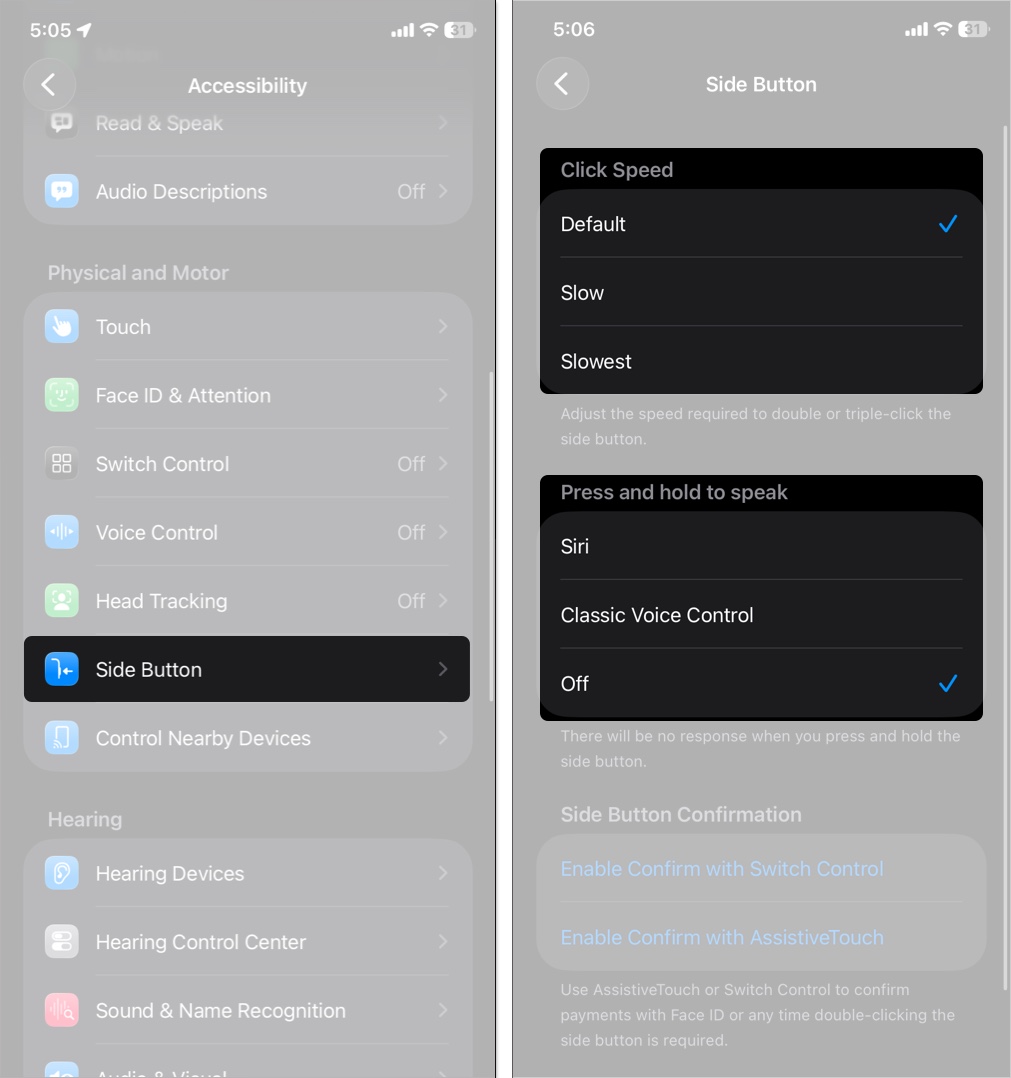
Perform actions by tapping the back of your iPhone or pressing the side button three times.
Steps to set up Back Tap and Side Button shortcuts:
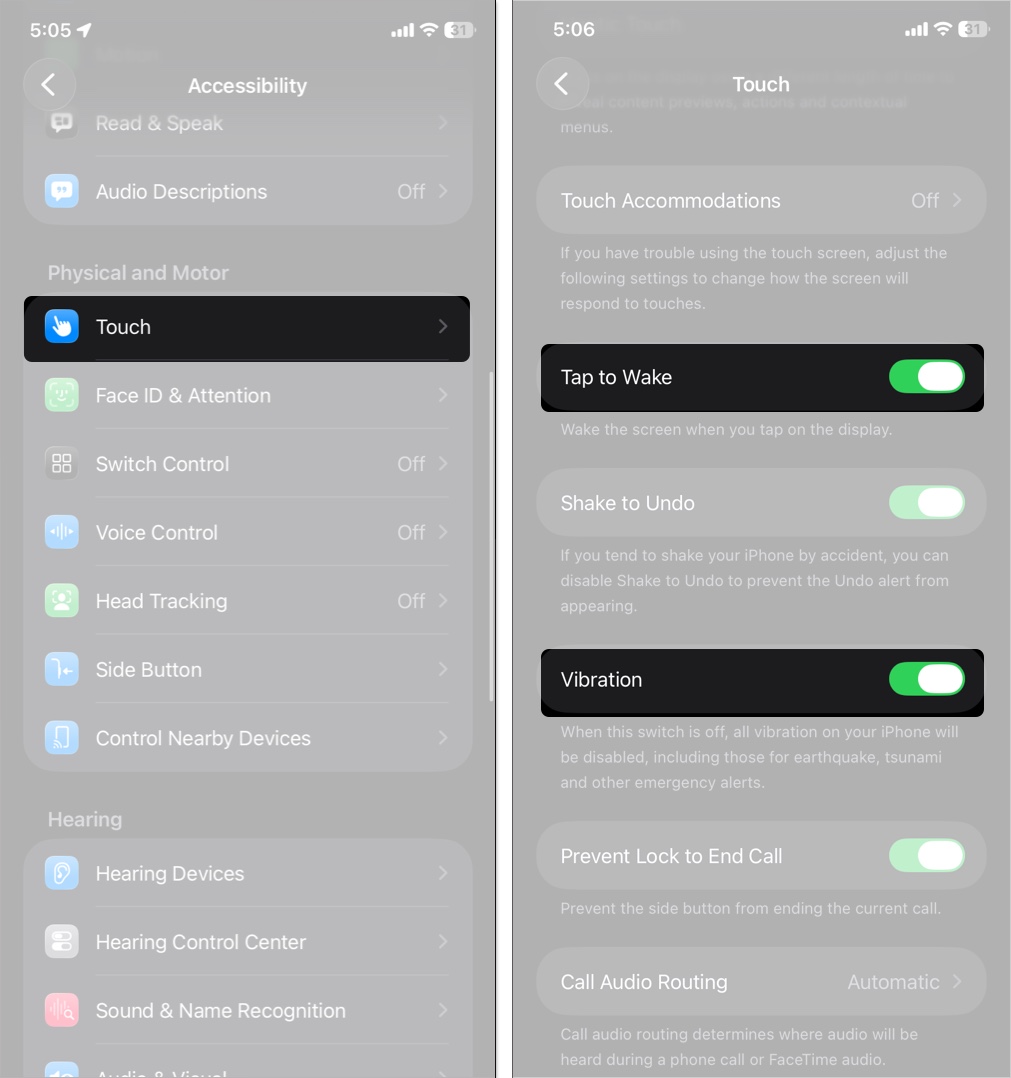
Like the raise to wake feature on iPhone, you can also configure your device to turn on the screen light whenever you tap it. Vibration keeps your iPhone in vibration mode even when the screen is off. So, at least, you can get emergency alerts even when you’re not actively using them.
To activate these features:
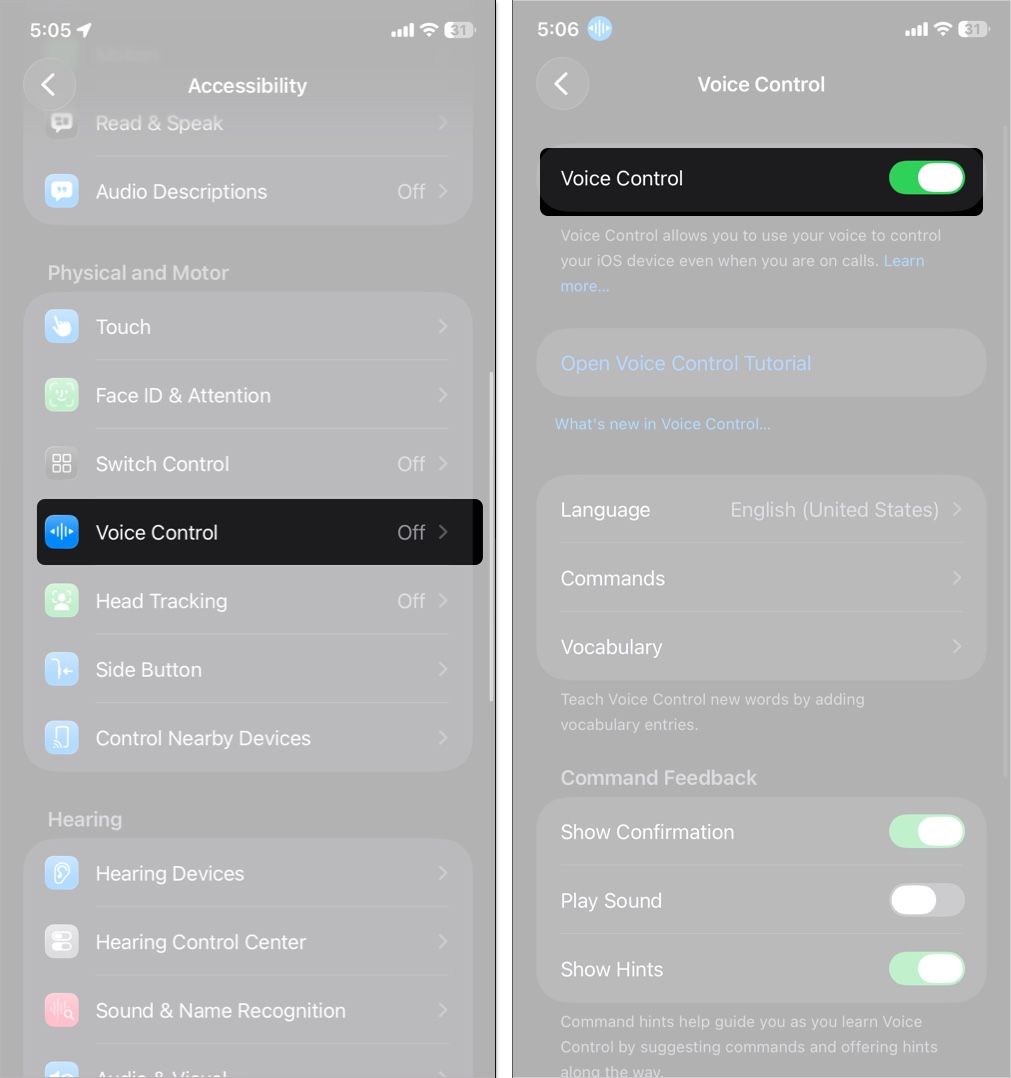
Perhaps another lazy feature that the iPhone has added to our lives. Use voice commands for hands-free navigation, dictation, or app control. iOS 26 improves dictation accuracy and spelling support.
Setup Voice Control on your iPhone:
iOS 26 enhances audio accessibility for people with hearing challenges.
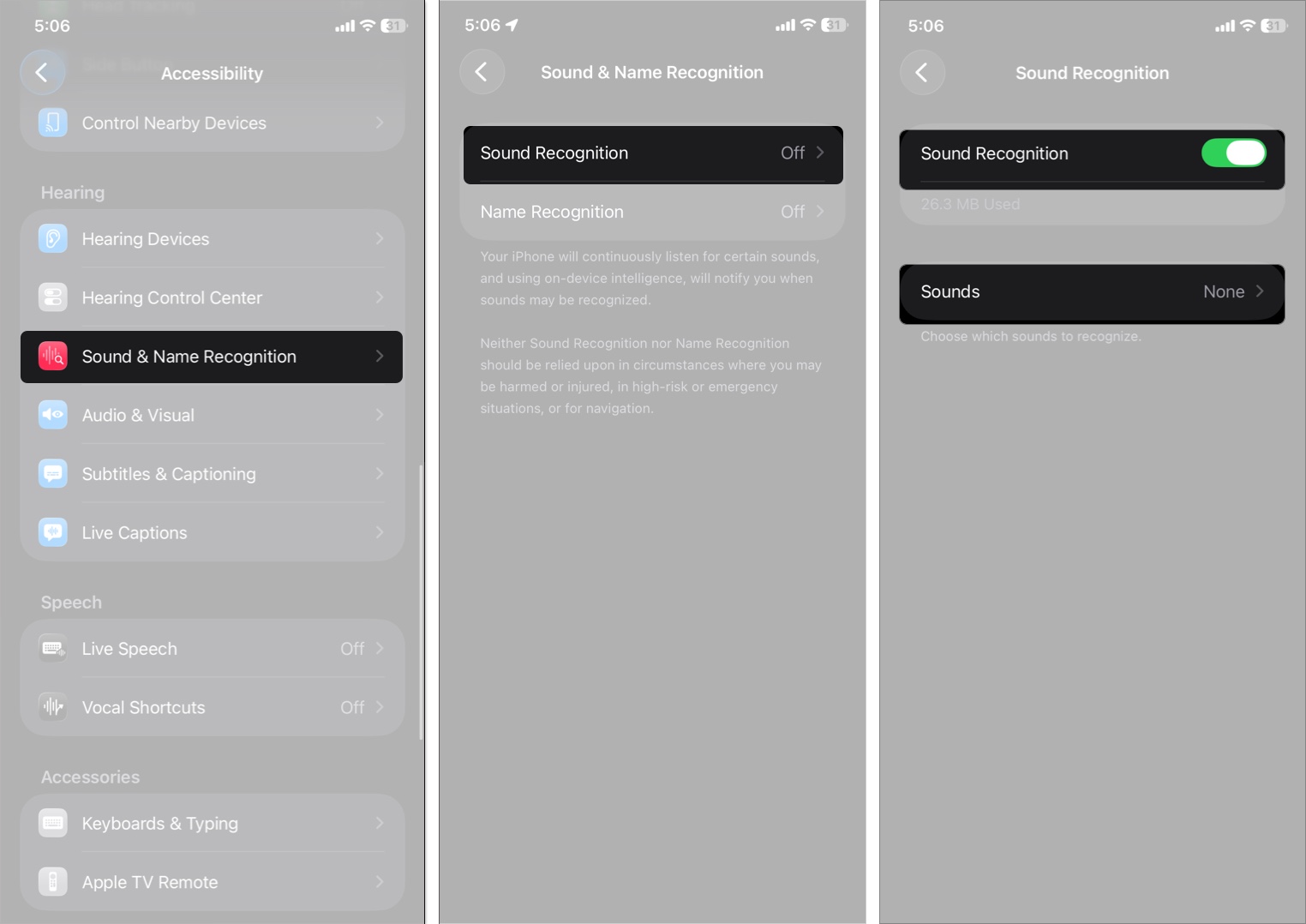
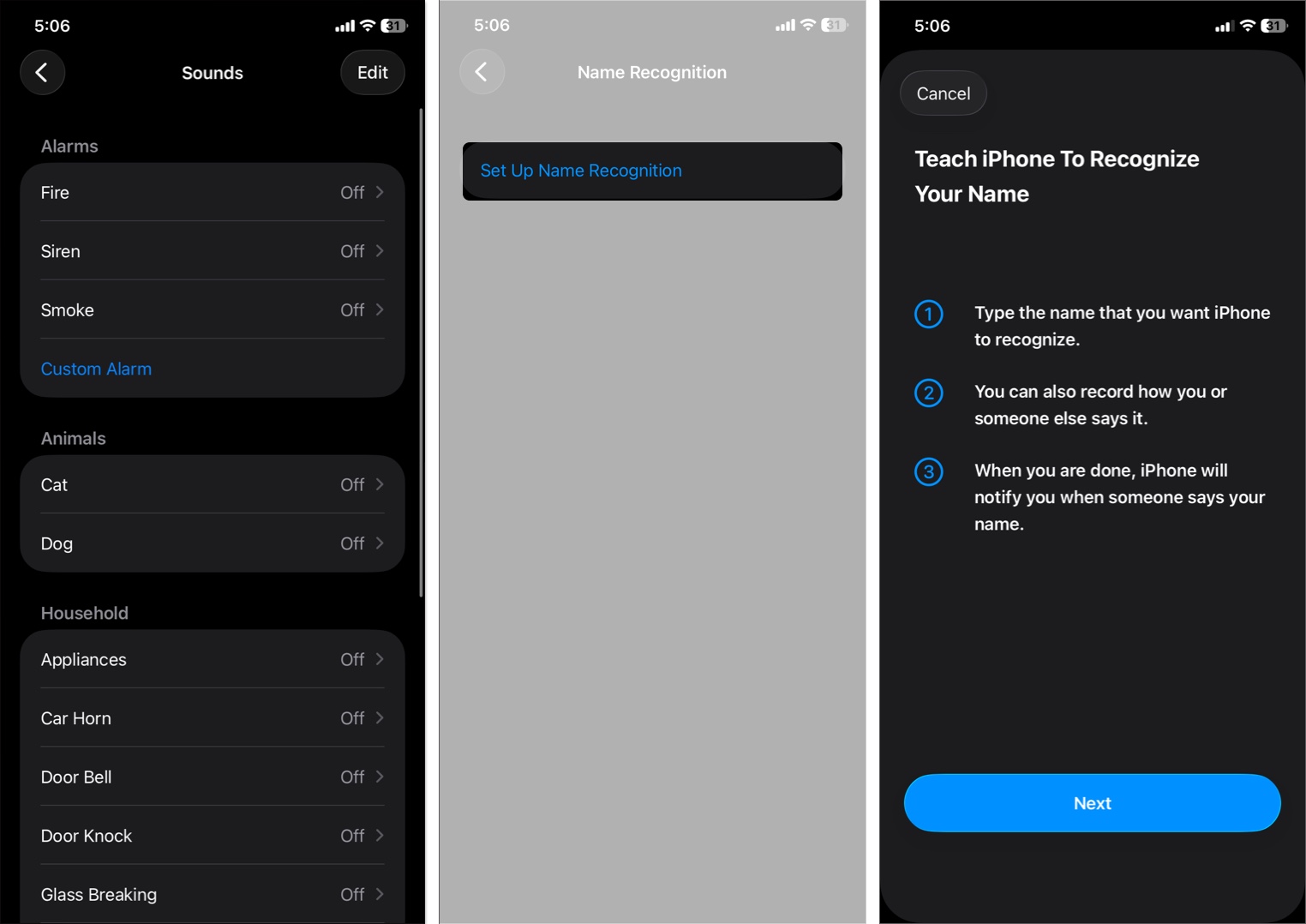
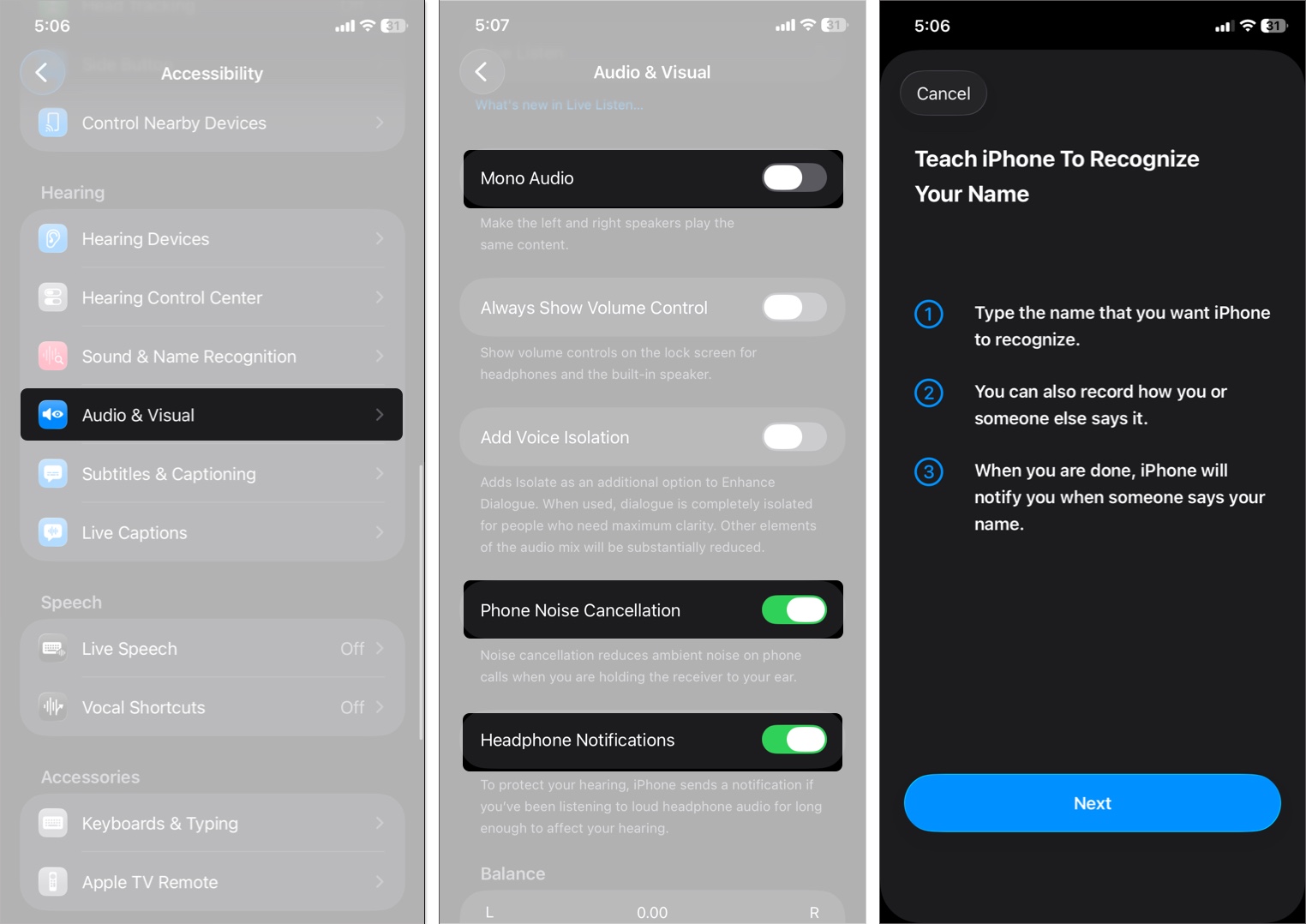
Get alerts for specific sounds like alarms, sirens, or crying babies. In iOS 26, you can also train your iPhone to recognize names so you can get alerts when those name
is being called.
To activate Sound Recognition:
Music Haptics is an immersive feature that enhances your music streaming experience by providing tactile feedback that syncs with the type of music playing on your iPhone. In iOS 26, it lets you sync haptics with vocals or full songs, and adjust intensity and textures.
To enable it, go to Settings → Accessibility → Music Haptics and turn it on.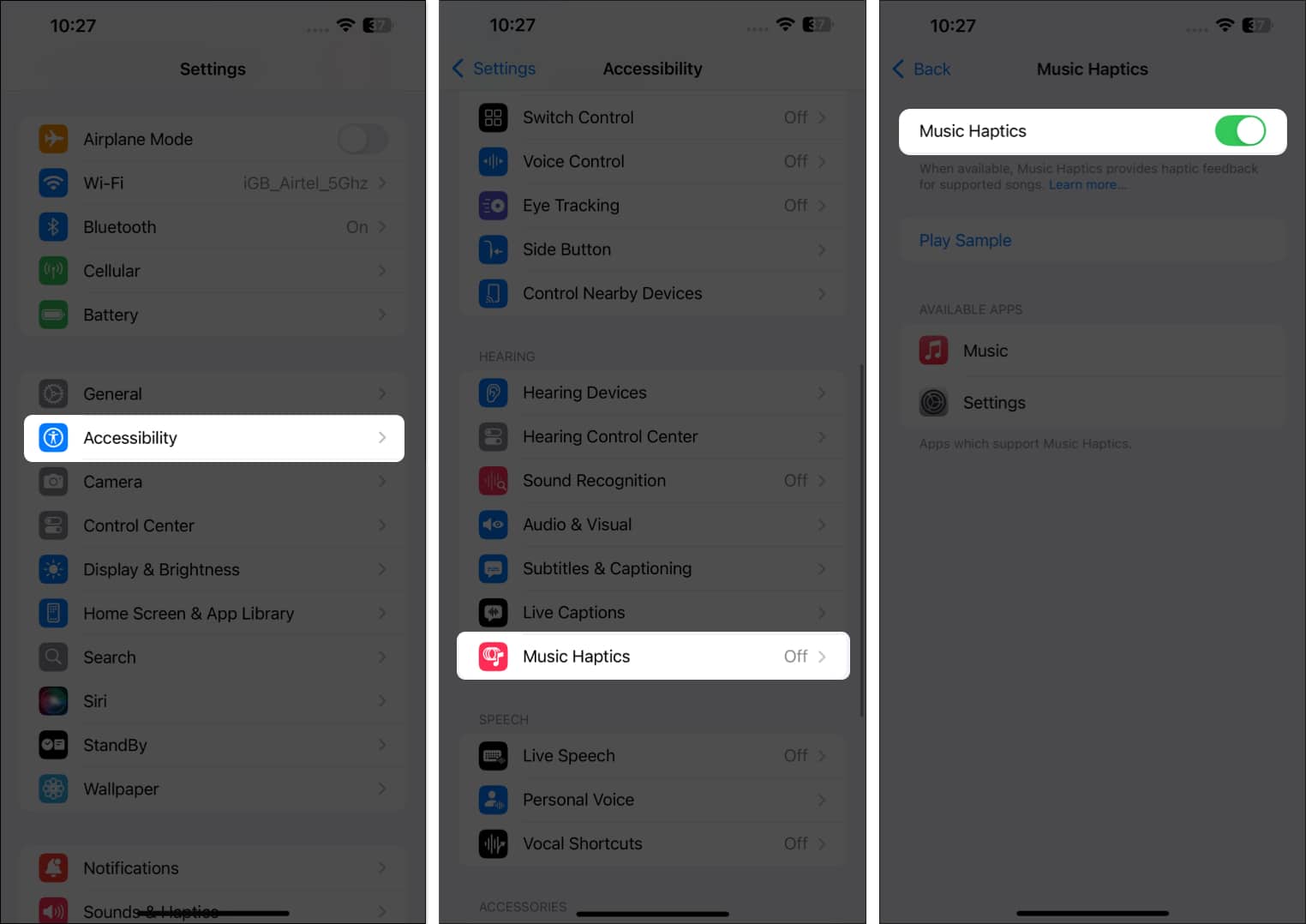
Adjust sound balance, reduce background noise, and receive headphone notifications. iOS 26 adds audio equalizer presets like Comfort and Focus.
To adjust this setting:
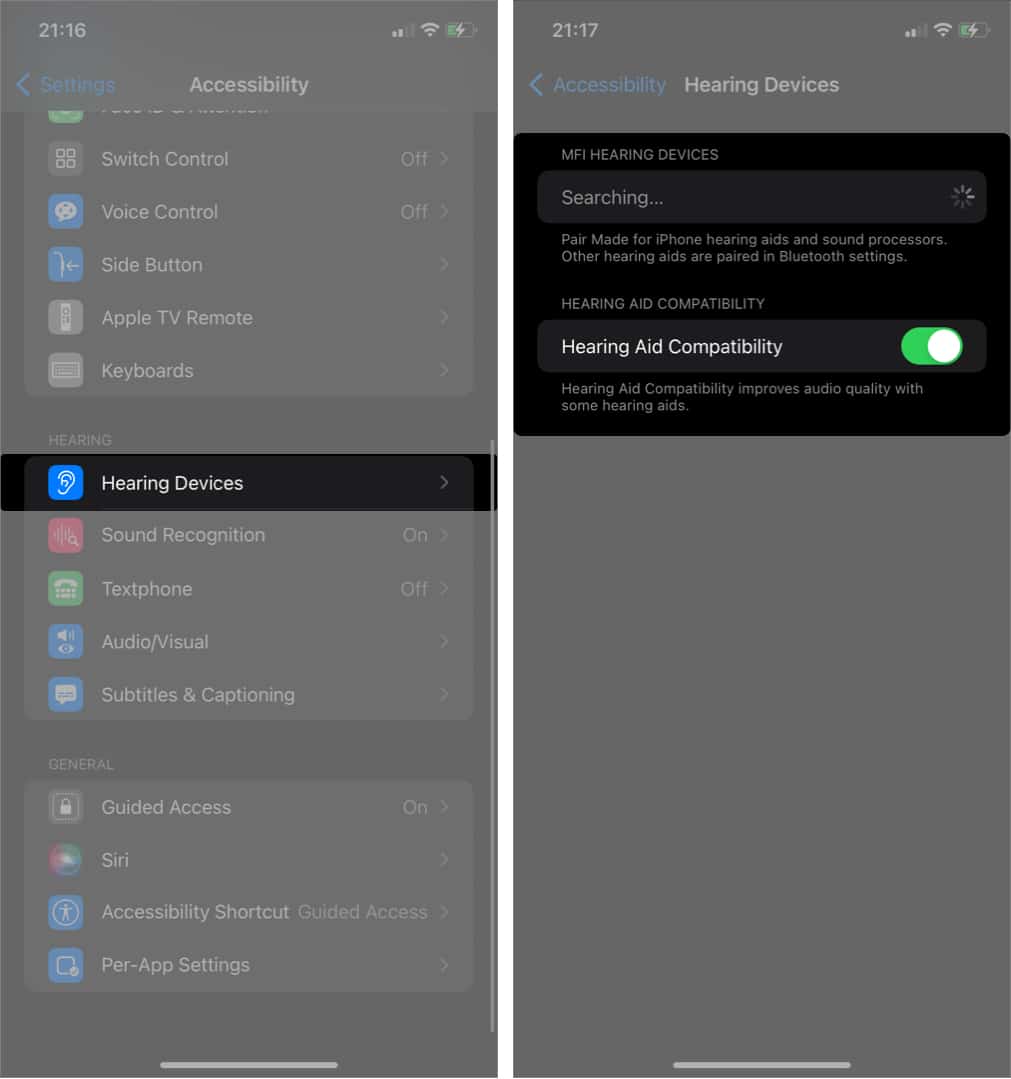
If you use made-for iPhone hearing aids, you can pair them with your iPhone from the Accessibility menu. When you do so, you can improve sound quality on your iPhone while listening to podcasts, music, or making calls.
To pair a hearing aid on an iPhone:
Also read: How to Use AirPods Pro 2 as Hearing Aids
Personal Voice allows users to create a synthesized version of their own voice. This is particularly useful for people who may lose the ability to speak due to medical conditions, ensuring their digital voice sounds natural and personal.
Live Listen amplifies audio from your surroundings through your AirPods or compatible hearing aids. Combined with Live Captions in iOS 26, you can see real-time transcription of conversations, making communication easier for users with hearing difficulties.
To set it up:
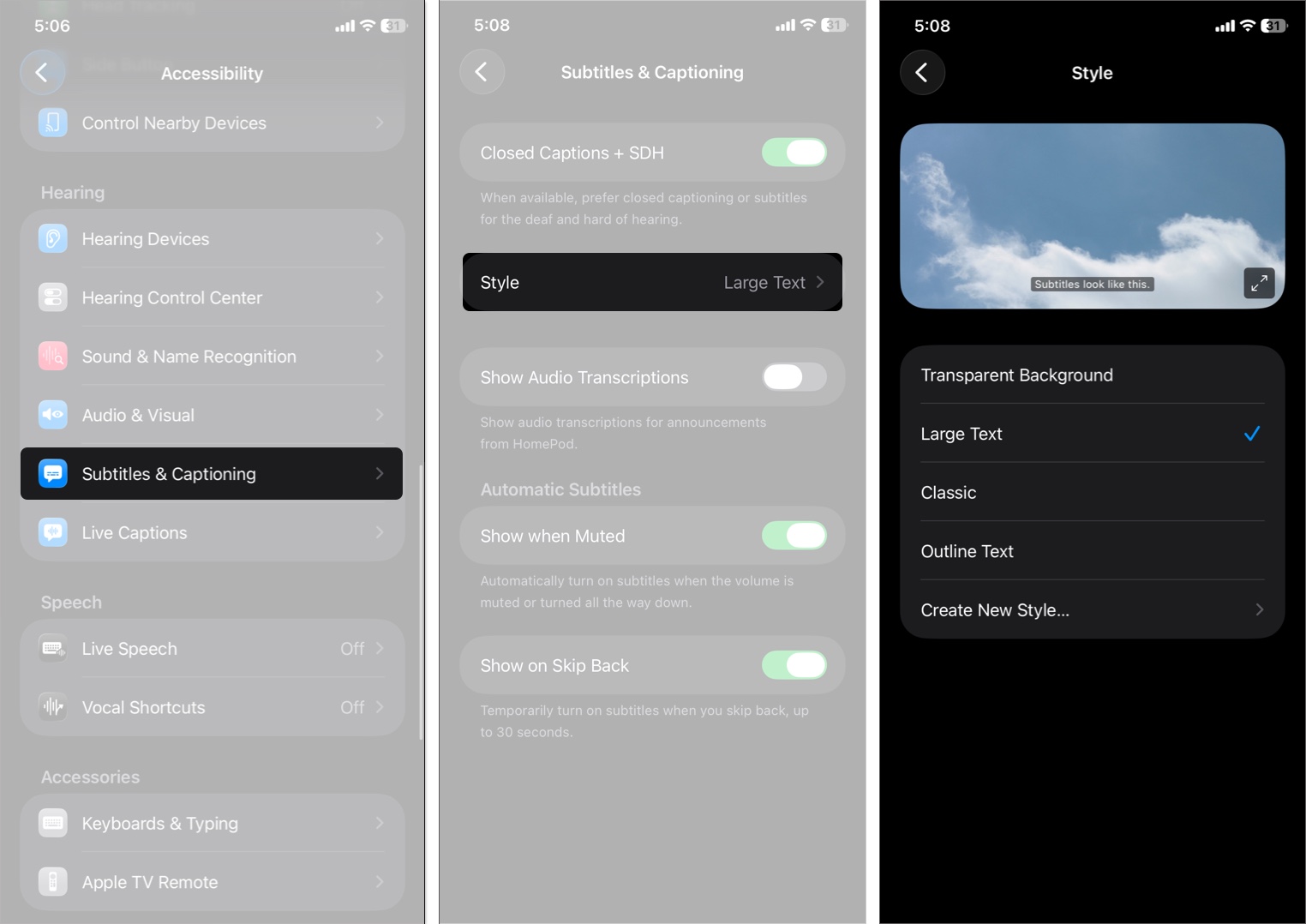
iOS 26 provides more control over subtitles and captions, improving readability for videos, streaming content, or live events. You can customize font, size, background color, and even apply transparency adjustments.
These features enhance overall usability, privacy, and multitasking.
For an added layer of privacy, you can lock your iPhone to a single app when you don’t want others (your kids, for instance) to access other parts of your phone when they’re using a particular feature.
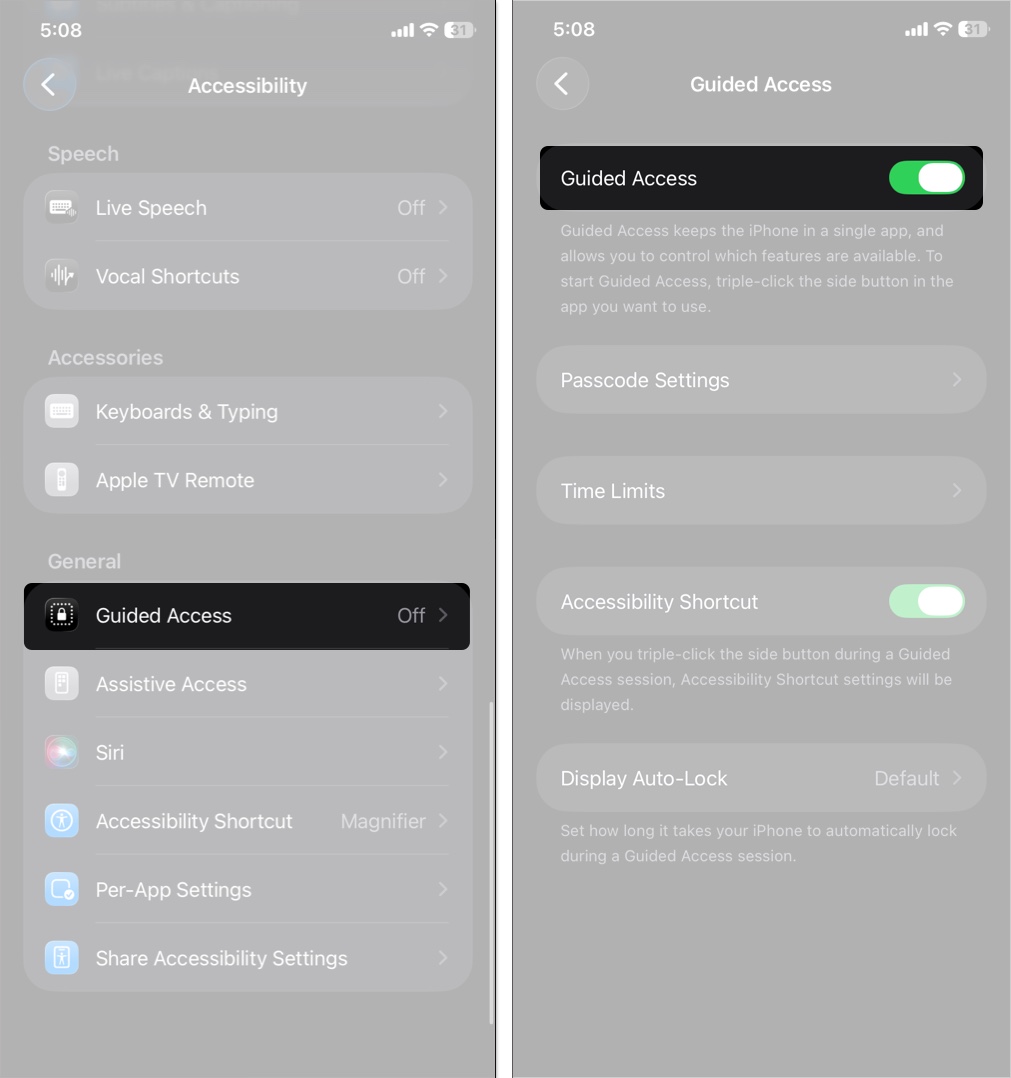
Once activated, all you need to do when your kid is inside an app is freeze your device with your passcode. Want to know more? Here’s a guide on how to use guided access on iPhone and Pad.
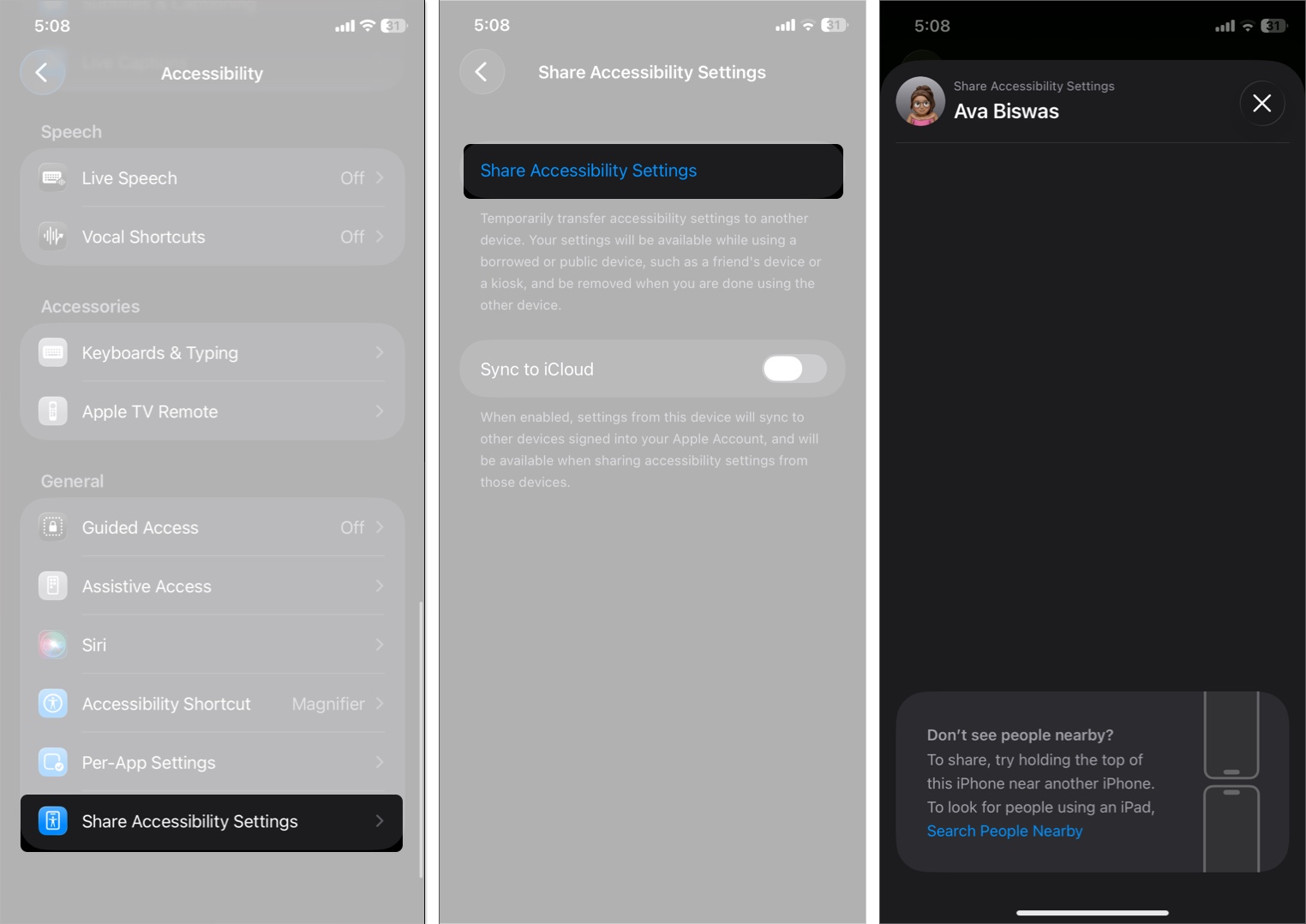
Temporarily share your accessibility setup with another device, useful when lending your iPhone.
To transfer the settings:
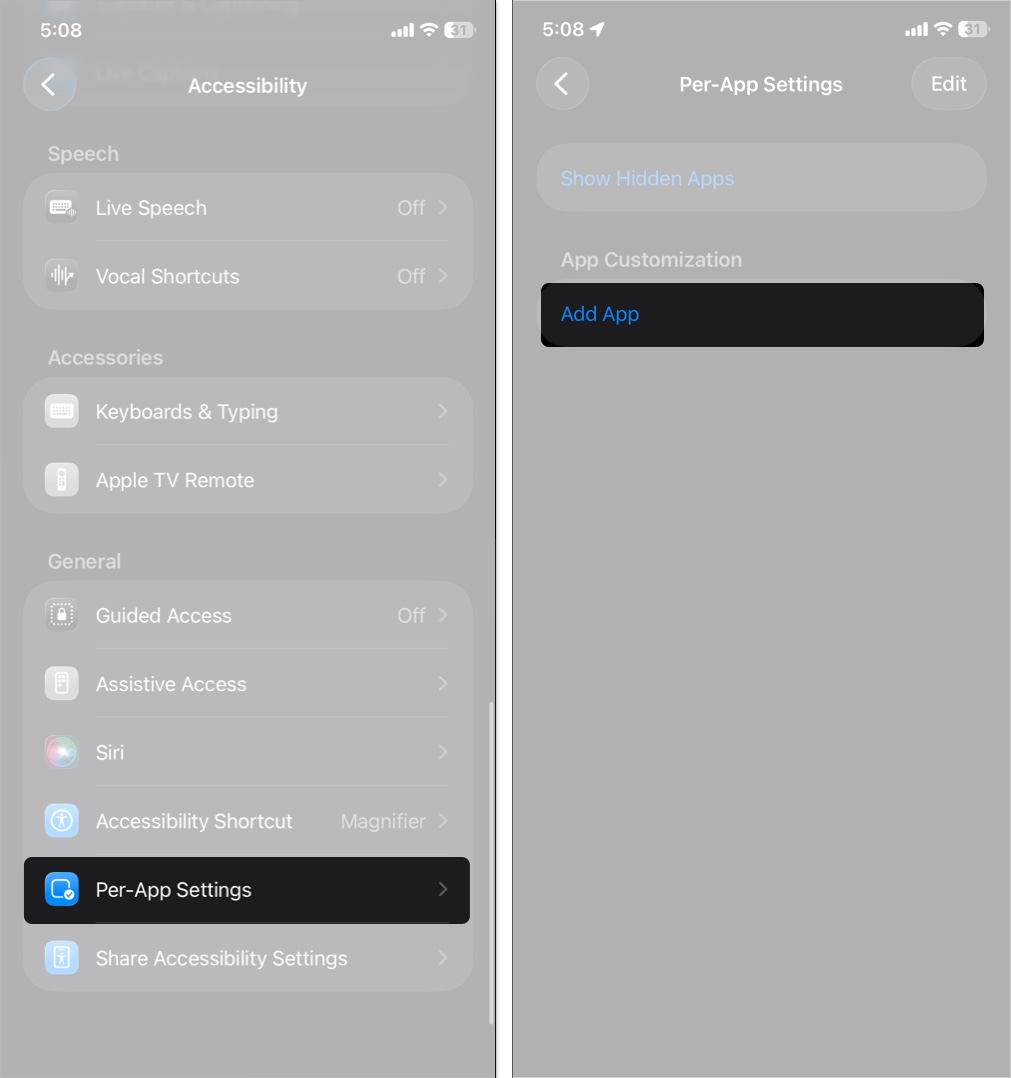
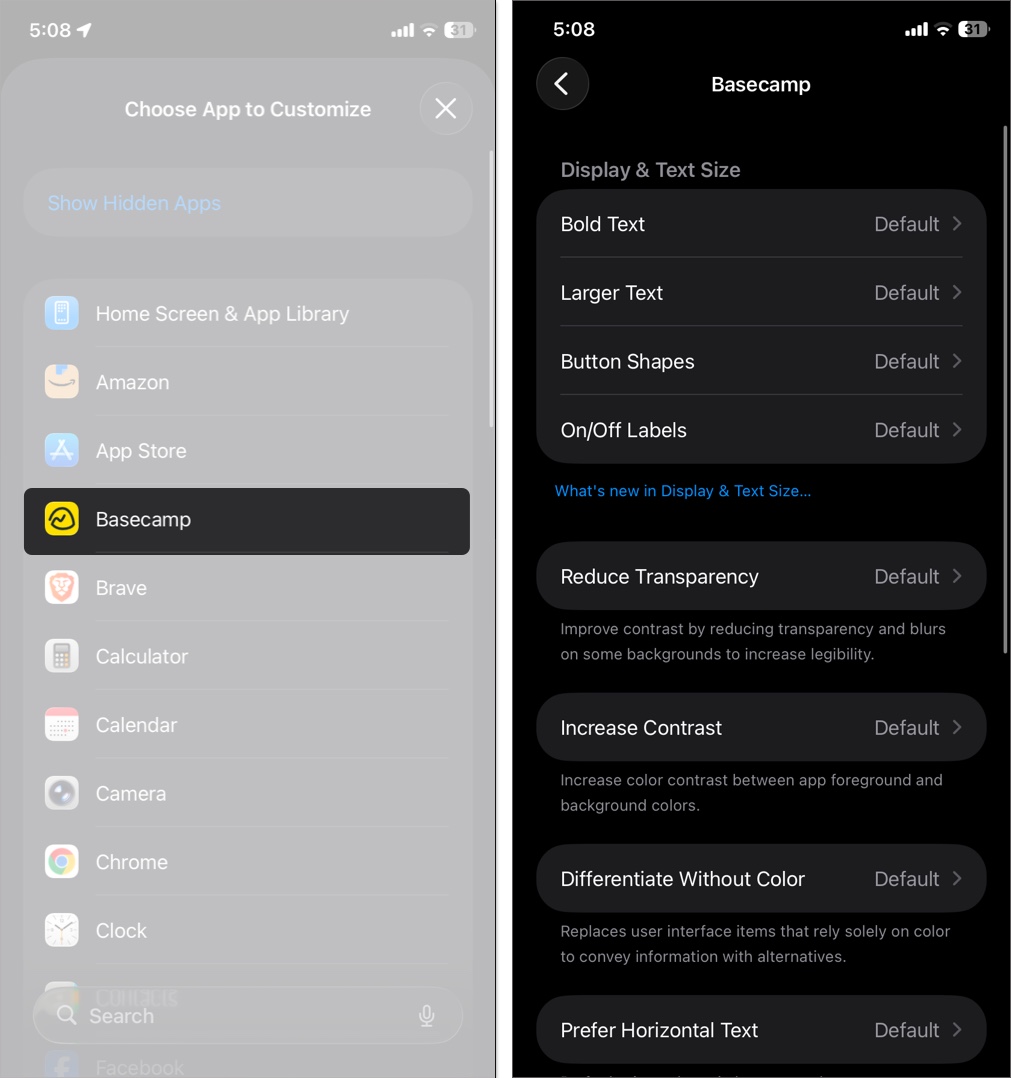
If you want visual adjustments only in certain apps rather than across the entire UI, the Per-App Settings in Accessibility can help. This feature allows you to individually customize settings like Bold Text, Increase Contrast, and more on a per-app basis.
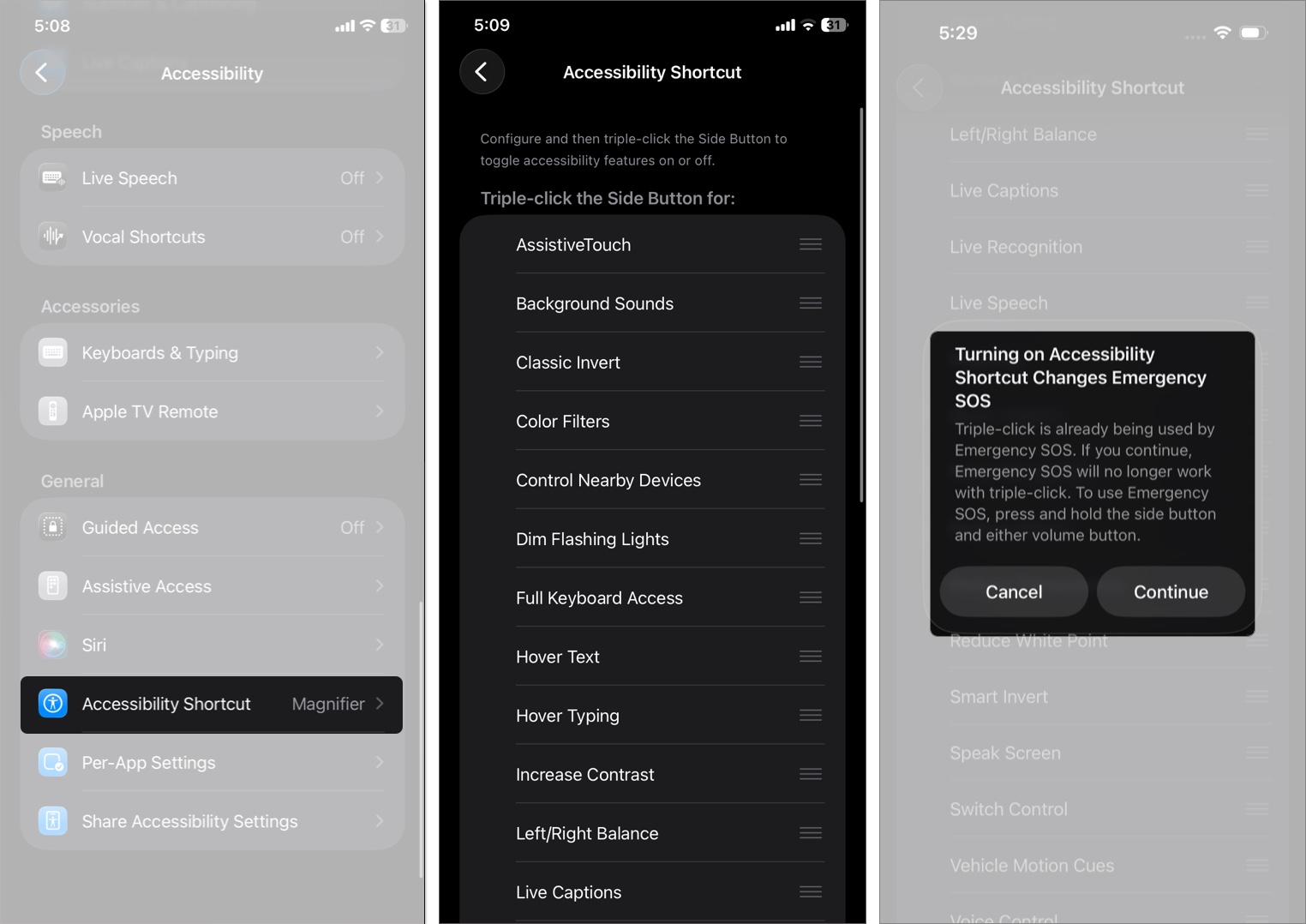
Accessibility shortcuts let you access commonly used gestures whenever you press the side button thrice. To activate:
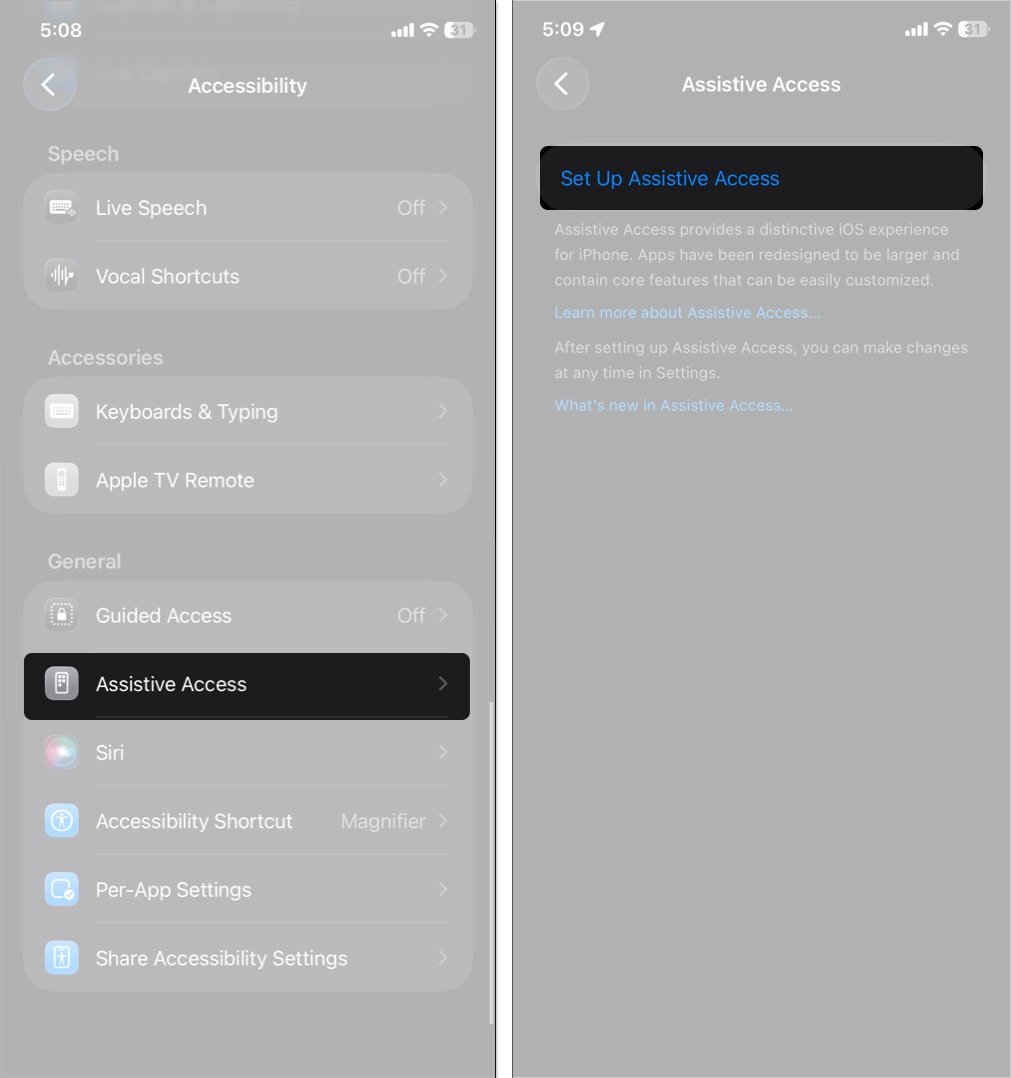
Assistive Access offers a simplified iPhone experience with large buttons, clear text, and streamlined apps. It’s made for users with cognitive challenges, seniors, or anyone who prefers a clutter-free interface.
To use Assistive Access on iPhone:
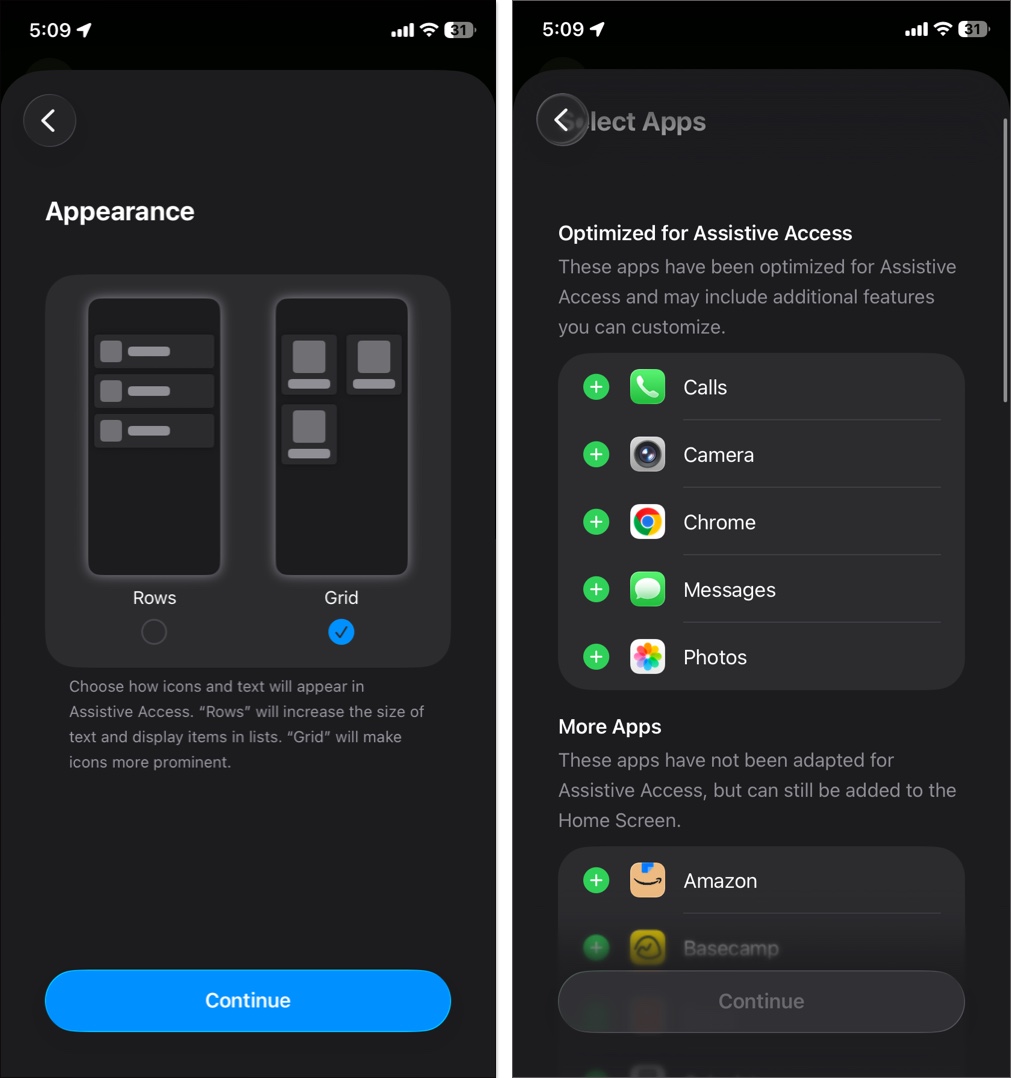
Once enabled, the iPhone switches to a clean, easy-to-use layout focused on just what matters most.
Accessibility in iOS 26 is smarter, more intuitive, and more inclusive than ever. From visual enhancements to hearing improvements and hands-free control, Apple continues to make the iPhone a device anyone can enjoy.
Take a few minutes to explore these features, and let me know which ones made your daily usage more enjoyable!
Read more: