FaceTime Like a Pro
Get our exclusive Ultimate FaceTime Guide 📚 — absolutely FREE when you sign up for our newsletter below.

FaceTime Like a Pro
Get our exclusive Ultimate FaceTime Guide 📚 — absolutely FREE when you sign up for our newsletter below.


Try watchOS 26 early! Follow this quick guide to download the developer beta on your Apple Watch and explore the latest features before anyone else.
 ByVikhyat
Apple has released watchOS 26.6 Developer Beta 1, starting a new testing cycle for Apple Watch users alongside the rest of its latest 26.6 software updates. This first beta arrives about two weeks after watchOS 26.5, with Apple listing the build as 23U5025e on its Developer Releases page.
As with most smaller watchOS updates, do not expect any headline changes here. Early reports suggest there are no major new features or visible interface updates in watchOS 26.6 Beta 1 yet, and the release appears mainly focused on bug fixes, performance improvements, and system stability.
That pattern makes sense this close to WWDC 2026, where Apple is expected to shift attention to the next major Apple Watch software cycle. Apple has already confirmed that WWDC26 begins on June 8, with new platform updates and developer tools set to be previewed during the event.
If you are a developer and want to get the latest build on your Apple Watch right now, here is exactly how to download and install watchOS 26.6 Developer Beta 1.
Before you begin, check these essentials:
Before you download watchOS 26 on your Apple Watch, you must first install the iOS 26 developer beta on the paired iPhone.
If the iPhone isn’t running the developer beta, the watchOS 26 update will not appear in the Watch app.
Once your iPhone is on iOS 26, follow these steps to download and install watchOS:
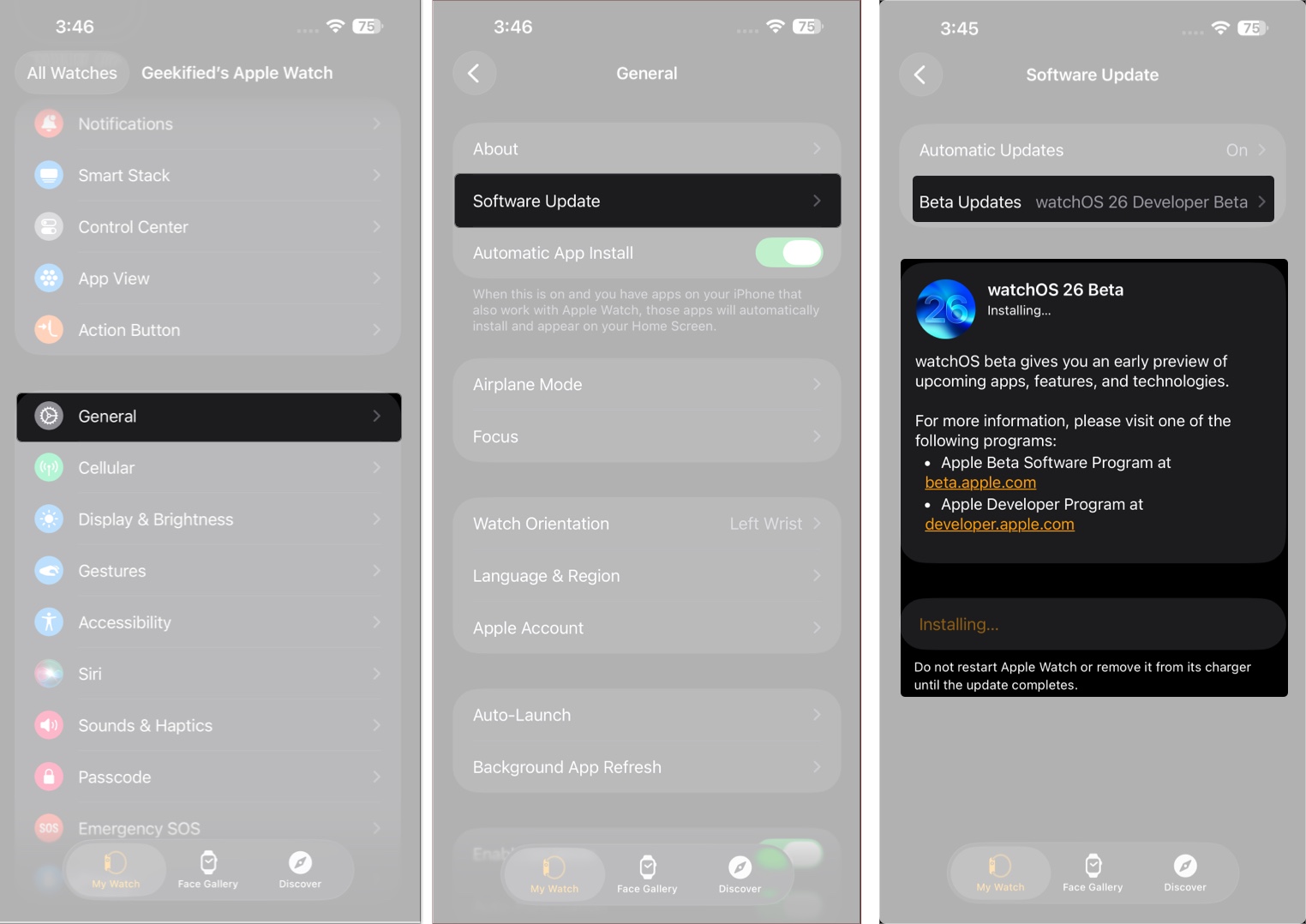
Your Apple Watch will begin downloading the beta. Be patient—this may take a few minutes and may include automatic restarts.
Beta updates are great for developers and tech-savvy users, but they come with occasional bugs and instability. If you’d prefer a smoother experience:
watchOS 26.6 Developer Beta 1 continues Apple’s quiet but steady refinement cycle for Apple Watch. There are no major new features confirmed yet, and early reports suggest this build is mainly focused on bug fixes, performance improvements, and system stability rather than visible changes.
Developers can grab the update now through the Apple Watch software update settings, but regular users may want to wait for the public beta or final release. Since this is the first beta, small bugs, battery issues, or app glitches are still possible.
With WWDC 2026 set for June 8, Apple’s bigger watchOS changes are likely being saved for watchOS 27, while watchOS 26.6 keeps the current experience polished and reliable.
Stay tuned for the latest watchOS 26.6 coverage as Apple continues pushing updates through its beta cycle.
Read More