FaceTime Like a Pro
Get our exclusive Ultimate FaceTime Guide 📚 — absolutely FREE when you sign up for our newsletter below.

FaceTime Like a Pro
Get our exclusive Ultimate FaceTime Guide 📚 — absolutely FREE when you sign up for our newsletter below.


Wrist Flick makes it easier to manage Apple Watch alerts without touching the display. Learn how to enable the gesture, dismiss notifications, silence incoming calls, stop timers and alarms, and check which Apple Watch models support it.

 ByRavi Teja KNTS and Ava Biswas
Notifications are useful, but they can also become a constant distraction—especially when you’re working out, carrying groceries, or in the middle of something. That’s where Wrist Flick comes in. Introduced in watchOS 26, this handy gesture lets you dismiss notifications, silence incoming calls, and stop timers with a quick wrist movement, without touching the display.
In watchOS 27, Wrist Flick remains a convenient way to control your Apple Watch hands-free. Here’s how to use the gesture in everyday life.
Wrist Flick is a one-handed gesture that lets you interact with your Apple Watch without tapping or swiping the screen. It uses the watch’s motion sensors and gesture recognition to detect a quick wrist turn. And when the watch recognizes the gesture, it dismisses the current notification or alert and returns you to the watch face.
Think of it as brushing away a distraction. It’s particularly useful when your other hand is occupied or when touching the screen isn’t convenient.
Wrist Flick debuted in watchOS 26, and Apple continues to support it in watchOS 27. It works alongside other hands-free features, including Double Tap and the newer single-tap gesture introduced in watchOS 27.
Once enabled, Wrist Flick lets you handle several common interruptions without touching your Apple Watch.
Wrist Flick is designed to make interacting with your watch easier, not to replace every on-screen control. Dismissing a notification doesn’t delete the underlying message or other content from its app. You can still open the relevant app to review information later.
Likewise, silencing an incoming call doesn’t mean you’ve answered it. You can still decide whether to answer or decline the call.
Wrist Flick is supported on Apple Watch models with the required hardware and software.
Compatible models include:
Wrist Flick requires a compatible watch running watchOS 26 or later. For the latest models, including the Series 12 and Ultra 4, watchOS 27 is the relevant software version.
Older models, such as Apple Watch Series 8 and the original Apple Watch Ultra, aren’t supported for Wrist Flick. Although these watches offer other ways to silence alerts, they don’t support this particular gesture.
Wrist Flick is enabled by default on compatible Apple Watch models. If it isn’t working as expected, check its setting before trying the gesture again.
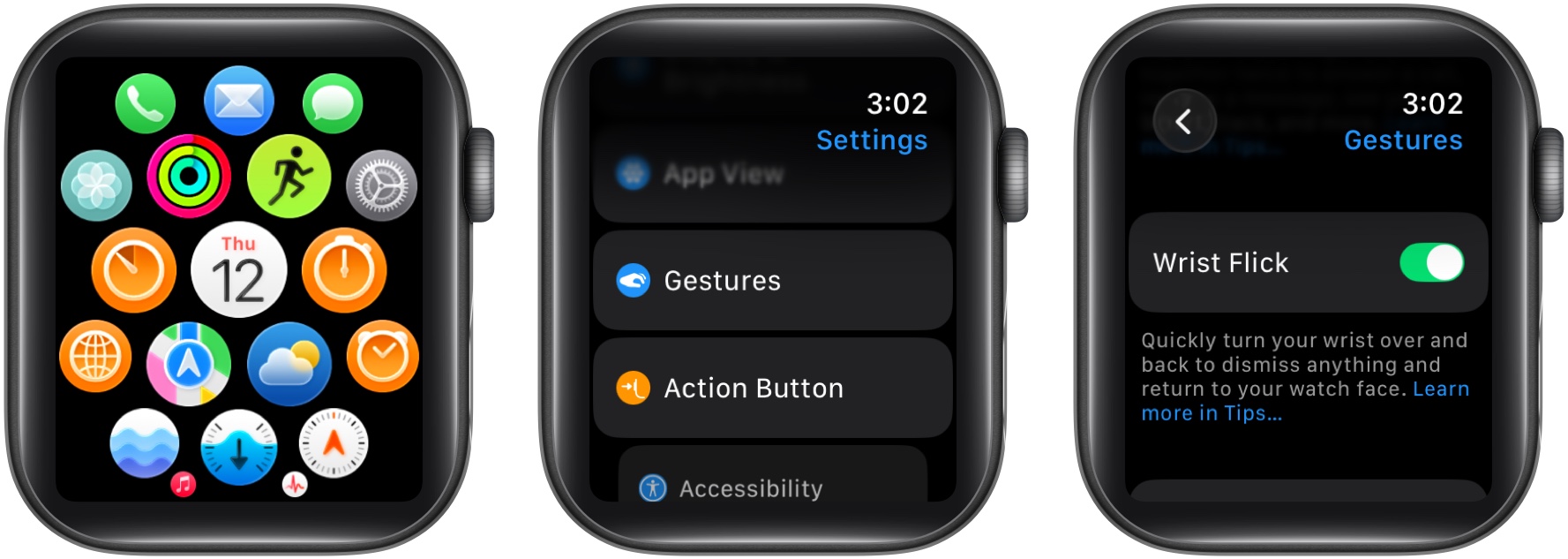
You don’t need to make an exaggerated movement. A quick, deliberate wrist turn is usually enough. If the gesture doesn’t register, try again with a slightly more distinct movement and make sure the watch is fitted securely on your wrist.
With a little practice, Wrist Flick can become second nature, allowing you to manage interruptions without breaking your stride.
Here’s a quick video on how to use it:
Apple offers several gestures to make Apple Watch easier to use with one hand. Although Wrist Flick, Double Tap, and the new single-tap gesture all reduce the need to touch the screen, they serve different purposes.
These gestures complement one another.
Another useful option is Cover to Mute. Simply rest your palm over the watch display for at least three seconds to silence an alert. Unlike Wrist Flick, this gesture is primarily designed to mute an alert temporarily.
Wrist Flick is just one part of the Apple Watch experience. watchOS 27 also introduces refinements and features designed to make everyday interactions more convenient.
If you’re upgrading from watchOS 26, Wrist Flick itself won’t feel entirely new. The main benefit is that you can keep using this familiar gesture while taking advantage of other watchOS 27 improvements.
Wrist Flick isn’t the flashiest Apple Watch feature, but it’s a practical example of how small software improvements can make a wearable easier to use. Instead of interrupting what you’re doing to tap away a notification or silence a call, you can handle it with a quick movement of your wrist.
On the Apple Watch Series 12 and Ultra 4, Wrist Flick remains a simple, effective way to reduce distractions and interact with your watch hands-free. It’s easy to learn, enabled by default, and useful whenever your hands are busy.
If you haven’t tried it yet, give it a go. Once you get used to the movement, you’ll have one more convenient way to keep your attention where it belongs.