
FaceTime Like a Pro
Get our exclusive Ultimate FaceTime Guide 📚 — absolutely FREE when you sign up for our newsletter below.

FaceTime Like a Pro
Get our exclusive Ultimate FaceTime Guide 📚 — absolutely FREE when you sign up for our newsletter below.


Duplicate photos can fill up your iPhone or iPad storage. Learn how to quickly find, merge, and delete them using the Photos app to free up space.

 ByAvadesh Joshi and Yash Wate
Duplicate images, similar photos, or accidental screenshots can quickly fill your storage and slow down your device. Thankfully, the Duplicates feature in the Photos app makes it easy to automatically detect and merge duplicate photos. In this guide, I’ll explain how to find and delete duplicate photos on your iPhone and iPad to free up storage.
Yes. The Photos app scans your library in the background and detects duplicate photos and videos. When duplicates are found, it creates a Duplicates album under Utilities.
However, it does not detect similar photos. These are different.
Duplicate photos are exact copies of the same image, such as saving an edited photo as a new file or importing the same photo twice. Similar photos, on the other hand, are different shots that look alike, such as the same pose taken multiple times, burst photos, or multiple screenshots of the same screen.
For example, if you take three photos of the same sunset, they are similar photos. But if your phone saves the exact same sunset photo twice, those are duplicates.
If you are using iOS 16 or later, the built-in Duplicates feature in the Photos app makes finding duplicate images simple.
On iPhone:
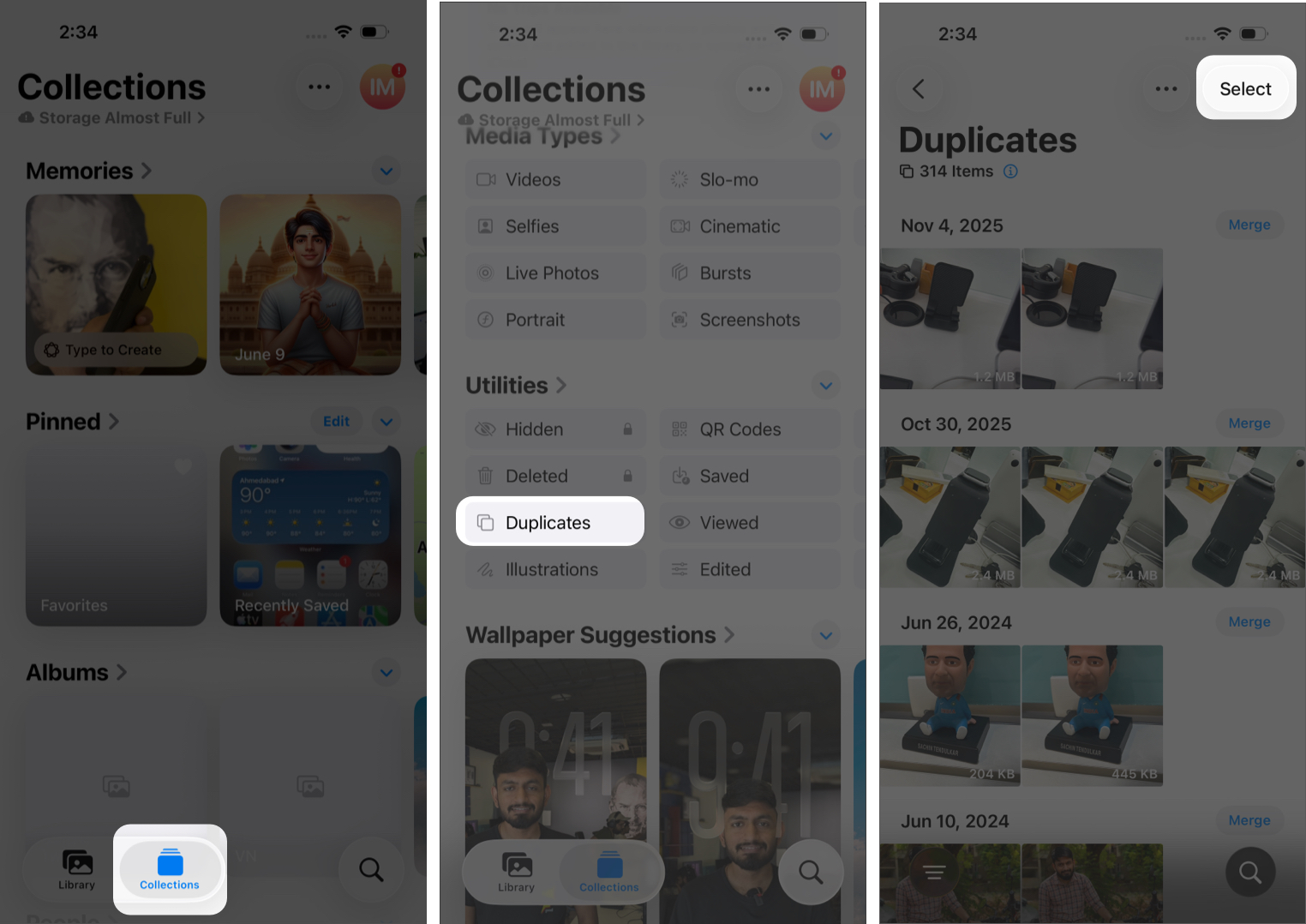
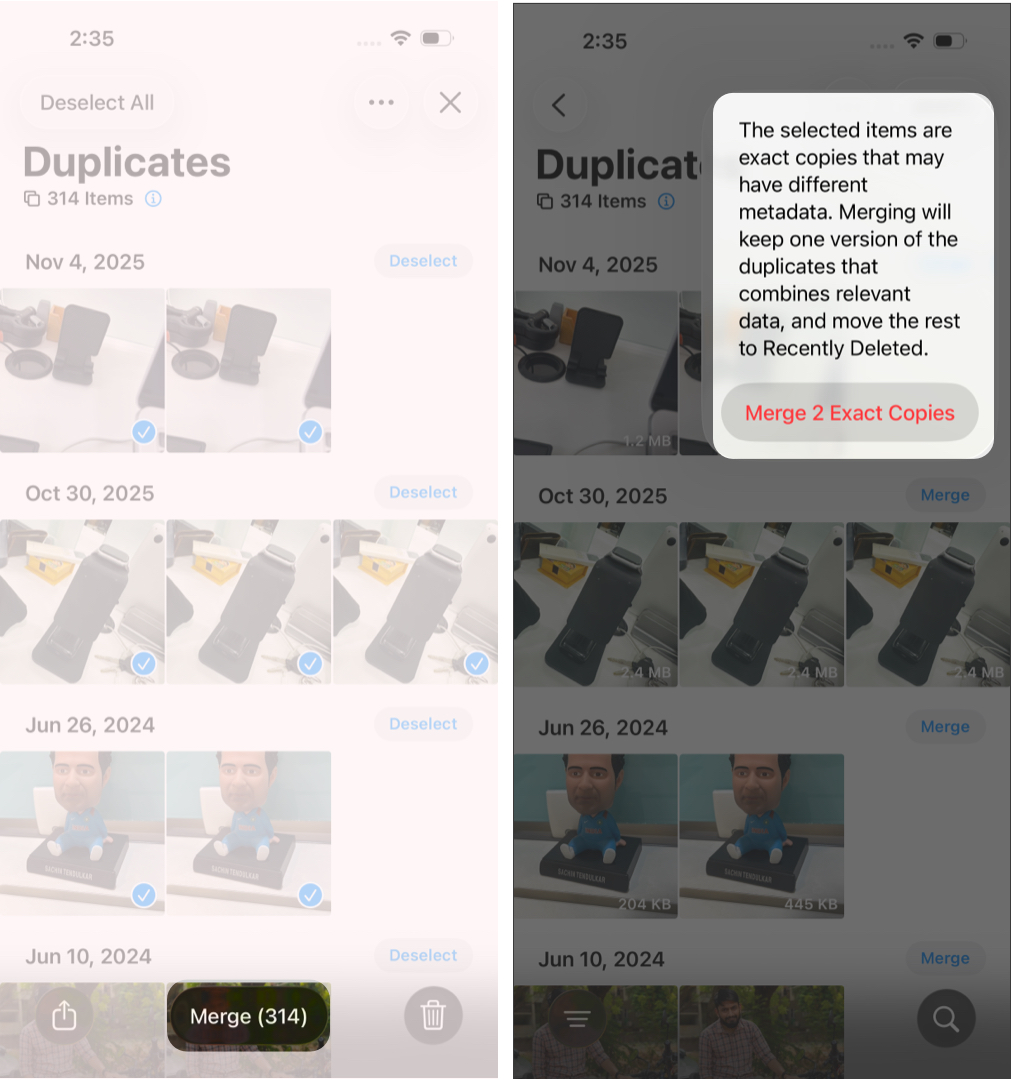
You can repeat the process or use Select > Select All > Merge for bulk cleanup.
When you merge duplicate photos, your iPhone keeps the highest-quality version, combines the metadata, and moves the extra copies to Recently Deleted.
On iPad (iPadOS 16 or later):
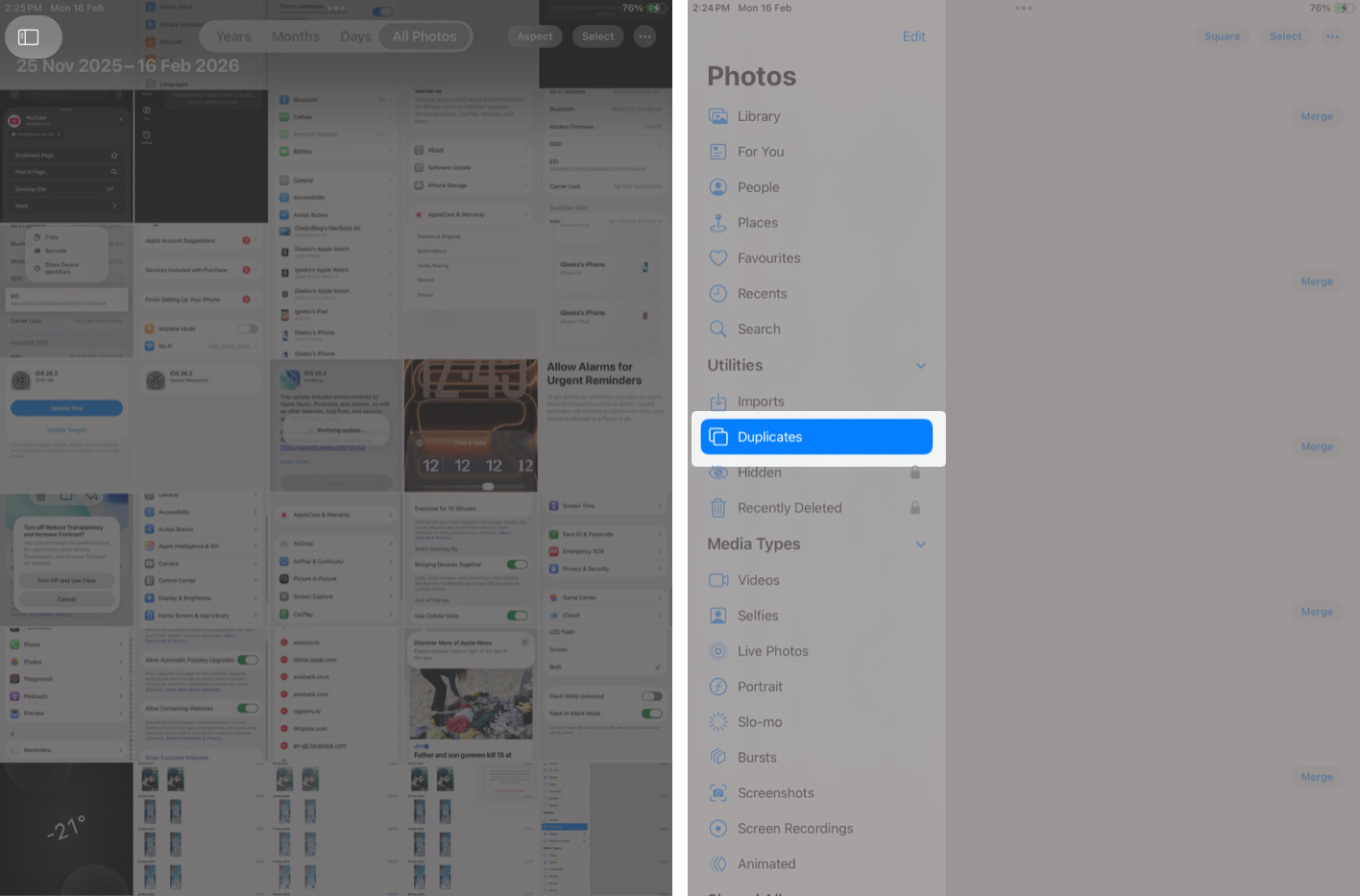
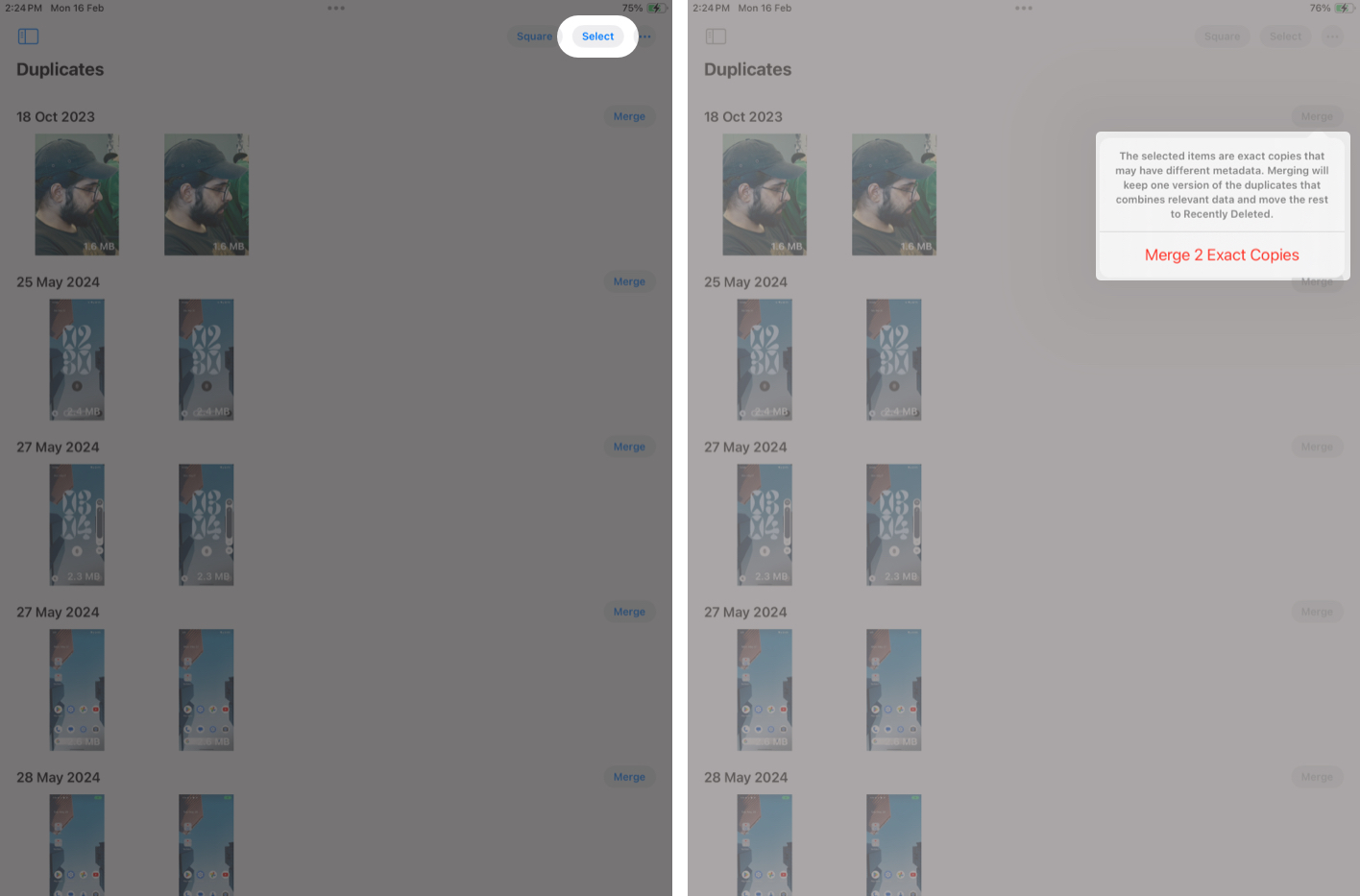
For batch removal, tap Select > Select All, then tap Merge.
You can also use the Advanced Search feature to find similar photos. It allows you to search by keyword, object, scene, location, or description, making it easier to spot image sets that look alike.
This method works the same on both iPhone and iPad.
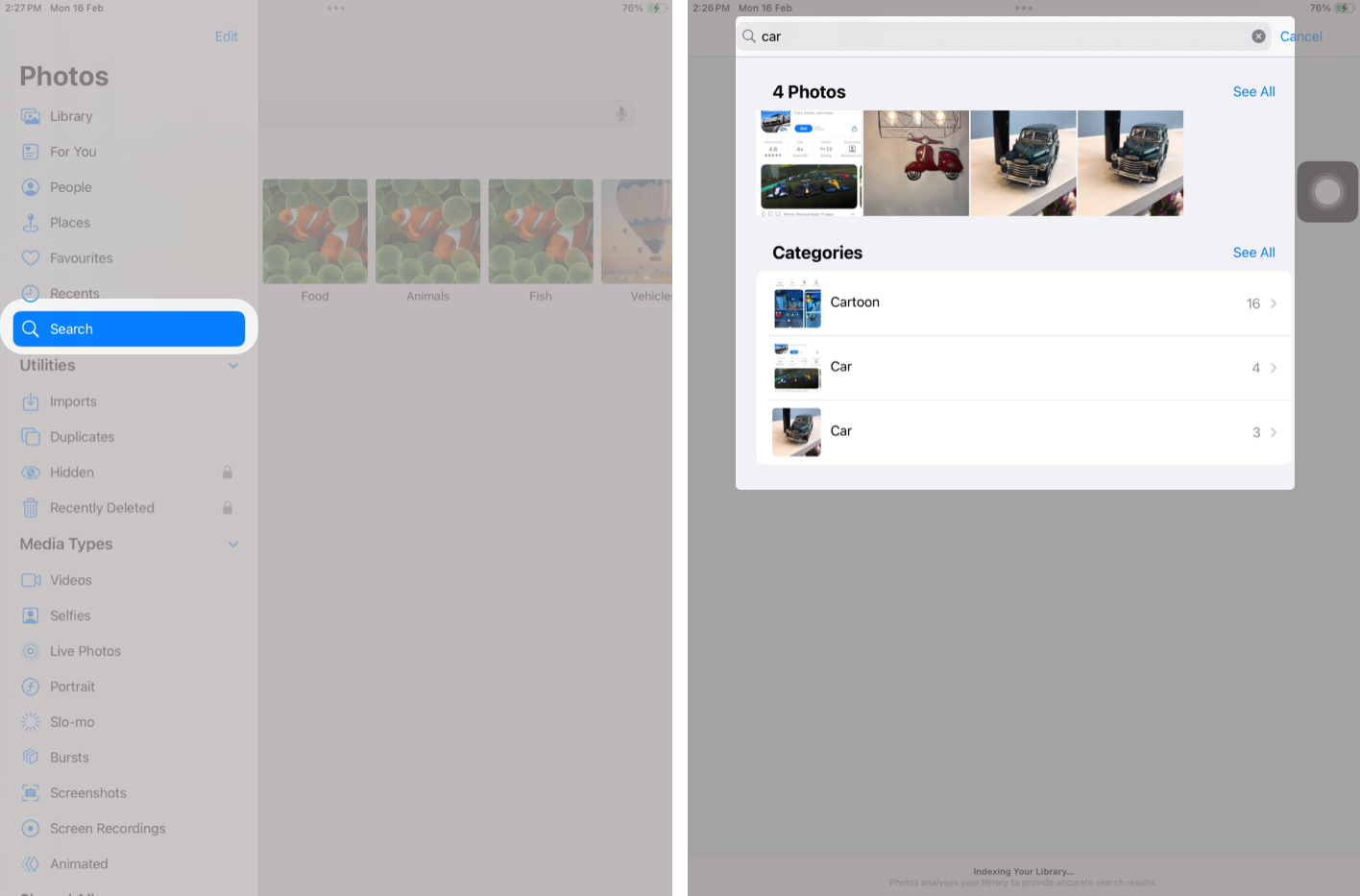
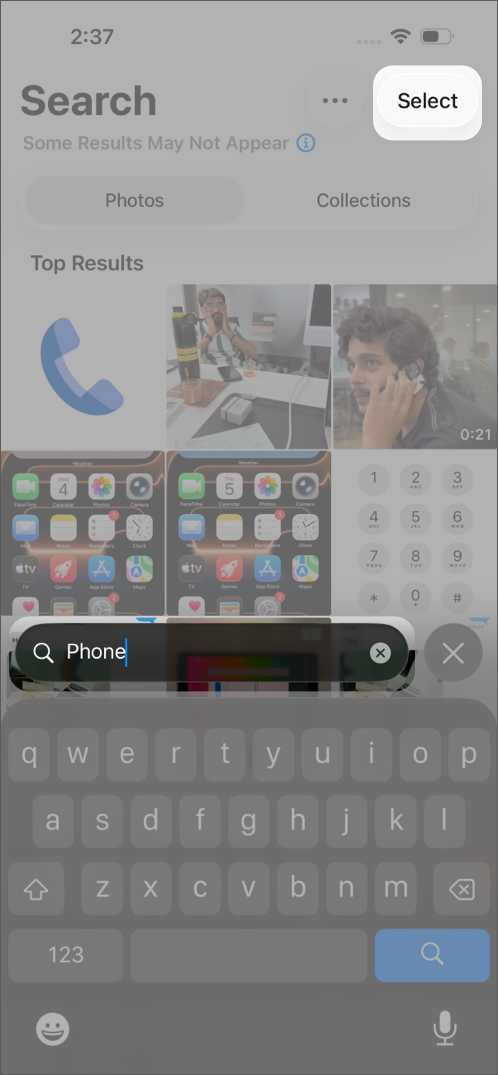
Advanced Search does not merge photos automatically, but it helps you quickly identify groups that are often mistaken for duplicates.
If your device is running an older version of iOS, follow these steps:
If you have large batches of screenshots, burst photos, or downloads, sort by Media Types to speed up cleanup.
The built-in Duplicates feature only finds exact matches. It does not detect similar angles, near-identical shots, or burst images. For deeper cleaning, a third-party app can help.
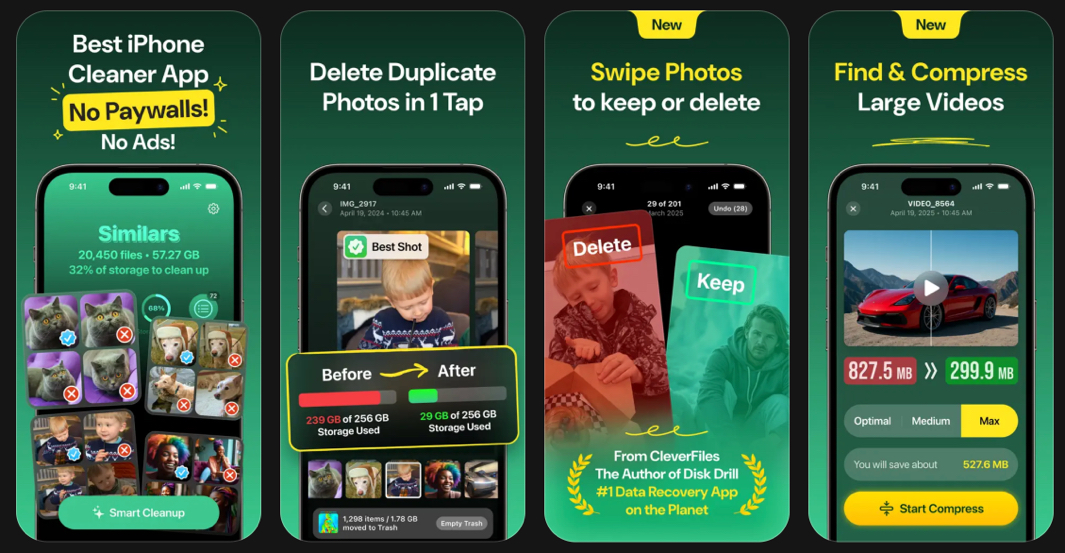
Clever Cleaner is a completely free photo storage cleaner for iPhone and iPad. It has a clean interface and uses AI to scan your library and group duplicate photos. It also detects similar photos and displays them in a separate “Similars” tab. Features like Heavies help you remove or compress large files with a single tap.
Bottom Line: If you want a free, all-in-one app with no ads and a simple interface, Clever Cleaner is a solid choice.
Related: Best iPhone Cleaner Apps to Maximize Your Storage
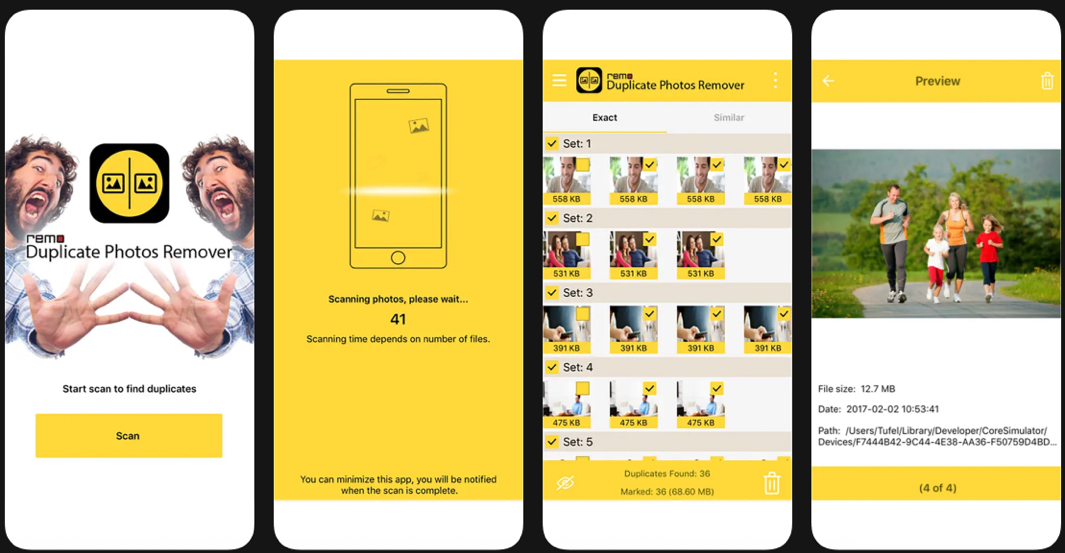
If you want something straightforward and easy to use, Remo Duplicate Photos Remover is a good option. With a single tap on Scan, it displays all duplicate images in two sections: Exact and Similar. You can preview the results and delete what you do not need.
Bottom Line: It effectively finds similar images and gives you full control over what gets deleted.
It is easier to prevent duplicates than to remove them later. Here are practical tips to keep your photo library organized:
Cleaning up duplicate and similar photos on your iPhone or iPad does not have to feel overwhelming. With Apple’s built-in Duplicates feature, Advanced Search tools, and a few reliable third-party apps, you can reclaim storage and keep your photo library organized with minimal effort.
FAQs
Yes. Apple’s Merge function keeps the highest-quality file and combines the metadata. The discarded copies are moved to Recently Deleted, where they remain for 30 days before being permanently removed.
Yes. If iCloud Photos is turned on, deleting duplicate photos and videos using the built-in Duplicates feature will free up iCloud storage space.
Yes. Apple detects only exact duplicates. Third-party apps can also identify:
These apps provide more advanced detection options for deeper cleanup.











