
FaceTime Like a Pro
Get our exclusive Ultimate FaceTime Guide 📚 — absolutely FREE when you sign up for our newsletter below.

FaceTime Like a Pro
Get our exclusive Ultimate FaceTime Guide 📚 — absolutely FREE when you sign up for our newsletter below.


Add an extra layer of security to your iWork files. Learn how to lock Pages, Numbers, and Keynote documents with a password across Apple devices.
 ByVikhyat
Your iPhone’s passcode protects documents stored on the device, but that protection stops there. Once a Pages contract is emailed, a Numbers spreadsheet is shared, or a Keynote presentation is uploaded to cloud storage, the file can be copied, forwarded, or accessed freely. At that point, device security no longer protects the document itself.
For professionals handling contracts, financial data, research, medical records, or internal reports, this creates a serious risk. Sensitive information can be circulated beyond its intended audience without proper controls. This is where file-level encryption becomes necessary. Adding a password directly to the document ensures protection stays with the file, wherever it goes.
Keep reading to learn how to add a password to Pages, Numbers, and Keynote documents on iPhone, iPad, and Mac.
If you use Apple’s iWork apps for professional or academic work, your documents often contain sensitive information that should not be freely accessible.
Apps like Pages, Numbers, and Keynote often store client contracts, financial statements, research data, medical or compliance records, and internal strategy presentations.
Once shared via email, AirDrop, or cloud storage, these files can be copied or forwarded without restriction. Device-level security no longer applies.
Password protection encrypts the document itself. This ensures:
In short, password protection shifts security from the device to the document, which is critical when files move beyond your direct control.
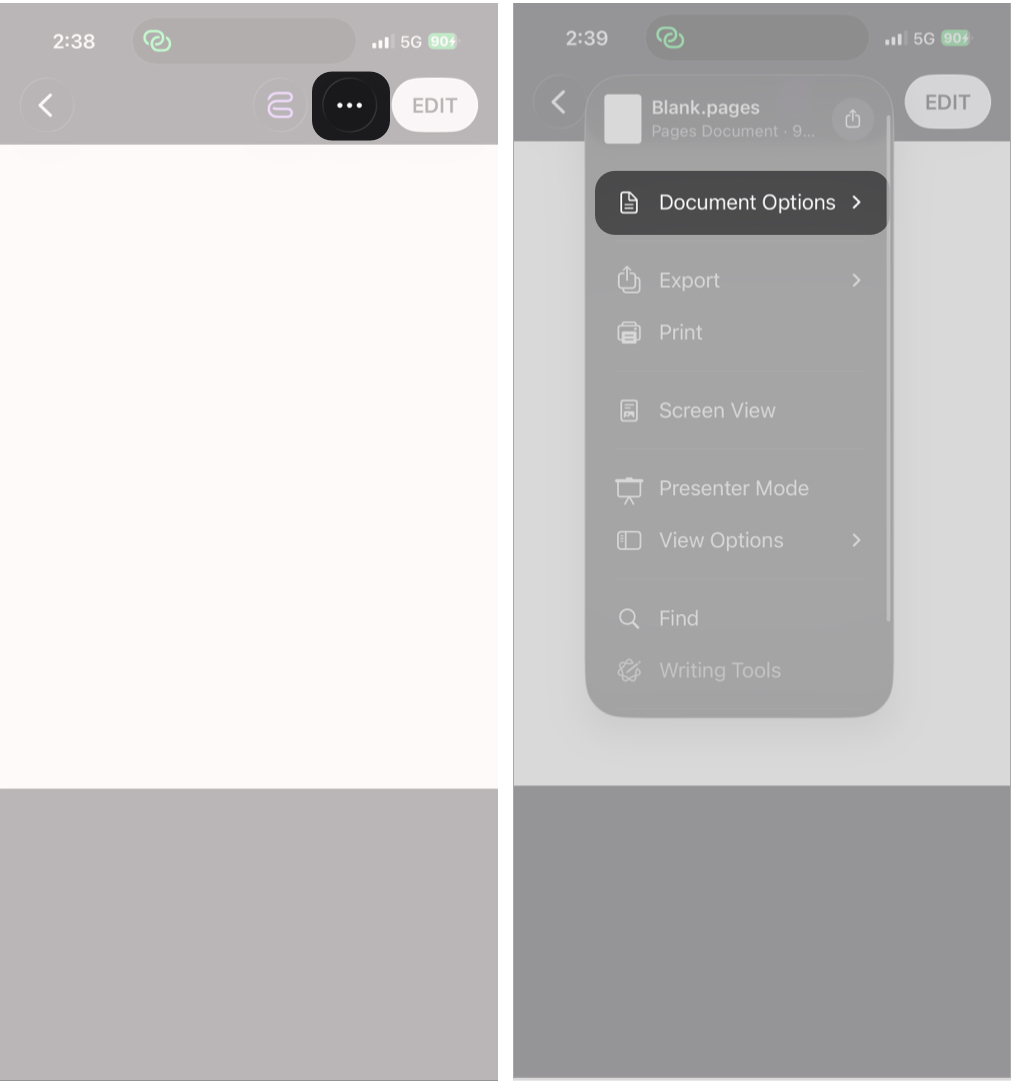
The process of adding a password to your sensitive documents is nearly identical across all three iWork apps on iPhone and iPad, including Pages, Numbers, and Keynote, and can be done in just a few taps. Here’s how:
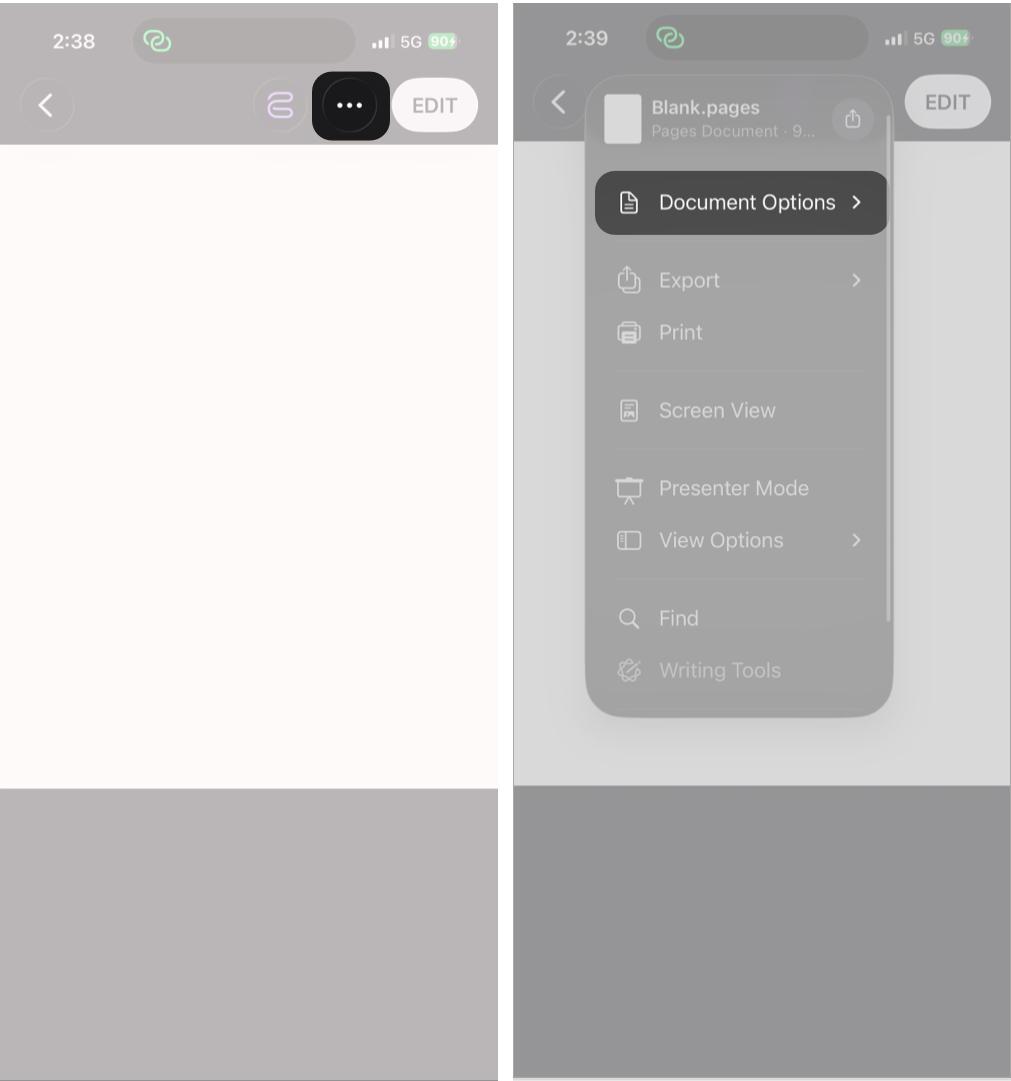
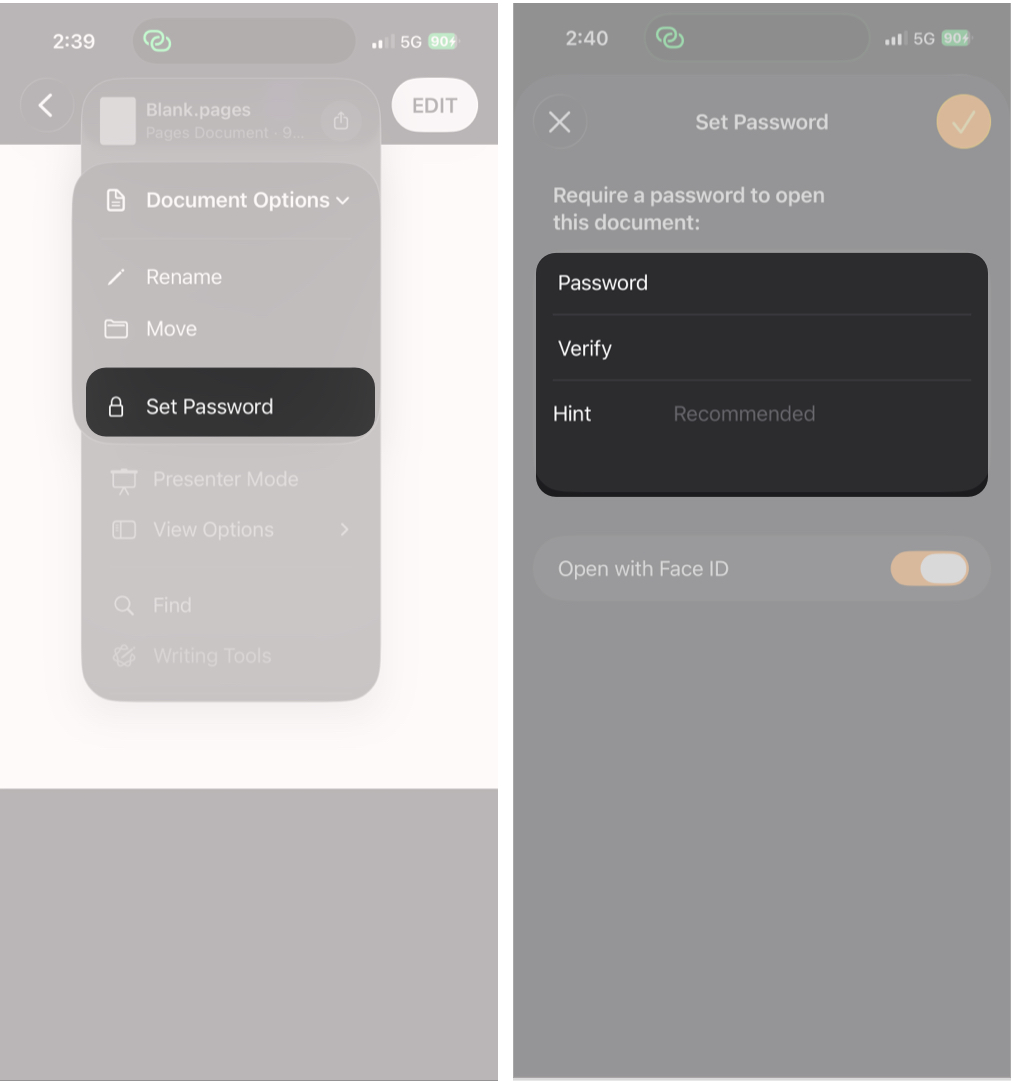
Once enabled, the document is encrypted and requires authentication to open, even if it is shared or transferred to another device.
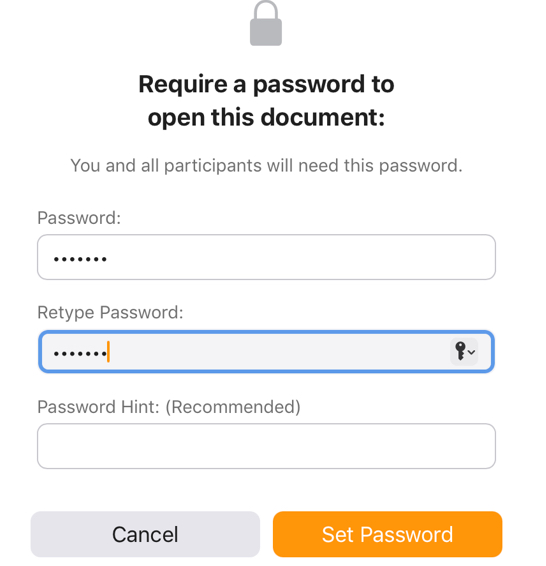
Like the iPhone, the process is identical across all three iWork apps on Mac. Here’s how:
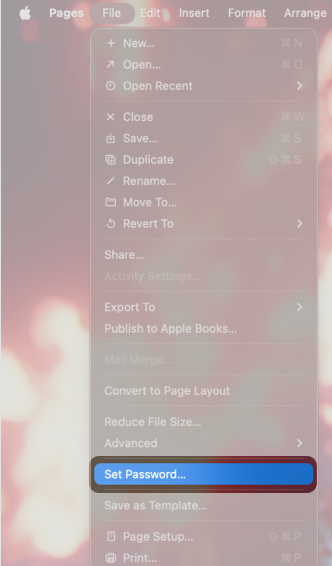
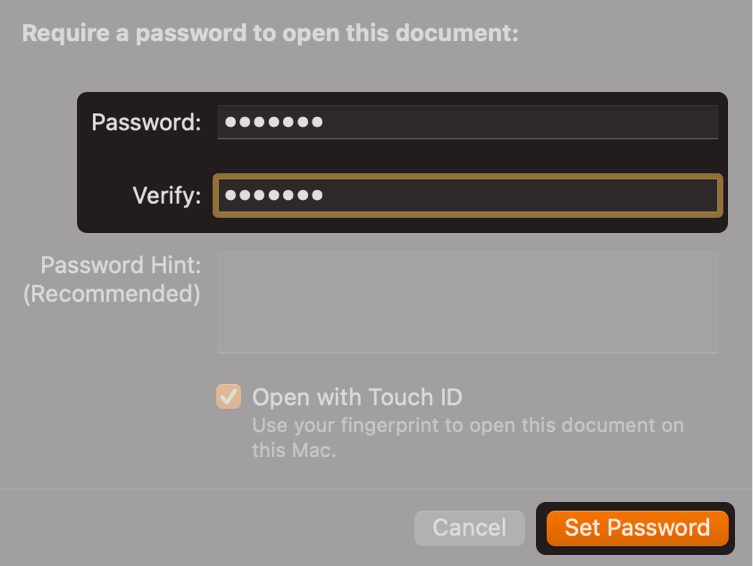
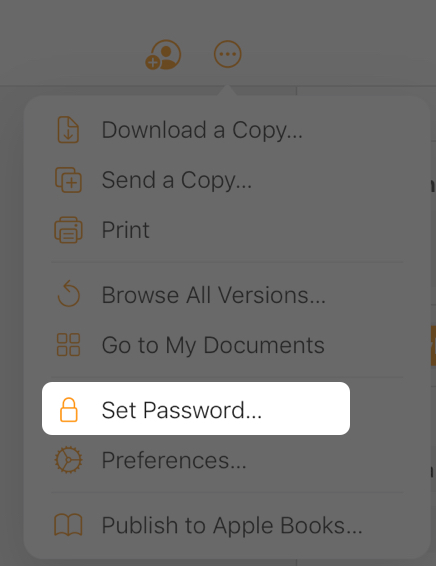
When using iCloud.com, Apple maintains a consistent password setup interface across the entire iWork suite.
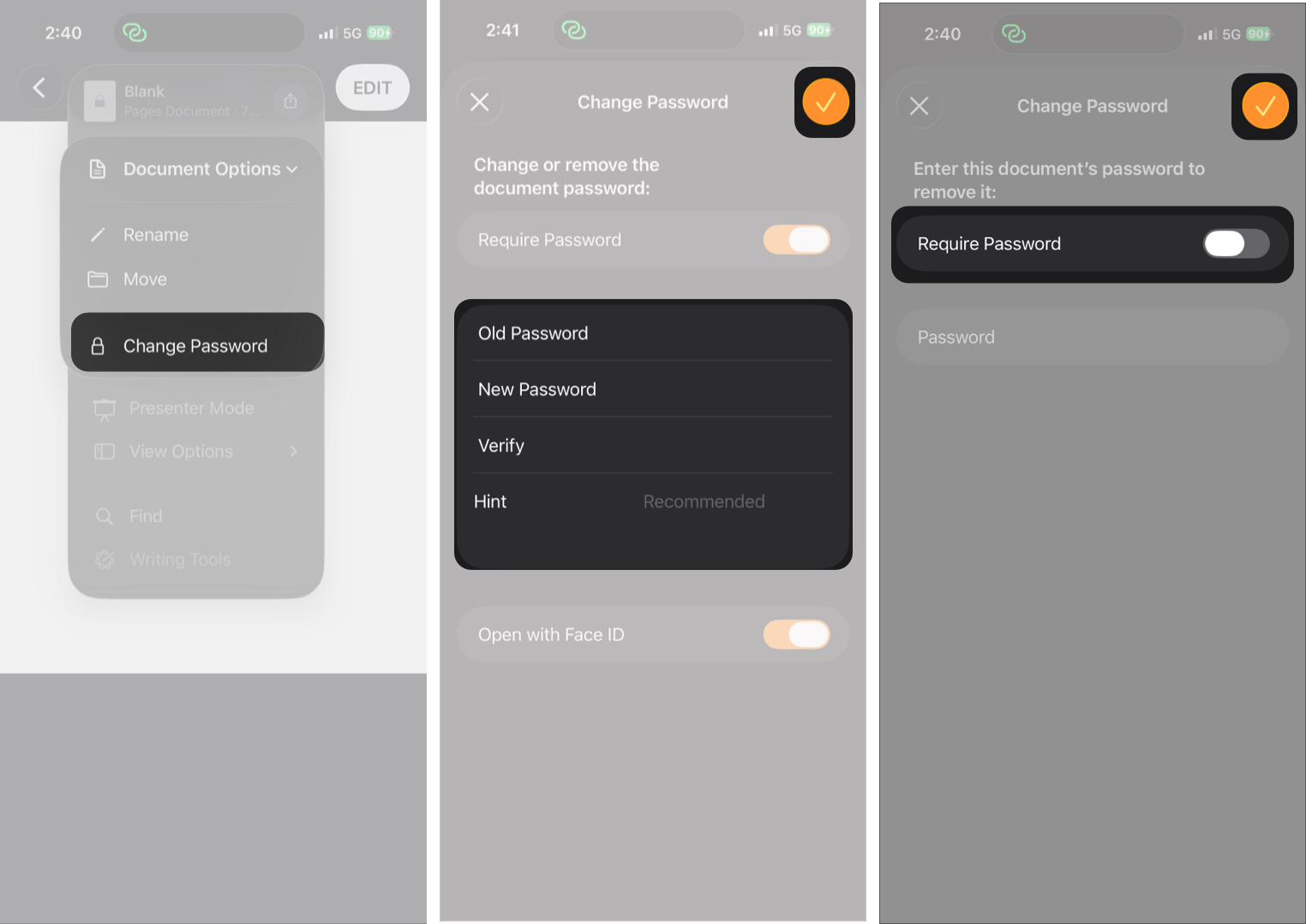
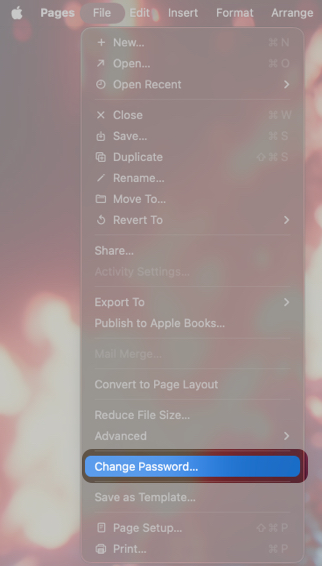
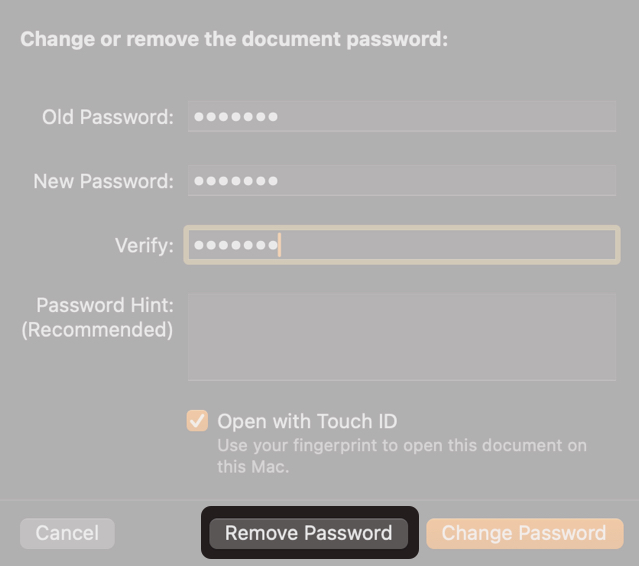
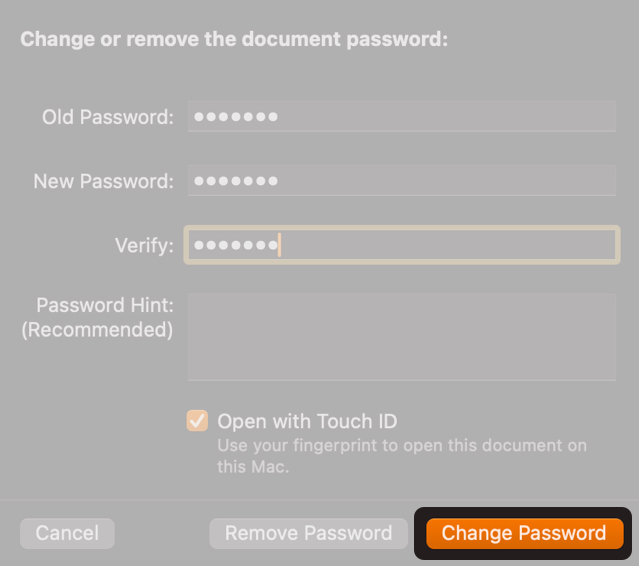
There may come a time when you need to change the password if access requirements change or the current one is compromised, or when you can remove it if the document no longer contains sensitive information or requires broader access.
Before you add password protection to your documents, it is important to understand these constraints:
Expert tip: Always store critical passwords in the Password app.
Password-protecting your iWork documents adds a critical layer of security at the file level. Once enabled, your data remains encrypted and inaccessible without authorization, even after sharing. If you deal with contracts, financial spreadsheets, client reports, or sensitive presentations, enabling password protection is strongly recommended.
Ready to password-protect your Pages, Numbers, or Keynote document? Try it now and let us know in the comments if you faced any issues.
FAQs
Yes. Apple uses strong encryption to protect password-locked documents. Without the password, the file contents cannot be accessed.
If the document is stored in iCloud Drive, the password remains applied across all devices.
Apple cannot reset or recover lost document passwords. This is why you must always save your important passwords in a password manager app.
Also read:











