FaceTime Like a Pro
Get our exclusive Ultimate FaceTime Guide 📚 — absolutely FREE when you sign up for our newsletter below.

FaceTime Like a Pro
Get our exclusive Ultimate FaceTime Guide 📚 — absolutely FREE when you sign up for our newsletter below.


Don’t get scammed when buying an iPhone. In this article, learn how to verify if an iPhone is genuine to ensure you’re making the right investment.
Buying an iPhone is exciting but with so many counterfeit and refurbished models floating around, it’s easy to get tricked into purchasing a fake one. Whether you’re buying online, getting a second-hand phone, or receiving it as a gift, it’s always important to check if your iPhone is genuine and Apple-certified.
In this guide, I’ll explain when and why you should verify your iPhone’s authenticity and share simple ways to check if it’s original, refurbished, or fake so you can buy with confidence and avoid scams.
You should always verify your iPhone’s authenticity before or immediately after buying it, especially in the following situations:
Used or refurbished iPhones can be great value, but the second-hand market is also where most counterfeits appear. Always verify the device before completing the purchase, even if it looks brand-new.
Apple products rarely get massive discounts. If someone offers a brand-new iPhone for half the retail price, it’s likely refurbished, stolen, or fake. So, double-check the model number, serial number, and IMEI before paying.
If you purchased your iPhone from marketplaces like OLX, Craigslist, Facebook Marketplace, or eBay, verify it the moment you receive it. Many fake or stolen iPhones are sold online disguised as legitimate.
If your iPhone has been repaired, especially outside of an Apple Authorized Service Provider (AASP), check that no counterfeit parts were installed. Apple’s “Parts & Service History” feature now lets you confirm this.
Even if you didn’t buy it yourself, verify that the device is genuine before you start using it. Fake iPhones can expose you to security risks, poor performance, and no warranty protection.
Here’s a step-by-step guide to verifying your iPhone’s authenticity.
Your iPhone’s IMEI (International Mobile Equipment Identity) and Serial Number are unique identifiers so it’s the easiest way to verify if the iPhone is original.
To verify your device’s Serial Number:
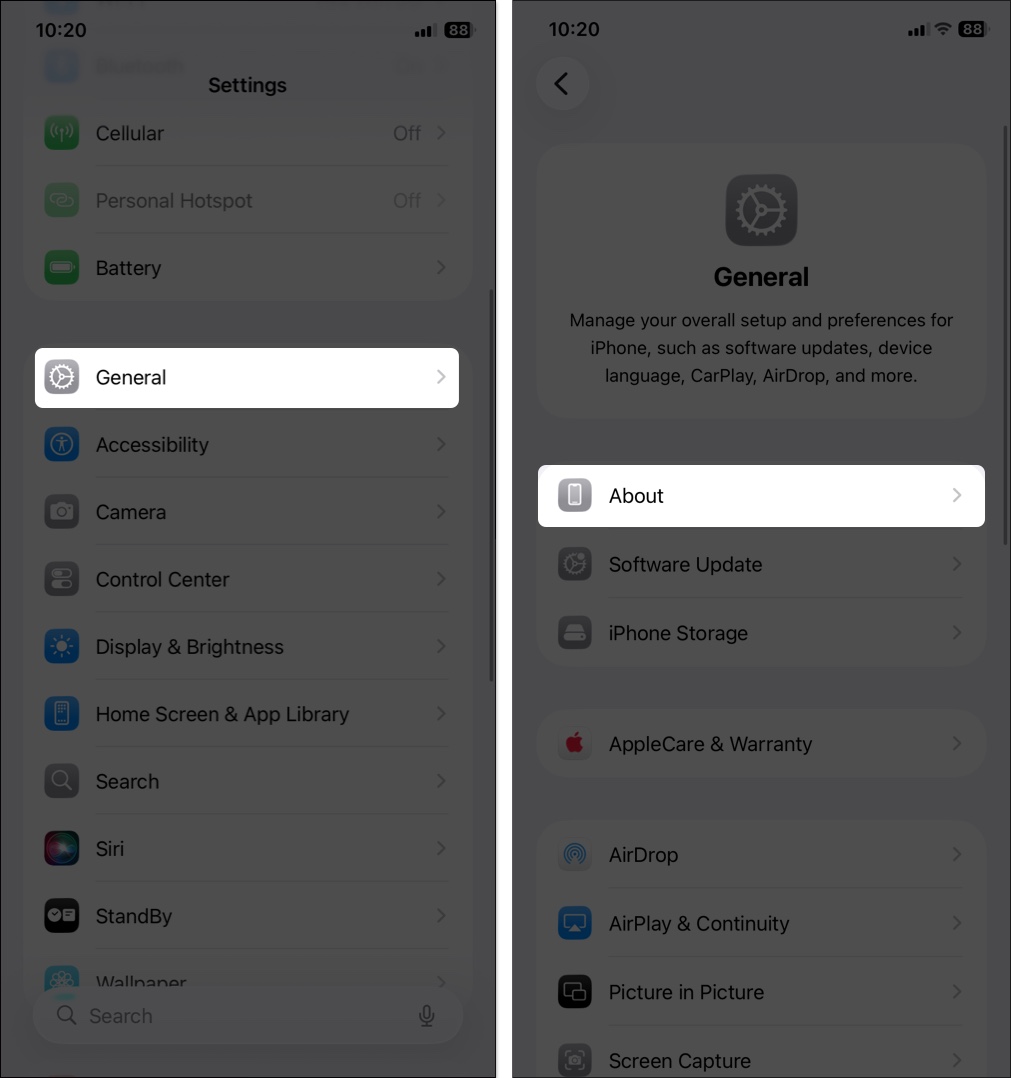
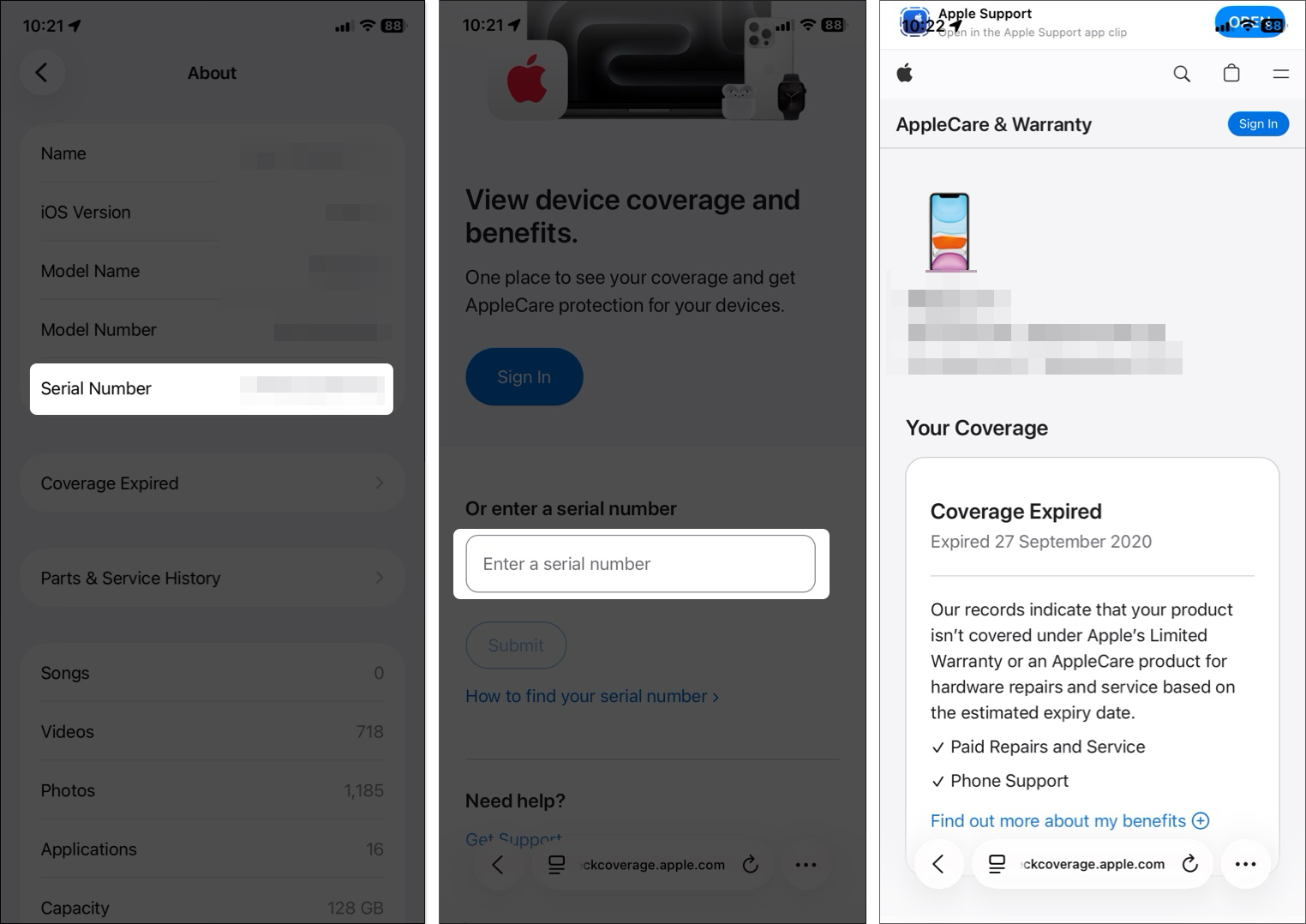
If Apple recognizes your device as Valid Purchase and shows warranty details, it’s genuine. Otherwise, if it says “invalid serial number,” the phone is fake or unregistered.
Next, ensure the the IMEI shown in the same Settings page and on the one on its box matches. You may also dial *#06# to see the IMEI number.
Each iPhone model number reveals whether it’s new, refurbished, replaced, or personalized. Find it under Settings → General → About → Model Number.
Note: These letters appear only in the first character of the model number and may vary slightly by region.
Now, you may find out if someone is trying to sell you a refurbished phone in the name of a new one.
Apple iPhones have a distinctive build quality that’s hard to replicate. Check for:
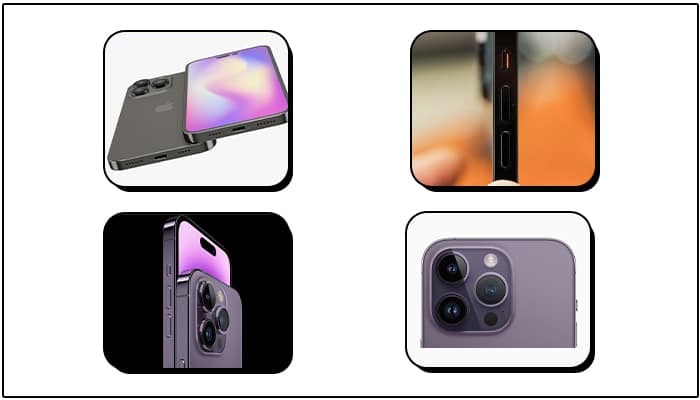
Counterfeit iPhones often feel lighter, have plastic frames, or incorrect button placement.
Some customers report scam with serviced iPhones. The device is original, but it may be repaired with non-Apple parts due to some malfunctions. So, the iPhone can not provide the same user experience with those parts installed.
To find if the screen is original or not:
Also, if you have an iPhone 11 or later running latest iOS versions and if it has gone through any service replacements, you should be able to see the details from Settings → General → About → Parts & Service History.
All real iPhones support:
If the phone cannot connect to Apple Pay, AirDrop, or iCloud services, it’s likely fake or jailbroken.
Bring your old iPhone near the new one during setup and Apple’s Quick Start feature should appear automatically.
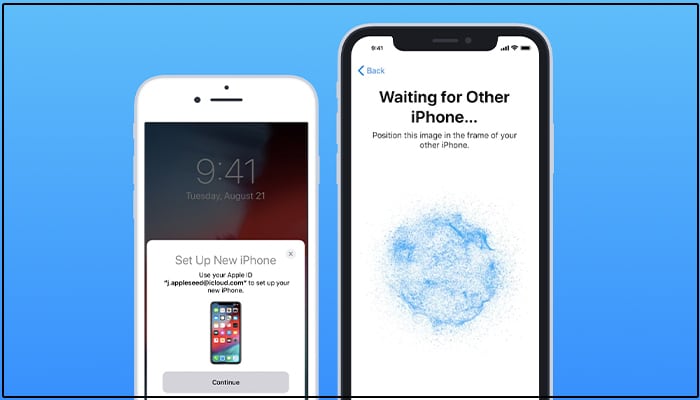
If it doesn’t, or if your Mac or PC fails to recognize the iPhone, or it couldn’t install the iCloud backup, the phone might not be genuine.
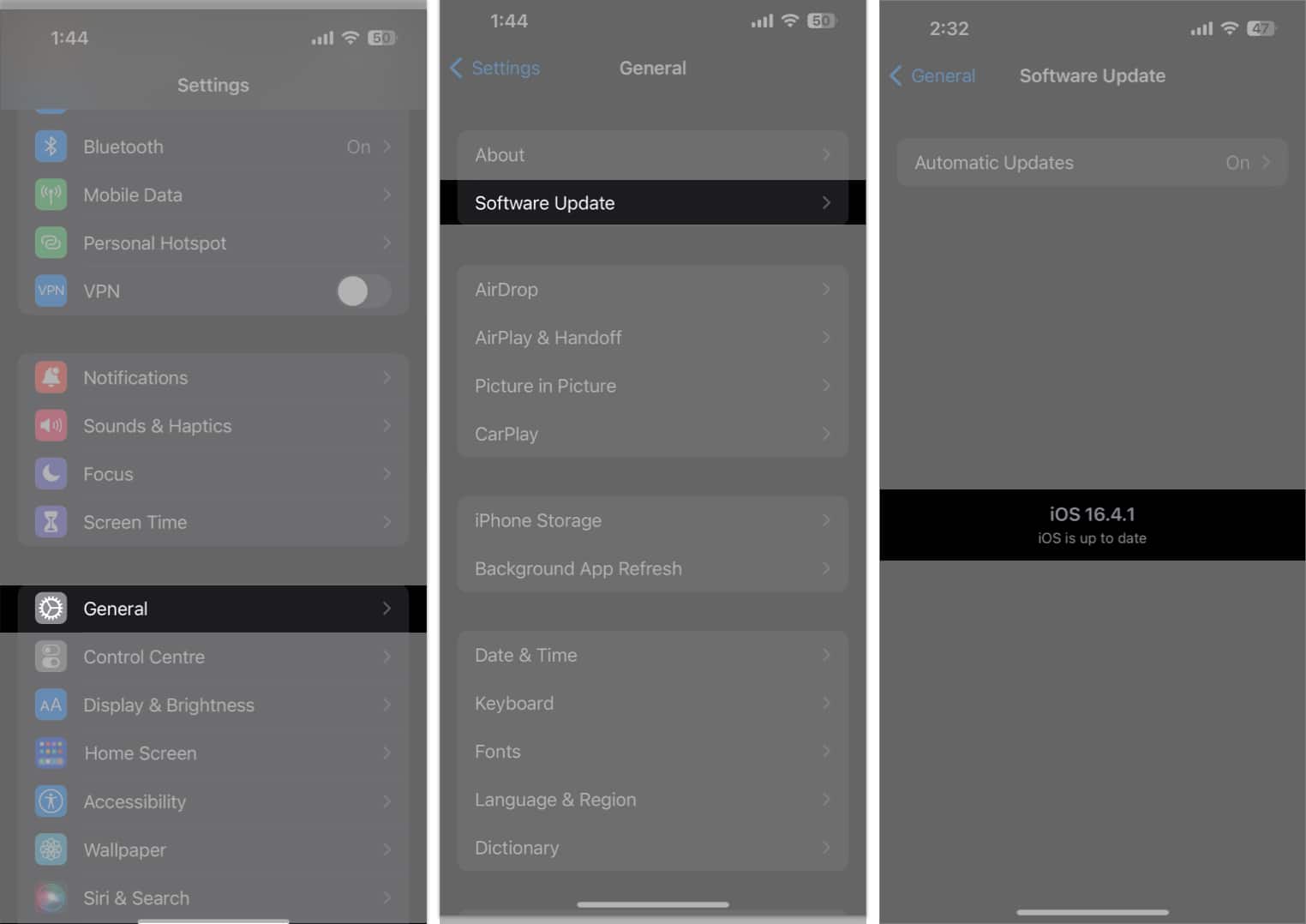
Only genuine iPhones run iOS, not fake ones disguised as iOS. Go to Settings → General → Software Update and check iOS version and updates with build number.
Also, when you set up your new iPhone, it asks you to create an Apple ID. If it prompts you to enter your Google account or anything else, the iPhone is not original.
Every iPhone includes pre-installed system apps that can’t be deleted, such as:
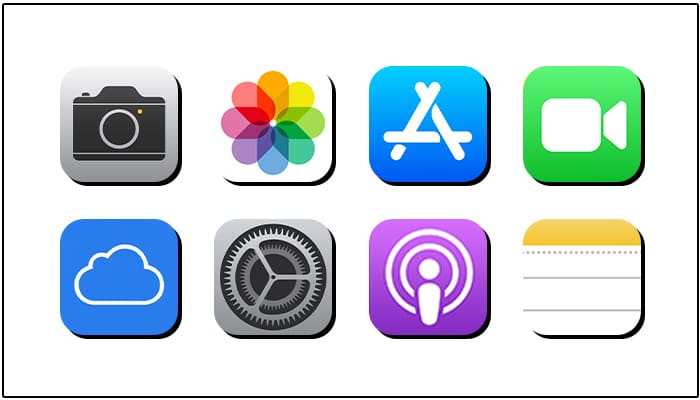
Moreover, iOS uses FaceTime, Apple Maps, Apple Music, Mail. etc. proprietary apps. If you see the Google Play Store instead of the App Store, it’s a counterfeit.
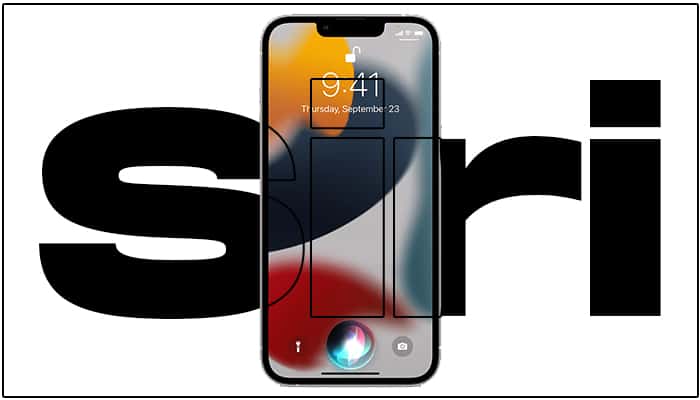
Siri is solely Apple’s in-house technology. So, fake iPhone manufacturers can’t include Siri in their phones; instead, they use Google Assistant, Amazon Alexa, or other voice assistants. Try to activate Siri by pressing the power button for a long time. If it doesn’t pop up, the iPhone is not original.
If you’re still unsure, visit an Apple Store or Authorized Service Provider. They can run diagnostics to confirm if your iPhone (and its parts) are authentic Apple components.
Counterfeit iPhones are becoming more sophisticated some even come in Apple-like packaging.
To stay safe:
Your iPhone isn’t just a phone, it’s an investment that holds your data, photos, and identity. Checking its authenticity takes just a few minutes but can save you from losing money, privacy, and peace of mind.
I hope this guide will provide the necessary information to buy the original iPhone. If you have any more doubts, let me know in the comments below!
Read more to confirm your iPhone is not fake: