FaceTime Like a Pro
Get our exclusive Ultimate FaceTime Guide 📚 — absolutely FREE when you sign up for our newsletter below.

FaceTime Like a Pro
Get our exclusive Ultimate FaceTime Guide 📚 — absolutely FREE when you sign up for our newsletter below.


Apple now lets you easily set third-party apps as defaults for calling, messaging, browsing, and more, right from the Settings app.
Wish your iPhone would open your preferred apps by default? Now it can. iOS lets you swap Apple’s built-in apps for the ones you already use, whether that’s Gmail, WhatsApp, Chrome or Google Maps. Setting your own defaults removes extra steps and makes your iPhone feel more personal.
Here’s how to change your default apps so your iPhone works the way you want.
Back in August 2024, Apple announced that users in the European Union would soon be able to change their default messaging and calling apps. At the time, this freedom seemed limited to EU users due to regulatory pressure. Apple has since expanded the capability worldwide, giving everyone more control over how their iPhone handles everyday tasks.
The Default Apps section in the Settings app lets you choose the apps you want to use for common actions in one place. No more searching through different menus or switching tools manually.
Apple’s support for third-party defaults was previously limited to categories like browsers and email clients. The list has since expanded significantly, giving you far more control over how your iPhone handles everyday tasks. Here is everything you can change now.
Supported Default App Categories:
In addition to the above global features, Apple offers a few extra options specifically for users in the European Union:
Ready to switch your default apps? Here’s how to do it:
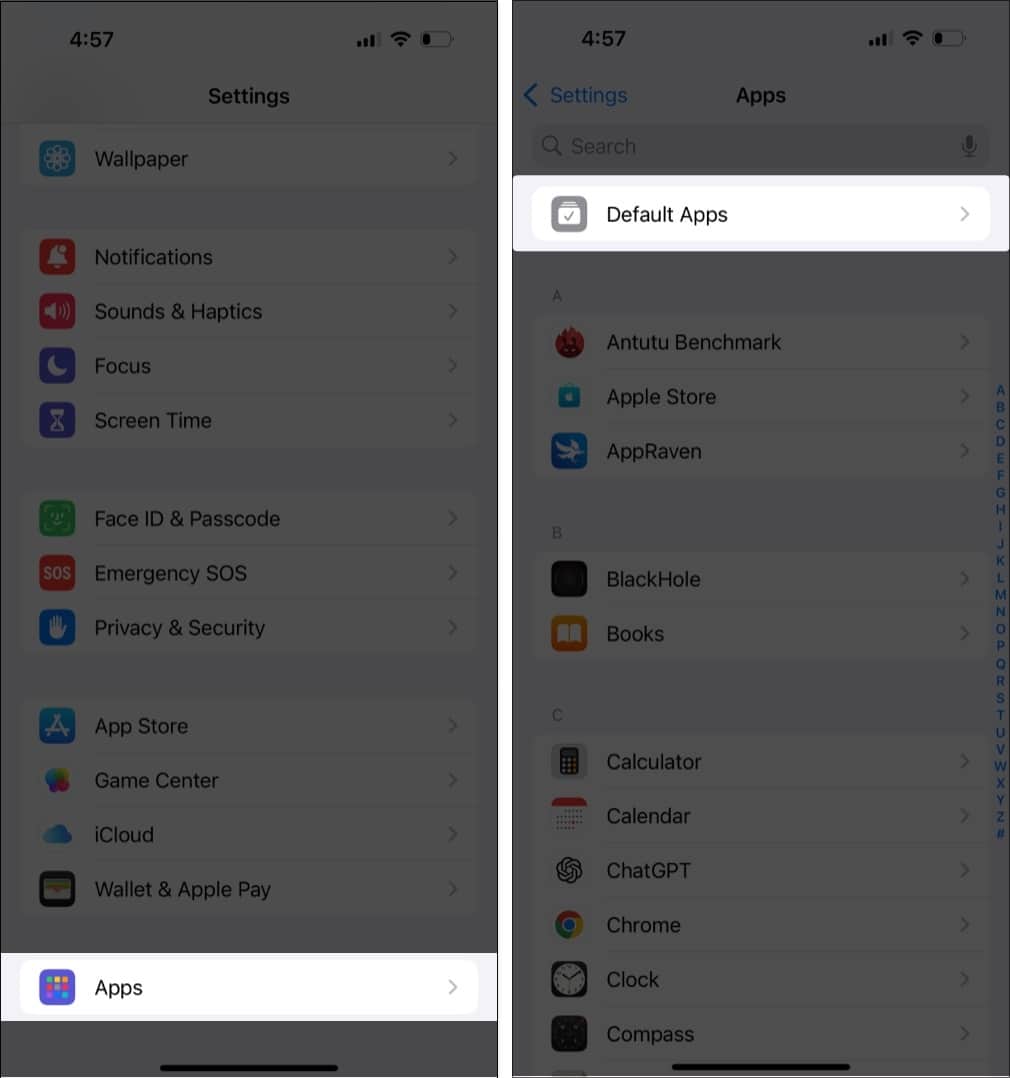
Currently, only a few third-party apps support this functionality. WhatsApp is one of the first to allow itself to be set as the default for messaging and calling actions on iPhone. More apps are expected to support this soon.
The ability to customize your iPhone experience by choosing default messaging, calling, browser, and other apps is a significant shift from Apple’s traditionally closed system. While the current app support is limited, it marks a positive step toward greater user freedom and flexibility.
We’re excited to see how developers respond and how this evolves in future iOS updates.
What do you think about Apple’s new Default Apps feature? Would you switch from iMessage or the Phone app to WhatsApp or Zoom? Let us know your thoughts in the comments!
Also read: