
FaceTime Like a Pro
Get our exclusive Ultimate FaceTime Guide 📚 — absolutely FREE when you sign up for our newsletter below.

FaceTime Like a Pro
Get our exclusive Ultimate FaceTime Guide 📚 — absolutely FREE when you sign up for our newsletter below.


Instagram now lets you link reels together for seamless mini-series and tutorials. Here’s how to use the Link a Reel feature.
 ByVikhyat
Introduced to compete with TikTok, Instagram Reels has quickly become a go-to for creators and budding filmmakers. Many now share multiple reels as part of a mini-series to keep viewers hooked.
Until recently, connecting reels wasn’t smooth; creators had to rely on captions or comments. Instagram has now solved this with the Link a Reel feature, letting you connect reels directly with a single tap. It’s perfect for tutorials, story arcs, or ongoing series.
Keep reading to learn what Instagram’s Link a Reel feature is, how it works, and tips to use it effectively.
The Instagram Link a Reel feature lets you attach one reel to another by adding a custom tappable button beneath the reel. Viewers can tap the button labeled “Watch Part 2” or a custom title to continue watching the next video. It works like a playlist your audience can enjoy.
Once a reel is linked, a button appears at the bottom of the screen, making it easy for viewers to move to the next piece of content.
If you shared part 1 of your reel series a while ago, it may be buried in your profile. Existing followers will move to part 2, but new viewers could miss part 1 and lose context.
This is where Instagram’s Link a Reel feature shines. It lets you link Part 2 to Part 1 so new viewers can watch the full story without searching your profile. Here’s how:
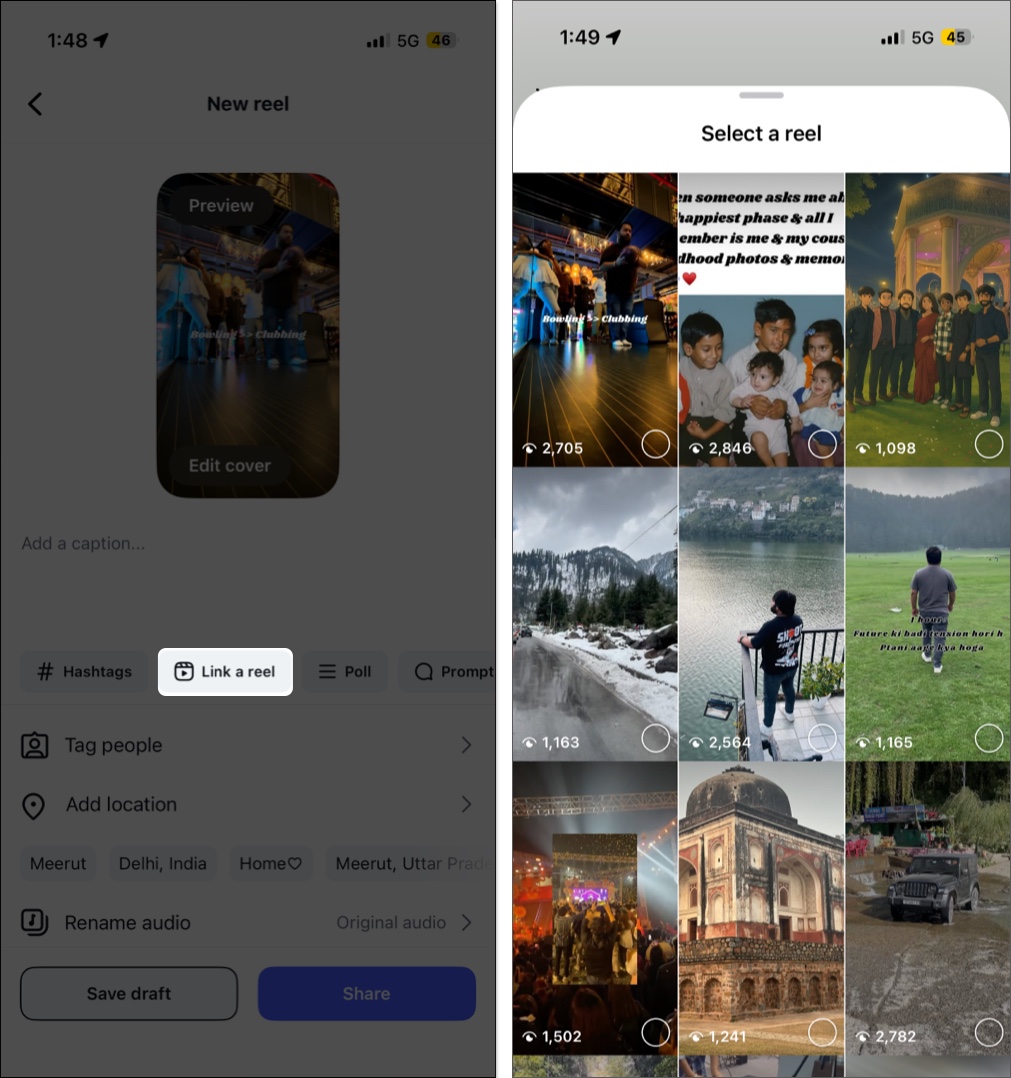
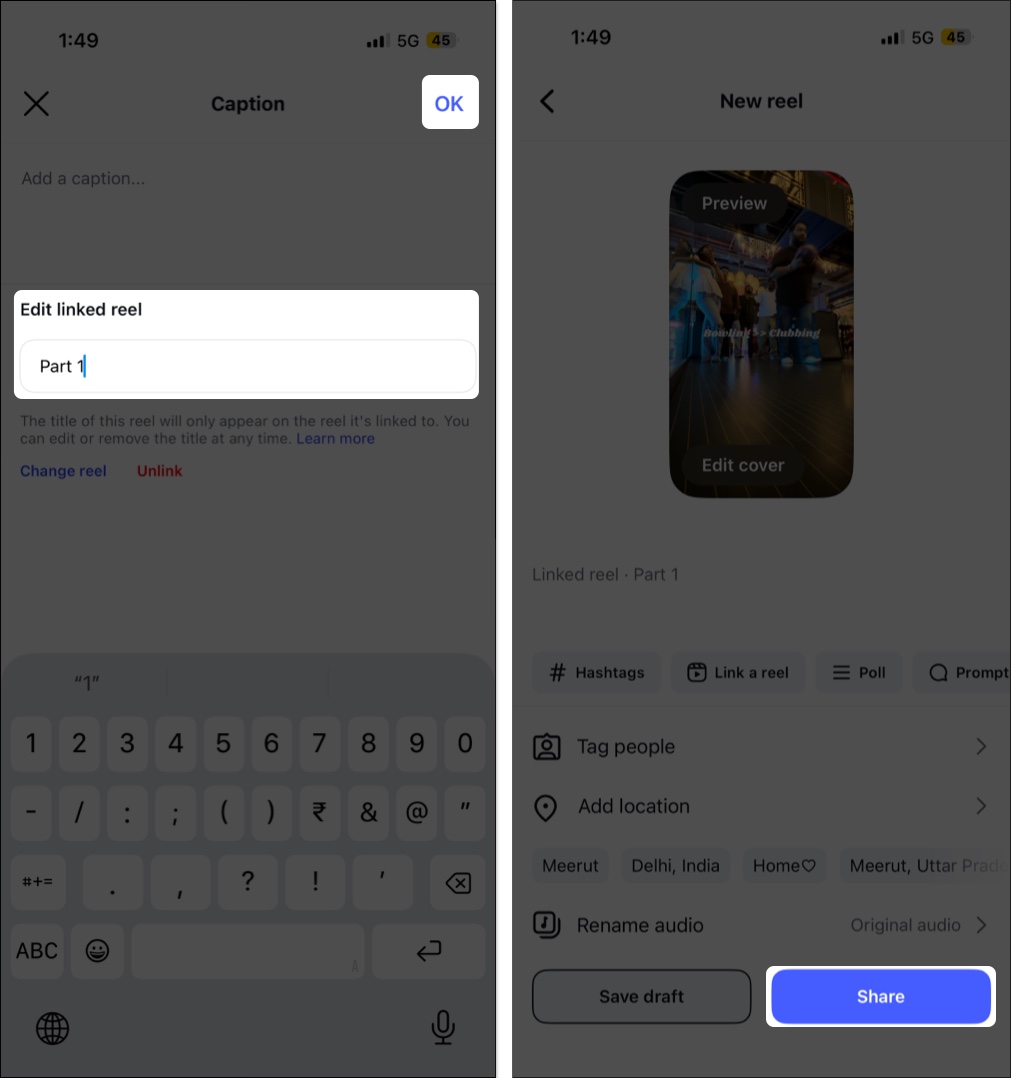
You can change the title of the linked reel at any time or unlink it altogether later.
Instagram also lets you link two existing reels, ensuring older posts don’t get overlooked. Here’s how:
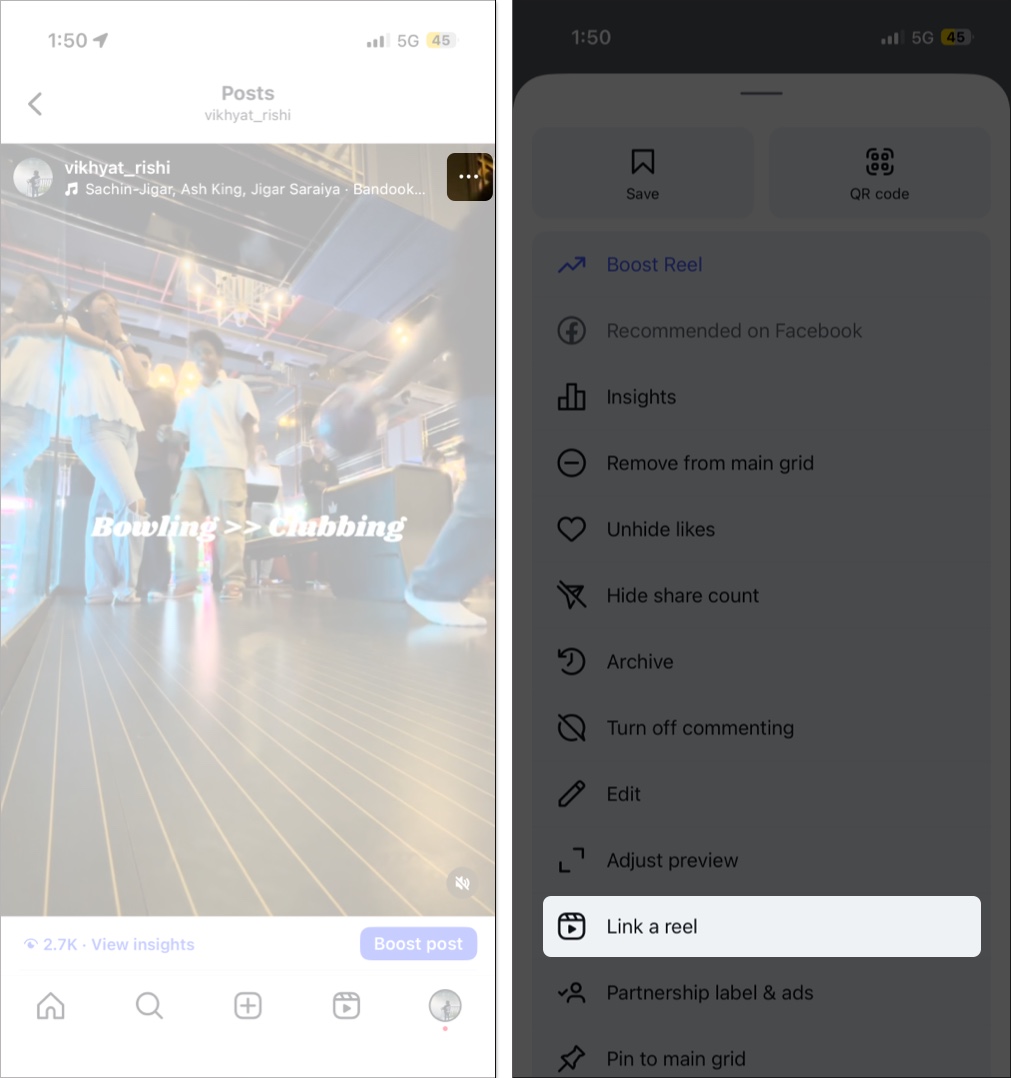
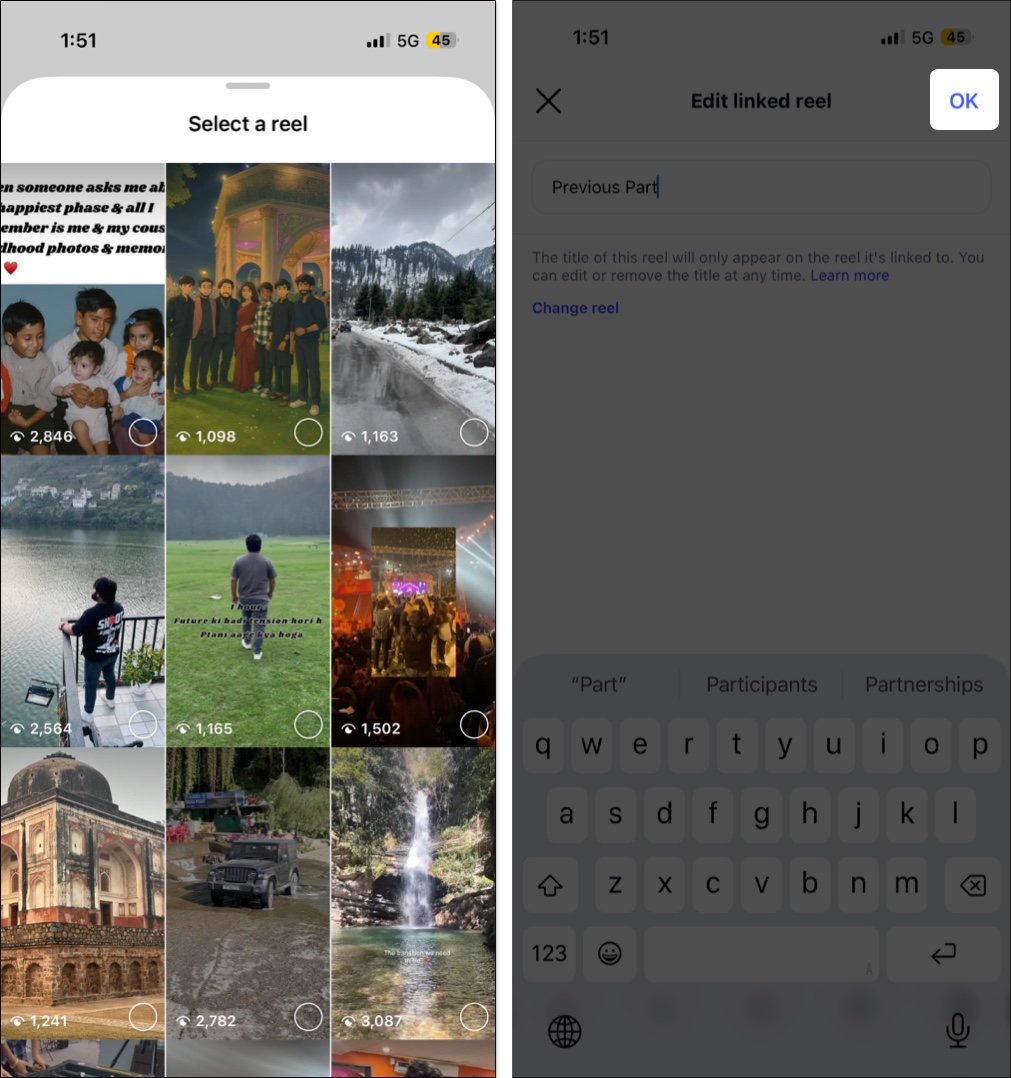
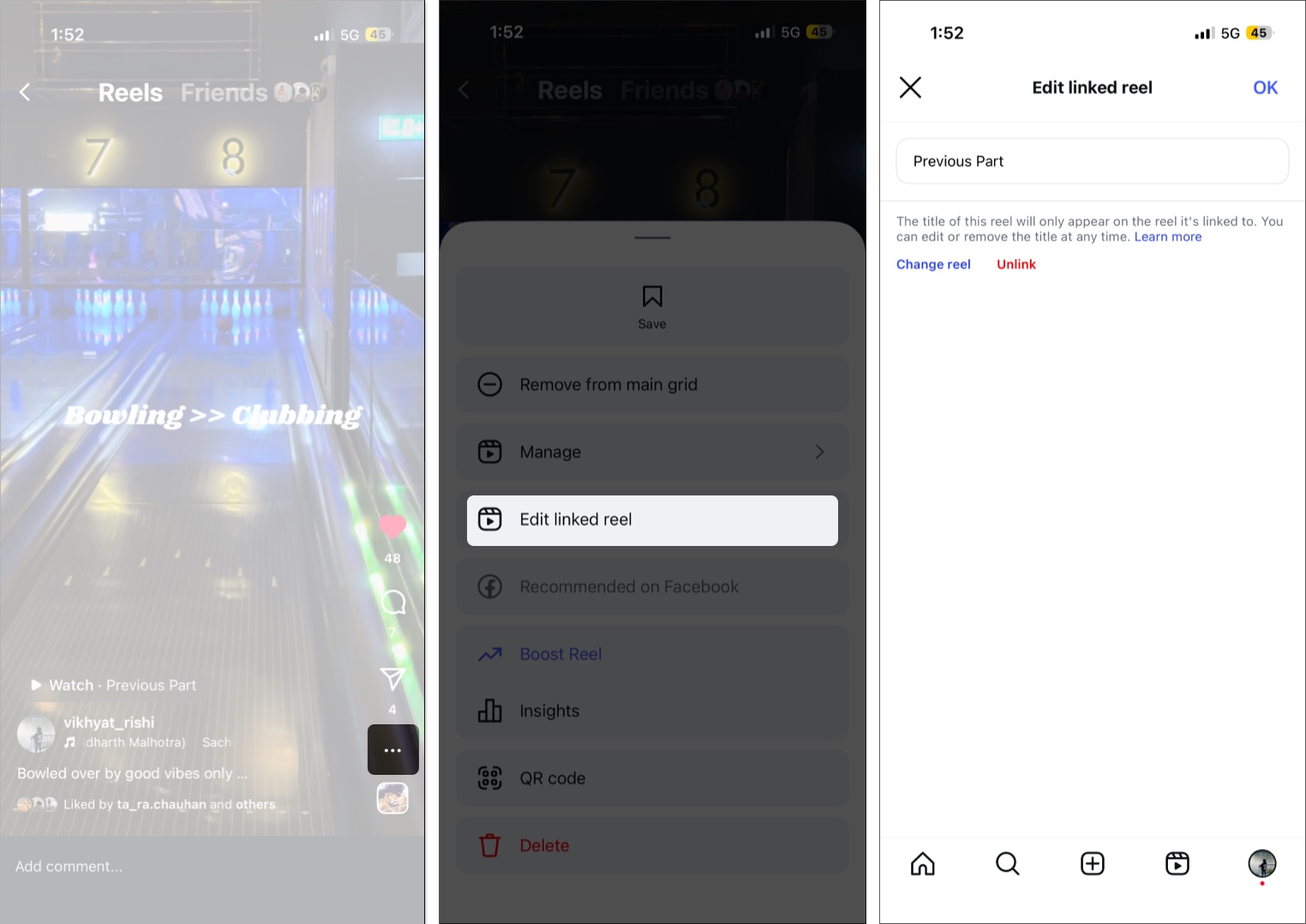
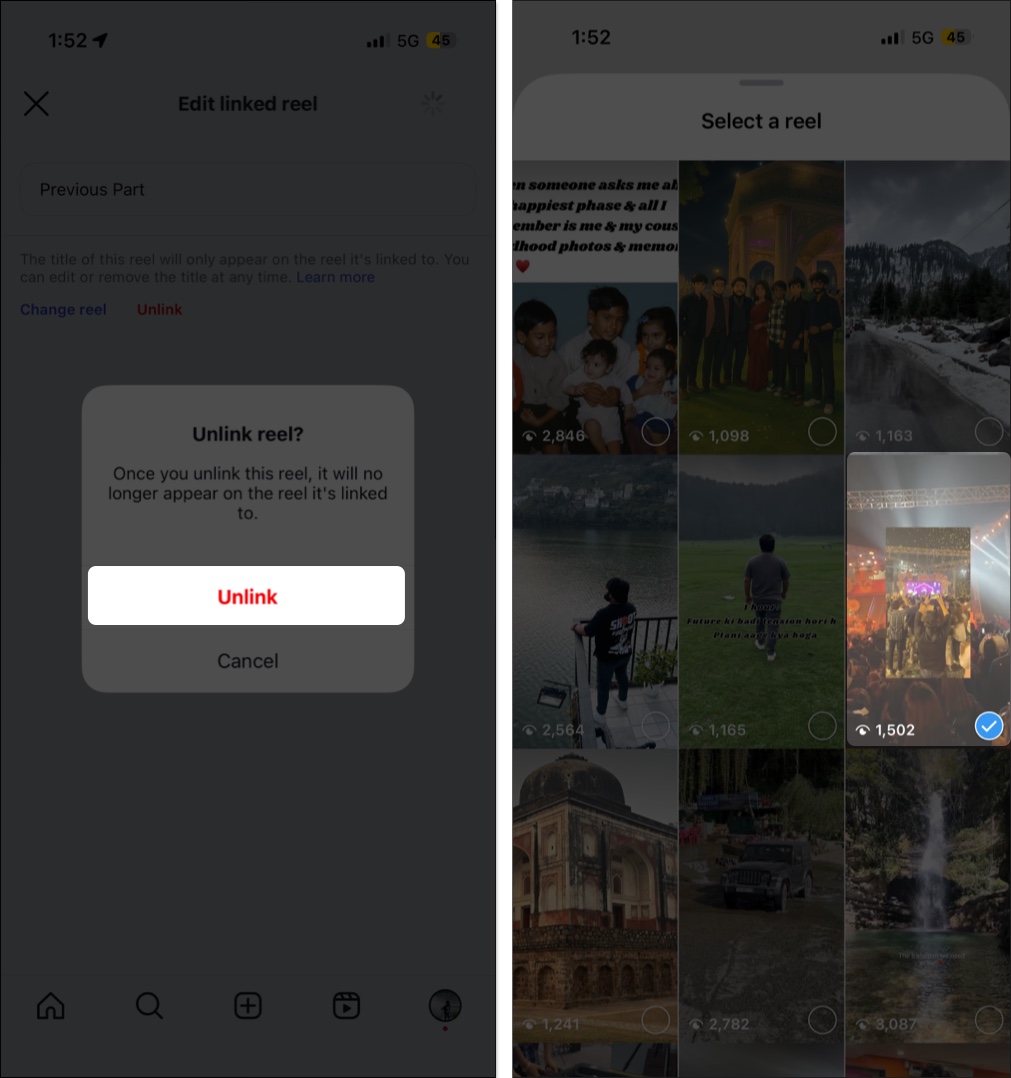
If you linked the wrong reels or want to update a title, here’s how to edit or unlink them:
While the Link a Reel feature, without a doubt, is a powerful feature for creators, it does have a few limitations you must be aware of:
Linking reels isn’t enough. You need a strategy to keep viewers engaged. Here are some practical tips:
Instagram’s Link a Reel feature makes it easier than ever to guide viewers through your content journey. Whether you’re telling stories, teaching, or building a series, this update helps you boost watch time and keep your audience engaged.
Have you tried Linked Reels yet? Share your thoughts in the comments!
Don’t miss these related reads:











