FaceTime Like a Pro
Get our exclusive Ultimate FaceTime Guide 📚 — absolutely FREE when you sign up for our newsletter below.

FaceTime Like a Pro
Get our exclusive Ultimate FaceTime Guide 📚 — absolutely FREE when you sign up for our newsletter below.


iCloud for Windows is the bridge that quietly made my iPhone and PC work together. Here's the features and limitations you should know about!
After replacing my Mac with a Windows laptop, I thought iCloud for Windows could handle everything. On paper, it sounded like the perfect cross-platform setup with iPhone. Apple promises sync, continuity, ecosystem magic. So, why wouldn’t it work the same on Windows?
Within a few days, I realized something important. iCloud on Windows isn’t broken, but it’s intentionally limited. It works just enough to keep you connected, but not enough to feel like a complete ecosystem.
Here’s my Apple iCloud Windows experience after testing it for a month, along with its pros and cons, and actual limitations. But before that, let’s start with the basics!
First and foremost, you need to install iCloud from Microsoft Store. You can use the link to directly go to the download page.
Once installed:
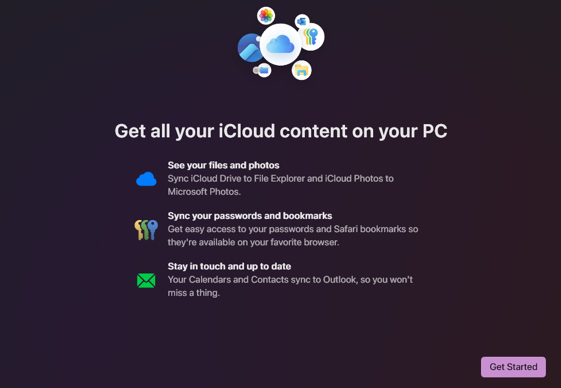
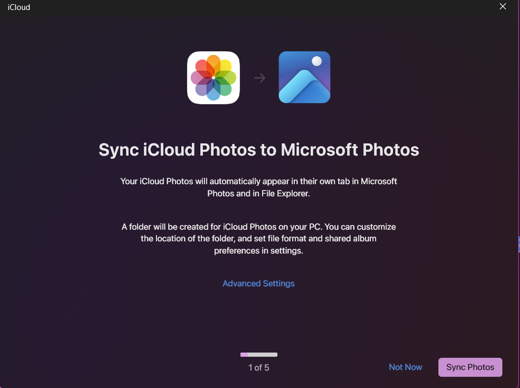
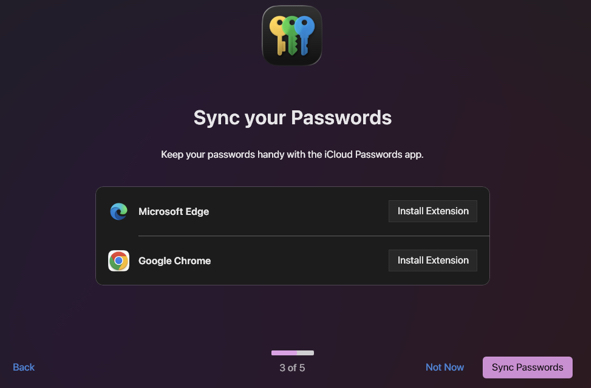
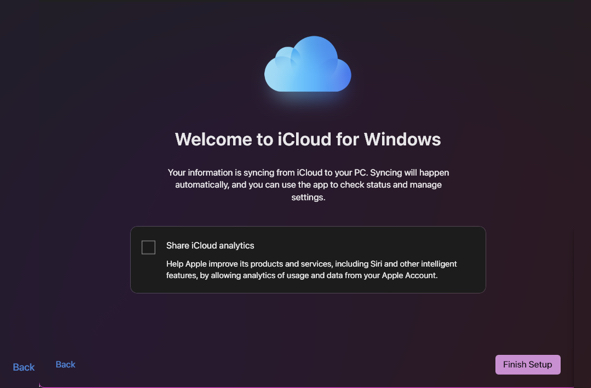
For the testing, I only enabled iCloud Drive, Photos, and Passwords. Later opted for Bookmarks and Calendar. Apple confirms you can selectively enable features during setup and control what syncs on Windows.
iCloud on Windows isn’t perfect, but if you use it intentionally, it can integrate both ecosystems. Here’s the real workflow I follow daily.
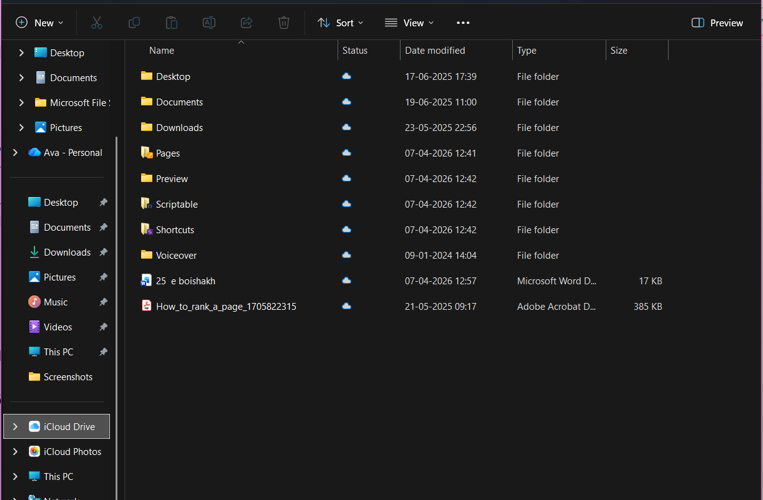
Once enabled, iCloud Drive shows up inside File Explorer like a normal folder. This is the part that changed everything for me.
I use it like a “bridge” between ecosystem because iCloud Drive syncs files both ways between devices automatically. Instead of uploading manually, simply drag & drop files and it’s instantly available on iPhone.
Moreover, editing documents on Windows syncs to iCloud. If you need to share a file, you can directly invite people and share the link.
Things I learned the hard way:
This is honestly the main reason I keep iCloud on Windows.
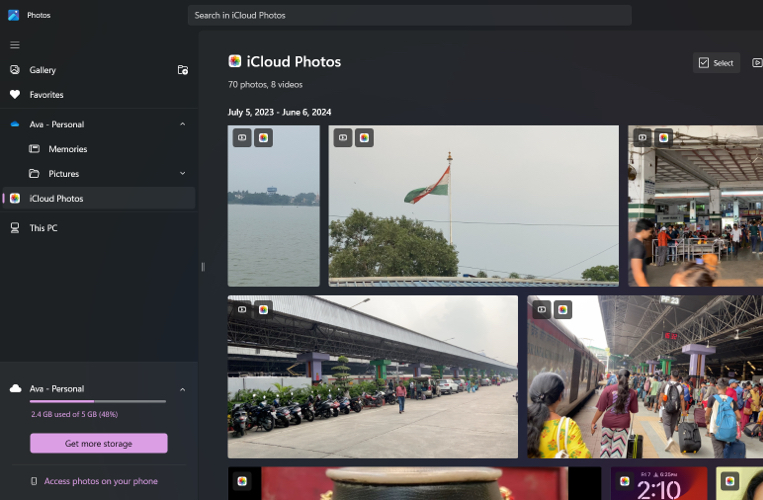
No cables. No AirDrop hacks. Everything syncs automatically across devices.
You can also download photos locally or upload from PC to iCloud.
I have tried creating a new iCloud shared album. It’s interface was quite basic but worked properly like adding new photos to exisitng albums or removing subscribers. If you don’t know much about this, check out our detailed guide on how to use iCloud Shared Albums.
What I wish I knew sooner:
Along with the iCloud Shared Album, I found a iCloud Passwords app installed automatically on my system. Once the sync is enabled, you can see all the stored passwords including the shared ones there. Also, it lets you set up verification codes for quick logins.
To test the autofill feature, I installed the iCloud Passwords extension for Chrome. But it doesn’t showup like the native Google password manager. So that’s a bummer!
Additionally, you can also sync your Safari bookmarks on your Windows PC by installing iCloud Bookmarks extension. It merges all your PC bookmarks to keep everything synced.
If you use Outlook, iCloud syncs Contacts + Calendar directly.
I tried it, but honestly, I prefer Google Calendar for cross-platform use.
Still, it works if you’re fully in Apple ecosystem.
After actually using it daily for syncing files, photos, and passwords between my Windows PC and iPhone, these are my key takeaways,
This part? Surprisingly great.
I installed iCloud from the Microsoft Store, signed in, and finished the setup. Within minutes, my files and photos started appearing in the native File Explorer and Microsoft Photos app. Apple made onboarding almost effortless.
No complaints here. In fact, this is where iCloud on Windows feels deceptively good.
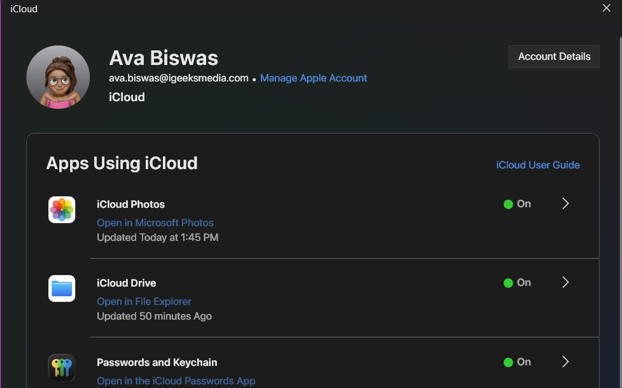
Here’s where things get weird.
The app barely feels like an app. It’s more like a control panel for syncing photos, drive, or password. You can only change the sync location and download settings.
That’s it. There’s nothing else to do.
This is where my experience started splitting in two:
I noticed that files sometimes took time to appear, photos didn’t always sync instantly, and occasional random delays with no explanation. Also, the password sync is still a mehh!
Nothing catastrophic, but enough to make me hesitate trusting it fully. And trust is everything in a cloud service.
To be fair, not everything is bad. There are some truly strong aspects:
If your needs are light, just accessing files and photos, this might be all you need.
This is where the real story begins.
This one hit me daily.
As an avid user of Notes, and on Windows, there’s no proper app. Every single time, I had to open iCloud Web.
It sounds small. It isn’t. That extra step breaks the flow. It turns something instant into something intentional, and that changes how often you actually use it.
Compared to OneDrive, iCloud feels like a guest on Windows.
OneDrive behaves like native Windows, whereas iCloud behaves like a plugin. And that difference is impossible to ignore once you notice it.
If you’ve ever used iCloud on a Mac, this becomes obvious instantly.
On Windows, I struggled with:
This was my biggest daily annoyance.
I’d upload a file on my phone, open my PC, and wait. Sometimes it’s seconds. Sometimes longer. Sometimes I’d refresh manually.
Again, not broken. Just inconsistent.
After testing everything, this became obvious to me:
Most importantly, if you expect the Apple ecosystem experience on Windows, you’re setting yourself up for disappointment.
Here’s my honest, slightly blunt take.
Because once you’ve experienced the full Apple ecosystem, this version feels incomplete.
After using it daily, here’s my unfiltered conclusion: iCloud on Windows feels like Apple gave just enough functionality to keep you connected, but not enough to fully rely on it.
It gives you access, but not control. Your data syncs, but doesn’t integrate. And clearly, Apple prioritized macOS. Once I accepted that, everything made sense.
Have you ever used iCloud on Windows? Let me know your thoughts on it below!
FAQs
It’s good for basic file, photo and password syncing. But if you’re expecting a full ecosystem experience, it falls short.
The biggest gaps I noticed are the lack of native Notes or Reminders apps, limited photo management features, and no advanced system integration or full backup control.
Continue exploring with these related posts: