FaceTime Like a Pro
Get our exclusive Ultimate FaceTime Guide 📚 — absolutely FREE when you sign up for our newsletter below.

FaceTime Like a Pro
Get our exclusive Ultimate FaceTime Guide 📚 — absolutely FREE when you sign up for our newsletter below.


Samsung Browser on Windows finally gives Galaxy users a real Chrome alternative by connecting their phone, PC, passwords, browsing history, and AI tools.
Samsung has officially launched Samsung Browser for Windows, bringing its mobile browsing experience to PCs with cross-device continuity, Samsung Pass integration, and new built-in agentic AI features. You may access the browser on Windows 11 and Windows 10 1809 or later versions.
I installed the Samsung Browser mainly to test the new features on Windows. But after using it with my Galaxy phone and Samsung account, I realized it can be a good alternative to Chrome. Here is my hands-on comparison of Samsung Browser vs Google Chrome — what felt better, what still needs work, and who should actually switch.
Samsung Browser for Windows is the desktop version of Samsung’s mobile browser, previously known as Samsung Internet.
Samsung says the browser can sync bookmarks and browsing history via Samsung Cloud, let users pick up where they left off between mobile and PC, and integrate with Samsung Pass for secure website sign-ins and autofill. That makes it different from other Chromium-style browsers.
The new browser includes an AI assistant with Perplexity technology that understands human language and can analyze the page and activities on other tabs. Hence, it allows the user to explore content, manage tabs, navigate browsing history, and stay productive without leaving the browser.
To enjoy all these features, you need to download Samsung Browser on your Windows PC or laptop and log in using the same Samsung account you have on your Galaxy device.
Surprisingly, some features even work on other Android phones. Simply install Samsung Internet on your Android and create a Samsung Cloud account if you don’t have one. Then log in to your Windows machine.
My first motivation to switch was very simple; Samsung Browser allowed me to make my Galaxy phone and Windows computer work in one flow.
Chrome already syncs well across devices, but it syncs around your Google account. Samsung Browser syncs with your Samsung Cloud. That difference matters if you already use Samsung Internet on Android. Along with basic bookmark and history sync, Samsung lets users pick up where they left off when moving between mobile and PC.
I am constantly jumping between devices. I read something on my phone, leave it halfway, open my laptop, search again, and waste time rebuilding the same browsing session. Samsung Browser shows a continuity icon at the top right corner. Clicking it opens up my phone’s tab directly. It even jumps right to my exact scrolling position.
For someone who reads articles, checks product pages, researches topics, and saves links throughout the day, the continuity saves lots of time and effort.
I did not realize how much browser switching depends on passwords until I tried moving away from Chrome. All of my passwords and autofill data, like credit card details and saved addresses, were saved on my Galaxy’s Samsung account and PC’s Chrome password manager.
Samsung Browser avoids that problem by leaning on Samsung Pass. The integration lets users securely store personal information, sign in to websites, and autofill profiles across devices and apps.
When you are installing the browser, it prompts you to enable Samsung Pass. If you have skipped it, then worry not. Follow the steps below:
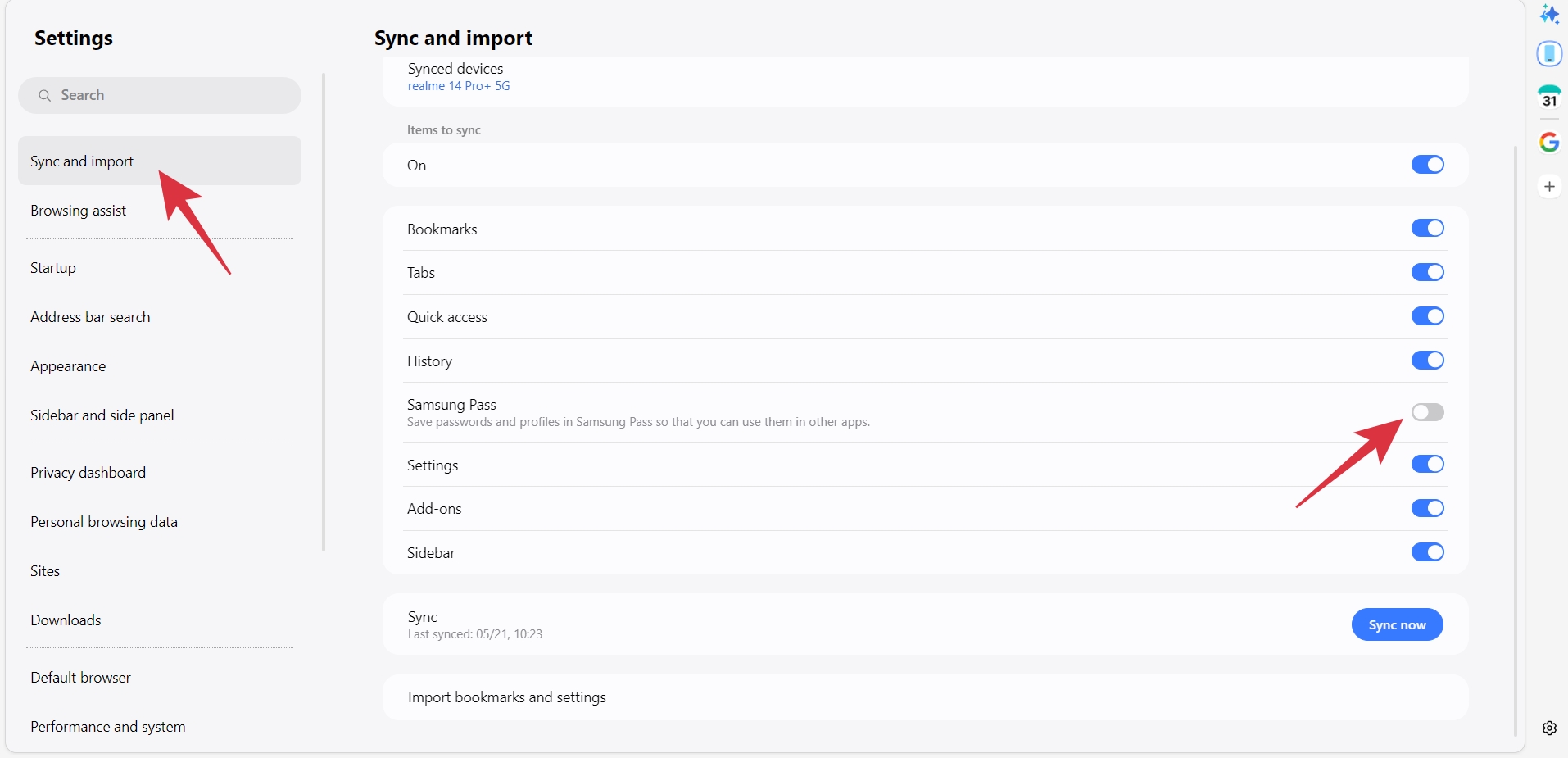
Instead of treating my PC browser and phone password flow like two separate worlds, Samsung Browser made sign-ins feel closer to what I already use on my Galaxy phone. It felt less like switching browsers and more like extending my existing setup.
Would I tell a Google Password Manager user to switch only for this? No. But if your sign-ins already live in Samsung’s ecosystem, Samsung Browser becomes much easier to adopt.
I would not claim Samsung Browser is automatically more private than Chrome for every user. But Samsung makes privacy feel more visible.
Chrome has strong security features, but it also carries the baggage of being Google’s browser. You will come across lots of pop-ups, ads, and trackers while browsing. And the recent update has stopped many ad-blocker extensions
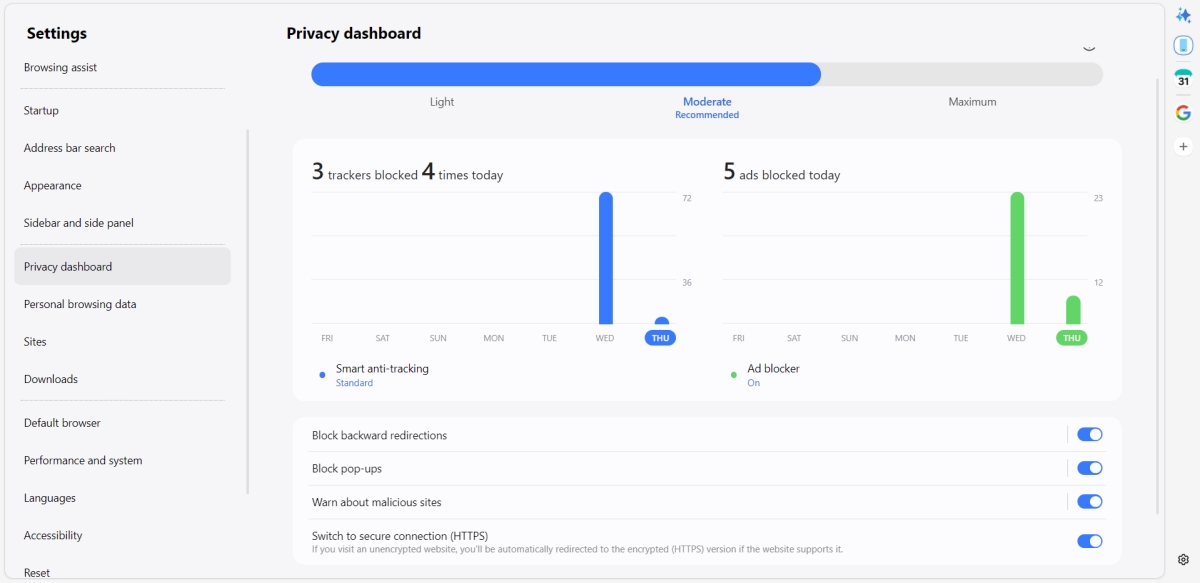
Samsung Browser offers smart anti-tracking, ad and pop-up blocking, and backward redirection prevention. It prompts you to enable an ad blocker while setting up. I also liked its Privacy Dashboard, which shows the total number of trackers and ads blocked in the last 24 hours. Simply, click the hamburger menu and go to Ad blocker > Privacy settings.
The built-in ad blocker also helps the web page to load faster and doesn’t weigh down the CPU like extensions. Moreover, you can access Secret Mode to go incognito. But you can lock those tabs similar to Safari’s Private Browsing. All these features made me trust the browser more.
The sidebar is the feature that made Samsung Browser feel different from Chrome for me, especially when working with a single screen.
Instead of only using it as a tab-heavy browser, I could pin frequently used sites like Google, YouTube, Amazon, and many more to the sidebar and open them in a narrow side panel beside my main page. It’s like a secondary browser. For daily browsing and research, this layout made Samsung Internet feel faster, cleaner, and better suited for multitasking.
You can even access your open tabs and Quick access shortcuts across your synced devices. Moreover, I can track events and tasks through the calendar shortcut. Therefore, if you constantly lose track of your tabs, it’s a lifesaver.
In terms of interface, Samsung Browser is cleaner than Chrome. The menu and URL bar are movable, and you can even pin the address bar to the bottom. Moreover, it lets me choose different tab layouts like Stack, List, and Grid to accommodate all the pages opened at once.
After seeing what Gemini in Chrome is trying to do, Samsung’s browser AI direction feels easier to understand. Google is turning Chrome into an AI layer that can summarize pages, answer questions from open tabs, compare information, and even move toward “auto browse” tasks.
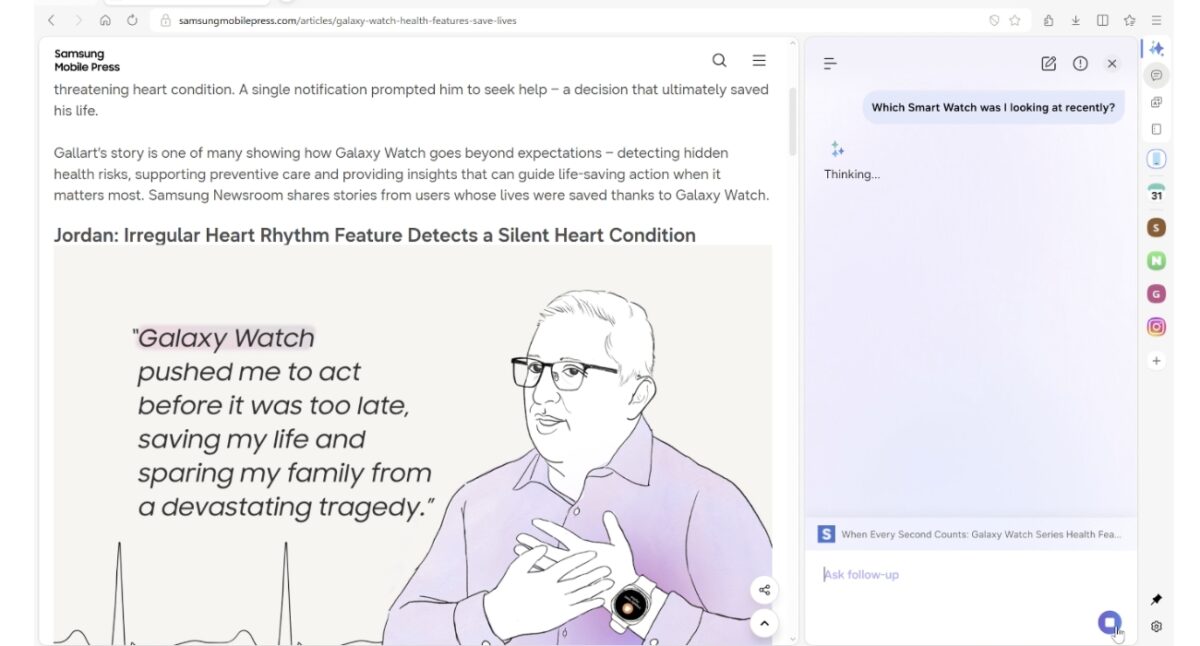
Samsung’s pitch feels similar in spirit, but more focused on making its own browser useful across phone and PC, not just adding another chatbot button. In partnership with Perplexity, Samsung is giving users the following features:
Compared with Gemini, Samsung’s AI features are still limited. However, they make more sense when tied to Galaxy devices, Samsung Pass, and cross-device browsing continuity.
We all know how much RAM and memory Chrome hogs on a machine. So, it’s quite difficult to use with low RAM laptops as it drags the whole system down. Samsung’s Optimize memory use feature feels like a more practical answer to that problem.
You can control which websites remain active in the background and which tabs can be unloaded to free up memory. That means the browser is not simply keeping every tab alive at all costs. Instead, it can reclaim resources from tabs I’m not using and give more breathing room to the page I’m actually working on.
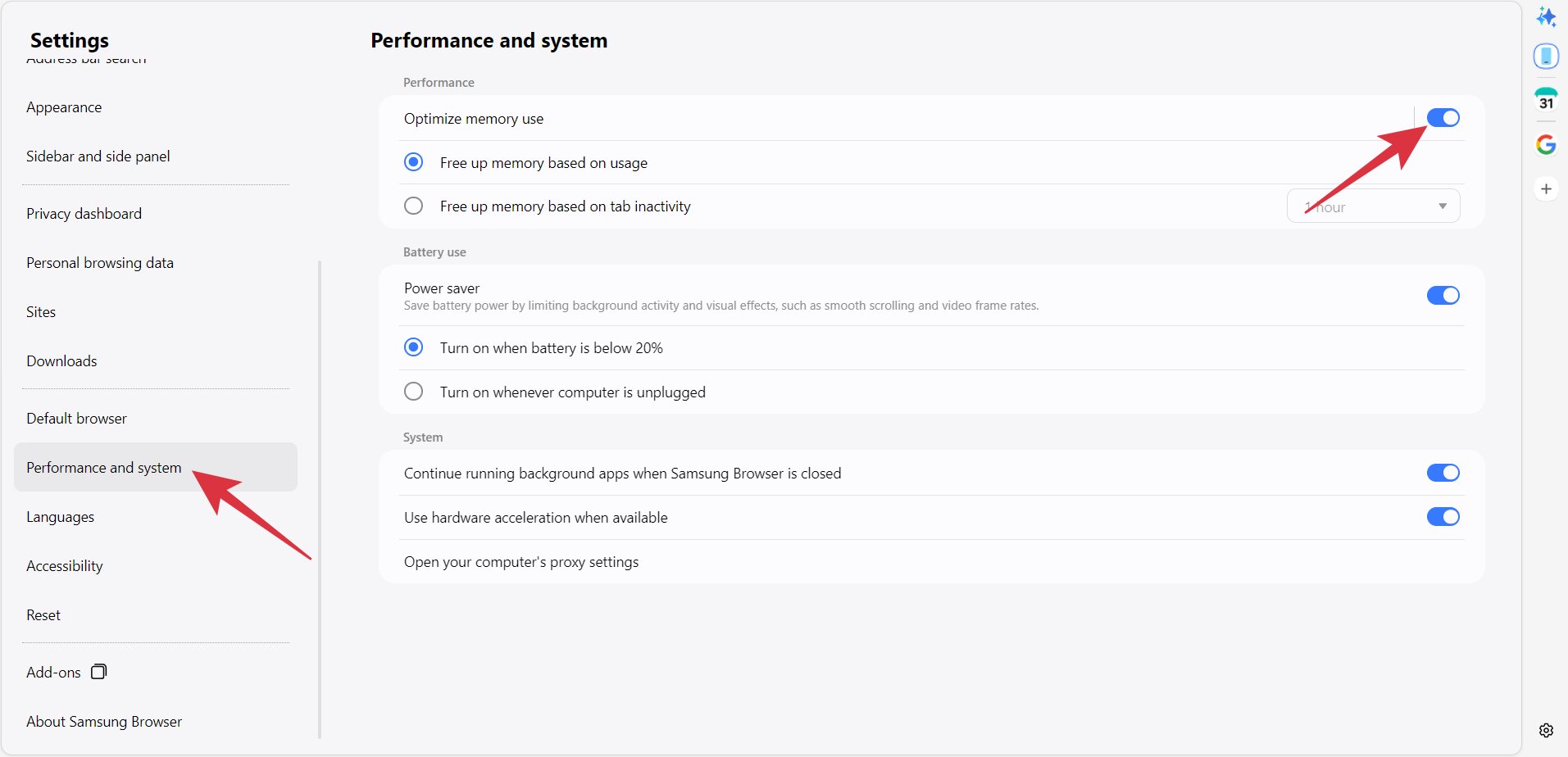
Compared with Chrome, this approach feels more transparent. Chrome has improved over the years with memory-saving features, but it still has a reputation for being heavy, especially on older laptops and budget PCs.
After switching, I do not see Samsung Browser as a universal Chrome killer. That would be lazy. I see it as a targeted Chrome alternative.
Here is what changed for me:
| Area | Samsung Browser | Google Chrome |
|---|---|---|
| Account sync | Samsung account | Google account |
| Password experience | Samsung Pass | Google Password Manager |
| Phone-to-PC continuity | Feels more natural with Galaxy devices | Works well, but feels Google-first |
| AI direction | Browser assistant with page and tab context | Google AI ecosystem integration |
| Layout | More workflow-focused for my use | Familiar but plain without extensions |
| Extension strength | Still a question mark | Still the king |
| Best reason to use it | Your Samsung devices finally feel connected | Everything works everywhere |
The biggest change was psychological. Chrome used to feel like the browser I had to use. Samsung Browser made it feel like one option among many. That is a major shift.
Samsung Browser Makes the Most Sense Only If You Use Samsung Devices
I switched my daily browsing, but I did not delete Chrome for its extensions, compatibility, testing, and Google-heavy workflows.
Chrome still wins in the places where maturity matters.
The biggest one is extensions. Chrome’s extension ecosystem is still unmatched. If your workflow depends on specific extensions, Samsung Browser may not replace that setup immediately.
Chrome is also a perfect fit if you live inside Google Workspace, like Gmail, Google Docs, Google Drive, etc. All these feel naturally tied to Chrome.
Developer tools are another advantage. If you are a web developer, Chrome DevTools are still the familiar standard. Though Samsung Browser might be good enough for your daily use, Chrome is definitely more reliable for development and debugging purposes.
Finally, Chrome is more universal. This browser runs seamlessly on Windows, macOS, Linux, Android, iOS, Chromebooks, and almost every environment where people browse the web. You can even create different profiles to keep browsing separately.
You should try Samsung Browser on Windows if you use a Galaxy phone and want your PC browsing to feel more connected to your mobile life.
I would especially recommend it if you:
I switched from Chrome to Samsung Browser on Windows because Chrome started feeling too generic for my setup.
Though Samsung Browser cannot win over Chrome when it comes to extensions, developer tools, or universal platform support. But it makes my Galaxy phone and Windows PC feel like parts of the same system. That is the reason this browser matters.
Samsung is trying to make the browser part of its larger connected-device and AI strategy and claiming the desktop space it has ignored for too long. o longer feels like the browser built for me.
Will you try the Samsung Browser? Share your opinion in the comments below!
You may like to read: