
FaceTime Like a Pro
Get our exclusive Ultimate FaceTime Guide 📚 — absolutely FREE when you sign up for our newsletter below.

FaceTime Like a Pro
Get our exclusive Ultimate FaceTime Guide 📚 — absolutely FREE when you sign up for our newsletter below.


Apple's latest update adds powerful Siri AI features, Mac-like multitasking, and lots of productivity tools that make the iPad more capable than ever.
For years, Apple has been trying to make the iPad more powerful without sacrificing what makes it unique. With iPadOS 27, that effort feels more noticeable than ever. The headline features, including AI-powered Safari and new Siri AI, were impressive, but some of the most useful improvements are the ones Apple barely talked about on stage.
After exploring what’s new in iPadOS 27, these are the top 8 features that stood out the most to me and can make the biggest impact on how people use their iPads every day.
Last year’s multitasking overhaul was the big leap forward. This year’s update focuses on making everything feel smoother, smarter, and more natural.
Instead of swiping down or hovering a cursor to access app menus, you can now keep the menu bar visible at all times, making the iPad feel much closer to a traditional Mac desktop. To enable it, go to Settings → Multitasking & Gestures → Menu Bar and toggle off Automatically Show and Hide Menu Bar.
Apple has also redesigned the menu bar to look more like macOS. Menu items are now left-aligned, the active app’s name stays visible at the top, and a tap reveals its command menu. Double-tapping the app name opens that app’s settings directly. The familiar “traffic light” window controls are also integrated into the menu bar for quicker window management.
There’s even a new Liquid Glass opacity slider under Appearance settings, letting you adjust the menu bar’s transparency. You can also set extra-large widgets on the home screen. Apple says iPadOS 27 makes window switching, window closing, file transfer, and browsing faster and improves overall responsiveness.
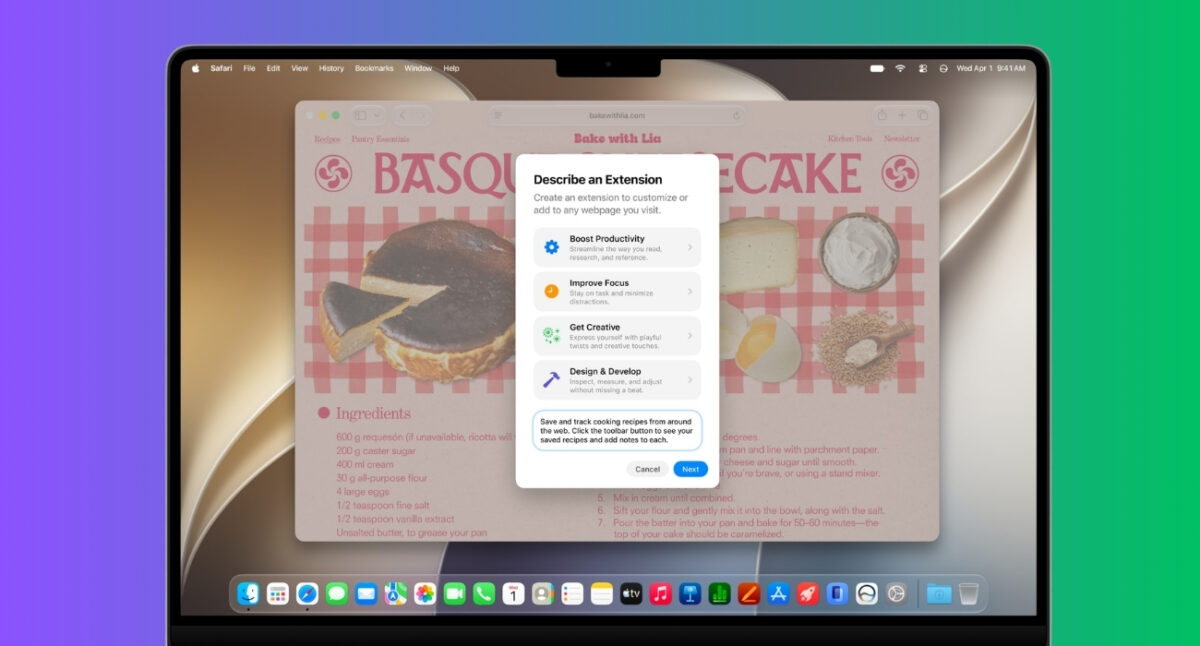
My Safari tab situation is usually a disaster. I always have tons of tabs open at once for different kinds of research, comparisons, work bookmarks, or reading.
iPadOS 27 introduces Siri AI-powered tab organization that automatically groups related tabs into logical topic collections. Go to the Tab Overview > three-dot menu, select Organize Tabs, and tap Automatically create topics. Now, you will see tab groups based on different topics.
Safari can also monitor webpages and notify you when content changes, making it much easier to keep track of important information without constantly refreshing pages.
Moreover, you can generate your own extensions using Apple Intelligence. Simply type your requirements and allow the sites where you want to use the extension. All of these new Sarari features are available on iOS 27 as well.
Apple clearly spent time thinking about people who actually work from their iPads.
One of my favorite additions is the deeper integration between the Magic Keyboard and system automation. Apple now lets you use connecting or disconnecting a Magic Keyboard as an automation trigger in the Shortcuts app.
From there, you can customize it however you want. For example, my setup is that when the Magic Keyboard is attached, YouTube opens on one side of the screen, and Safari opens on the other in windowed mode. The entire setup launches in about a second.
It’s one of those features that sounds niche until you realize how many possibilities it opens up. Whether it’s launching work apps, turning on Focus modes, opening a specific note, or preparing your iPad for entertainment, the Magic Keyboard can now become a physical trigger for your entire workflow.
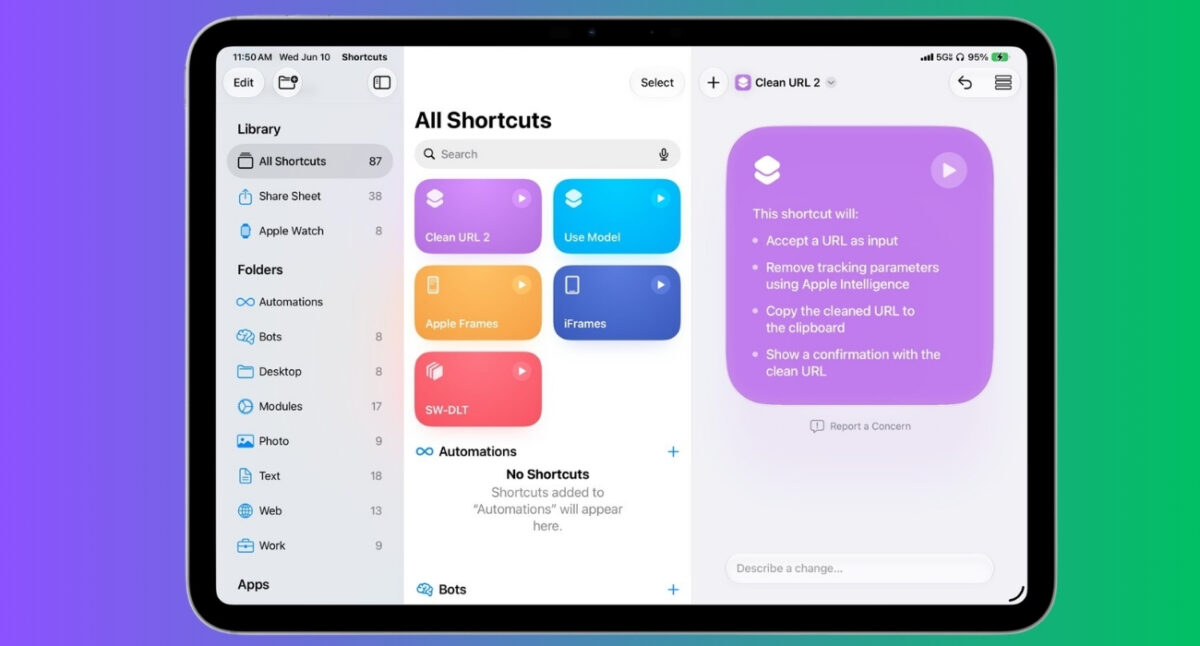
This might be the most underrated feature in iPadOS 27. I’ve always found the Shortcuts app incredibly powerful, but also a little intimidating because the setup process felt too complex. With iPadOS 27, Apple has finally removed that barrier.
When you tap the plus icon in the Shortcuts app to create a new shortcut, you will see a new page with a new natural language input. Instead of manually piecing together actions, you can simply describe what you want in plain English, and Apple Intelligence will build the shortcut.
For example, you may ask: “When I start a Focus session called Work, open Slack, Safari, and Notes, then set screen brightness to 80%.” A few seconds later, the shortcut was ready to use.
What I like most is that Apple doesn’t just generate the shortcut—it also lets you inspect the workflow behind it. You can see exactly how the automation was built, making it easier to learn and customize further. That’s a huge shift.
I’ve seen examples ranging from simple tasks, like sending an automatic text at a specific time every day, to more advanced smart-home and office automations triggered by specific actions. The possibilities are surprisingly broad. That’s a huge shift as more people can now take advantage of Shortcuts and automations.
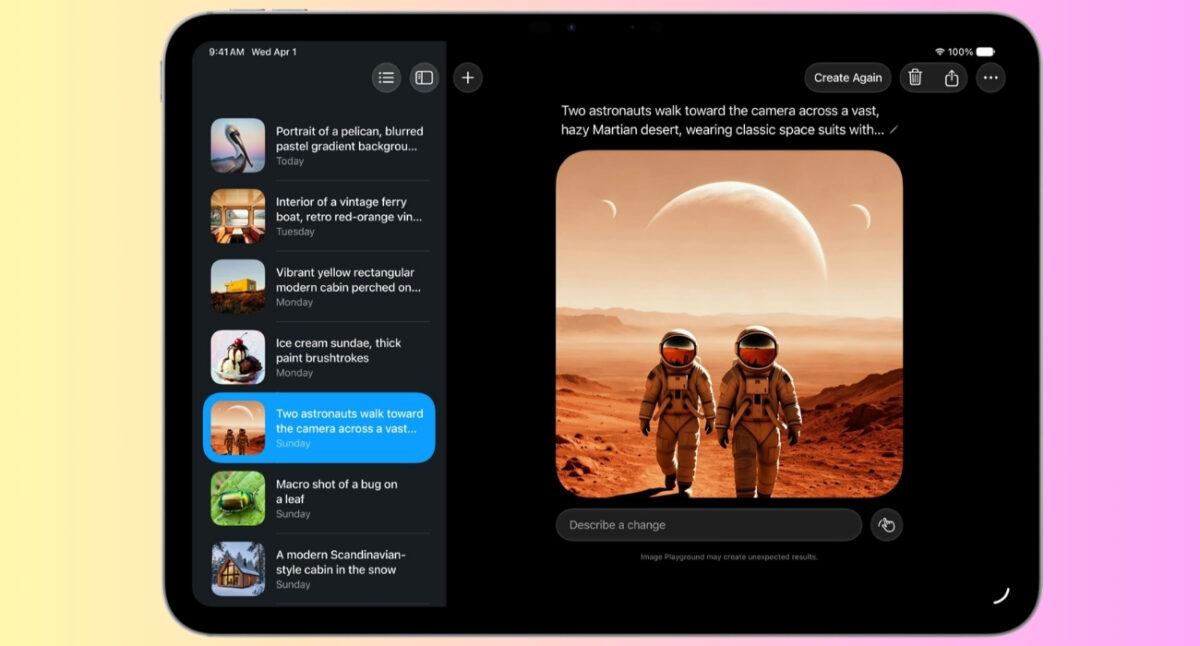
For years, Siri felt like Apple’s biggest missed opportunity. iPadOS 27 finally changes that. The new Siri AI has your personal data context, can complete tasks in apps, and understands on-screen content. Behind the scenes, Apple has added a deeper indexing system that begins as soon as you install the update.
Once the indexing is complete, Siri will have far more context about what’s on your device, making searches dramatically faster and more accurate than before. The best part is that Apple has merged Spotlight Search and Siri AI into a single experience, creating a universal search engine for your iPad.
No need to open apps by yourself or go through menus for something important. Just tell Siri to look for that document that someone sent you months ago, a particular email, settings somewhere in iPadOS, or data from a particular app.
One of the most useful Apple Intelligence features is finally making its way to the iPad. Previously exclusive to the iPhone, Visual Intelligence is now available in iPadOS 27, bringing powerful image recognition and on-screen analysis to Apple’s larger display.
Simply capture what’s on your screen, then use your finger or Apple Pencil to circle any object, item, or area you want to learn more about. Visual Intelligence will instantly analyze the selected content and provide relevant information. You can even click a photo of your meal and get its nutritional values.
With a bigger screen iPad, the experience is going to be even more natural, particularly when selecting with Apple Pencil. I can already see myself using this device when searching through products, gathering information, studying documents, or planning my travels.
This isn’t the most exciting addition, but it’s one I think many people will end up using regularly.
Apple News+ now offers expanded audio news experiences for curated news, making it easier to stay informed while commuting, exercising, or working. Instead of reading every article manually, you can listen to curated news content directly from your iPad.
iPadOS 27 makes the iPad a much more capable companion for Mac users by bringing major improvements to external display support and Sidecar.
The first upgrade is that Control Center comes to external displays. Instead of switching back to your iPad screen to adjust settings like brightness, volume, or connectivity options, you can make changes without interrupting your workflow.
The bigger enhancement, however, is coming to Sidecar. Apple’s feature that turns an iPad into a secondary Mac display now supports touchscreen and Apple Pencil inputs more naturally than ever before. This allows users to interact directly with content displayed on the iPad rather than treating it as a passive second monitor.
For creative professionals, this means a more intuitive way to sketch, make edits in photos, mark documents, or work with other precision tools using Apple Pencil. For multitaskers, it makes navigating apps and workflows across devices feel significantly more fluid.
Apple has released iPadOS 27 on 14 september 2026. The compatibility list includes a wide range of supported iPads, iPad Air, iPad Pro, and ipad mini.
But in order to use Siri AI and other Apple Intelligence functions, the user needs to have an iPad with an M-series chip or a new iPad mini with the A17 Pro chip. These advanced AI capabilities rely on Apple’s on-device processing power, which older iPads simply don’t have.
There are also a few regional limitations to keep in mind. Siri AI will not be available on iPads in the European Union when iPadOS 27 launches, and Apple Intelligence features are also unavailable in China.
What I like most about iPadOS 27 is that Apple resisted the temptation to chase gimmicks. Yes, the AI features are important. Siri is now on par with its rivals, Visual Intelligence is impressive, and Shortcuts via natural language may be able to bring automation to the masses.
But the real story is refinement. Safari is smarter, productivity feels smoother, keyboard users get meaningful upgrades, and Sidecar becomes more useful. The entire experience feels more mature.
iPadOS 27 may not be the flashiest iPad update Apple has ever released, but it might be one of the smartest. And after spending time with it, that’s exactly the kind of update I want.












