
FaceTime Like a Pro
Get our exclusive Ultimate FaceTime Guide 📚 — absolutely FREE when you sign up for our newsletter below.

FaceTime Like a Pro
Get our exclusive Ultimate FaceTime Guide 📚 — absolutely FREE when you sign up for our newsletter below.


Want to leave iOS 27 beta? Here is how to restore your iPhone to iOS 26, avoid backup mistakes, and stop future beta updates.
If iOS 27 beta is making your iPhone unstable, you can go back to iOS 26. The catch is important: a real downgrade erases your iPhone and restores the latest public iOS version Apple is still signing.
Before you start, check your backups. A backup made on iOS 27 beta may not restore after you return to iOS 26. The safest option is an iOS 26 backup you made before installing the beta, ideally a computer backup you archived before updating.
Do these checks first so you do not get stuck halfway through the restore.
If you have not backed up recently, follow our guide on backing up your iPhone to iCloud, Mac, or Windows PC before doing anything else. Just remember: a fresh iOS 27 beta backup may not help after you return to iOS 26.
If you only want to stop receiving new beta builds, do this instead of restoring. Your iPhone will stay on the current iOS 27 beta until Apple releases a newer public version that your device can install.
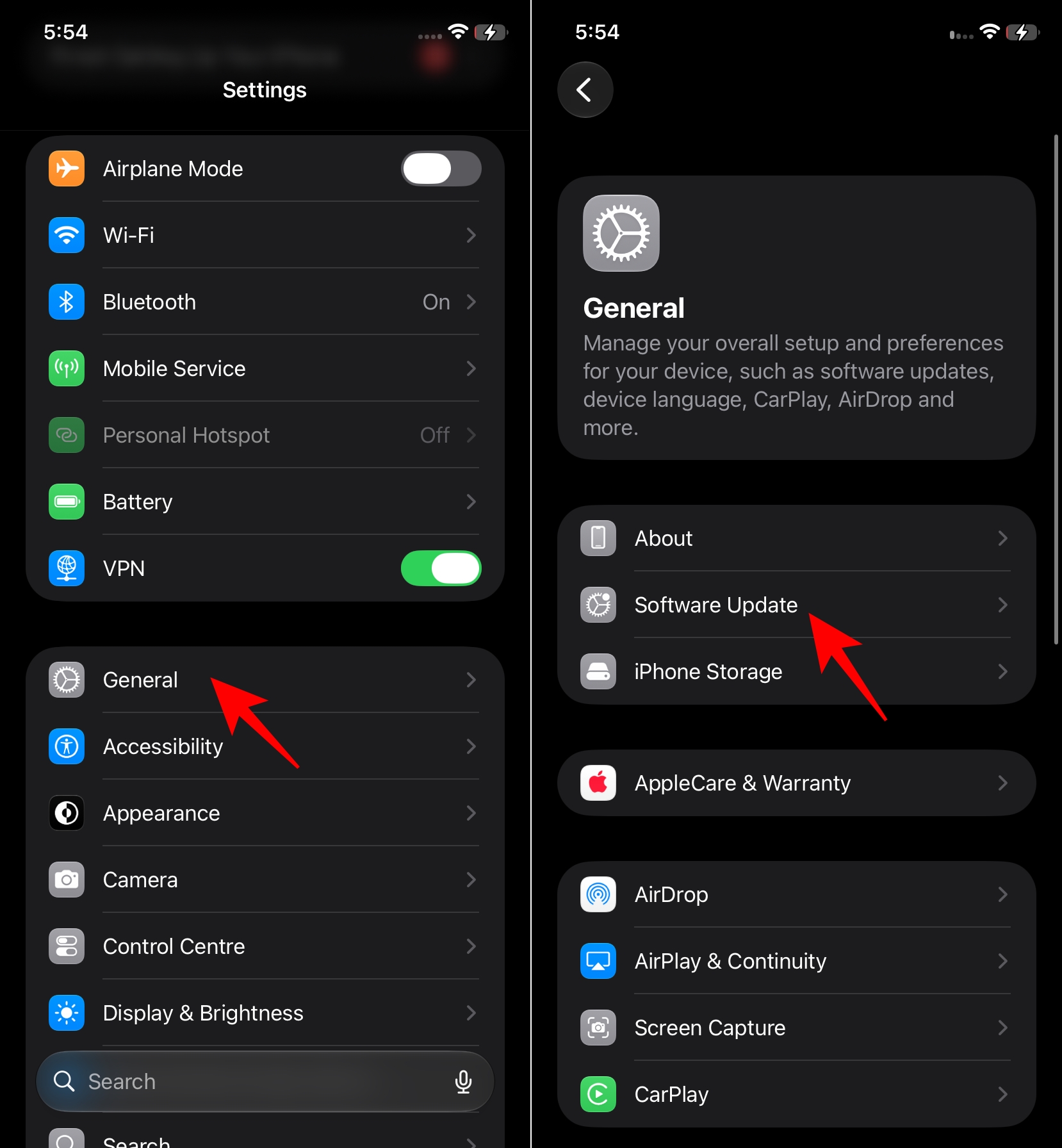
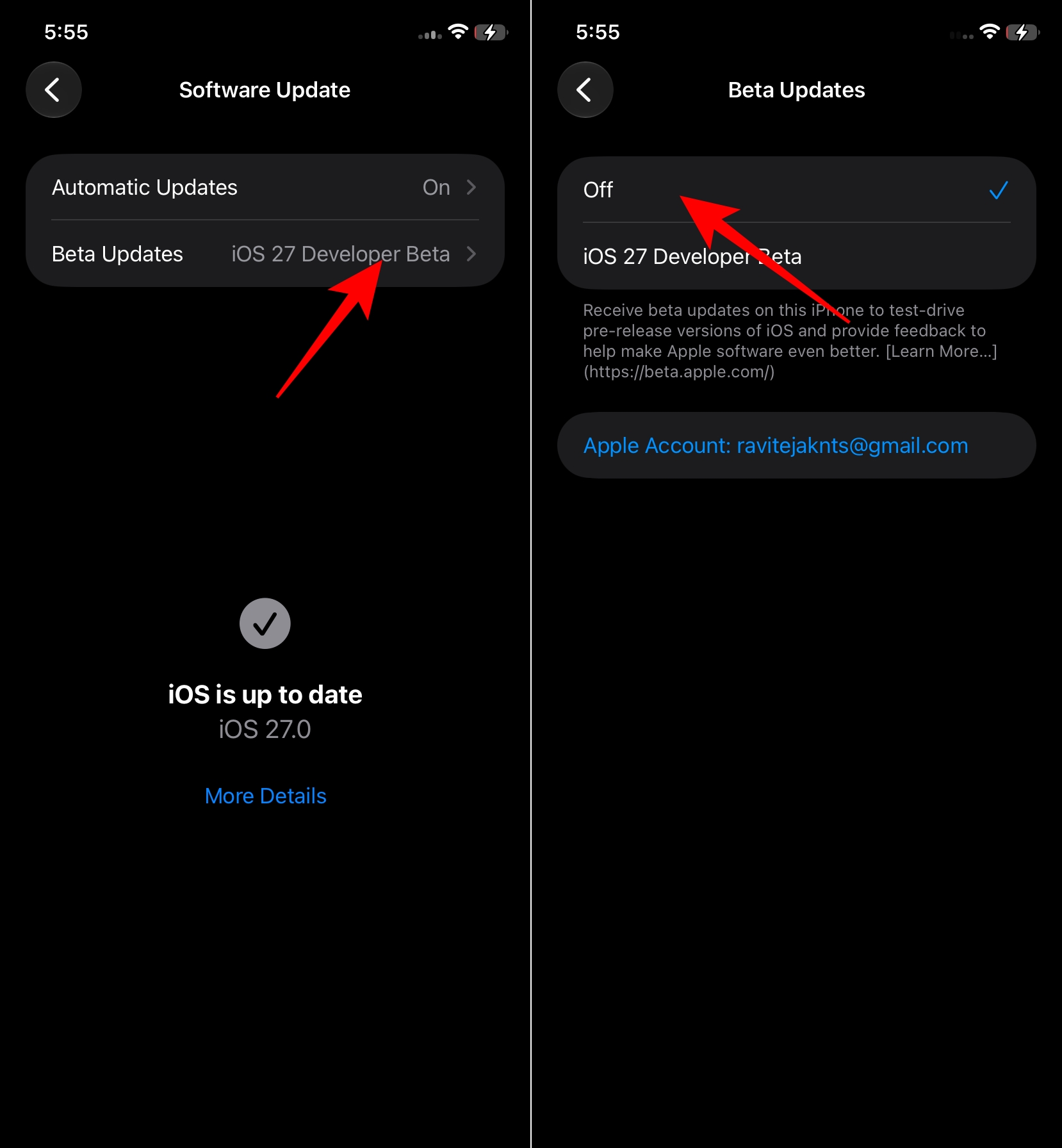
This does not downgrade your iPhone to iOS 26 right away. It only removes your device from the beta update track.
Use this method when you want to leave the beta immediately. It erases your iPhone, exits the beta, and installs the current public iOS release. Apple lists this as the supported way to remove iOS beta software and go back to the public version.
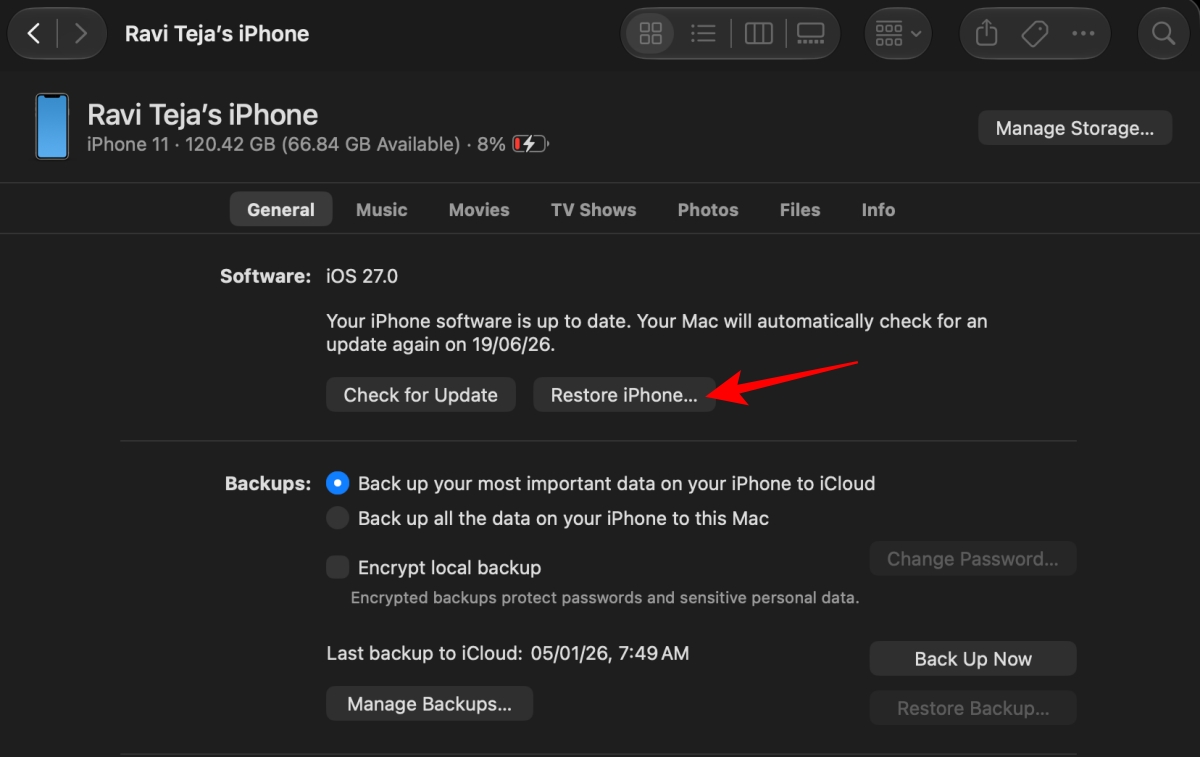
If the download takes more than 15 minutes, your iPhone may leave recovery mode. Let the download finish, put the iPhone back into recovery mode, and choose Restore again. If it prompts to turn off Find My, you can open Settings > Your account at the top > Find My > Find My iPhone and turn it off, and it should work.
Once the restore finishes, set up your iPhone normally. When you reach the data transfer screen, choose the backup made before you installed iOS 27 beta.
If your only full backup was made on iOS 27 beta, iOS 26 may refuse to restore it. In that case, set up the iPhone as new and sign in with your Apple Account. Your iCloud Photos, Contacts, Notes, Messages, passwords, and other synced data can still come back if they were enabled before the restore.
You can also use our guide on restoring an iPhone or iPad from a backup if you need help choosing between iCloud and computer backups during setup.
Start with the simple checks before trying anything more drastic.
If Finder or Apple Devices still cannot restore the iPhone, use Apple’s restore help page or contact Apple Support. Avoid random downgrade tools; they can create bigger problems than the beta you are trying to leave.
Downgrade if the beta is breaking calls, banking apps, battery life, or anything you depend on daily. A clean iOS 26 restore is annoying, but it is better than fighting serious bugs on your main iPhone.
If the issues are minor, turn off beta updates and wait. You avoid wiping the phone, and you can move back to the public track when a compatible public release arrives.
In case you missed:












