FaceTime Like a Pro
Get our exclusive Ultimate FaceTime Guide 📚 — absolutely FREE when you sign up for our newsletter below.

FaceTime Like a Pro
Get our exclusive Ultimate FaceTime Guide 📚 — absolutely FREE when you sign up for our newsletter below.


My Eyes Only lets you protect private Snaps inside Snapchat Memories with a separate passcode. Here's how I use it, set it up, and avoid common mistakes.
The first time I handed my phone to a friend to show a funny Snapchat memory, I realized that not every photo in my Memories was meant for everyone to see. There were personal screenshots, family pictures, and a few photos I simply wanted to keep private.
That’s when I discovered My Eyes Only in Snapchat. Honestly, it’s one of those features I wish I’d started using much earlier. It adds an extra layer of privacy without making your photos difficult to access.
In this guide, I’ll explain what My Eyes Only is on Snapchat, how I use it, how to set it up, and the mistakes I almost made so you don’t have to repeat them.
My Eyes Only is a private section inside Snapchat Memories where you can store your Snaps and Stories from your Memories behind a separate 4-digit passcode or alphanumeric passphrase.
Unlike regular Memories, the content stored here cannot be viewed unless someone enters your My Eyes Only passcode. Even if another person is holding your unlocked phone, they still can’t open your hidden Snaps without that code.
When I first discovered it, I immediately moved all my private memories and personal photos and videos from my Camera Roll to My Eyes Only. It seems like creating a private photo vault without downloading any other apps.
It is particularly useful when you:
Simply put, regular Memories are for everyday photos I don’t mind opening quickly. My Eyes Only is Snapchat’s built-in secure folder where anything personal stays.
Many people think this feature is only for hiding embarrassing photos. I completely disagree. For me, it’s about privacy, not secrecy.
These are the main reasons for using it.
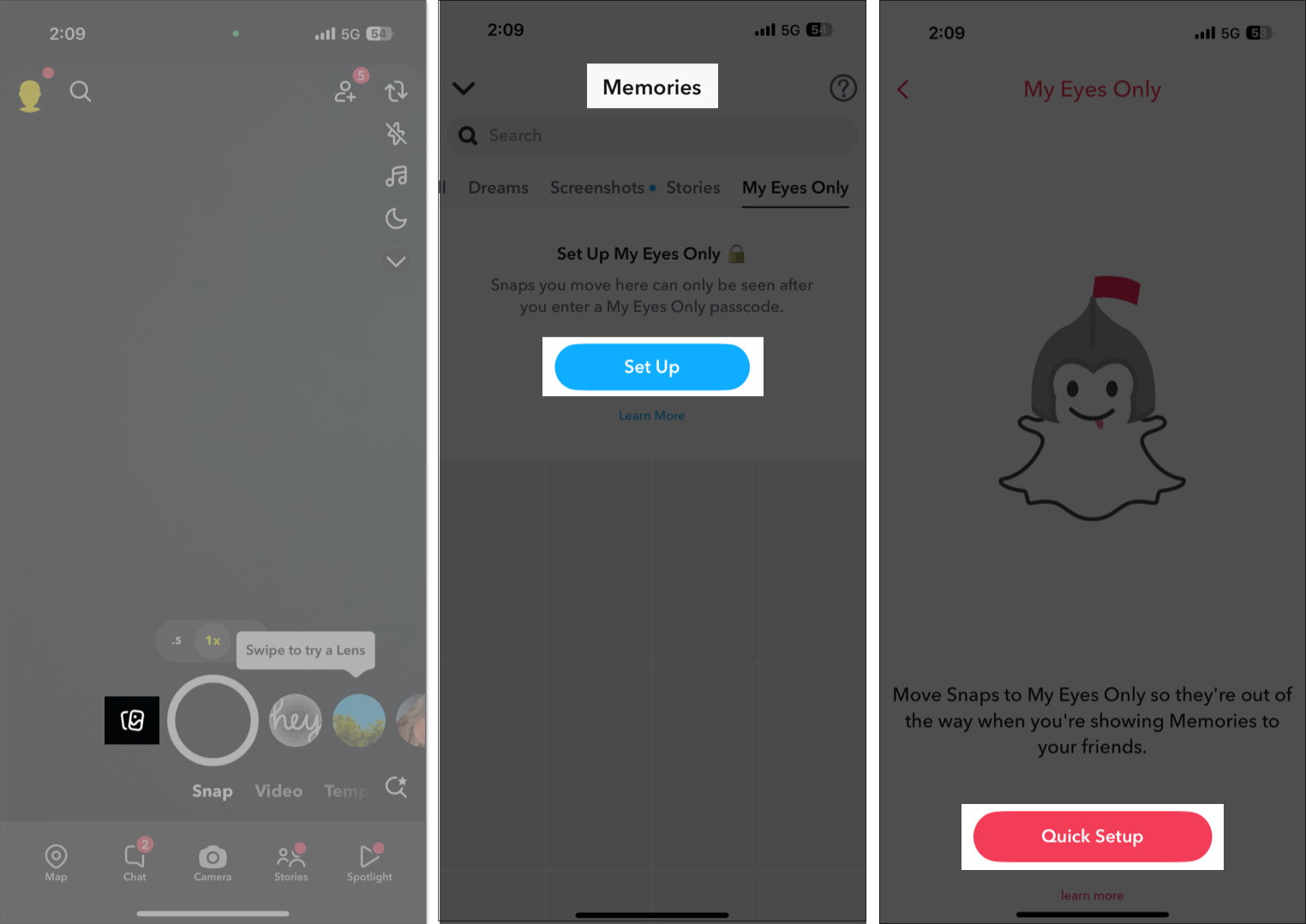
Setting it up only takes a minute.
Here’s exactly how I did it.

Once everything was set up, moving my private content took only a few seconds.
Here’s how.
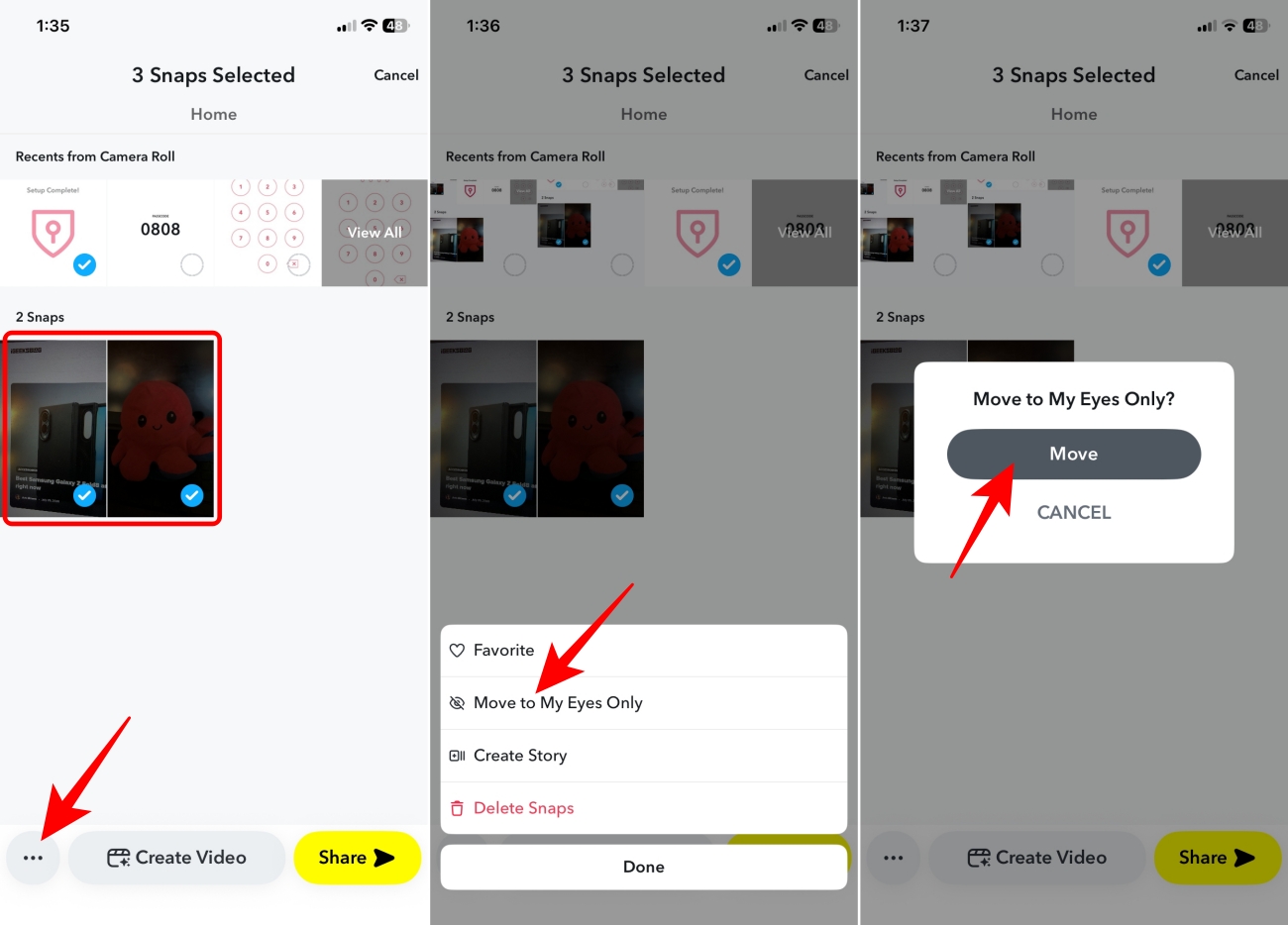
That’s it.
The selected Snap disappears from your regular Memories and moves into the protected folder. If you move media from your Camera Roll, Snapchat will prompt you to delete the original from there for extra privacy.
Note: You can only store Camera Roll videos shorter than 10 seconds in My Eyes Only.
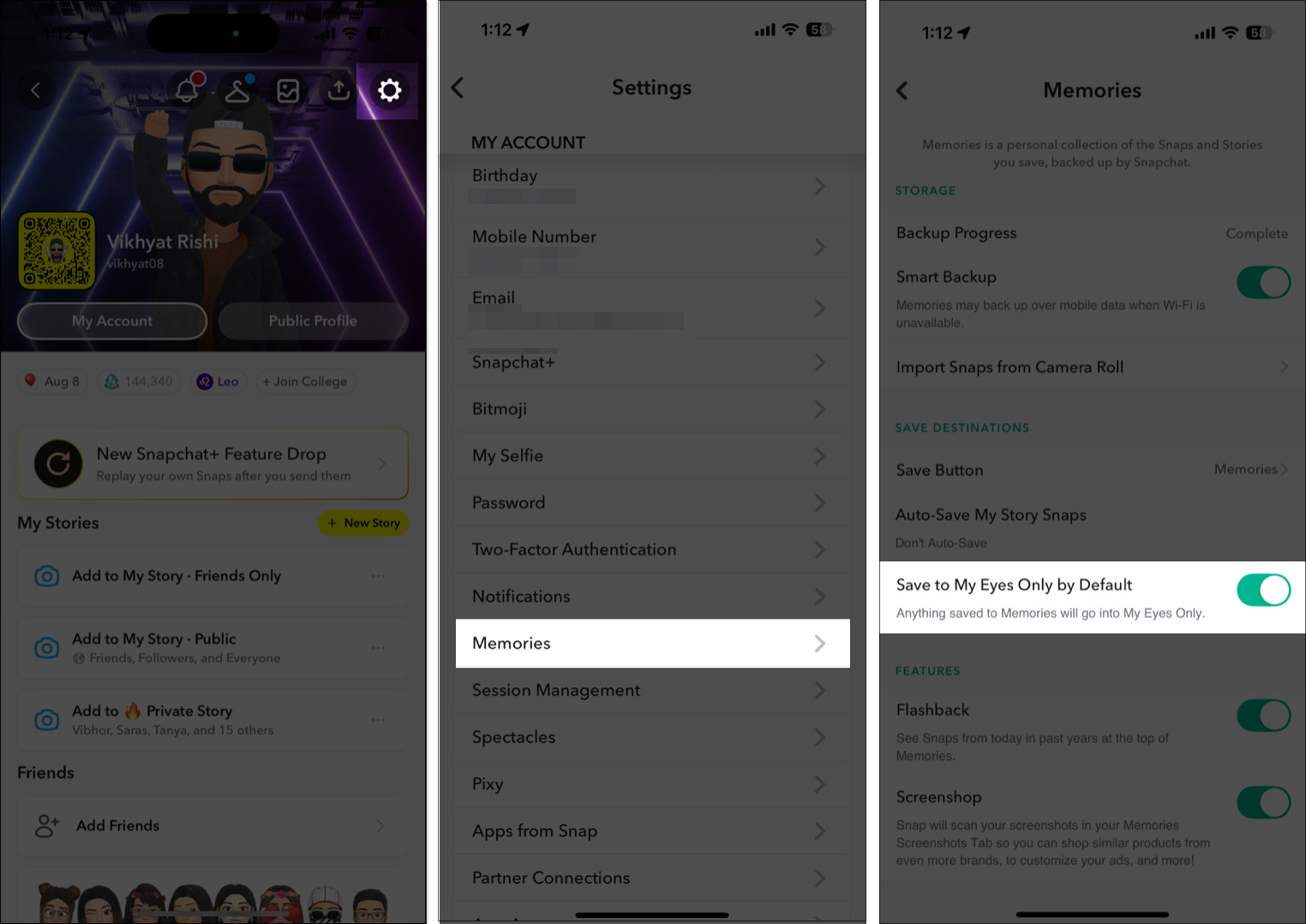
One feature I appreciate is the option to save new private Snaps directly to My Eyes Only instead of first saving them in regular Memories on iOS.
If you already know certain content should remain private, saving it directly into My Eyes Only saves time and avoids forgetting to move it later. I mainly use this for personal screenshots and sensitive images.
Viewing hidden Snaps is simple.
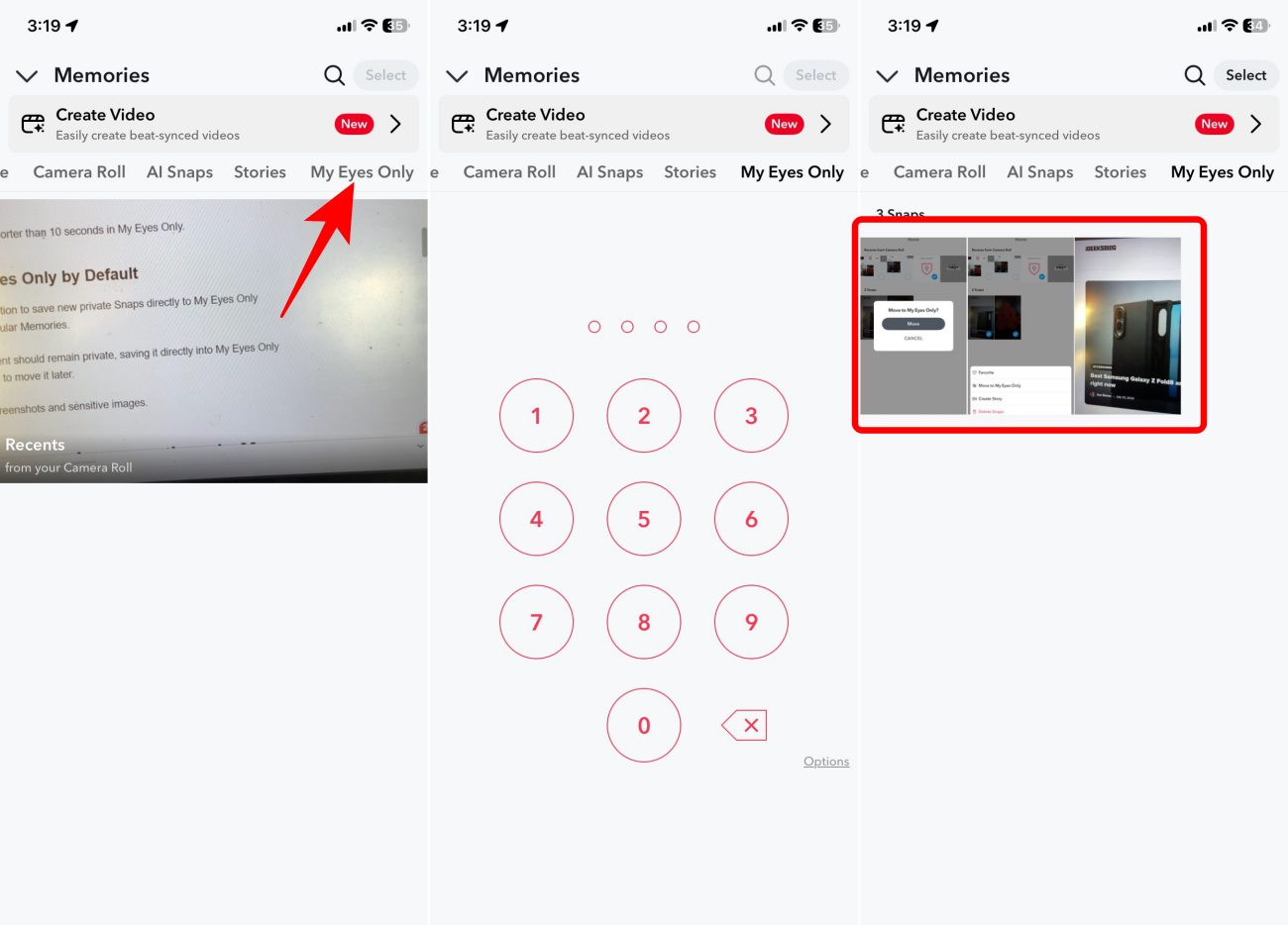
Everything appears exactly as you saved it. From here, you can edit, remix, export, and share the Snaps.
If I ever want to move something back:
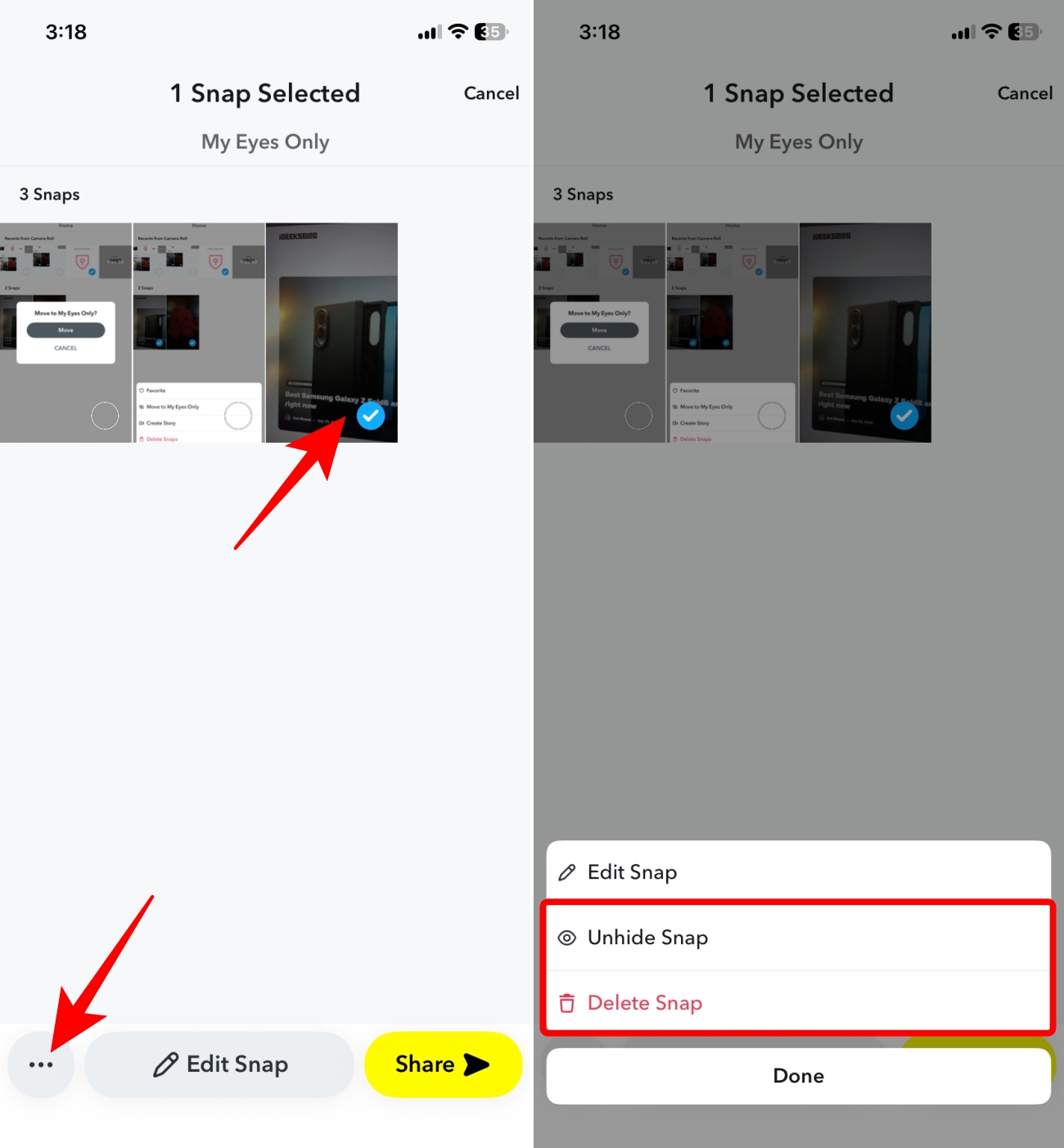
The process feels surprisingly smooth. You may even select multiple Snaps together to unhide them quickly.
There may come an instance when you accidentally reveal your My Eyes Only passcode to someone. However, considering the privacy of the contents, you won’t want anyone to access it using the said passcode. In that case, you can quickly change your Snapchat My Eyes Only passcode.
Here’s how.
I only recommend changing it when necessary because you’ll need to remember the new passcode immediately.
This is the one lesson I wish someone had told me sooner: Snapchat cannot recover your hidden Snaps if you forget your passcode.
Yes, you can reset the passcode. But resetting it erases everything stored inside My Eyes Only. That’s not a bug. It’s how Snapchat protects your privacy. That’s why I saved my passcode in my password manager because I never want to lose access to those memories.
Here’s how you can reset your My Eyes Only passcode if you forget it:
Your My Eyes Only folder will open as if you set it now.
After using My Eyes Only for quite a while, here are the things that surprised me.
| Issues | Solutions |
|---|---|
| My Eyes Only isn’t showing | Update Snapchat to the latest version and restart the app. |
| I can’t move my Snaps | Only saved Memories can be moved. Photos that haven’t been saved won’t appear. |
| Forgot my passcode | Unfortunately, hidden content can’t be recovered. You’ll need to reset the passcode, which deletes everything stored inside. |
| My hidden photos disappeared | First, make sure you’re signed into the correct Snapchat account. If you recently reset your passcode, previously hidden content cannot be restored. |
After using My Eyes Only a few times, I genuinely recommend it to almost every Snapchat user. It gives control over who sees my personal memories.
If you regularly save screenshots, personal photos, or anything you’d rather keep away from curious eyes, turning on My Eyes Only takes less than five minutes and can save you from some awkward moments later. However, it would be nice if Snapchat added a way to recover the forgotten passcode for users who wish to stick to the original passcode.
What do you think about this feature? Let me know in the comments below!
Read more: