FaceTime Like a Pro
Get our exclusive Ultimate FaceTime Guide 📚 — absolutely FREE when you sign up for our newsletter below.

FaceTime Like a Pro
Get our exclusive Ultimate FaceTime Guide 📚 — absolutely FREE when you sign up for our newsletter below.


One Watch app setting turns your most-sent replies into a single tap. Here's that trick, plus Double Tap, Smart Replies, and Siri shortcuts for faster Apple Watch replies.
Most Apple Watch replies go the same way: tap the notification, dictate a line, fix the wrong word, send. For “ok,” “on my way,” or “call you later,” that’s more effort than the message deserves. One setting in the Watch app, which most people never open, turns those replies into a single tap.
That trick comes first. The rest are the other shortcuts worth turning on, with the model limits where they apply.
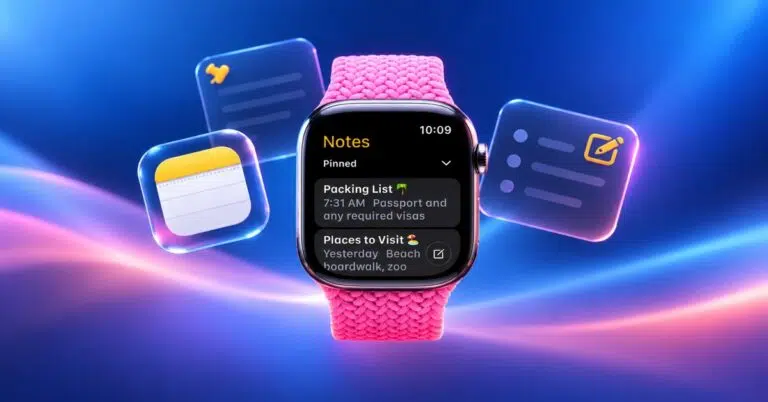
Every message notification on the watch ends with canned replies like “Yes,” “No,” “Thanks,” and “Talk later.” Replace that list with the lines you actually send, and replying becomes: tap the notification, tap your line, done.
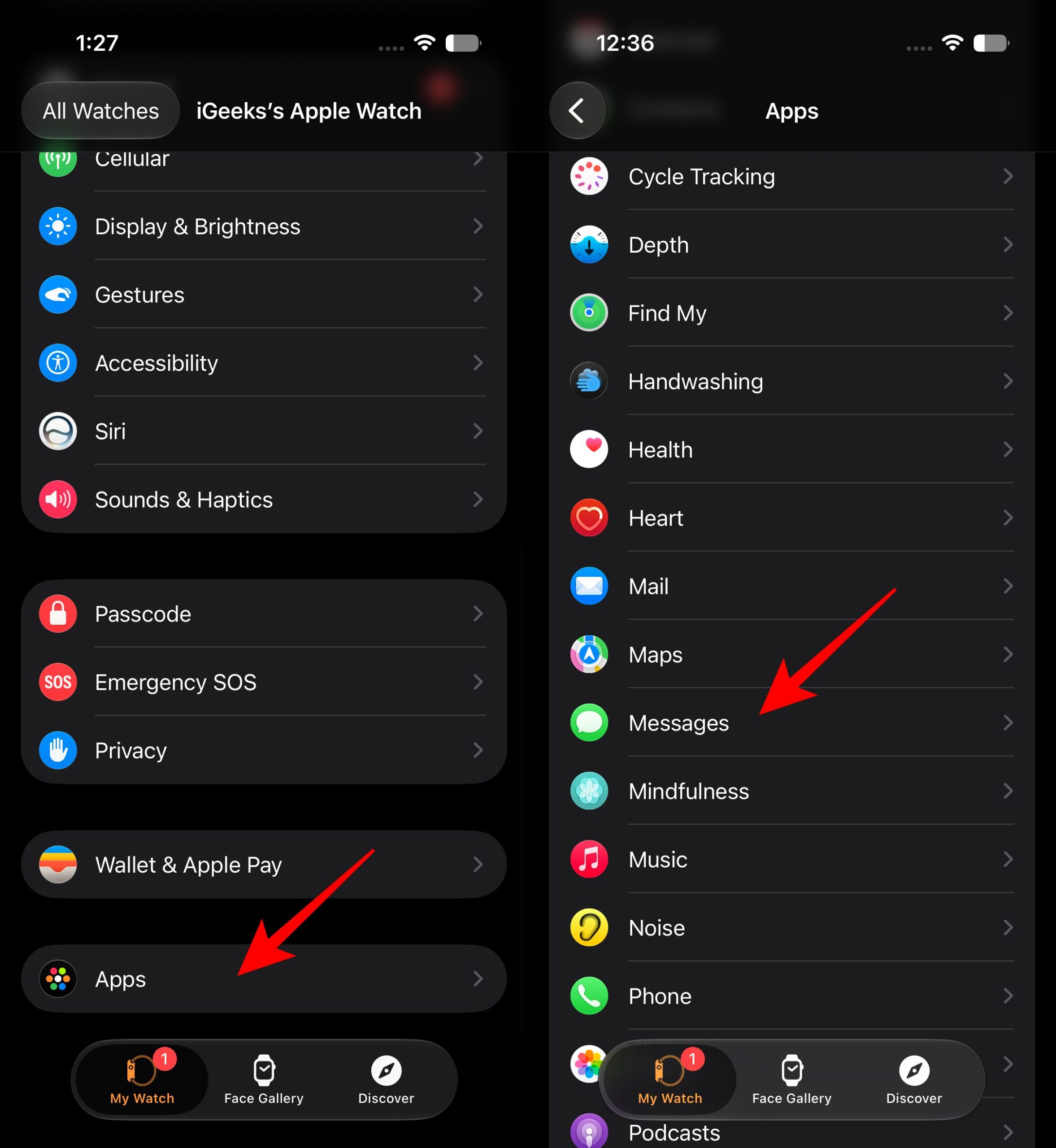
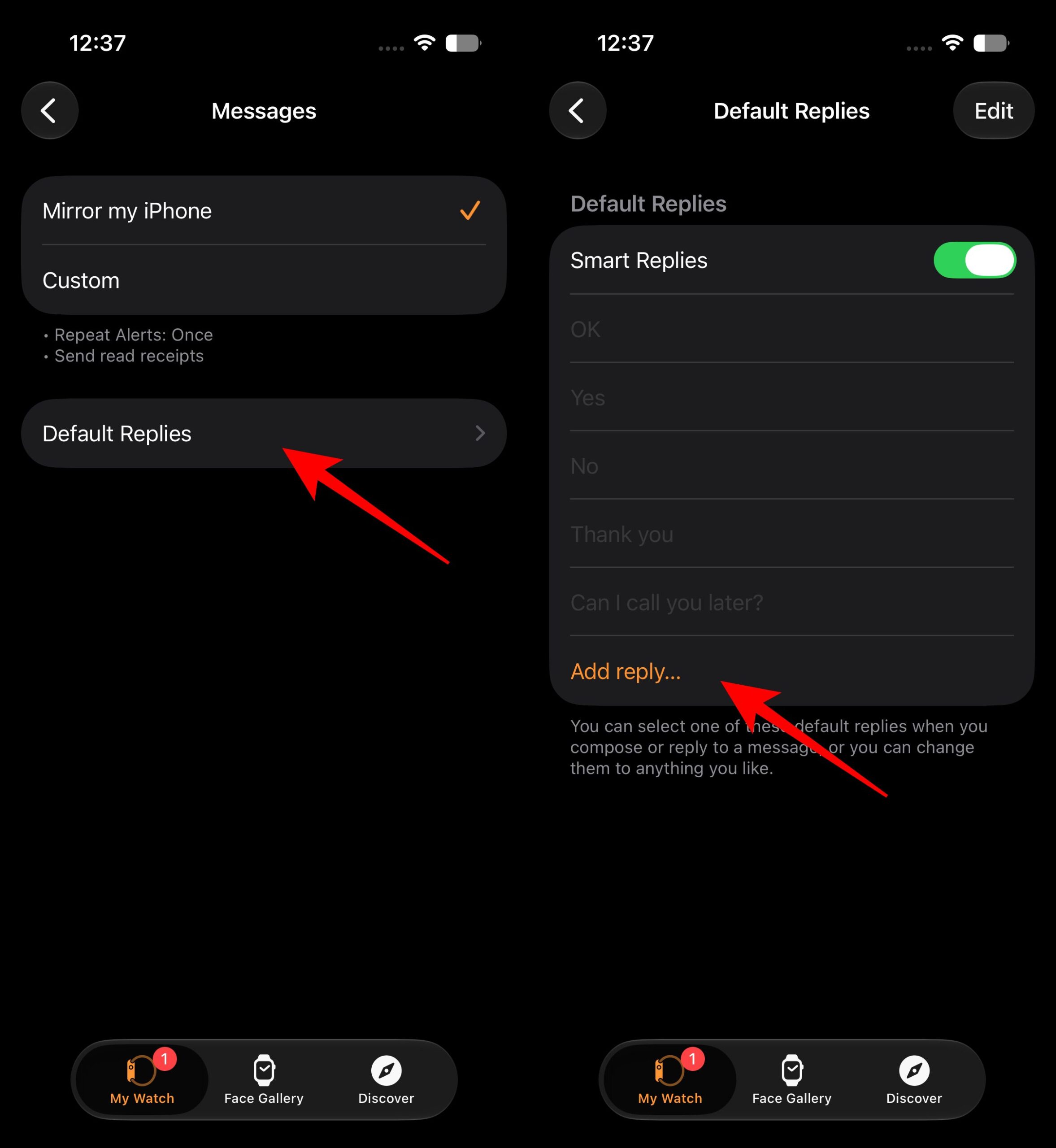
Put the five or six lines you send daily at the top: “On my way,” “In a meeting, call you back,” “Running 10 mins late,” “Yes, send it,” “Home in 20.” Specific lines beat generic ones because they save the follow-up text.
On the watch, the list sits below the reply box and any suggested replies whenever you open a message or tap a notification. Scroll down with the Digital Crown to reach it.
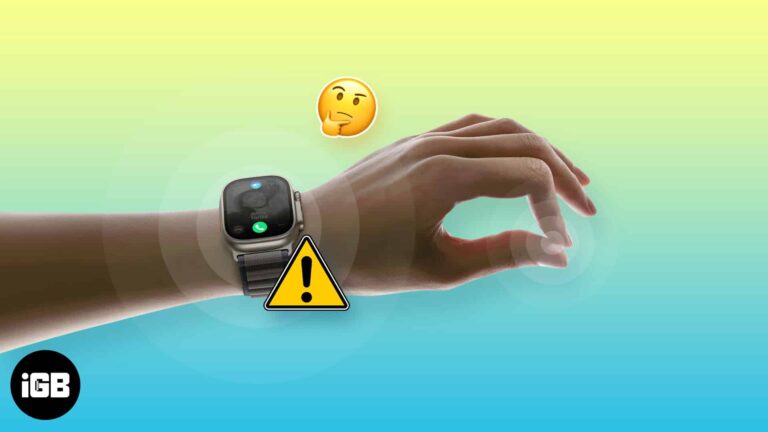
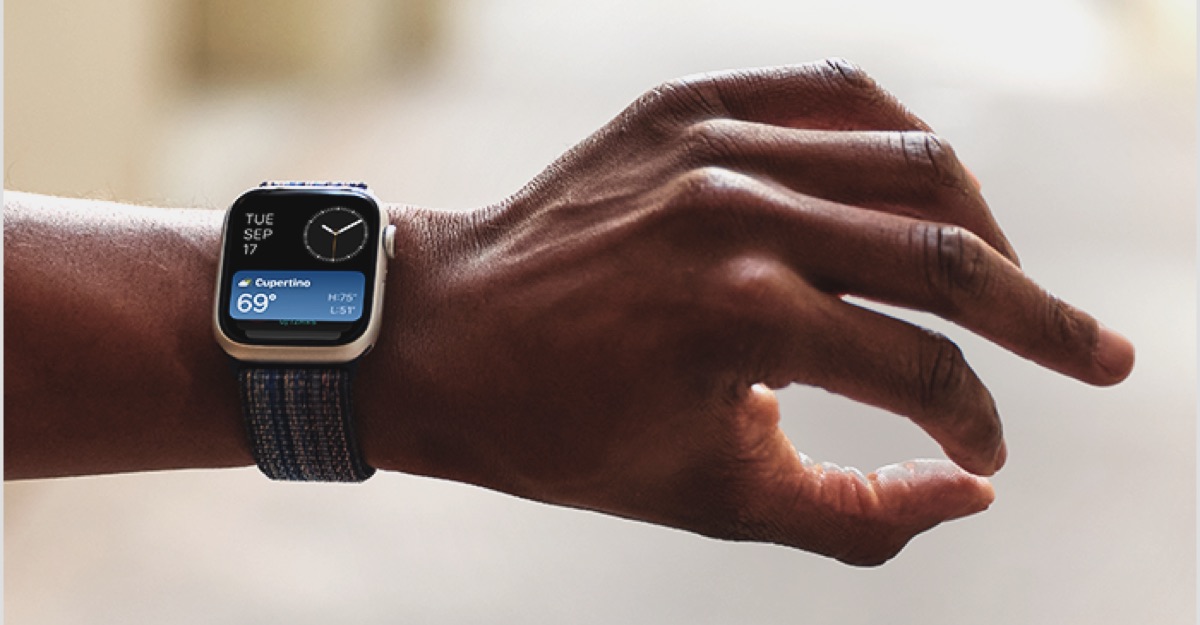
On Apple Watch Series 9 or later, SE 3, and Ultra 2 or later, you can answer a text with your other hand still holding the shopping bag. When a message comes in:
It works out of the box, but if it does nothing:
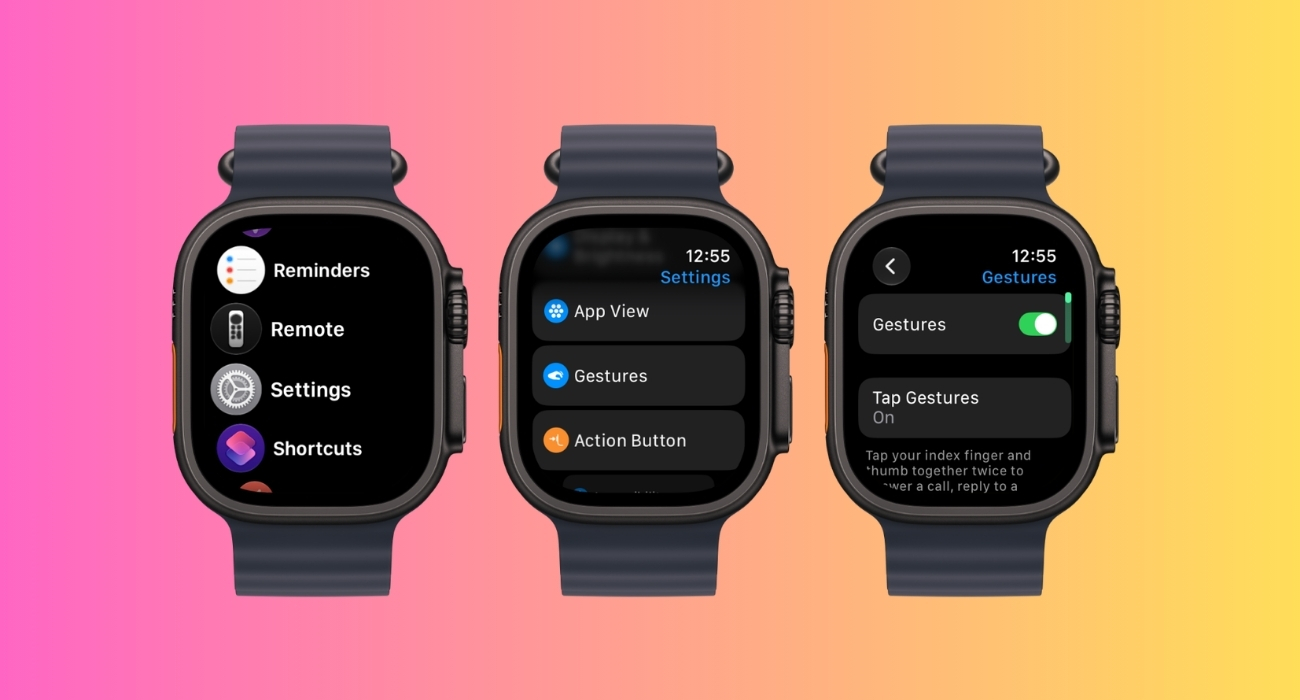
Double Tap is also disabled in Low Power Mode, during Sleep Focus, and when AssistiveTouch hand gestures are on. If you’ve never set it up, start with how to use the Double Tap gesture on Apple Watch.
On watchOS 26, the suggested replies under a message are generated from the conversation itself. When someone asks “Are you free at 7?”:
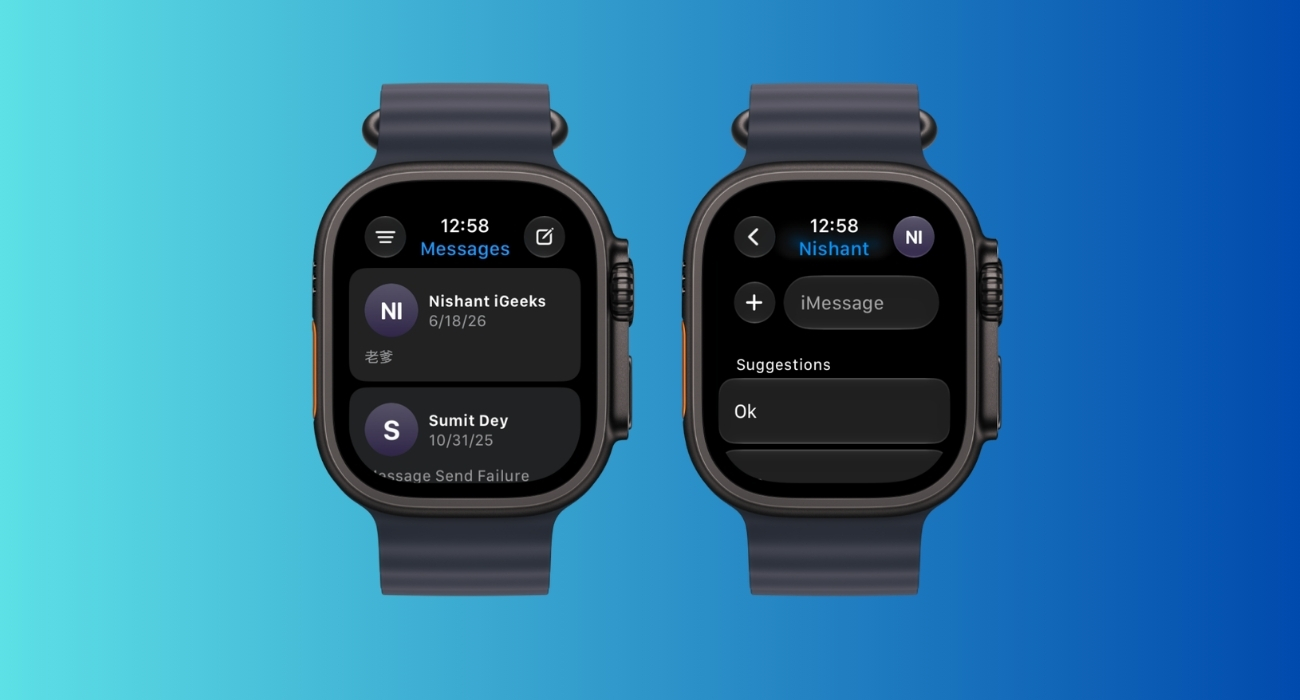
It sends immediately. The watch can also suggest actions, like starting a Check In when a friend asks when you’ll arrive.
The catch: this needs the device language set to English and a Series 9, Series 10, Series 11, Ultra 2, or Ultra 3. Older watches still show the fixed suggestions, which is another reason to customize Default Replies.
Dictation is still the fastest way to send a full sentence, and it’s faster when you don’t go back to fix it:
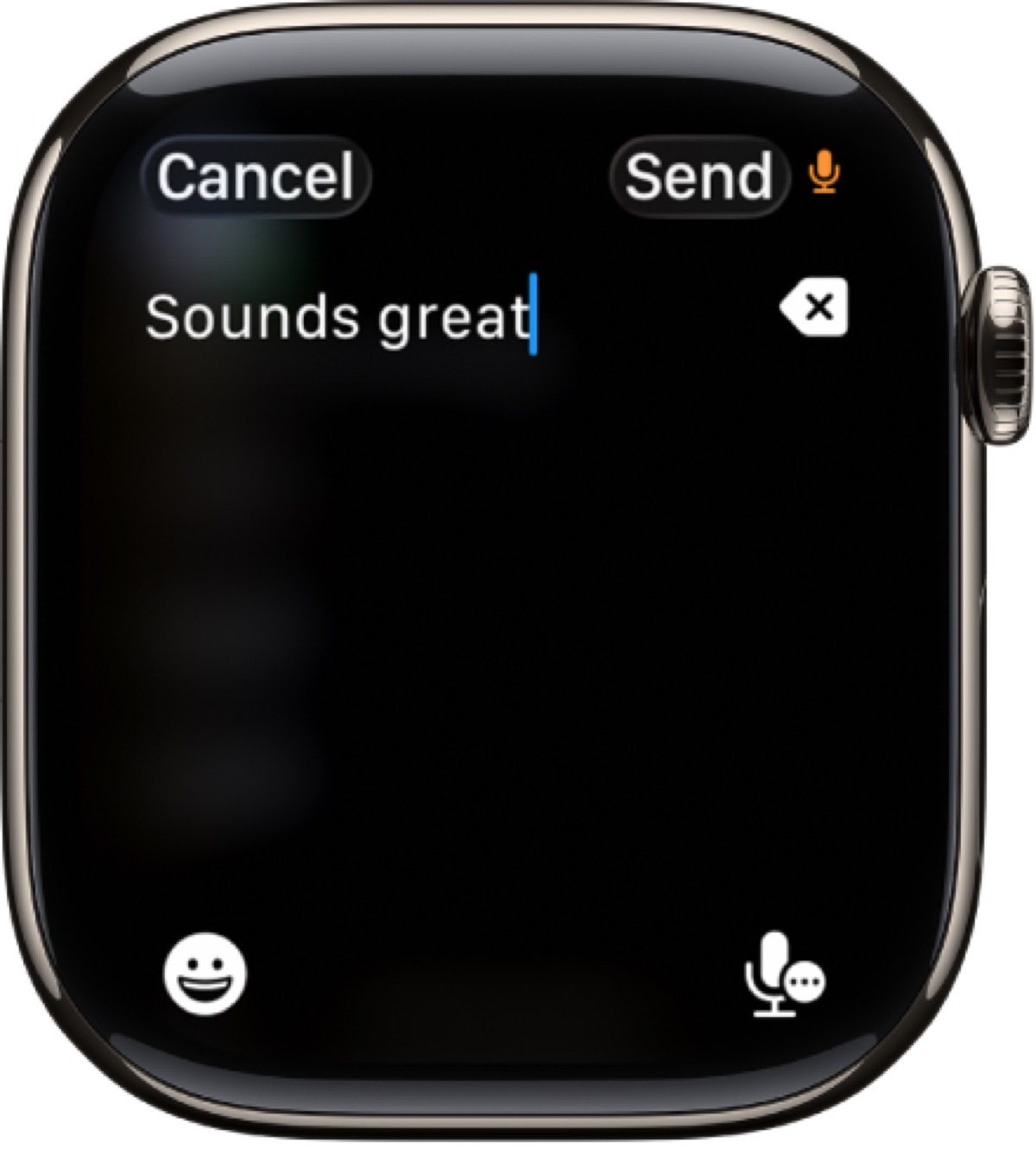
The other person will get the message without you wrestling with the keyboard.
If the mic button is missing from the reply screen on watchOS 26:
If your dictation comes out in the wrong language, change the dictation language on Apple Watch instead of retyping.
Plenty of messages only need acknowledgment. To send a Tapback:
It doesn’t create a new message bubble the other person has to read.
To answer one specific message in a busy group chat:
Your response stays attached to that message instead of landing at the bottom of the thread.
If you wear AirPods, you can reply without looking at the watch at all:
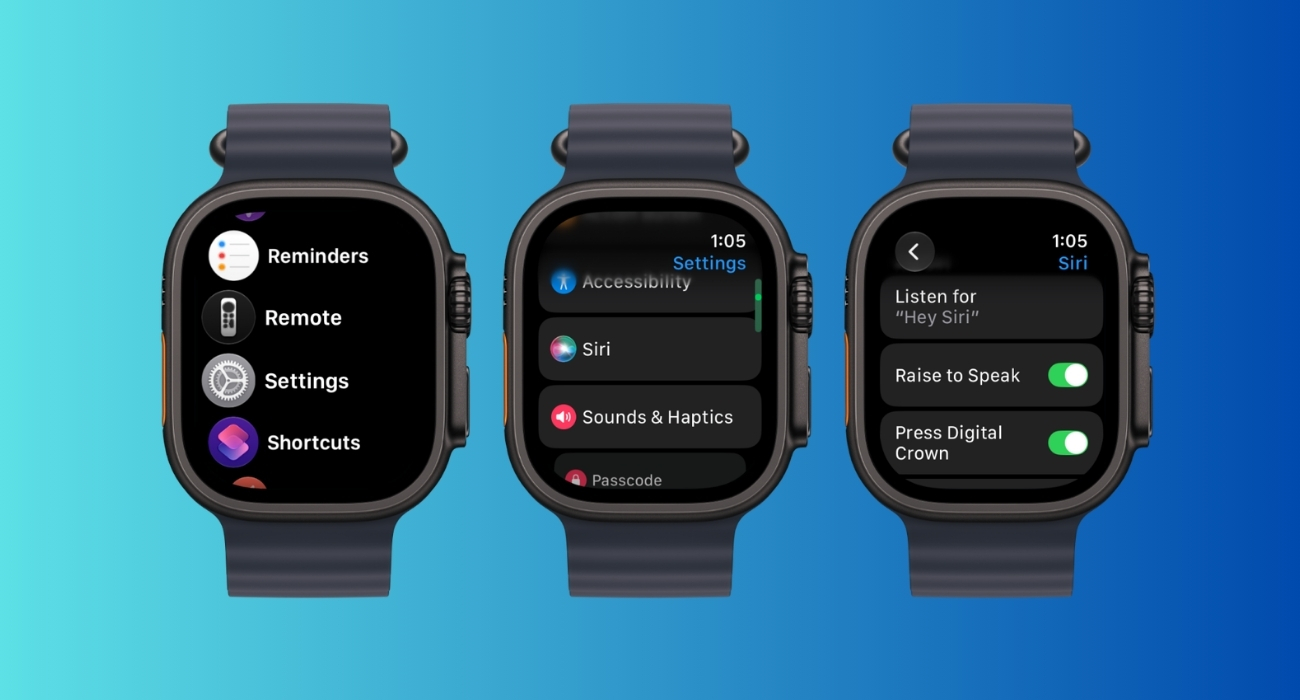
With AirPods 4, AirPods Pro 2 or 3, or AirPods Max 2, a nod answers a call and a head shake dismisses a notification.
Without AirPods:
Series 9 and later, SE 3, and Ultra 2 and later run Siri on the watch itself, so there’s no pause while it waits for the network. There’s more Siri can do on Apple Watch once it’s set up this way.
When a reply runs past a sentence or two, dictation starts making mistakes, and the keyboard gets tedious. Send an audio message instead:
The other person gets a voice clip, which is fine for friends and family and less fine for your manager.
Sometimes the watch is the wrong tool. Hand the reply to your iPhone instead:
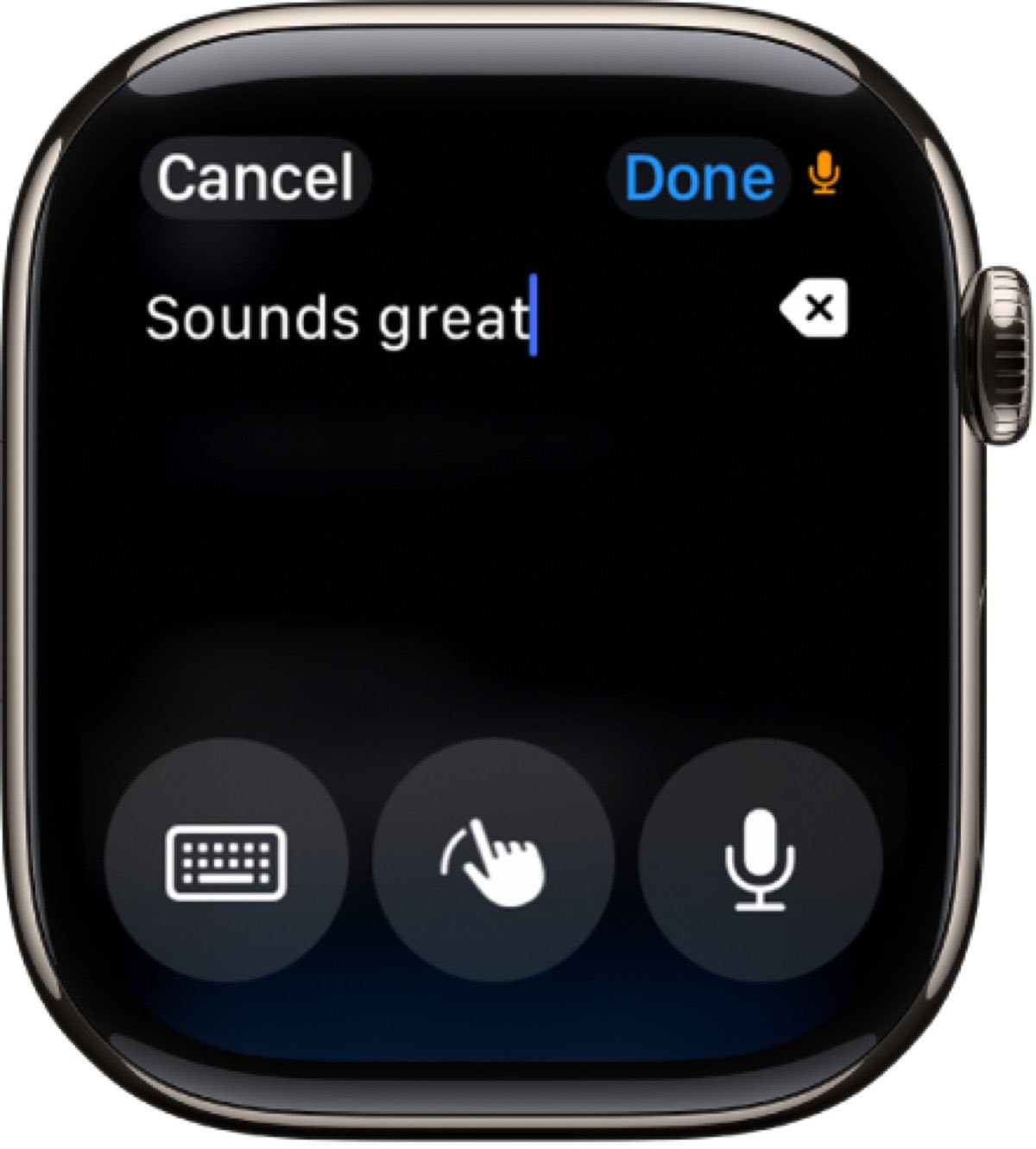
That’s faster than closing the watch, unlocking the phone, and finding the thread.
For a single name or word dictation keeps getting wrong, the watch’s QWERTY keyboard with swipe typing works on Series 7 and later and the Ultra models, but not on the SE or Series 6. Scribble, where you draw letters with a finger, works on every model.
Not every text deserves a reply right now. On Series 9 or later, SE 3, and Ultra 2 or later:
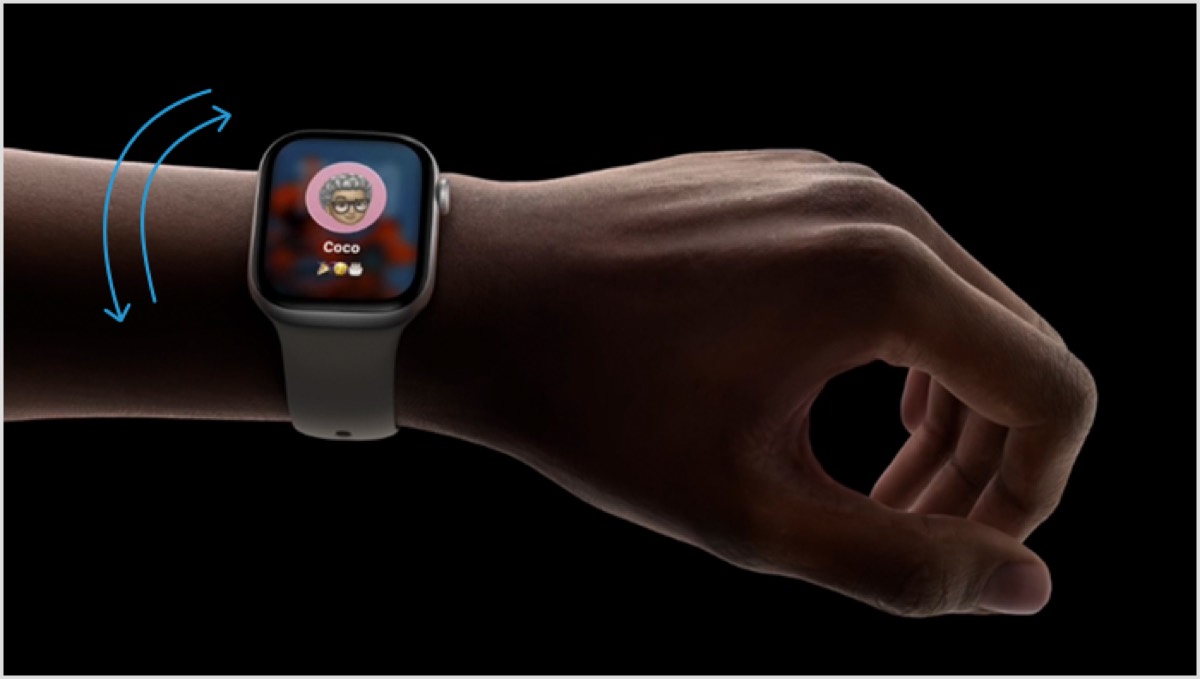
The notification disappears, and you return to the watch face without tapping anything. The setup is in How to use the wrist flick gesture on Apple Watch.
Do the Default Replies first. It takes two minutes, works on every Apple Watch, and covers most of what you send from the wrist. Turn on the gestures and Siri options if your watch supports them, then work through more Apple Watch tips and tricks that save time the same way.