FaceTime Like a Pro
Get our exclusive Ultimate FaceTime Guide 📚 — absolutely FREE when you sign up for our newsletter below.

FaceTime Like a Pro
Get our exclusive Ultimate FaceTime Guide 📚 — absolutely FREE when you sign up for our newsletter below.


Double Tap refused to work after updating my Apple Watch to watchOS 27. Here's how to fixed it using simple troubleshooting steps.
Apple Watch Double Tap is one of those features I appreciate most when I want to answer a call, dismiss a notification, pause music, or scroll through Smart Stack without touching the display. But when the gesture stops responding, even simple actions can become frustrating.
The good news is that you don’t necessarily have a hardware problem. In most cases, checking a few settings and correcting how you perform the gesture can help. In this guide, I’ll explain why Double Tap might not be working on your Apple Watch in watchOS 27 and walk you through 9 fixes, including what to try on newer Apple Watch models.
Before changing settings, it’s worth understanding why the gesture might not respond.
Apple Watch uses motion and other sensor data to recognize Double Tap. The gesture is designed to work when you wear your watch correctly and perform the movement while the display is active.
Here are some common reasons it might fail:
Now that you’re well aware of the underlying reasons for the issue, let’s explore the solutions to get the Double Tap feature back on your Apple Watch.
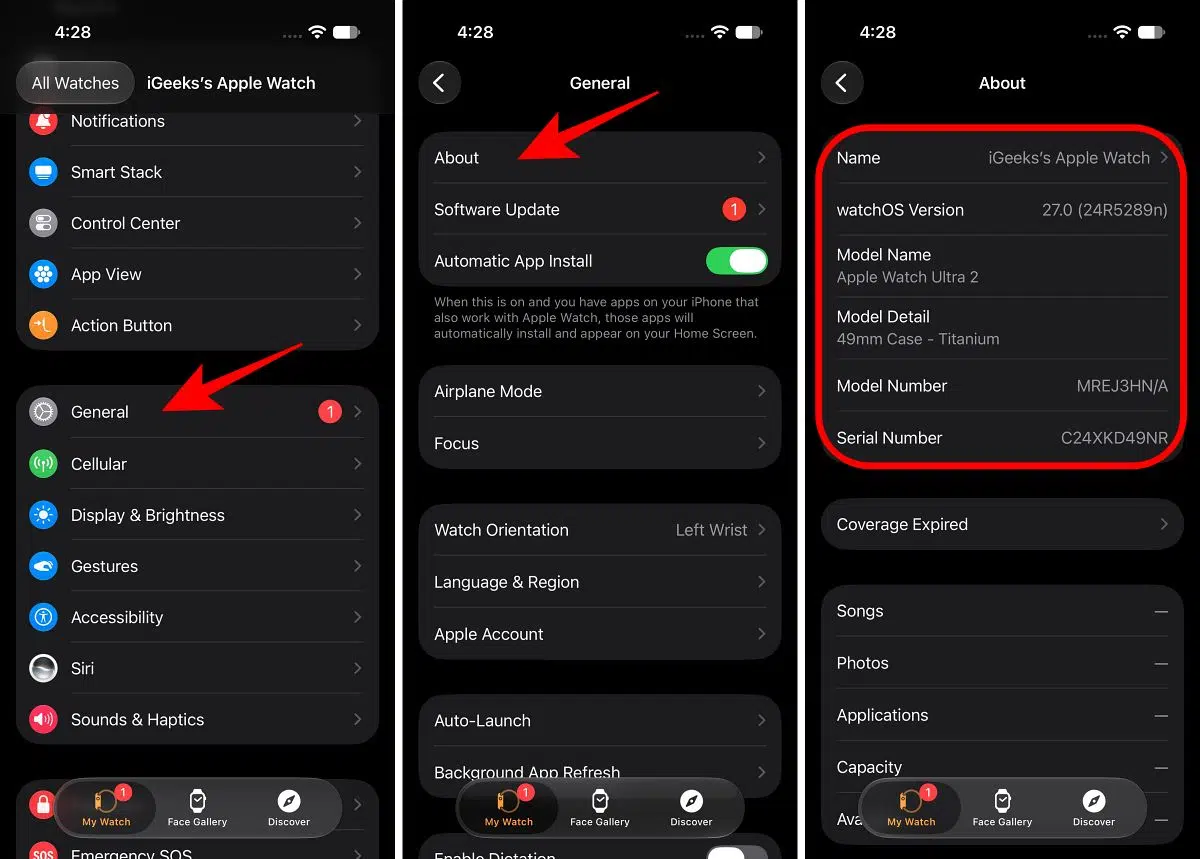
First, confirm that your Apple Watch supports the feature. Installing watchOS 27 on a compatible watch doesn’t mean every watch model supports Double Tap.
Apple supports the Double Tap gesture on these models:
Apple Watch Series 8 and earlier, the original Apple Watch SE, and Apple Watch Ultra (first generation) don’t support the built-in Double Tap gesture.
To check your model:
If your watch is compatible, move on to the next fix.
Sometimes, the gesture has been disabled accidentally, or its settings need attention after a software update.
Here’s how to check:
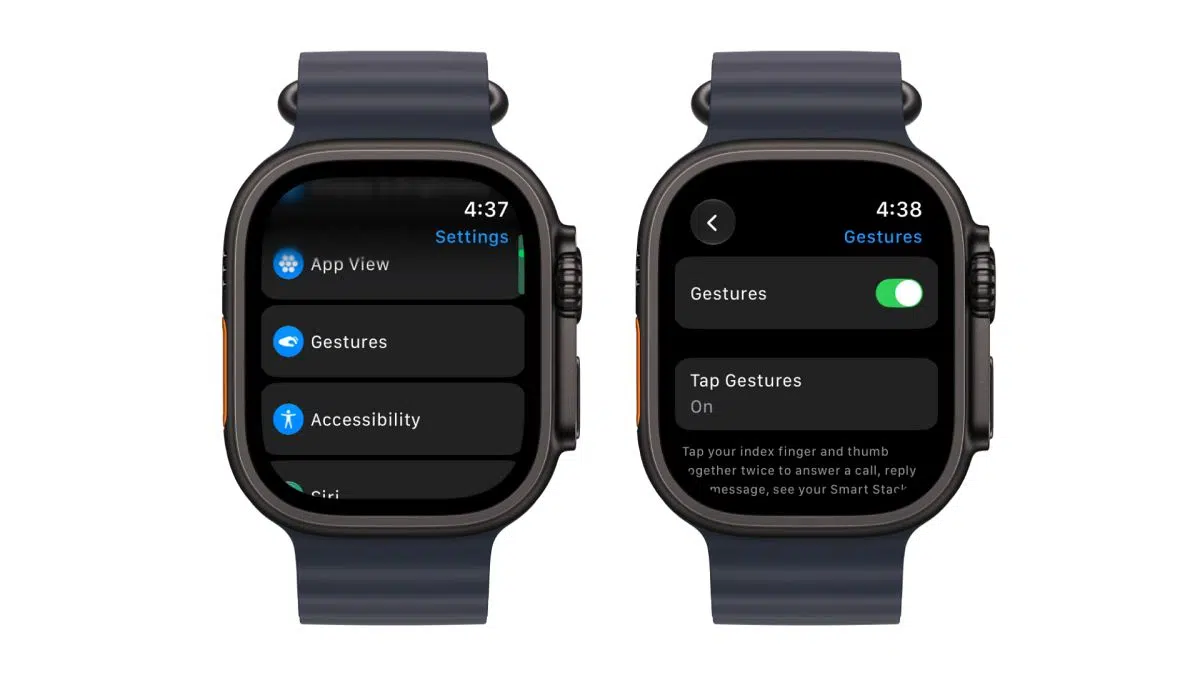
You can also manage the available Double Tap settings through the Watch app on your iPhone.
If the feature was already enabled, turn it off, wait a moment, and turn it back on. Then test the gesture again.
The gesture might seem straightforward, but the timing and position of your fingers matter.
To perform Double Tap correctly:
Avoid exaggerated hand movements. The goal is to make two distinct, quick taps rather than repeatedly touching your fingers together slowly.
Remember: Double Tap and the single-tap gesture introduced in watchOS 27 are different. A single tap selects a widget or supported control in Smart Stack, while Double Tap performs actions such as scrolling through Smart Stack or answering a call.
This is one of the first things I’d check because Double Tap isn’t available in certain system states.
Double Tap doesn’t work when Low Power Mode is enabled or Sleep Focus is active. It also won’t respond when the display is inactive because your wrist is down, or when the watch is locked.
Here’s what to do:
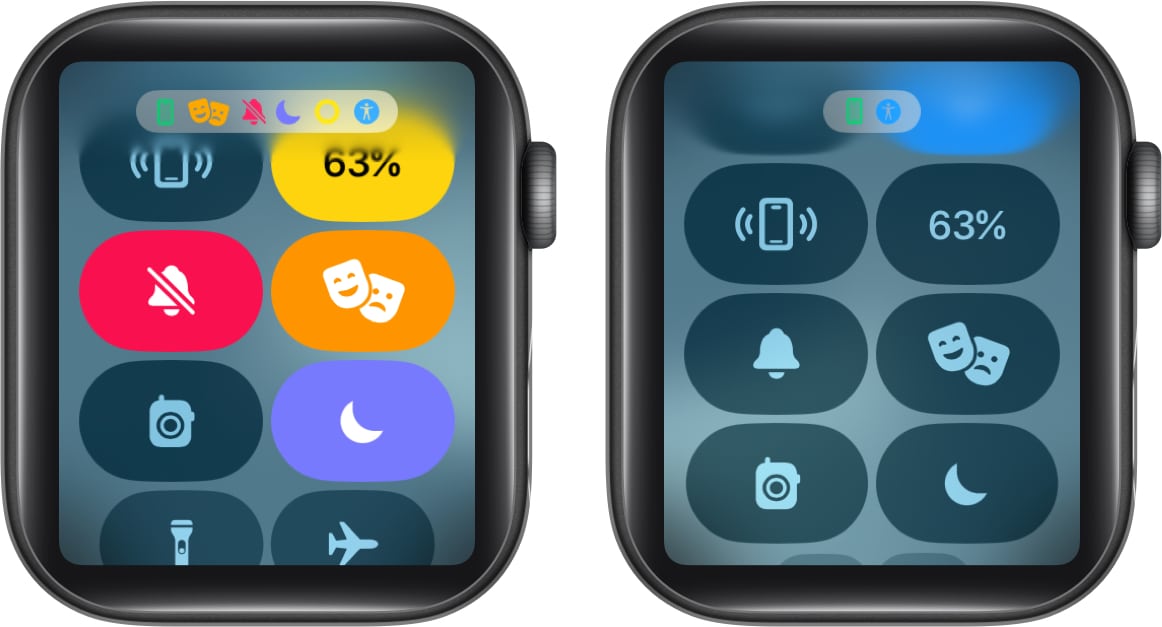
Theater Mode and Water Lock are also worth checking if your display isn’t waking as expected. Turn off any relevant mode and test again.
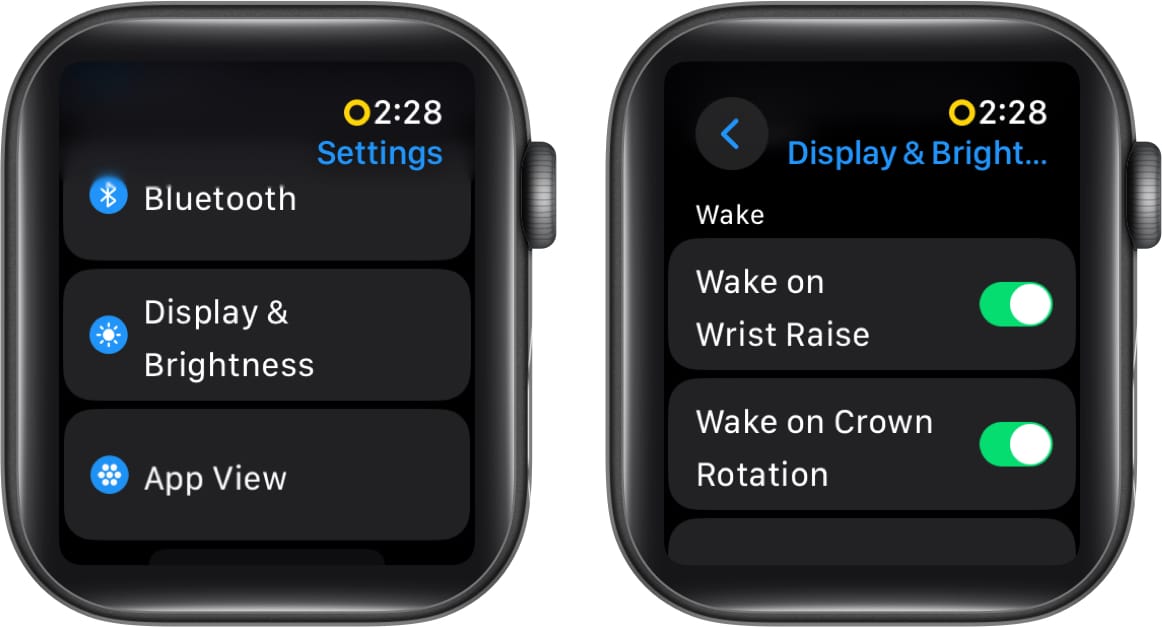
Wrist Detection helps your Apple Watch determine whether you’re wearing it. If it is disabled or the watch doesn’t fit correctly, you may encounter problems with certain features.
To check Wrist Detection:
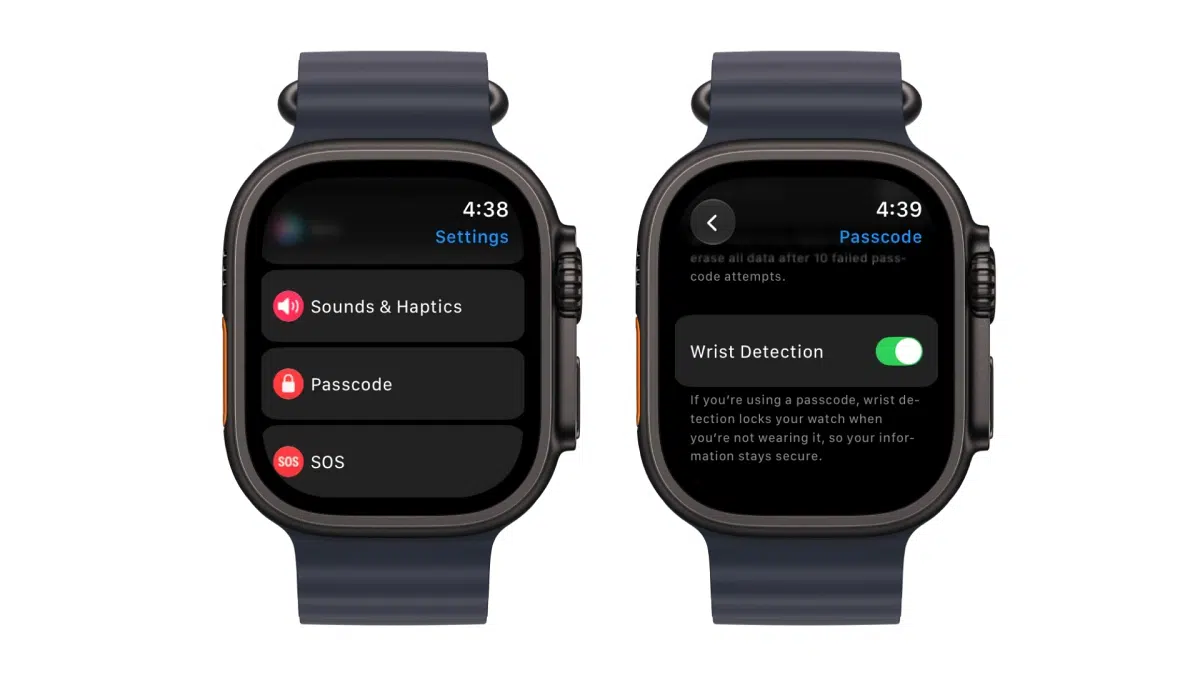
Also, verify that your Apple Watch is configured for the wrist on which you wear it. Open Settings → General → Orientation and check the wrist selection.
If you recently changed wrists, correct the setting and try Double Tap again.
Certain accessibility features use hand gestures in ways that conflict with Double Tap.
According to Apple, you can’t enable tap gestures when features such as these are active:
If you use any of these features, review their settings before troubleshooting further.
Open Settings → Accessibility on your Apple Watch and check the relevant options. If you’re comfortable doing so, temporarily disable the conflicting gesture feature and test Double Tap again.
Double Tap doesn’t work in every Apple Watch app or on every screen.
Apple provides built-in actions for supported experiences, including:
However, Double Tap isn’t available while using the Depth app or taking an ECG. Third-party apps also need to support the gesture appropriately.
If the Double Tap indicator shakes from side to side, that indicates the gesture isn’t available on the current screen or in that app.
Try testing it on the watch face or in a supported app before assuming the feature is broken.
If the settings look correct but Double Tap remains unresponsive, restart your Apple Watch.
A restart can resolve temporary software glitches without erasing your data.
If your watch is frozen and you can’t restart it normally, you can consider a force restart. However, don’t force-restart your watch while a software update is in progress.
In some cases, unpairing and re-pairing the devices may be necessary for a complete reset of all settings.
If none of the previous fixes work, check for a software update. Apple periodically releases updates that improve system reliability and address bugs.
To update directly on your Apple Watch:
Alternatively, open the Watch app on your iPhone and go to General → Software Update.
Keep your paired iPhone updated as well if an associated update is required. After installation, test Double Tap on the watch face and in a supported app.
If you’ve checked compatibility, enabled the gestures, disabled restricted modes, reviewed accessibility settings, restarted your watch, and installed available updates, the problem may require further investigation.
Contact Apple Support if:
Apple can help determine whether the problem is software-related or whether your watch needs inspection.
You can start through the Apple Support website or the Apple Support app on your iPhone.
Apple Watch Double Tap is useful for handling everyday tasks without reaching for the display, but it depends on compatible hardware, the right settings, and supported screens.
When the gesture stops working, I recommend checking Low Power Mode, Sleep Focus, Wrist Detection, and the way you’re performing the gesture before trying more drastic fixes.
If you’ve recently upgraded to watchOS 27, remember that Single Tap and Double Tap are separate features. Once you understand when to use each gesture, navigating Smart Stack and performing supported actions becomes much easier.
Have you experienced Double Tap problems on your Apple Watch after updating to watchOS 27? Let us know which fix worked for you in the comments.
FAQs
A shaking Double Tap indicator means the gesture isn’t available on that particular screen or in the current third-party app. Try it on the watch face or in another supported app.
Apple notes that tattoos on the wrist can interfere with tap gesture recognition. Try wearing the watch on your other wrist to see whether the gesture works more reliably.
Read more: