FaceTime Like a Pro
Get our exclusive Ultimate FaceTime Guide 📚 — absolutely FREE when you sign up for our newsletter below.

FaceTime Like a Pro
Get our exclusive Ultimate FaceTime Guide 📚 — absolutely FREE when you sign up for our newsletter below.


I wanted a Stream Deck for my Mac but didn’t want another gadget on my desk. So I turned an old iPhone into a customizable control panel using PhoneDeck. Here’s how it worked and whether it can replace a real Stream Deck.
 ByVikhyat
I’ve always liked the idea of having a Stream Deck on my desk. The ability to launch apps, trigger shortcuts, control meetings, and automate repetitive tasks with a single tap has always sounded like a genuine productivity upgrade. The problem was that I didn’t actually want another gadget sitting next to my Mac.
My desk already has enough devices competing for space, and adding another piece of hardware, complete with its own cable and setup process, didn’t seem particularly appealing. So when I discovered PhoneDeck, an app that turns an iPhone into a customizable control panel for a Mac, I was curious whether it could deliver the Stream Deck experience without requiring dedicated hardware.
After using it for a few days, I found myself reaching for PhoneDeck far more often than I expected.
I spend most of my workday on a Mac, and a surprising amount of that time is spent doing the same things repeatedly. Opening the same apps every morning, jumping into meetings, controlling music while writing, opening project folders, and triggering the same shortcuts eventually becomes muscle memory.
That’s why Stream Decks have always appealed to me. The idea wasn’t the hardware itself. What attracted me was having frequently used actions available without relying on keyboard shortcuts or digging through Finder and menus.
Every time I considered buying one, I came back to the same two concerns: price and practicality. A Stream Deck isn’t outrageously expensive, yet it’s still another accessory to add to a setup that already includes a MacBook, monitor, keyboard, mouse, and a growing collection of gadgets.
PhoneDeck offered a different approach. Instead of buying new hardware, I could turn an older iPhone into a control panel for my Mac. Since I already had a spare device lying around, getting started cost me nothing, which made the experiment much easier to justify.
Setting up PhoneDeck was surprisingly straightforward and took only a few minutes from installation to having a fully functional Mac control panel on my iPhone.
Here’s how I got started:
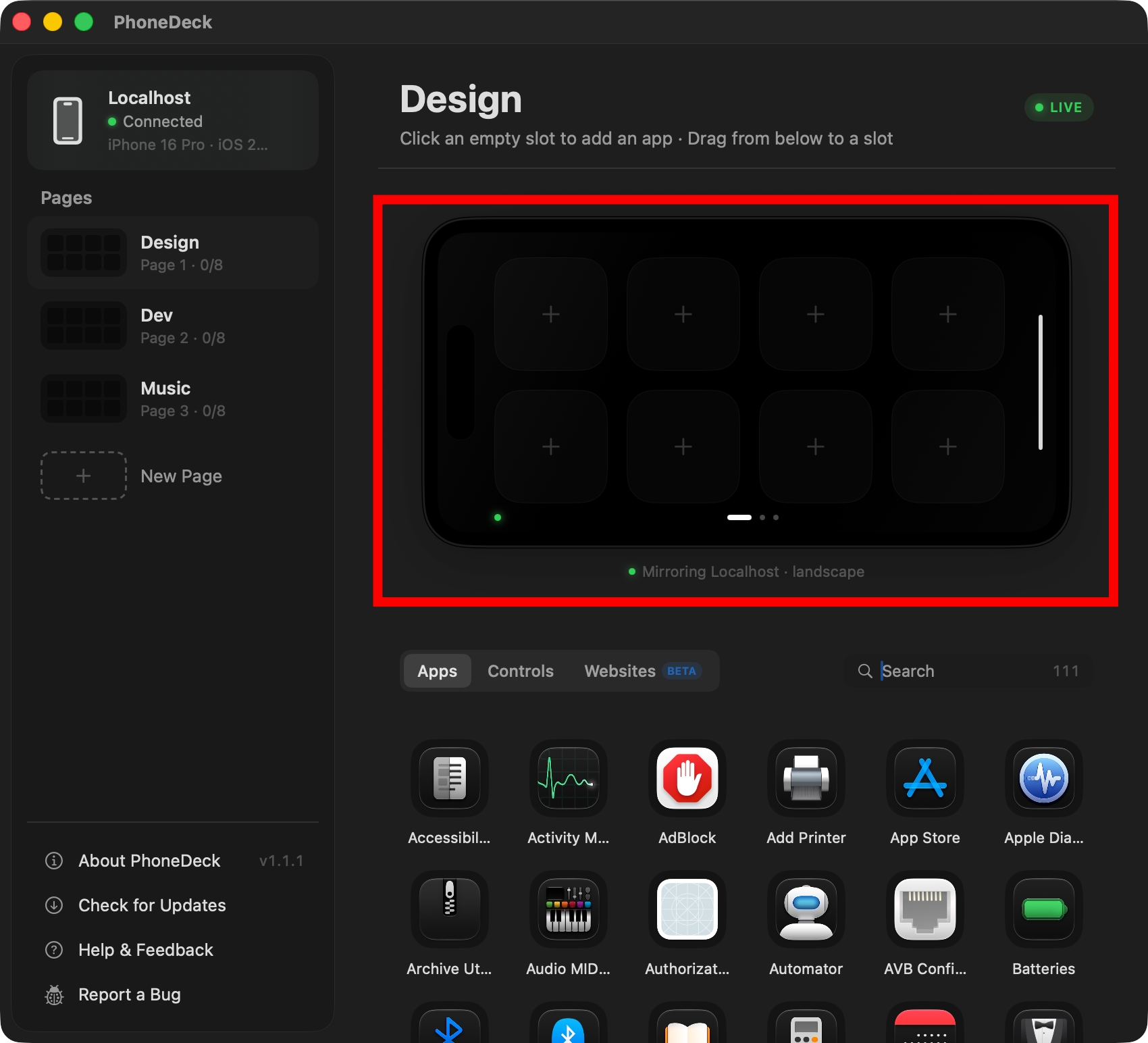
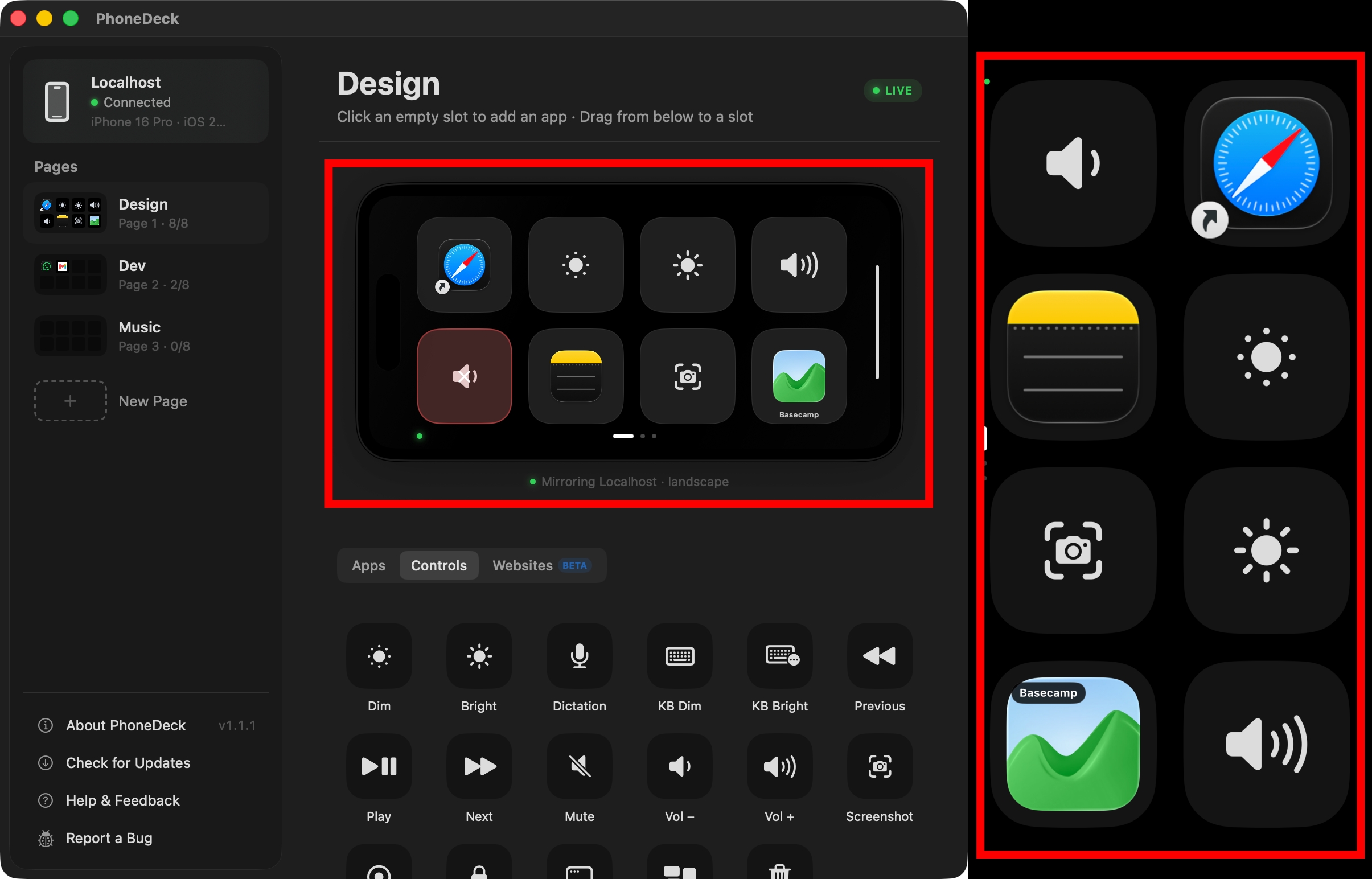
Any changes made on the Mac appear on the iPhone almost instantly, making it easy to experiment with different layouts.
After a bit of experimentation, these are the shortcuts that earned a permanent place on my PhoneDeck dashboard and ended up saving me the most time.
Safari
Safari sits in the top-left corner because it’s usually the first app I open every morning. Most of my work starts with research, so keeping it one tap away made sense.
Brightness Controls
The next two buttons increase and decrease my Mac’s display brightness. I adjust it more often than I’d like to admit, especially when moving between daytime and late-night work sessions.
Volume Controls
Another pair of buttons handles volume adjustments. They’re simple, but they get used regularly while listening to music or watching videos during work breaks.
Apple Notes
Apple Notes has a dedicated button of its own. I use it for article ideas, quick drafts, and temporary notes throughout the day.
Screenshot
There’s also a screenshot button because I spend a lot of time capturing app interfaces, settings pages, and images for articles.
Basecamp
Basecamp gets its own shortcut as well. Since it’s one of the tools I check multiple times a day, I preferred giving it a permanent spot on the dashboard instead of keeping another browser tab open.
WhatsApp is another button I use regularly for work conversations and quick messages.
Gmail
The last button on the main page opens Gmail. Between newsletters, assignments, and client communication, it’s one of the websites I visit constantly.
Most of the time, PhoneDeck did exactly what I needed. The one thing it couldn’t fully replicate was the experience of having dedicated hardware sitting on the desk.
With a Stream Deck, every shortcut has its own physical button. After a while, you know exactly where everything is without looking. An iPhone screen doesn’t work quite the same way.
Even though my dashboard rarely changes, I still find myself glancing at the screen before tapping a shortcut.
That’s not a major issue for the handful of actions I use throughout the day, but it’s easy to understand why power users who rely heavily on shortcuts often prefer a dedicated Stream Deck.
One area where I use PhoneDeck more than expected is while watching movies and videos on my Mac at night.
Adjusting brightness and volume from the dashboard is often quicker than reaching for keyboard controls, especially when I’m already holding my iPhone.
The same dashboard also gives me quick access to Safari, Notes, Basecamp, WhatsApp, Gmail, and screenshots, so it ends up staying active on my desk throughout the day instead of only being useful during work hours.
What started as a productivity experiment gradually became part of my everyday workflow.
PhoneDeck handled most of what I wanted from a Stream Deck alternative, but there are still a few limitations worth mentioning:
For many users, these limitations won’t matter much. But if you’re heavily invested in automation workflows, a dedicated Stream Deck still offers more flexibility.
Although PhoneDeck isn’t a perfect replacement for a dedicated Stream Deck, it solved the main reason I wanted one in the first place.
At the end of the day, I simply wanted faster access to the apps, shortcuts, and controls I use most often. PhoneDeck delivered most of that functionality using an older iPhone I already owned. It also gave that spare device a purpose without adding another gadget to my desk.
Will I eventually buy a real Stream Deck? Maybe. For now, though, PhoneDeck has done enough to convince me that I don’t need one.
What Mac shortcut would earn a permanent spot on your PhoneDeck dashboard? Let us know in the comments below.