FaceTime Like a Pro
Get our exclusive Ultimate FaceTime Guide 📚 — absolutely FREE when you sign up for our newsletter below.

FaceTime Like a Pro
Get our exclusive Ultimate FaceTime Guide 📚 — absolutely FREE when you sign up for our newsletter below.


I enabled Windows 11's hidden predictive text feature and made fewer typing mistakes. Here's how to turn it on and get the most out of it.
Most of my daily activities involve typing, such as writing articles, replying to emails, or posting on social media. Even after years of typing, I still catch myself fixing missed letters, swapped characters, and small spelling mistakes that break my flow.
That’s why I was surprised to discover that Windows 11 already has built-in text suggestion and autocorrect features that quietly reduce mistakes without installing Grammarly or any third-party app. It isn’t a flashy Windows feature, but it’s one of those hidden productivity tricks that quietly makes everyday work easier.
Here’s how to enable predictive text in Windows 11 with simple steps.
One thing I’ve noticed is that most Windows users don’t realize their PC can offer predictive typing just like a Mac or smartphone, as it’s not enabled by default.
Windows 11 includes two built-in typing features:
Although they work together, they’re designed for different purposes. Predictive text helps you type faster by suggesting words and, in some cases, helping you finish a sentence with fewer keystrokes. Autocorrect, on the other hand, focuses on fixing mistakes you’ve already made, such as missing letters or common spelling errors.
After using it for a while, I think it’s especially useful for:
If your keyboard is your primary work accessory, this feature is worth trying.
Unlike smartphone keyboards that aggressively predict entire sentences, Windows 11 takes a more subtle approach. The catch is you need to use a physical keyboard and not the on-screen one to enjoy the benefits.
As you type, it analyzes the letters you’ve entered and offers multiple word suggestions that appear near the text cursor. For example, typing “prod…” immediately suggested:
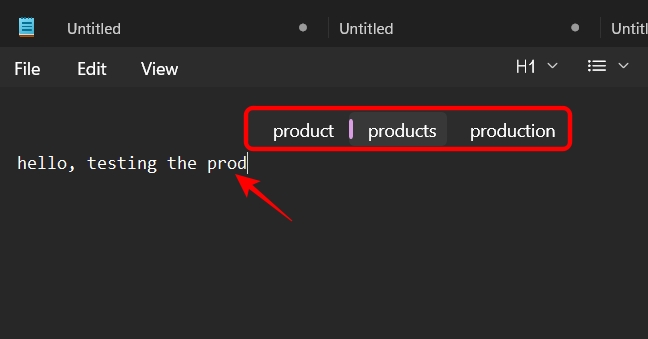
You can simply continue typing if the suggestion isn’t useful, or use the arrow keys to select the option you like and press Enter to accept it to save a few keystrokes. The best part is Windows even offers emoji suggestions and multi-language words based on your language preferences.
In my testing, the feature worked reliably in Microsoft Word, Notepad, search boxes, Slack, Obsidian, text boxes in browsers, etc. However, it isn’t supported everywhere. You may not get predictive typing in Windows Terminal, password fields, certain games, and some older desktop applications.
Also, I noticed it’s best to type naturally rather than hunting for suggestions. Over time, you will find yourself accepting recommendations without even thinking about them, as Windows will learn your most used words.
The text suggestions feature isn’t enabled by default. Microsoft leaves these settings off because typing preferences vary from person to person. Some users prefer an uninterrupted typing experience, while others don’t want predictions appearing as they work.
The good news is that enabling it takes less than a minute, and if you don’t like it, you can switch it off just as quickly.
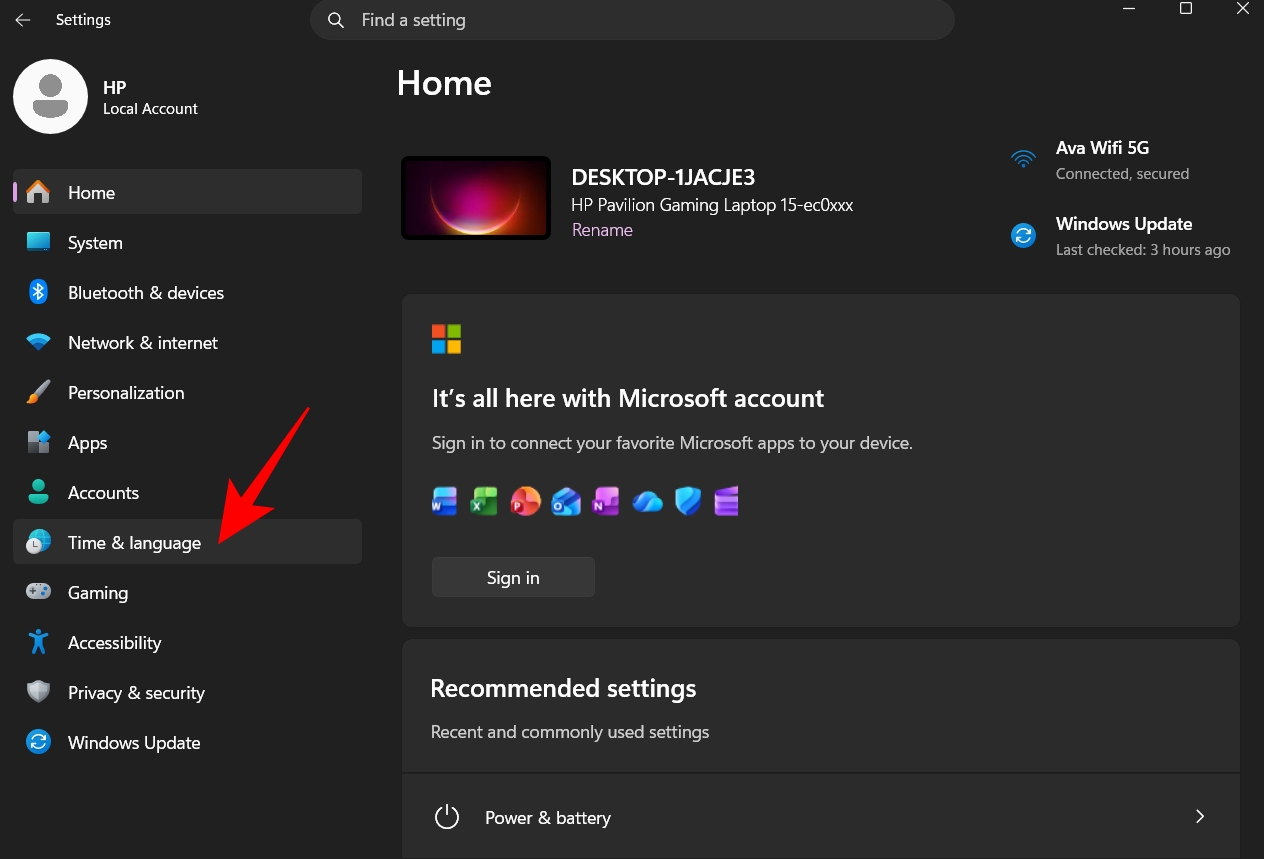
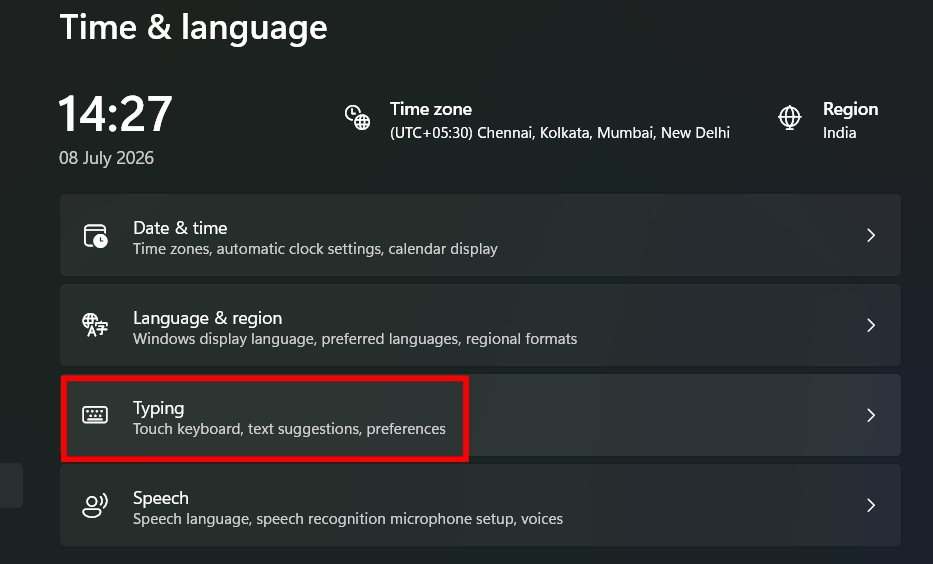
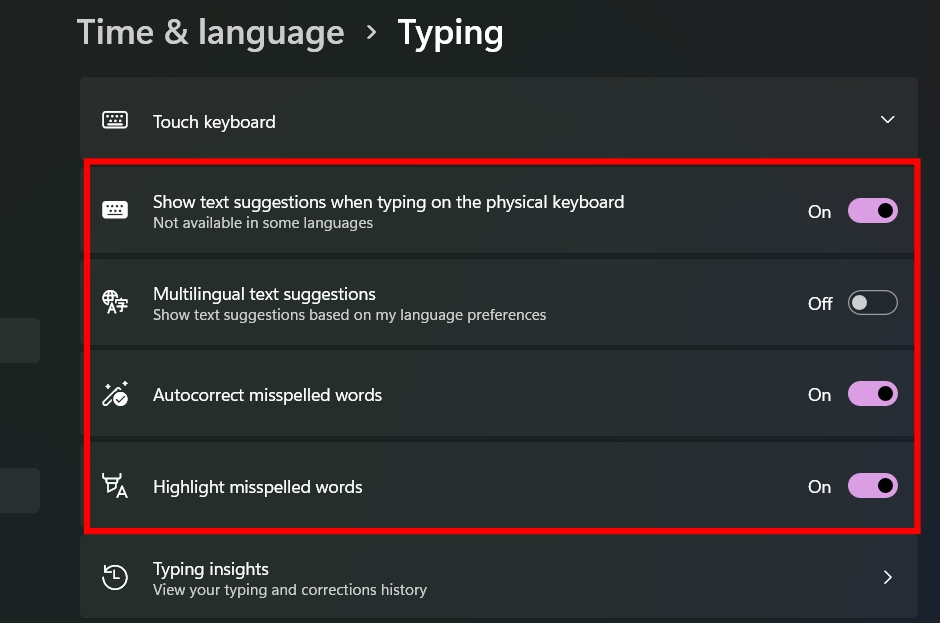
These settings worked exactly as expected during my testing and didn’t require a restart.
Whenever I test a Windows feature, I try to use it as part of my normal workflow rather than spending five minutes with it and calling it a day. So I left text suggestion enabled while writing articles, replying to emails, browsing the web, and taking notes.
The first thing I noticed wasn’t that I typed dramatically faster—it was that I pressed Backspace less often. When writing long articles, Windows constantly proposed words in accordance with my writing style. Each suggestion only saved a second or two, but across thousands of words, those small savings added up.
Emails benefited even more. I intentionally typed quickly without worrying too much about minor mistakes, and Autocorrect fixed quite a few of the common errors before I even noticed them. Moreover, when searching for anything, Windows often predicted the word after only a few letters, making searches feel a little faster.
Is it perfect? No. Sometimes the suggestions aren’t relevant, and not every application supports them consistently. For me, the biggest advantage was staying focused. Every typo I don’t have to fix is one less interruption while I’m trying to think.
After experimenting with the feature, I found a few settings that improve the overall experience.
None of these changes dramatically transform predictive typing on their own, but together they make the feature noticeably more useful.
Once I started exploring the Typing settings, I realized Windows 11 includes several other productivity features that many people overlook.
They’re all built into Windows 11, and none require additional software.
I didn’t expect such a small Windows setting to make much difference, but after using it for several days, it reduced typing mistakes, lessened the time spent hitting Backspace, and provided a smoother writing experience overall.
Keep in mind that it won’t replace dedicated writing software or magically eliminate every typo. But if you spend hours typing every day, it’s one of those simple Windows 11 features that’s absolutely worth enabling.
If you know any other Windows 11 keyboard productivity tips like this, let me know in the comments below. I will surely try them!
FAQs
Yes. Text suggestions work with most standard physical keyboards connected to a Windows 11 PC, whether they’re wired, wireless, or built into a laptop. The feature depends on Windows itself rather than the keyboard hardware.
Yes. Once enabled, Text Suggestions and Autocorrect work without an internet connection because they’re built into Windows 11.
There are several possible reasons. Text suggestions isn’t enabled in Settings > Time & Language > Typing, or the application you’re using may not support Windows’ predictive typing. Also, the feature is not available in all languages.
You might also like: