FaceTime Like a Pro
Get our exclusive Ultimate FaceTime Guide 📚 — absolutely FREE when you sign up for our newsletter below.

FaceTime Like a Pro
Get our exclusive Ultimate FaceTime Guide 📚 — absolutely FREE when you sign up for our newsletter below.


Seeing several gigabytes of RAM marked as Hardware Reserved in Windows? I tracked down the cause and recovered my usable memory with a few simple fixes. Here’s what worked and why it happens.
After upgrading my PC’s RAM, I expected smoother multitasking, faster game loading, and plenty of memory for dozens of browser tabs. Instead, Windows still felt sluggish. When I opened Task Manager, I discovered that several gigabytes of RAM were marked as Hardware Reserved.
At first, I assumed Windows was simply using that memory for background processes. It wasn’t. That RAM wasn’t available to Windows at all. If you’re seeing a similar issue, here’s exactly how I got reserved RAM back on Windows 11 and increased usable RAM.
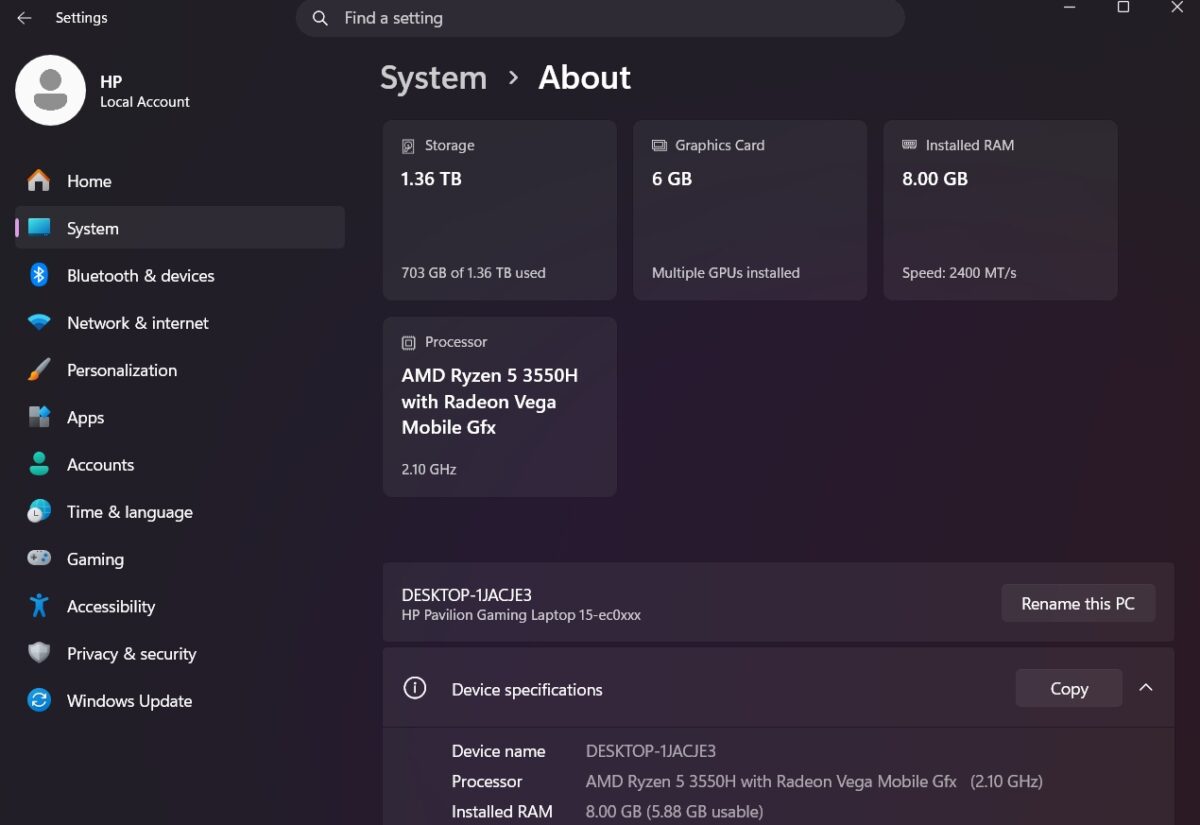
I first noticed something was off when my PC started slowing down while multitasking. I knew that I had sufficient RAM to handle whatever I was doing, so I decided to go into Task Manager and check the Memory tab to investigate further.
It showed that Windows had less usable memory than the amount installed in my system. For example, I had 8GB of RAM installed, but only around 5.9GB was available. The rest was listed as Hardware Reserved.
To confirm it wasn’t just a reporting issue, I checked Settings → System → About and the System Information app. Both showed that all of my RAM was installed, but Windows still wasn’t making all of it available for use.
A small amount of reserved RAM is perfectly normal. Motherboards, graphics hardware, and firmware all need a little memory to function. But when Windows reserves multiple gigabytes, something usually isn’t configured correctly.
If you’ve recently upgraded your RAM, built a new PC, or updated your BIOS, it’s worth checking whether Windows is using all of the memory you’ve installed.
“Hardware Reserved” makes it sound like Windows is taking your RAM away. In reality, the memory is being reserved by hardware or firmware before Windows even loads.
Hardware reserved RAM refers to the RAM that is reserved for components that require access before being available for Windows. Such components could be:
The important thing to understand is that Hardware Reserved RAM isn’t the same as Cached RAM.
| Hardware Reserved | Cached Memory |
|---|---|
| Cannot be used by Windows | Can be reclaimed whenever needed |
| Reserved by hardware or firmware | Managed dynamically by Windows |
| May indicate a configuration issue if unusually large | Completely normal |
In most cases, seeing a few hundred megabytes reserved isn’t a problem. Seeing 4GB, 8GB, or more usually means it’s time to investigate.
Before changing Windows settings, I made sure the basics were covered.
systeminfo in Command Prompt. If Windows reports less RAM than you physically installed, the problem may be hardware-related rather than a Windows setting.In my case, the BIOS showed the full 8GB, which told me the issue was somewhere between Windows and the firmware settings.
After ruling out the obvious causes, I started working through each possible fix. Not every solution applies to every PC, but these are the ones worth trying in order.
This was the first thing I checked because it’s surprisingly easy to overlook.
Here’s how:
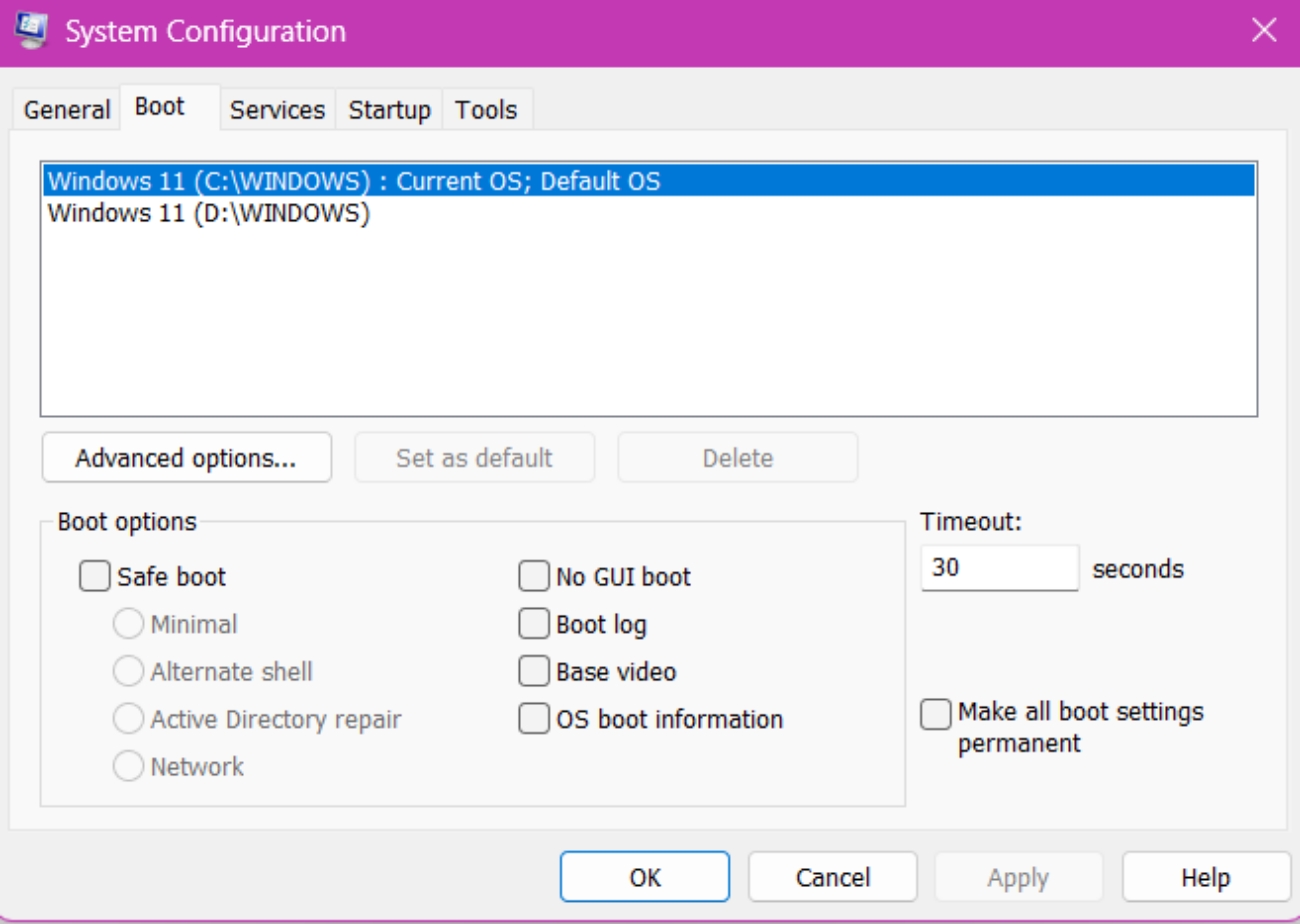
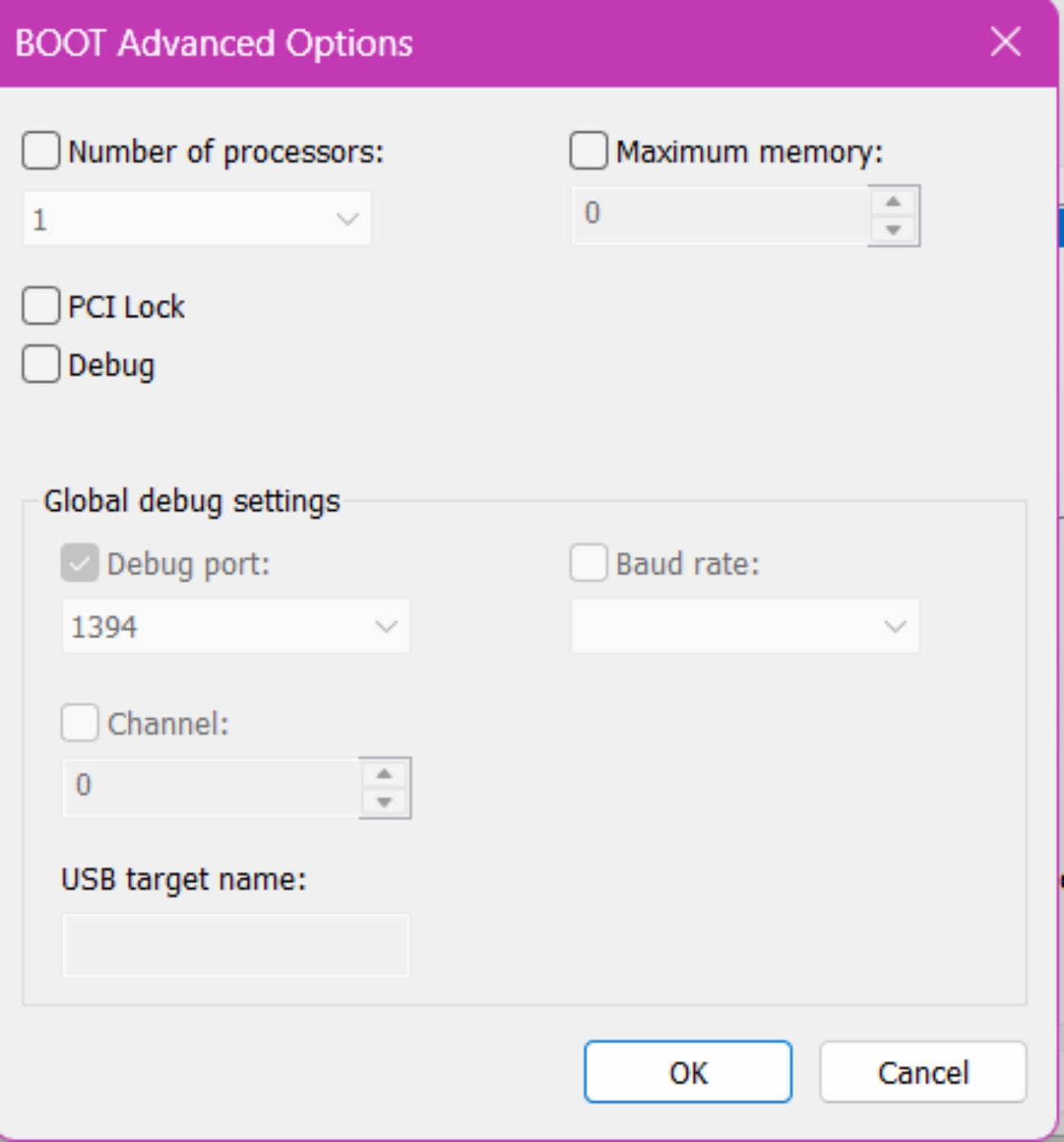
That setting is mainly intended for troubleshooting. If it’s enabled, Windows may intentionally limit the amount of RAM it uses, even if more memory is installed.
Mine wasn’t enabled, but I’ve checked it since it’s one of the most common reasons people suddenly lose access to several gigabytes of RAM after tweaking boot settings.
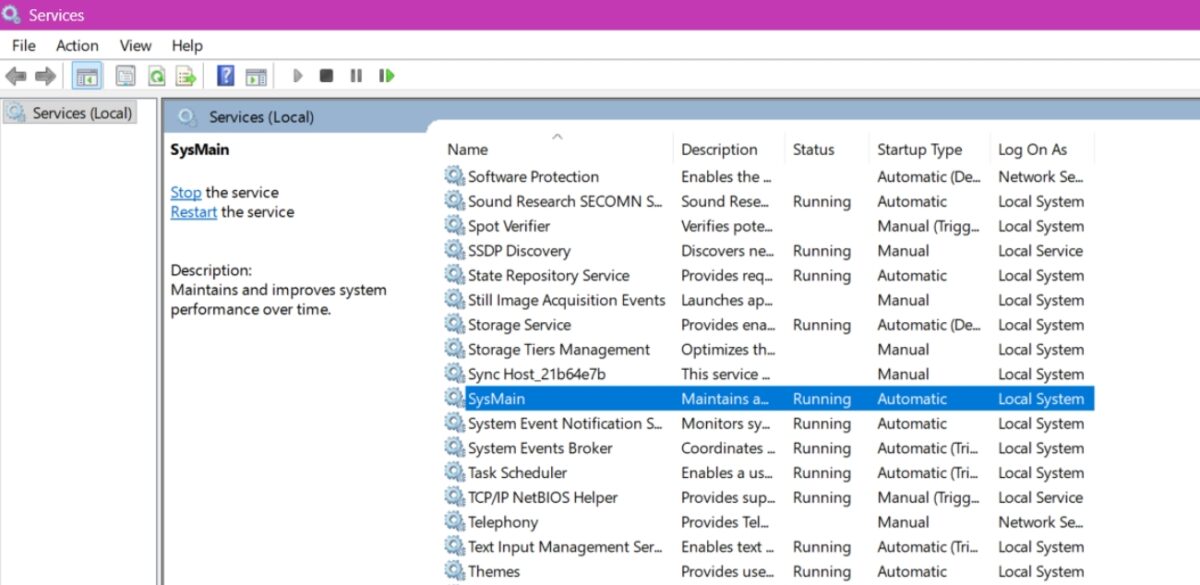
Next, look at Windows background services. One service that often comes up in RAM-related discussions is SysMain (previously called Superfetch). Its job is to learn your usage habits and preload frequently used apps into memory to make them launch faster.
On most modern PCs, SysMain works as intended and doesn’t permanently “steal” RAM because Windows automatically reclaims cached memory when applications need it. However, if you’re experiencing unusually high memory usage, constant disk activity, or performance issues, it’s worth testing whether the service is contributing to the problem.
To try it yourself:
If you don’t notice any improvement, or if app launches become slower, you can simply re-enable the service by changing the Startup type back to Automatic.
While I was making changes, I also cleaned up a few unnecessary system settings that can improve overall responsiveness.
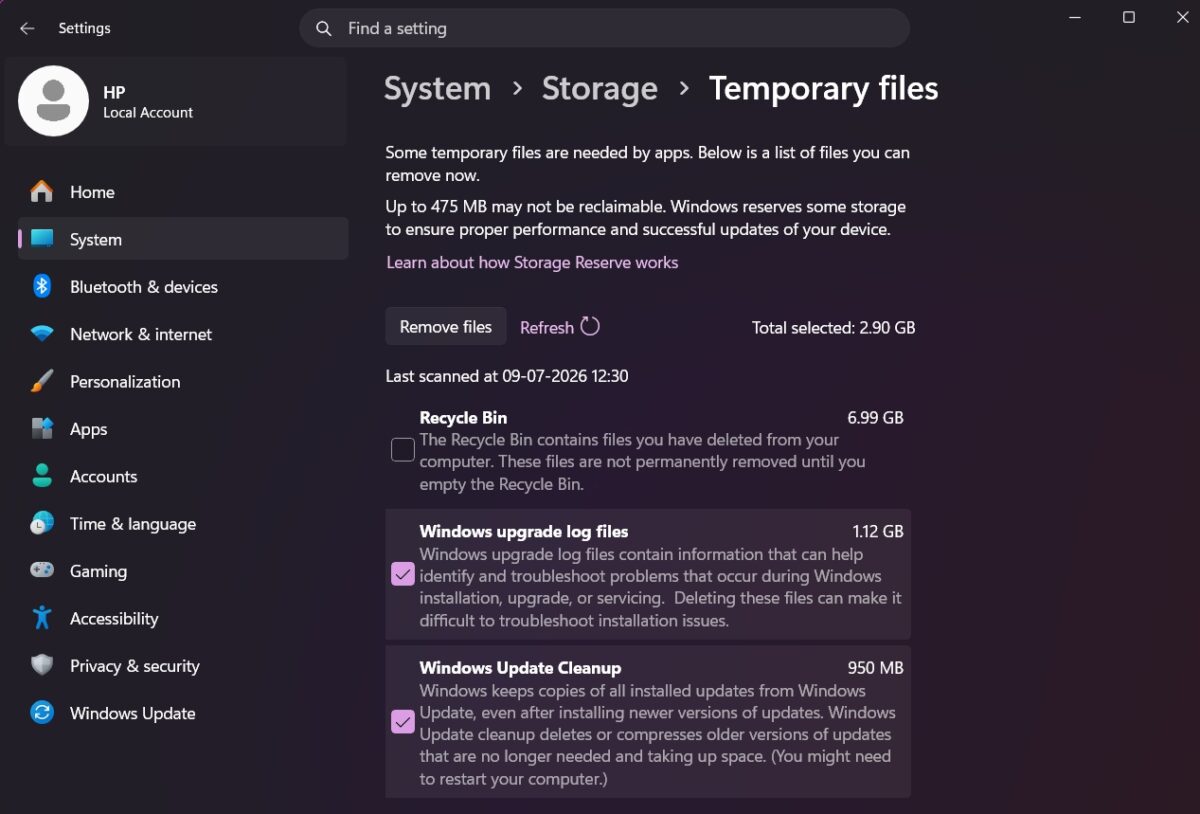
These tweaks won’t increase your installed RAM, but they can reduce unnecessary background activity and help Windows use system resources more efficiently.
Once I ruled out Windows itself, I turned my attention to the hardware. A RAM module that isn’t fully seated or a faulty memory slot can prevent Windows from recognizing all available memory, leaving a large portion marked as hardware reserved.
You need to shut down your PC, switch off the power supply, and unplug the power cable. After opening the case, remove each RAM stick by releasing the retaining clips and then firmly reinstall them until they click into place.
While doing that, I also:
To rule out a faulty module or slot, I tested one RAM stick at a time and tried each stick in different slots. This helped me confirm that both memory modules and the motherboard slots were working properly. Otherwise, use a dedicated tool like MemTest86 to identify faulty memory modules that Windows might not detect during normal operation.
After putting everything back together and starting the PC, check Task Manager and Settings > System > About again. In my case, Windows detected all of the installed RAM correctly, and the amount of hardware reserved memory dropped significantly.
This ultimately turned out to be the most important step in my troubleshooting process.
In order to check, reboot your computer and access the BIOS using the key indicated upon booting (usually Delete, F2, or F10, depending on the motherboard). Once inside, look for settings related to memory.
Usually, I check three settings:
Not every case has the same cause. During my research, I found several other possibilities that can lead to unusually high hardware reserved memory:
The biggest mistake is assuming Windows itself is responsible. In many cases, the memory is reserved before Windows even starts loading.
This was one question I kept asking while troubleshooting.
There’s no universal number because every PC is different, but as a general guideline:
| Installed RAM | Typical Hardware Reserved |
|---|---|
| 8GB | 100MB–600MB |
| 16GB | 100MB–800MB |
| 32GB | 100MB–1GB |
Systems using integrated graphics may reserve more memory, especially laptops.
If you’re seeing several gigabytes permanently marked as Hardware Reserved, it’s worth investigating rather than assuming it’s normal.
Looking back, I had wasted way too much time dealing with the wrong issues.
Here are the lessons that would’ve saved me hours:
The biggest lesson? Troubleshoot methodically. Changing multiple settings at once makes it almost impossible to identify what actually fixed the problem.
When I first discovered Windows wasn’t using all of my installed RAM, at first, I thought Windows itself was causing the problem. In reality, it came down to configuration rather than faulty hardware.
By checking Windows boot settings, confirming the BIOS recognized my memory, verifying RAM installation, and ruling out hardware faults, I recovered almost all of the missing memory without reinstalling Windows.
If your PC is showing several gigabytes as Hardware Reserved, don’t panic. Start with the simple fixes first, work through them one at a time, and verify the results after each change. More often than not, the missing RAM is recoverable.
FAQs
The most common causes include integrated graphics reserving system memory, incorrect BIOS settings, the Maximum memory option being enabled in MSConfig, outdated firmware, or improperly installed RAM. If the BIOS detects all installed memory, Windows configuration is usually the next place to investigate.
Not necessarily. Every Windows PC reserves a small amount of memory for hardware components. It only becomes a concern when several gigabytes are unavailable without an obvious reason.
You can’t completely disable it because some hardware requires reserved memory to function. However, if an unusually large amount is reserved due to a configuration issue, correcting the underlying problem can make that memory available again.
Only if you’re genuinely running out of memory. If Windows is reserving large portions of your installed RAM because of BIOS or configuration issues, installing additional memory won’t help much. It’s better to identify why the existing memory isn’t fully usable first.
In case you missed: