FaceTime Like a Pro
Get our exclusive Ultimate FaceTime Guide 📚 — absolutely FREE when you sign up for our newsletter below.

FaceTime Like a Pro
Get our exclusive Ultimate FaceTime Guide 📚 — absolutely FREE when you sign up for our newsletter below.


From quick teleports and free diamonds to weather controls and large-scale building tools, Minecraft commands offer plenty of ways to customize your world. This guide covers useful examples and setup instructions.
Minecraft seems like a simple game at first, but there’s a lot more to it than meets the eye. From collecting resources and crafting items to fighting hostile mobs and exploring massive worlds, there’s always something new to discover. However, keeping track of every gameplay mechanic can feel overwhelming, especially if you’re just starting out.
That’s where Minecraft commands come in. These built-in instructions let you control different aspects of your world, whether you want to switch to Creative mode, teleport to a location, change the weather, summon mobs, or give yourself valuable items. Some players use them to make Survival easier, while others rely on them to experiment with builds and create custom experiences.
To help you get started, here’s a guide to the most useful Minecraft cheats and commands, including how to enable cheats, how to use commands, and examples for different gameplay situations.

| Command | What it does |
|---|---|
| /help [CommandName] | Provides detailed info about a specific console command. |
| /give <player><item>[Amount]</item></player> | Provides a player with a certain amount of a selected item. |
| /tp [TargetPlayer] x y x | Moves a player to a selected portion of the map. |
| /kill [TargetPlayer] | Kills a mob or player. |
| /gamemode creative | Switches your entire server to Creative Mode. |
| /weather WeatherType | Change the weather to Rain, Thunder or Snow. |
| /time | Change the time of day. |
| /gamemode survival | Switch your server to Survival Mode. |
| /difficulty [Setting] | Change difficulty between Peaceful, Easy, Normal and Hard. |
| /summon | Create the target object. |
| /seed | Display the code for your current seed. |
| /atlantis | Increase the amount of water in your world. |
| /falldamage | Enable or disable fall damage. |
| /instantmine | Mine anything in the world with one single click. |
| /firedamage | Enable or disable fire damage. |
| /waterdamage | Enable or disable water damage. |
| /dropstore | Store your inventory in a chest. |
| /duplicate | Make a duplicate of the item you are holding. |
| /instantplant | Grow plants instantly. |
| /gamerule keepInventory true | Keep all your items after death. |
| /gamerule doDaylightCycle false | Puts an end to the day/night cycle. |
| /ride | Makes one entity ride another in Java Edition. |
| /Freeze | Freezes all mobs. |
| /superheat | Turns all items into their smelted form. |
| /itemdamage | Stops wear damage on all weapons. |
| /locate [location name] | Gives you the coordinates for generated structures. |
| /camerashake | Shakes the camera. |
| /clearspawnpoint | Removes spawn point for a player. |
| /connect | Connects to the WebSocket servers on the provided URL. |
| /deop | Revokes operator status for players. |
| /dialogue | Opens NPC dialogue for players. |
| /effect | Adds or removes status effects. |
| /enchant | Adds an enchantment to the player’s selected item. |
| /event | Triggers an event for the specific object(s). |
| /fill | Fills all or parts of a region with a specific block. |
| /fog | Adds or removes a fog setting file. |
| /damage | Applies damage to entities. |
| /execute summon | Allows customisation of a newly spawned entity. |
In order to use Minecraft commands, you’ll first need to enable cheats in your world. The process is quite different for Java and Bedrock Edition, so let’s walk you through the steps for each version.
New World
Existing World
Note: Keep in mind that enabling cheats through Open to LAN is temporary. The setting applies to that LAN session rather than permanently changing the world’s original cheat setting.
New World
Existing World
Note: Enabling cheats in a Bedrock world disables achievements for that world. This change cannot be reversed for that save, so consider making a backup before enabling cheats.
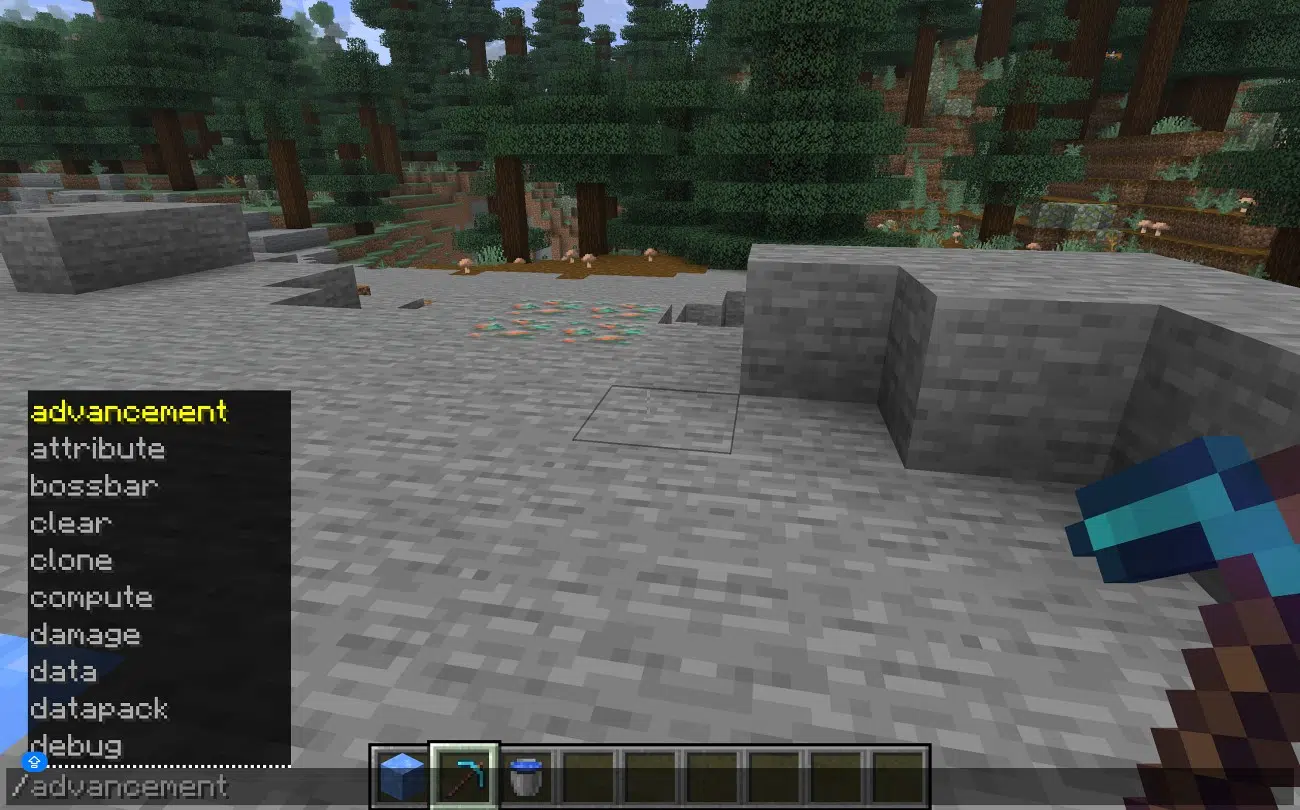
Once cheats have been enabled, running commands in Minecraft is quite simple. Just follow these steps to enter and execute any command in your world:
Before experimenting with commands, there are a few things worth remembering. Minecraft commands and their effects can depend on whether you’re playing Java or Bedrock Edition. If you’re unsure what commands you have access to on a multiplayer or single-player server, you can type / in the chat window to see what’s available.
Minecraft offers four main game modes, each designed for a different playstyle. You can switch between them using the /gamemode command.
Minecraft lets you choose between four game modes: Survival, Creative, Adventure, and Spectator. Here are the commands to switch between each of them.
| Game mode | Command |
|---|---|
| Survival | /gamemode survival |
| Creative | /gamemode creative |
| Adventure | /gamemode adventure |
| Spectator | /gamemode spectator |
You can also adjust the difficulty of your world. There are four levels, and each affects the game in multiple ways.
| Difficulty | Command |
|---|---|
| Peaceful | /difficulty peaceful |
| Easy | /difficulty easy |
| Normal | /difficulty normal |
| Hard | /difficulty hard |

| Command | What it does |
|---|---|
| /tp @s 100 70 100 | Teleports you to the coordinates X=100, Y=70, Z=100. |
| /tp PlayerName 100 70 100 | Teleports a specific player to the specified coordinates. |
| /tp @s PlayerName | Teleports yourself to another player’s location. |
| /tp Player 1 Player2 | Teleports Player1 to Player2’s location. |
| /tp @a 100 70 1000 | Brings all players to the specified coordinates. |
| /tp @s ~ ~10 ~ | Moves yourself 10 blocks upward from your current position. |
| /tp @s ~10 ~ ~ | Moves yourself 10 blocks along the positive X-axis. |
| /tp @s ~ ~ ~ 10 | Moves yourself 10 blocks along the positive Z-axis. |
If you want to get specific items, clear your inventory, or enchant your equipment, these commands can save you plenty of time.
| Command | Effect |
|---|---|
| /give <player> <item> [amount] | Gives a player a specific quantity of items. |
| /clear [player] [item] [maxCount] | Removes items from an inventory. |
| /item | Modifies or replaces items in block or entity slots. |
| /replaceitem | Replaces a specific item in inventory in Bedrock edition. |
| /enchant <player> <enchantment> [level] | Applies an enchantment to the item a player is holding. |
| /loot | Generates or distributes loot from loot tables. |
| /recipe take <player> [recipe] | Takes away a crafting recipe for a player in Java Edition. |
| /recipe give <player> [recipe] | Gives access to a crafting recipe for a player in Java Edition. |
| /summon <entity> | Summons a mob or entity. |

| Command | Effect |
|---|---|
| /weather clear | Clears all weather effects in the world. |
| /weather thunder | Begins a thunderstorm. |
| /weather rain | Begins rain. |
| /time query gametime | Shows the total in-game time elapsed in ticks. |
| /time query daytime | Shows the current time of day in ticks. |
| /time query day | Shows the number of in-game days passed. |
| /time add <ticks> | Pushes the in-game time by the specified number of ticks. |
| /time set day | Sets the time to day. |
| /time set noon | Sets the time to noon. |
| /time set night | Sets the time to night. |
| /time set midnight | Sets the time to midnight. |
| /time set sunrise | Sets the time to sunrise. |
| /time set sunset | Sets the time to sunset. |
| Command | Effect |
|---|---|
| /summon <entity> [position] | Spawns a mob or an entity at your specified coordinates. |
| /kill <target> | Eliminates a targeted mob or player. |
| /tp <target> <destination> | Teleports a mob, entity, or player to another location. |
| /effect give <target> <effect> [seconds] [amplifier] | Applies any kind of status effect to a player or a mob. |
| /tag <target> add <name> | Adds a tag to an entity in the world. |
| /ride <target> mount <vehicle> | Displays the entity’s data in Java Edition. |
| /data get entity <target>= | Makes one entity ride another in Java Edition. |
| /gamerule doMobSpawning false | Stops the spawn of mobs. |
| /gamerule doMobLoot false | Stops the loot drop from mobs. |
If you enjoy building structures, designing custom maps, or experimenting with different blocks, world-editing commands can make the process much faster.
| Command | Effect |
|---|---|
| /fill <from> <to> <block> | Completely fills an area with a specific block between two sets of coordinates. |
| /setblock <position> <block> | Replaces or places a single block at your specified coordinate. |
| /clone <begin> <end> <destination> | Copies blocks from one area to another. |
| /fill <from> <to> air | Clears blocks in a selected area. |
| /fill <from> <to> <block> outline | Builds the outer boundary of an area without filling the interior. |
| /fill <from> <to> <block> hollow | Creates a structure made out of walls with the chosen block. |
| /place structure <structure> | Places a supported structure at your location. |
| /fill <from> <to> <block> replace <filter> | Replaces specific blocks in a selected area. |
| /place feature <feature> | Place a supported structure at your location. |
| /place structure <structure> | Generates a supported world feature. |
| /locate structure <structure> | Finds the coordinates of a specified structure. |
Minecraft commands are a useful way to control your world, whether you want to teleport to specific locations, give yourself diamonds, change the weather, summon mobs, or build structures faster. To use them, enable cheats in your world or make sure you have the required permissions on a multiplayer server, then enter your chosen command in the chat window.
Remember that Java and Bedrock Edition don’t support every command in exactly the same way. Check the syntax for your edition before using a command, and consider making a backup before experimenting with commands that modify large parts of your world.
FAQs
The most useful command in Minecraft is the /teleport command as it allows you to save time while exploring or building.
Minecraft commands work in Survival mode, as long as you have cheats enabled in your world and have the permissions to use them.
You generally can’t use most of the Minecraft commands without enabling cheats or having the right permissions. However, you can still use certain commands on multiplayer servers if you have permissions.
You can get command blocks in Minecraft by using the /give command. However, you will need to enable cheats first.
To get 64 diamonds, use the following command: /give @s diamond 64.
To teleport to a village in Minecraft, first find the coordinates of the nearest village, and then use the /teleport command.