“Syncing with iCloud Paused” means uploads or downloads have stopped, which delays data updates across your Apple devices until it resumes.
Common causes include spotty Wi-Fi, full iCloud storage, low power mode, incorrect date/time, Apple ID issues, or Apple server outages.
Fix it by checking system status, verifying Wi-Fi and storage, turning off Low Power Mode, syncing manually, and restarting your device if needed.
Keep iCloud healthy by staying charged during large uploads, checking storage regularly, and syncing over stable networks with correct settings.
Contact Apple Support if issues persist, especially with iCloud Messages, Photos, or Contacts not syncing after trying all basic fixes.
Seeing Syncing with iCloud Paused usually means something simple is blocking the connection, like full storage, weak Wi-Fi, or Low Power Mode. This guide covers every fix in order, from the quickest checks to deeper resets, so you can get syncing back on track fast.
In this guide, I’ll walk you through what that message means, why it shows up, and—most importantly—how you can take control of your device and iCloud settings to keep everything running smoothly. I’ll also share some of my favorite proactive tips and insider tricks that go beyond the basics so you can stay one step ahead of any future syncing hiccups.
What Does Syncing with iCloud Paused Mean?
If you see this message, your iPhone has paused uploading or downloading data to iCloud. This means that new photos, messages, contacts, or other synced information will not appear on your other devices until the problem is resolved. If you use iCloud to back up your data, you should fix the issue soon to avoid missing updates or losing data.
Example: If you take a photo on your iPhone, but it doesn’t show up on your iPad or Mac, paused syncing could be the culprit.
Why Does iCloud Syncing Pause? (Common Causes)
Several factors can interrupt iCloud syncing. Here are the most common ones:
Unstable or Weak Internet Connection: iCloud needs a stable Wi-Fi or cellular connection. Switching networks or running a speed test can help diagnose the problem.
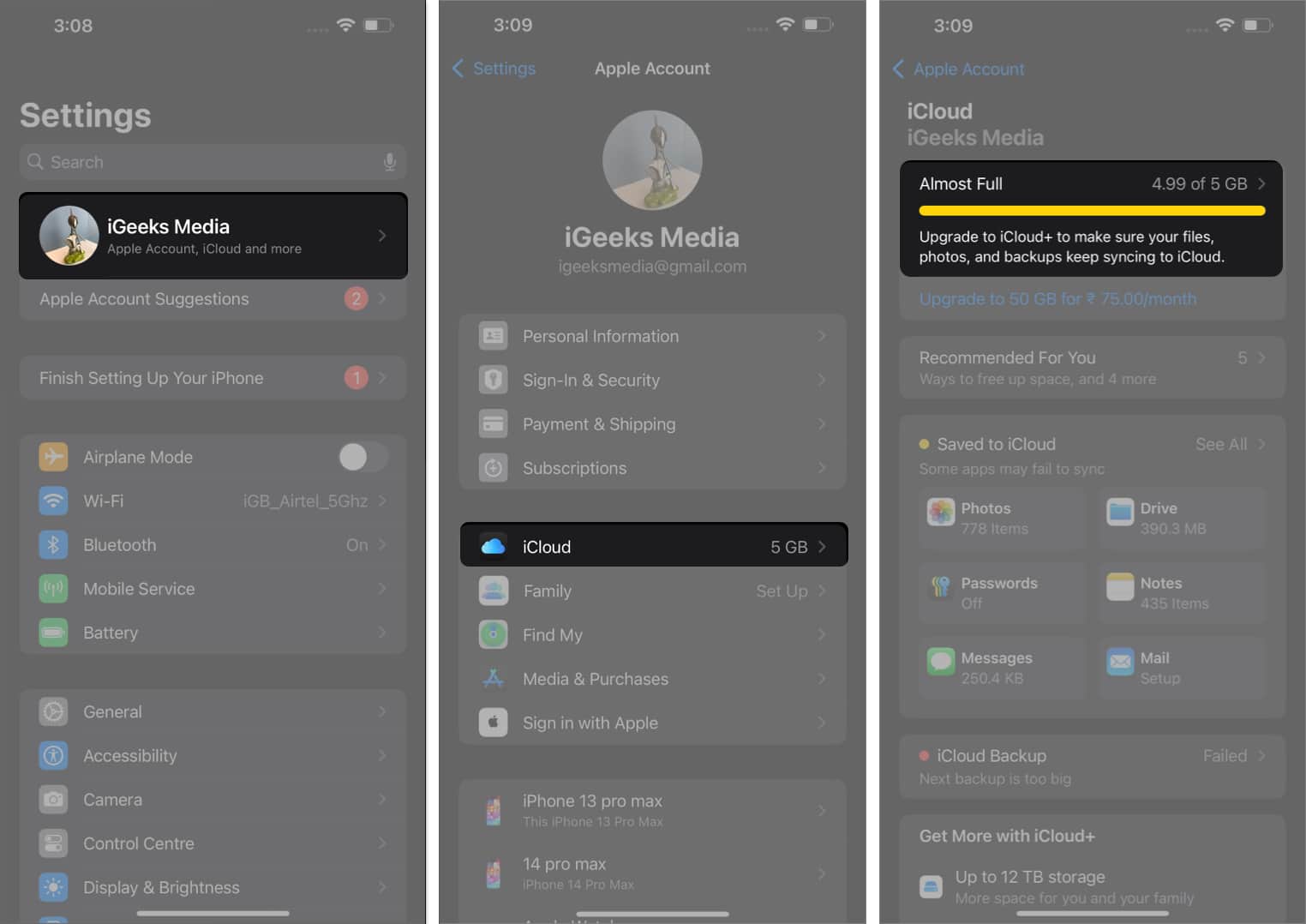
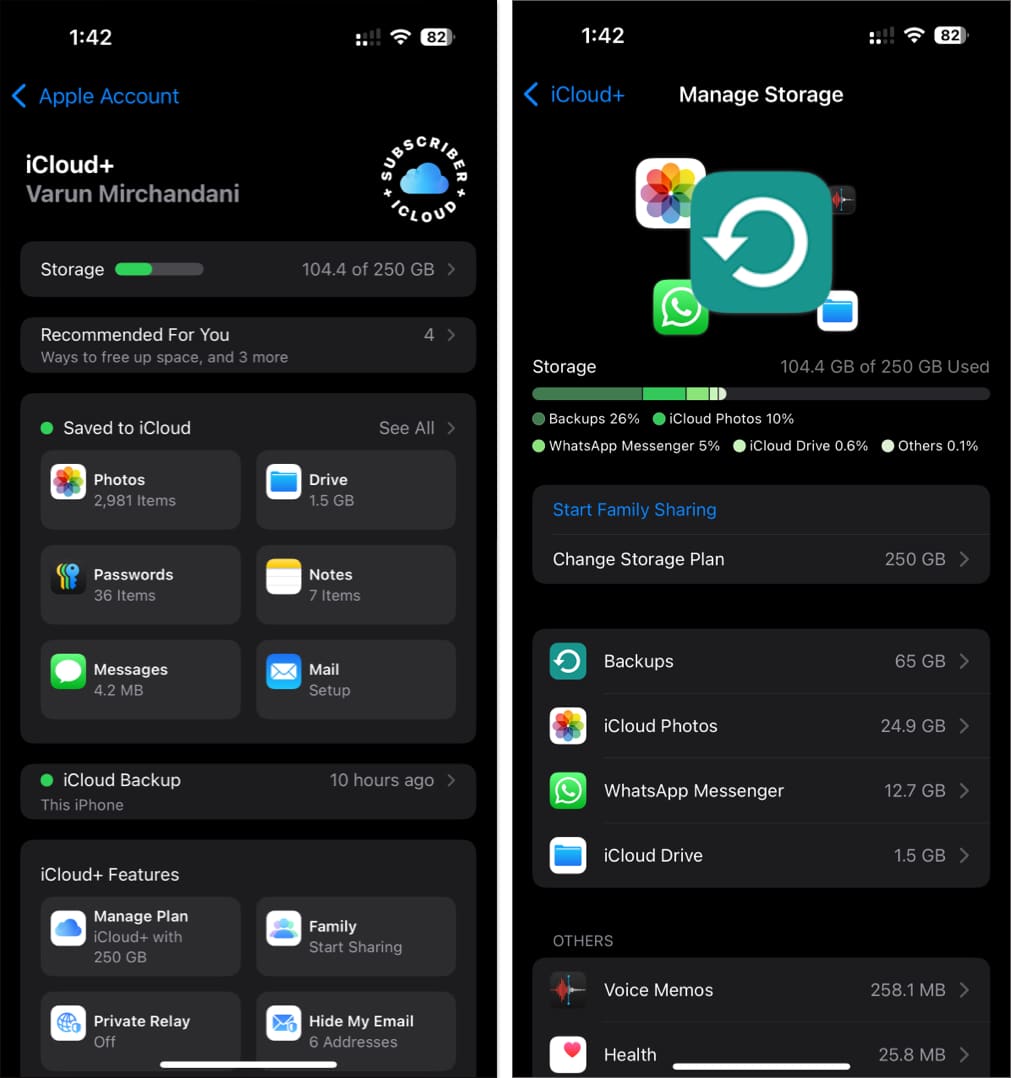
Insufficient iCloud Storage: If your available iCloud storage is full, new data can’t sync. For example, if you’re at your 5GB free limit, syncing stops until you free up space or upgrade your plan.
Low Power Mode or Low Battery: Low Power Mode saves battery by stopping background tasks, like iCloud syncing. Syncing might also stop if your battery is very low or your device is not charging, even when Low Power Mode is off. To get the best results, keep your device charged and plugged in during big syncs.
Low Data Mode (Cellular Data): This setting limits background activity to save data, which can pause syncing over mobile networks.
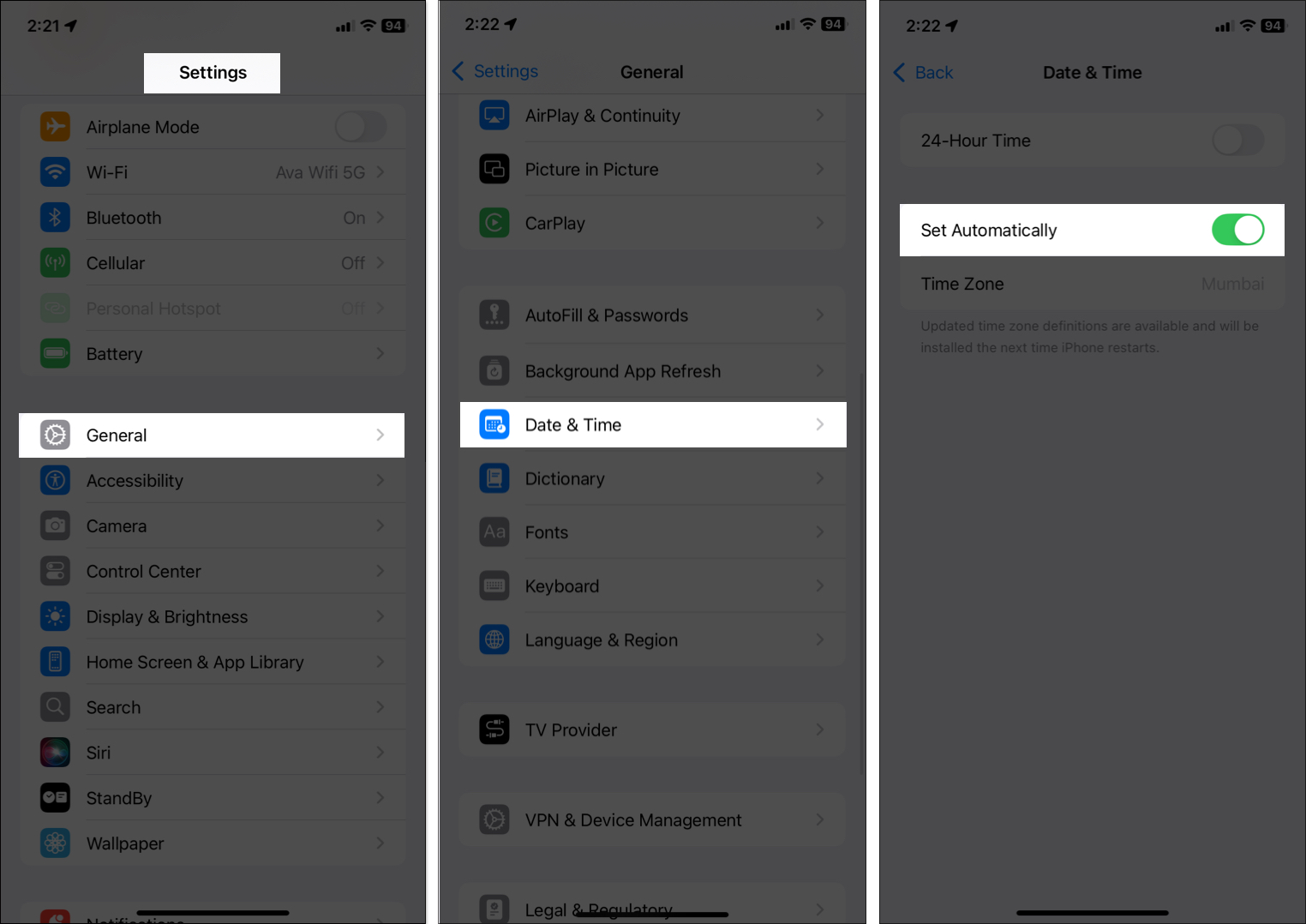
Date & Time Settings Mismatch: If your device’s date and time are different from Apple’s servers, syncing might not work. This can happen after traveling or if you set the time zone by yourself.
Apple ID Issues: Being signed out, using different Apple IDs across devices, or entering incorrect credentials can stop syncing.
Software Glitches or Outdated iOS: Bugs or compatibility issues can disrupt syncing, especially if your device isn’t updated.
Apple Server Outage or Throttling: Sometimes, the issue is on Apple’s end—if their servers are down or temporarily throttling sync (such as after a device restore or large uploads), syncing will pause for everyone.
VPNs, Firewalls, or Network Filters: Security tools like VPNs, custom DNS, or strict firewalls can block iCloud services. Try disabling these if you’re stuck.
Step-by-Step Solutions to Fix “Syncing with iCloud Paused”
Try these solutions in order. Each step addresses a specific cause and includes clarifications to help you along the way.
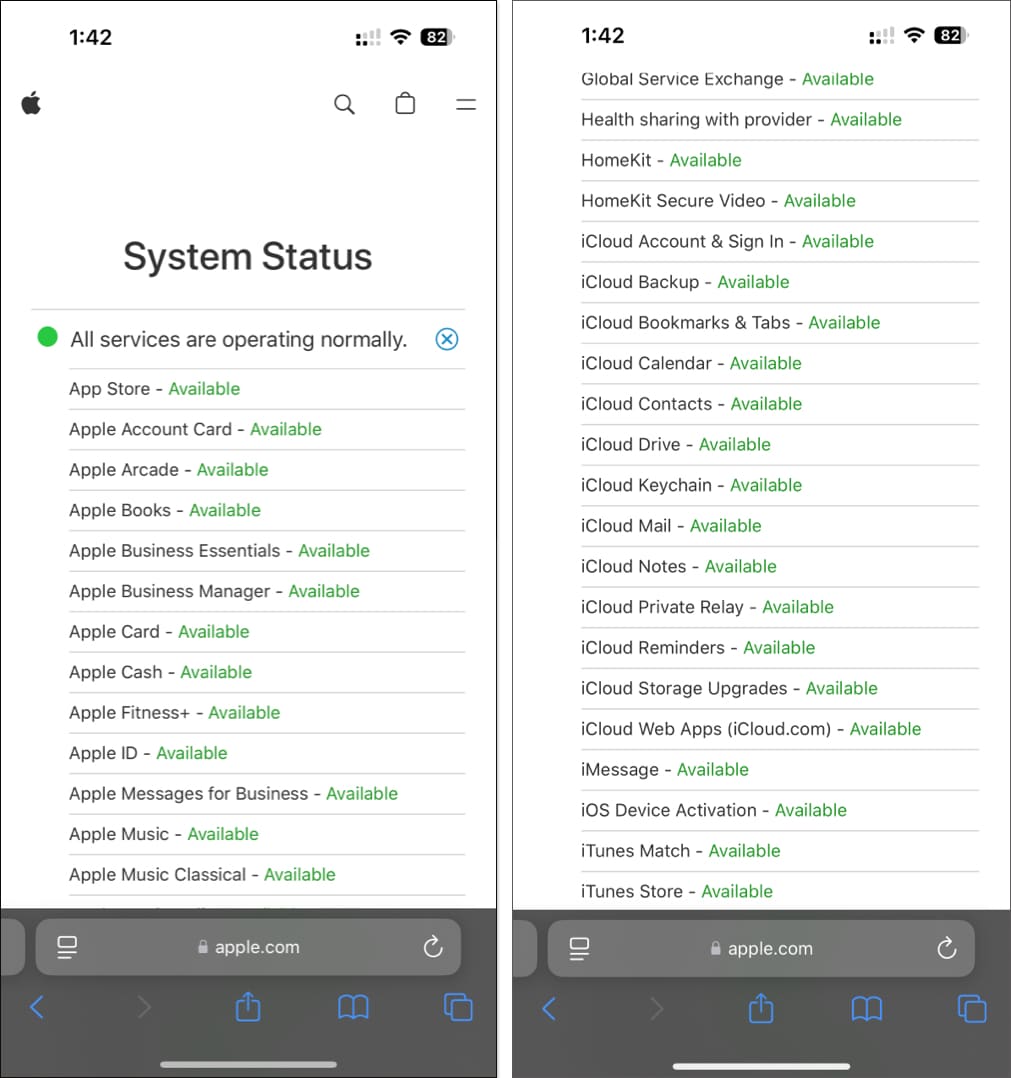
1. Check Apple’s System Status
Before troubleshooting your device, make sure the problem isn’t with Apple’s servers.
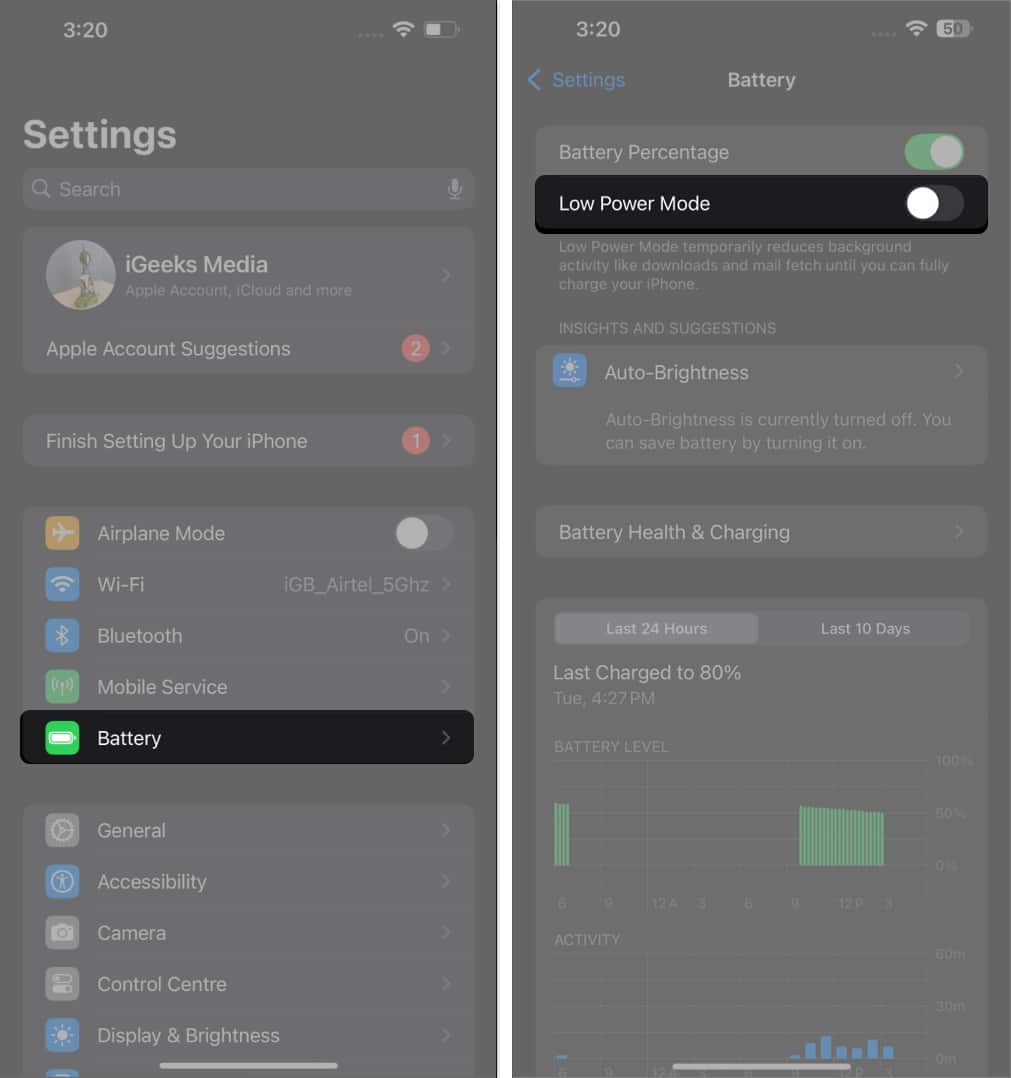
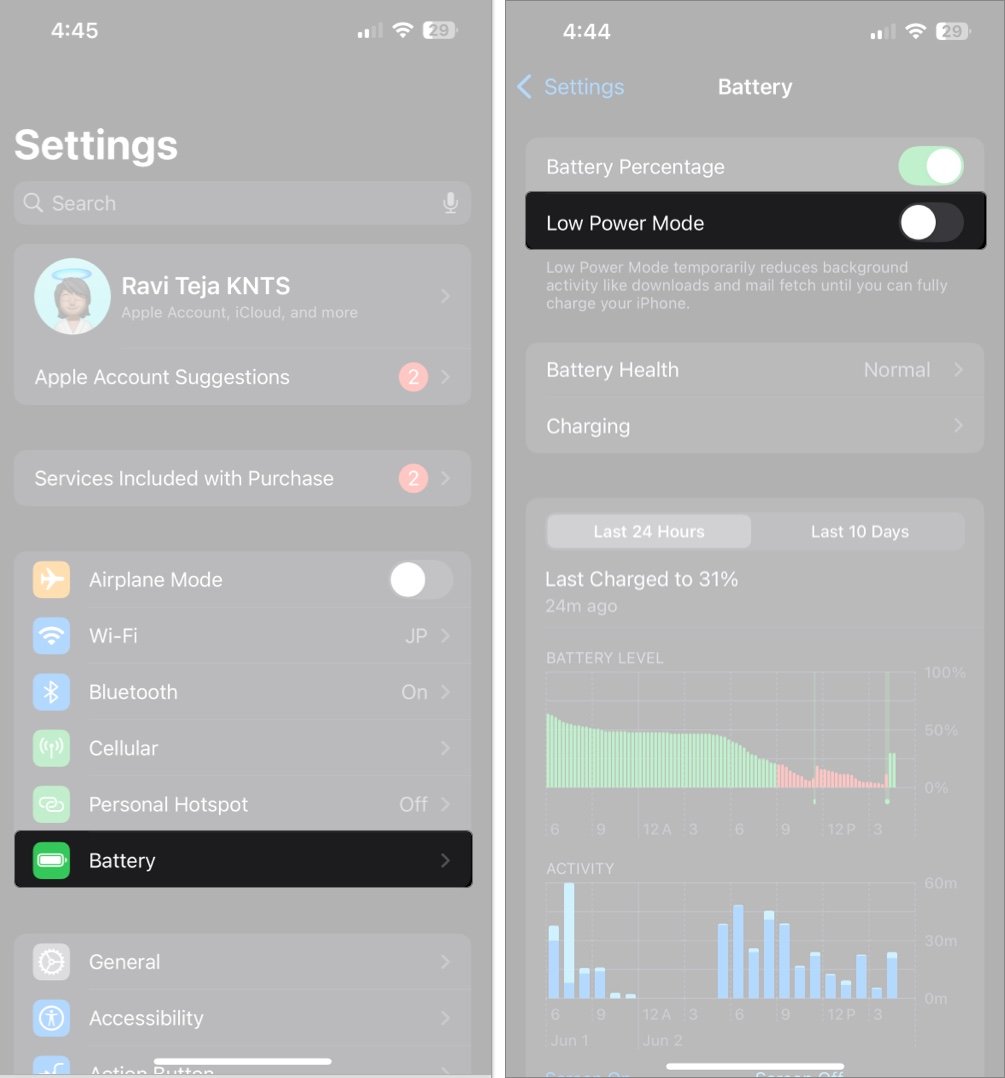
If you were running low on battery power, it’s possible that you enabled the Low Power mode on your iPhone. While it helps conserve your battery, Low Power Mode can sometimes interfere with background tasks, such as syncing. As such, you can try turning it off to see if it helps.
To turn off Low Power Mode:
Settings > Battery > TogglesLow Power Mode.
To turn off Low Data Mode:
For Wi-Fi:Settings > Wi-Fi > Tap the “i” next to your network > Toggleoff Low Data Mode.
Hold the sidebutton and either volume button until the slider appears.
Slide to poweroff, wait 30 seconds, then turn your iPhone back on.
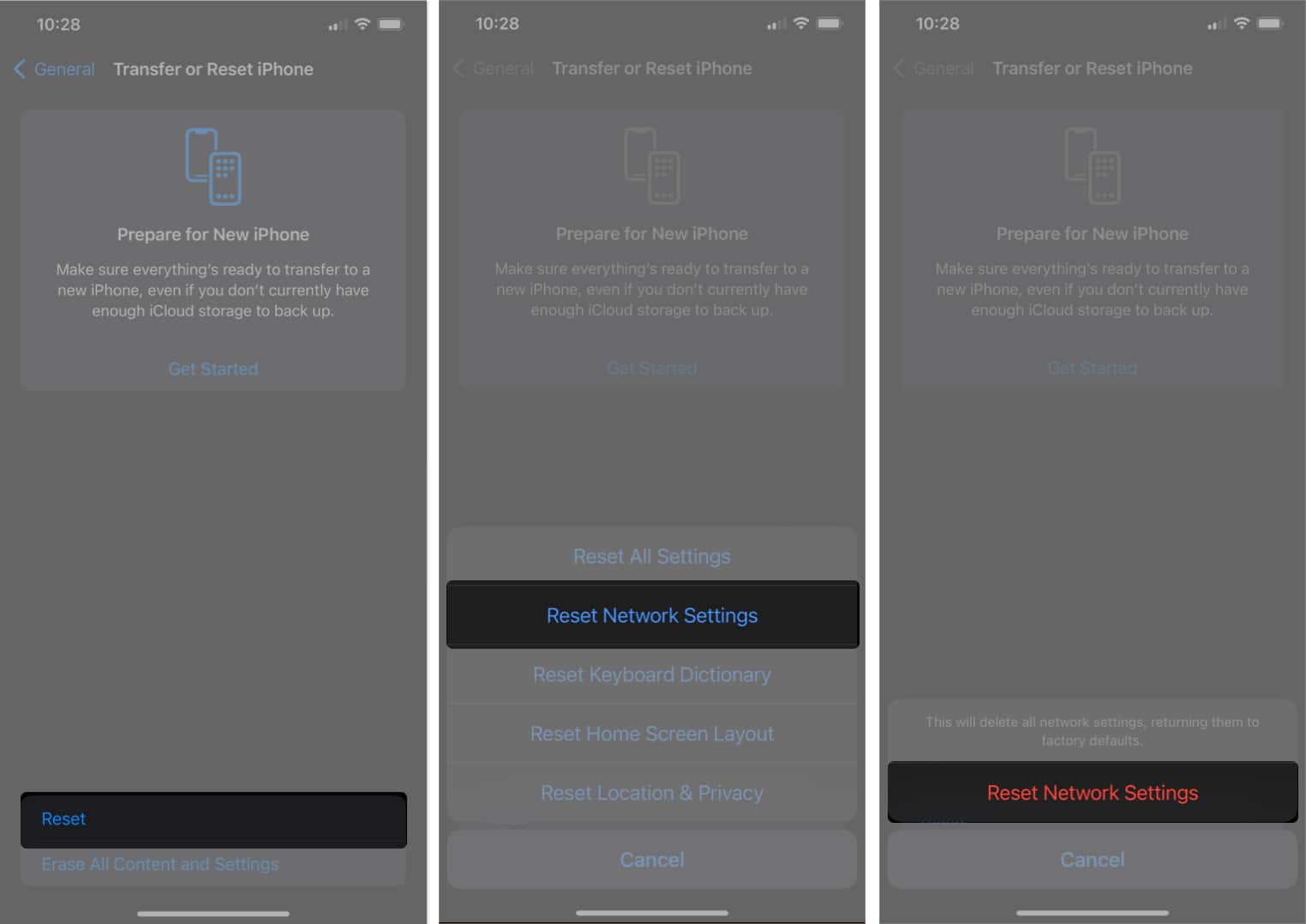
10. Reset Network Settings
If network issues persist, reset your settings to their default values.
Settings > General > Transfer or Reset iPhone > Reset > Reset Network Settings.
Enter your passcode and confirm.
11. Update Your iPhone’s Software
Apple regularly releases updates that address bugs and improve syncing reliability.
Go to Settings > General > SoftwareUpdate.
If an update is available, tap “Download and Install.”
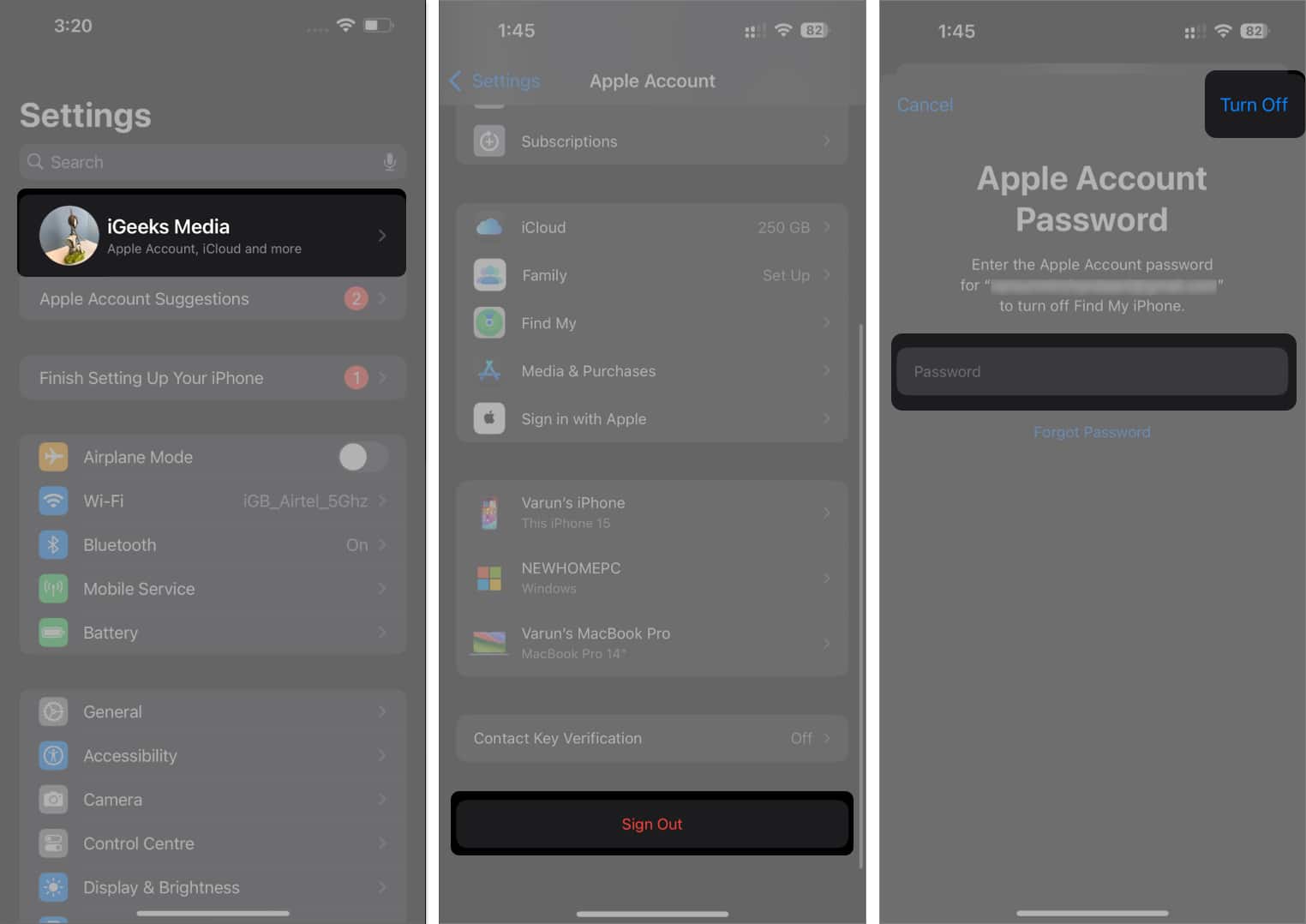
12. Sign Out and Back In iCloud
Refreshing your iCloud account can fix persistent issues.
Settings > [your name] > Scroll down > Tap “Sign Out.”
Enter your Apple ID password and confirm.
Restart your iPhone.
Sign back in with your AppleID.
Advanced Tips and Insider Insights
Here’s what Apple doesn’t tell you—and how to get iCloud syncing again like clockwork.
1. Adopt a Maintenance Mindset:
Set a monthly reminder to check iCloud storage, device sign-in, and system status—especially after major updates or travel. Prevention beats troubleshooting every time.
Monitor All iCloud Services:
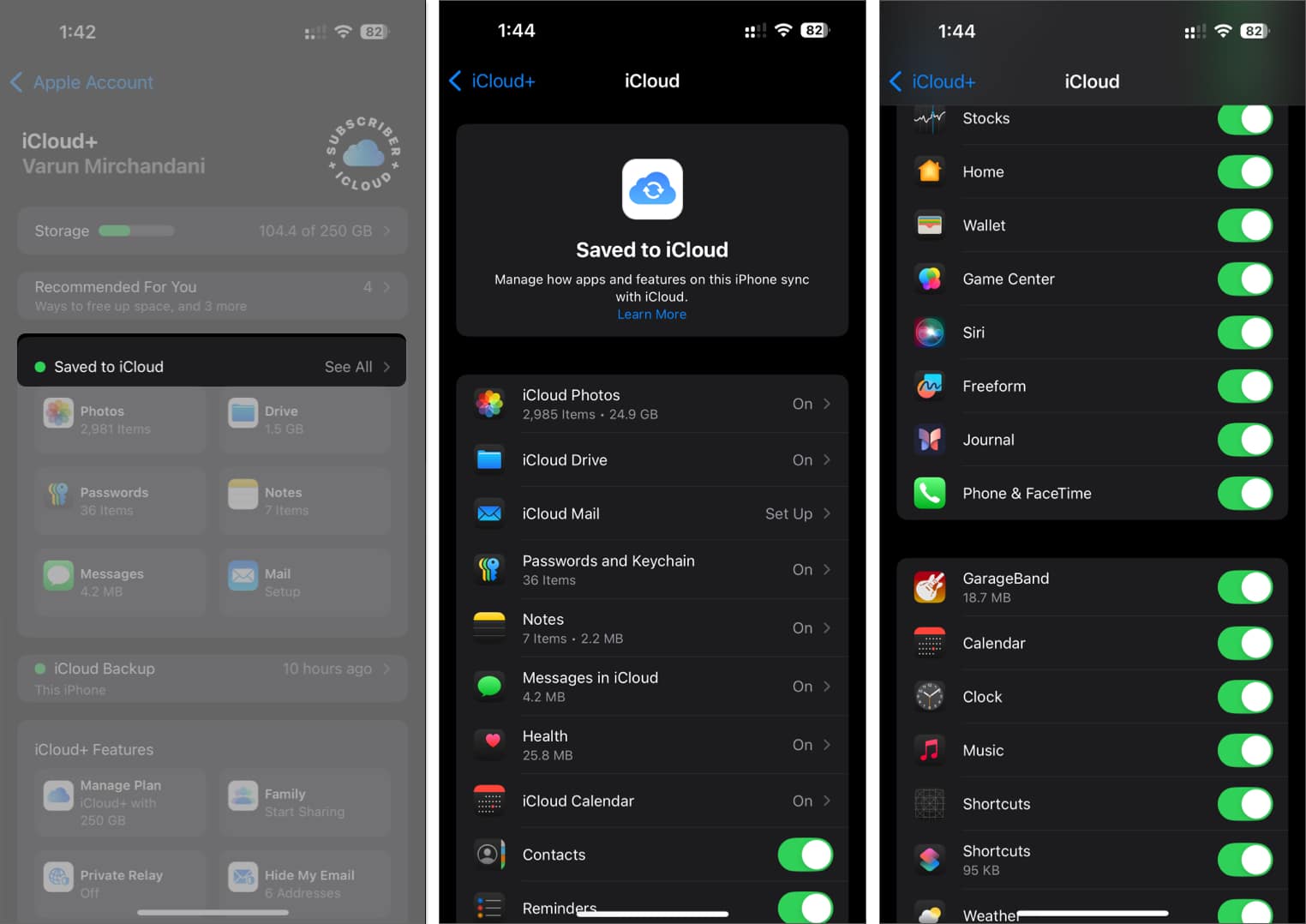
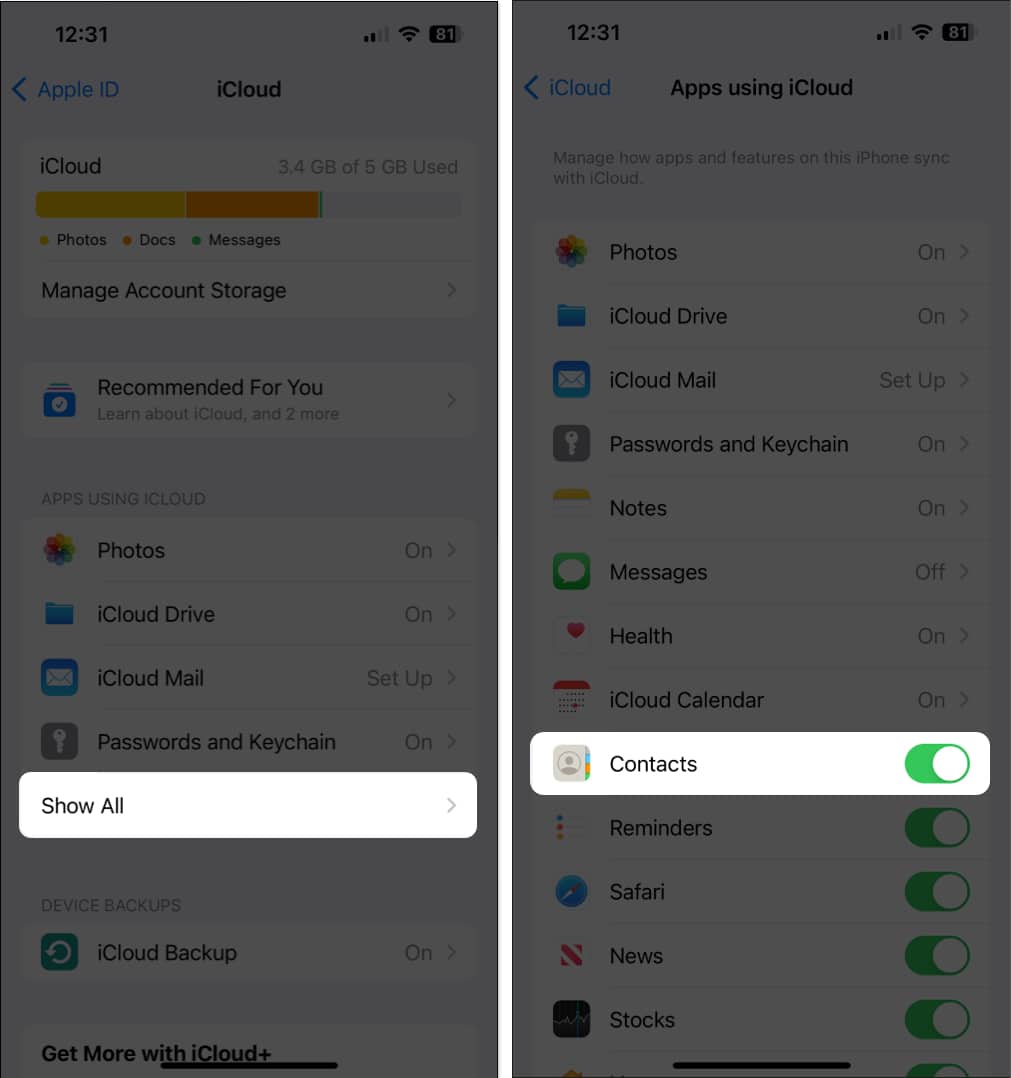
In Settings > [yourname] > iCloud > ShowAll, review all enabled apps. Confirm critical apps (Photos, Contacts, Notes, Reminders, etc.) are turned on and syncing.
2. Understand Apple’s Status Colors:
Green: Normal operation
Yellow: Issue or partial outage
Red: Major outage
Some iCloud features depend on others; if one is down, others may be affected.
3. Plug in for Large Syncs:
After restoring a device or uploading a large amount of data, iCloud may pause or throttle syncing. Plug your device into power and connect to Wi-Fi—then be patient. This is normal, not a sign of trouble.
4. Cross-Device Consistency:
If you use multiple Apple devices, verify your Apple ID, iCloud settings, and the time and date on each one to prevent mismatches.
5. Network Complexity:
If you use VPNs, custom DNS, or strict firewalls (common on work, school, or public networks), they can block iCloud traffic. Temporarily disable them to test syncing.
6. Power User Tip:
Use the iCloud.com web interface to check if your data is actually in the cloud—this can help isolate whether the issue is with your device or iCloud itself.
Troubleshooting Specific Sync Issues
Here’s how to fix common iCloud sync problems across your Apple devices.
1. Messages Not Syncing with iCloud
If your recent messages aren’t appearing on other devices, or you see “Syncing with iCloud Paused” in the Messages app:
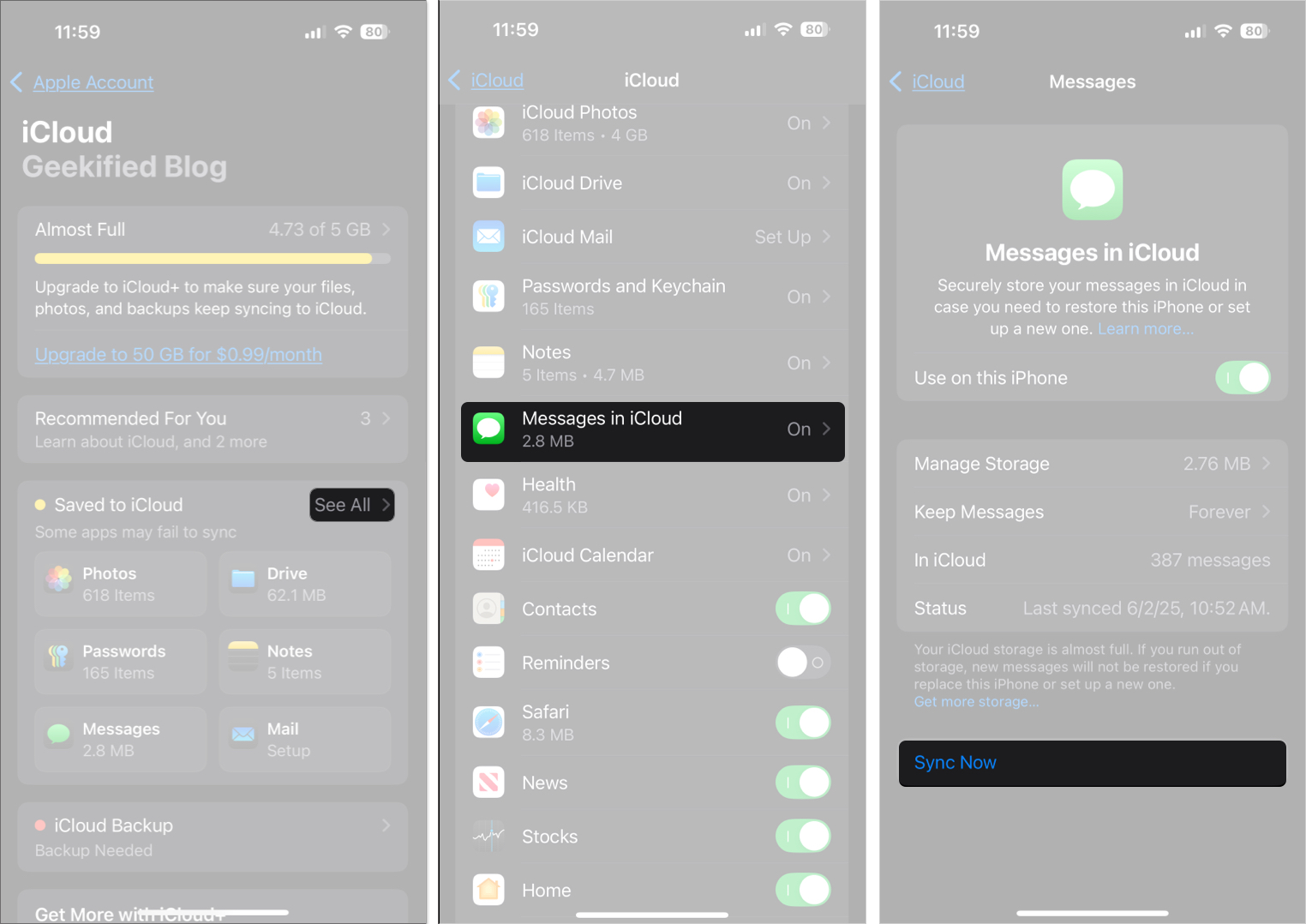
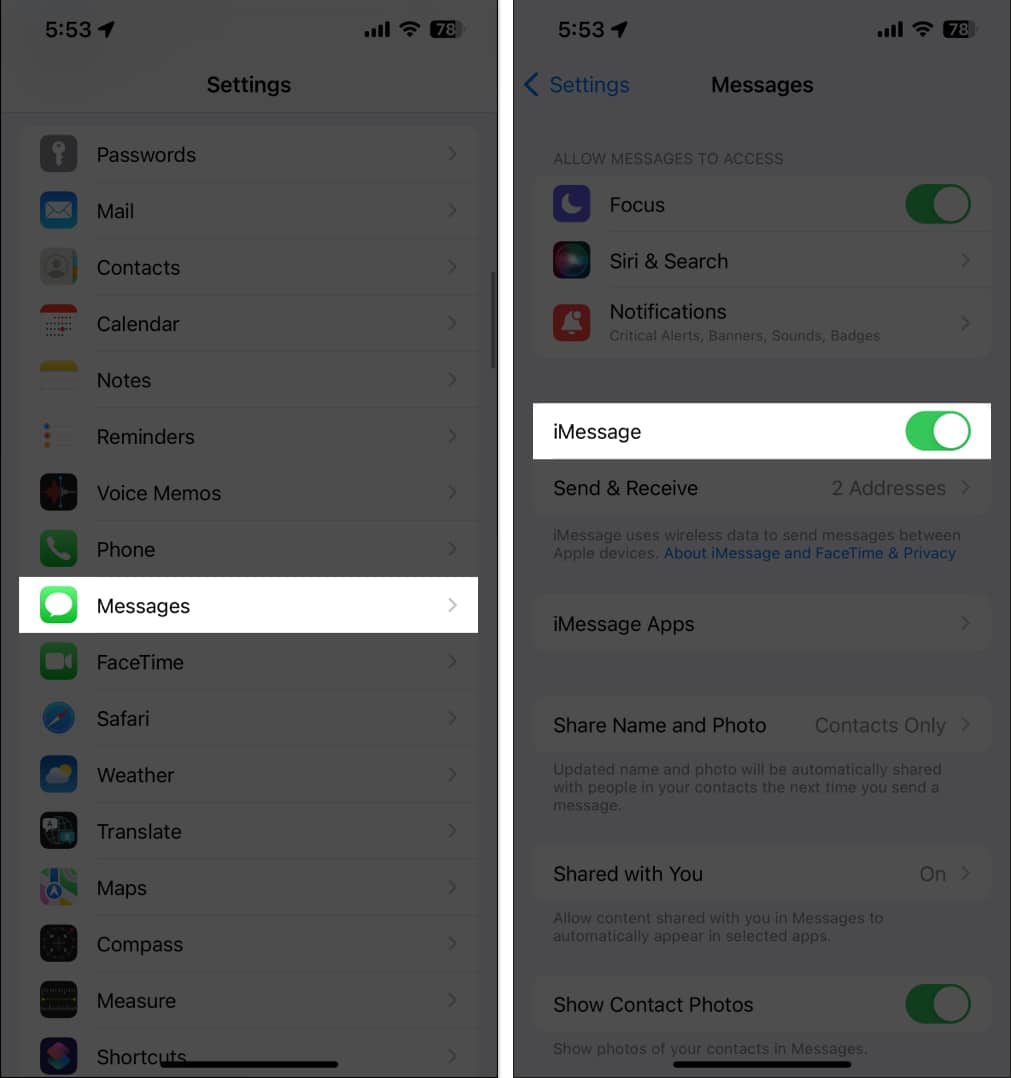
Check if “Messages in iCloud” is enabled: Settings > [yourname] > iCloud > Show All > Messages > Toggleon.
Manually trigger sync: Tap “SyncNow” in Messages in iCloud settings.
Ensure you’re signed in with the same AppleID on all devices.
Turnoff Low Power Mode and ensure a strong Wi-Fi connection.
If issues persist, disable and re-enable Messages in iCloud: Toggleoff, choose to keep messages on your device, then toggle back on and merge.
Example: If you just set up a new iPhone and old messages aren’t appearing, manually triggering sync or toggling Messages in iCloud off and on usually helps.
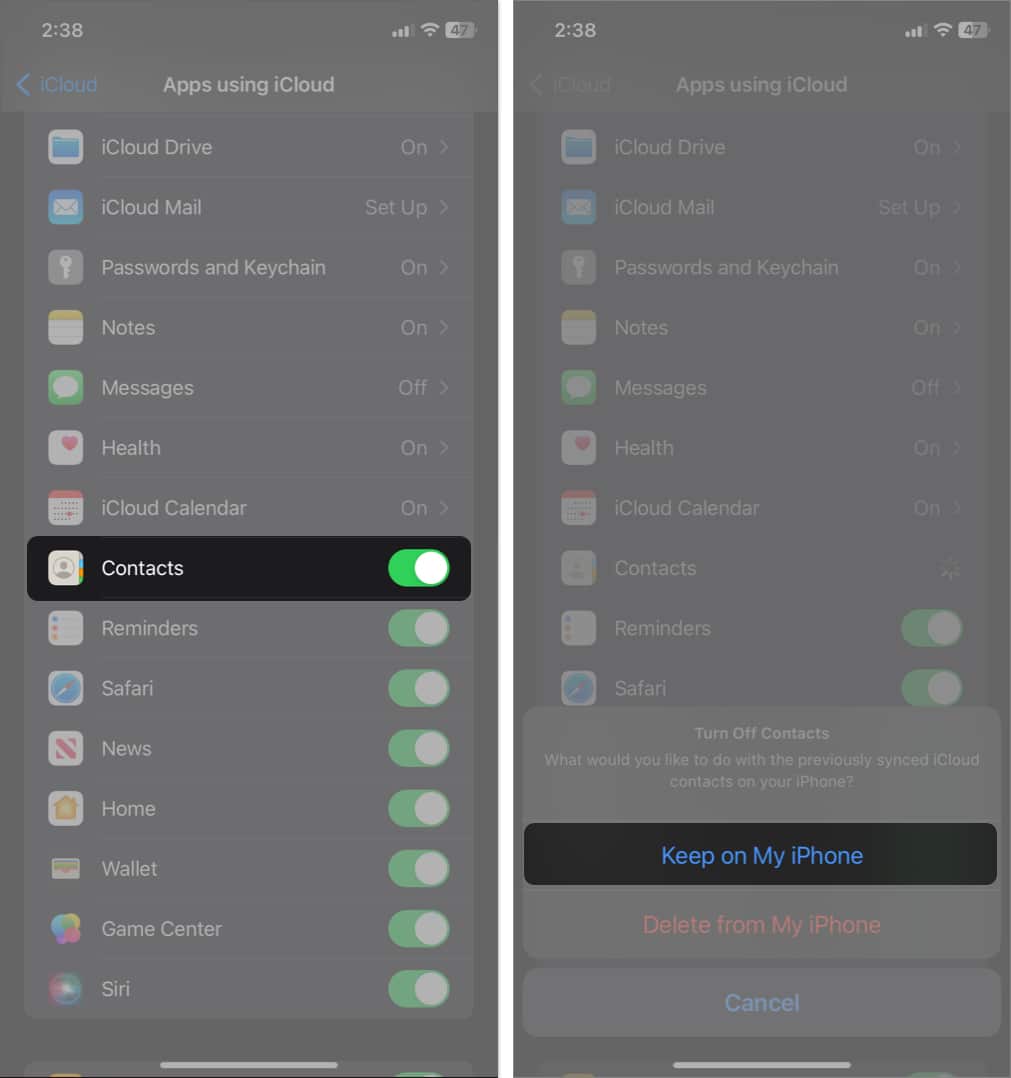
2. Contacts Not Syncing with iCloud
If your contacts aren’t updating or are missing across devices:
Check if Contacts are enabled for iCloud: Settings > [yourname] > iCloud > Show All > Contacts > Toggleon.
Make sure you’re signed in with the same AppleID on all devices.
Refresh Contacts: Open the Contacts app and swipe down to refresh.
Toggle Contacts off and back on in iCloud settings: Choose “KeeponMyiPhone” when prompted, then merge when re-enabling.
Ensure your internet connection is stable and LowPowerMode is off.
Example: If you add a new contact on your iPhone but it doesn’t appear on your Mac, double-check that iCloud Contacts is enabled and try toggling the setting.
3. Photos Not Syncing with iCloud
If your photos are not appearing on other devices or you notice the Photos app showing “Syncing with iCloud Paused”:
Check if iCloud Photos is enabled: Go to Settings > [your name] > iCloud > Show All > Photos > toggle on Sync this iPhone.
Make sure you have enough iCloud storage. Photos take up the most space out of any app. Go to Settings > [your name] > iCloud > Manage Storage to check.
Open the Photos app and scroll to the very bottom. You will see a sync status bar showing how many items are left to upload. If it says “Paused,” tap Resume.
Connect to Wi-Fi and plug your iPhone into a charger. iCloud Photos syncs best when both conditions are met.
If photos are still not syncing, toggle iCloud Photos off, choose Download Photos and Videos when prompted, then turn it back on and select Merge.
Example: If you took 200 photos on a trip and none of them are showing on your Mac, the most common reason is either full iCloud storage or the Photos app being paused due to Low Power Mode kicking in overnight.
When to Contact Apple Support?
If you’ve tried all these steps and your iCloud syncing is still paused—or if specific data like messages or contacts remain unsynced—visit Apple Support for personalized help.
Adopt a maintenance mindset: Treat iCloud as a system that benefits from regular checkups. Stay proactive, and you’ll rarely be caught off guard by syncing issues again.
Get Your iCloud Syncing Back on Track
It can be annoying to see the “Syncing with iCloud Paused” message, but most issues are easy to solve with these steps. Take care of your device, check your iCloud settings, keep your software updated, and understand why each step is important. This will help your Apple devices sync without problems. If you still need help, you can contact Apple Support.
FAQs
How long does iCloud syncing usually take?
It depends on how much data needs to sync. Small changes like a new contact or note sync within seconds. Large uploads like photos or a full backup can take anywhere from a few minutes to several hours depending on your internet speed and how much data is involved.
Why does iCloud keep pausing repeatedly?
This usually points to an underlying issue that hasn’t been fully resolved, like a storage limit you keep hitting, an unstable Wi-Fi connection, or Low Power Mode turning on automatically when your battery drops. Check all three first before trying deeper fixes.
Does iCloud sync without Wi-Fi?
Yes, iCloud can sync over cellular data but it is slower and may be restricted if you have Low Data Mode enabled. For large syncs like photos or backups, Wi-Fi is strongly recommended
Will I lose data if iCloud sync is paused?
No. Your data stays safe on your current device. It just won’t appear on your other Apple devices until syncing resumes. Once the issue is fixed everything catches up automatically.
Does iCloud sync in the background?
Yes, iCloud syncs in the background as long as your device is connected to the internet and not in Low Power Mode. Locking your screen does not stop syncing.
Varun is a passionate technology journalist with over 7 years of experience and a knack for diving deep into everything Apple, PC hardware, and gaming. With an engineering degree in hand, he brings a solid technical foundation to his work, ensuring accuracy and insight in every piece he writes. Varun also contributes to GameRant, Guiding Tech, and The Mac Observer.