FaceTime Like a Pro
Get our exclusive Ultimate FaceTime Guide 📚 — absolutely FREE when you sign up for our newsletter below.

FaceTime Like a Pro
Get our exclusive Ultimate FaceTime Guide 📚 — absolutely FREE when you sign up for our newsletter below.


In-app purchases can quickly lead to unwanted charges, especially when children use your device. Here’s how to block purchases completely or add extra approval and authentication controls.
I’ve had more than one reason to keep in-app purchases under control on an iPhone. A game can make a purchase look like a harmless upgrade, or a child using the device can tap through a payment prompt without realizing that it involves real money.
The good news is that Apple gives you a simple way to block in-app purchases completely. In this guide, I’ll show you how to disable in-app purchases on an iPhone or iPad, along with other ways to prevent unwanted purchases, including using a password and Ask to Buy for children.
In-app purchases are things you buy from inside an app after downloading it. They can unlock additional features, content, subscriptions, virtual items, or other extras.
For example, a game might let you buy virtual currency, while a photo-editing app could offer a premium feature through an in-app purchase.
There are three common types of in-app purchases:
Apple changed the location of the in-app purchase restriction in iOS 27. First, ensure that Screen Time is enabled on your iPhone to prevent unintentional or unauthorized purchases from the App Store and other Apple services.
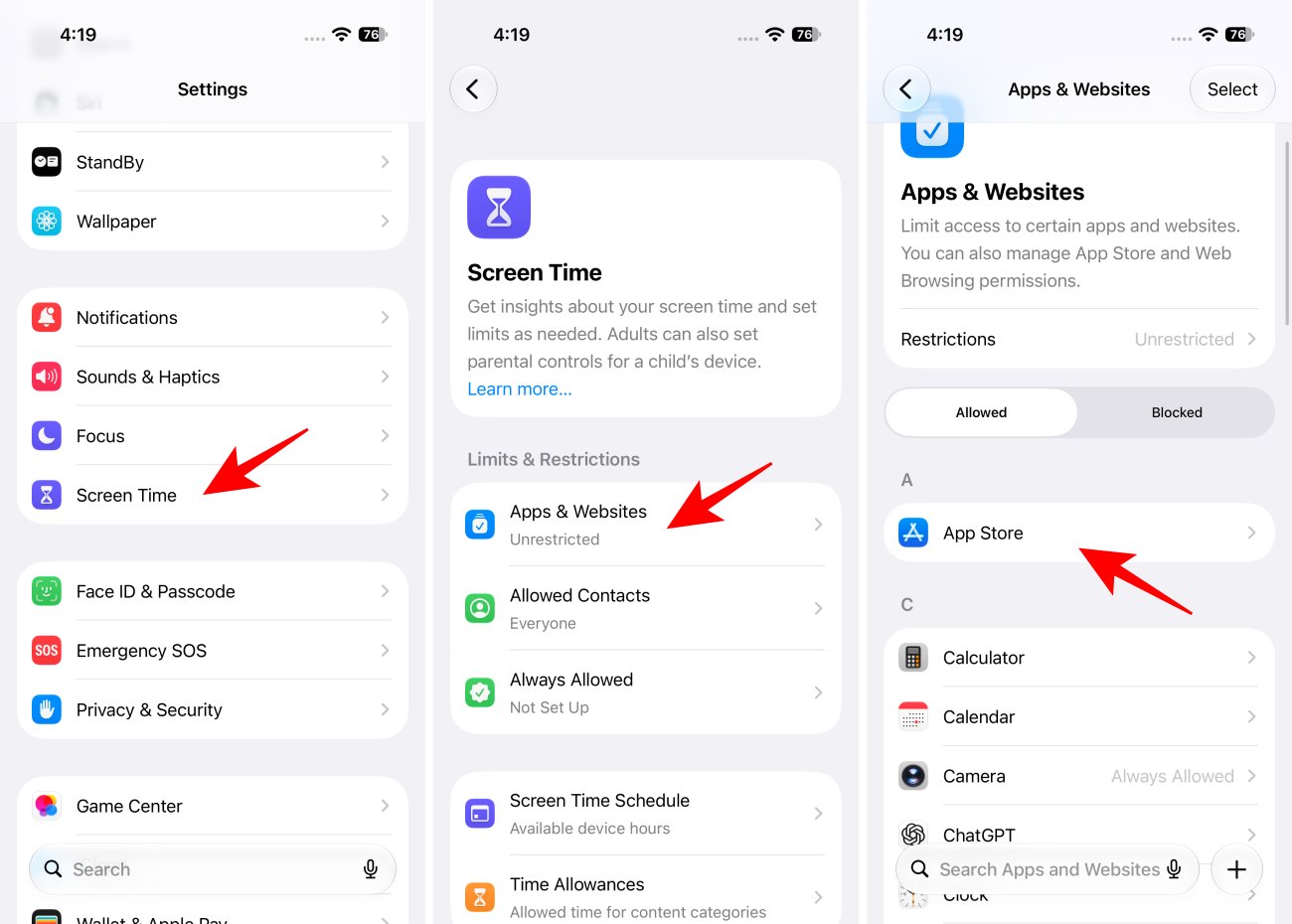
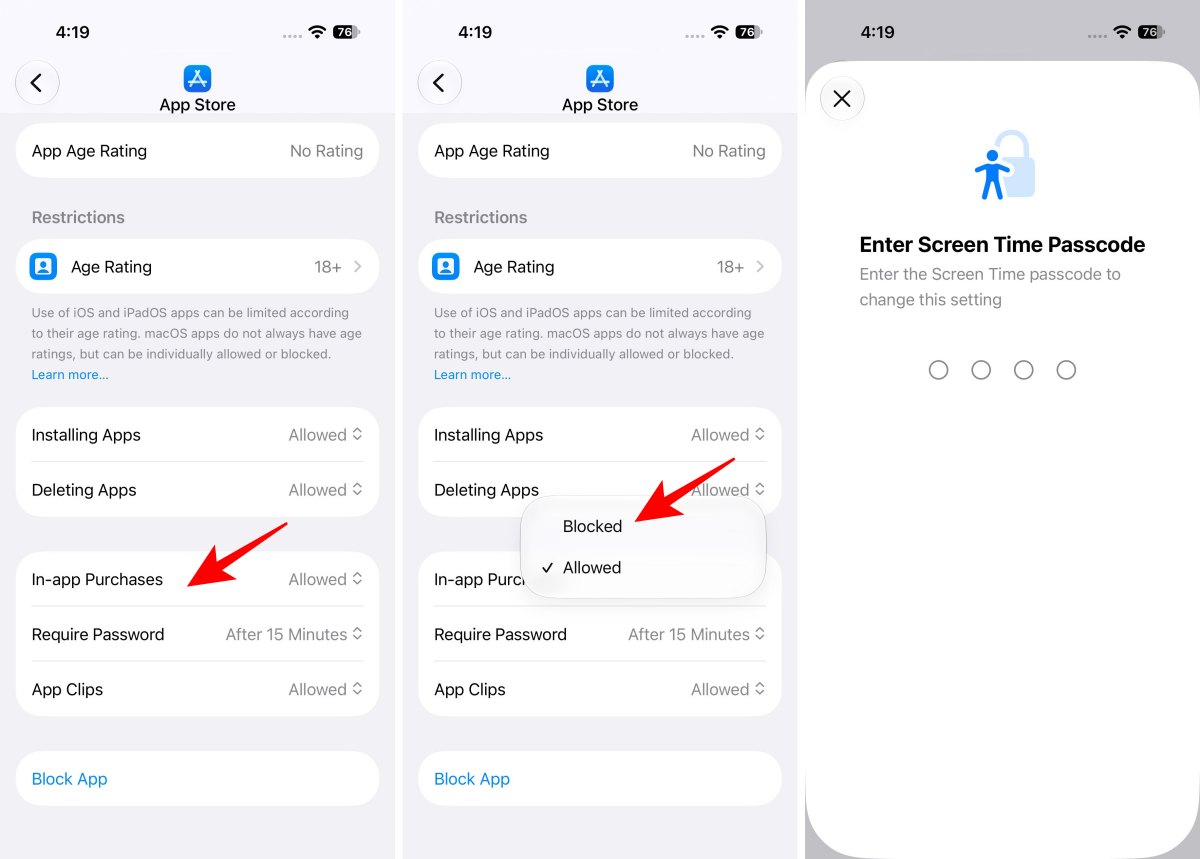
That’s it! Once you select Blocked, in-app purchases are restricted on that device. Now, whenever someone tries to make a purchase on the iPhone or iPad, they’ll get an error message. This helps keep those impulse buys in check.
Note: If you don’t see the Apps & Websites option, make sure you’re running iOS 27 or later and that Screen Time is enabled. Apple has redesigned its parental controls in iOS 27. In previous versions, you needed to go to Content & Privacy Restrictions > iTunes & App Store Purchases.
If your child has their own iPhone or iPad, I recommend using Apple’s Family Sharing and Ask to Buy features rather than simply disabling in-app purchases.
With Ask to Buy, your child can request eligible purchases or downloads, and you can review the request before deciding whether to approve it. Apple has integrated these controls into the updated iOS 27 parental-control system.
If your child is part of your Family Sharing group, you can configure purchase approval from your own iPhone or iPad.
To use this feature, ensure Family Sharing is set up with your child, then follow these steps:
After you enable it, your child can send a request when they want to make an eligible purchase or download. Request notifications appear in Messages. You can then review the request and approve or decline it.
Important: Apple’s new iOS 27 parental controls work best when the devices in your Family Sharing group are updated to the latest software versions.
If you don’t want to completely block purchases, another option is to require authentication before purchases are made. I use this method because I occasionally make in-app purchases myself, but I don’t want someone else to buy subscriptions using my iPhone without my knowledge.
The important part is to avoid sharing the password or authentication method that authorizes purchases.
Here is how to set this up:
If you’re primarily trying to prevent a child from buying something while using your own device, requiring authentication for purchases can be more practical than completely disabling purchasing.
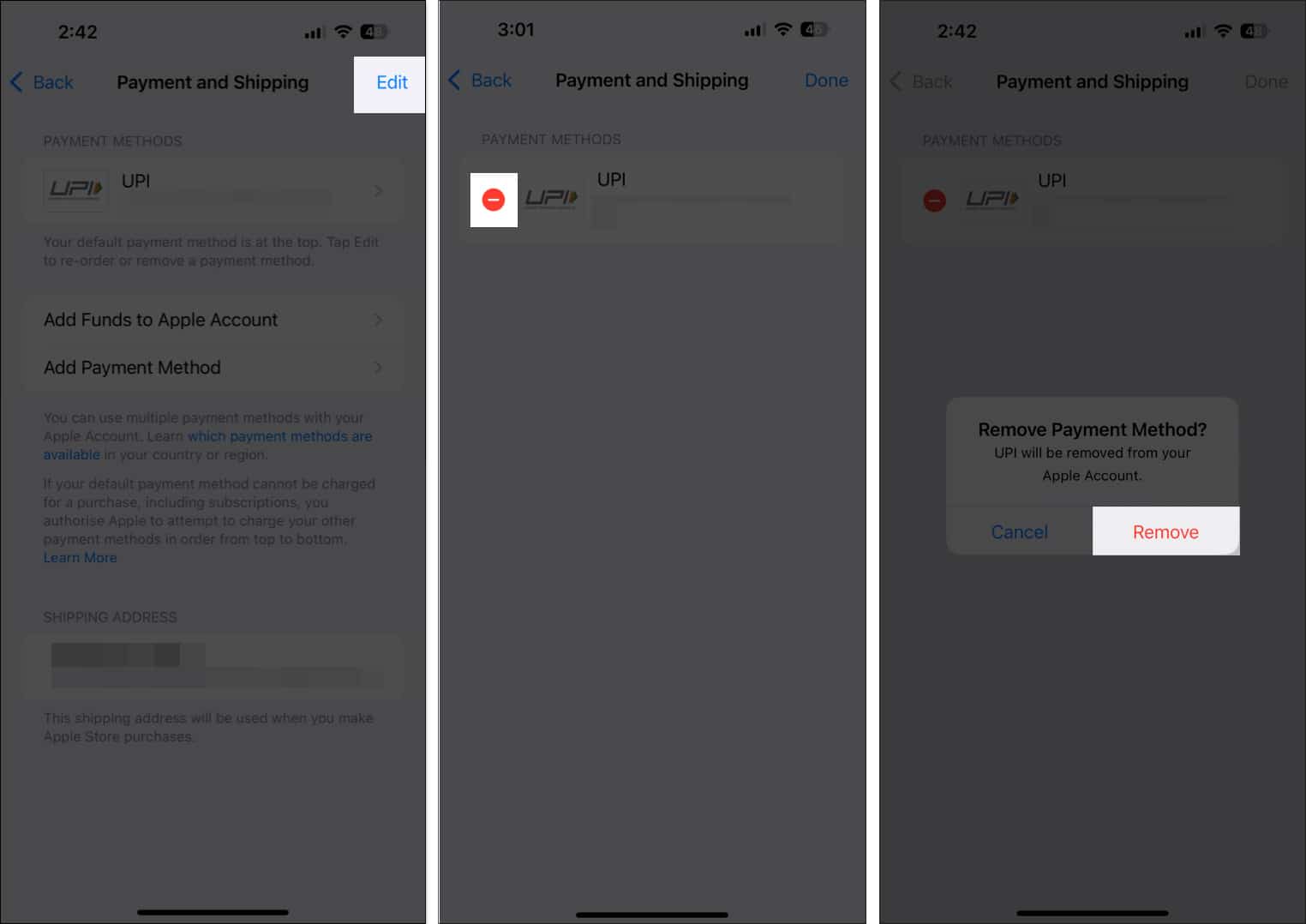
Another effective way to prevent kids from making In-app purchases on the App Store is to remove the payment method. Here’s how:
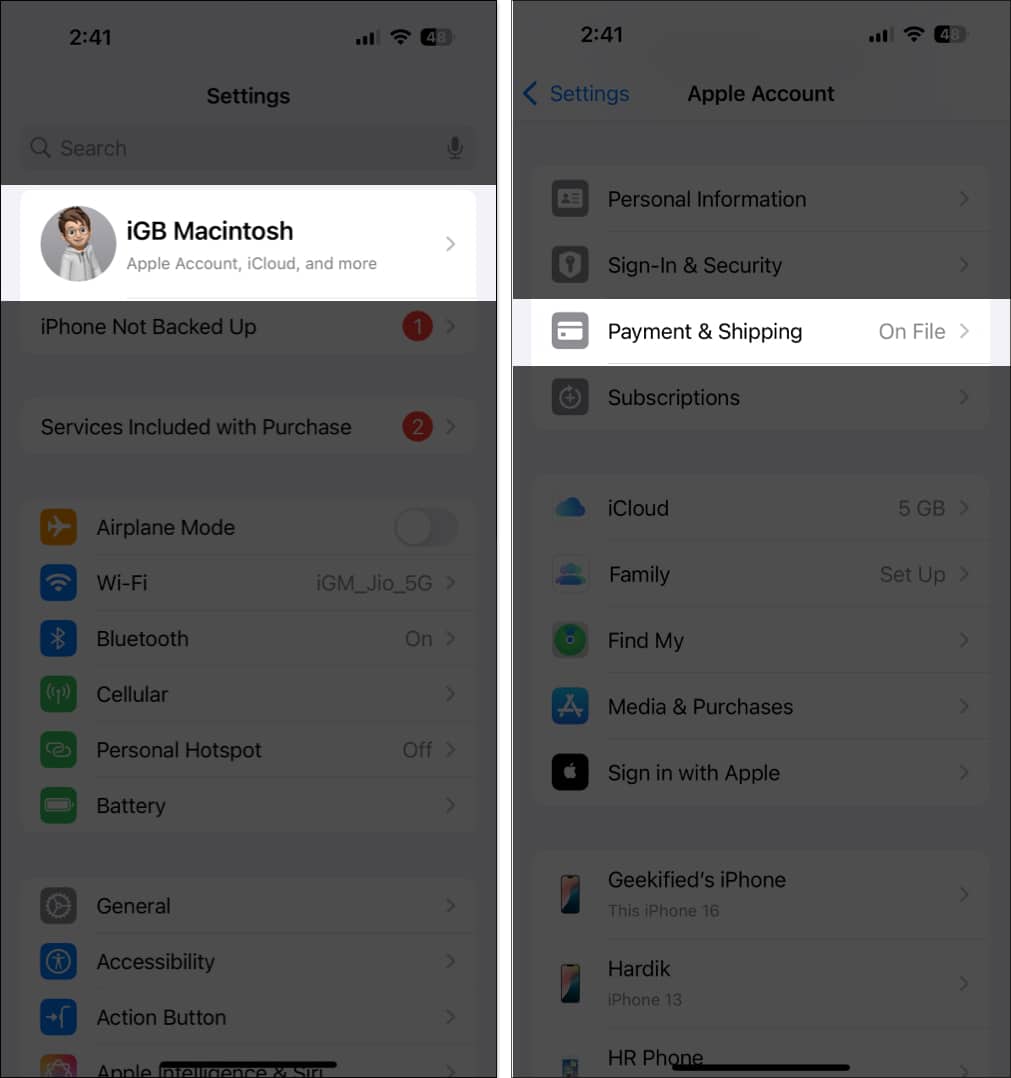
With these steps to turn off In-app purchases on your iPhone or iPad, you can prevent kids or anyone else with access to your device from making unnecessary purchases—and even keep your own impulse buys in check. You can also use the other methods we covered to restrict In-app purchases on your device or your child’s. Hope you found this guide helpful!
FAQs
You can’t hide In-app purchases from your purchase history on an iPhone, but you can hide apps from your purchase list in the App Store. To learn how, check our guide on hiding App Store purchases.
To cancel an app purchase, go to Settings > tap on Apple ID > Subscription > select the subscription you want to cancel > tap on Cancel Subscription.
Yes. Apple provides purchase history so you can review purchases made through your Apple Account. This is especially useful if you’re trying to identify an unexpected charge or check whether a family member made a purchase.
Also read: