
FaceTime Like a Pro
Get our exclusive Ultimate FaceTime Guide 📚 — absolutely FREE when you sign up for our newsletter below.

FaceTime Like a Pro
Get our exclusive Ultimate FaceTime Guide 📚 — absolutely FREE when you sign up for our newsletter below.


iOS warns before downloading large apps over cellular to protect your data allowance, but the limit is adjustable. Here is how to change the App Store setting on iPhone and iPad.
Cellular data plans for iPhones are no longer expensive, but they still come in limited plans. To ensure you don’t exhaust your plan, Apple sends an alert every time you download an app over 200MB using cellular data on your iPhone or iPad.
Though a bit thoughtful, this alert becomes unnecessary if you have an unlimited data plan. Fortunately, you can change App Store settings and get rid of those alert messages for good. Let me show you how.
To download heavy apps over cellular data without an alert message, you must make a minor change in the App Store settings.
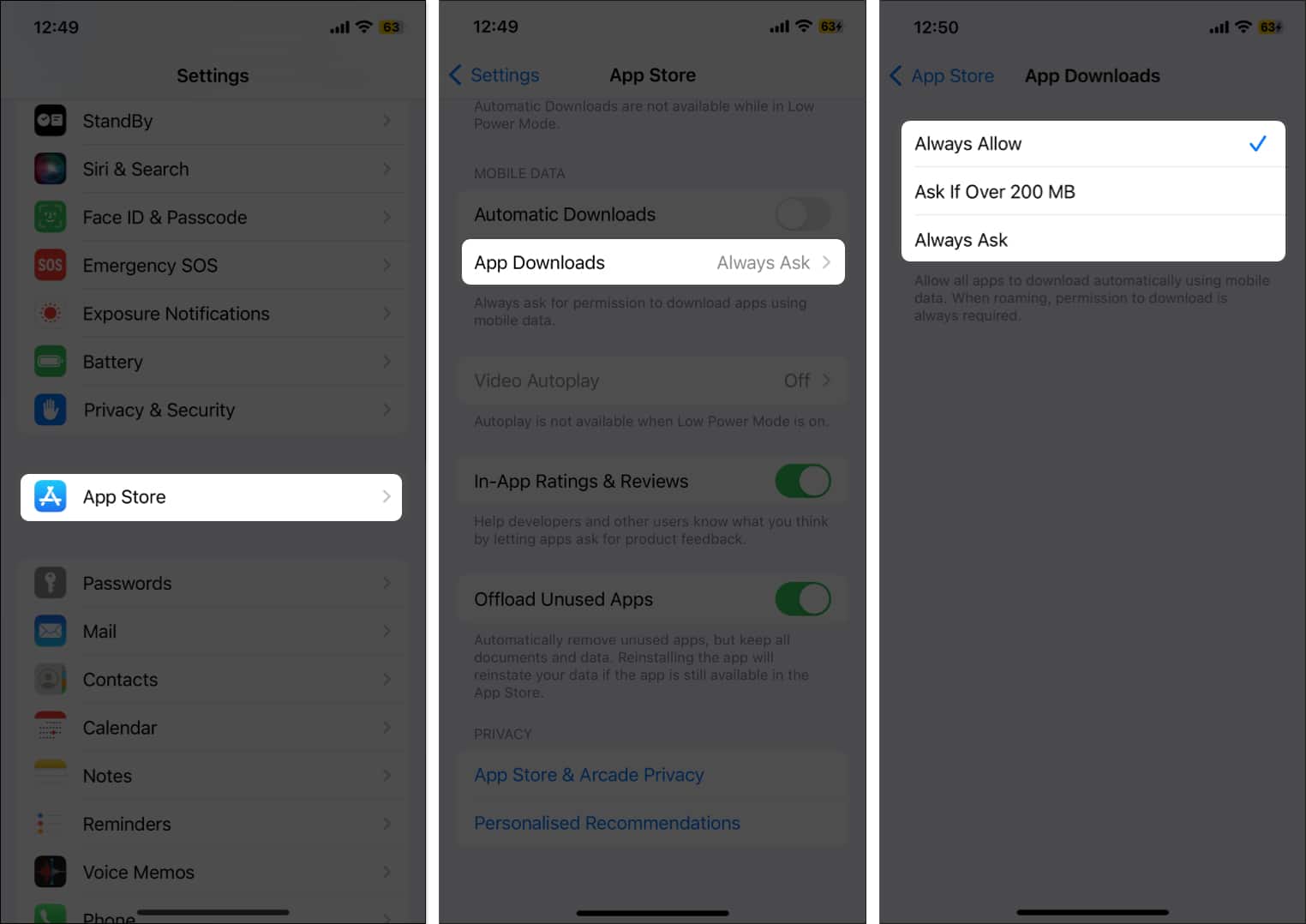
Yes, there is also an Always Ask option. However, this default option triggers the alert message in the first place.
So, if you are not worried about losing data, you can select Always Allow. Otherwise, it’s better to choose one of the other two options.
You can also turn off cellular data for specific apps on your iPhone or iPad to save mobile data and use it later to download apps if needed.
Enjoy unrestricted downloads…
This was all about allowing your iPhone to download apps over 200MB using cellular data. Hopefully, you’ll now be able to easily download apps without any restrictions.
However, it is important to exercise caution and be mindful of your data usage to avoid unexpected charges on your mobile data bill.
Does this post answer your query? I’d love to hear from you in the comments below. Till then, you can check out this post:












