How to Change Fonts on iPhone: Easy Tips Without Jailbreaking
Want to personalize your iPhone? This complete guide shows you how to change font style, adjust text size, and install custom fonts - No jailbreak required.
Key Takeaways:
- The Main Limitation: You cannot change the default system font on iOS, but you can install new fonts for supported apps.
- System-Wide Adjustments: While you can’t change the font style, you can adjust text size and boldness system-wide for readability.
- In-App Customization: Apps like Pages, Keynote, and Mail allow you to change fonts and text styles within them.
- Installing Custom Fonts: Install custom fonts for use in compatible apps using dedicated font apps from the App Store.
- Managing Fonts: Manage or remove installed custom fonts at any time via the Settings app to revert to default.
Changing the font on your iPhone can make your device feel more personal and easier to read. Unfortunately, Apple doesn’t let you change the system-wide font, but you can still tweak it in specific apps, adjust text size, or use third-party apps for more options. This article walks you through all the safe and easy ways to change the font on your iPhone.
Table of Contents
- Why You Might Want to Change Fonts on iPhone
- Understanding Font Limitations in iOS
- How to Change Font Size in iPhone Settings
- How to Use Fonts in Notes, Pages, and Mail
- How to Install Custom Fonts on iPhone
- How to Use Custom Fonts in Third-Party Apps
- Best Font Apps for iPhone in 2025
- Troubleshooting Font Installation Issues
- How to Manage and Remove Fonts on iPhone
- How to Revert to the Default Font
- Final Thoughts
Why You Might Want to Change Fonts on iPhone
Fonts play a big role in how you interact with your iPhone. Here are some reasons to customize them:
- Personalization: A unique font can reflect your style, making your iPhone feel like yours.
- Readability: Larger fonts can make text clearer and easier to read.
- Creativity: Custom fonts in apps like Pages, Mail, or Notes let you create eye-catching documents or messages.
- Accessibility: Bold font style can help people with dyslexia, low vision, or reading difficulties.
Keeping this in mind, Apple offers text accessibility settings and app-specific font customization.
Understanding Font Limitations in iOS
Before proceeding, it is worth noting that iPhone does not allow you to change the default font (such as menu or notification fonts) unless you have jailbroken the device. Apple uses its own font, San Francisco (SF Pro), for a consistent look across the iPhone.
However, there are several ways to adjust font size, weight, and style in settings or specific apps, and you can install custom fonts for use in supported apps like Pages, Keynote, Notes, or Mail.
In the next section, I’ll share safe, non-jailbreak methods to customize your iPhone’s fonts.
How to Change Font Size in iPhone Settings
The easiest way to tweak fonts on your iPhone is by adjusting the text size in the Settings app. This changes the font size system-wide, in most Apple apps (like Messages, Notes, and Mail), and some third-party apps that support Dynamic Type.
Here’s how to do it:
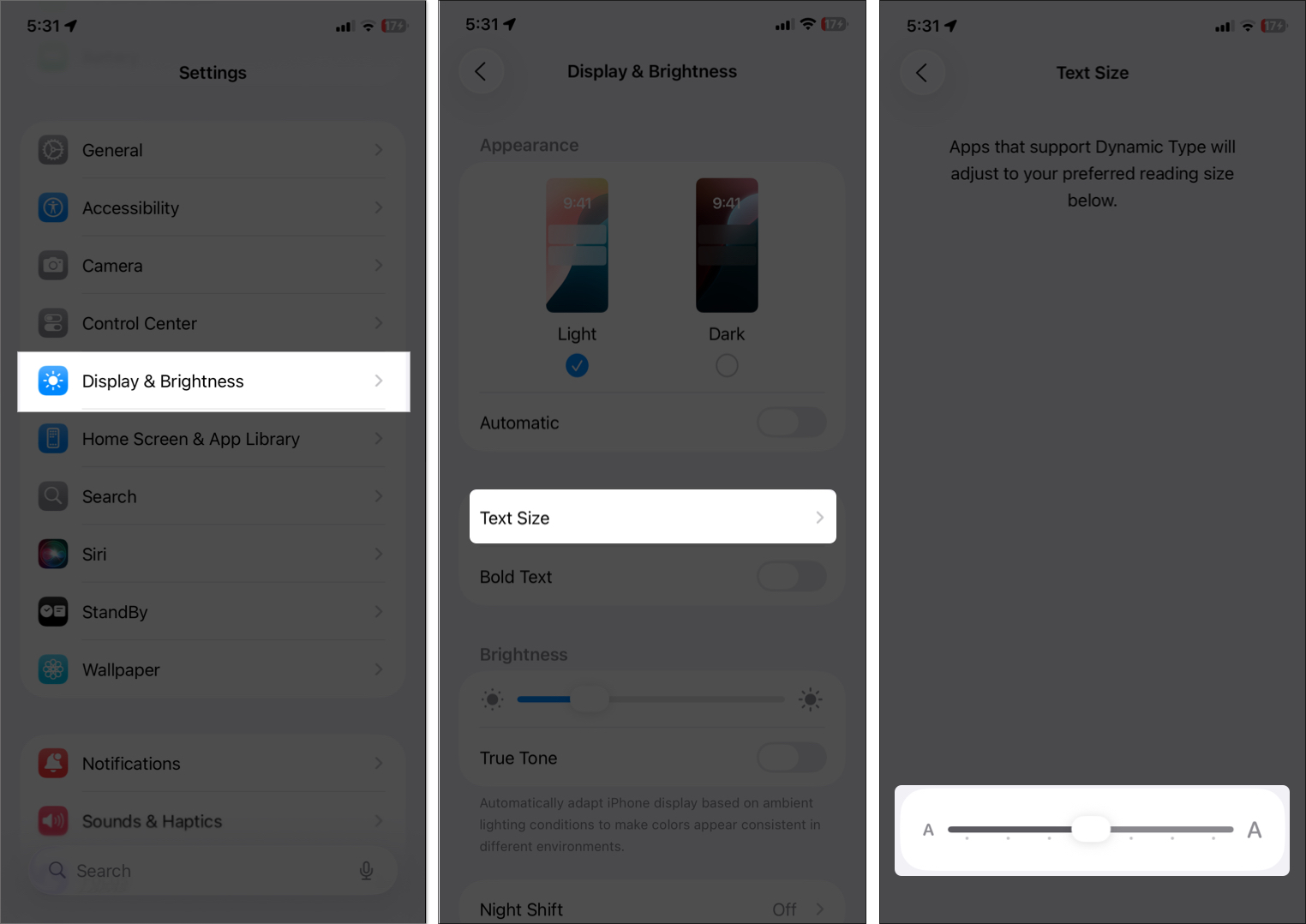
- Open the Settings app on your iPhone.
- Tap Display & Brightness.
- Select Text Size.
- Use the slider to make the text larger or smaller. You’ll see a preview of how the text will look.
- Tap Back to save your changes.
This method doesn’t change the font style (it stays as SF Pro), but it makes text easier to read. Changes apply instantly to supported apps.
How to Make Text Bold and Adjust Display Contrast
For more control, you can make text bolder or use accessibility features:
Enable Bold Text:
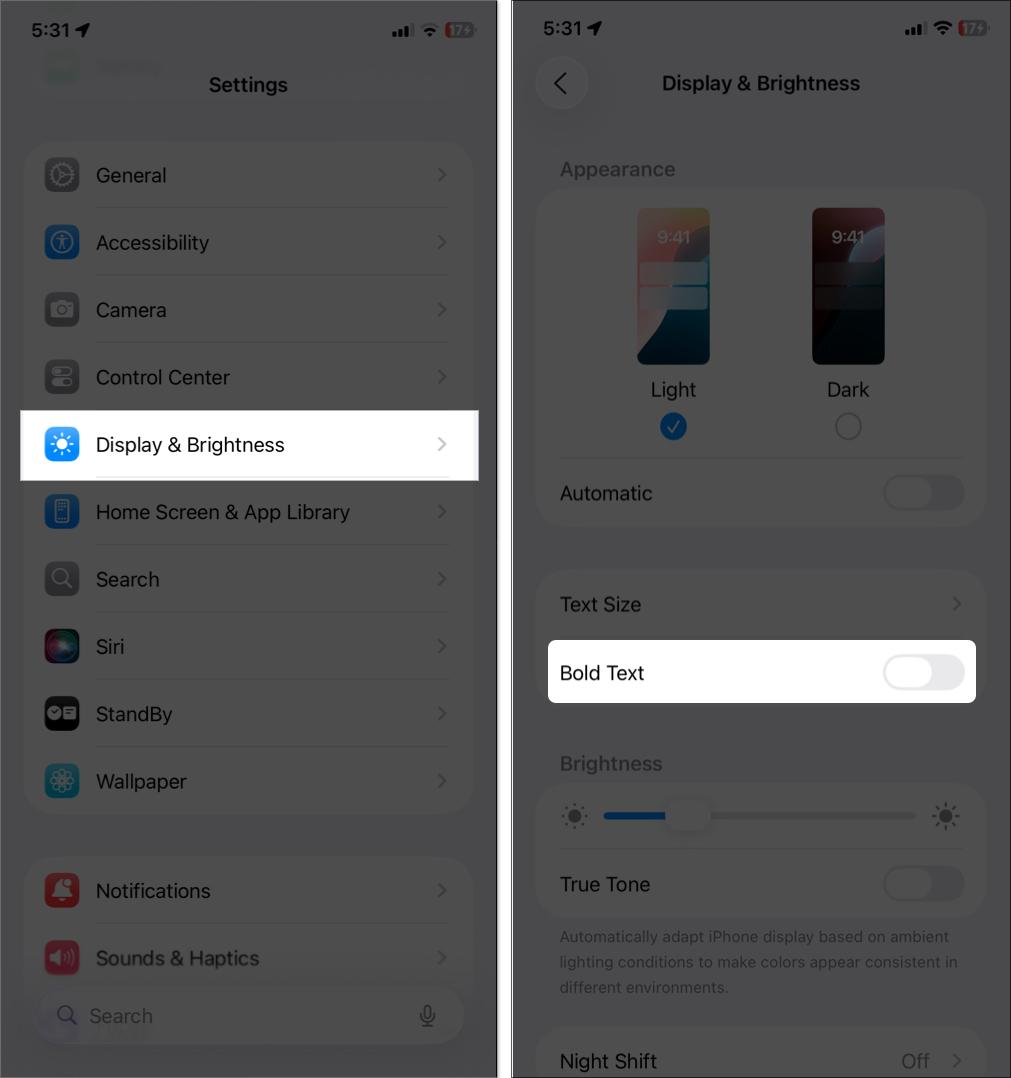
- Go to Settings > Display & Brightness.
- Toggle on Bold Text.
Your iPhone will apply the changes instantly. This makes all system text (like app names and menus) bolder for better readability.
Use Accessibility Options:
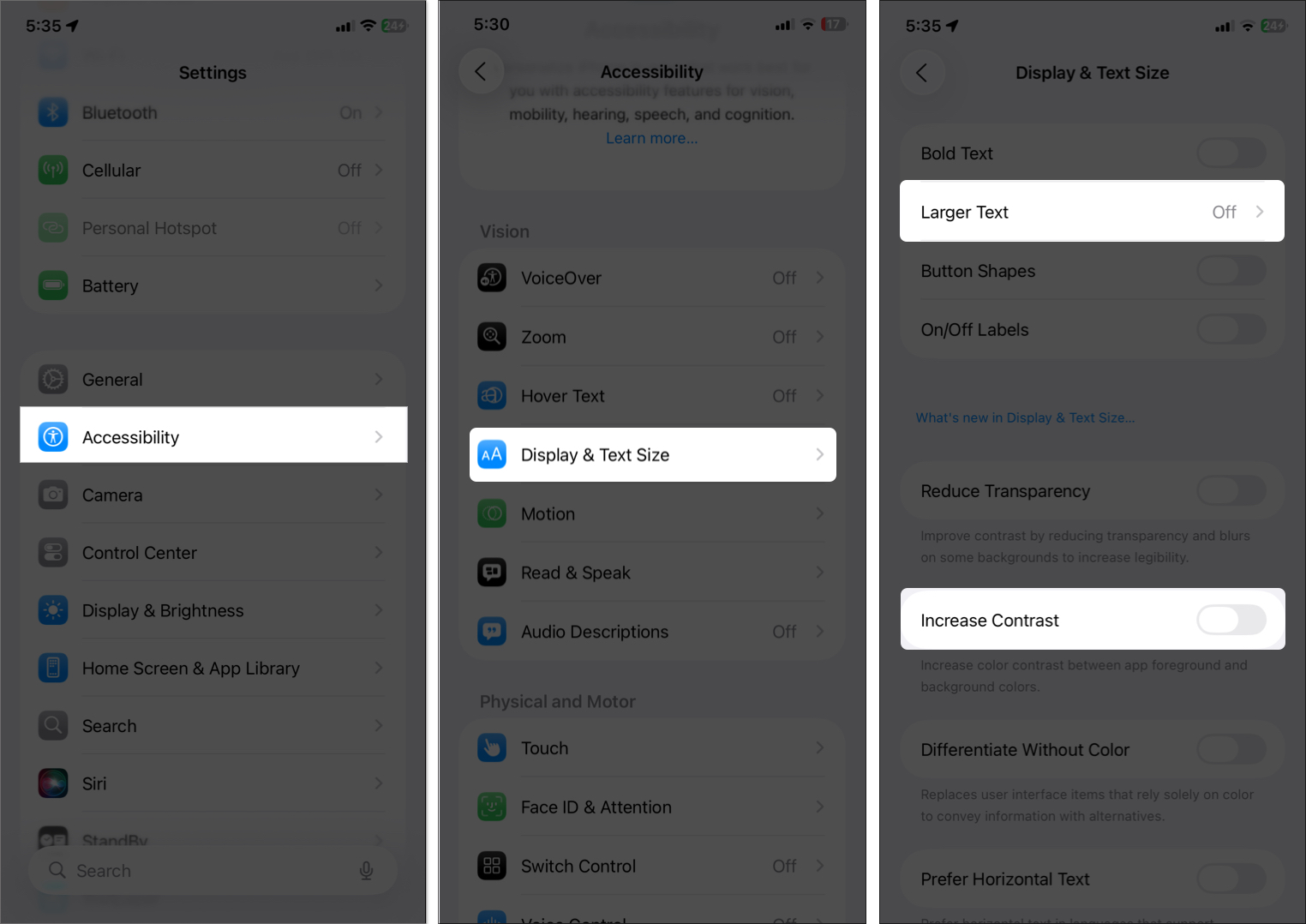
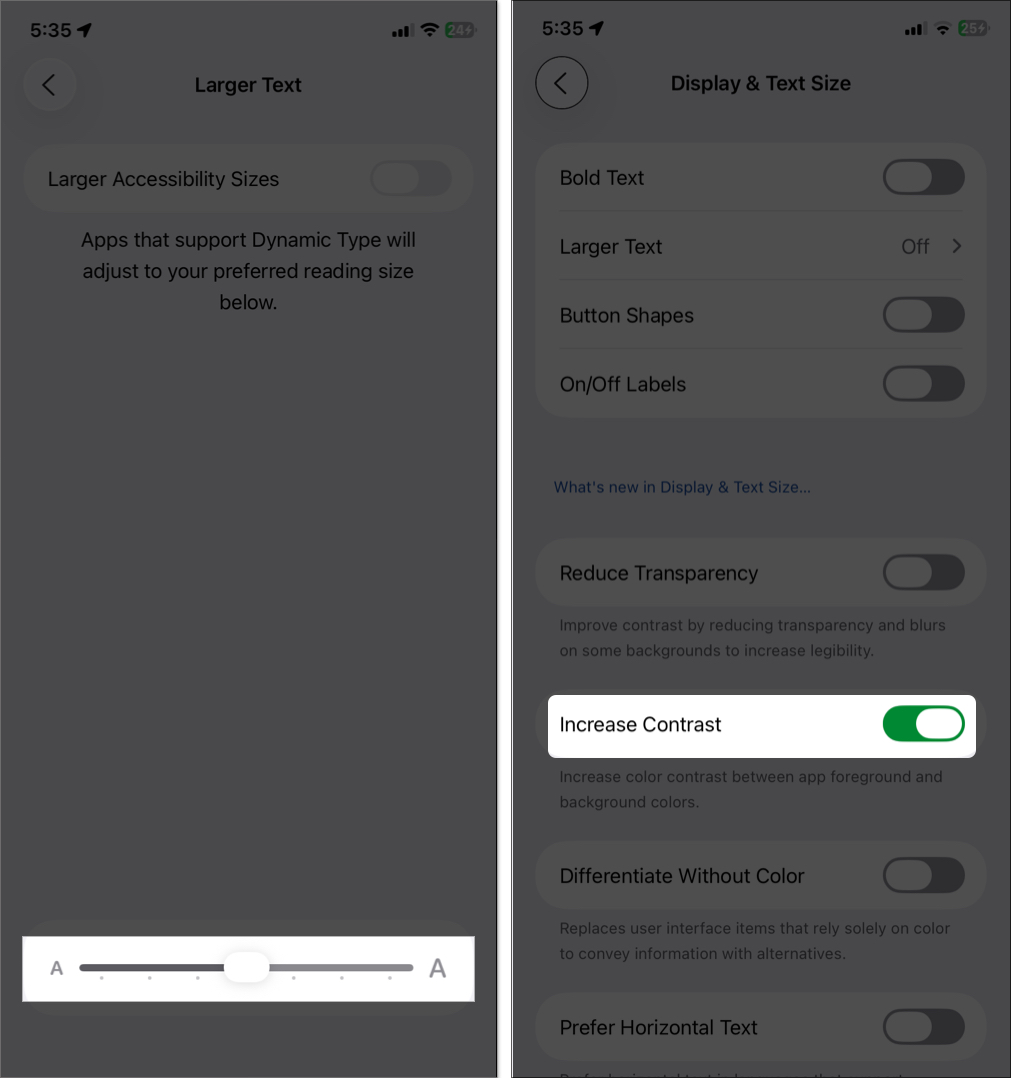
- Open Settings and select Accessibility > Display & Text Size.
- Try these options:
- Larger Text: Use the slider for even bigger font sizes than the standard Text Size setting.
- Increase Contrast: Makes text and buttons stand out against backgrounds.
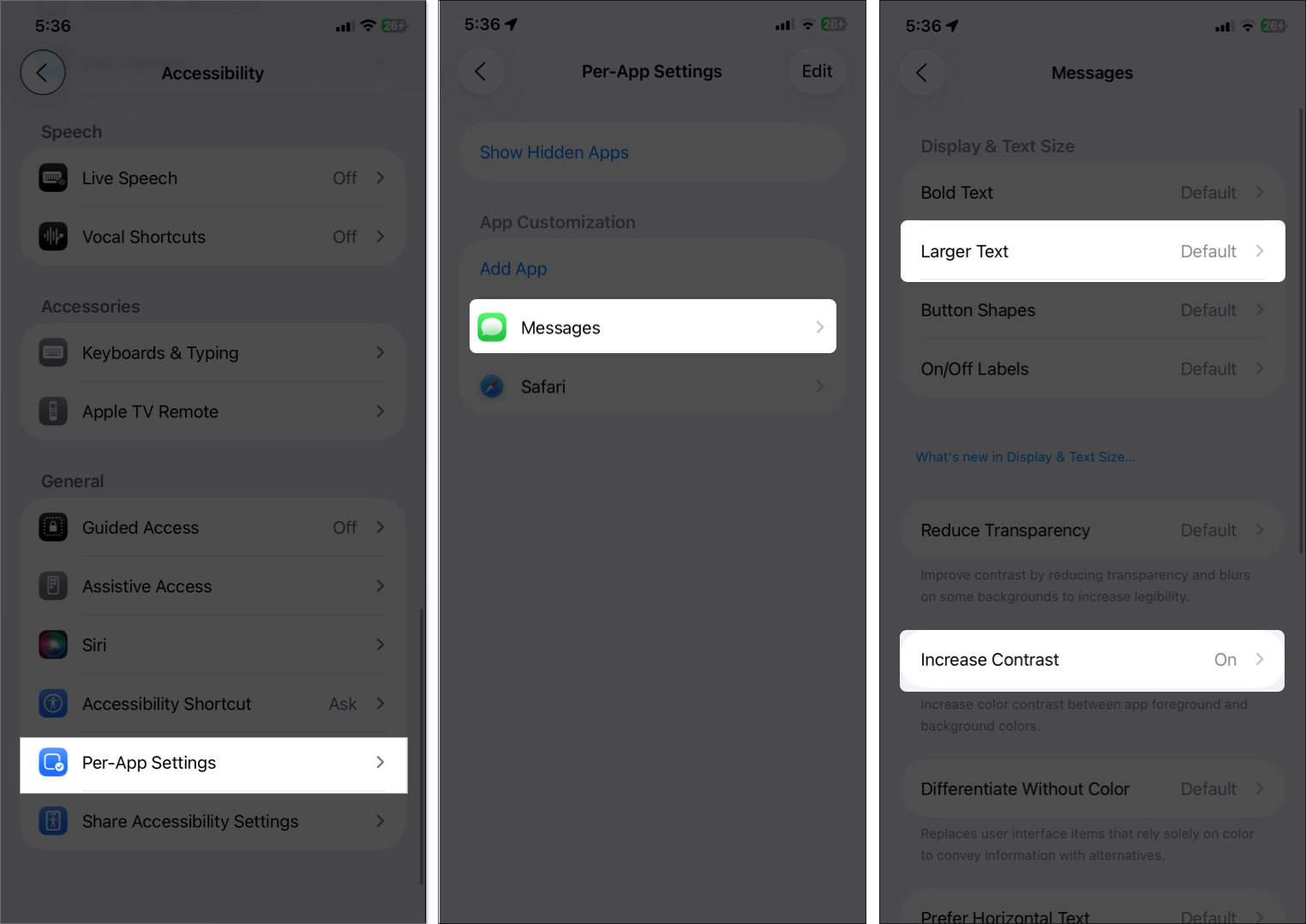
For specific apps, go to Settings > Accessibility > Per-App Settings and select an app to set custom font sizes for individual apps.
iOS 26 also introduced a new accessibility feature called Accessibility Reader to adjust font, spacing, and colors for any app or even physical text via Magnifier. These settings are great for users who need clearer text but don’t change the font family.
How to Use Fonts in Notes, Pages, and Mail
Some Apple apps let you customize font style and typefaces, but only within the app itself. Here’s how:
Customize Font Style in Notes App
In the Notes app, you can only change the text formatting to make it look organized.
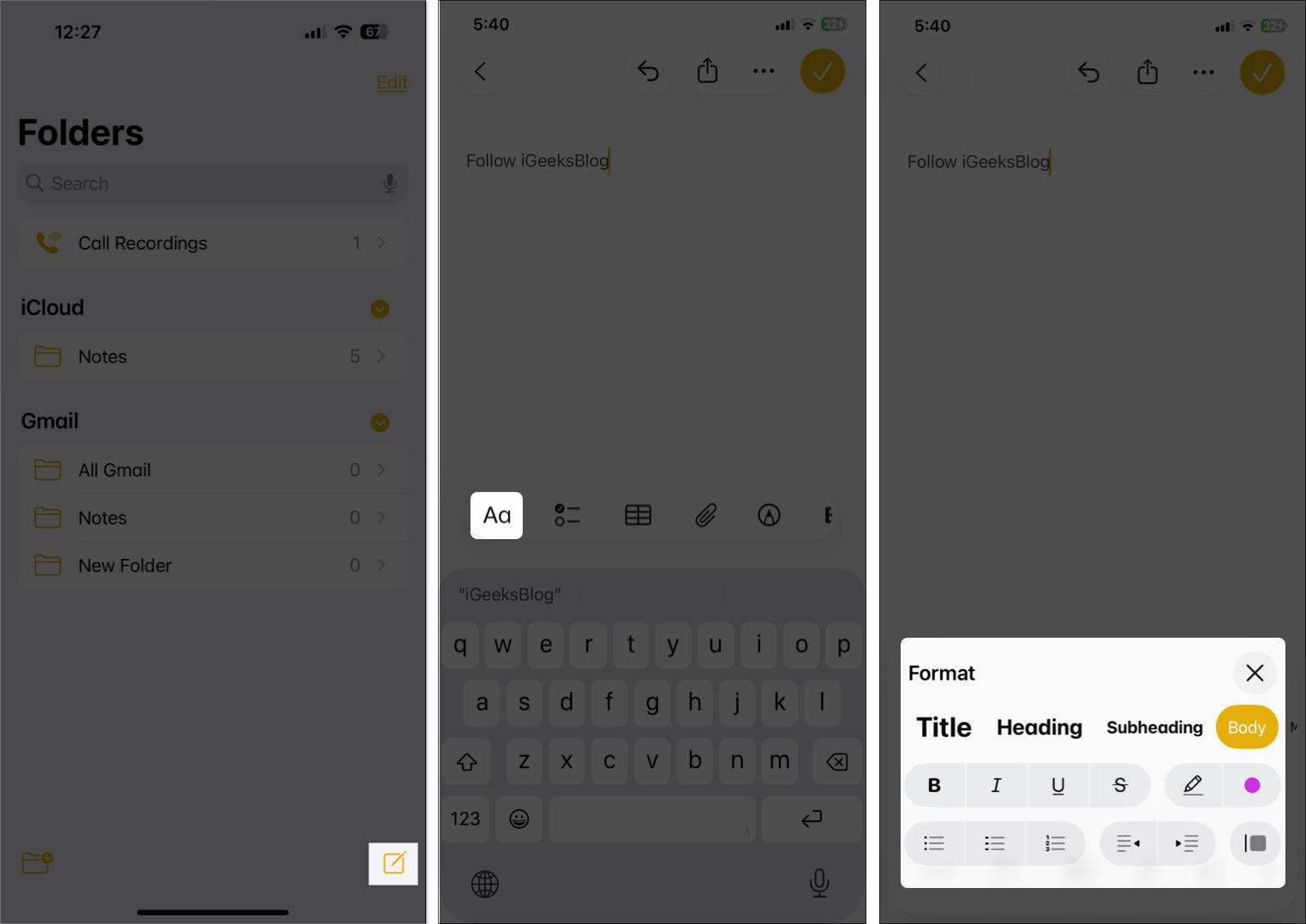
- Open the Notes app and tap the pen icon to start a new note.
- Tap the Aa button above the keyboard.
- Choose from paragraph styles like Title, Heading, or Body. You can’t pick a new font family, but you can adjust the size and weight.
- Tap the X icon and type your text. Changes apply only to that text.
For more details, go through our detailed guide on how to customize font style in the Notes app.
Change Font Style in Apple Pages
You can create documents like reports, newsletters, flyers, cards, etc., with different fonts for more creative presentations.
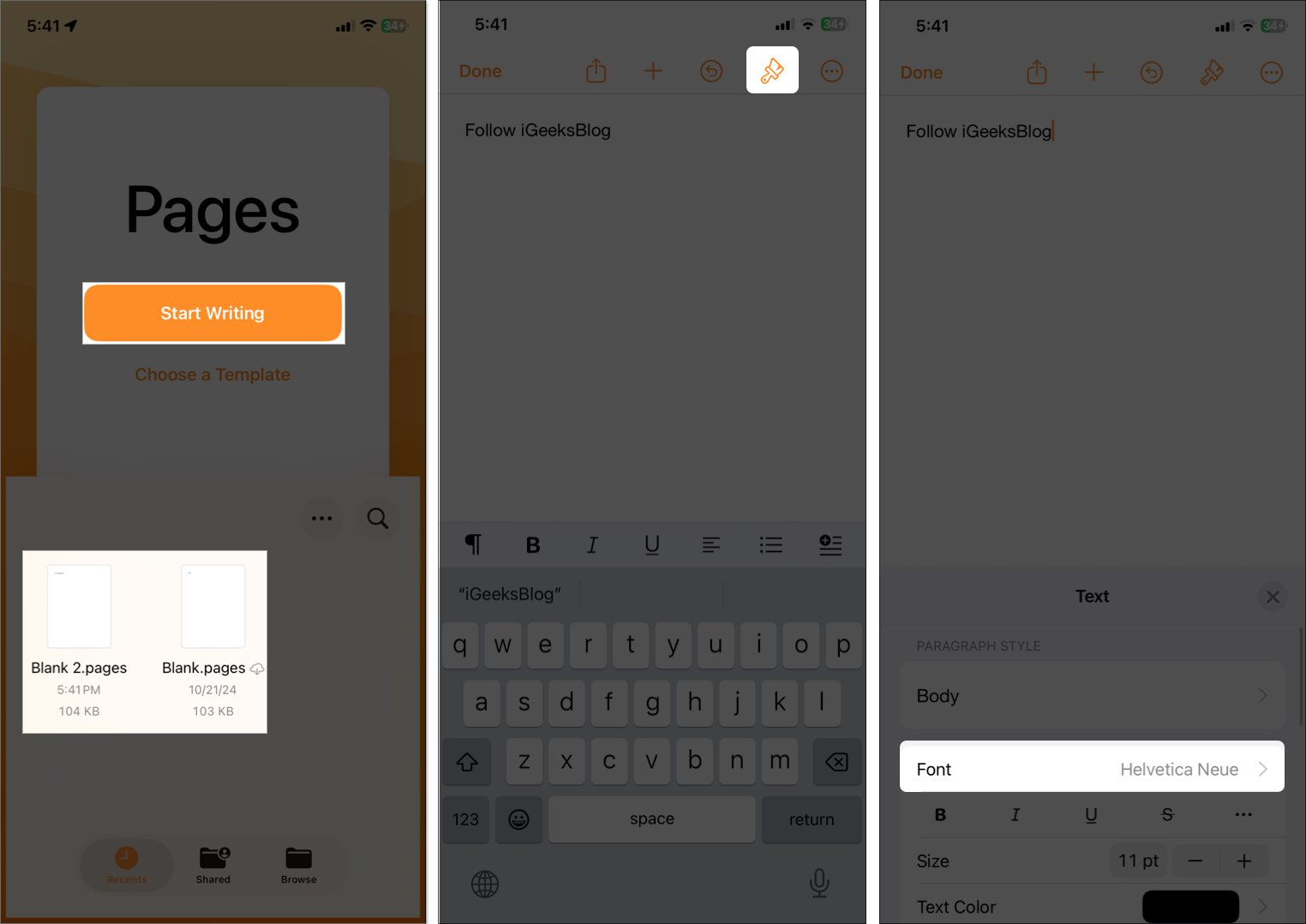
- Launch the Pages app. Select Start Writing for a blank page or Choose a Template.
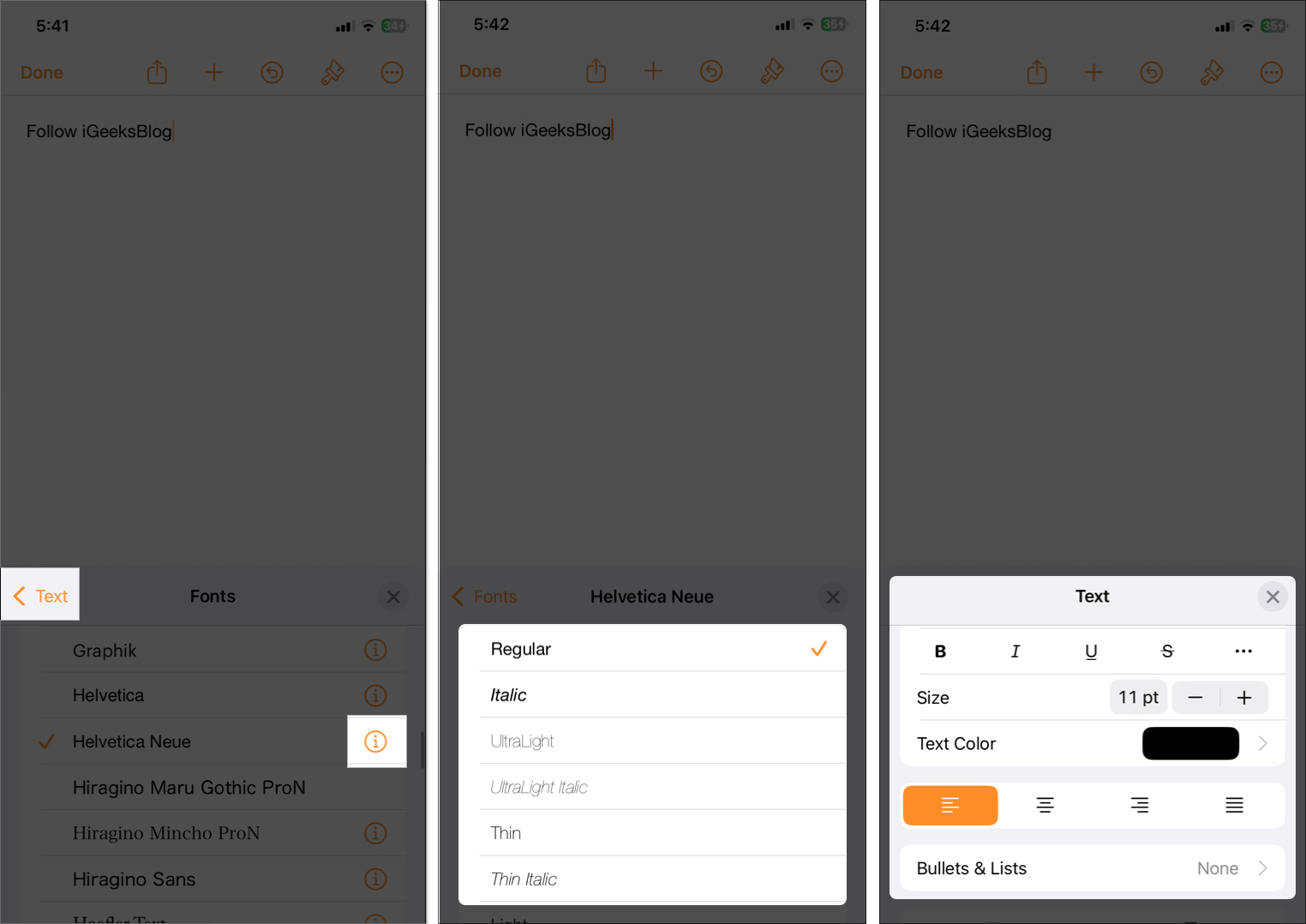
- Tap the paintbrush icon at the top toolbar, then double-tap on the text to select it.
- Select the Font option to choose from available fonts or any custom fonts you’ve installed (more on that later).
- Tap the info icon next to the font to select its typeface like Regular, Light, Semibold, Condensed, etc.
- Now, tap < Text to get back and customize paragraph style, format, size, or text color as needed.
Tip: You can use the same steps on other iWork apps such as Keynote and Numbers.
Change Font Style in Mail App (iOS 26+)
With iOS 26, you can customize your email text fonts for more personalization.
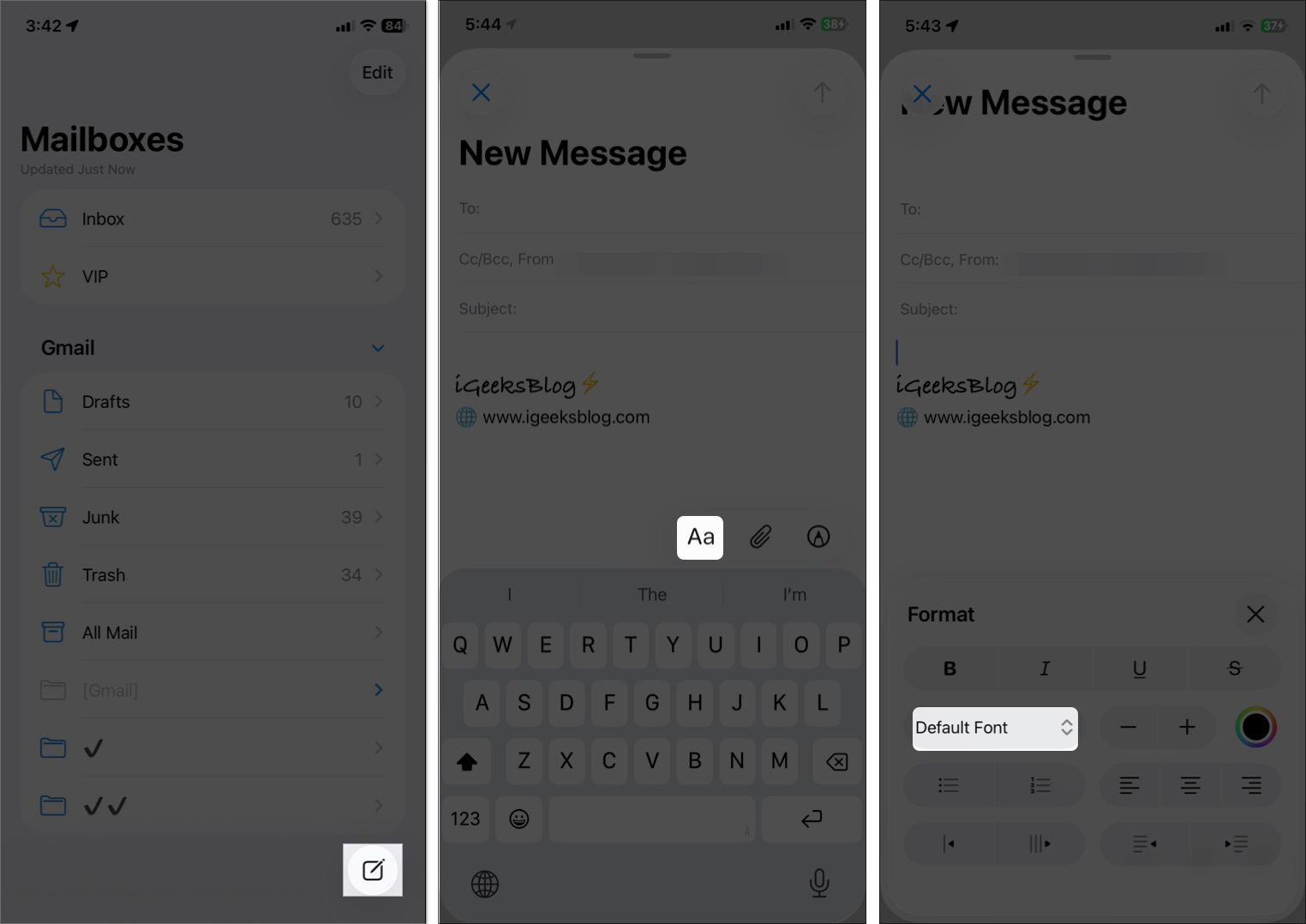
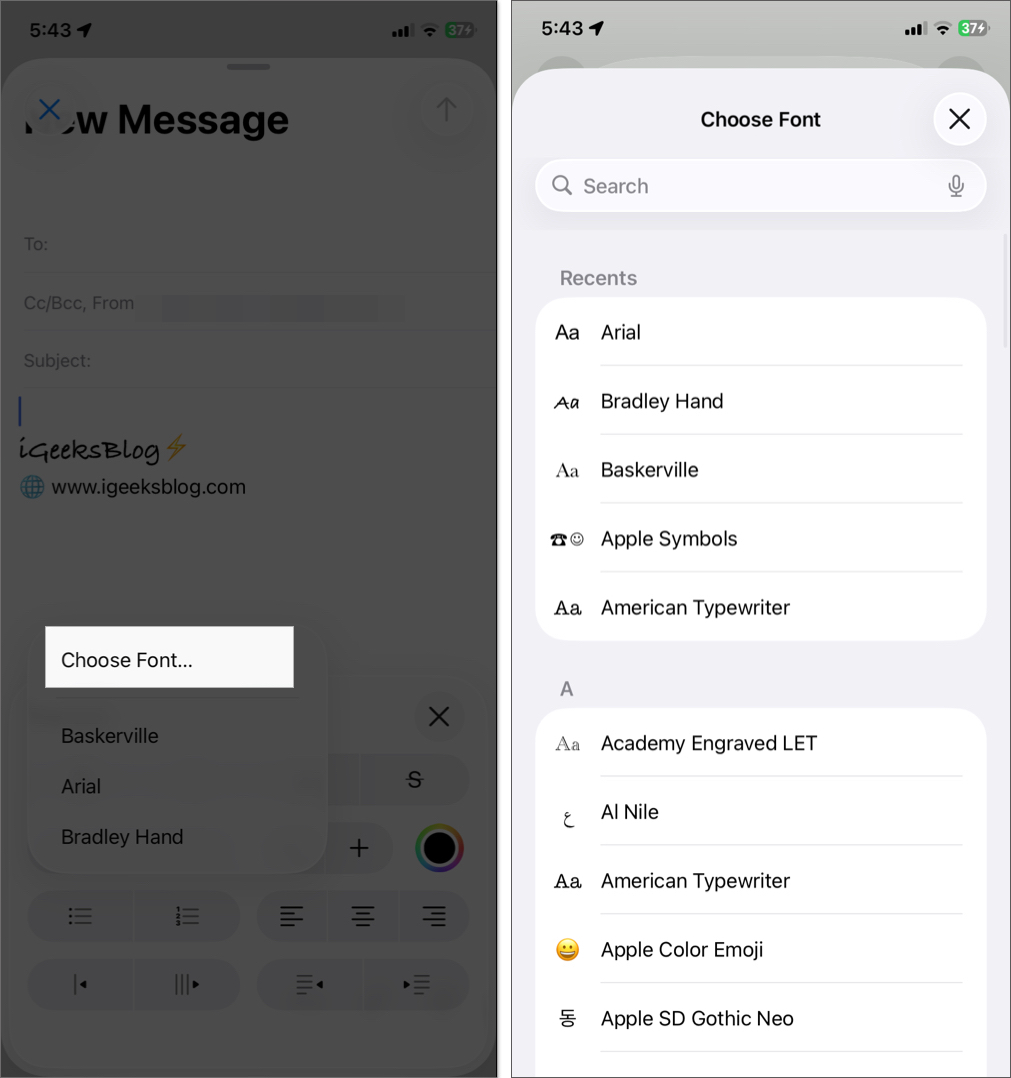
- Open the Mail app and tap the pen icon to start writing an email.
- Tap the body text field and you will see a toolbar pop up above your keyboard.
- Select Aa from the toolbar.
- Tap Default Font dropdown in the menu and select Choose Font.
- Scroll through the built-in font list and choose a font.
- Now, you can write the email in that font.
By providing the native font library, Apple is opening its door to more customization. We hope to see more native apps include this feature.
How to Install Custom Fonts on iPhone
To use fonts beyond Apple’s defaults, you can install custom fonts for apps like Pages, Keynote, or third-party apps. Here are three ways to do it:
Method 1: Install Fonts from iPhone Settings
Apple has a default font library and multiple add-ons that you can download on your iPhone. These system fonts are available for use in the supported apps mentioned above.
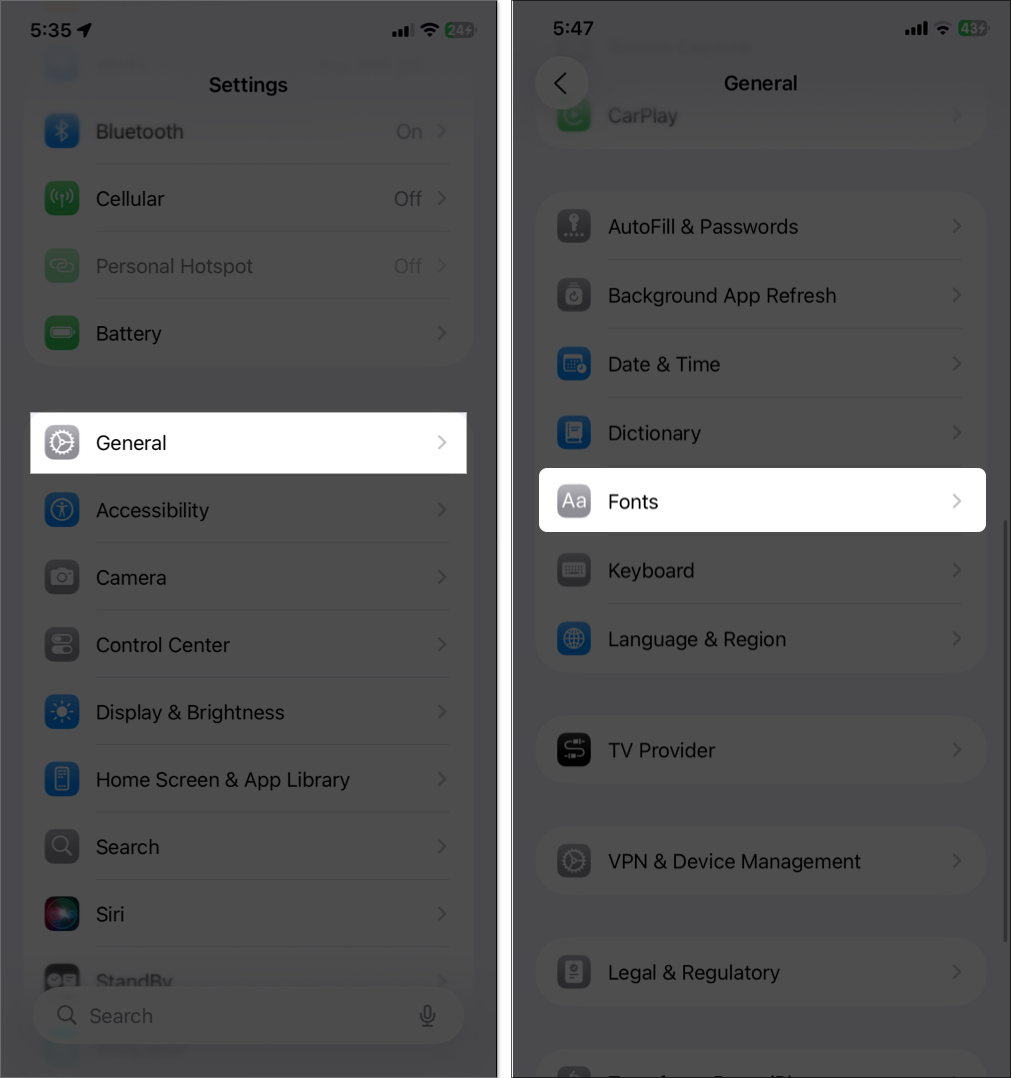
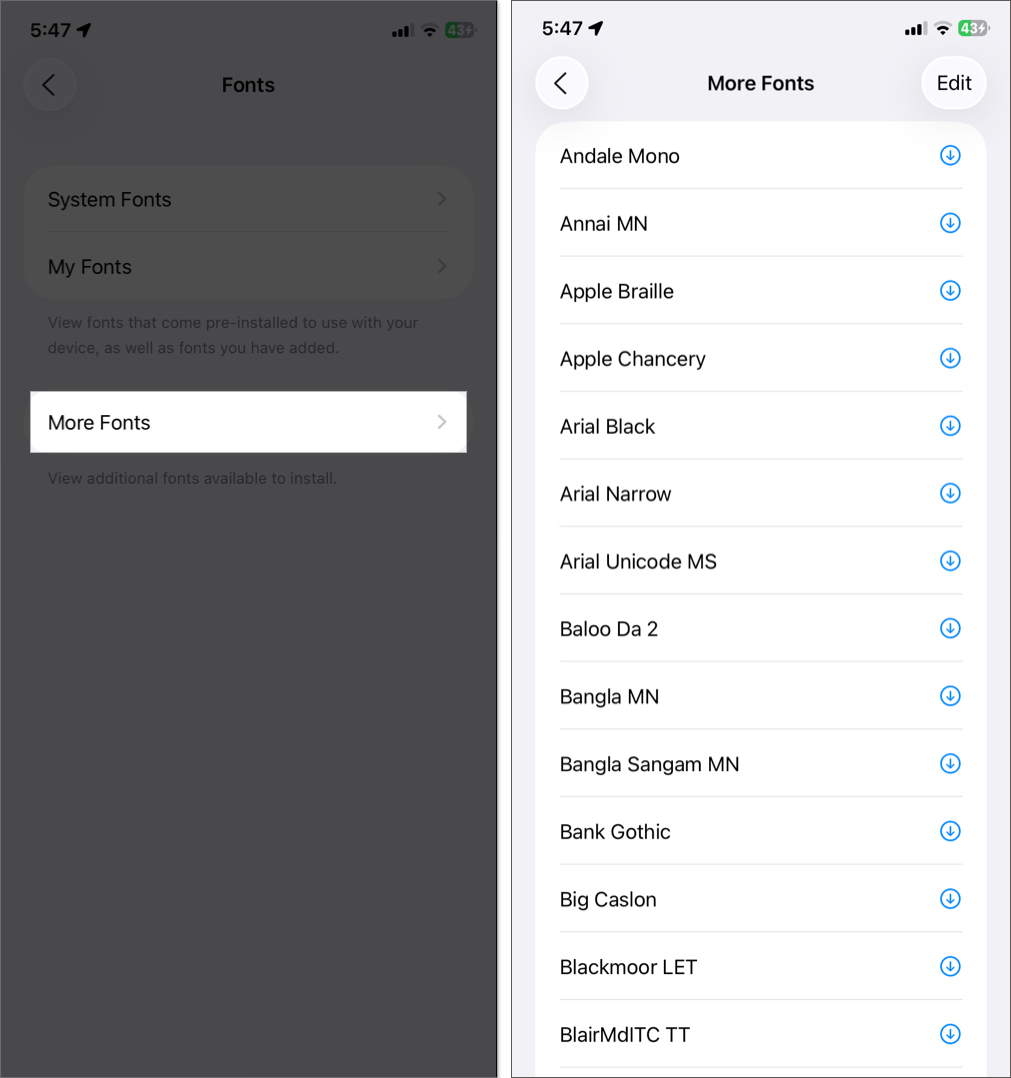
- Go to Settings > General > Fonts.
- You will see System Fonts, where all the built-in fonts are listed.
- Select More fonts and tap the download icon next to a font to install it.
- The font will be available in compatible apps.
Method 2: Use Font Installer Apps
Font installer apps make it easy to add new fonts in bundles. Popular apps include AnyFont, Font Diner, and others.
Let’s look at how to download and install custom fonts using the Font Diner app. The steps are similar for most font apps.
- Download and open the Font Diner app.
- Tap Activate next to the Silverware Font Set and tap Agree on the dialog box.
- Choose Install and tap Close.
Now, this font will be available in the supported apps. Font Diner allows you to download one free Silverware set of 23 fonts.
To get additional fonts, you must make an in-app annual purchase for other font sets.
Method 3: Use Configuration Profiles with iFont
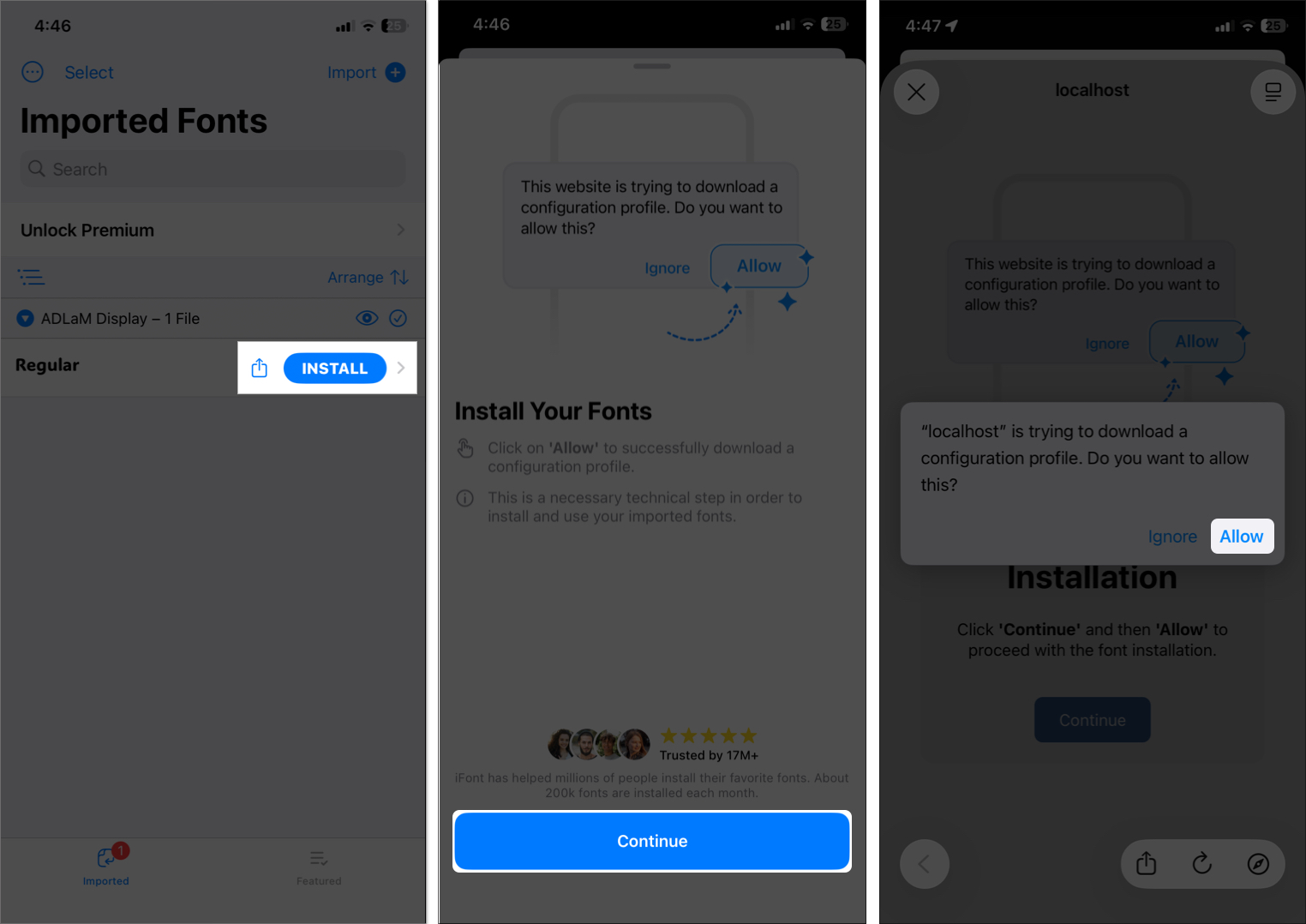
Some websites or developers offer font configuration profiles to manually add fonts to your iPhone. Here’s how to do it using the iFont app:
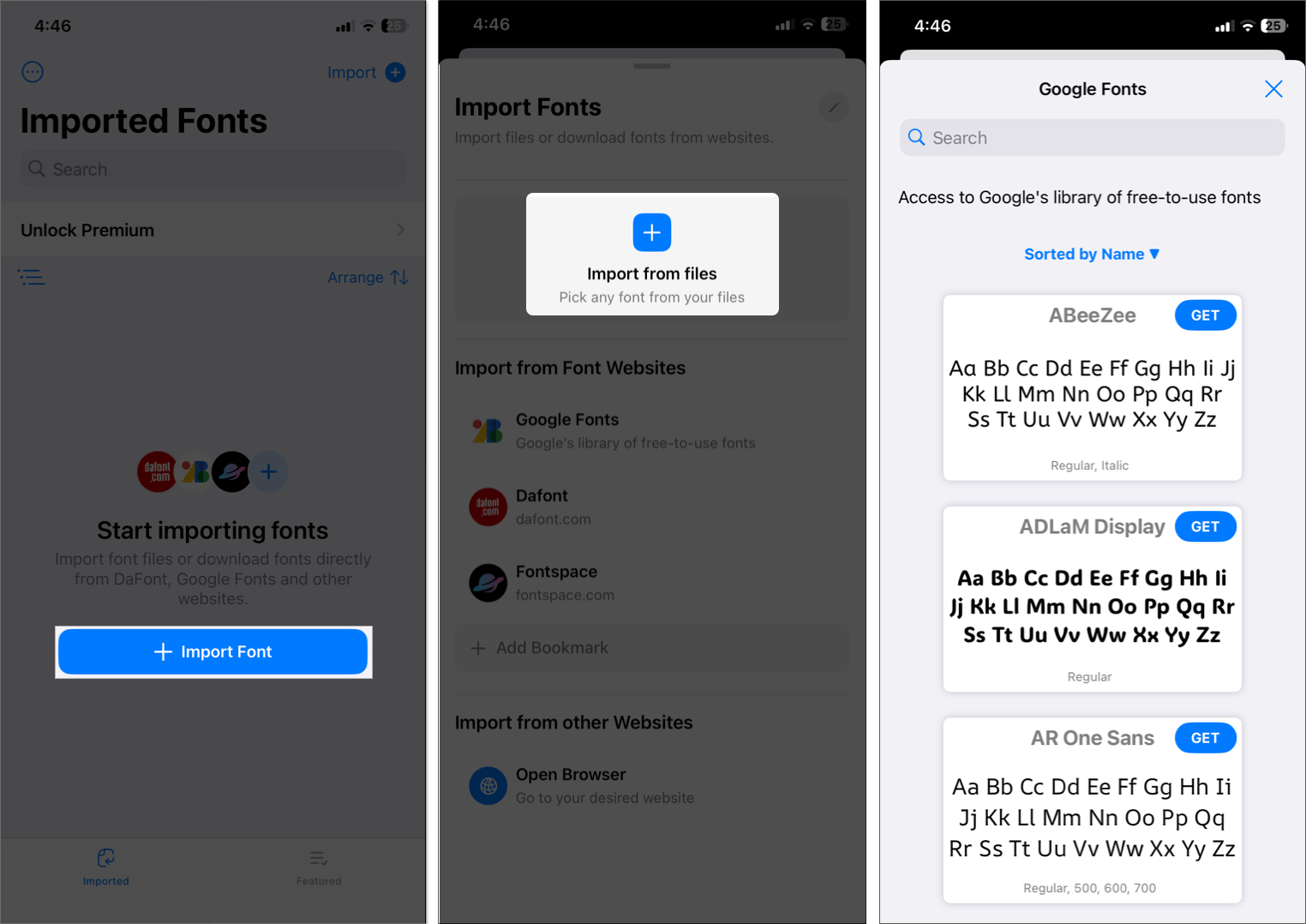
- Open the iFont app and select Import Font.
- If you have downloaded a font file, select Import from Files. For this example, we’ll use Google Fonts.
- Scroll through the font library and tap Get to download it.
- Tap the X icon and swipe down to return to the home page.
- Tap Install next to the font and tap Continue to proceed.
- Tap Allow to install the configuration profile.
Now that you have downloaded the profile, you need to install it on your iPhone:
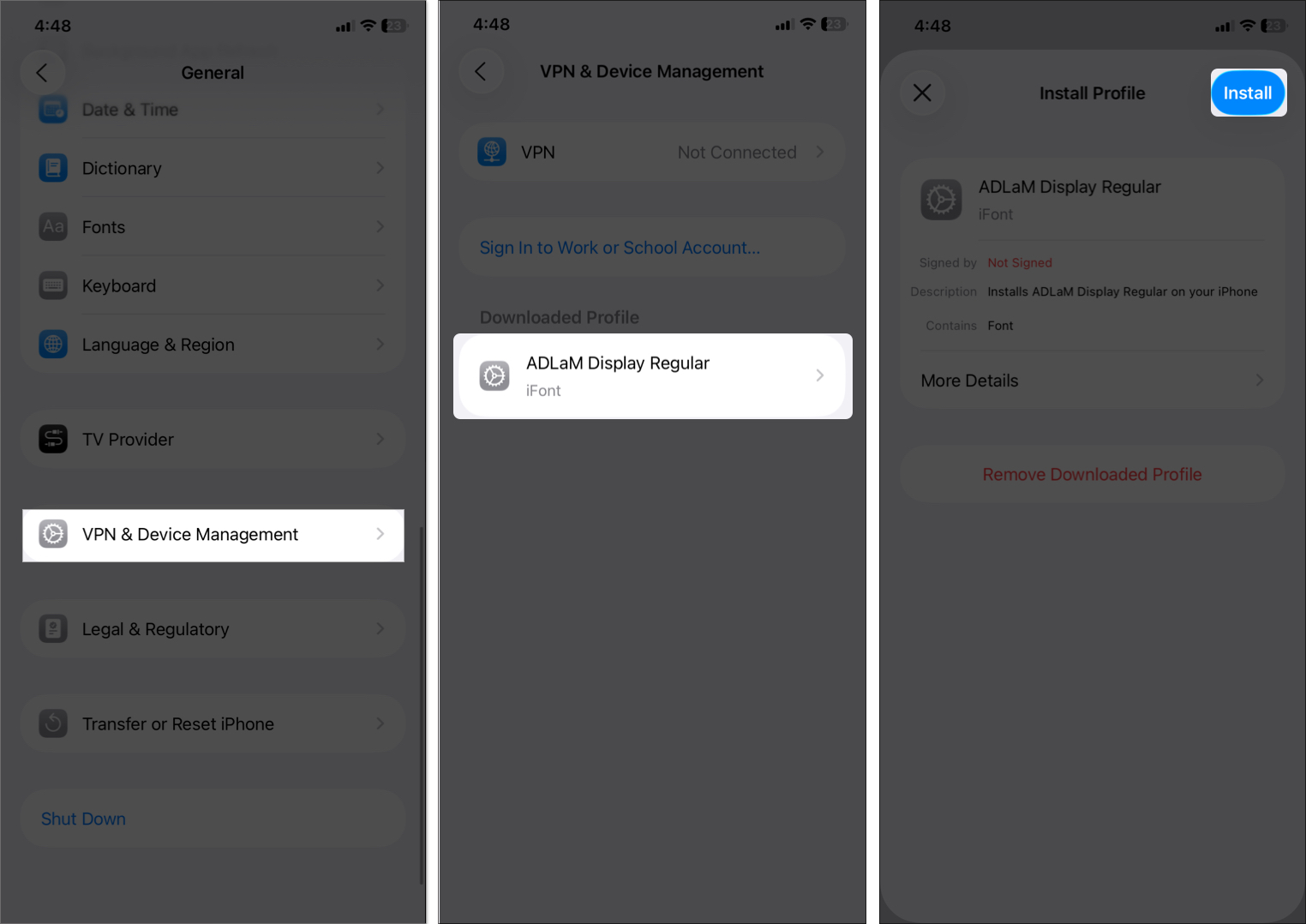
- Go to Settings > General > VPN & Device Management and select the profile.
- Tap Install at the top right corner and enter your passcode.
- Tap Install again in the dialog box.
- The font will now be available in supported apps.
Safety Tip: Only download profiles from reputable sources to avoid malware or any risks to your system.
How to Use Custom Fonts in Third-Party Apps
Many third-party apps, such as design tools and note-taking apps, support custom fonts. Here’s how to use them:
- Install a design app (e.g., Canva, Notion, or Procreate).
- Create a new project and look for the font menu in the text settings.
- Select your installed font from the list. You may see a “My Font” option.
How to Change Keyboard Fonts on iPhone
Some keyboard apps, like Fonts – AI Sticker or Keyboard Fonts, let you type with custom fonts in text-supported apps:
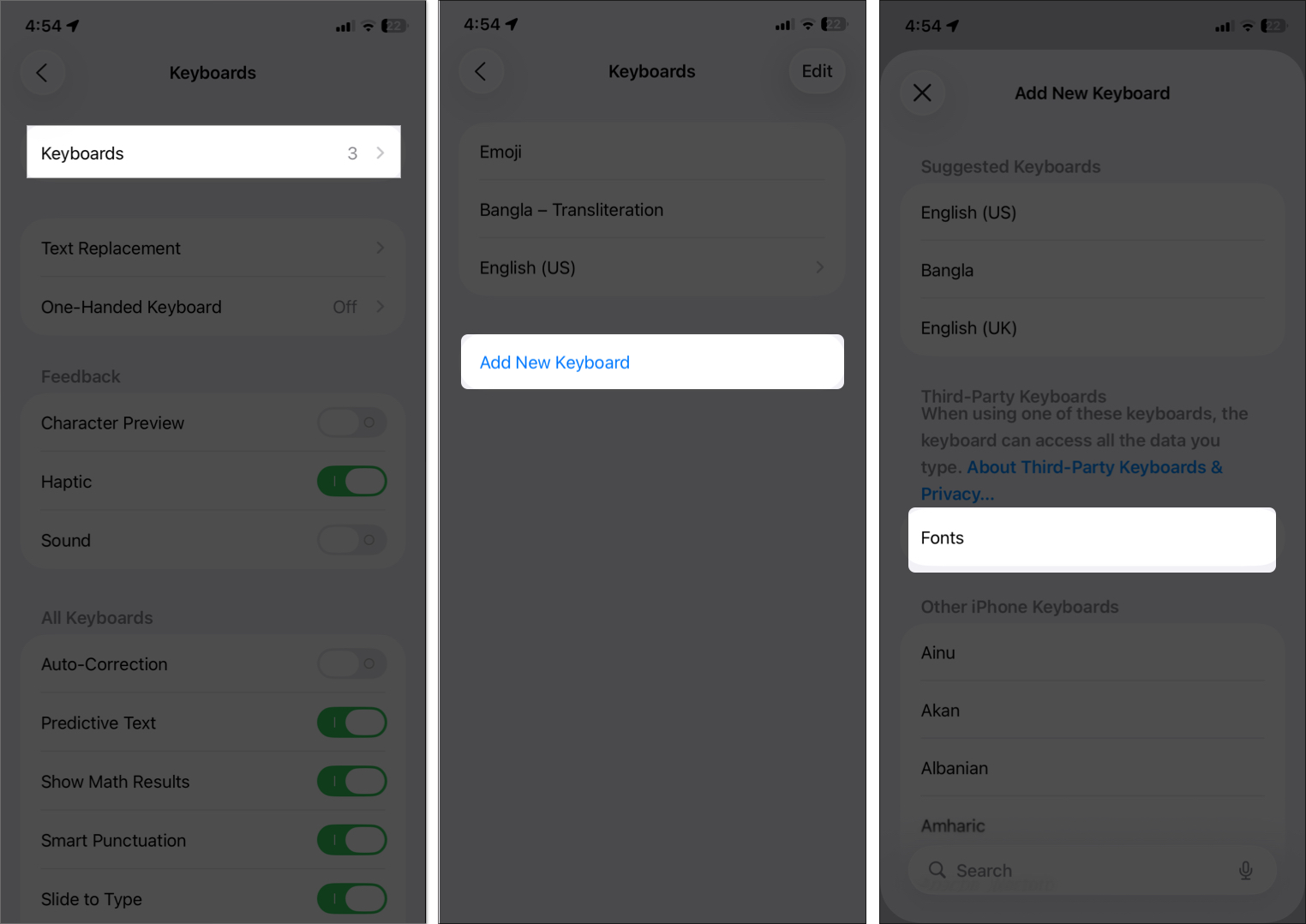
- Download a keyboard app from the App Store.
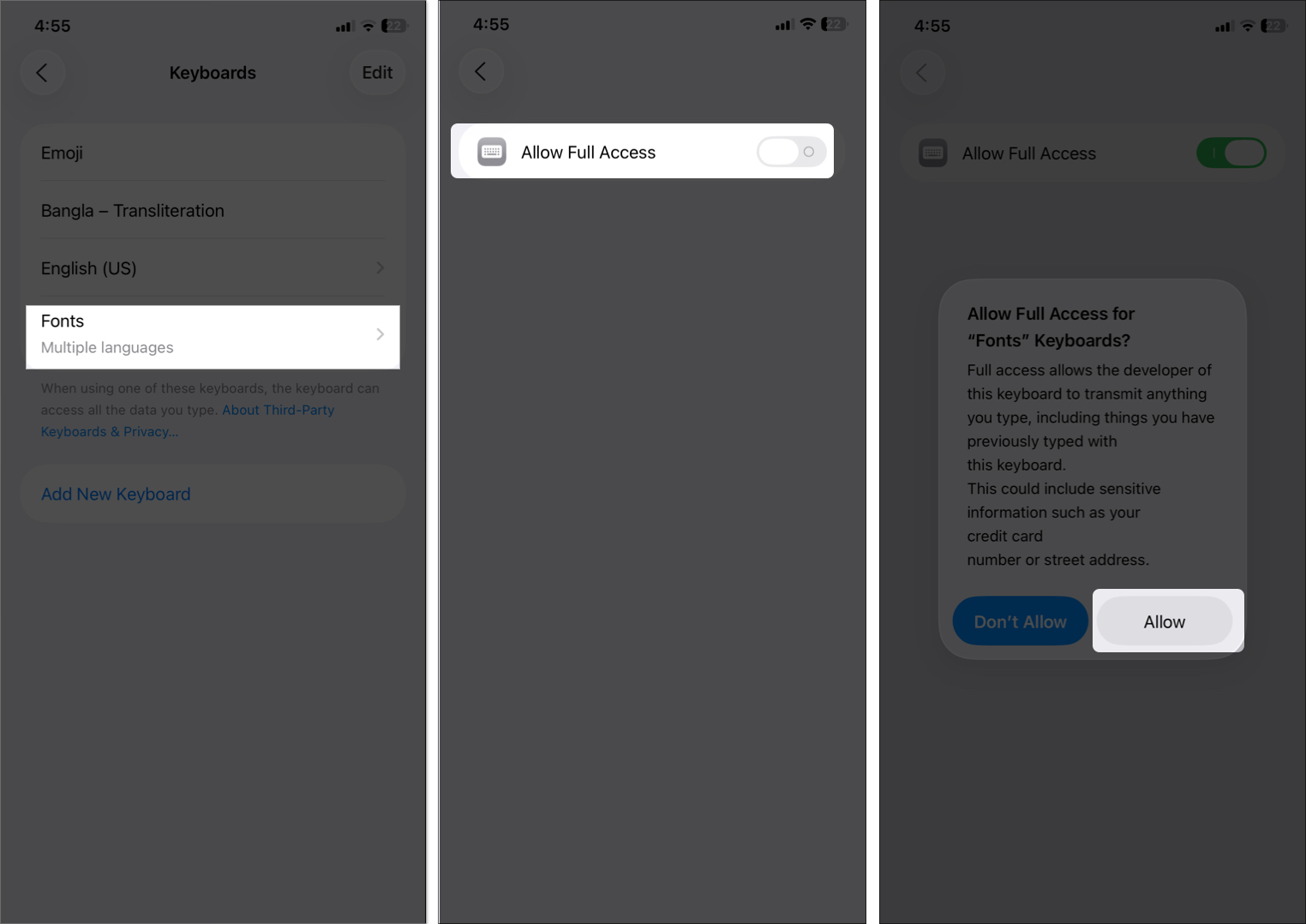
- Go to Settings > General > Keyboard > Keyboards.
- Tap Add New Keyboard and select the font keyboard.
- Select the keyboard again and toggle on Allow Full Access.
- Tap Allow to grant permission.
- When typing in apps like Messages, tap the Globe icon to switch to the font keyboard and choose a style.
The first time, you may need to set up the keyboard from within the app.
Note: These keyboards only work in apps that allow custom keyboards, like Messages or WhatsApp, and may not support all fonts in every app.
Best Font Apps for iPhone in 2025
Here are some top-rated font apps for iPhone available on the App Store:
- AnyFont: Offers a wide range of fonts and easy profile installation. Great for PowerPoint, Word, and Excel for iOS.
- Font Diner: Fun, creative fonts for design projects. Includes free and paid options.
- iFont App: Install fonts using TTF, OTF, or TTC format files. Also lets you access Google Fonts’ free font library.
- Fonts – Install Fonts: A simple app with a mix of free and premium fonts, ideal for social media or notes.
- Font Generator: Popular for decorative fonts, perfect for messages or posts.
Always check user reviews and ensure the app is updated for iOS 26 compatibility.
Troubleshooting Font Installation Issues
If you run into problems, try these fixes:
- Font not showing in apps: Ensure the app supports custom fonts. Reinstall the font profile or restart your iPhone.
- Profile won’t install: Go to VPN & Device Management and check for errors. Download the profile again from a trusted source.
- App crashes after font installation: Delete the font (Settings > General > Fonts) and try a different font or app.
- Fonts look blurry: Some fonts may not be optimized for iOS. Choose high-quality fonts from reputable apps.
If issues persist, contact the font app’s support team or Apple Support.
How to Manage and Remove Fonts on iPhone
To keep your iPhone running smoothly, manage your installed fonts:
- Go to Settings > General > Fonts.
- Tap My Fonts to view all installed fonts.
- Tap a font to see details like typefaces, copyright, and version.
- Tap the bin icon at the top and select Remove to delete it.
Regularly check for updates to font apps to ensure compatibility with the latest iOS version.
How to Revert to the Default Font
If you want to go back to Apple’s default font (SF Pro):
- Remove custom font profiles: Go to VPN & Device Management, tap the font profile, and select Remove Profile. Enter your passcode and tap Remove to confirm.
- Reset text size: Go to Settings > Display & Brightness > Text Size and move the slider to the middle.
- Turn off Bold Text: In Display & Brightness, toggle off Bold Text.
- Restart your iPhone to apply all changes.
This will restore the default look of your iPhone’s text.
Final Thoughts
I hope this guide helped you customize your iPhone. While iOS doesn’t allow system-wide font changes, you can still resize and bold text, install custom fonts for creative or professional use, and type with stylish fonts using keyboard apps. With the introduction of Accessibility Reader, Apple is moving toward a more flexible and user-friendly typography experience.
Do you have a question? Feel free to ask in the comments below!
FAQs
No. As of iOS 26, you can’t change the system-wide font without jailbreaking, which is risky and not recommended. You can adjust font size, weight, or use custom fonts in apps like Pages, Mail, or Notes.
Fonts and Font Diner offer free fonts with optional in-app purchases. Check the App Store for the latest free options and read reviews to ensure they’re safe and compatible with the current iOS version.
Yes, if you download profiles from trusted sources like reputable font apps or well-known developers. Avoid unknown websites to prevent malware or security issues.
Installing a few fonts won’t noticeably slow down your iPhone. However, too many font profiles or poorly designed fonts can use extra storage or cause minor lag in some apps. Manage fonts wisely to avoid issues.
More from us:

- How to delete wallpaper on your iPhone
- How to install fonts on Mac
- 20 tips to use Apple Notes on iPhone or iPad like a pro