
FaceTime Like a Pro
Get our exclusive Ultimate FaceTime Guide 📚 — absolutely FREE when you sign up for our newsletter below.

FaceTime Like a Pro
Get our exclusive Ultimate FaceTime Guide 📚 — absolutely FREE when you sign up for our newsletter below.


Learn how to sign out of the Mail app on your iPhone, whether you’re temporarily disabling Mail, removing accounts, or managing Gmail separately.

 ByAnkur Thakur and Ravi Teja KNTS
Sometimes, you just want a break from a flood of emails on your iPhone. Maybe you switched jobs, changed your primary email, or simply prefer using the Gmail or Outlook app instead of Apple’s Mail app. Whatever the reason, signing out of your Mail app is easy once you understand how it works on the latest iOS.
If you only want to take a short break from seeing emails without deleting your account completely, you can simply turn off the Mail feature for that account. This keeps the account saved on your device for other uses like Contacts or Calendars.
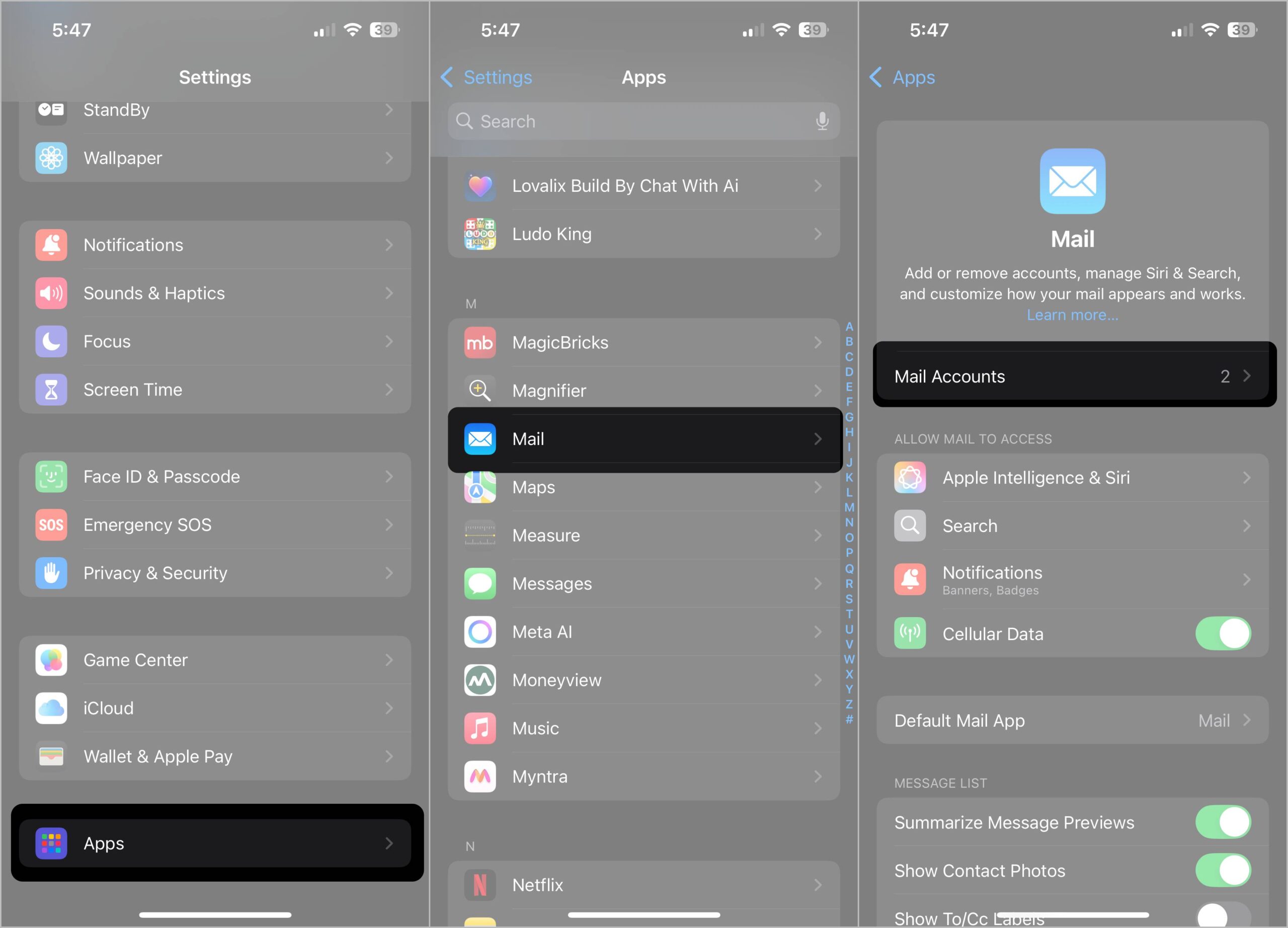
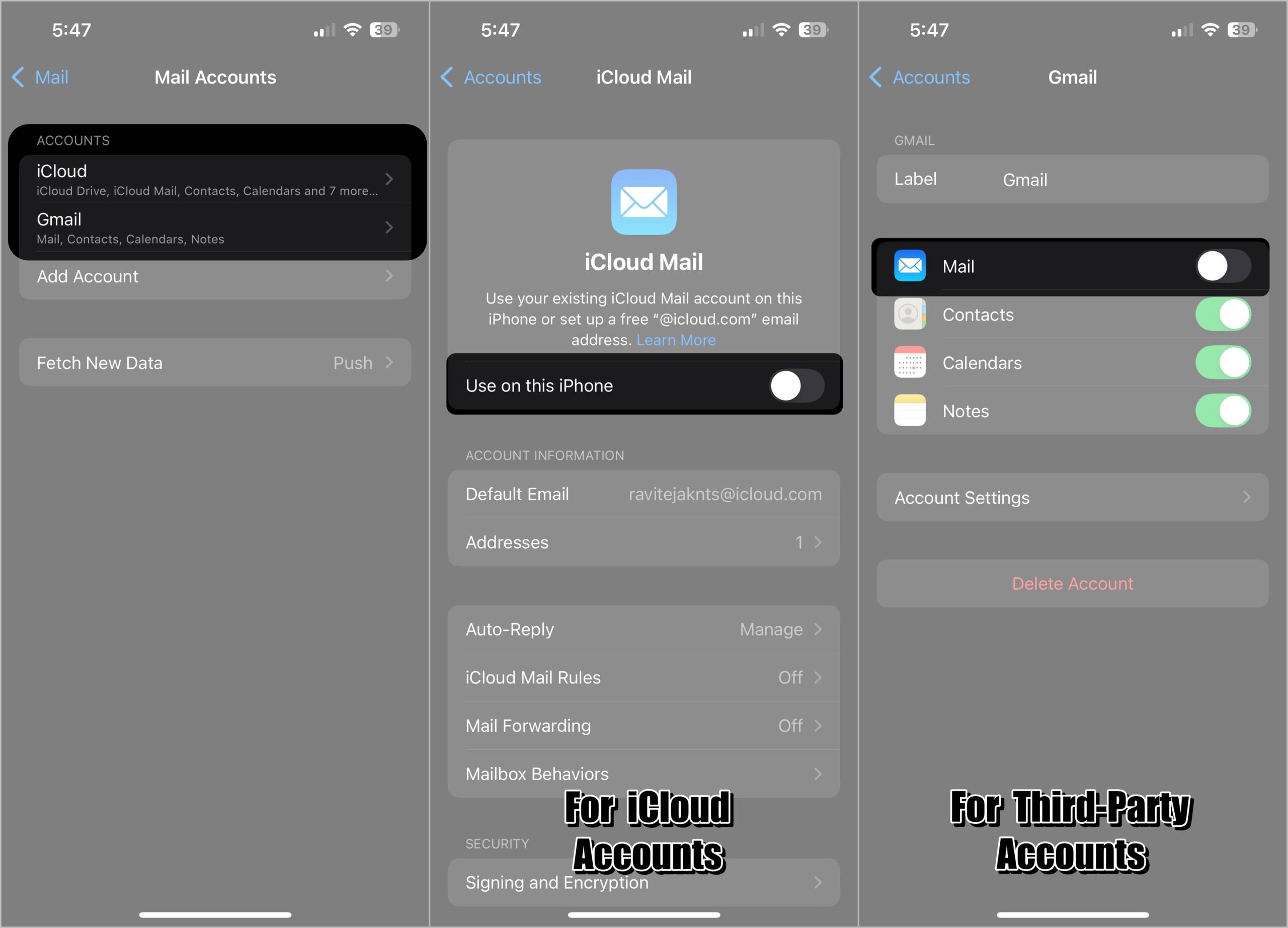
Your emails will disappear from the Mail app instantly, but the account remains on your iPhone. This is also useful if you want to stop seeing emails in Mail but still use that account in other apps like Contacts or Calendar. You can re-enable it at any time when you’re ready to use it again.
If you’ve switched to a new email provider or no longer want an account on your iPhone, you can remove it completely.
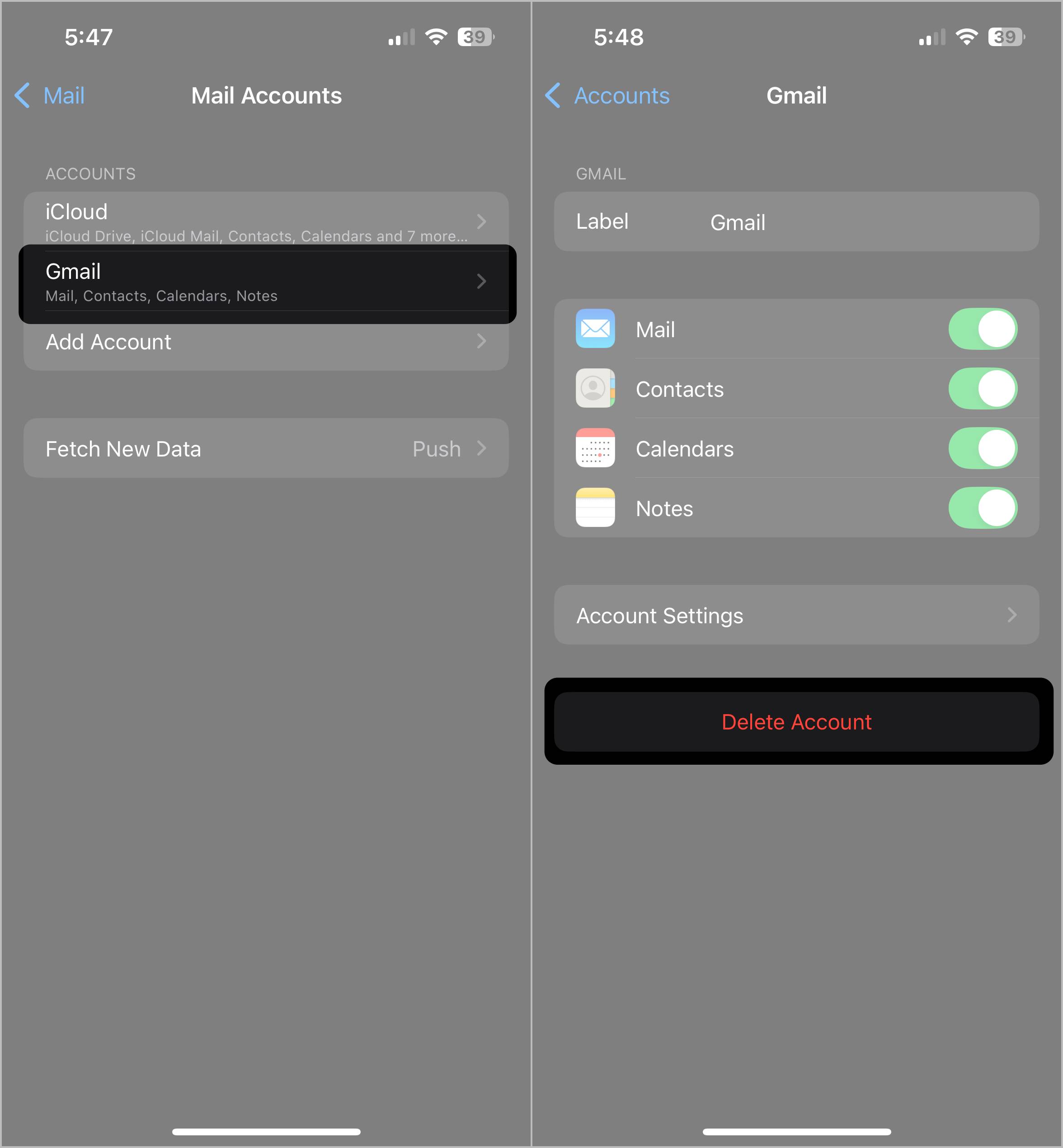
This will delete the account from the Mail app and other apps using it, such as Contacts or Calendar. But remember, it only removes it from your iPhone. The actual email account still exists, and you can always add it back later if you change your mind.
Just so you know, the above steps work for third-party email accounts. For iCloud accounts, things work a bit differently.
To remove your iCloud email—and your Apple ID entirely—from your device:
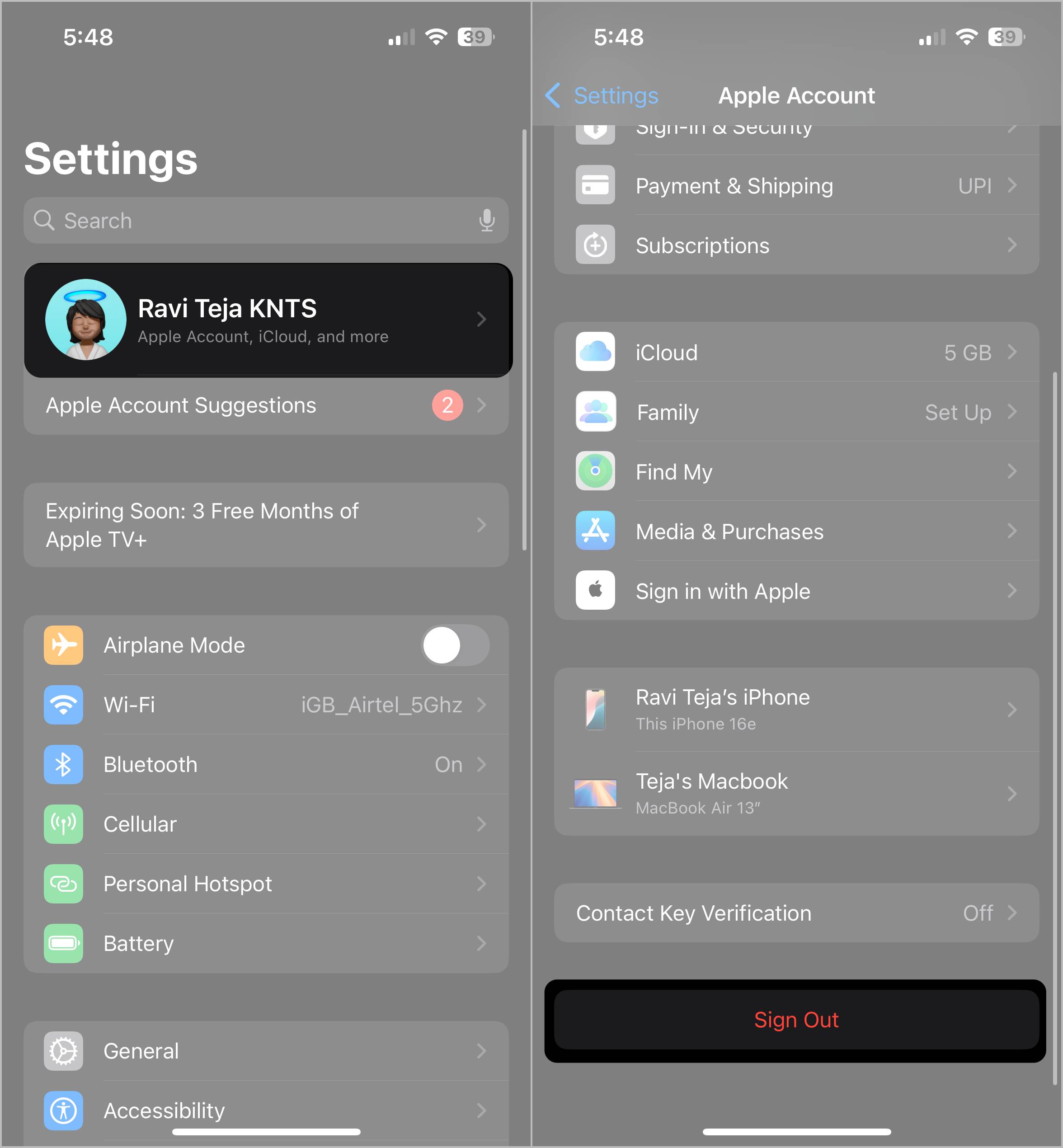
Use this option only if you’re switching Apple IDs or preparing to sell your device.
If you use the Gmail app instead of Apple’s Mail app, the sign-out process is different because it’s managed within the app itself.
This method offers more control over individual Google accounts without affecting the system-wide settings.
At first, signing out of Mail on iPhone can feel confusing because Apple integrates email accounts deeply into iOS. But once you know these simple steps, you can manage your inbox the way you want—whether that’s switching accounts, taking a break from work emails, or removing old accounts that no longer serve you.
Related articles worth reading:











