FaceTime Like a Pro
Get our exclusive Ultimate FaceTime Guide 📚 — absolutely FREE when you sign up for our newsletter below.

FaceTime Like a Pro
Get our exclusive Ultimate FaceTime Guide 📚 — absolutely FREE when you sign up for our newsletter below.


Is your iPhone making random calls on its own? From ghost touches to Siri misfires, here’s how to stop accidental dialing and fix the issue for good.

 ByArshmeet Kaur and Ava Biswas
Imagine this: Your iPhone’s tucked in your pocket, and suddenly someone texts you, “Hey, why’d you call me?” But you didn’t even touch your phone. These random “ghost calls” or pocket dials can be frustrating and sometimes embarrassing, especially if they lead to awkward voicemails or accidental 911 calls.
The good news? You can stop it. In this guide, I’ll walk you through the most effective fixes to stop your iPhone from making random calls on its own.
Random calls mean your iPhone is placing outgoing calls all by itself, without you lifting a finger or even unlocking the screen. This usually happens when the phone is locked and sitting in your pocket, bag, or on a table, leading to those surprise dials we call pocket dialing or ghost calls.
You might notice signs like:
And the impact isn’t just annoying. These random calls can eat up your minutes or data if you’re not on an unlimited plan, drain your iPhone battery, spark unwanted conversations, or worse, create safety risks.
For example, if your iPhone dials emergency services by mistake, you could tie up lines needed for real crises or even receive an unexpected visit from authorities. That’s stress no one needs.
Your iPhone isn’t haunted. Most of the time, it’s one of these culprits:
Spotting the trigger makes it easier to fix.
Follow these fixes step by step. Test your phone after each to see what works:
Voice Control is an accessibility feature on iPhones that lets you operate your phone entirely with your voice. You can open apps, swipe, type, and make calls without touching the screen.
It’s super helpful for hands-free control, but if it’s accidentally turned on, it can mishear background sounds and dial numbers on its own.
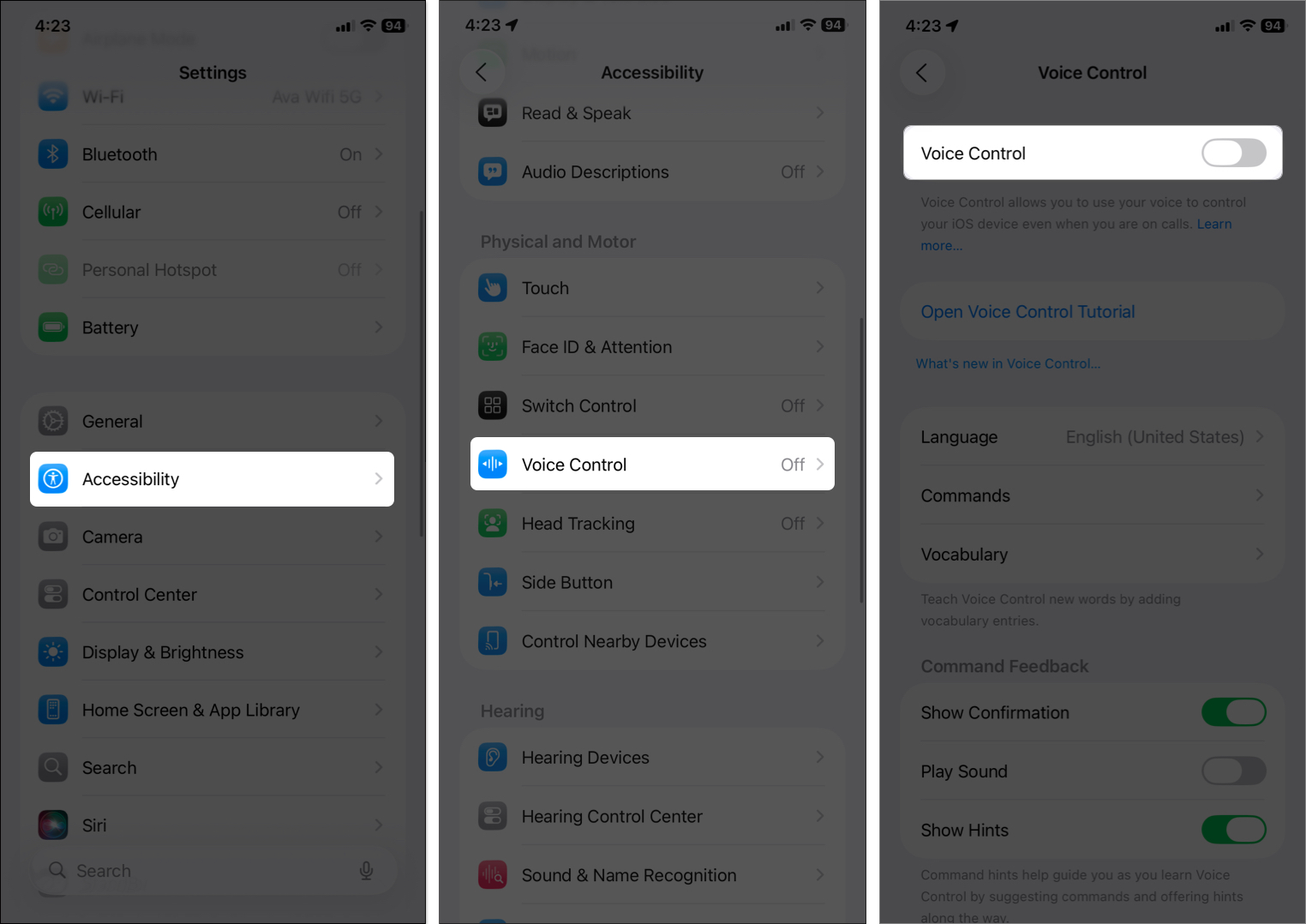
These two features let your phone make calls even when locked, which is a recipe for accidents.
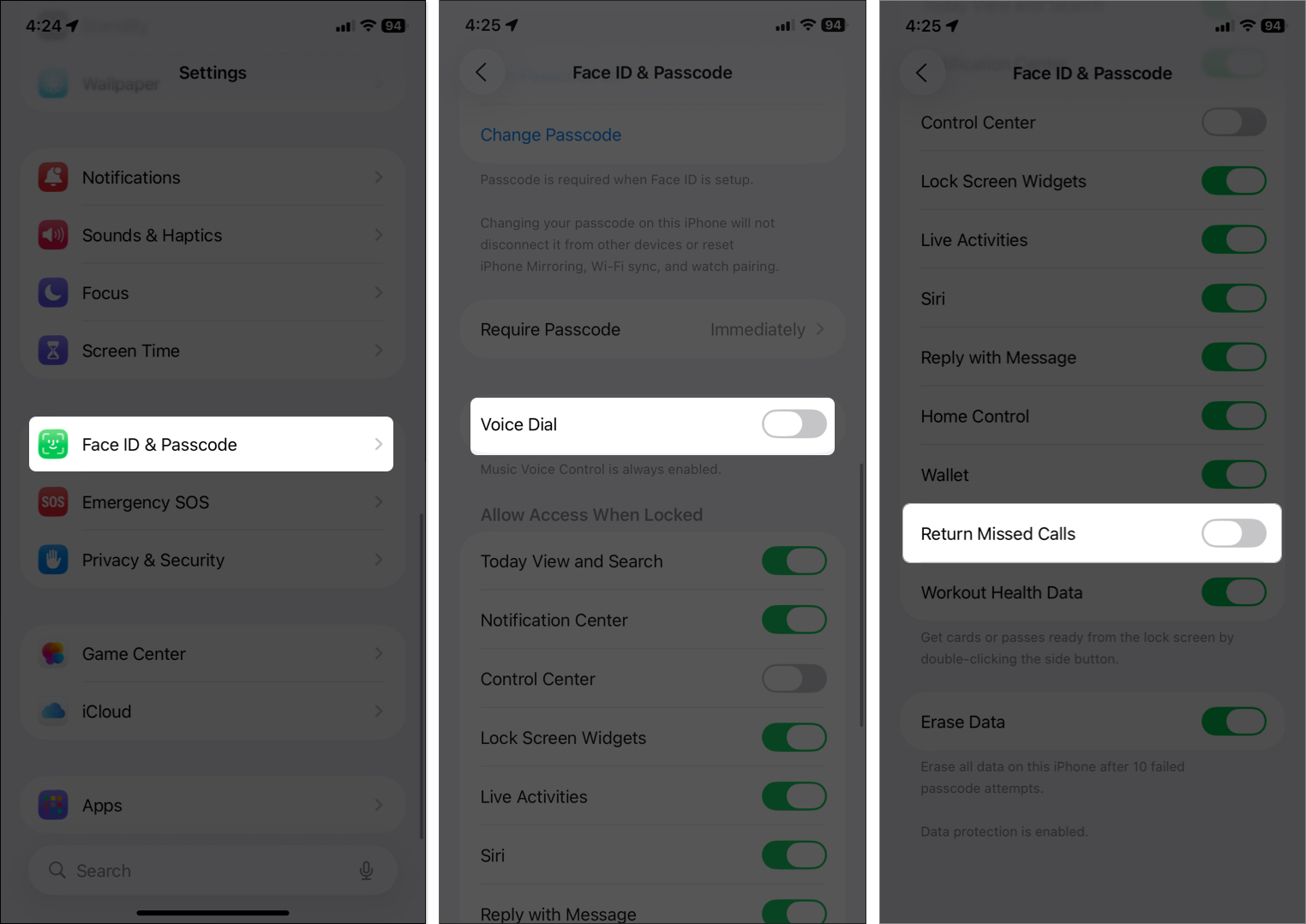
This stops your iPhone from auto-calling back missed numbers or responding to voice prompts on the lock screen.
Siri’s great, but if she’s listening on your lock screen, your voice can trigger calls when your iPhone is sitting idle.
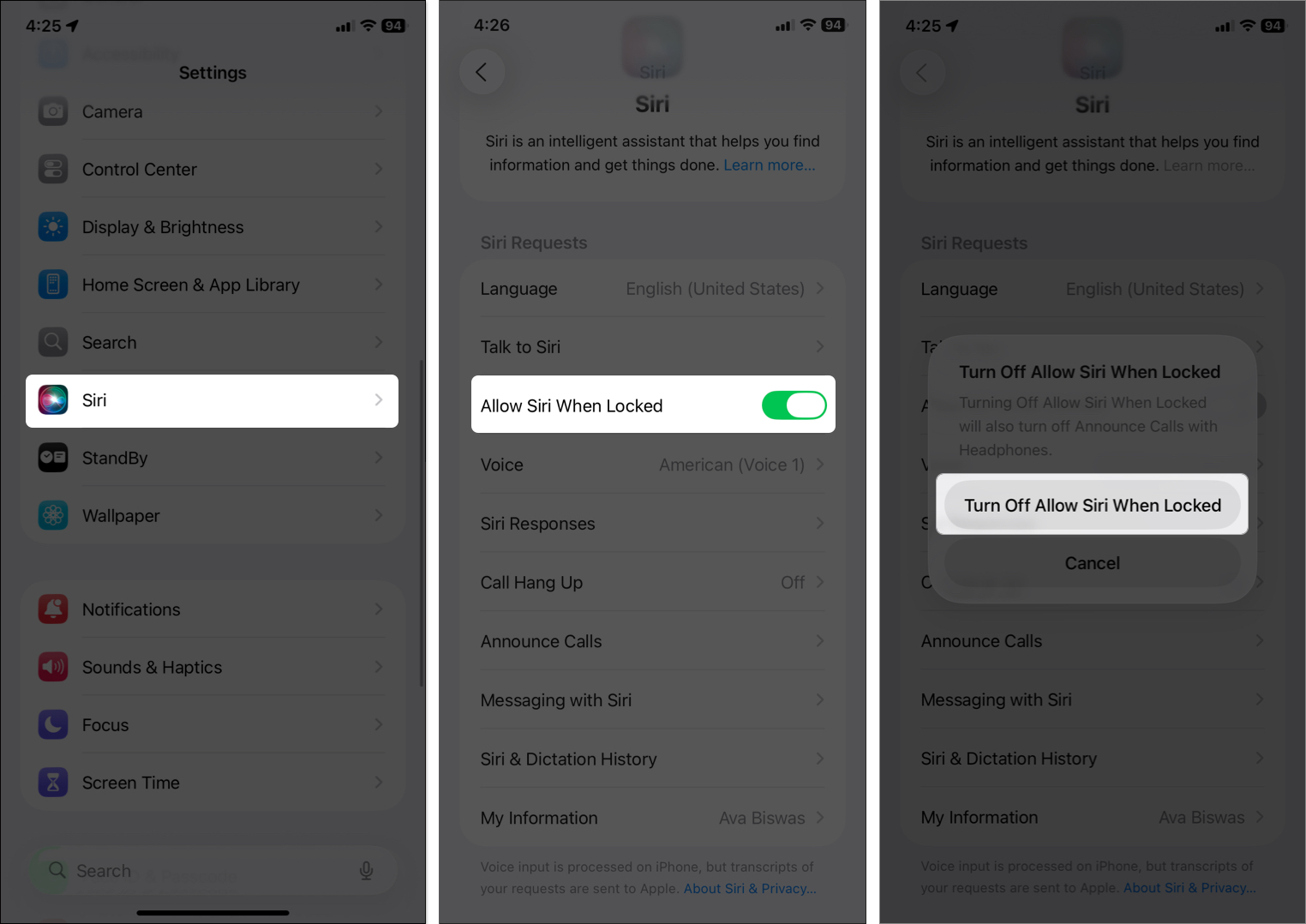
You can still use Siri after unlocking, but this cuts down on accidental activations.
Sometimes, the issue isn’t with your phone, but with your Bluetooth. Wireless headsets, car systems, or even headphones with faulty buttons can start random calls.
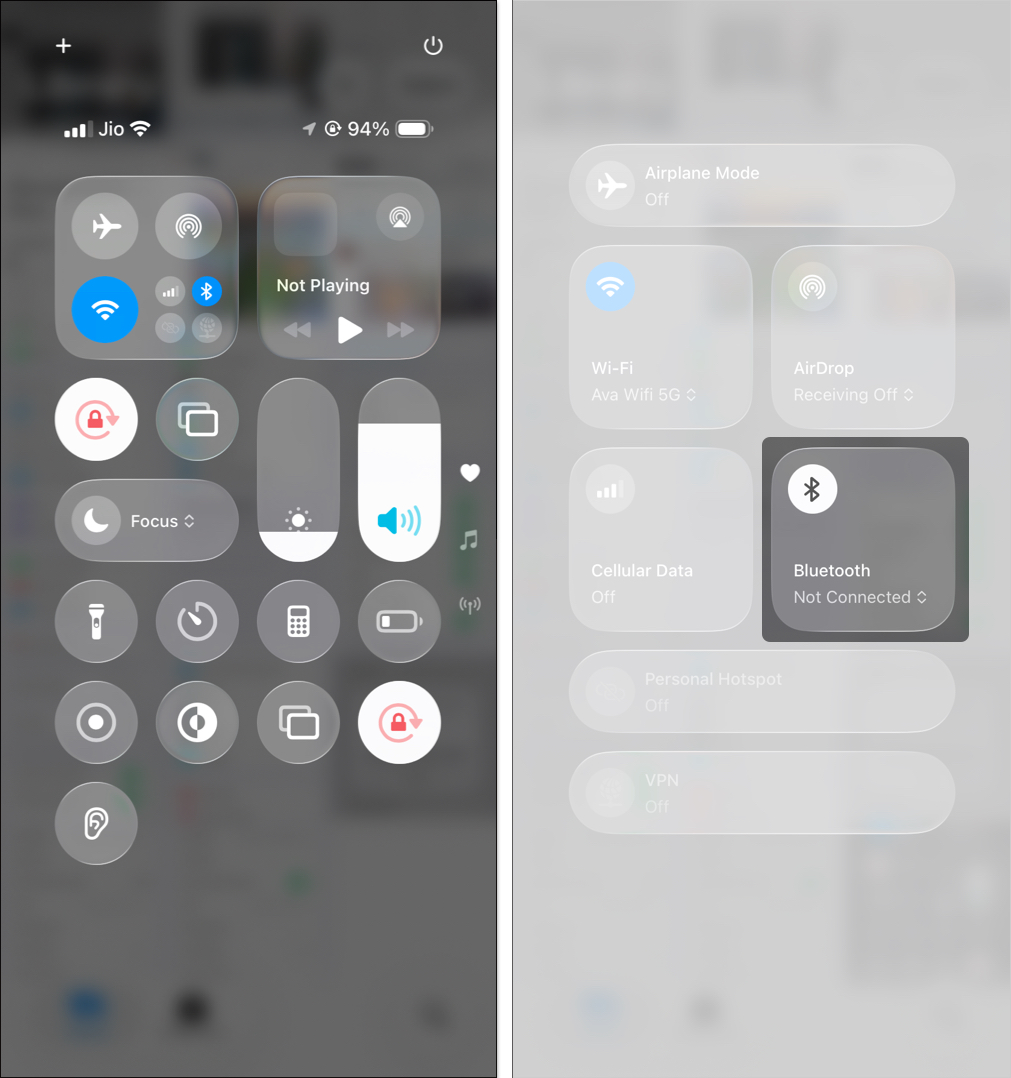
This disconnects all the Bluetooth accessories from your iPhone, fixing the issue.
Alternatively, go to Settings > Bluetooth > tap the (i) button next to an accessory and select Forget This Device > Forget. Test without accessories and reconnect one by one to spot the culprit. You should also check for firmware updates on your accessories.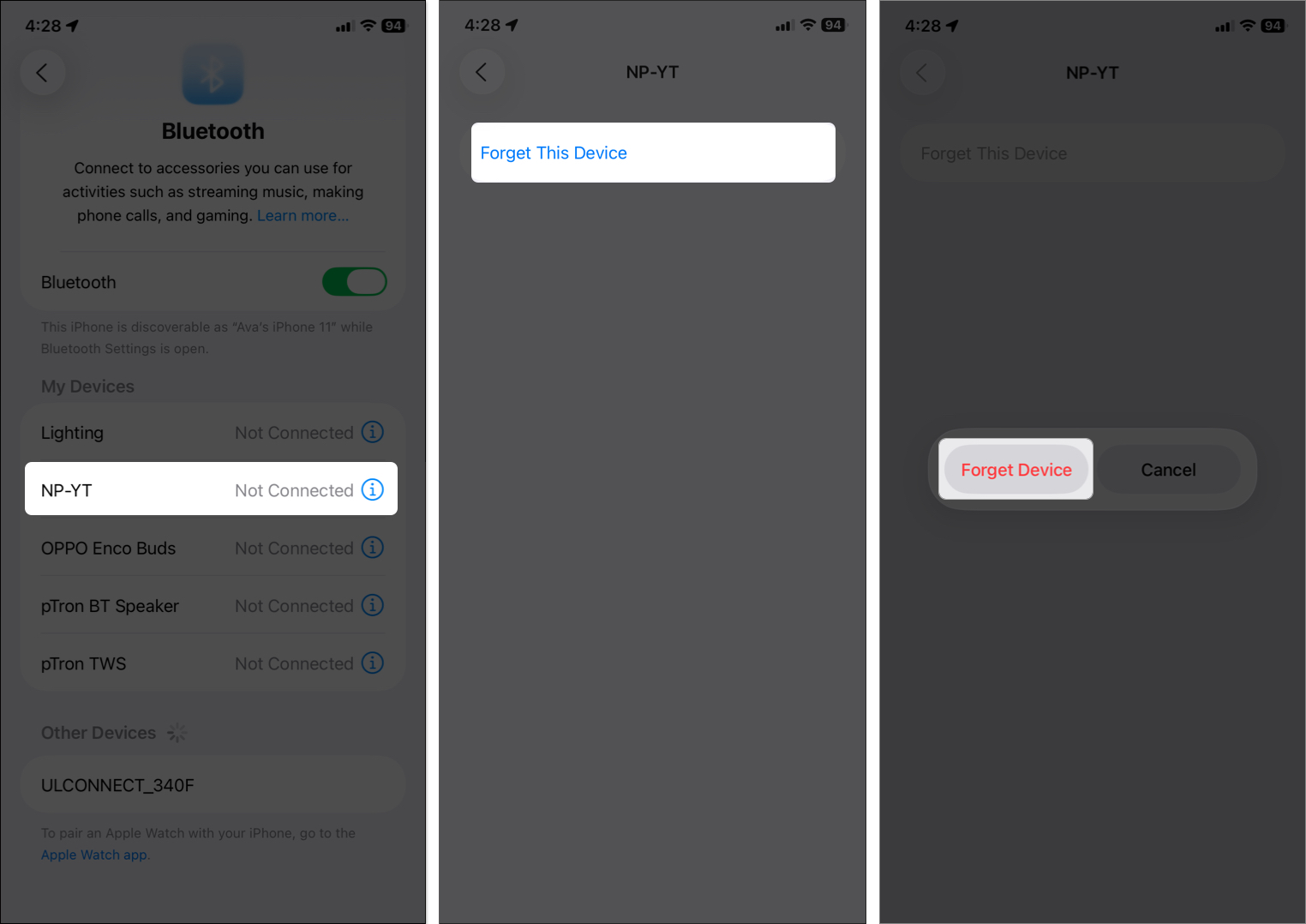
Your iPhone has an Emergency SOS feature that calls emergency services, literally a lifesaver. But it can trigger randomly if the iPhone buttons are pressed for too long.
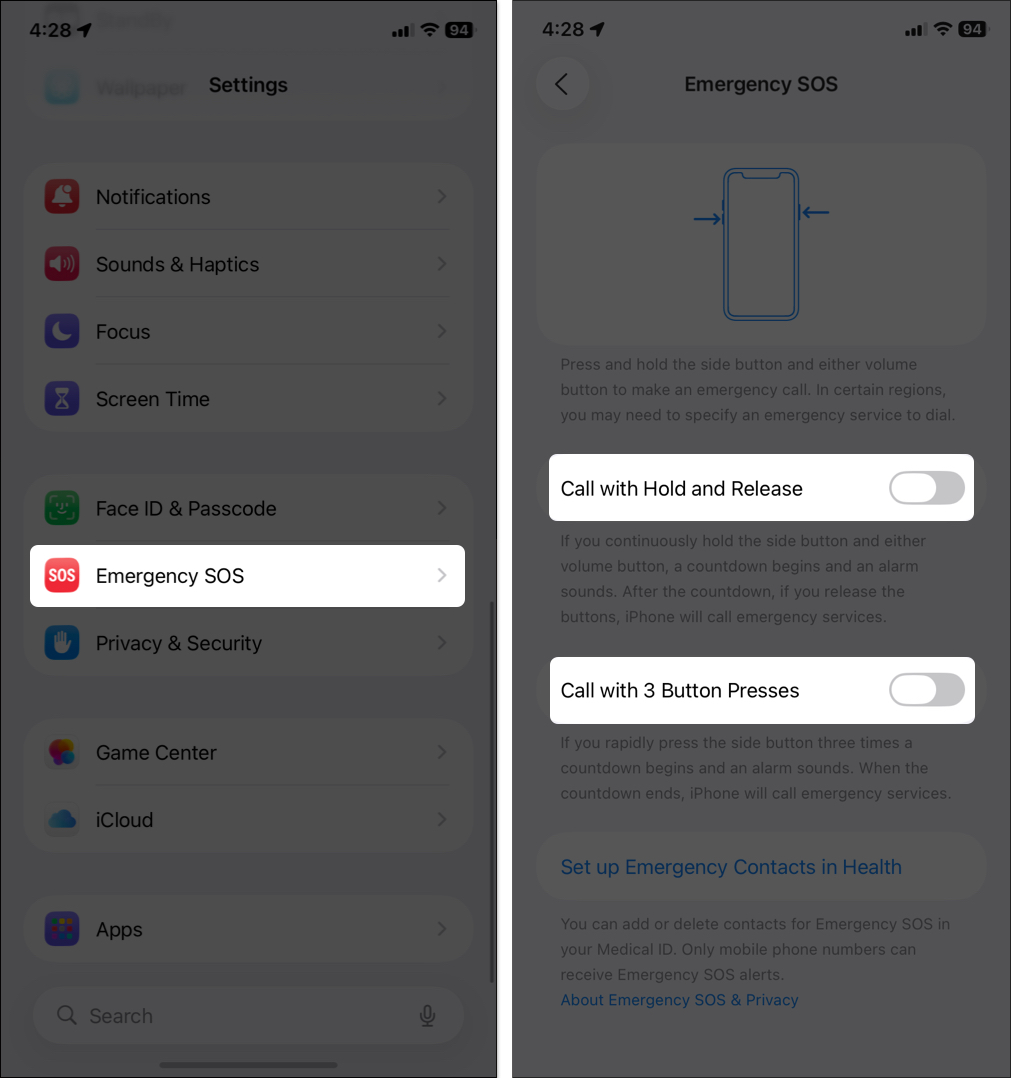
This way, you won’t accidentally dial 911 during a jog or while squeezing your phone in a tight pocket.
Back Tap lets you double or triple-tap the back of your iPhone for actions, but it might be set to call someone.
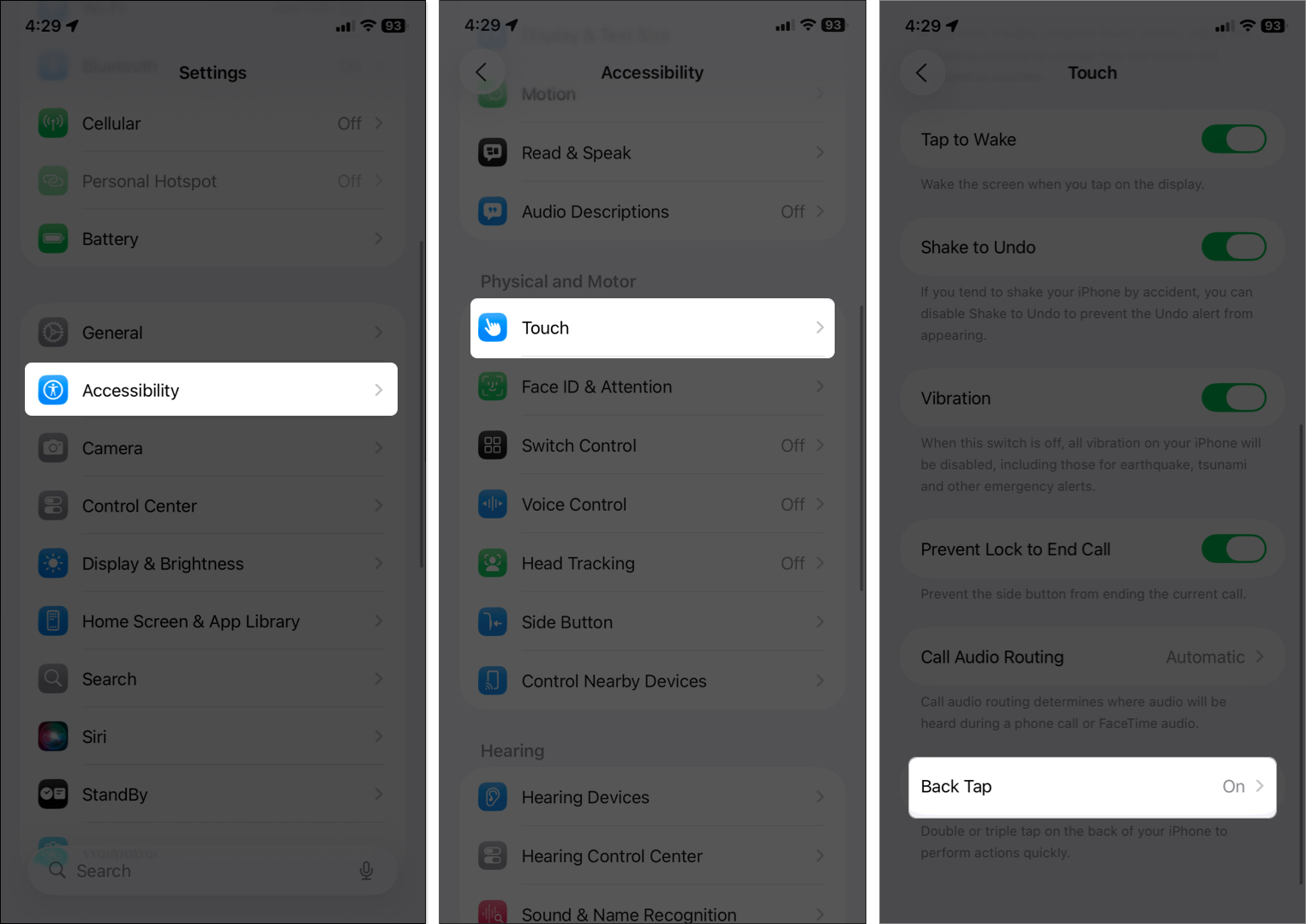
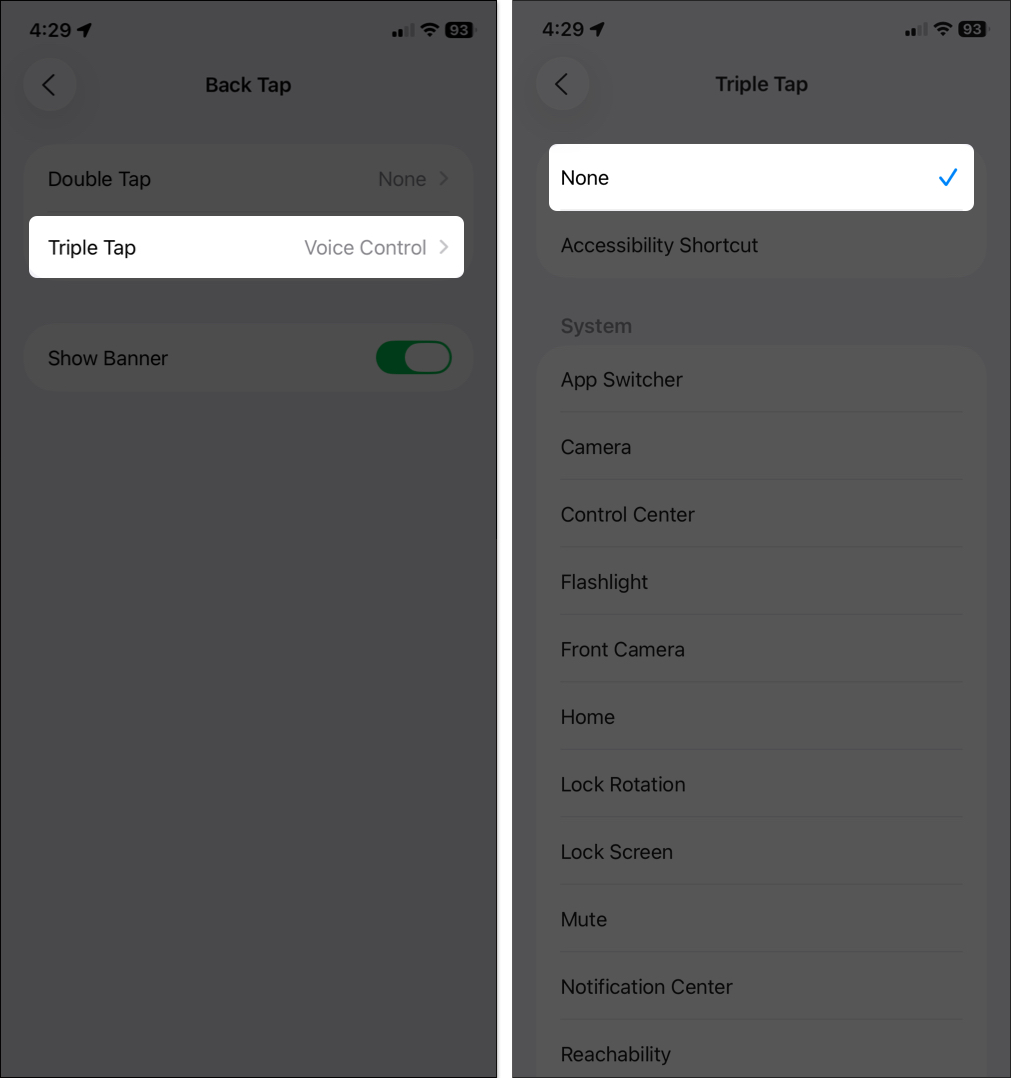
Also, in the Shortcuts app, review any shortcuts or automations that could trigger calls. Simply, delete them to prevent the iPhone from calling someone by itself.
If your screen’s registering random touches even when you don’t lift a finger, it could be dirt, a cracked protector, or hardware wear.
Bugs love outdated software, and Apple often patches these in updates.
Go to Settings > General > Software Update. If there’s an iOS update, download and install it. Restart your phone after a few minutes. Many users report that this fixes random calls.
If nothing else works, your network settings might be the culprit. Resetting can refresh things without wiping your data.
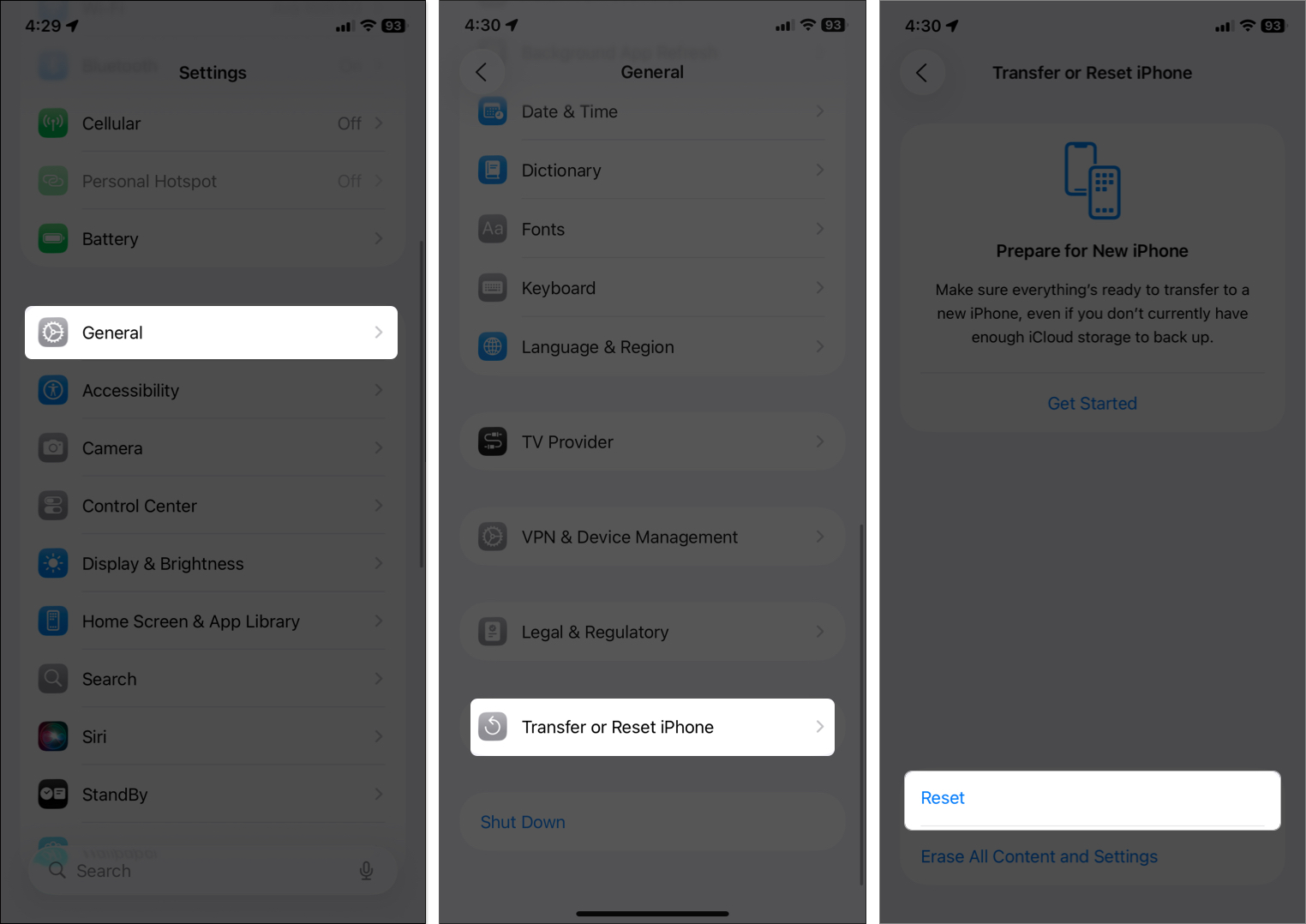
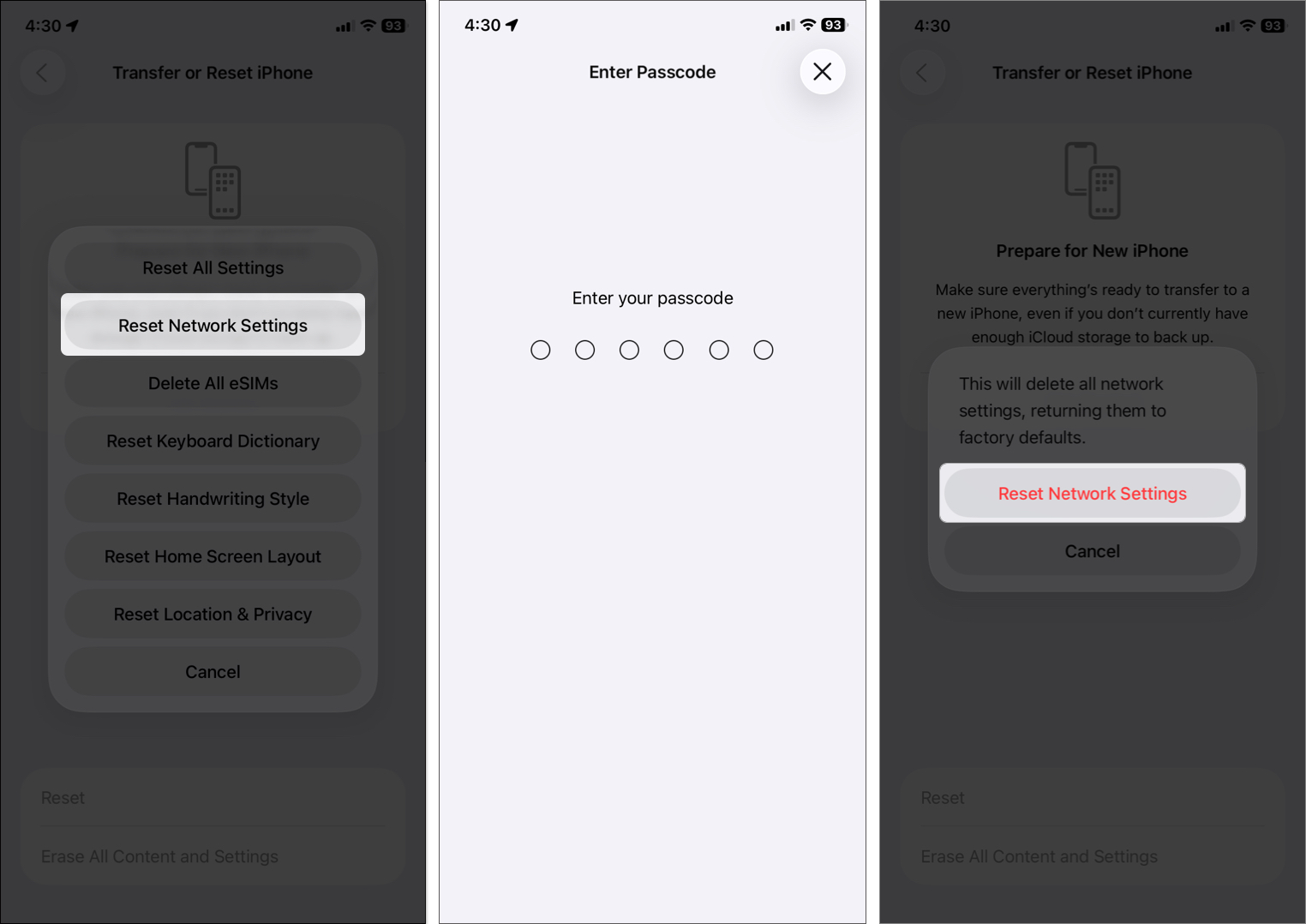
It’ll clear saves Wi-Fi passwords and Bluetooth pairings, so have those handy.
If your call log is clean, it’s likely caller ID spoofing—scammers faking your number.
What you can do:
If you’ve tried all the above and your iPhone’s still making random calls, it might be a deeper issue.
Reach out to Apple Support via their app, website, or a Genius Bar appointment if you suspect hardware, such as a faulty screen or button.
For network weirdness (like spoofing or dropped calls post-update), call your carrier. They can check for account issues or SIM problems.
Random calls on iPhone can be annoying, embarrassing, or even risky, but they’re fixable. From disabling Siri and Voice Control to checking for spoofing scams, you now have the tools to stop your iPhone from dialing on its own.
If you’ve tried everything and the issue persists, it’s best to contact Apple Support or your carrier for a deeper check.
Don’t miss these related reads: