
FaceTime Like a Pro
Get our exclusive Ultimate FaceTime Guide 📚 — absolutely FREE when you sign up for our newsletter below.

FaceTime Like a Pro
Get our exclusive Ultimate FaceTime Guide 📚 — absolutely FREE when you sign up for our newsletter below.


Can you mute someone in FaceTime? Learn what’s possible, plus smart ways to control audio and stop interruptions during calls.
Ever been on a FaceTime call where someone’s background noise or constant interruptions steal all the attention? It happens to everyone. The good news is that FaceTime gives you simple controls to keep your calls calm and distraction free.
In this guide, you’ll learn how to mute someone in FaceTime using practical workarounds so you can stay focused on the conversation that matters. I’ll also walk you through the steps to mute FaceTime calls and notifications.
Let’s start with the basics. Unfortunately, FaceTime does not allow you to mute another person directly. Apple designed the app so that each participant controls their own microphone settings.
Here’s what you can do:
In group FaceTime calls, the app automatically highlights the person who is speaking. However, audio control still depends on each participant managing their own microphone.
Muting yourself in FaceTime is quick and easy once you know where to look.

Since the iPad uses the same FaceTime interface as the iPhone, the steps are identical. The other person can still see you during a video call, but they will not be able to hear you. They also will not receive any notification that you muted yourself.
If you try to speak while muted, your iPhone will detect your voice and show a prompt indicating that your microphone is off. Simply tap the microphone icon again to unmute.
This works the same way for both video calls and audio only FaceTime calls. It is especially useful during meetings and group calls. If you are in a noisy environment, open Control Center during the call, tap FaceTime, and select Voice Isolation to reduce background noise.
Related: How to Turn On Voice Isolation on iPhone

If you are using AirPods, headphones, or an external microphone, muting in FaceTime will still control your audio input.
You can also enable Voice Isolation on your Mac to make your voice clearer and minimize background noise.
If you are in public, it can feel awkward to keep your FaceTime call loud and audible. Since you cannot mute other participants directly, the only true solution is to ask them to turn off their microphone if there is excessive background noise.
If you simply do not want to hear the other person without letting them know, here are your options:
In group FaceTime calls, conversations can become noisy when multiple people talk at once. FaceTime helps by automatically focusing on the person who is speaking, but overall audio levels remain under your control.
Sometimes you do not want to mute audio during an active call. Instead, you may want to silence incoming FaceTime calls or notifications so they do not interrupt your work. Here are a few ways to do that.
The fastest way to silence FaceTime calls is to use Silent Mode.
On newer iPhones:
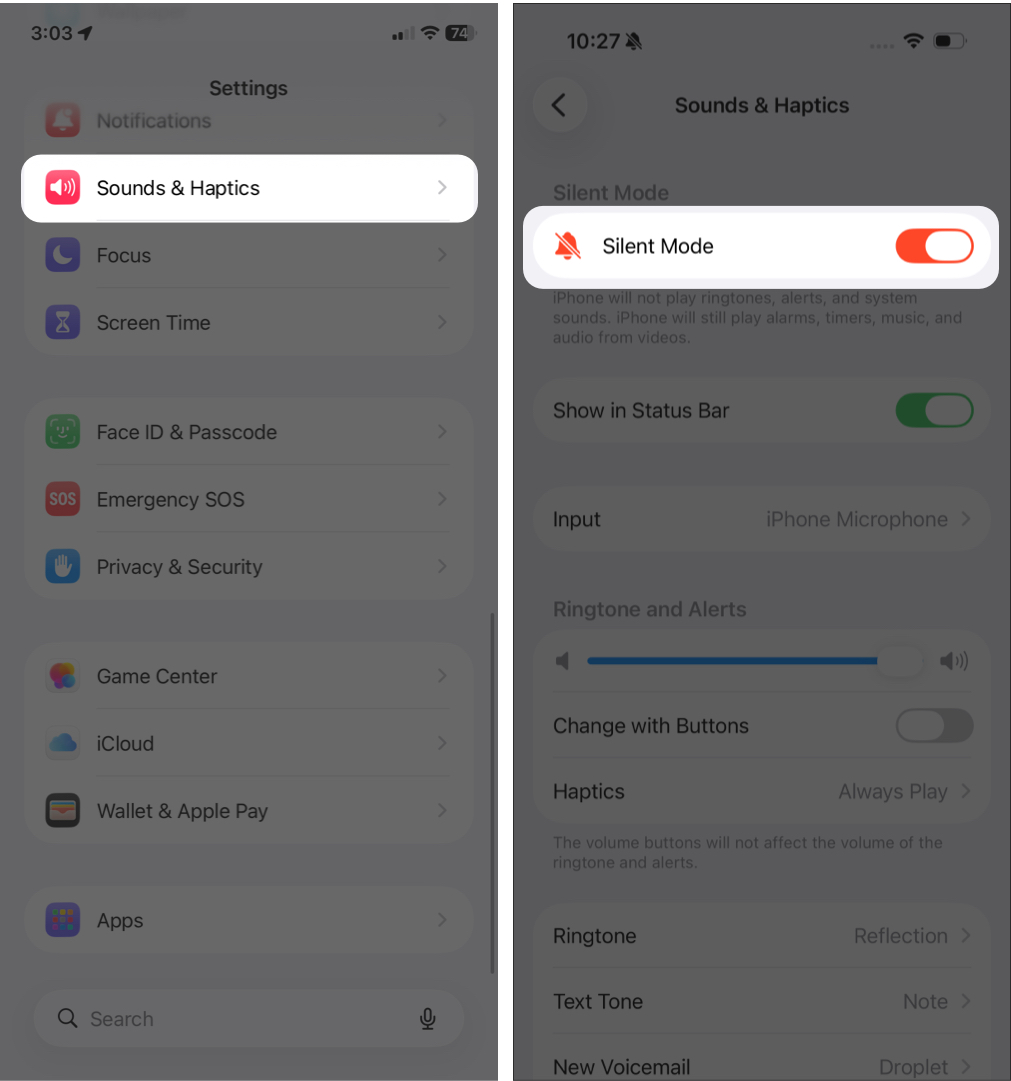
Older iPhones have a physical mute switch on the side. Flip it to enable Silent Mode.
On iPad, press and hold the Volume Down button to quickly reduce sound output.
To stop FaceTime call sounds on a Mac:
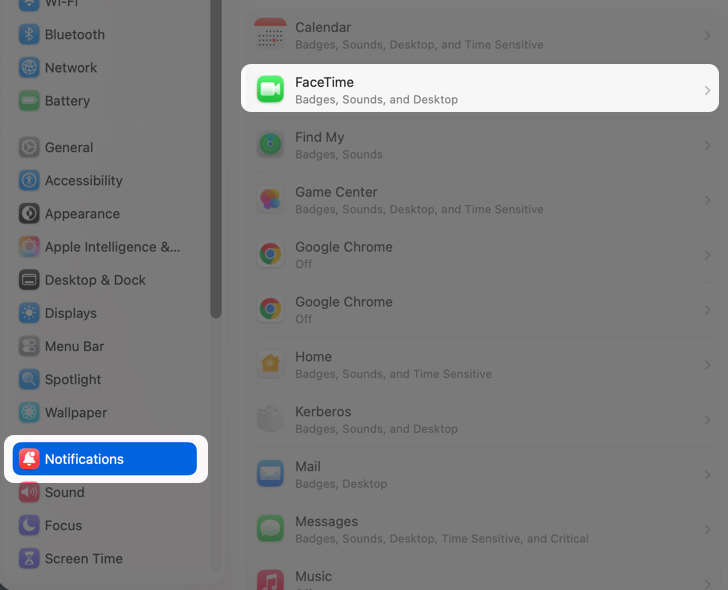
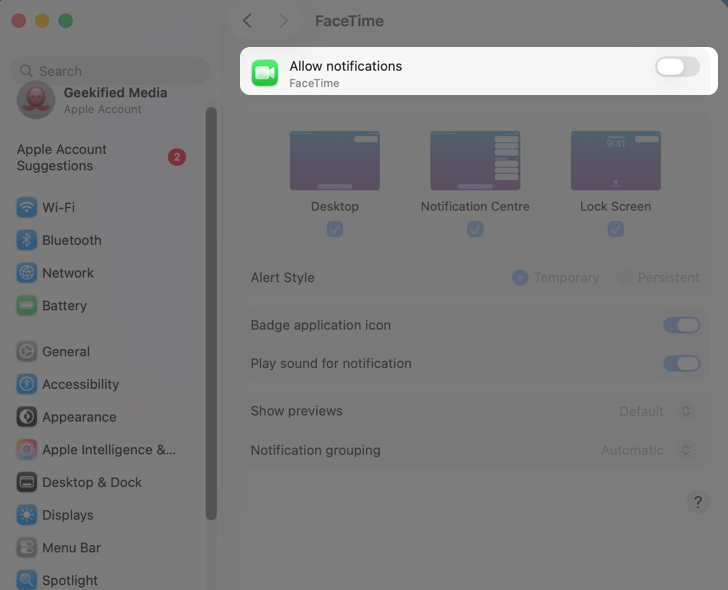
FaceTime calls will still come through, but they will not make a sound.
You can also silence calls using Focus mode, including Do Not Disturb.
On iPhone and iPad:
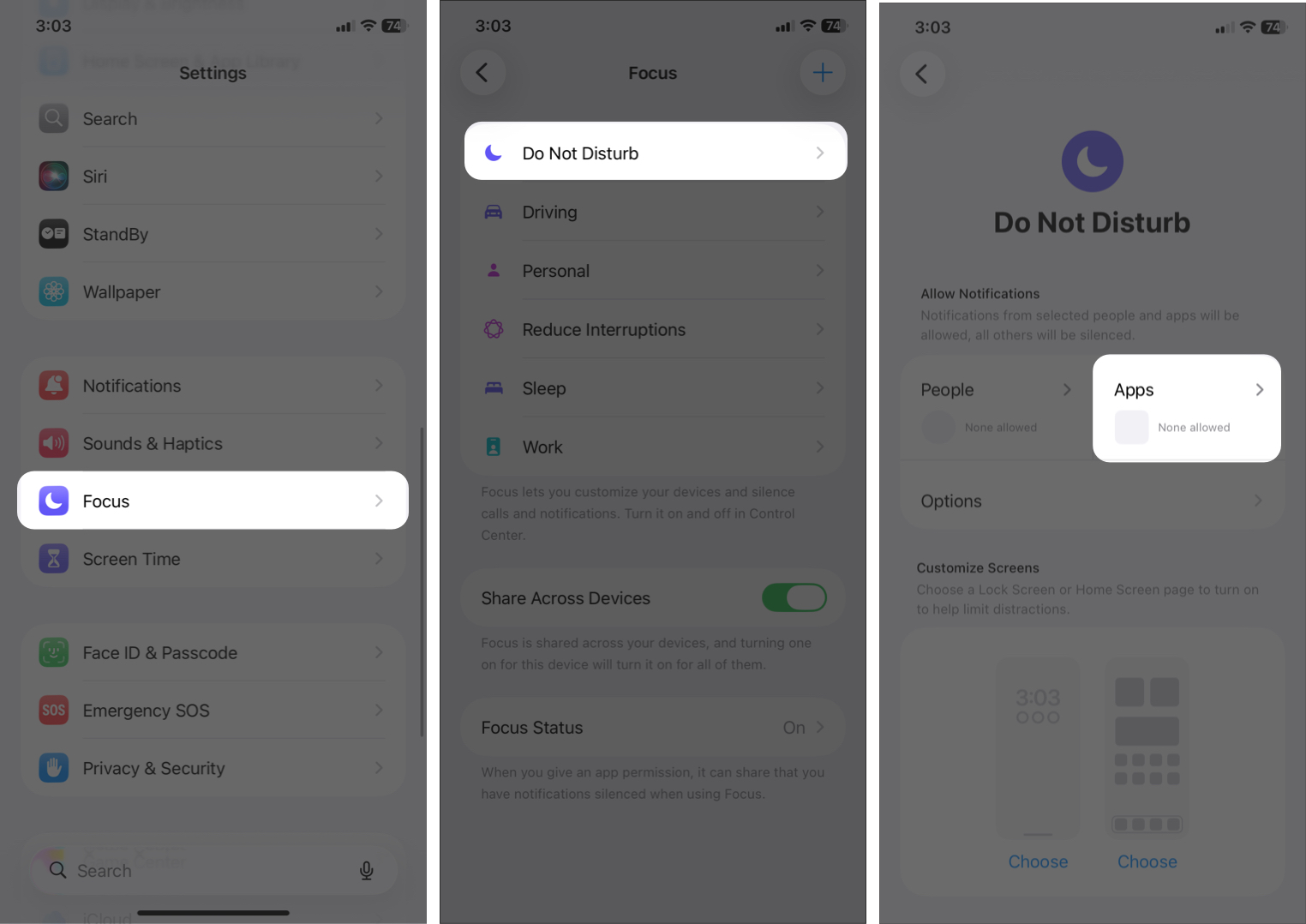
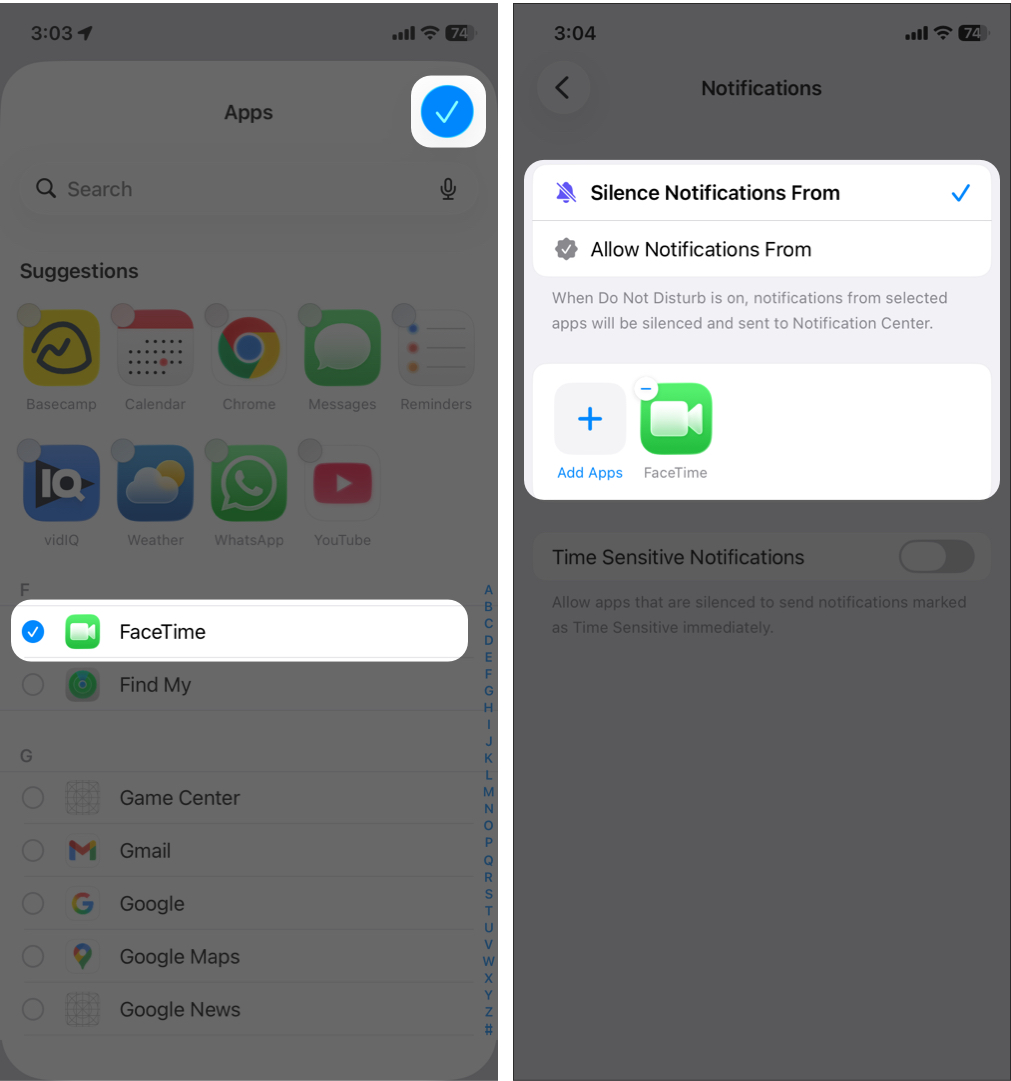
Enable the selected Focus mode whenever needed.
This prevents FaceTime calls from ringing while you are busy. You can set up Focus mode on your Mac as well to silence FaceTime calls and notifications during work hours.
If you want to avoid interruptions from people you do not know, you can enable the Silence Unknown Callers feature for FaceTime. This automatically silences calls from numbers or Apple IDs that are not saved in your contacts.
On iPhone and iPad:
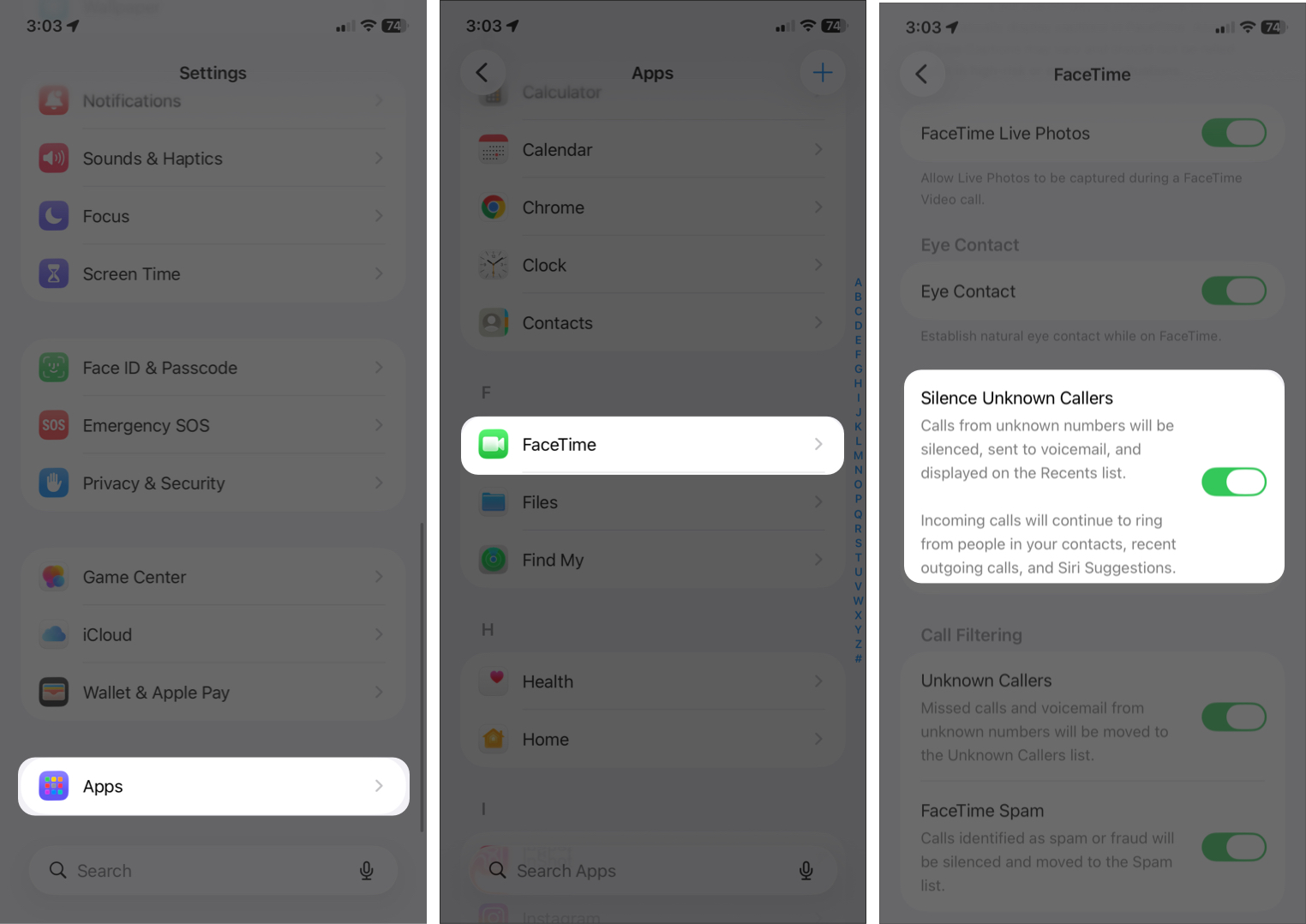
On Mac:
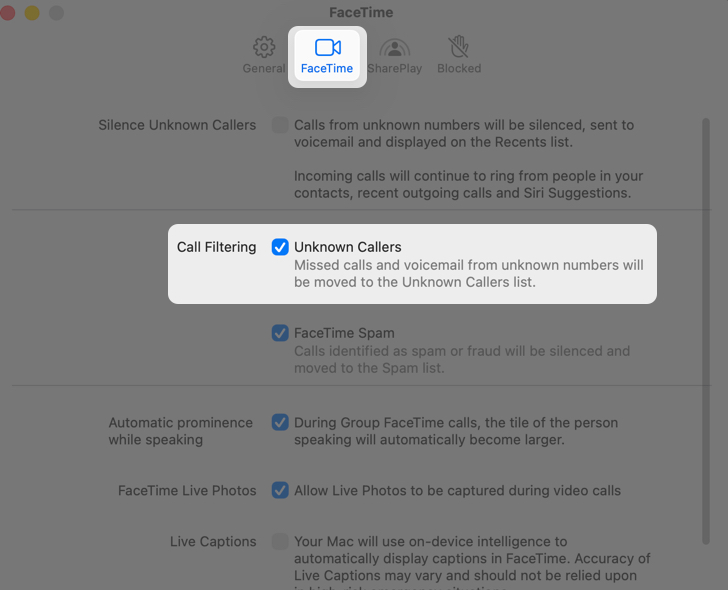
Once enabled, calls from unknown contacts will not ring. Instead, they will go to voicemail and appear under Recents so you can review them later if needed.
FaceTime makes video and audio calls simple across Apple devices, and its muting controls help keep conversations clear and distraction free. While you cannot mute another person directly in FaceTime, you can easily mute yourself, manage call audio, and silence incoming calls when necessary.
Now that you know how to mute and silence FaceTime calls, you are in full control of when and how you stay connected.












