
FaceTime Like a Pro
Get our exclusive Ultimate FaceTime Guide 📚 — absolutely FREE when you sign up for our newsletter below.

FaceTime Like a Pro
Get our exclusive Ultimate FaceTime Guide 📚 — absolutely FREE when you sign up for our newsletter below.


Ready to test macOS 26 Tahoe? Here’s how to install the developer beta on your Mac, including key tips to stay safe during the upgrade.
 ByVikhyat
Apple has released macOS Tahoe 26.6 Developer Beta 1, kicking off a new testing cycle for Mac users after the public rollout of macOS Tahoe 26.5. This is the first build in the macOS Tahoe 26.6 series, and Apple lists the beta with build number 25G5028f on its Developer Releases page.
That said, do not expect any big surprises here. Apple’s release notes mention a specific ecosystem fix related to macOS deprecation notifications incorrectly identifying some host apps as Intel-only when certain system plugin loaders bring x86 code into the process. In other words, this looks more like a stability and bug-fix update than a feature-heavy release.
For Mac users already running macOS Tahoe, this build is mostly about keeping the experience smooth as Apple moves closer to WWDC and the next major macOS cycle. Apple is likely saving bigger platform changes for macOS 27, while macOS Tahoe 26.6 focuses on refinement, compatibility, and behind-the-scenes improvements.
If you are a registered developer looking to get the latest build on your Mac, here is exactly how to download and install macOS Tahoe 26.6 Developer Beta 1 right now.
Before jumping in, keep these important points in mind:
Before you can download and install the beta, you need to enroll in the Apple Beta Software Program. Once enrolled, you’ll get access to beta updates directly from your Mac’s System Settings.
Follow these steps:
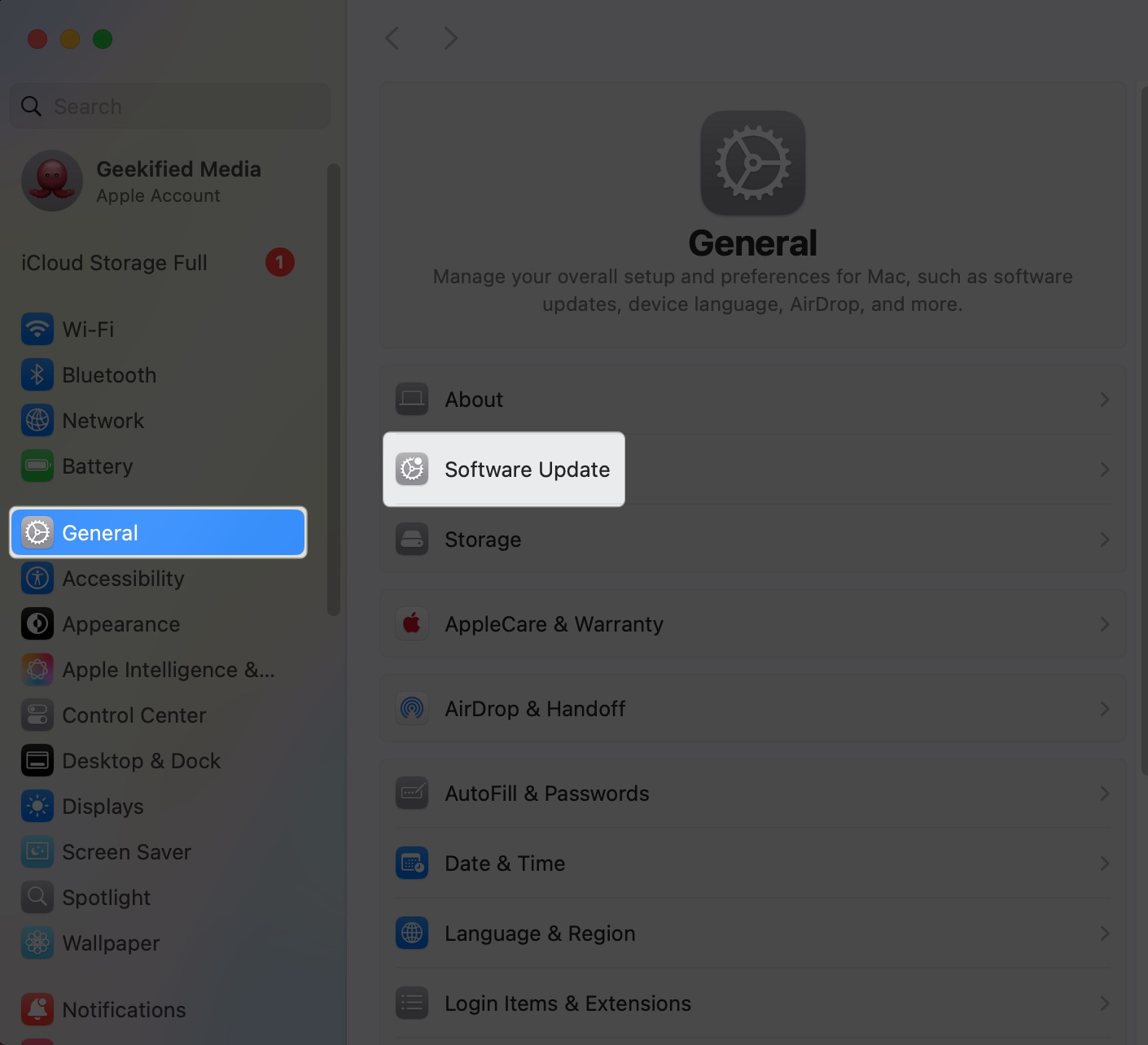
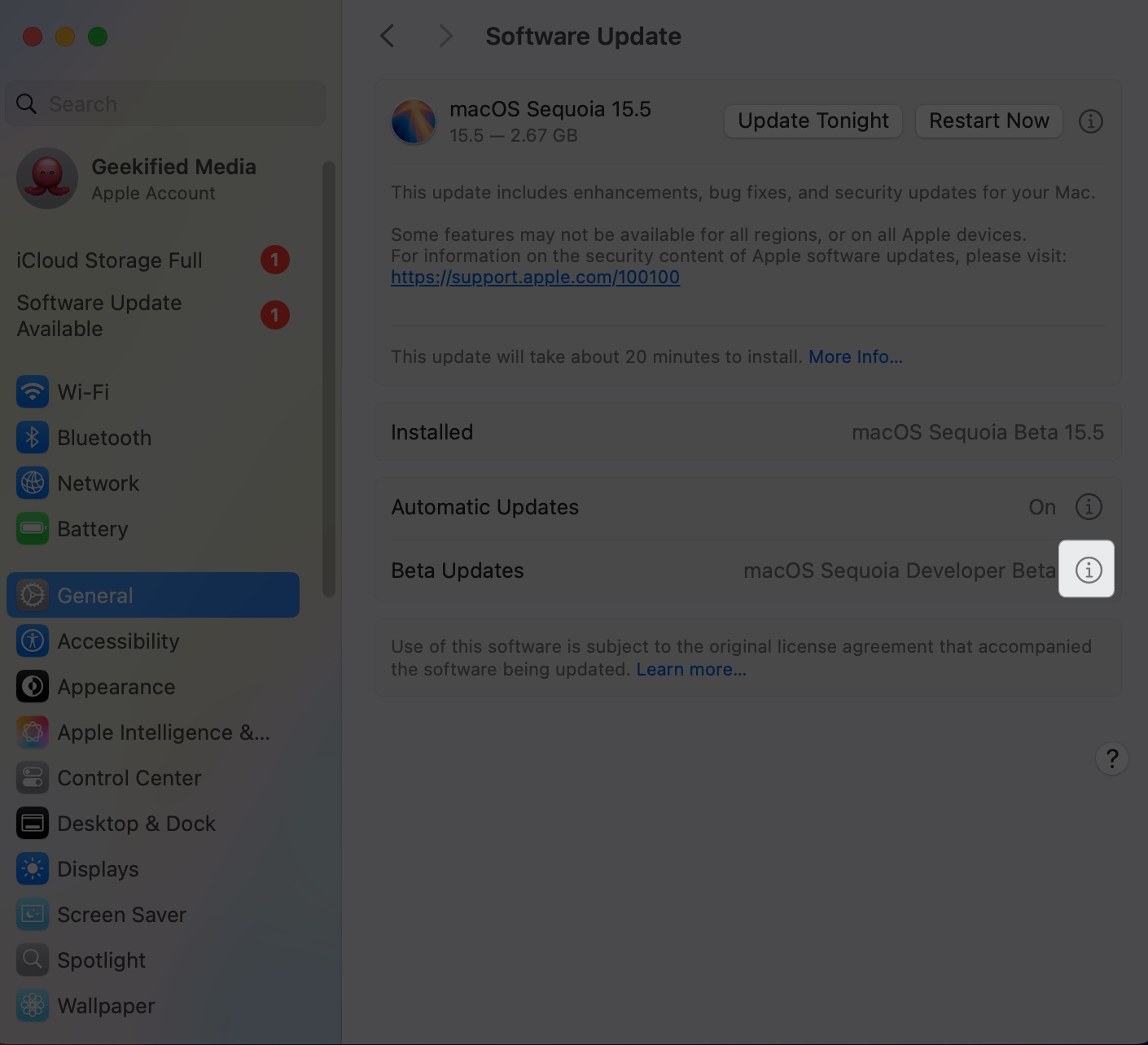
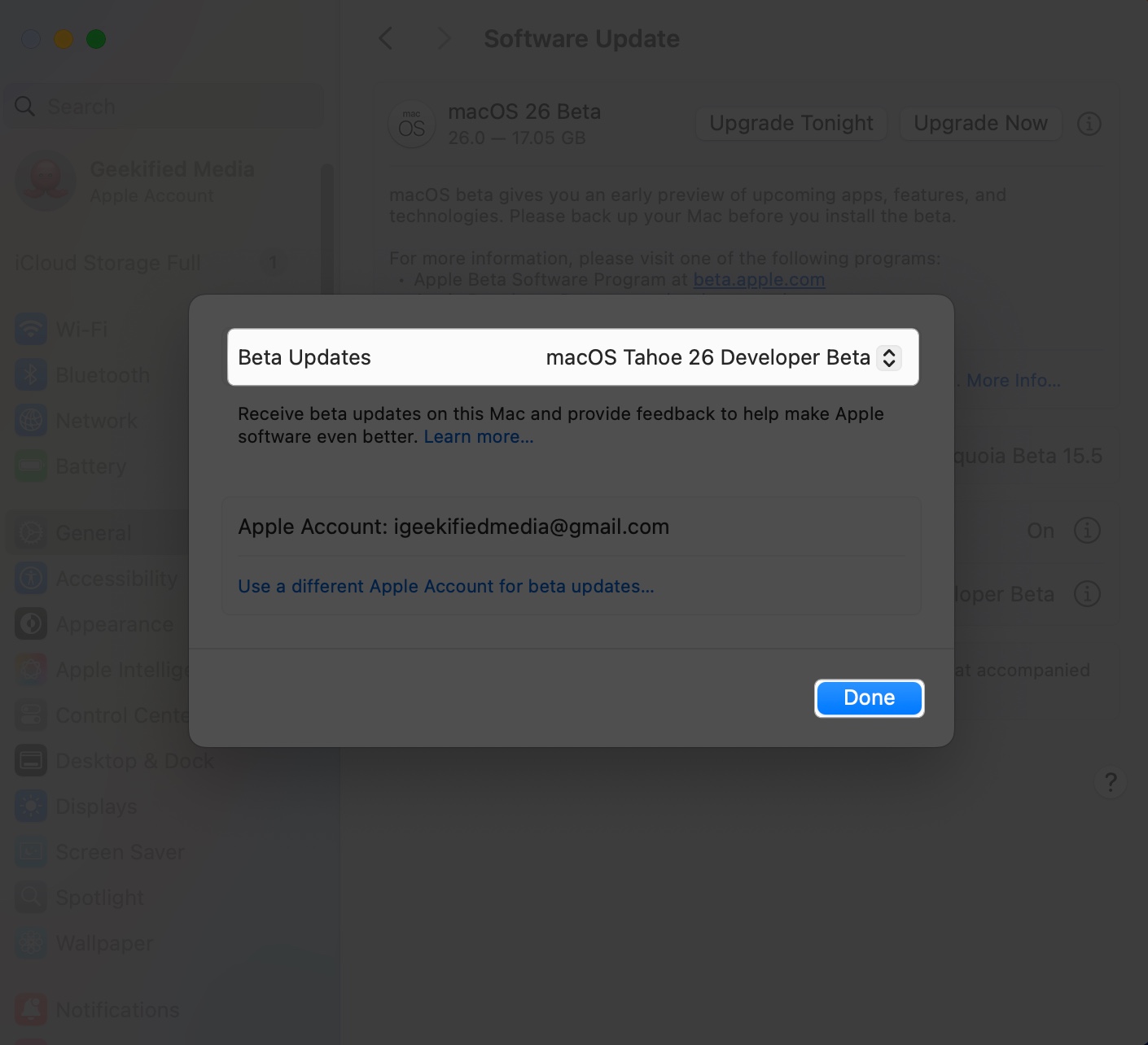
The installation process can take 45 to 90 minutes, depending on your internet speed and Mac’s performance.
If you’re a developer or a tech enthusiast using a secondary Mac, this is a great opportunity to explore macOS 26 before its public release.
However, if your Mac is your daily driver, it’s better to wait for the stable release (Fall 2026). Developer betas may include bugs, battery drain issues, or app compatibility problems that could disrupt your workflow.
With macOS Tahoe 26.6 Developer Beta 1 now available, Apple has officially started the next round of testing for Mac users. This update does not appear to be a major feature drop, but it still plays an important role in refining performance, improving stability, and fixing issues before the public release arrives.
If you are a registered developer, the steps above will help you get the latest build running on your Mac in just a few minutes. For everyone else, it is better to wait for the public beta or final release, especially if you use your Mac for daily work.
Stay tuned for the latest macOS Tahoe 26.6 coverage as Apple continues moving through its beta cycle.
Read More











