
FaceTime Like a Pro
Get our exclusive Ultimate FaceTime Guide 📚 — absolutely FREE when you sign up for our newsletter below.

FaceTime Like a Pro
Get our exclusive Ultimate FaceTime Guide 📚 — absolutely FREE when you sign up for our newsletter below.


iOS 26 lets you set custom iMessage backgrounds on iPhone, iPad, and Mac. Here’s how to do it—and make your chats more personal than ever.
iOS 26 finally lets you set custom backgrounds to your iMessage chats—because plain white threads are boring. Now, you can set a unique background for every conversation, whether it’s a one-on-one chat or a lively group thread. The best part is that the background syncs for both sides, so everyone sees the same vibe.
Want to use a cute selfie with your partner? A goofy theme for your friends’ group? Or just something that fits the mood of the chat? You can now do all of that—and it works across your iPhone, iPad, and Mac. Here’s how to change your iMessage background and everything else you should know.
Here are a few things to keep in mind before setting a custom iMessage background:
Check out: All the New Messages App Features on iOS 26
You can now personalize your chats with backgrounds, just like on Telegram and WhatsApp.
Here’s how to set it up on iPhone or iPad:
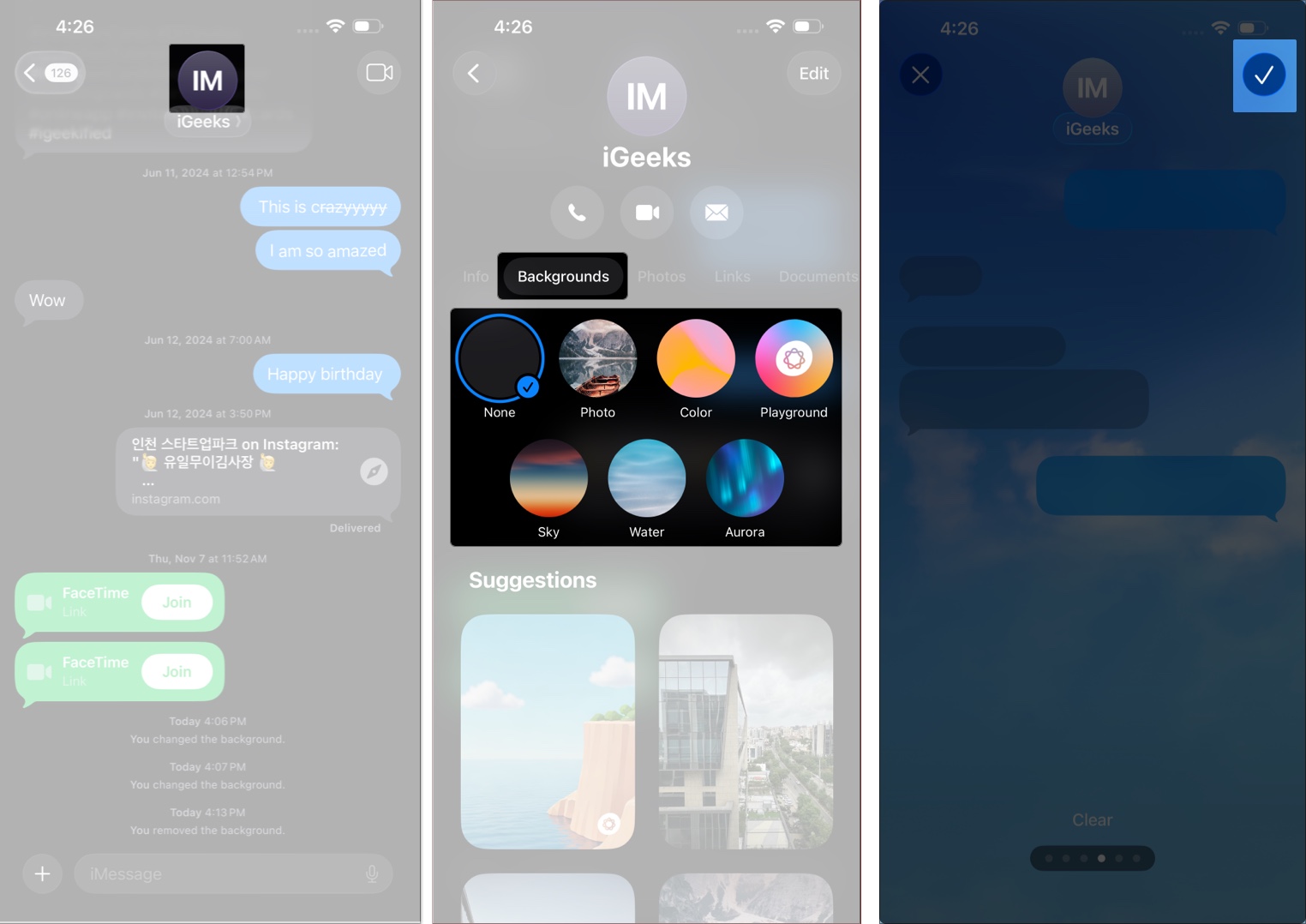
That’s it! Your chosen background will now appear for both you and the other person if they’re also using iOS 26 or later. You can also set different wallpaper per chat. In group messages, anyone can set the background, and it updates for everyone.
Tip: If you can’t find the Backgrounds option, go to Settings > Apps > Messages, scroll down, and toggle on Conversation Backgrounds.
Custom backgrounds aren’t just for iPhones—you can set them on your Mac too. Here’s how to personalize your iMessage chats on macOS 26 Tahoe:

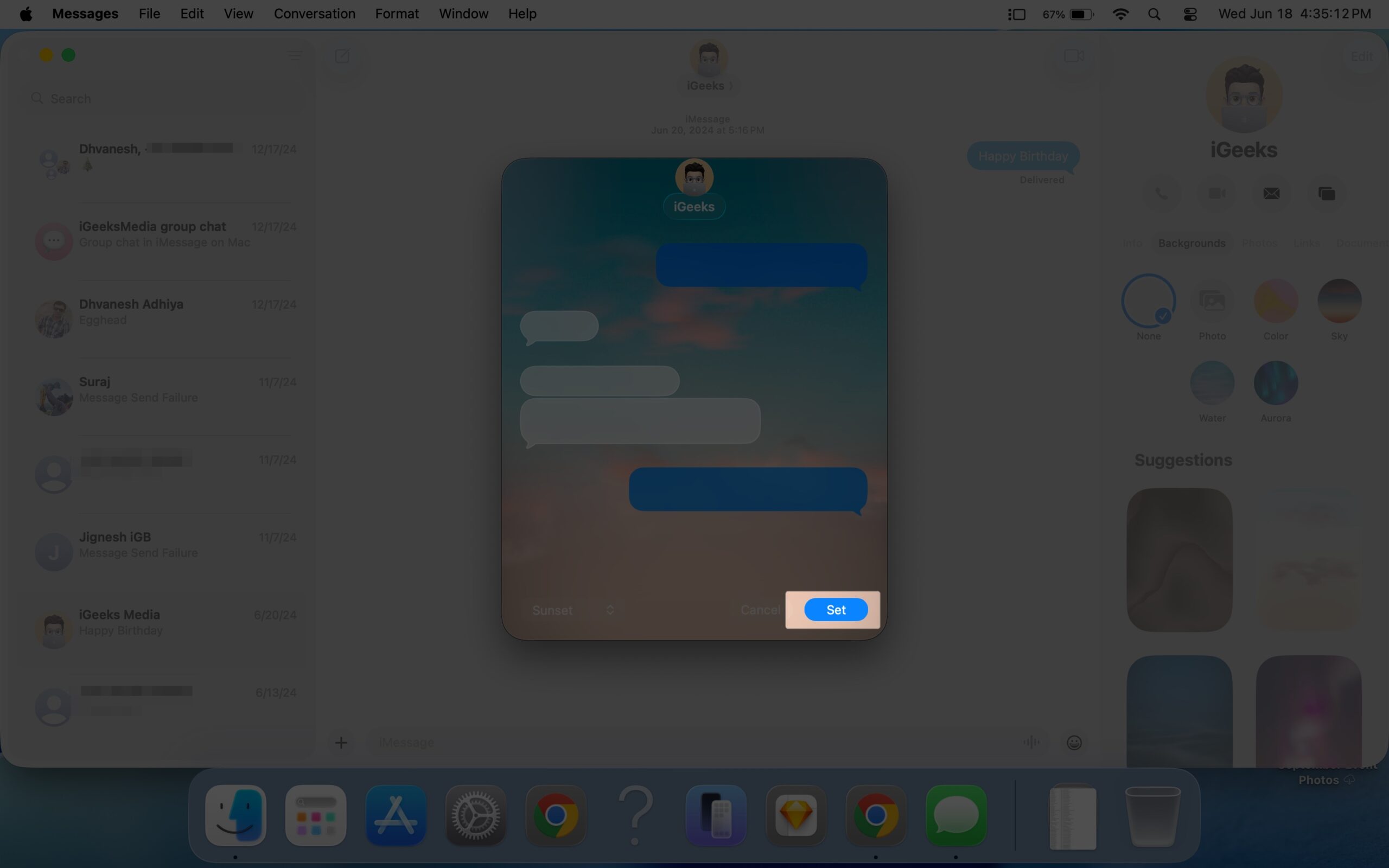
Once set, the background will appear for everyone in the conversation, as long as they’re also on compatible software. And just like on iPhone, anyone in the group can change it.
This small detail makes chats feel way more personal and finally brings Apple closer to what apps like Telegram and WhatsApp have offered for years. Try it out and make your chats your own. Whether you’re setting a romantic background for your partner, a silly one for your friends, or something aesthetic just for you, iMessage backgrounds make your chats feel more like you.
So go ahead and try it out—your conversations deserve a splash of color.
Related articles worth reading:












