FaceTime Like a Pro
Get our exclusive Ultimate FaceTime Guide 📚 — absolutely FREE when you sign up for our newsletter below.

FaceTime Like a Pro
Get our exclusive Ultimate FaceTime Guide 📚 — absolutely FREE when you sign up for our newsletter below.


Apple Intelligence now works inside the Shortcuts app on iPhone, iPad, and Mac—letting you automate tasks like summarizing voice memos, emails, PDFs, and more.
Apple Intelligence didn’t steal the spotlight this year, but one thing quietly changed the game: it now works inside the Shortcuts app.
That means you can automate tasks using AI. No need to repeat the same actions every day. Just build a Shortcut once, and let Apple Intelligence handle the rest with a single tap.
Not sure what to use it for? Here are 7 practical things you can now do with Apple Intelligence in Shortcuts, things that weren’t possible before.
Got a long voice recording? Whether it’s a meeting, a random idea, or a voice memo to yourself, you can now create a Shortcut that:
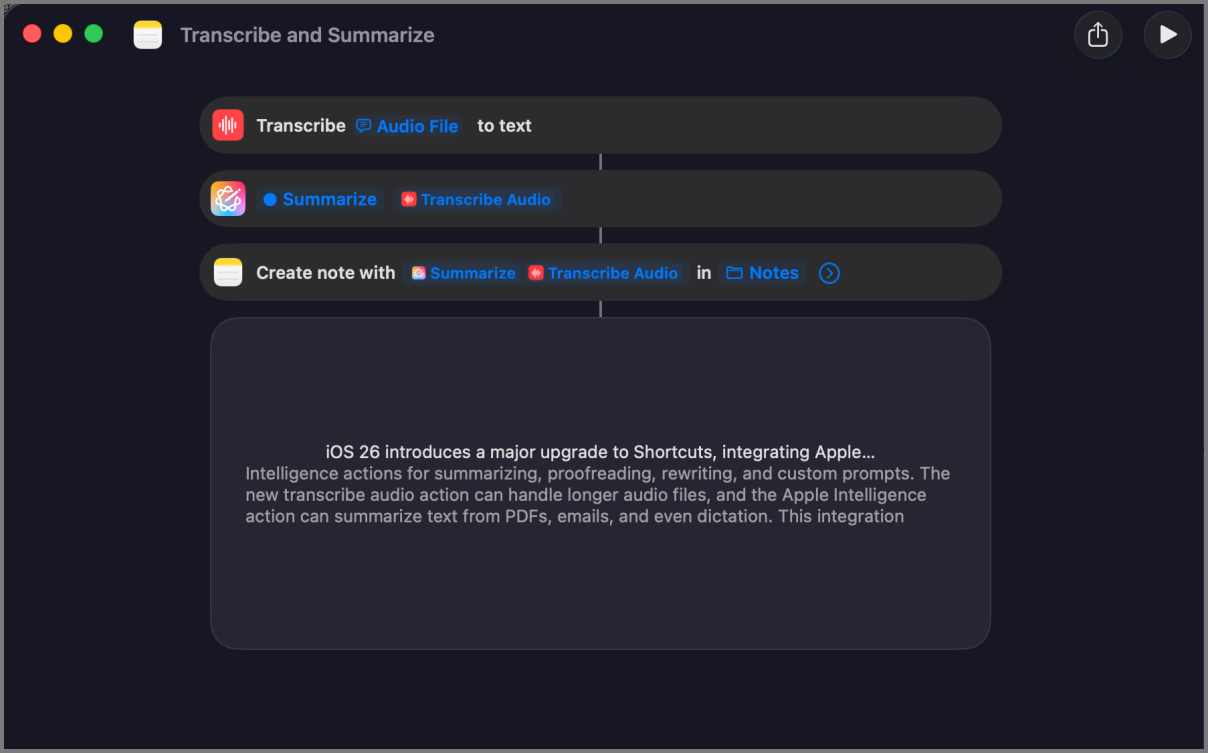
It works offline (on-device), supports up to 10 minutes of audio, and saves you from reading full transcripts.
There’s currently no direct way to upload a PDF to Apple Intelligence and get a summary. You’d usually have to copy the entire text manually and paste it into a writing tool with a Summarize option. But now, you can simplify this process with a Shortcut.
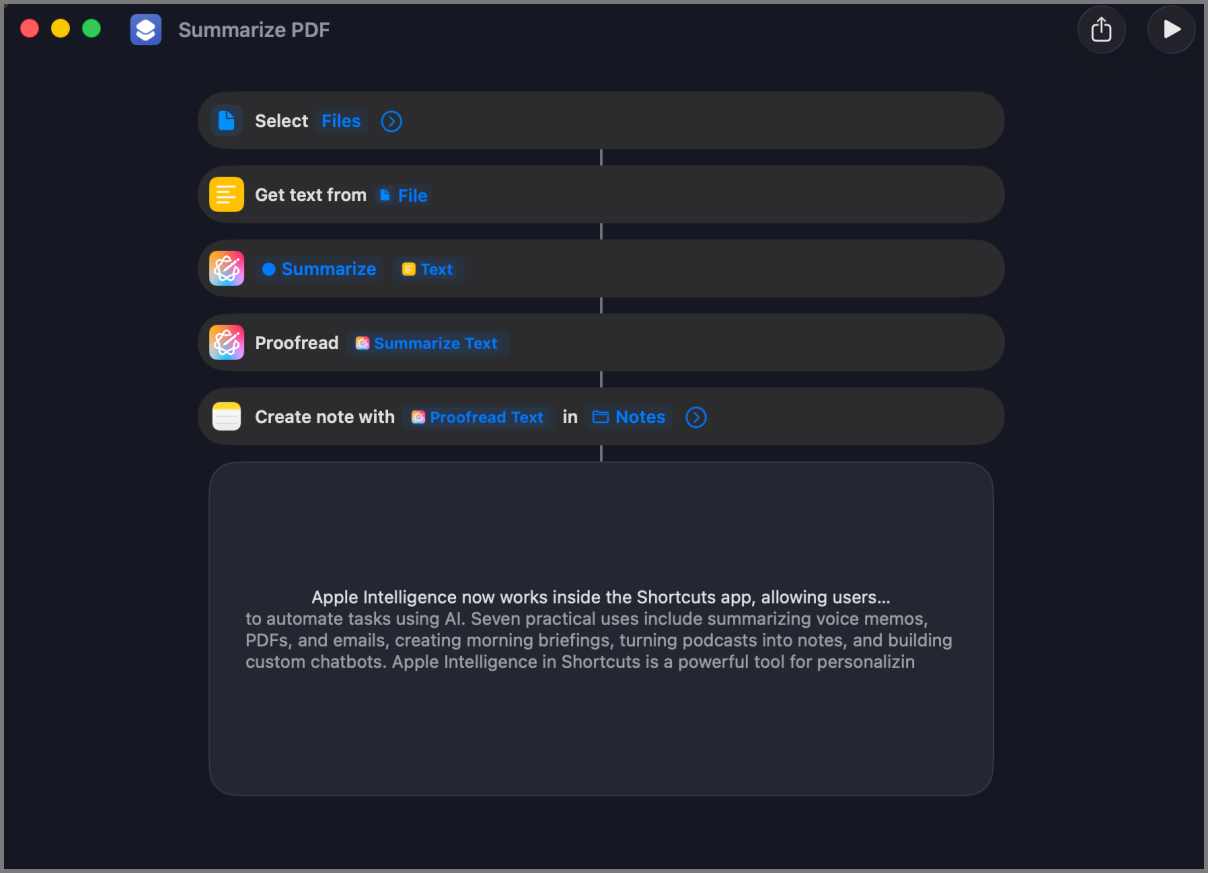
Open a PDF in Safari, Mail, or the Files app, tap Share, and choose your Shortcut. Apple Intelligence will read the entire PDF and give you a quick summary. You can even tweak the tone by making it formal, friendly, or turning it into a list.
Imagine starting your day with a Shortcut that pulls today’s calendar events, reminders, and weather, and then asks Apple Intelligence to write it all out like a personal morning briefing. The result? A natural-language summary of your day, created in seconds.
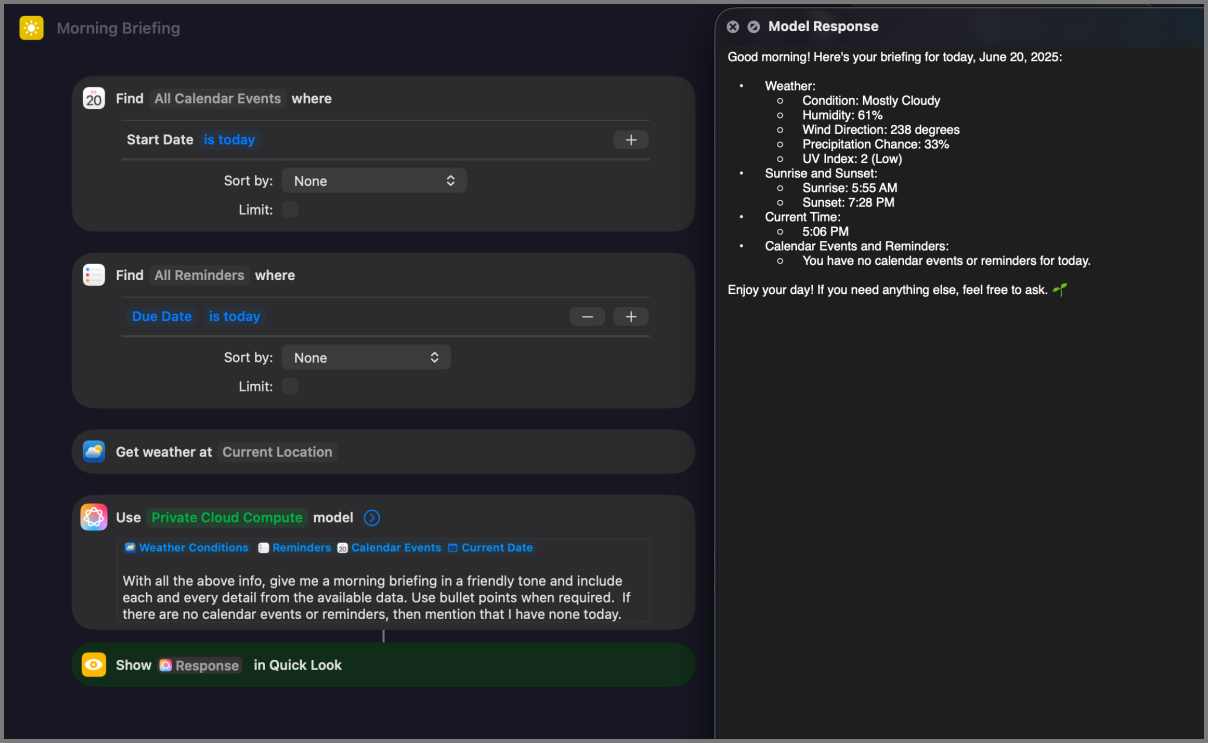
Set it to run at a specific time every morning, and you’re good to go.
The Mail app does have a summary feature, but it often skips important details, sounds too formal, or doesn’t highlight key info clearly. With Shortcuts, you’re in control. Just:
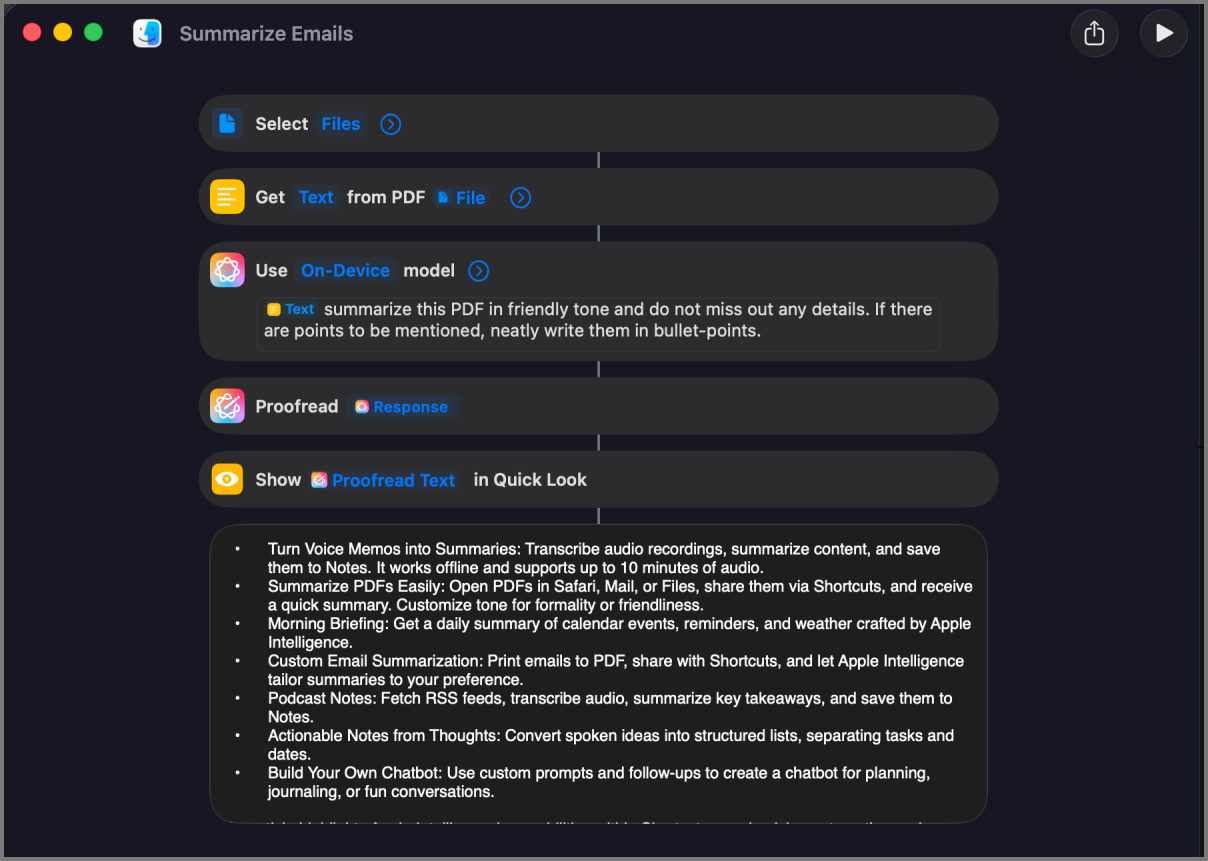
You decide what the summary sounds like, whether it’s casual, concise, detailed, or anything in between.
If you don’t always have time to finish an episode. This Shortcut can:
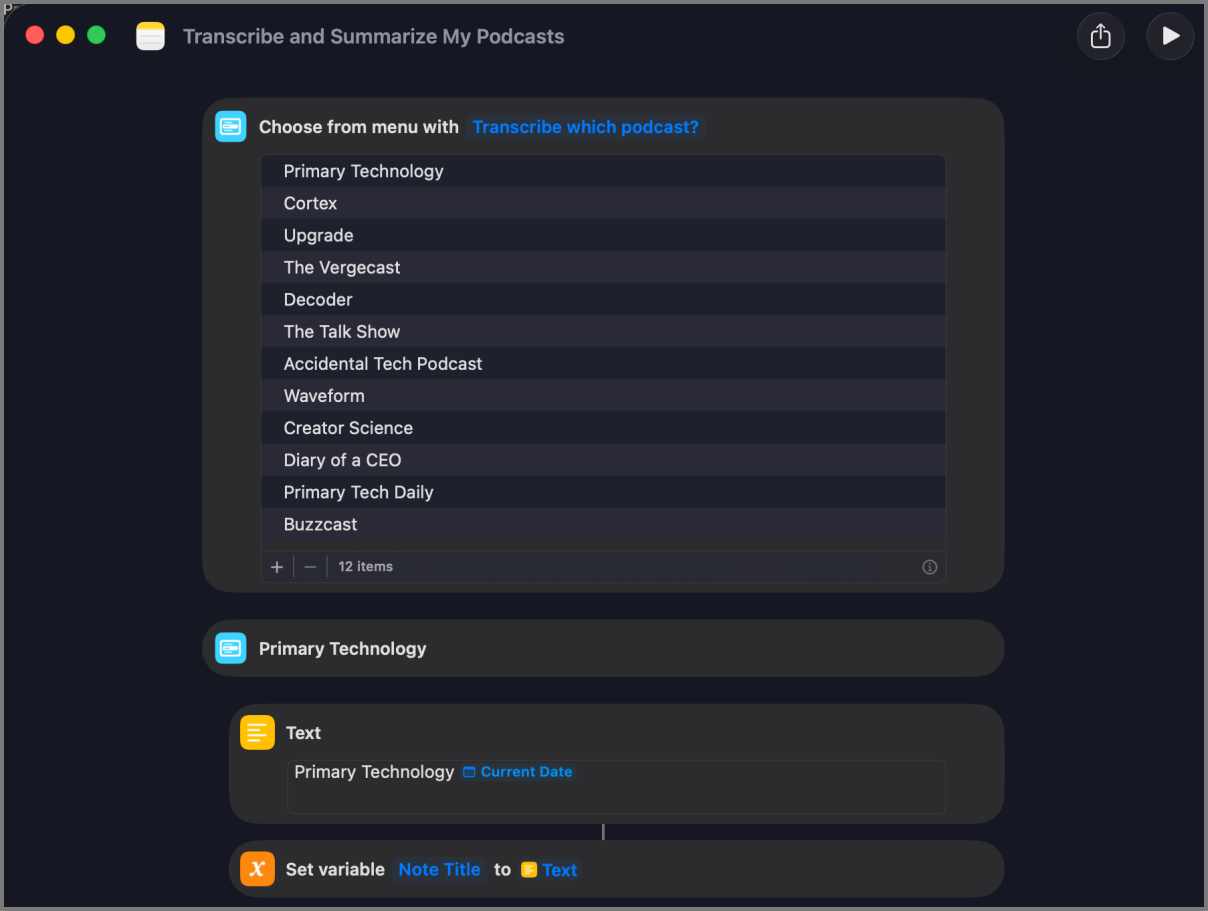
Perfect for staying updated without going through the hassle of summarizing the podcast every day.
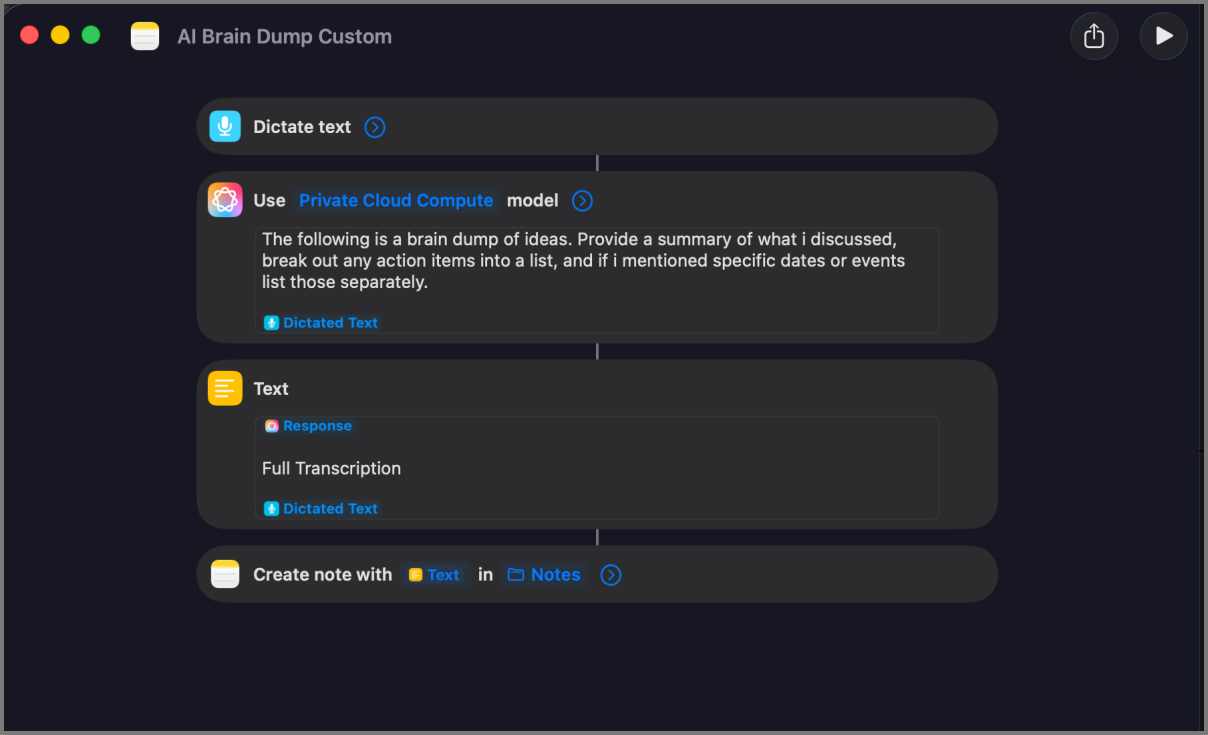
You’re thinking out loud, or maybe rambling an idea into your mic, not a problem. This Shortcut takes what you say and turns it into a structured, bulleted list. It separates tasks, dates, or ideas, and also saves the full transcript for later use. Great for messy minds.
Apple says they are not interested in creating an Apple Intelligence chatbot. However, you can easily do that yourself with the “Use Model” action.
You can:
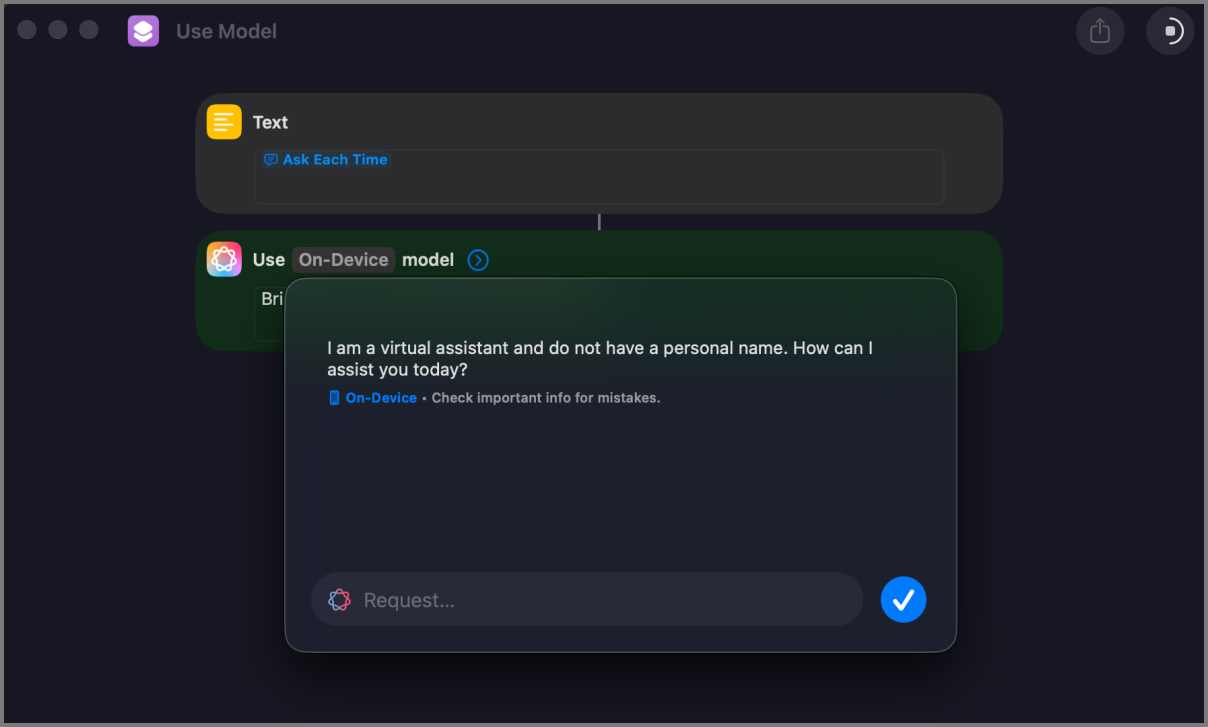
You can build a chatbot for planning, journaling, decision-making, or even just chatting for fun. And unlike Siri, the AI doesn’t just forward you to ChatGPT, it answers in your chosen style and context, based on your input and how your Shortcut is built.
Want more Shortcuts and Apple Intelligence tips? Check out our full guide to Spotlight in macOS 26 and supercharge your productivity even further.
Right now, Apple Intelligence only works with text and audio in Shortcuts. But Apple says it’s just the beginning. Soon, it’ll be able to understand your calendar, reminders, Clock app, and more. That means even smarter automations, such as knowing when you’re free, reminding you to leave, or adjusting based on your daily routine.
Apple Intelligence is smart on its own, but inside Shortcuts, it becomes yours. You’re not just asking it questions. You’re turning it into your personal assistant, built around how you live.
Related articles worth reading: