
FaceTime Like a Pro
Get our exclusive Ultimate FaceTime Guide 📚 — absolutely FREE when you sign up for our newsletter below.

FaceTime Like a Pro
Get our exclusive Ultimate FaceTime Guide 📚 — absolutely FREE when you sign up for our newsletter below.


Stop tapping through menus! These simple Spotify gestures turn your listening into a fast, effortless flow.
I used Spotify for years, the normal way, tapping buttons, opening menus, searching manually, until one day I found the hidden app shortcuts and gestures.
Once I started relying on swipes, long presses, and tiny motion shortcuts, my entire listening flow changed. And it became clear to me that I was probably using only about 40% of the app’s capabilities.
Here are all the Spotify swipe and controls gestures I wish I had learned sooner. And the good news is you can use them on both iPhone and Android.
If you’re not using gestures, you’re wasting time every single day.
This is no exaggeration because I put it to the test myself by using the same playlists and processes, first using buttons and menus and then gestures. The difference was obvious:
Gestures turn Spotify smoother and quicker to use without digging through menus for a single task. And honestly, once you get used to them, going back feels painful.
Must read: How Spotify verifies real (human) artists
These are the gestures I use every single day. If you learn nothing else, at least remember these.
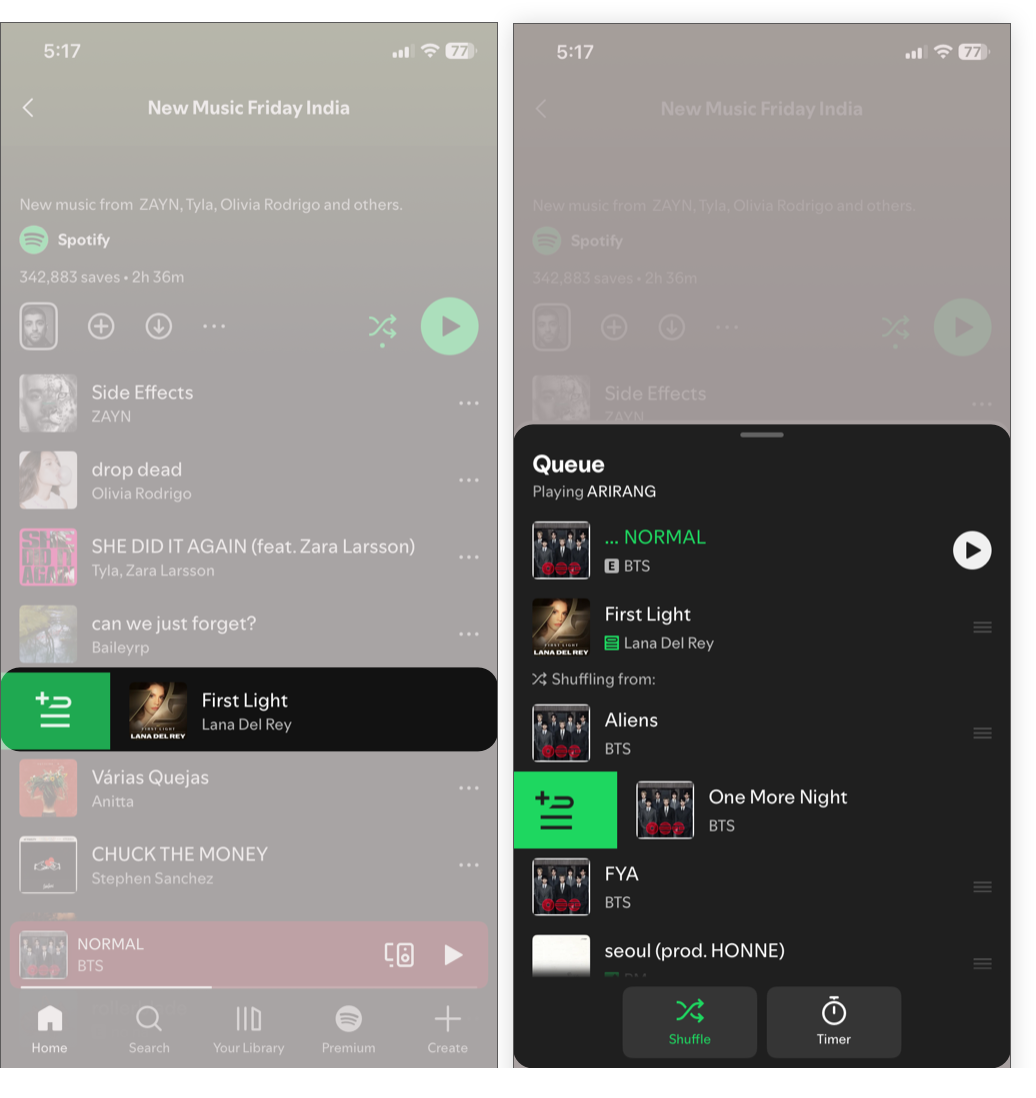
When browsing songs, whether in a playlist, album, or recommendations, you can just swipe right on a track to add it to your queue instantly. The song will show a green queue icon.
You can also open the queue page and swipe right songs from the Shuffling from list. It will be added to the list. However, if you don’t like the next song, you can skip it. Learn how to clear the queue on Spotify.
I use this constantly when building a vibe mid-playlist or album, trying songs without committing, or DJ-ing my own listening session.
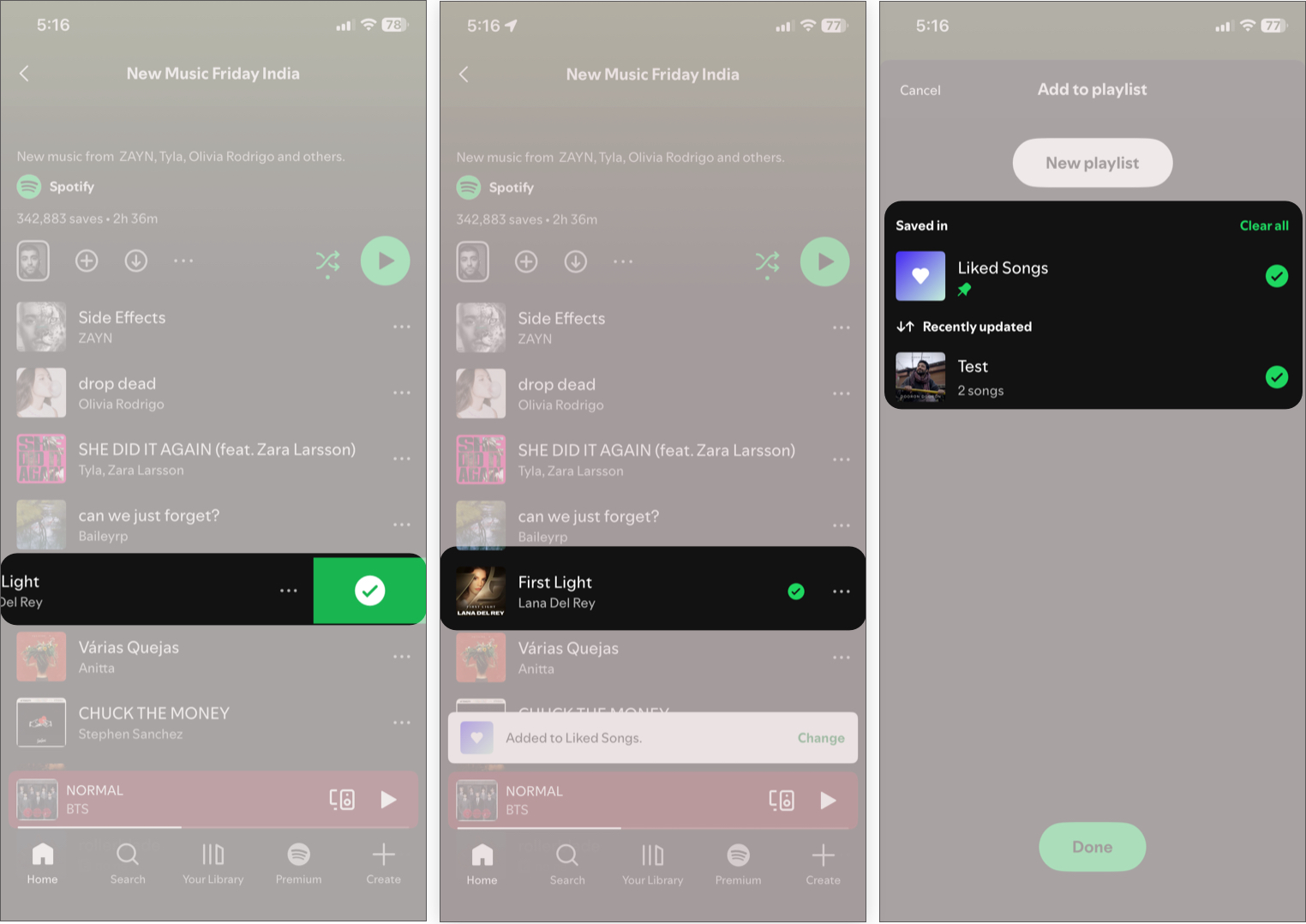
Liked a new song? But it’s a bit of a hassle to add it to your playlist by going to the three-dot menu.
Simply swipe left on the track to like it. You can find it in the Liked Songs playlist. Spotify also lets you save them directly to your playlist. After you swipe left, you will see a quick pop-up stating you have liked the song. Tap Change on the banner, select the playlist, and hit Done.
When I’m busy at work, I quickly like the songs I enjoy and later organize them in my playlists accordingly.
Note: If you are on your queue page, you can swipe left on tracks to remove them from there. However, I couldn’t use this geatures in popular playlists.
On the expanded Now Playing screen, swipe down from anywhere to return to the album page or home screen. No need to reach for the down arrow at the top left corner.
As I use gesture-based navigation on my Android device, I simply swipe from left or right to go back out of habit. But it sometimes ends up fast-forwarding or rewinding the tracks.
If your playlists are messy, this is where gestures fix your life.
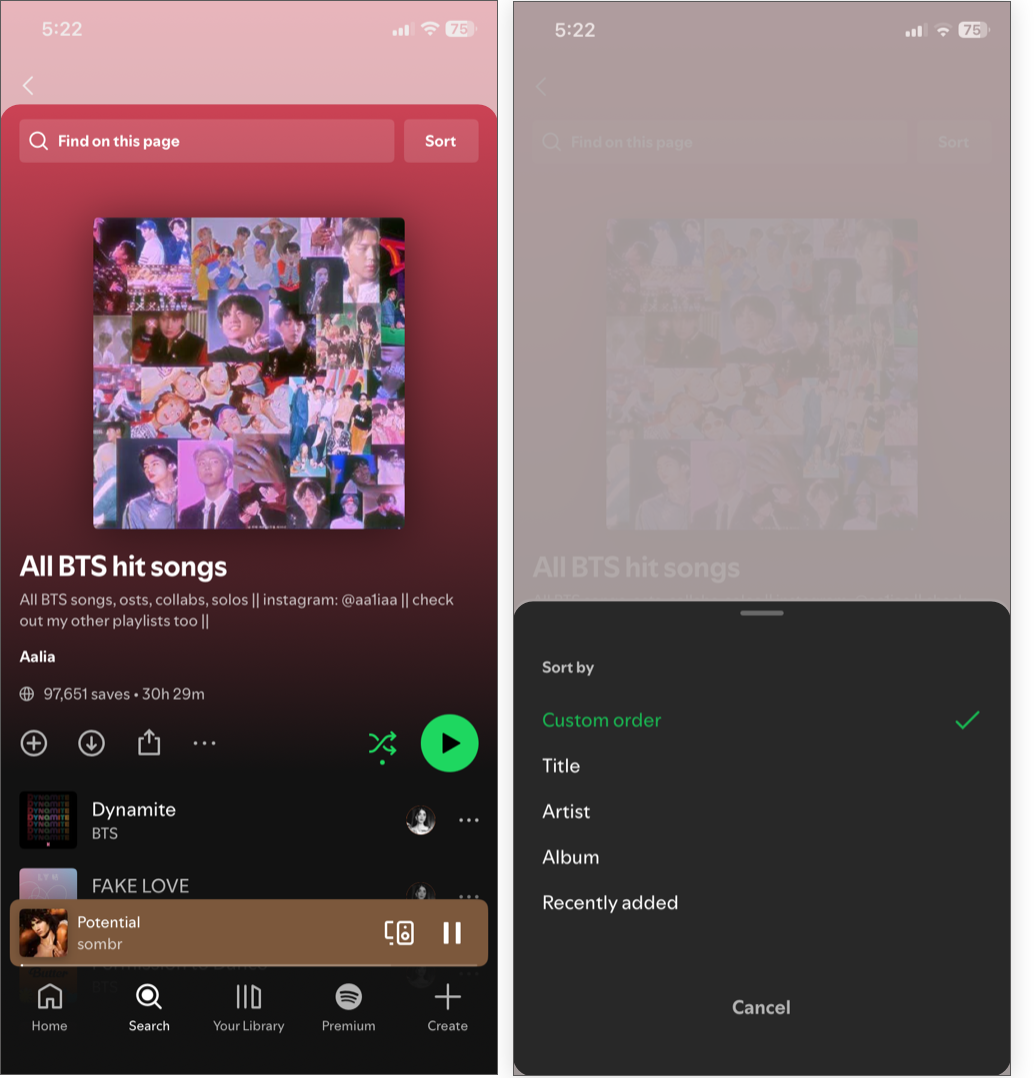
Want to find that one track within a playlist of hundreds of songs? Don’t scroll through them. That’s time wasted; this swipe gesture can save you minutes every single time.
Inside a playlist, pull down to open the search bar and enter your song name. You can also tap the Sort button next to the search bar to re-order tracks based on title, artist, album, or recently added.
Thanks to it, I can now quickly play songs according to my mood or hide the tracks I don’t like.
This is one of those gestures that feels so natural, I’m surprised more people don’t use it.
By default, the Now Playing banner only shows a play and pause button and doesn’t include any media controllers, unlike Apple Music. So, to change the track, you need to tap the banner and use the forward and backward buttons.
But not anymore! Whether you are exploring albums or browsing through other pages, you can quickly swipe left on the Now Playing banner at the bottom to skip to the next track or swipe right to go back to the previous track.
It sounds small, but these micro-interactions changed my entire listening experience.
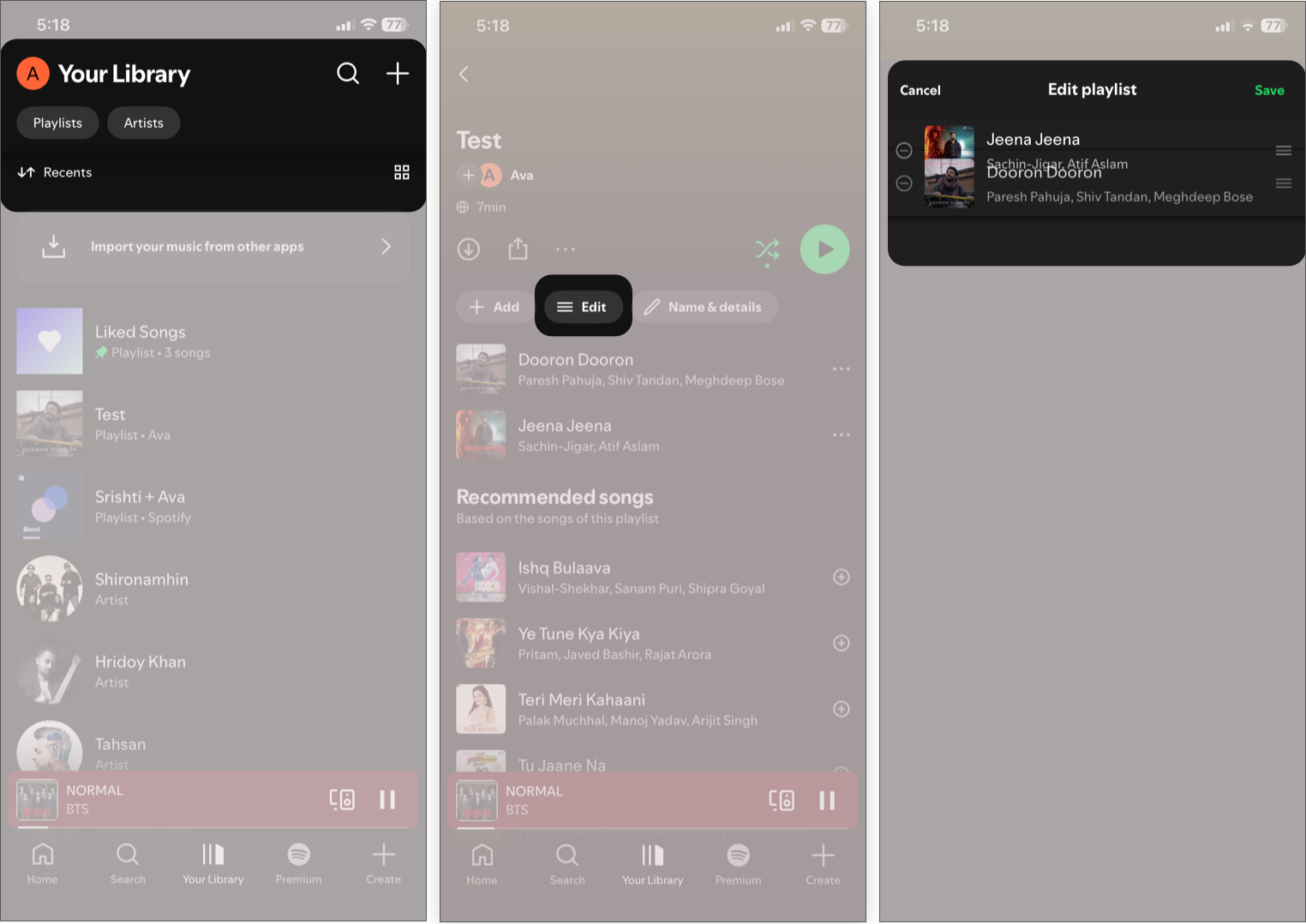
There are times when I like a few tracks in my playlist more and want quick access to them. For that,
Simple, but helps in fixing playlist flow and creating transitions.
I use this when building a workout or driving sequences. It’s like treating playlists as experiences instead of song collections.
Note: You can also reorder your queue by dragging. But it requires a Spotify Premium subscription.
This is one of those hidden-in-plain-sight moves that completely changed how I explore music inside Spotify.
To explore an artist or the album of that song, usually you need to tap the three-dot icon and select Go to artist or Go to album. I find to hard to follow the steps in one-handed use.
Instead, when a song is playing, I open the Now Playing screen and just tap:
I started using this when I’d hear something interesting mid-song, maybe a unique sound or a new artist.
If you try to learn everything at once, you won’t use any of it.
Here’s what actually worked for me.
Start with these 3:
That’s it. Use them for a week.
Then layer these in:
Now you’re optimizing, not just speeding up.
I didn’t realize how clunky my Spotify experience was until I fixed it.
Gestures aren’t just time savers. They totally transform how you navigate the app itself. Every aspect of your experience speeds up, lightens, and becomes intuitive. Suddenly, you’re not navigating songs; you’re flowing through them.
Because once you do, Spotify stops feeling like an app and starts feeling like an extension of your taste.
You may like to read: Spotify vs YouTube Music: Quick comparison












