
FaceTime Like a Pro
Get our exclusive Ultimate FaceTime Guide 📚 — absolutely FREE when you sign up for our newsletter below.

FaceTime Like a Pro
Get our exclusive Ultimate FaceTime Guide 📚 — absolutely FREE when you sign up for our newsletter below.


Want a better-looking iPhone home screen? This simple trick lets you change app icons and customize your layout easily.
 ByVikhyat
For the longest time, my iPhone home screen looked exactly like everyone else’s. Every time I unlocked it, I saw the same familiar icons, Instagram, WhatsApp, Safari, all in their default colors. It worked, but it never felt personal. Even with iOS 18’s tinted and dark icons, it still felt like a slightly different version of the same setup.
That’s when I decided to try something different. I started experimenting with custom app icons using the Shortcuts app, and honestly, it completely changed how my home screen feels. It’s still the same iPhone, but now it actually reflects my style.
This trick doesn’t replace your app icons at a system level. Instead, it creates a shortcut that opens an app and lets you assign a custom image to it.
Once added to your home screen, the shortcut looks like a regular app icon. The only difference is that when you tap it, there’s a brief moment where the Shortcuts app runs before opening the app.
After setting this up for multiple apps, your home screen starts to look completely different. Instead of a mix of default icons, everything follows a consistent style that feels intentional.
Before starting, you’ll need custom icons. You can download these from icon packs, design websites, or even create your own. I found Pinterest surprisingly useful for this. It has tons of icon styles, and it’s easy to find sets that match a specific theme.
Once your icons are ready:
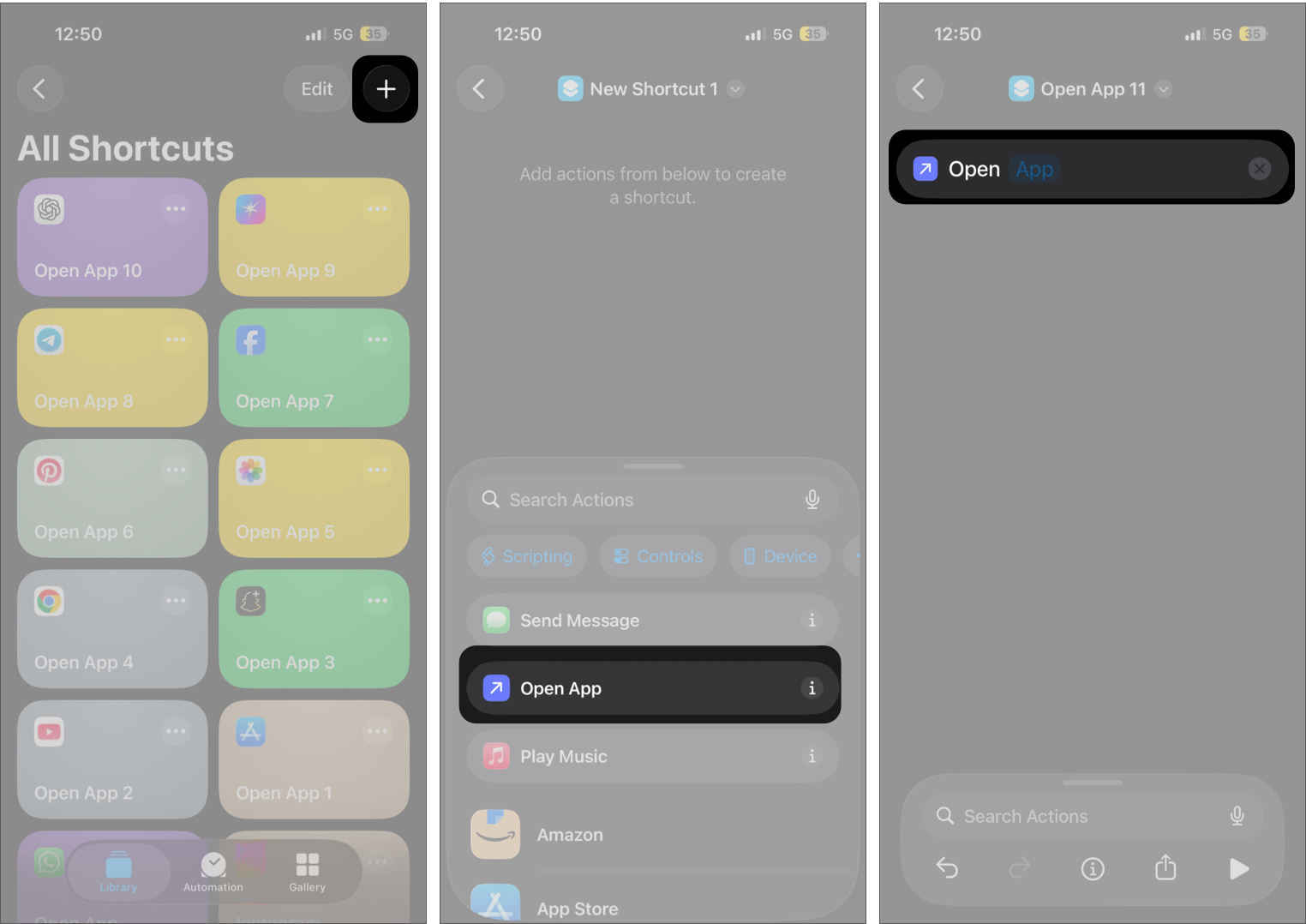
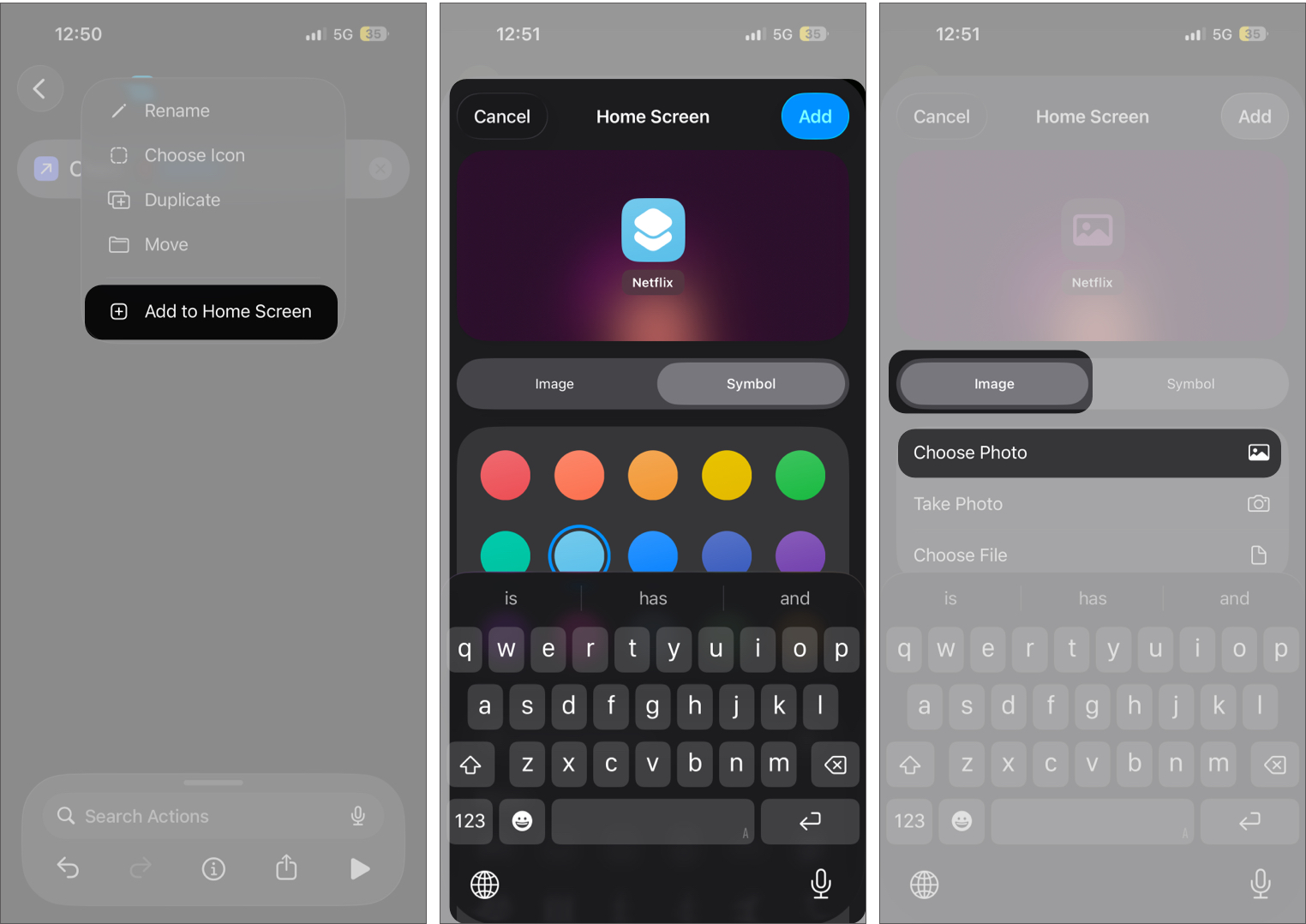
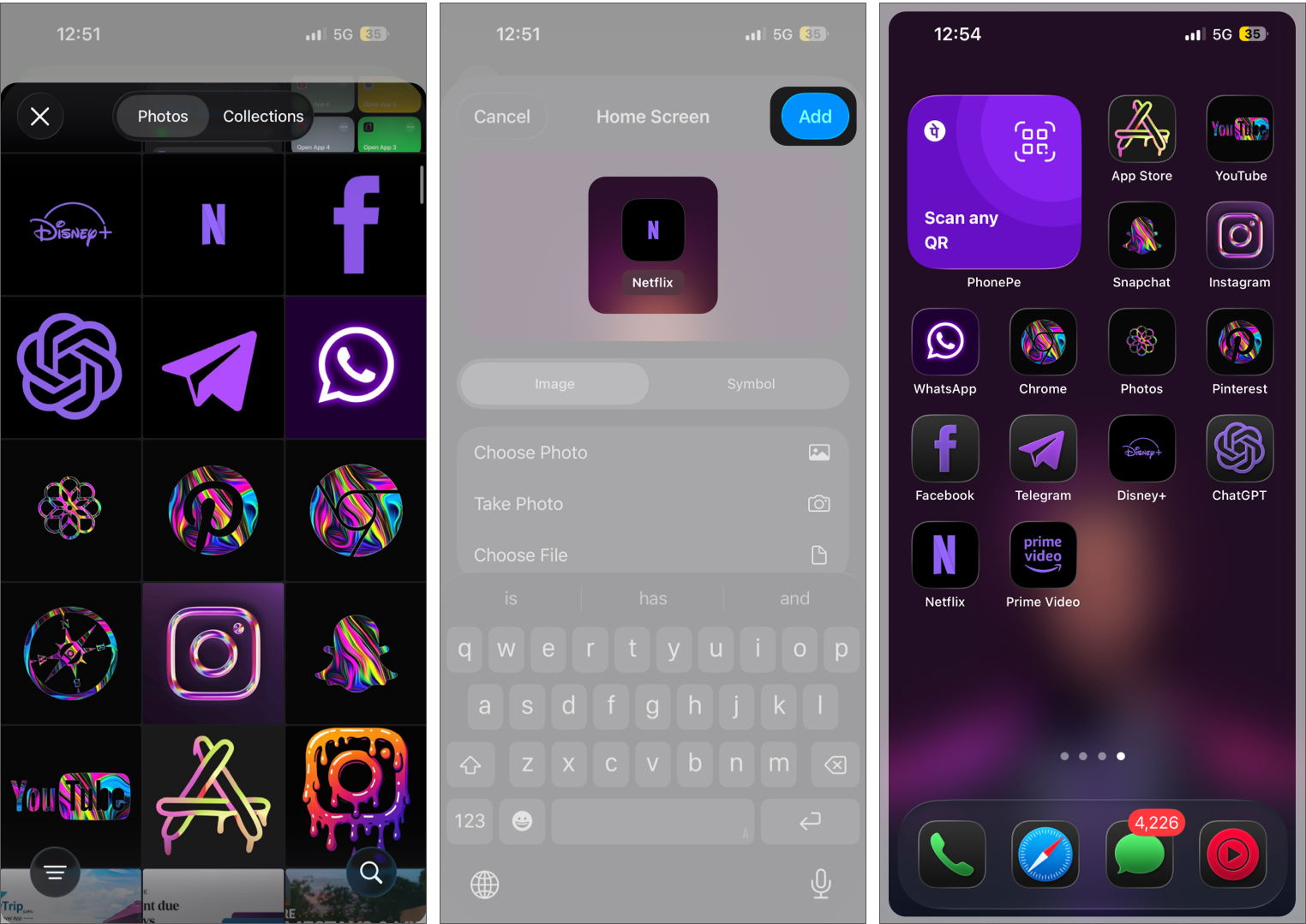
Your custom icon will now appear on the home screen.
Repeat the process for other apps. Once done, you can remove the original app icons from the home screen to avoid duplicates.
After setting up a few icons, the difference was immediate.
The home screen started to feel more cohesive. Instead of random colors and styles, everything matched. The wallpaper and icons worked together, making the entire layout feel more intentional.
I also noticed I became more selective about which apps stayed on the home screen. Over time, it turned into a cleaner space with only the apps I actually use daily, while everything else moved to the App Library.
It’s not just about aesthetics. It genuinely makes the phone feel easier to use.
There is one trade-off.
When you tap a custom icon, there’s a slight delay as the shortcut runs before opening the app. It’s quick, but noticeable at first.
After a few days, I stopped paying attention to it. It becomes part of the flow.
To keep things smooth, I only customized the apps I use the most. That way, the home screen looks styled, but everything else remains easily accessible.
From trying different setups, here’s what actually worked:
This started as a small experiment, but it completely changed how my iPhone home screen feels. Now, every time I unlock my phone, it looks like something I actually set up for myself, not just the default layout everyone gets.
Yes, it takes a bit of time to set up. But once it’s done, it feels worth it.
What about you? What kind of home screen style are you going for? Share it in the comments.
You might also like:











