FaceTime Like a Pro
Get our exclusive Ultimate FaceTime Guide 📚 — absolutely FREE when you sign up for our newsletter below.

FaceTime Like a Pro
Get our exclusive Ultimate FaceTime Guide 📚 — absolutely FREE when you sign up for our newsletter below.


I tried removing Copilot from Windows 11 to see if my workflow actually got better without it.
When Microsoft first added Copilot to Windows 11, I expected it would make all my work more efficient. Although the technology seemed promising on paper, it turned out unnecessary, intrusive, and not useful enough to justify its constant presence.
The taskbar icon, the system-level integration, and the inability to fully remove it at first made it feel forced. Now, Microsoft has seemingly reversed its approach. Copilot is no longer locked into the system, and you can uninstall it like a regular app.
In this guide, I’ll show you exactly how to uninstall Copilot Windows 11 permanently and what actually happens after you do.
Copilot is Microsoft’s built-in Generative AI assistant for Windows 11. It’s designed to help with things like summarizing content, answering questions, tweaking system settings, and pulling information from the web, all from a sidebar inside your desktop. On paper, it sounds like a productivity boost.
But when I actually used it in my daily workflow, it didn’t stick. Most of the time, it redirected me to web results instead of doing it directly on my system. For tasks I repeat often, like writing, testing and troubleshooting, I already have faster, more reliable tools. Copilot felt like an extra layer rather than a shortcut.
I also didn’t like how visible it was. That constant presence on the taskbar reminded me of Cortana’s early days, useful in demos but forgettable in real work.
And I’m not alone here. A lot of users wanted to remove Copilot because it:
The good news is Copilot is no longer deeply baked into Windows. It’s now treated more like an app. That’s why uninstalling works.
If you’re on a recent Windows 11 build, you can remove it just like any other installed app via Settings or Start menu. But there are caveats.
On personal devices, it’s straightforward. On managed devices (work laptops, enterprise systems), it depends on IT policies. Microsoft has now officially provided instructions on how to uninstall Copilot using Group Policy, although this is only possible under certain circumstances.
So yes, you can uninstall it, but how easy it is depends on who controls your machine.
I have shared different methods to remove Copilot from the current user and all users’ profiles.
This is the fastest method and the one I use to uninstall apps by default.
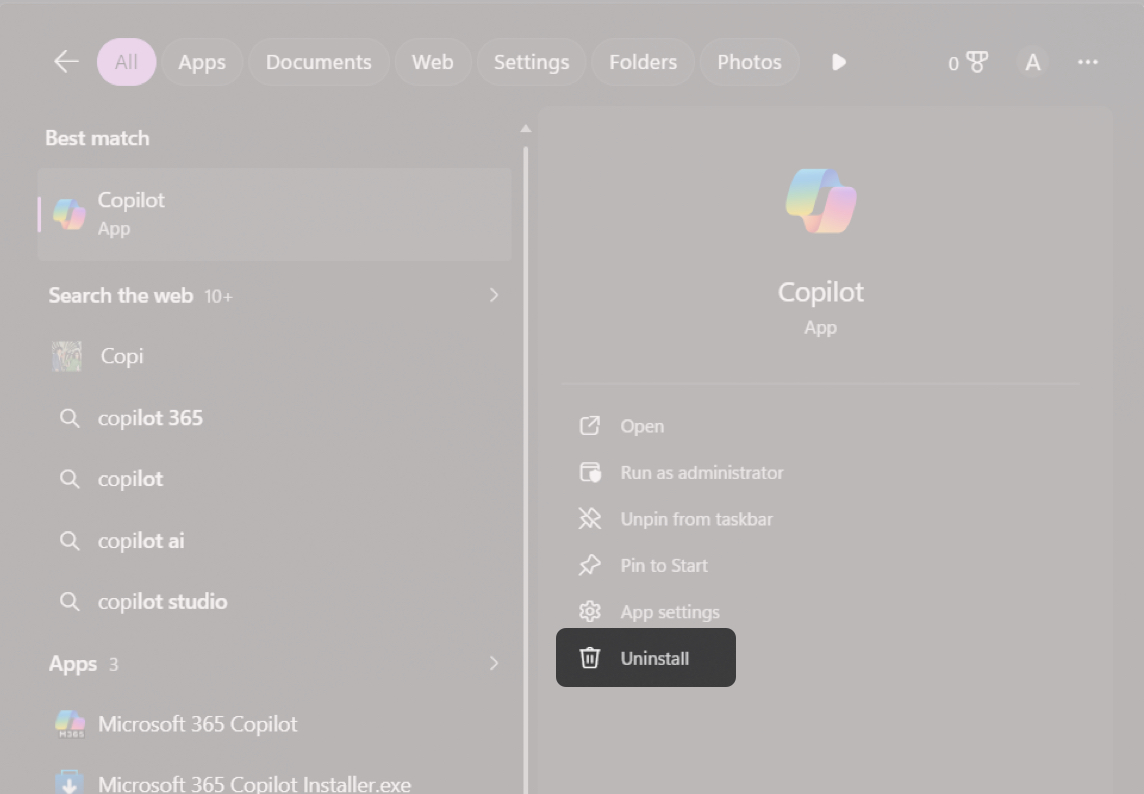
That’s it. On updated systems, this works instantly. If you don’t see uninstall here, your system hasn’t fully transitioned yet. Move to the next method.
This is the most guaranteed method if you can’t find the option to remove Copilot from the Start menu.
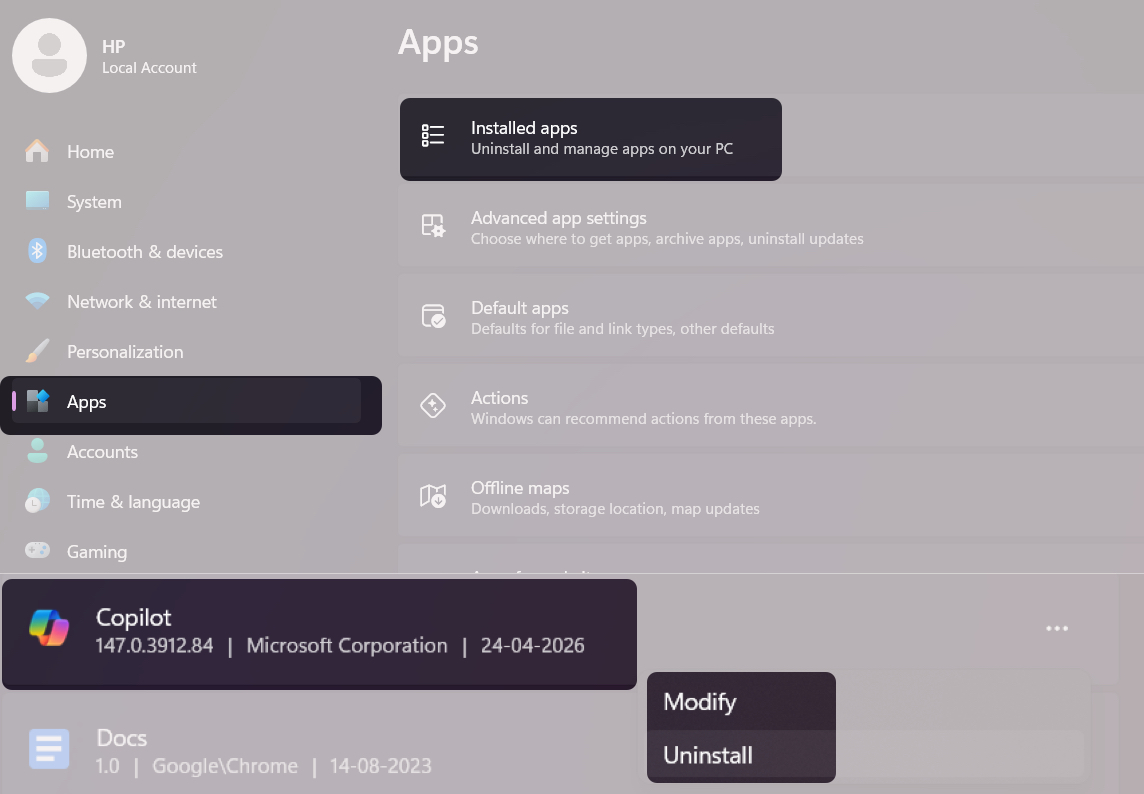
Even after uninstalling, Copilot can still show up in the Edge sidebar. This method removes that leftover presence.
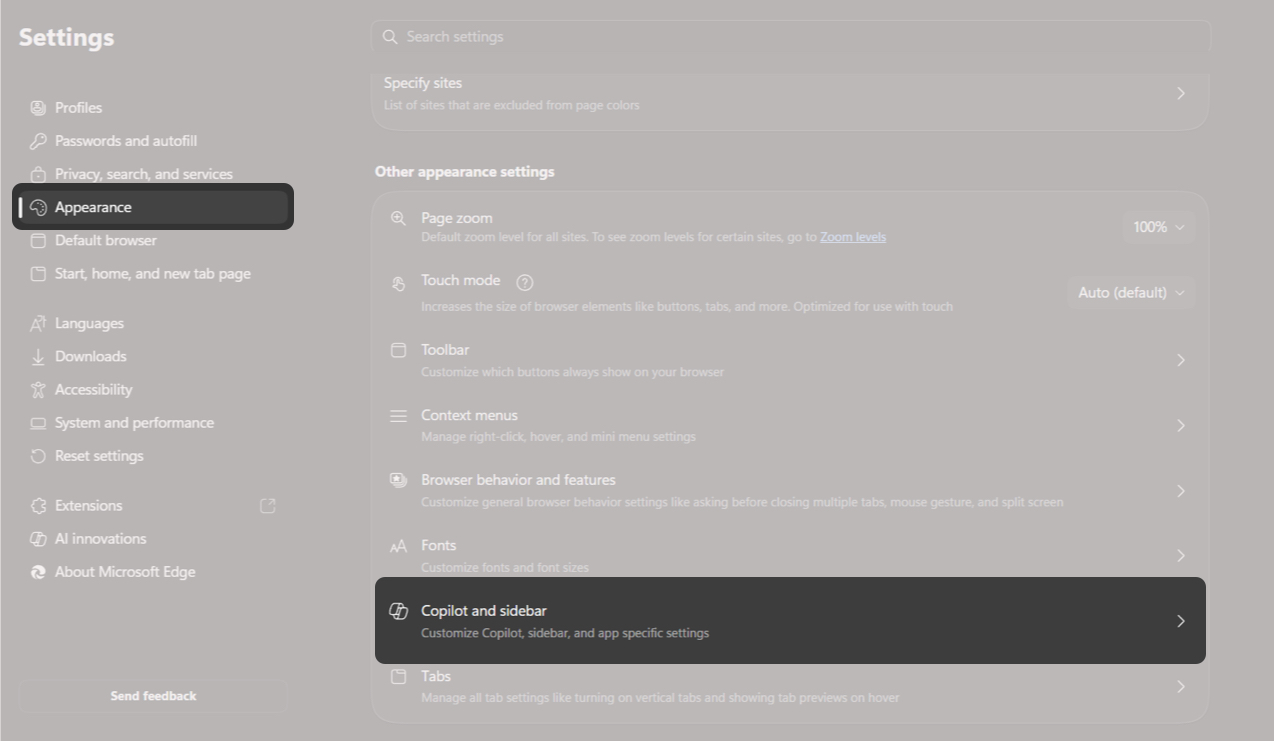
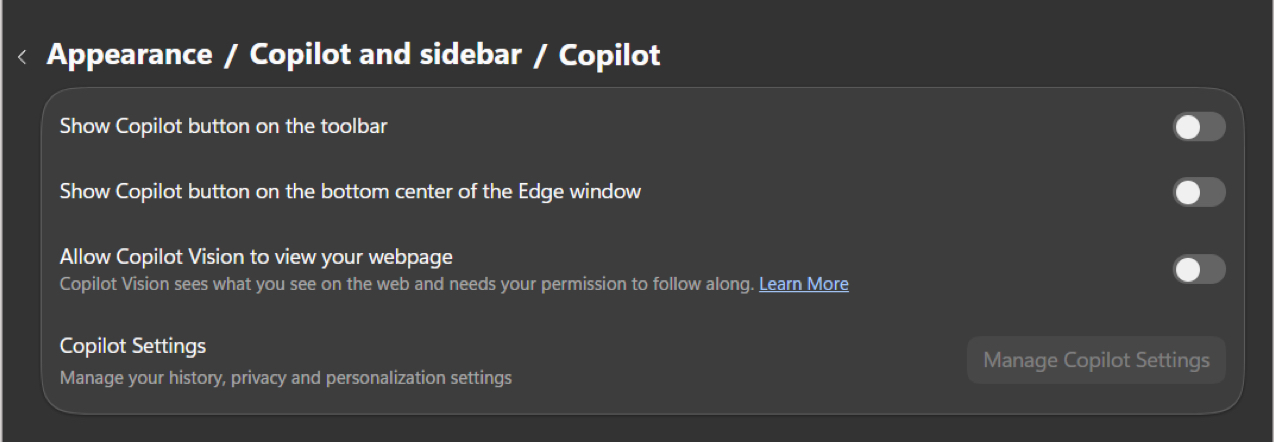
If you are concerned about your past conversations and shared data, first do the steps below and then disable Copilot in Edge.
Additionally, if you have the Microsoft 365 Copilot app installed in Edge, you need to delete it. Inside Edge, search for edge://apps/ and select Uninstall from the three-dot menu next to Copilot. After doing this, Copilot finally felt “gone” from my system.
This is the most powerful method and useful if your PC has multiple users.
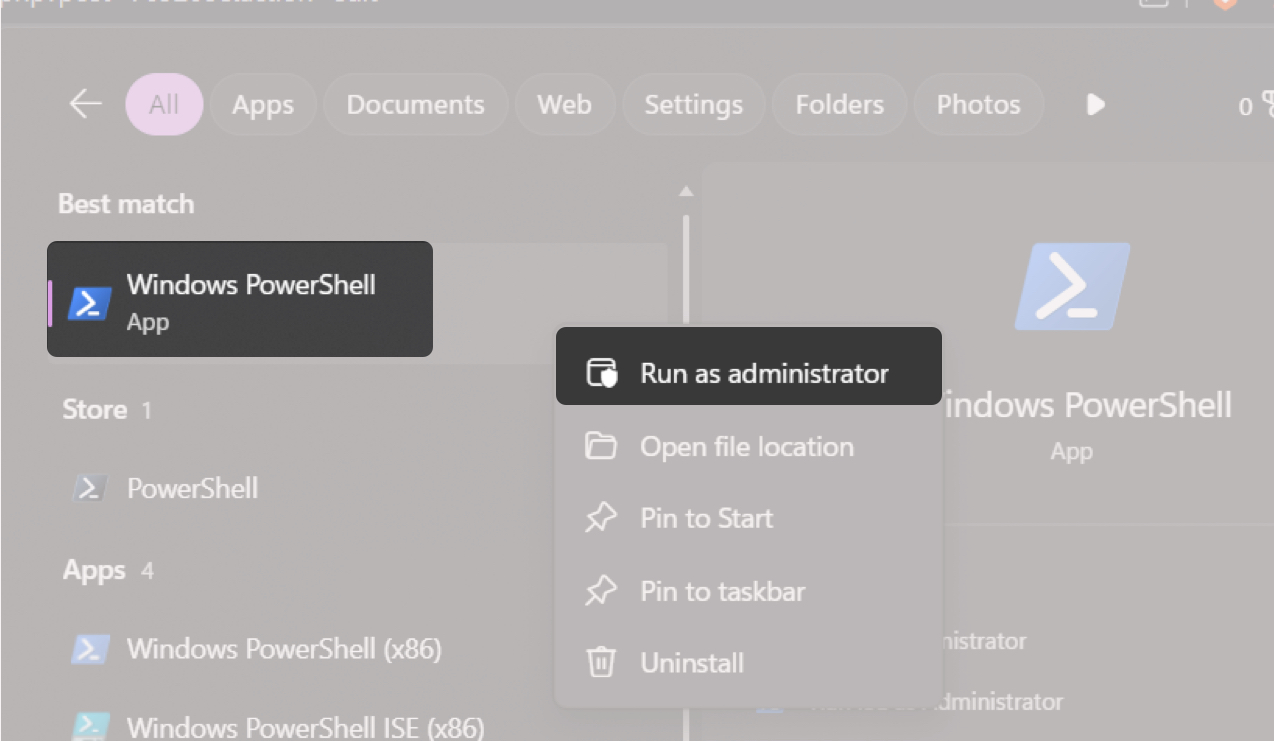
Get-AppxPackage -AllUsers | Where-Object {$_.Name -Like '*Microsoft.Copilot*'} Remove-AppxPackage -ErrorAction ContinueThis method will forcefully uninstall Copilot even if it refuses to leave your PC.
If you’re dealing with a work device with Windows 11 Pro or Enterprise, uninstalling isn’t enough; you need to block it. Because Copilot may come back after updates. However, it only works if you have not launched the Microsoft Copilot app in the past 28 days.
Ask your IT admin to follow the steps to delete Copilot from your system:
gpedit.msc and press Enter to open the Group Policy Editor.This doesn’t just remove Copilot, but also prevents it from reinstalling itself.
Honestly? Nothing broke. No missing features, errors, or try Copilot prompts.
What I did notice:
More importantly, my workflow improved. I stopped reaching for something I didn’t really need.
Yes, and it’s surprisingly easy.
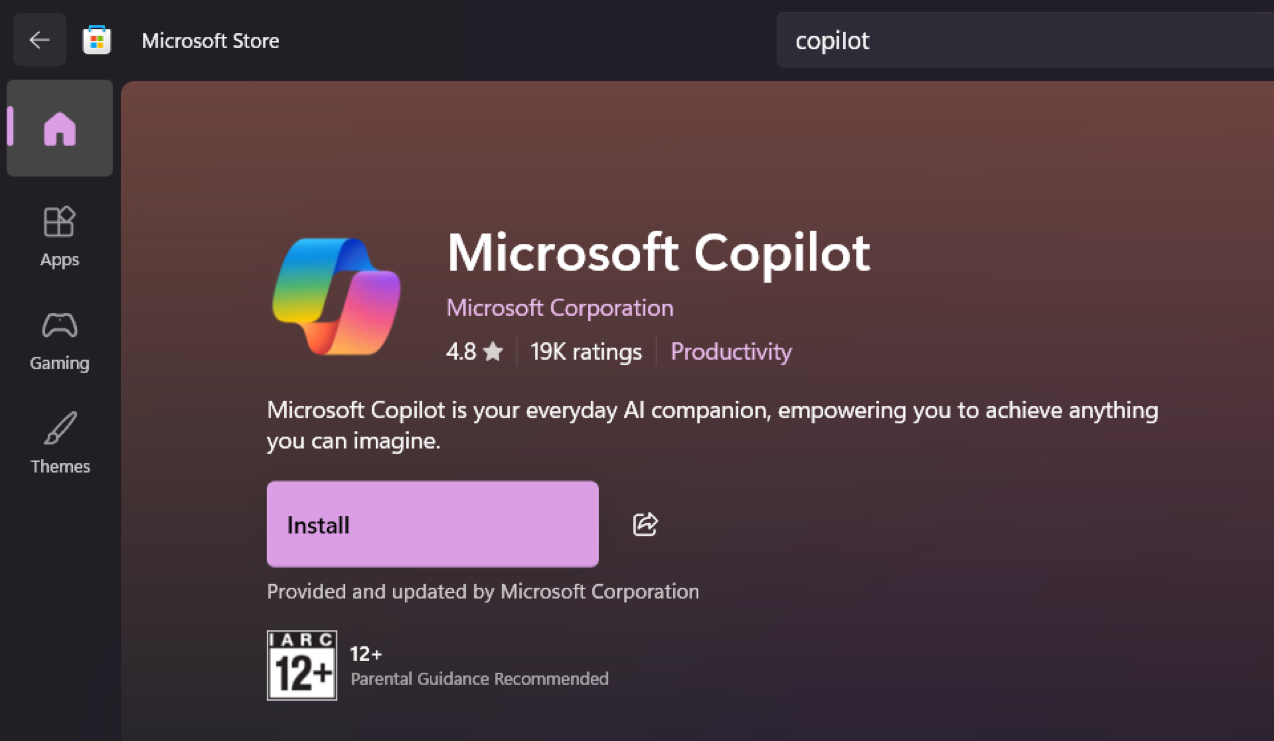
Within seconds, it’s back.
This is the best method if you’re reinstalling across multiple systems.
winget install Microsoft.CopilotI’ve used this method for batch installs; it’s fast and repeatable.
Here are a few things I learned after testing this properly.
Uninstalling Copilot isn’t just about removing an app; it’s about deciding what belongs in your workflow. For years, Windows added features you couldn’t remove. Now, Microsoft is slowly reversing that, making even flagship AI tools optional.
If you’ve been thinking about removing Copilot, try it once. Use your system for a few days. You might realize that some features sound essential until you actually live without them.
FAQs
Because it’s pinned, not active. Right-click the taskbar icon and click Unpin from taskbar. That removes it completely.
No. The Copilot app and Microsoft 365 Copilot are separate. Removing one doesn’t impact the other. Your Office AI features will continue to work as expected.
You may like to read: