FaceTime Like a Pro
Get our exclusive Ultimate FaceTime Guide 📚 — absolutely FREE when you sign up for our newsletter below.

FaceTime Like a Pro
Get our exclusive Ultimate FaceTime Guide 📚 — absolutely FREE when you sign up for our newsletter below.


Search “lightweight PDF editor Windows,” and you’ll find a dozen listicles that are really just readers wearing an editor’s name tag. That’s a problem if you need to fix a typo, replace a logo, or fill out a form. I installed five tools that all claim to be lightweight PDF editors, timed them, monitored Task Manager, and opened the same stress-test files in each.
This review explains how I scored them and why “lightweight” and “just a viewer” get confused so often. I’ve also explained which editors actually deserve a spot on a low-spec Windows PC, and one honest weakness for each, because none of them got everything right.
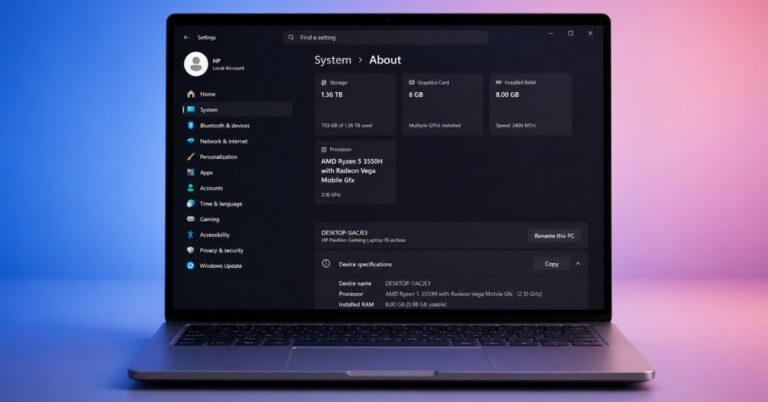
The trigger for this test was a 2018 ThinkPad with 8GB of RAM. If a lightweight PDF editor for Windows can’t hold up there, it’s not lightweight, but just marketed that way. That threshold isn’t arbitrary: Microsoft’s own published minimum for Windows 11 is 4GB of RAM, so an 8GB machine already has less headroom for a PDF app than most users assume. I tested every tool after a fresh restart. Here’s what I actually measured:
I didn’t chase CPU-cycle precision here. Task Manager readings drift a few percent run to run. But I ran each test three times and used the middle result, and the gaps between tools were consistently large enough to trust.
Most “best free lightweight PDF editor” lists are really reviewing PDF readers, and that distinction matters if you need to edit a file. Readers feel fast because they only render pages, and don’t handle text editing, image replacement, or form logic.
While editors have to parse the PDF structure, preserve layout, and save those changes cleanly. That’s why every tool below uses a bit more RAM than a viewer. They’re all genuine editors, not just fast page turners.
The table below pulls the score-line numbers from each section into one view, so you can compare install footprint, RAM, and speed without scrolling through four separate write-ups.
| Tool | Install Size | RAM (Idle / Editing) | Launch Time | Large File Open | Best For |
| PDNob | ~561MB | ~89.6MB / ~570MB | ~2.8s | ~4.3s | Full-feature editing |
| Xournal++ | ~95MB | ~60MB / ~110MB | ~1.1s | ~4.9s | Annotation only |
| PDF-XChange Editor Portable | 0MB (~430MB unpacked) | ~150MB / ~280MB | ~3.1s | ~3.7s | No-install portability |
| Stirling-PDF | N/A (Docker, ~600MB image) | ~250MB (server) | Instant (browser tab) | ~5-8s | Maximum privacy |
Score line:
PDNob surprised me. For a tool that bundles OCR, AI summarization, and full text/image editing, I expected Acrobat-level bloat, but it stayed responsive throughout my testing. Editing text, replacing images, and reorganizing pages never froze, and the OCR accuracy on my scanned manual matched its strong reputation.
Where it struggles:
The free version also limits AI features, adds watermarks after 20 exports, caps OCR and file conversions to once a week, and restricts batch processing to five files. But, compared to other PDF editors with similar features, PDNob offers a one-time purchase option that is very affordable.
Best for: It’s the lightest PDF editor for users who want Acrobat-level editing features without Acrobat’s install size or subscription price.
Score line:
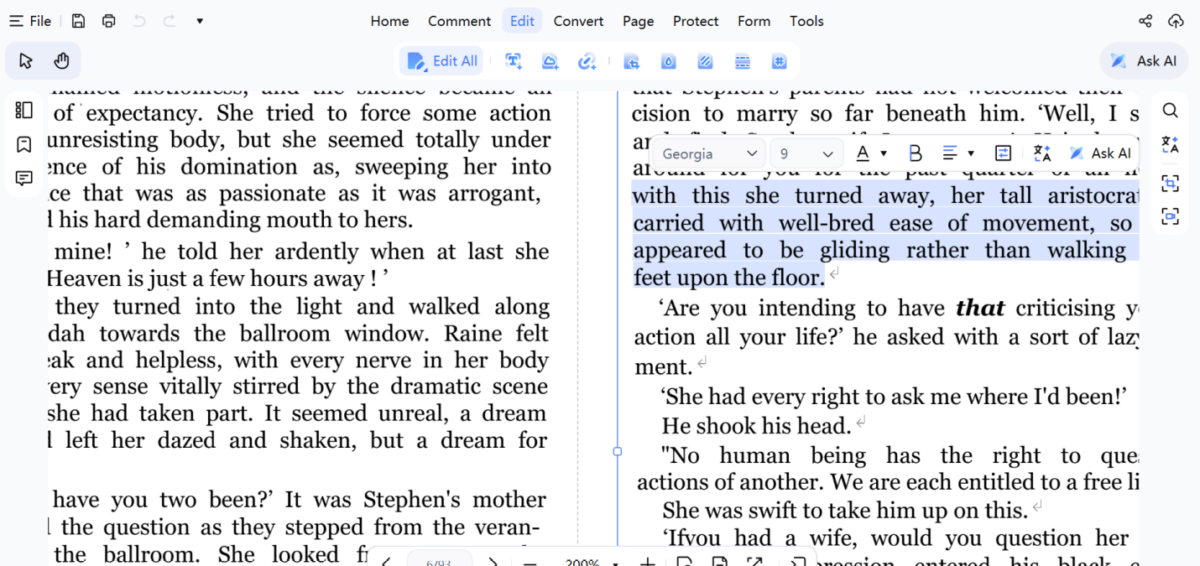
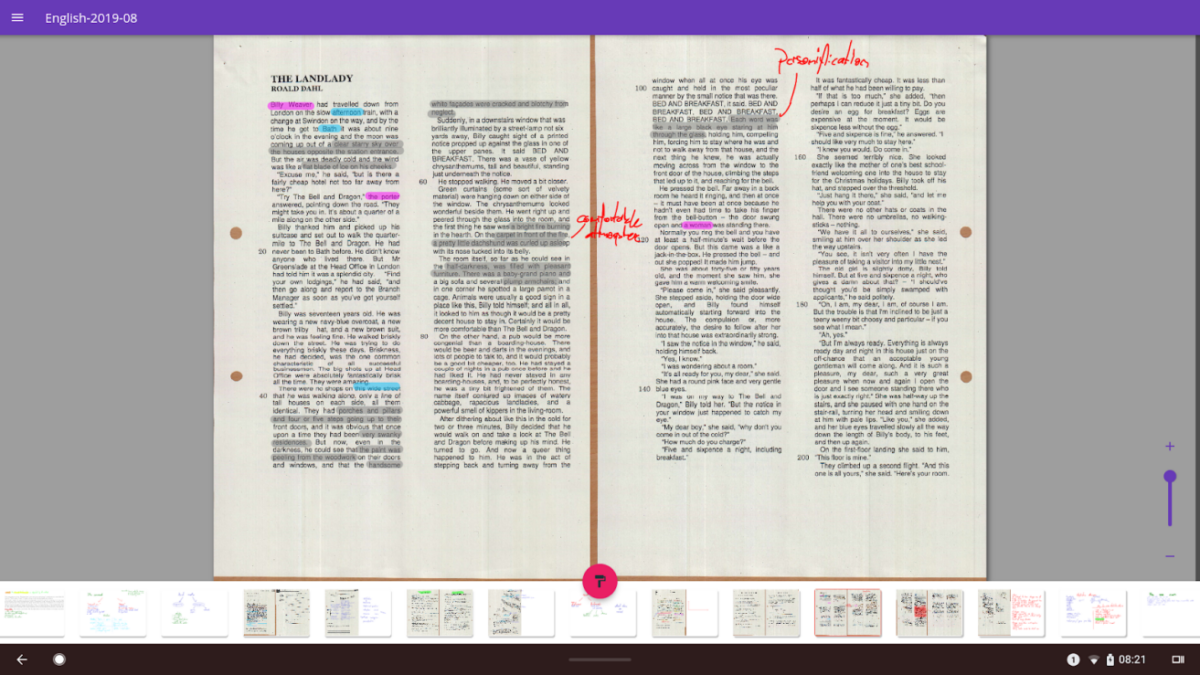
Xournal++ was the lightest tool I tested by a wide margin, and it’s the first one I’d recommend to anyone looking for an open-source lightweight PDF editor. It launched almost instantly, used very little RAM, and stayed perfectly smooth while I annotated a dense, image-heavy PDF. That lines up with long-time user feedback, which consistently describes it as lightweight, fast on older hardware, and privacy-focused.
Where it struggles:
This isn’t a true PDF content editor. You can’t rewrite text, replace images, or edit form fields. It’s built for annotation, not document editing, and I also noticed occasional CPU and battery spikes during longer freehand drawing sessions despite its tiny RAM footprint.
Best for: Students and researchers who mark up PDFs, like highlighting, sketching, and handwritten notes, rather than rewriting their content.
Score line:
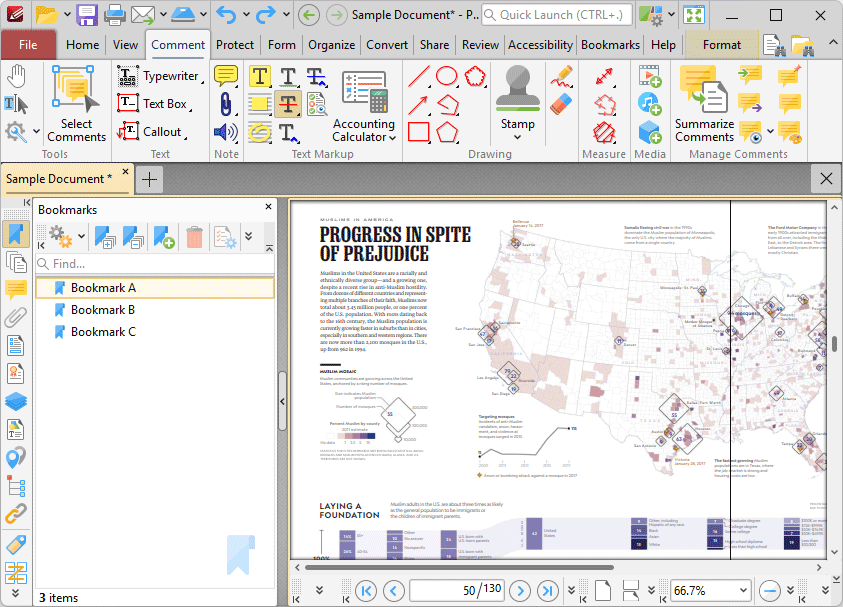
This is the official portable lightweight PDF editor, so there’s nothing to install. Just unzip it to a USB drive and run. It’s lightweight in system footprint rather than RAM, making it ideal for locked-down PCs or anyone who doesn’t want another installed app. Despite being portable, it opens large files quickly and includes genuine text, object editing, annotation, and OCR instead of the stripped-down feature set most portable PDF apps offer.
Where it struggles:
The free version adds watermarks when you use paid features, and it can load a bit slower than some rivals. That’s a fair trade-off, though, considering how much editing functionality is packed into a single portable executable.
Best for: People who work across multiple or shared Windows machines and want real editing power without leaving an install behind.
Score line:
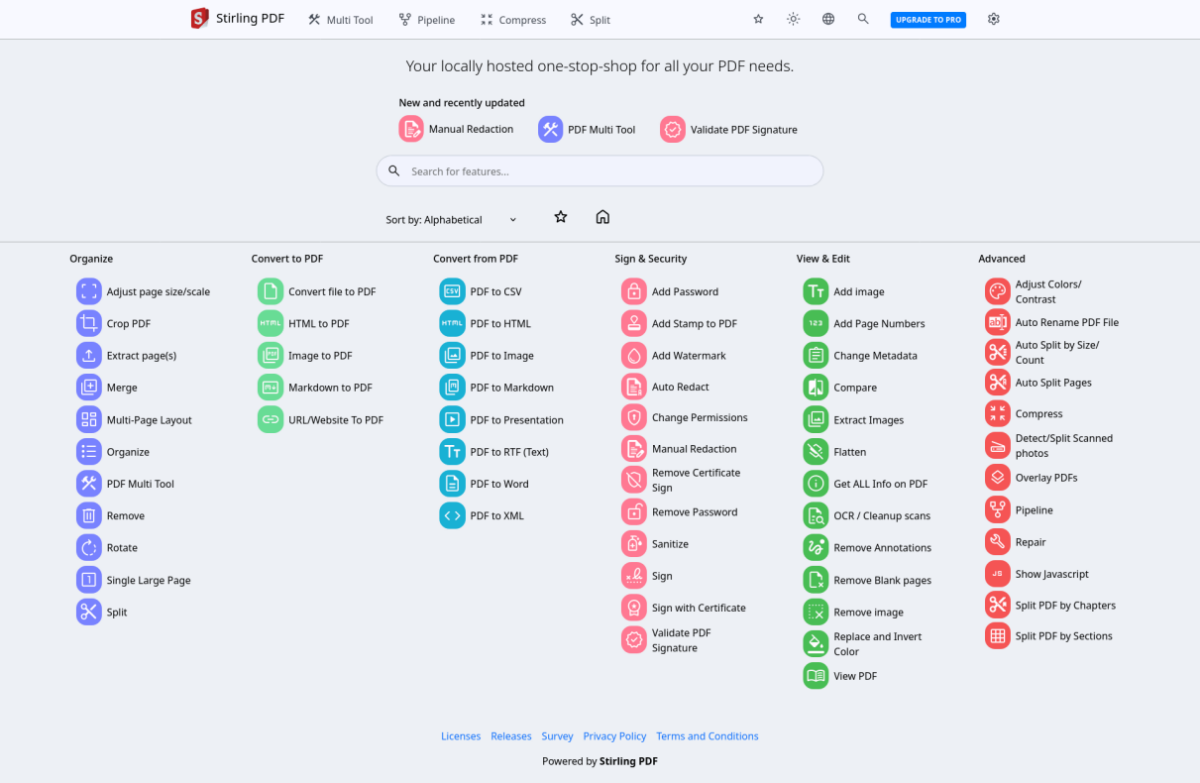
Stirling-PDF isn’t a Windows app at all. It’s a self-hosted Docker container you access through a browser, so “install size” is a different question. In return, you get the strongest privacy on this list. It’s a free, open-source tool with 60+ PDF operations that keeps every file on your own hardware. If keeping documents off third-party servers matters to you, Stirling-PDF is the most complete free option I tested.
Where it struggles:
Self-hosting isn’t a zero-effort setup. You need Docker, a running container, and proper authentication if you’re exposing it beyond your own machine. It’s light in the browser, but the setup happens at the server level, which is a real barrier if you’re not comfortable with the command line.
Best for: Privacy-conscious users, freelancers handling client contracts, or small teams who are already comfortable running a Docker container and want zero third-party file exposure.
Match the tool to whichever resource is actually limiting your machine, not to a generic “best PDF editor” ranking. The four tools above solve different constraints, and picking the wrong one means paying for features you’ll never touch or hitting a wall the first time you need real editing.
If RAM is the bottleneck, for example an older laptop with 8GB or less, Xournal++’s 60MB idle footprint gives the most headroom, but only if annotation covers your needs. If you need actual text and image editing on that same low-RAM machine, PDF-XChange Editor Portable is the better fit since its RAM usage stays under 300MB even while editing.
If you switch between computers, a shared office PC, a library machine, a friend’s laptop, the portable option removes the “can I even install software here” question entirely. And if your PDFs contain anything sensitive, contracts, medical records, financial statements, Stirling-PDF’s self-hosted model is the only one on this list where files never leave hardware you control.
PDNob sits in the middle: it’s the only tool here with AI summarization and batch OCR, so it’s worth the extra install size if you process PDFs often enough that those features save real time.
There’s no single “lightweight PDF editor.” It depends on what’s limiting your machine. Xournal++ is the clear winner for RAM and CPU if annotation is enough. PDF-XChange Editor Portable is the best all-round portable editor, and PDNob offers the strongest editing features without the bloat. While Stirling-PDF is the top choice if privacy is non-negotiable. Match the tool to your real constraint, and any of these four beats defaulting to Acrobat out of habit.
FAQs
Yes. All four tools tested here are built as smaller, faster alternatives to Acrobat. PDNob comes closest to matching Acrobat’s editing depth while staying under 600MB installed, and PDF-XChange Editor covers most of Acrobat’s day-to-day functions in a portable build with no installer at all.
No, Photographic Styles are designed for still photos and do not affect video recordings.
Portability and privacy are separate things. A portable app like PDF-XChange Editor Portable avoids leaving an installation footprint on a shared PC, but it still processes files locally the same way an installed editor does. For actual data privacy, a self-hosted option like Stirling-PDF is the stronger choice since files never leave your own server.
Yes. Xournal++ and Stirling-PDF are both open-source in this test. Xournal++ is a lightweight desktop app built for annotation, while Stirling-PDF is a self-hosted, browser-based tool with 60+ PDF operations that keeps every file on your own hardware.