FaceTime Like a Pro
Get our exclusive Ultimate FaceTime Guide 📚 — absolutely FREE when you sign up for our newsletter below.

FaceTime Like a Pro
Get our exclusive Ultimate FaceTime Guide 📚 — absolutely FREE when you sign up for our newsletter below.


Windows 11 has a built-in Fast Startup feature that prevents Shut Down to give your PC a completely fresh start.
I always assumed that clicking Shut Down on my Windows 11 PC would turn it off completely. And the next time I pressed the power button, Windows was starting from scratch. But that isn’t always true.
Depending on your settings, Windows may quietly save part of its system state so it can boot faster the next time you turn it on. That also explains why restarting my PC has fixed problems that shutting it down couldn’t. If this sounds surprising to you, keep reading.
Here’s what I learned about what really happens when you shut down a Windows 11 PC, why Restart and Shut Down are not the same thing, and whether disabling Windows Fast Startup is actually worth it.
Before learning about Fast Startup, I assumed shutting down a PC followed a straightforward sequence.
Windows would close my apps, stop background processes, unload drivers, clear everything from memory, and completely power down. The next time I pressed the power button, Windows would start from scratch.
That’s how most people probably imagine a shutdown works. But with Fast Startup enabled, Windows 11 can take a different approach.
When you click Shut Down, Windows closes your applications and signs you out of your user session. However, instead of completely discarding the Windows system session, it saves important system information to a file on the storage drive.
So, essentially, the PC is physically powered down, but Windows hasn’t forgotten everything from the previous session. That’s the part that surprised me.
The reason Windows behaves this way is Fast Startup, often referred to as hybrid boot. With this feature, Windows tries to give you the feeling of shutting down your PC while still retaining some of the speed benefits of hibernation.
Here’s roughly what happens:
The result is a faster boot.
On paper, I understand why this feature exists. Nobody enjoys sitting around waiting for a computer to start. Faster boot times were especially valuable when Windows PCs commonly relied on slow mechanical hard drives.
But here’s my issue with Fast Startup. Most people don’t know it exists. Whenever my PC is acting strangely, Bluetooth has stopped working, the Wi-Fi adapter is misbehaving, or a USB device refuses to cooperate, I shut it down, turn it back on, and expect everything to start fresh.
But Windows may have preserved part of the system state. That means the problem you were trying to eliminate might survive the shutdown.
This was the biggest thing I learned. I used to treat Restart and Shut Down almost interchangeably, not realizing there was a meaningful difference beyond convenience.
When you choose Restart in Windows 11, Windows performs a more complete shutdown process before starting again. It doesn’t rely on Fast Startup in the same way as a normal shutdown.
That means Restart is much better when Windows needs a genuine fresh start.
Here’s how the different power options work:
| Option | What It Actually Does |
|---|---|
| Shut Down | Powers off the PC, but Fast Startup may preserve part of the Windows system state |
| Restart | Shuts down Windows more completely and starts the system again |
| Sleep | Keeps your session in memory while using very little power |
| Hibernate | Saves your current session to storage and powers down |
This is why, when Windows is behaving strangely, restarting forces the operating system to go through a cleaner initialization process. Drivers reload, services restart, and thus temporary system issues are more likely to disappear.
Fast Startup isn’t a bad feature, and for many people, it works exactly as intended. The problem is that a faster startup and a completely fresh system aren’t the same thing.
When Windows saves part of its system state instead of fully clearing it during shutdown, some issues can persist. When dealing with Wi-Fi, Bluetooth, USB devices, audio problems, graphics drivers, or other strange hardware behavior, I shut down my PC expecting a fresh start—only to turn it back on and find the exact same problem waiting for me.
That’s where a complete shutdown becomes important.
When you make Windows 11 fully shut down, it:
I think Fast Startup made much more sense when Windows PCs relied on slow mechanical hard drives, and booting could take forever. Saving part of the system state was a clever way to make computers feel faster.
But modern PCs are different. Most now use SSDs, and many can boot Windows in seconds anyway. So I have to wonder: is saving a few seconds really worth making the Shut Down button behave differently than most people expect?
Personally, I’d rather wait a few extra seconds and get a genuinely fresh start. Fast Startup isn’t useless, but on modern hardware, I don’t think it’s as essential as it once was.
The funny thing about Fast Startup is that many Windows users probably have no idea whether it’s enabled on their PC. I certainly didn’t.
Checking it is relatively easy, although Microsoft has buried the setting in the older Control Panel rather than placing it prominently inside the modern Windows 11 Settings app.
Here’s how I checked:
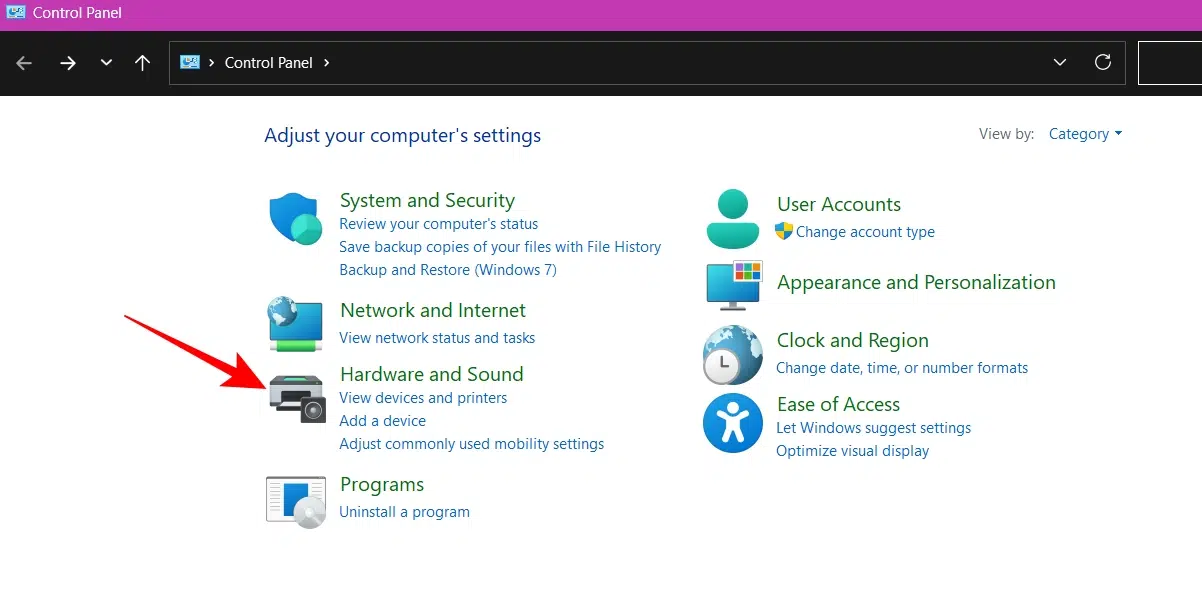
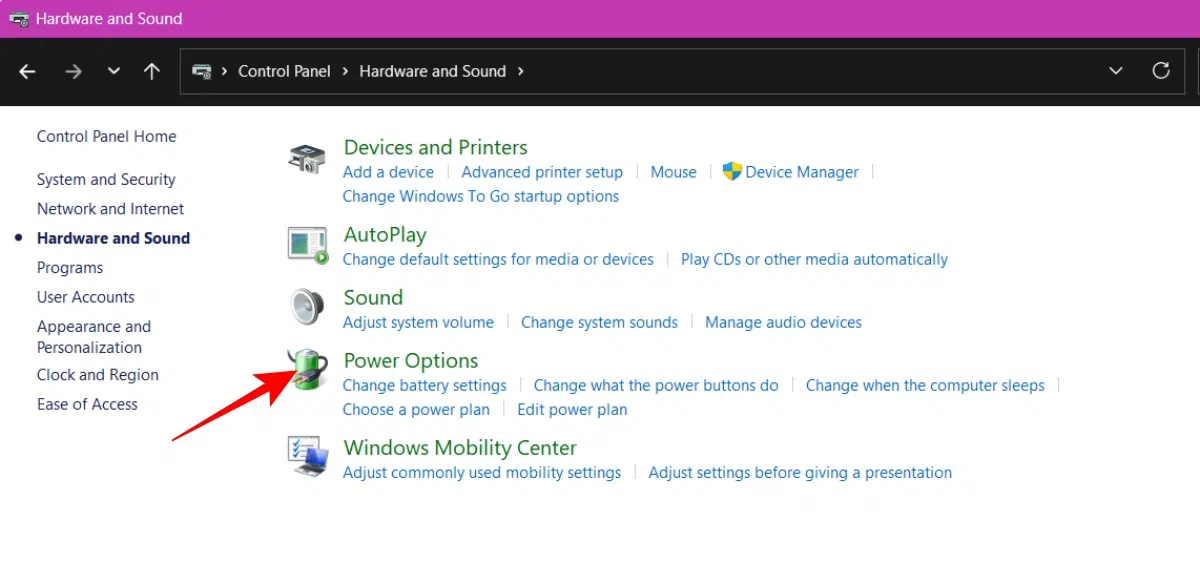
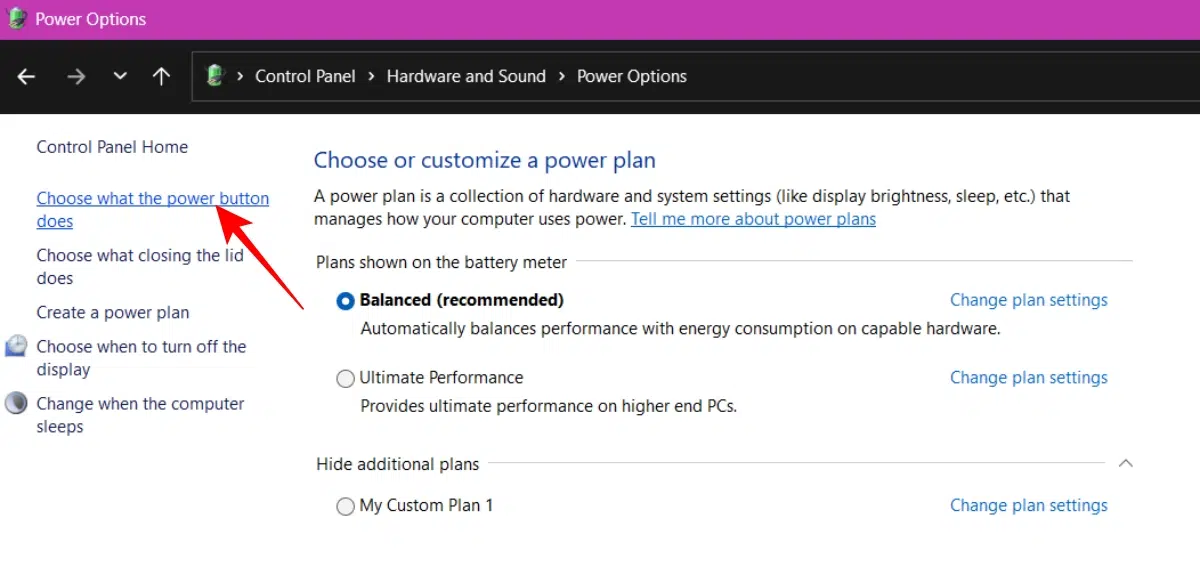
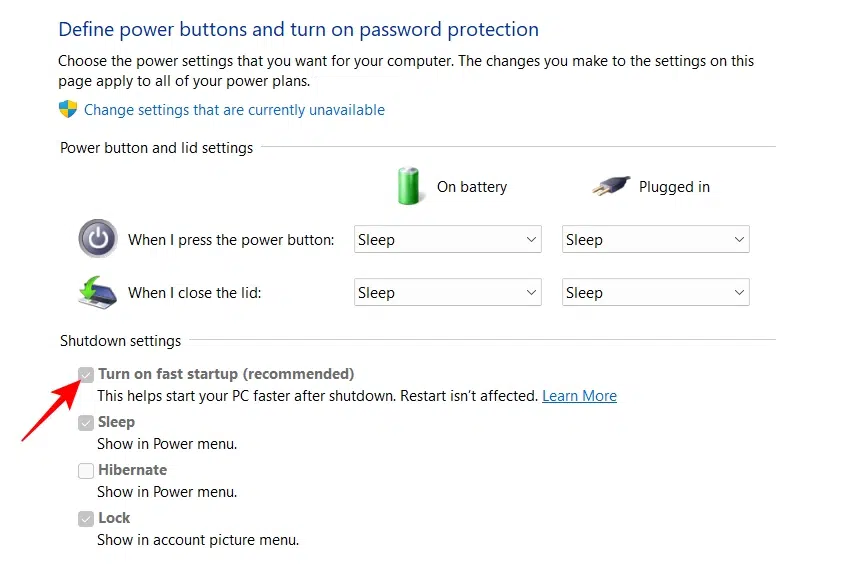
If the checkbox is selected, Fast Startup is enabled. It determines whether a normal shutdown uses the faster hybrid shutdown behavior.
If you prefer a traditional full shutdown, you have a few options.
This is the simplest option if you want your Windows 11 PC to perform a complete shutdown every time.
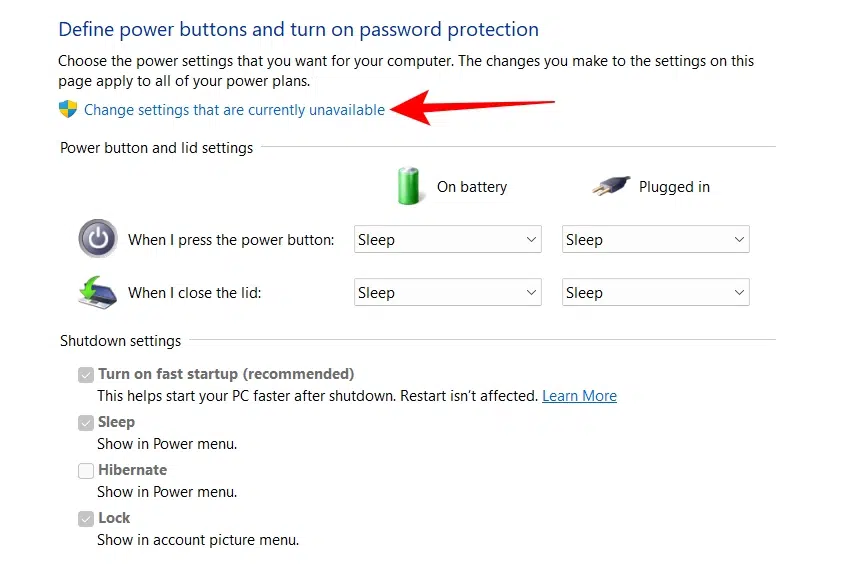
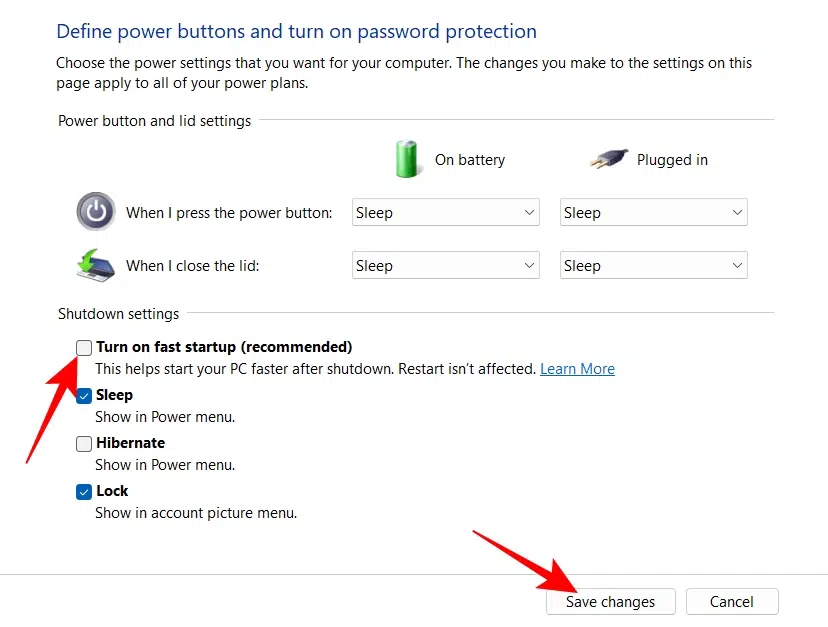
From that point on, Windows won’t save the kernel session during shutdown. That means every time I click Shut Down, my PC gets a more traditional, complete shutdown.
If you don’t want to disable Fast Startup permanently, there’s a quick workaround.
This gives you a convenient way to bypass Fast Startup when you want a full shutdown without permanently changing the setting.
If you’re comfortable using Windows commands, you can also perform a full shutdown directly.
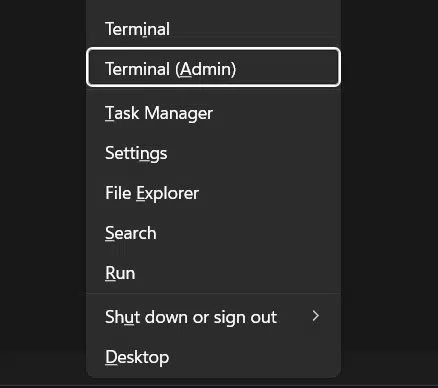
shutdown /s /f /t 0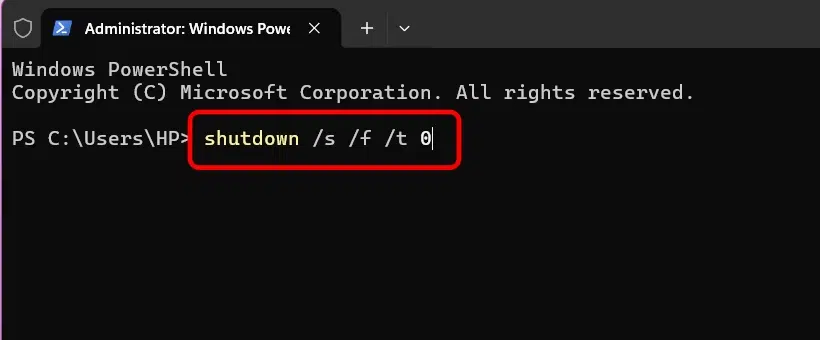
This tells Windows to force-close running applications and shut down immediately.
If you don’t want to disable Fast Startup permanently, this is probably the best compromise.
Leave Fast Startup enabled for normal use. But whenever your Windows 11 PC is acting strangely, choose Restart instead of Shut Down.
Before restarting, save your work, close anything important, and then deliberately select Restart.
After learning what Fast Startup actually does, I don’t think there’s one universal answer.
I would keep Fast Startup enabled if:
You may consider disabling Fast Startup if you:
Personally, I lean toward disabling it on a modern SSD-equipped PC.
Would you keep Fast Startup enabled for quicker boot times, or disable it so Shut Down actually means Shut Down? Let me know in the comments.
You might also like: