FaceTime Like a Pro
Get our exclusive Ultimate FaceTime Guide 📚 — absolutely FREE when you sign up for our newsletter below.

FaceTime Like a Pro
Get our exclusive Ultimate FaceTime Guide 📚 — absolutely FREE when you sign up for our newsletter below.


I used my iPhone’s USB-C port for more than charging, and it surprised me. Here are 5 useful things it can do that most people miss.
 ByVikhyat
The USB-C port on iPhone is easy to ignore because most people use it the same way they used Lightning, just for charging. That changed for me the moment I had to move a large video from my iPhone. Instead of sending it first to my MacBook or waiting for the iCloud upload, I plugged in an SSD, opened the Files app, and transferred it directly. The whole thing took a few seconds, and more importantly, it didn’t feel like a workaround.
That’s when it clicked. The port isn’t just for charging anymore. Once you start using it for everyday tasks, it begins to replace small things you’d normally need another device for.
Here’s everything the USB-C port on your iPhone can do.
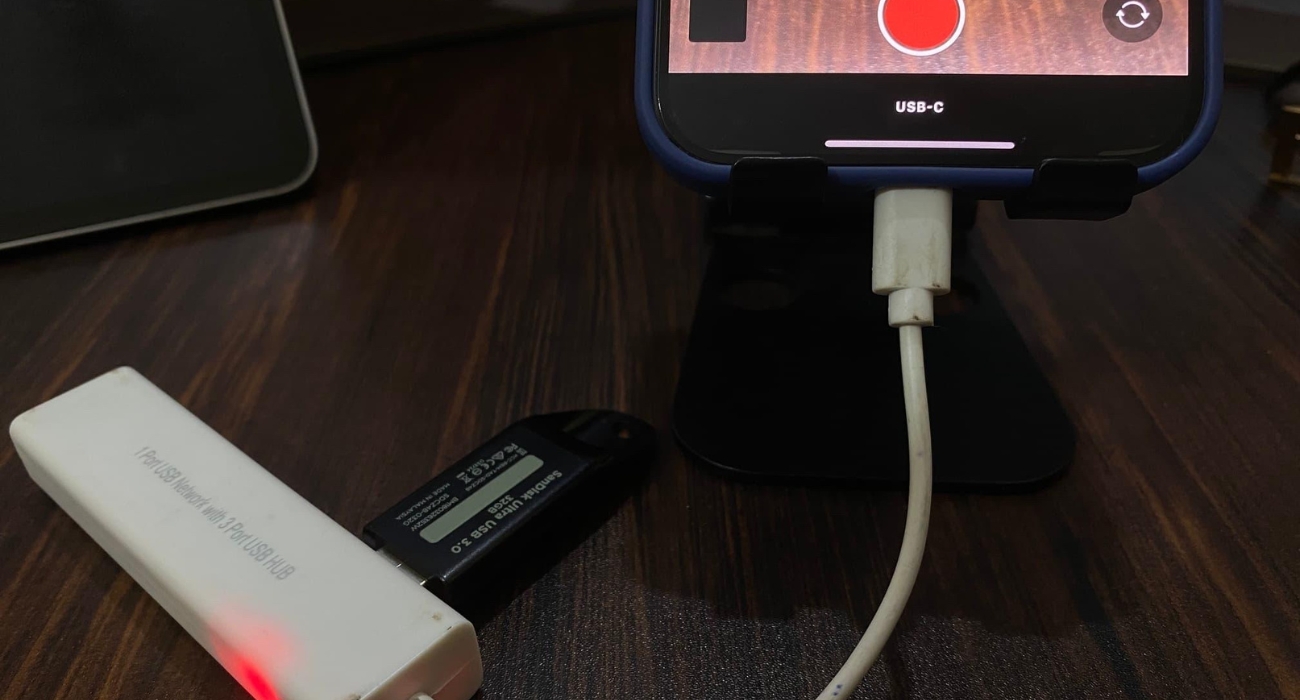
The first time this clicked for me was when I plugged in an USB-C SSD to move a large video. Normally, I’d send it to myself or wait for it to upload somewhere, which always takes longer than it should. This time, the drive just showed up in the Files app and I moved the file directly.
There’s no setup or extra step here. You plug it in, open the drive, and your files are right there. You can play them, move them, or copy them back to your iPhone without waiting around.
This ends up being useful anytime you’re dealing with bigger files. Videos, photo batches, even random documents. Instead of thinking about how to transfer them, you just plug in a drive and do it.
It also makes it easier to clear space without deleting things. If storage is getting full, you move files out and keep them on the drive instead of figuring out what to remove permanently.
Casting sounds easy until you actually try using it regularly. Some apps work fine, others don’t show the cast option at all, and even when it connects, there’s always a chance it drops or lags mid-playback.
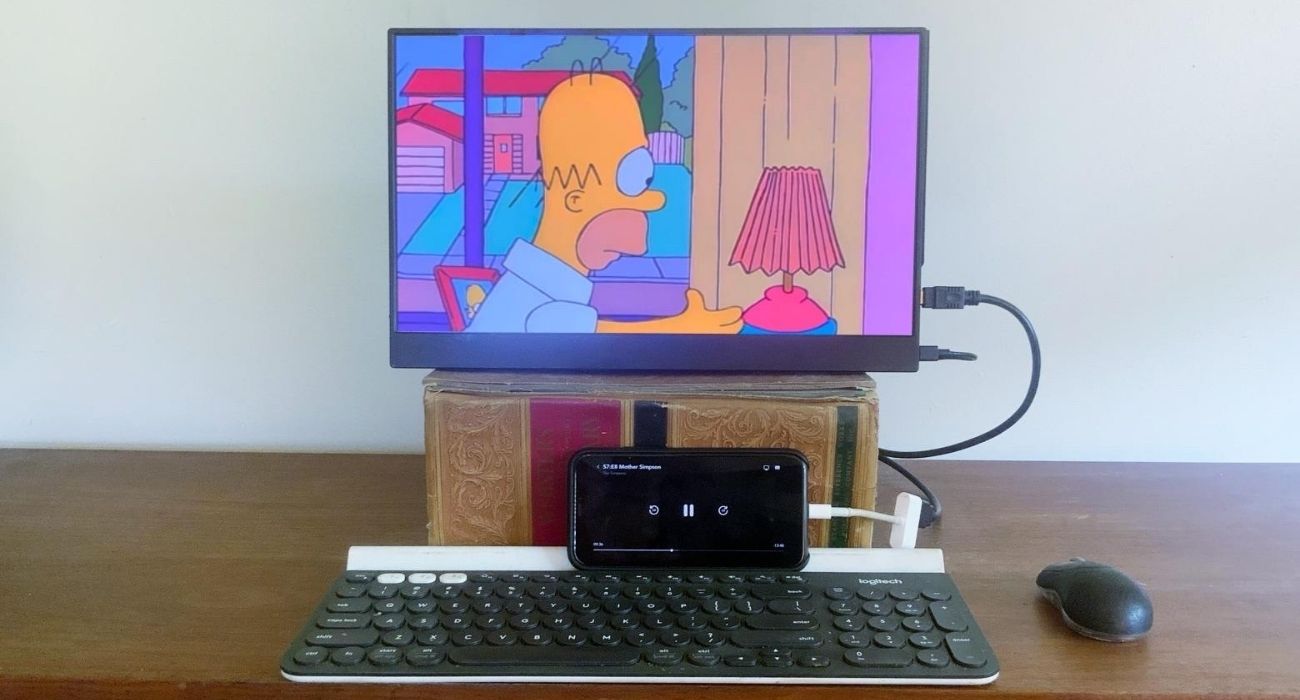
I ran into this with a few apps that don’t have proper TV support. Instead of figuring out why casting wasn’t working, I just plugged my iPhone into the TV using a USB-C to HDMI adapter. The screen showed up instantly and stayed stable the entire time.
Once you have the adapter, the setup is straightforward. Connect it to your iPhone, plug in the HDMI cable, and whatever is on your screen mirrors directly to the TV or monitor.
It’s not just for watching videos either. I’ve used it to show photos, quickly present something, or even check documents on a bigger screen where things are easier to see.
What stands out is consistency. No lag, no random disconnects, no guessing if it’ll work this time. You plug it in, and it just works.
The iPhone supports wired reverse charging through its USB-C port, so it can send power to other devices when needed.
This usually comes into play in situations you don’t plan for. Plug in your AirPods, another phone, or even a smartwatch, and charging starts immediately without any setup.
I’ve used it most often with accessories. When my AirPods run out during the day, connecting them to the iPhone for a few minutes is enough to get them working again without looking for a charger.
It’s not designed for long sessions or fast charging. The real value is in those short moments where you just need enough battery to continue using your device without interruption.
It ends up being less of a feature you think about and more of a quick fix that works when you need it.
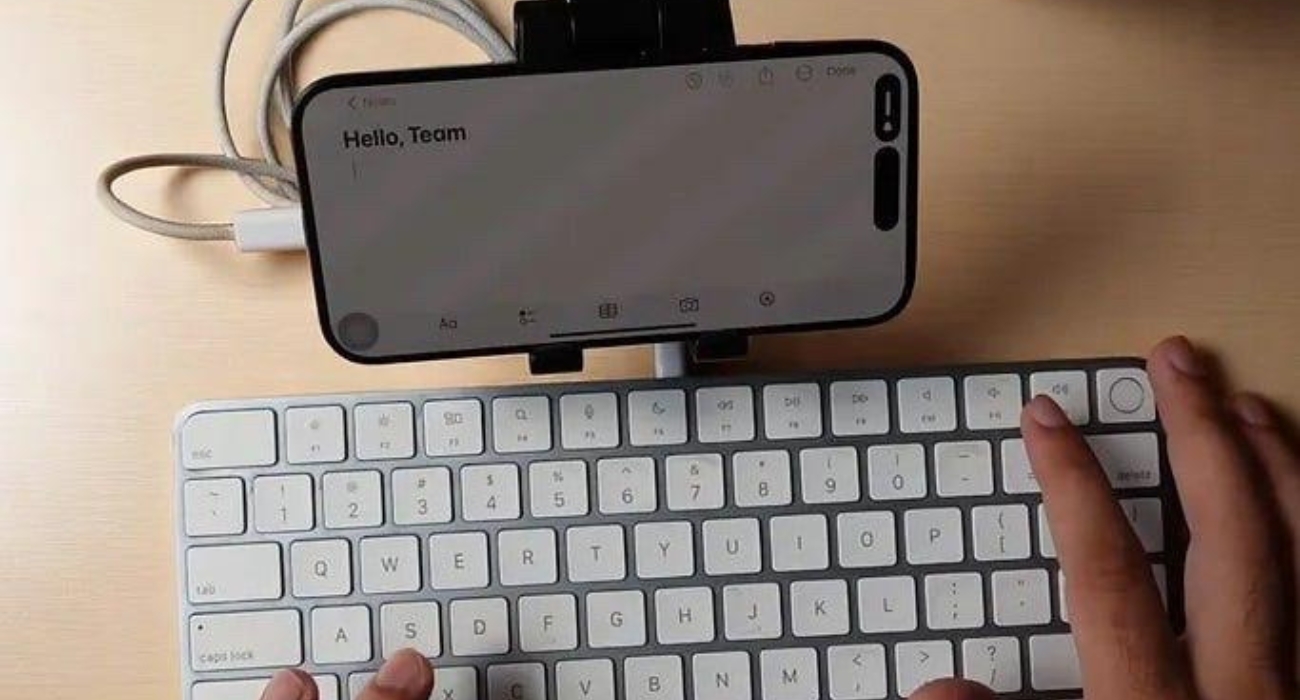
The USB-C port starts to matter more when you connect accessories that change how you use the iPhone day to day.
A keyboard was the first thing. Typing longer stuff on the screen gets tiring, so I plugged one in and it immediately felt easier. You don’t think about it much after that, you just use it whenever you have to write something longer.
Same with a mouse. Not something I use all the time, but in certain apps it just makes things simpler, especially when you’re trying to move around or edit something quickly.
The gaming controller thing came out of frustration. Touch controls were messing up inputs in one game, so I tried plugging my PS5 controller in. That fixed it right away. You’re not blocking the screen with your fingers, and everything just feels more controlled.
I’ve also tried an external mic once while recording, and the difference was obvious. It’s not something I use daily, but when you need better audio, being able to just plug it in without any setup makes it easy to rely on.
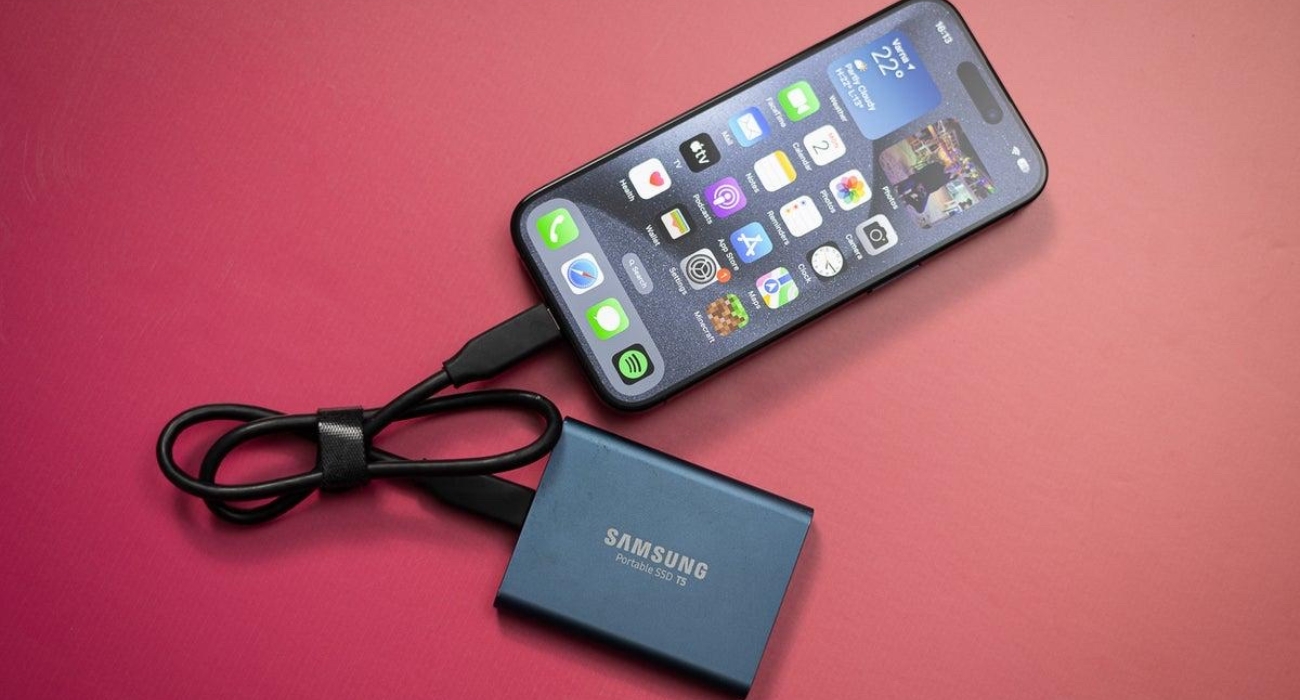
I used to avoid moving large files unless I really had to. Sending a big video over AirDrop or waiting for it to upload always felt unpredictable. Sometimes it worked, sometimes it didn’t, and you’d end up doing it again.
With a cable, that whole thing goes away. You plug it in and move the file. No waiting around to see if it completes, no retrying halfway through.
The biggest difference isn’t just speed, it’s that you stop thinking about it. If something needs to be moved, you just do it instead of putting it off.
The USB-C port on the iPhone doesn’t change how the device looks, though it changes how much you can do with it without relying on anything else. Each of these uses might seem small on its own, yet together they reduce the need for workarounds and make the iPhone more capable in everyday situations. Once you start using the port beyond charging, it becomes less about the hardware itself and more about the convenience it adds across different tasks.
What’s the most useful thing you’ve used your iPhone’s USB-C port for? Tell us in the comments.