FaceTime Like a Pro
Get our exclusive Ultimate FaceTime Guide 📚 — absolutely FREE when you sign up for our newsletter below.

FaceTime Like a Pro
Get our exclusive Ultimate FaceTime Guide 📚 — absolutely FREE when you sign up for our newsletter below.


Your iPhone counts steps whenever it is on you, no watch required. Here is how step tracking works, how to set it up in Health and Fitness, and the third-party apps worth considering.
 ByVikhyat
Think you need an Apple Watch to count your steps? Think again. Your iPhone has a built-in step tracking feature that works surprisingly well, without the need for extra devices or subscriptions. Whether you’re chasing fitness goals or simply curious about your daily movement, your iPhone is fully capable of tracking your steps on its own.
Keep reading to learn how you can track and maintain a detailed record of your daily step count using your iPhone.
Starting with the iPhone 5S, Apple began including a dedicated motion coprocessor known as the M-series chip in every iPhone. This chip works with the phone’s accelerometer and gyroscope to detect motion, such as walking, running, and even stair climbing.
All this tracking happens automatically in the background. As long as your iPhone is with you in your hand, pocket, or bag, it records your steps without needing an Apple Watch or fitness tracker.
To begin tracking steps, make sure the required permissions are enabled:
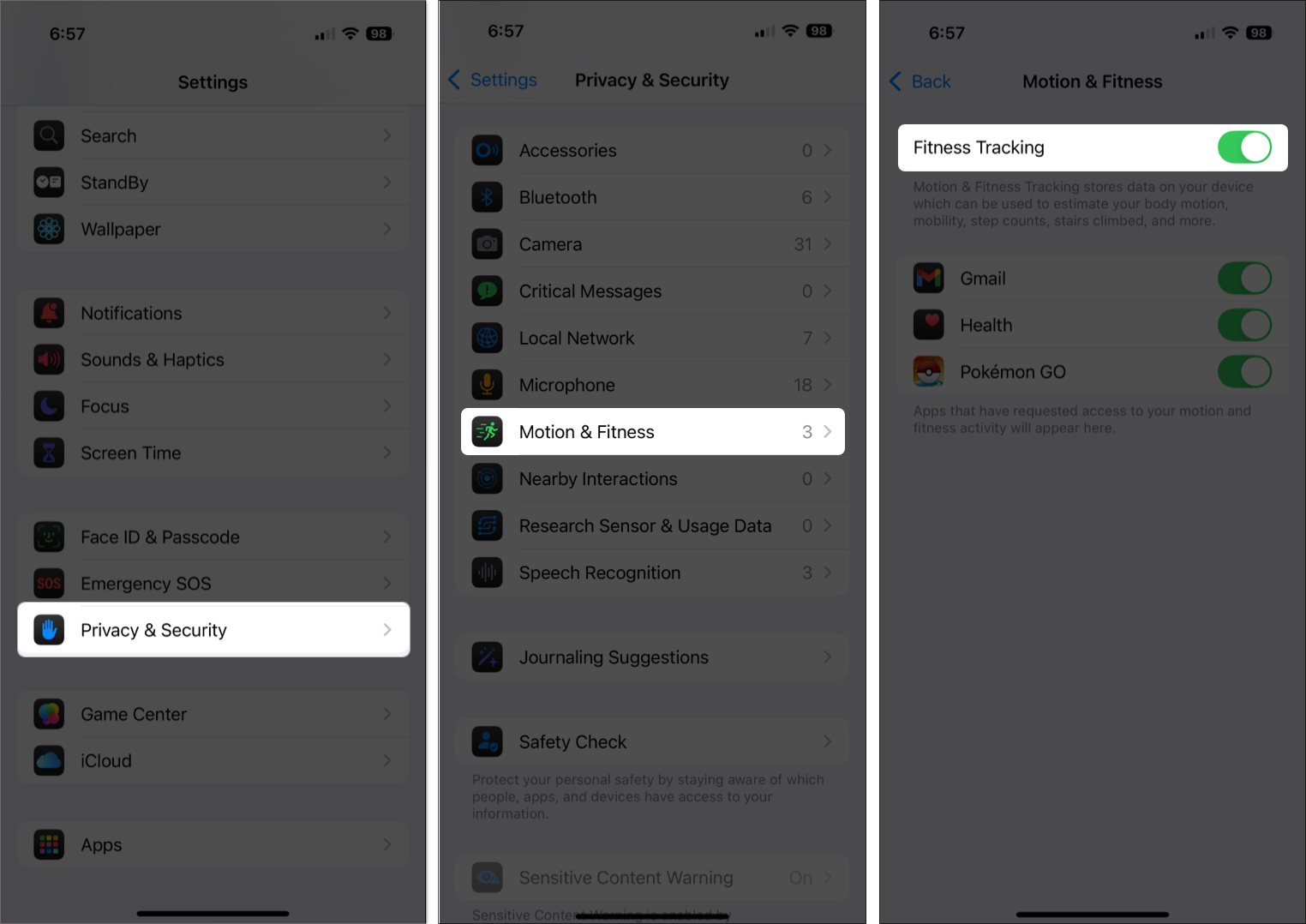
Once this is set up, your iPhone will automatically begin tracking your steps whenever it’s with you.
The Health app on your iPhone offers a detailed view of your activity. Here’s how to use it:
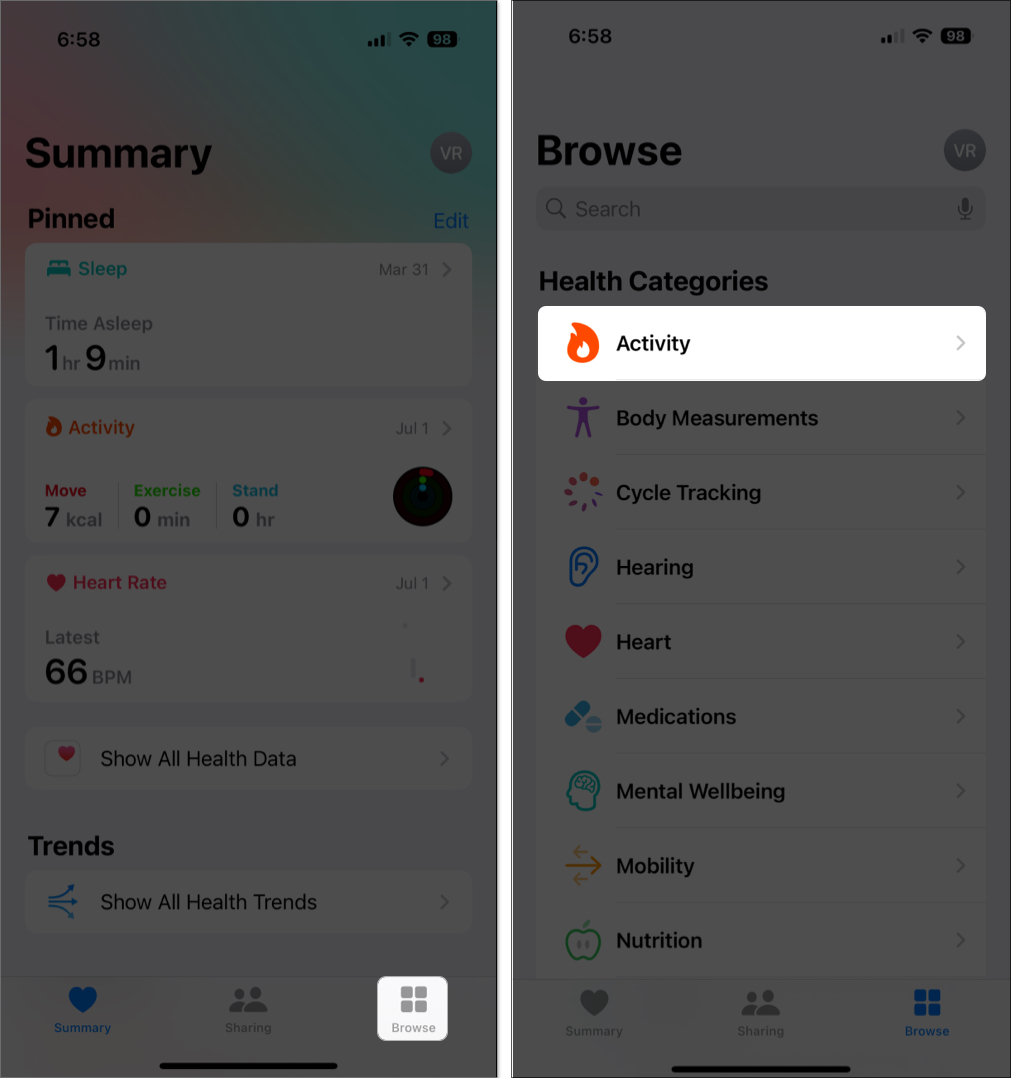
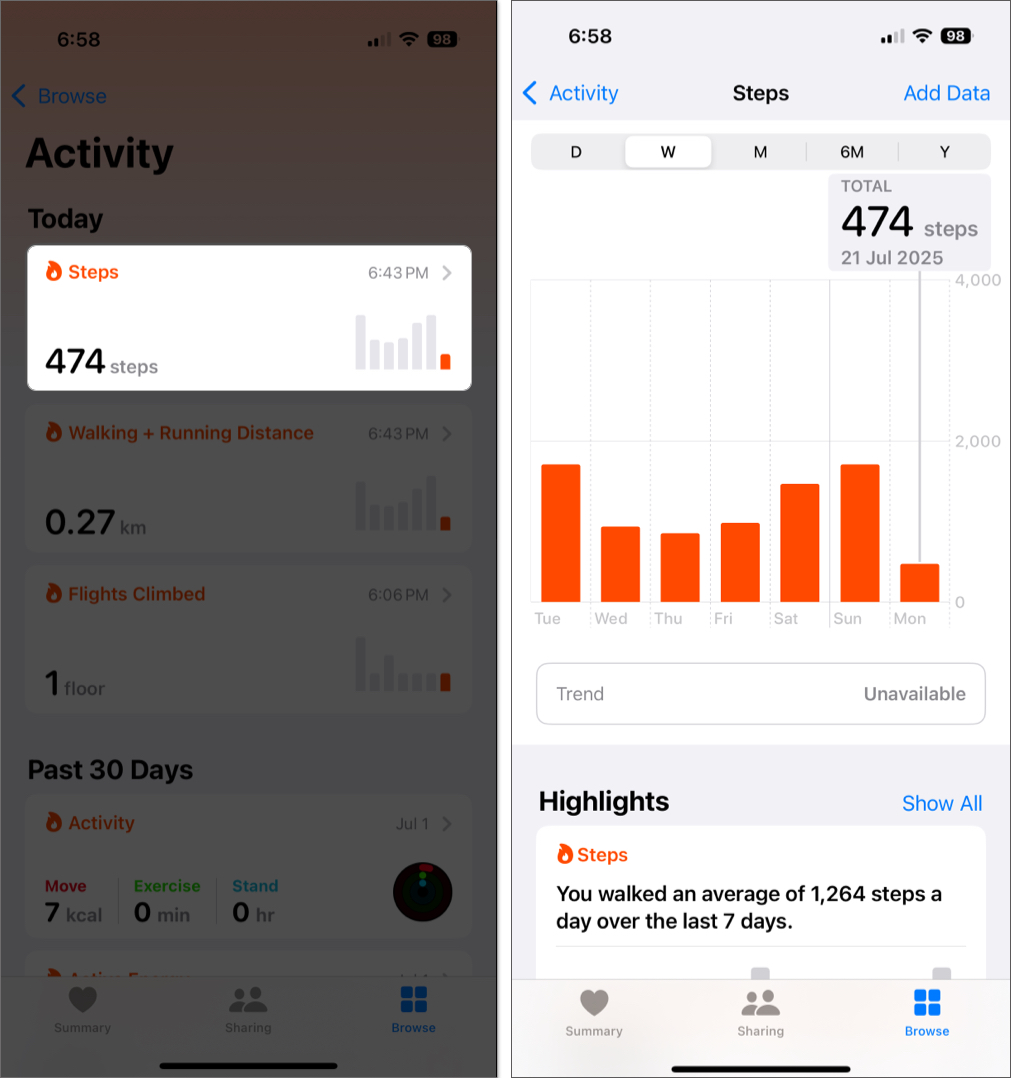
If the Health app detects a downward trend in your step count, it may suggest simple ways to increase steps, such as taking a walk during lunch breaks or parking further from your destination.
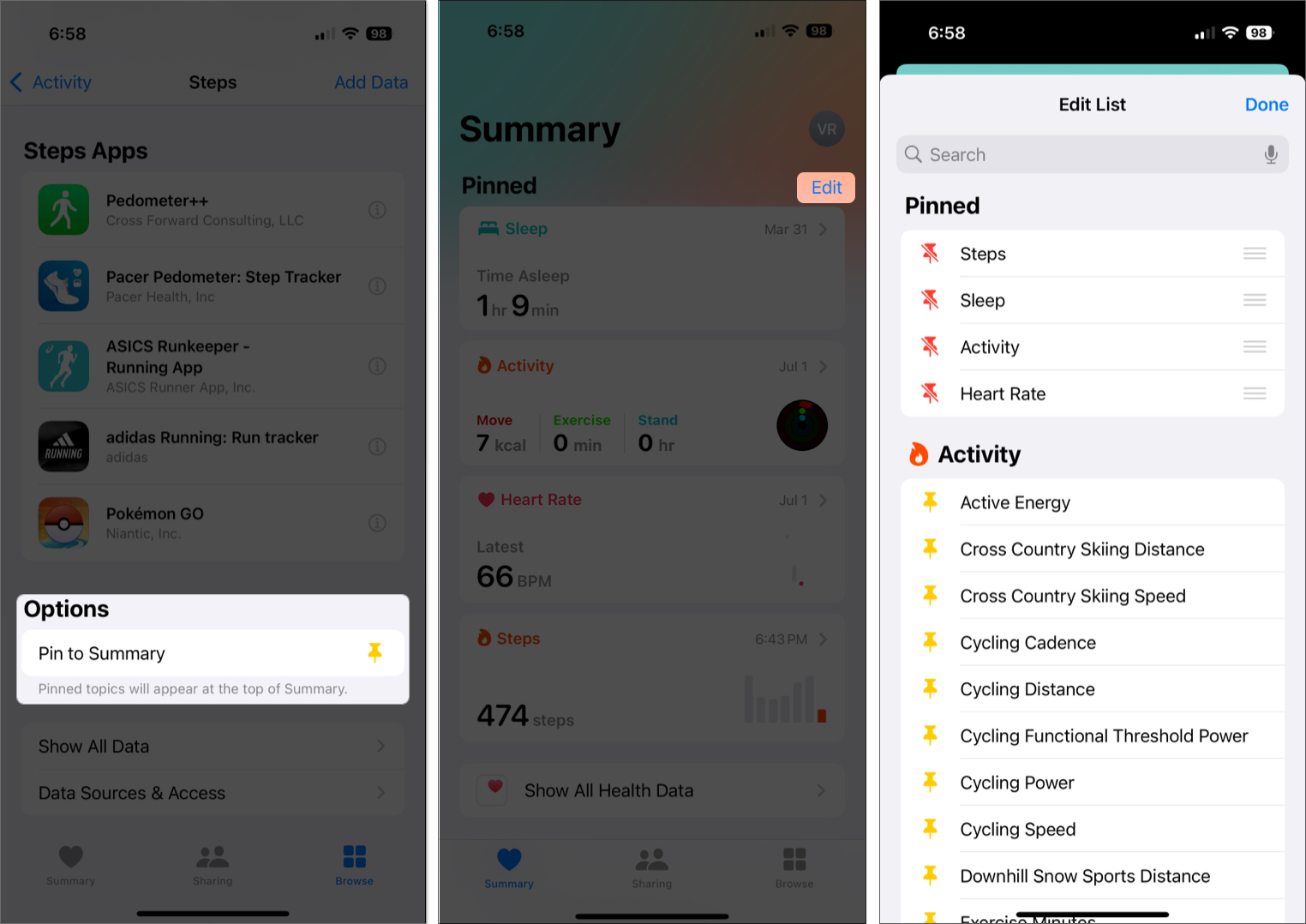
Moreover, if navigating to steps in the Health app feels tedious, you can add steps to your Favorites, and your daily step count will appear on the Home Screen (Summary tab) of the Health app for quick access. Here’s how:
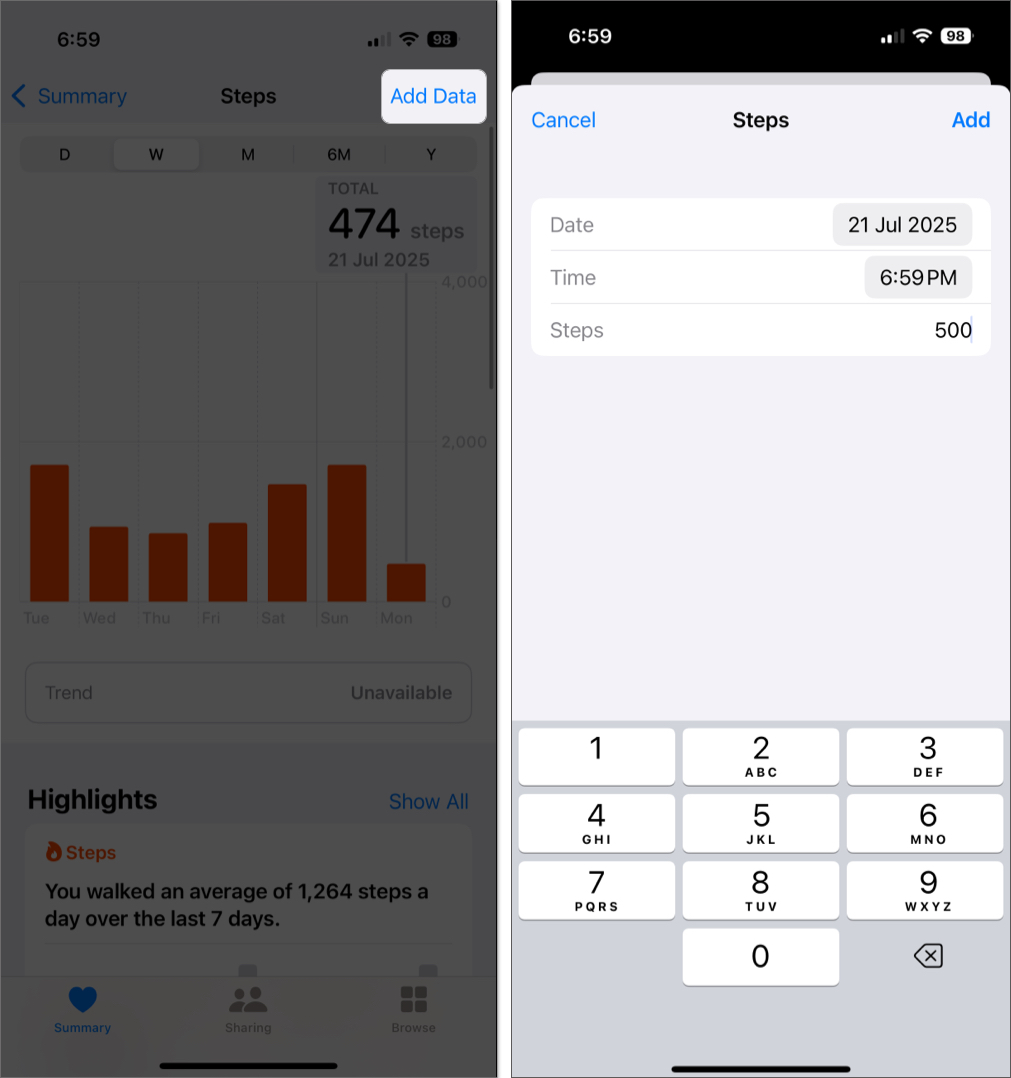
If you went on a hike or exercised without your phone, you can add steps manually:
The Fitness app complements the Health app by offering a more visual and goal-driven approach to tracking your activity.
If it’s not already installed, you can download it from the App Store. Once set up:
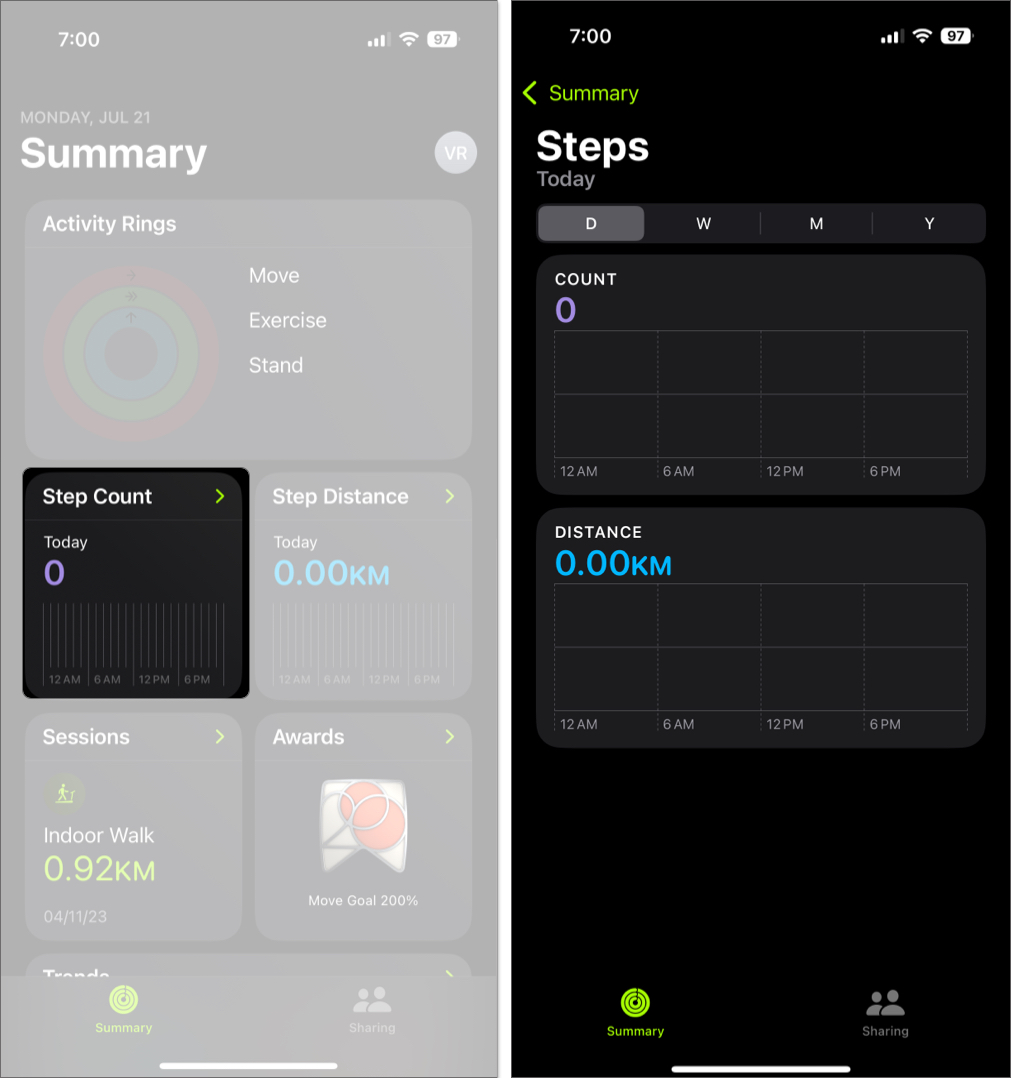
Besides letting you view your daily steps, the Fitness app offers a modern interface to set a daily Move goal, visualize your progress with activity rings, and access in-depth statistics. Furthermore, it also allows you to compete or share progress with friends for support and motivation.
If you’re looking for more features, customization, or community-based tracking, several free third-party health apps are worth exploring. Here’s how a few top options compare:
| App | Pacer | StepsApp | Google Fit |
|---|---|---|---|
| Step Tracking | Automatic with iPhone sensors – no need to start walks manually | Instant step tracking with daily/weekly/monthly charts | Tracks steps automatically with cross-device sync |
| Highlights | Join challenges, walking groups, and get community motivation | Set goals, receive notifications, and use widgets | Set step/heart point goals and analyze trends |
| User Interface | Trend-focused with community dashboard | Clean, customizable themes and voice-over support | Minimalist, clean interface with easy goal tracking |
| Integration | Syncs with Apple Health | Syncs with Apple Health and Apple Watch (if available) | Bi-directional sync with Apple Health and Android devices |
| Privacy & Battery | Uses only motion sensors (no GPS); low battery impact | Minimal battery usage; no account needed | Privacy-focused; default to motion sensors, data linked to Google account |
Here’s how to fix common issues if step tracking is not working properly:
| Issue | Possible Cause | Solution |
|---|---|---|
| iPhone is not counting any steps | Motion tracking is disabled | Go to Settings → Privacy & Security → Motion & Fitness, enable Fitness Tracking and Health |
| Step count is stuck or outdated | Health app permissions are missing | Check Settings → Health → Data Access & Devices, ensure apps have proper access |
| Step count seems inaccurate | iPhone was not on your person during walking | Keep the iPhone in your pocket, hand, or bag while walking |
| Step tracking suddenly stopped | Temporary system glitch | Restart your iPhone to refresh motion tracking sensors |
| No steps are showing in a third-party app | App is not synced properly with Health | Open the third-party app → Check sync settings → Reconnect Apple Health |
Now you know how to use your iPhone as a reliable step tracker. Once motion tracking is enabled and your phone is with you throughout the day, you can view your stats anytime using the Health or Fitness apps.
Do you have a favorite step-tracking tip or app? Share your experience with us. We’d love to hear how you stay active.
FAQs
Yes, it’s generally accurate for everyday walking. However, if your iPhone is in a loosely placed bag or not on your person, some steps might not be recorded.
Yes, your iPhone needs to be with you—ideally in a pocket, waistband, or hand—to detect motion and track steps correctly.
The Health app gathers and stores your health data, such as steps, vitals, and activity trends. The Fitness app, on the other hand, focuses on motivating you to stay active by helping you close your daily Move ring and visualize your progress in a more dynamic way.
You may also like to check out: