FaceTime Like a Pro
Get our exclusive Ultimate FaceTime Guide 📚 — absolutely FREE when you sign up for our newsletter below.

FaceTime Like a Pro
Get our exclusive Ultimate FaceTime Guide 📚 — absolutely FREE when you sign up for our newsletter below.


Secure folders on Mac with Disk Utility and Terminal. Learn to encrypt, hide, remove passwords, and pick the best protection method.

 ByAnkur Thakur and Vikhyat
Having your important folders password-locked ensures your private and sensitive files are secured from unauthorized access if you often share your Mac with others. But unlike Windows, macOS doesn’t offer a direct “password-protect folder” option. However, a few workarounds that use the built-in Disk Utility and Terminal to protect any folder with a password do exist.
This post details multiple methods to password-protect a folder on your Mac.
Privacy, confidentiality, and security are typically the three main reasons to password-protect folders on a Mac:
There are three ways to password-protect a folder on your Mac: using the Disk Utility app, via the Terminal window, or through third-party apps.
You can use the Disk Utility tool on your Mac to create a disk image of the folder you want to password-protect.
For those unaware, a disk image is a special file (with the .dmg extension), that acts like a virtual hard drive. When you double-click to open it, you’re required to enter the password. Once done, it mounts on your desktop like an external drive, giving you access to its content. When you eject the drive, the files inside become invisible, and anyone attempting to open it must enter the password.
With that said, here’s how you can create a disk image of a folder using Disk Utility on your Mac:
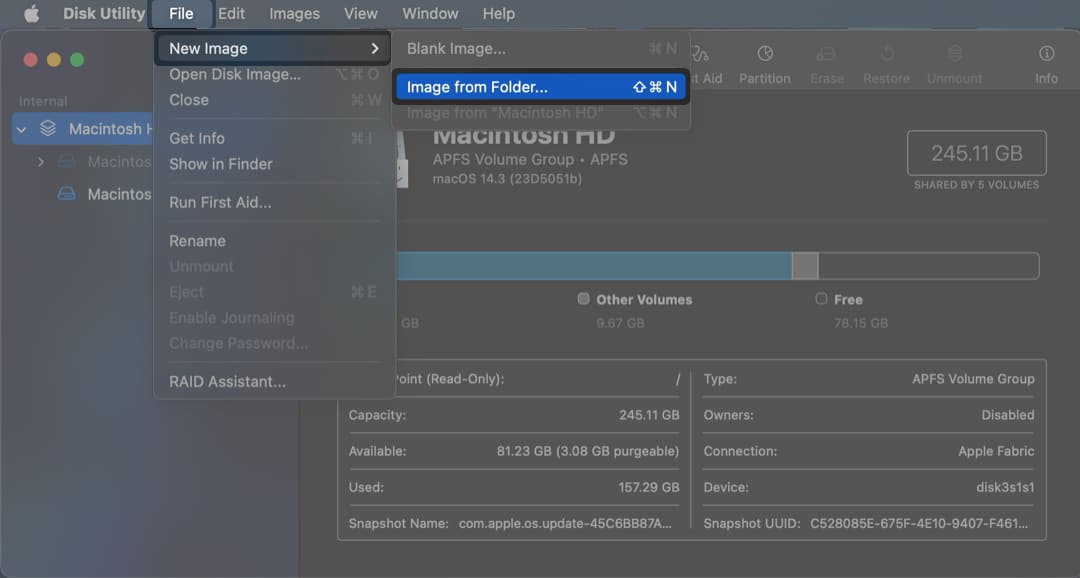
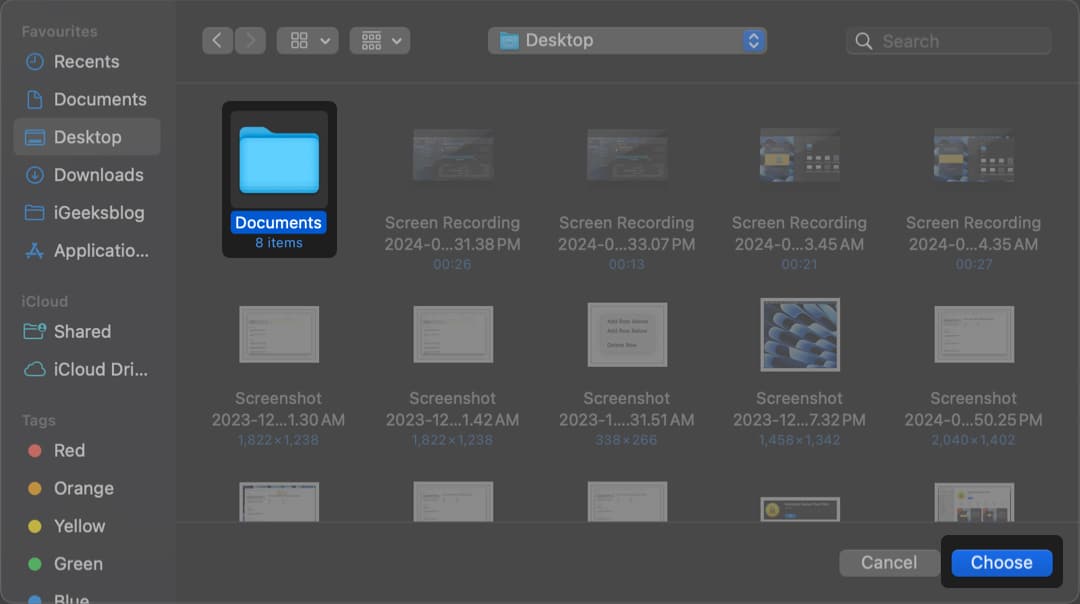
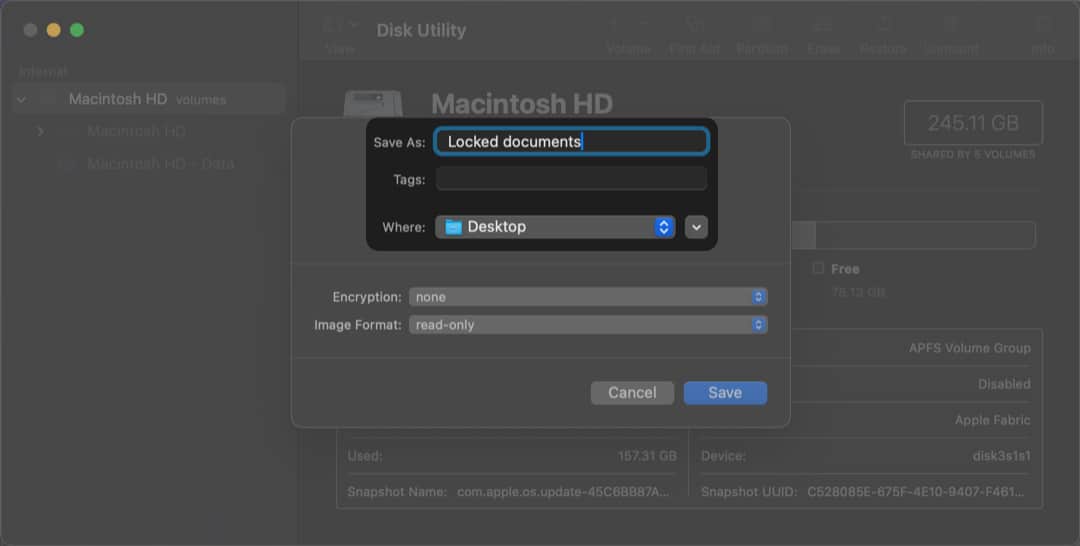
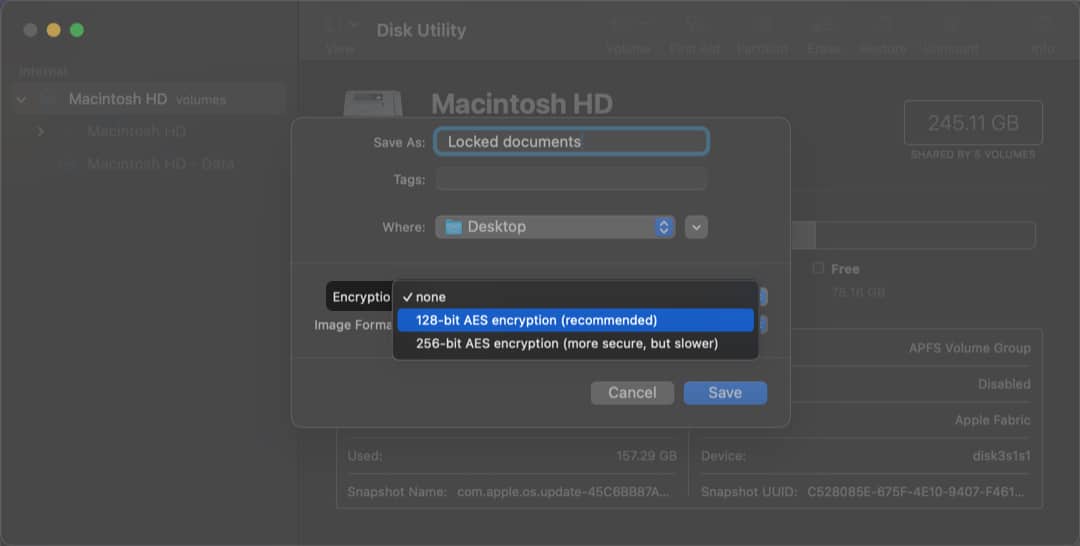
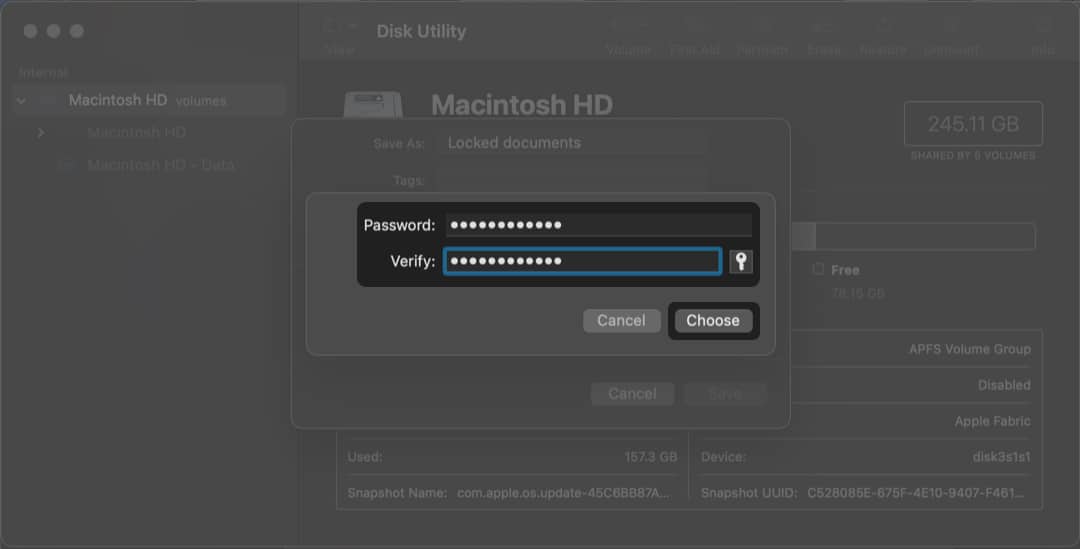
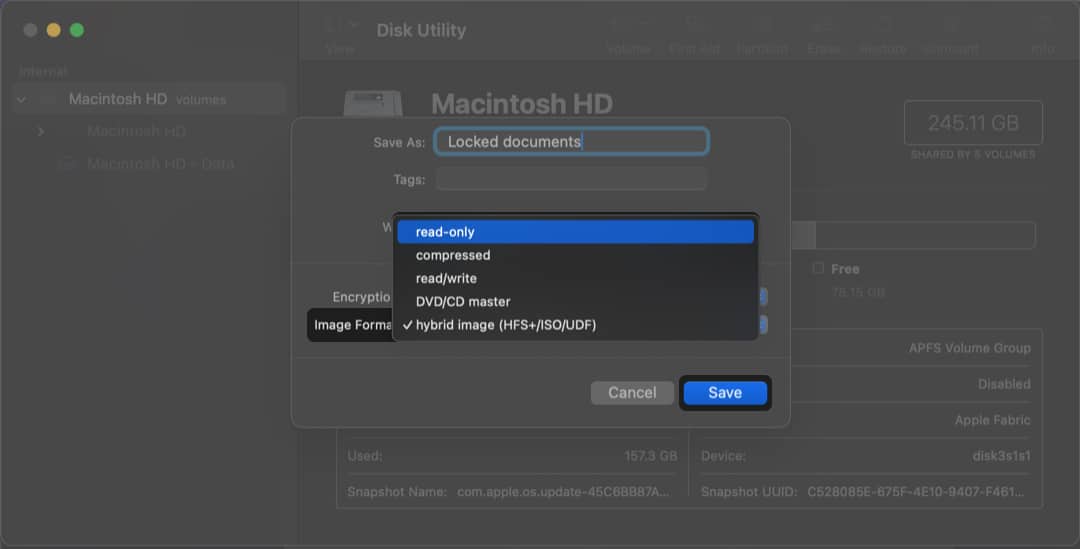
Once the .dmg file is ready, you can delete the original folder. To access your files in the future, double-click the disk image, enter the password, and it will open like a secure drive.
If ejecting the disk image every time you close it feels like a hassle, and you’re familiar with Terminal commands, you can use the Terminal window to create a password-protected ZIP file of the folder instead. Here’s how:
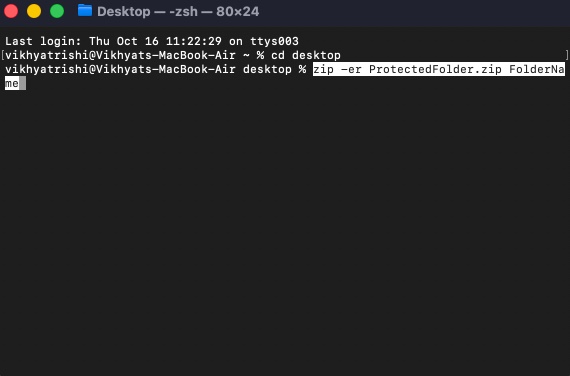
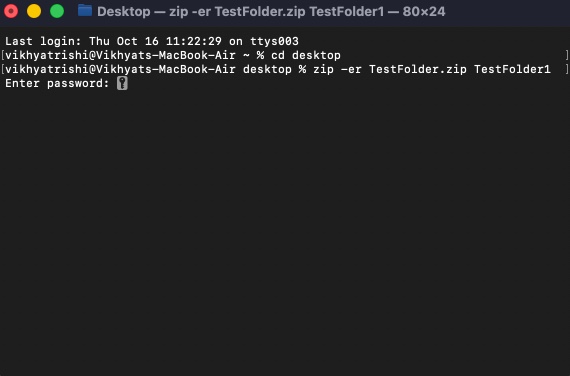
This creates a password-protected ZIP file. You’ll need to enter the password whenever you unzip it.
Now, you can either delete the original folder if you no longer need it or save it somewhere safe away from prying eyes.
Not everyone is good at writing Terminal commands; even one wrong character can wreak havoc in the system. If you prefer a simpler interface or extra features, consider trying third-party apps like Privaulty, Hider Pro, or Encrypto.
These apps make it easy to lock files and folders, but may come with a cost. Since macOS already provides Disk Utility and Terminal, many users stick with the built-in options.
If password-protecting a folder natively on Mac feels complex and you don’t wish to spend on third-party apps, another simple way to keep files out of sight is to hide the folder using Terminal. While this doesn’t provide actual security like password protection, it’s useful for keeping sensitive files away from casual snooping. Here’s how you can do it:
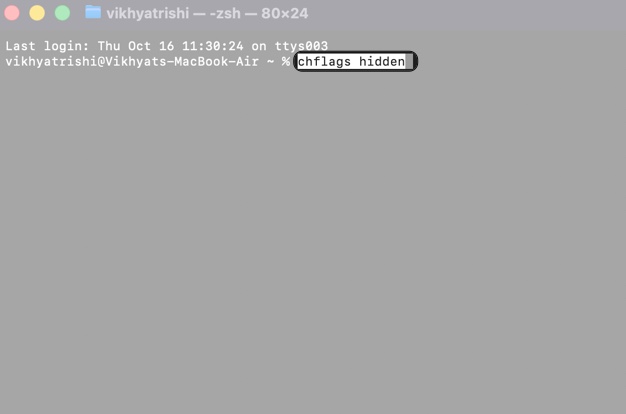
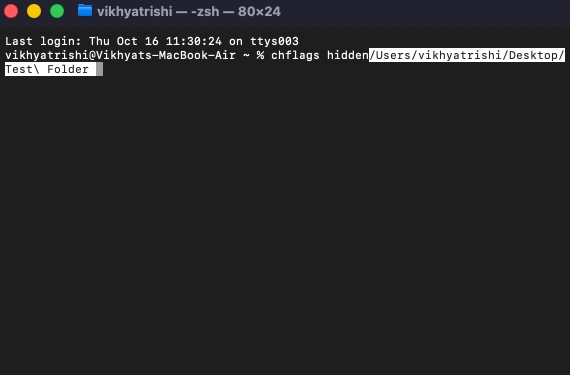
To view the hidden folder:
To permanently unhide the folder, simply replace the ‘chflags hidden’ command with ‘chflags unhidden‘ and hit Return.
Now that you know how to password-protect your files and folders on a Mac, use these tips to manage them:
And that’s it; now you know how easy it is to password-protect a folder on a Mac once you know which tool to use and how. Disk Utility is the most secure option, while Terminal offers a quick solution for creating encrypted ZIP files. For a user-friendly experience, consider opting for third-party apps.
Which method do you prefer for securing your folders on Mac? Let us know in the comments.
FAQs
Yes. macOS includes built-in tools like Disk Utility and Terminal that let you create encrypted disk images or compress folders without relying on third-party apps. Disk Utility is the most secure option for password protecting a folder.
No. If you lose or forget the password for an encrypted disk image, there’s no built-in way to recover it. Apple doesn’t provide a password reset option for encrypted folders, so it’s important to store your password securely (e.g., in the Password app).
You can create a new larger disk image and transfer the contents of the old one to it. Currently, macOS doesn’t allow direct resizing of encrypted disk images. When creating the new image, select a larger size to give yourself room for future files.
Both are secure. 128-bit AES encryption is faster and sufficient for most users. 256-bit AES encryption provides a higher security level but may slightly reduce performance. If you’re protecting highly sensitive data, 256-bit is the better choice.
Yes, as long as they have the .dmg file and know the correct password, they can open the encrypted folder on any Mac. macOS handles the decryption process natively, so no additional software is required.
Also read: