What’s new in macOS 26 Clock: The native Clock app brings alarms, timers, and stopwatch to Mac, replacing workarounds and keeping tools in one place.
Why use a Mac alarm: Staying focused at the keyboard is easier with on Mac alerts, but alarms ring only when your Mac stays awake.
Create an alarm in Clock: Open Clock → Alarms, tap plus, set time, repeat, label, sound, and snooze, then Save to schedule it.
Manage existing alarms: In Clock, toggle alarms on or off, edit details, duplicate for variations, or delete entries entirely when plans change.
Alternatives and precautions: On older Macs, use Calendar alerts, Reminders, or reputable online alarms. Disable sleep or enable Power Nap, otherwise alarms won’t sound.
Ever wished your Mac could double as your personal alarm clock? Previously, it couldn’t! But macOS 26 includes a built-in Clock app so you can set alarms, timers, and a stopwatch without any workarounds.
In this guide, I’ll show you exactly how to set an alarm on your Mac and share a few handy tips if you want some advanced options.
You already have an iPhone (or phone) with an alarm, so why bother on your Mac?
Because sometimes you want your workstation to wake you up, or remind you while you’re in “deep work mode.” Also, when your Mac is right in front of you, it’s nice to have the reminder pop up there instead of reaching for your phone.
How to Create an Alarm on Mac Clock app
If your Mac is running macOS Sequoia or later, you can set alarms directly in the native Clock app.
From the Spotlight search, launch the Clock app.
Move to the Alarms tab and click the plus button in the top-right corner.
A little pop-up window appears with the time setup.
Time: Set the hour & minute you want the alarm to ring
Repeat: Choose days (Mon, Tue, Wed…) if you want it to recur
Label: Name your alarm (e.g., “Tea time”)
Sound: Pick a tone or alert sound
Snooze: Enable it to let you delay the alarm when it rings
Snooze Duration: Decide how long the snooze lasts (e.g., 5 min)
Once done, click Save to confirm.
Now you have an alarm listed in your Alarms tab.
Edit an Existing Alarm on Mac
Similar to the iPhone, you can edit any alarm on your Mac.
Go to the Clock app > Alarms tab.
Click on the alarm you want to change.
Adjust settings like it’s time, label, sound, etc. and hit Save again.
Turn an Alarm Off or Disable It Temporarily
When an alarm goes off, you will see a notification. On the alarm banner, click Options and then Stop. The alarm switches off till the next planned time.
You can also disable an alarm before it activates, preventing it from warning you until you turn it back on. For example, I have a daily alarm for work meetings. However, I disable it when on leave.
In the Alarms tab, you’ll see a switch below each alarm.
Slide it to turn off. This disables the alarm until you turn it back on.
Delete an Alarm on Mac Clock app
If you no longer need an alarm, you can quickly remove it to clear the clutter:
In the Alarms list, hover over the alarm you want to delete.
A small Remove (✕) button will appear in the top-left of the alarm tile. Click that to delete.
Alternative Methods to Set Alarms on Mac
Maybe your Mac is older and doesn’t support the built-in Clock (pre-Sequoia era), or you prefer something more customized. Here are a few alternate methods.
Method 1: Using the Apple Calendar Events
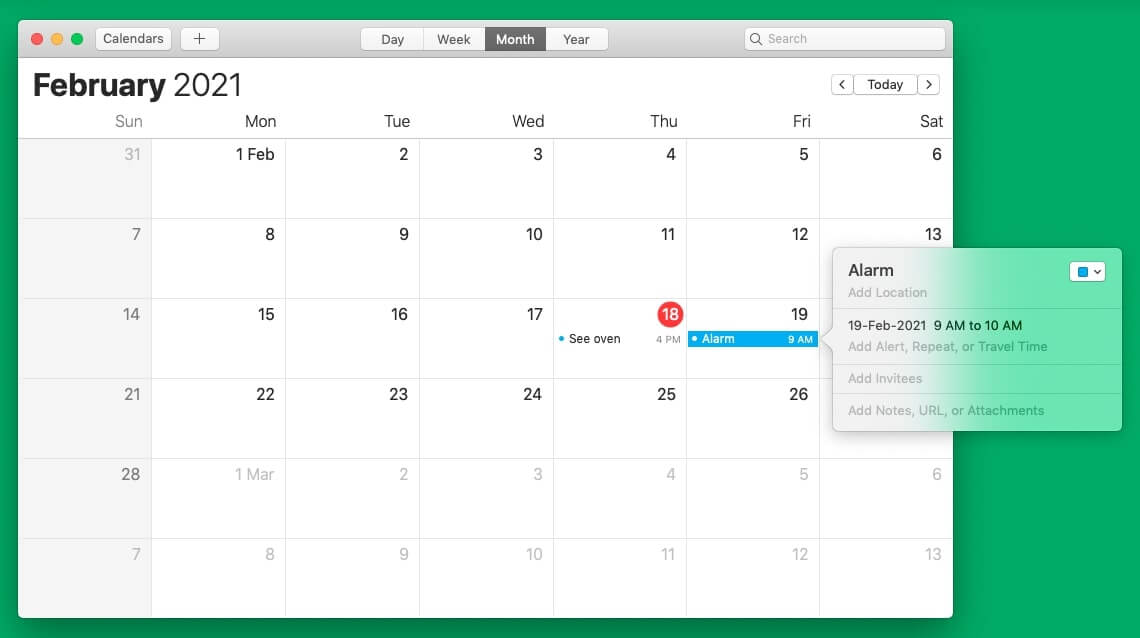
Calendar event alerts on Mac are subtle. You will see a notification in the top-right corner and hear a faint one-second sound. This is more like a timer than an alarm, but it can be useful at times.
Open the Calendar app on your Mac.
Click ‘+’ icon in the top toolbar.
Type your event details in the said format. For example, type see oven at 11:58 AM today and hit the enter key. A calendar event will be created.
Now, from the pop-up, click alerts and choose one of the options. You may fill in additional information if needed.
Method 2: Set Alarm on Mac using Kuku Klok
Kuku Klok is a neat, easy-to-use online alarm clock website with multiple sounds. What’s better is that you only need internet connectivity to set the alarm. After that, the alarm will ring even if your Mac isn’t connected to the internet. Here’s how to use it.
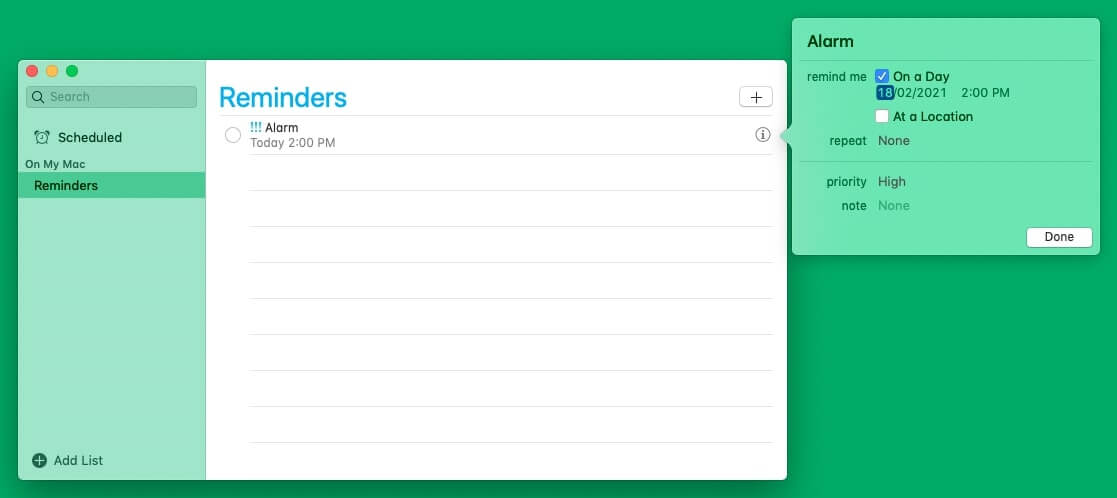
Just like the calendar app, you can use Mac’s Reminder app to create alarm alerts. This, too, shows a notification and a one-second alert sound like calendar events.
Open Reminders on your Mac and click + icon in the top-right.
Type the desired name, including the date and time you want to be reminded. For example, “Water the cactus on every Sunday at 5 PM.”
Finally, select the suggested date.
Tips and Tricks for Mac Alarms
Keep your Mac awake: If your Mac goes to sleep before the alarm time, the alarm won’t fire. Use Battery settings or apps that prevent sleep.
Volume matters: Ensure your Mac’s system volume is high enough and that the chosen alarm sound is audible.
Use distinct alarm sounds: So your brain doesn’t easily ignore them.
Don’t rely on it for critical wake-ups: If missing the alarm has big consequences, use a backup like a phone or a physical alarm.
Test it first: Set an alarm a few minutes ahead and see whether it’s working as expected.
Wrapping It Up
Setting alarms on your Mac with macOS 26 is quick, customizable, and kinda fun once you get the hang of it. No more relying solely on your phone; let your Mac handle the reminders so you can focus on the good stuff.
A self-professed Geek who loves to explore all things Apple. I thoroughly enjoy discovering new hacks, troubleshooting issues, and finding and reviewing the best products and apps currently available. My expertise also includes curating opinionated and honest editorials. If not this, you might find me surfing the web or listening to audiobooks.





 ByArshmeet Kaur and Ava Biswas